
How to Download Kindle Books to PC in 2026 (The Complete Guide)

Summary: To download Kindle books to your computer, you can use Kindle Desktop to download raw backup files, transfer books from a Kindle eReader to your PC, or download them as PDF/EPUB files using the new 2026 official method or professional tools. Read on to learn the specific steps.
Table of Contents
"How to download Kindle books? Amazon has discontinued 'Download & Transfer via USB' option."
February 26, 2025, was a day of massive disappointment for many Kindle users. Amazon officially removed the "Download & Transfer via USB" from the "Manage Your Content and Devices" page. This move means that the traditional, straightforward way to download Kindle books to PC is gone.
So, in 2026, is it still possible to download Kindle books to PC for backup or to read them freely on other devices? The answer is yes. In this guide, I will share three tested methods to download Kindle eBooks, covering the latest official workarounds, eReader hardware transfers, and professional conversion tools.
Quick Guide: Choose the Best Way to Download Kindle Books
Before we dive into the details, here is a quick breakdown of how to download Kindle books to computer based on your specific needs:
| Scenario | Choose... |
| You just want to download raw files and don't care if they can be opened on other apps. | Method 1: Download Kindle books with Kindle for PC/Mac |
| You already own a Kindle eReader and prefer to back up Kindle books via a USB cable. | Method 2: Transfer Kindle books from an eReader to PC |
| You want to download Kindle books and read them on any device or app. | Method 3: Download Kindle books to PC in PDF/EPUB format |
Method 1. Download Kindle Books to PC via Kindle Desktop
Using the official Kindle for PC/Mac is a stable way to download Kindle books to a computer. The downloads stay linked to your account, your reading progress and notes sync across devices, and you do not have to rely on unofficial tools or browser extensions. The downside is that the books saved on your PC are stored in Kindle-specific formats and protected by DRM, so they cannot be opened freely in other reading apps. Here is how to download Kindle books via Kindle for PC or Mac.
Step 1. Install and Sign in to Kindle for PC/Mac
Download and run the version of Kindle for PC or Kindle for Mac that matches your system.
Enter the same Amazon account details you use to buy Kindle books. After you log in, the app connects to the Kindle cloud and loads your library.
Step 2. Download Kindle books to your computer
Once the library is visible, use the search box or scroll through the list to find the book you want to read on your PC.
To download a Kindle book to PC, simply double-click the book cover, or right-click the cover and select Download.
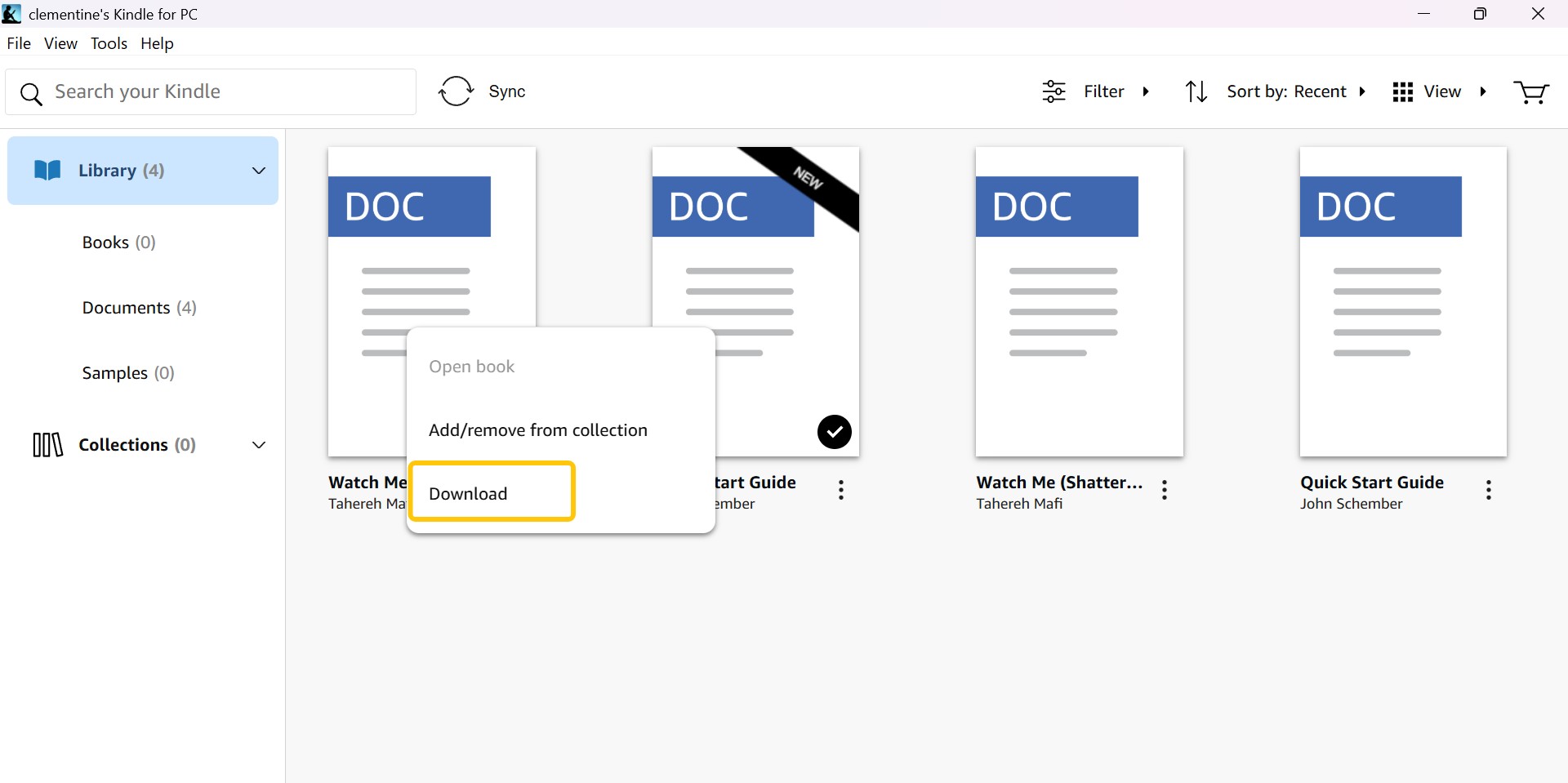
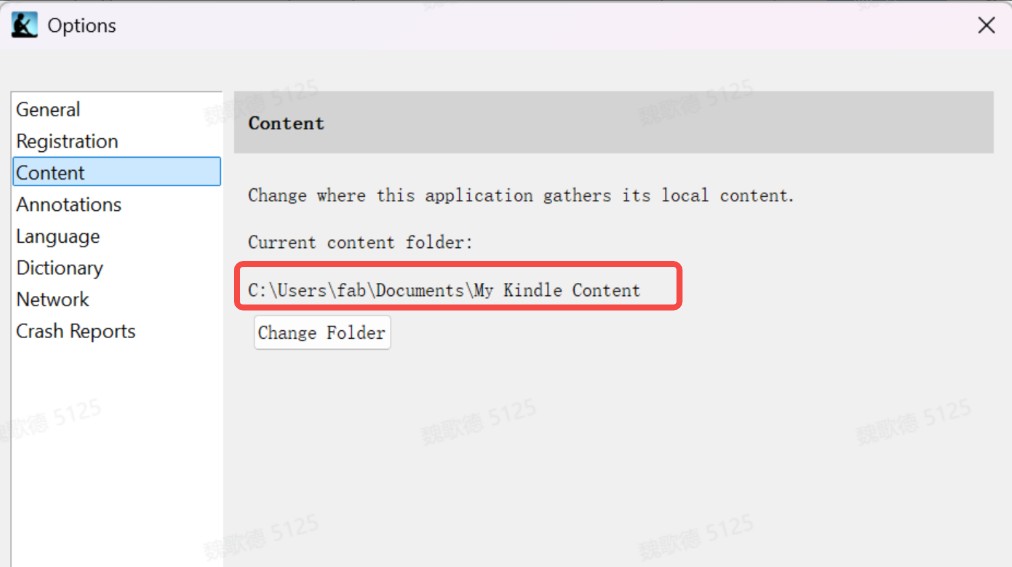
When the download finishes, the book will open in the reader window and can be read offline on that computer. But where are Kindle books stored on PC? Generally, the downloaded Kindle books are stored in the following directory: C:\Users\
Method 2. Download Kindle Books to PC via Kindle eReader & USB
If you are a regular Kindle user, you can download books directly to your device first, then use a USB cable to copy those files onto your PC. The beauty of this method? You don't have to deal with the "Kindle for PC/Mac" app or the web interface. Just heads up, the files you pull off the device are usually in Amazon's proprietary formats (like .kfx or .azw). To make them compatible with other devices, you can use Calibre combined with the DeDRM plugin to convert Kindle to EPUB.
Here is how to download Kindle books to PC by transferring from Kindle eReaders.
Step 1. Download Books to Your Kindle
Open your Kindle eReader and ensure your device is connected to Wi-Fi.
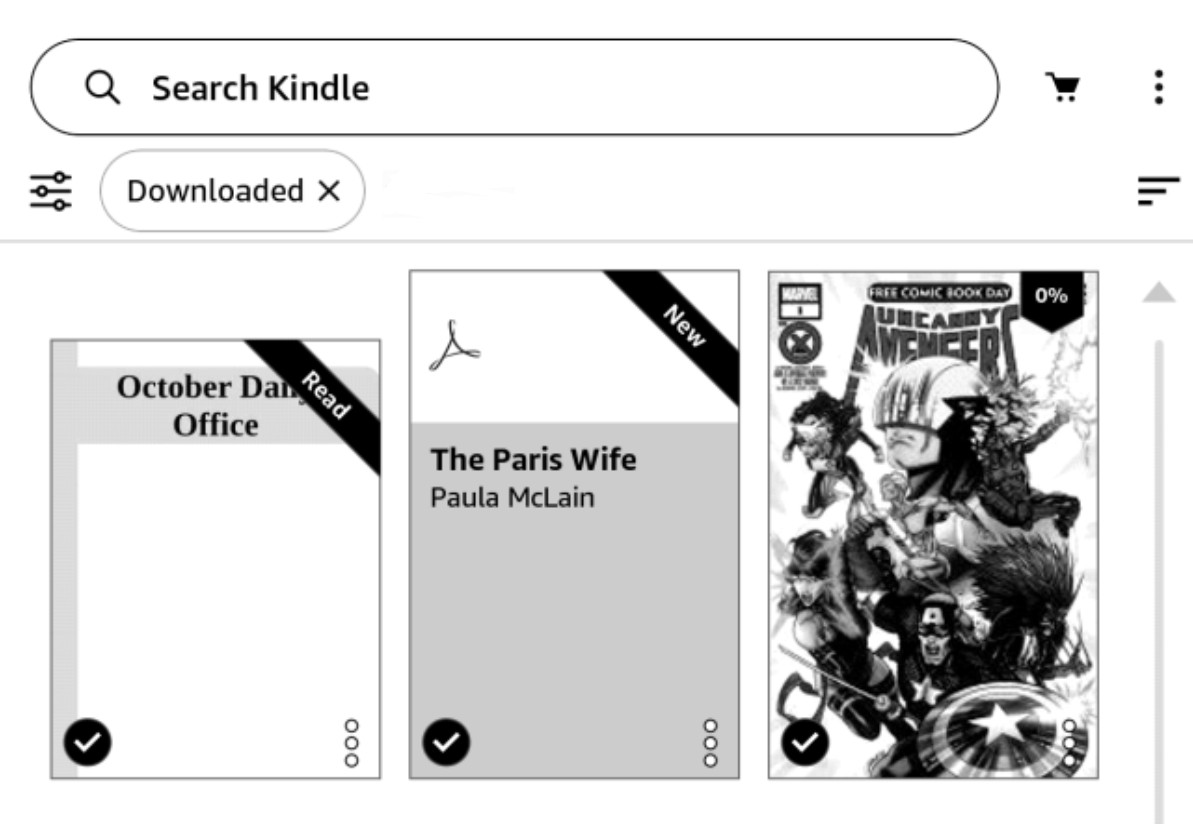
Go to your Library and find the book you want to download; simply tap the cover to start the download process. If you can't find the book you're looking for, tap "Sync and Check for Items" in the menu to refresh your content list.
Step 2. Connect the Kindle Device to Your PC via USB
Plug your Kindle into your computer using a data-sync USB cable.
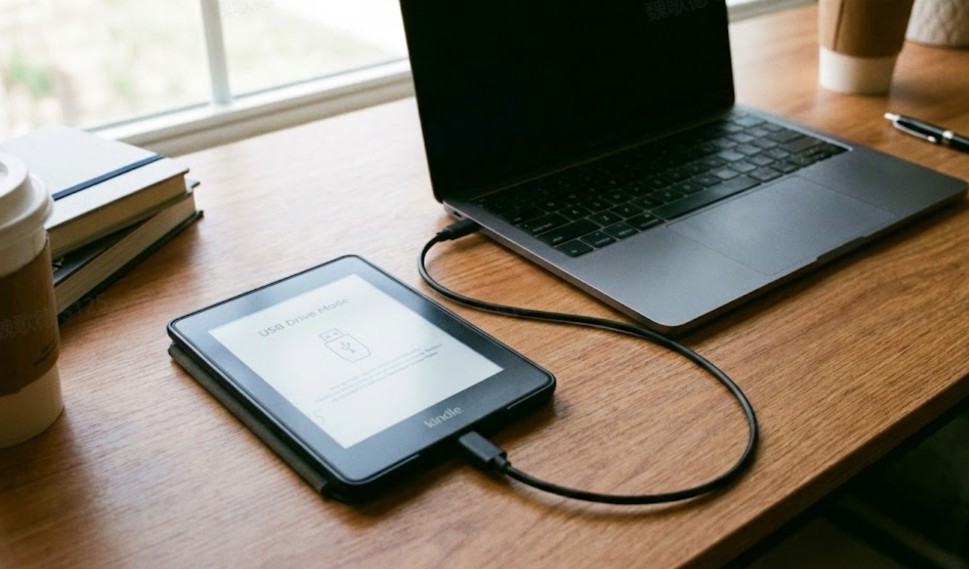
Step 3. Copy Kindle Books to Your PC
Once the device is recognized, open the Kindle's internal storage and navigate to the book folder. On most E-ink Kindles, books are stored in: Internal Storage\documents\Downloads.
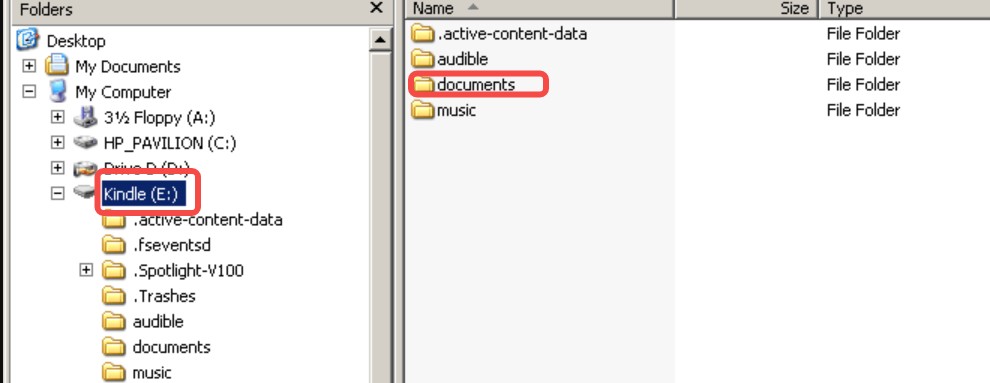
On some newer firmware versions, they might be deeper, such as: Internal Storage\documents\Downloads\Items01.
Inside these folders, you will find your books as .kfx or .azw files. Simply select the ones you want and copy them to a folder on your PC.
Method 3. Download Kindle Books to PC in PDF/EPUB Format
To download Kindle books to PC in PDF or EPUB format is the best way to enjoy your library on any device or app without restrictions. As of 2026, you have two options: you can try Amazon's new direct download feature (limited only to specific DRM-free titles), or for DRM-protected books, you can download them with Kindle for PC and then use BookFab Kindle Converter to easily transform them into universal PDF or EPUB formats.
How to Download Kindle Books from Amazon Directly
This is the simplest official method available, without extra Kindle to PDF conversion. As of January 20, 2026, Amazon officially allows users to download EPUB or PDF versions of select books directly from their website. This method is seamless—no conversion software or USB cables required; everything happens right in your browser.
- Only available for DRM-Free Books: Most bestsellers from major publishers still carry DRM (Digital Rights Management) protection and are ineligible for this method.
- Purchased Content Only: Books borrowed through Kindle Unlimited (KU) or public libraries are not supported.
- Author Authorization: The "Download" button will only appear if the author or publisher has opted into the "Allow Download" feature in their dashboard.
Step 1. Log in to Amazon via your PC Browser
Open your browser and log in to the Amazon account used to purchase your Kindle books.
Step 2. Locate the Kindle book you wish to download
Once logged in, navigate to Account & Lists > Manage Your Content and Devices (or "Content Library"). Under the Books tab, scroll through your list to find the specific title.
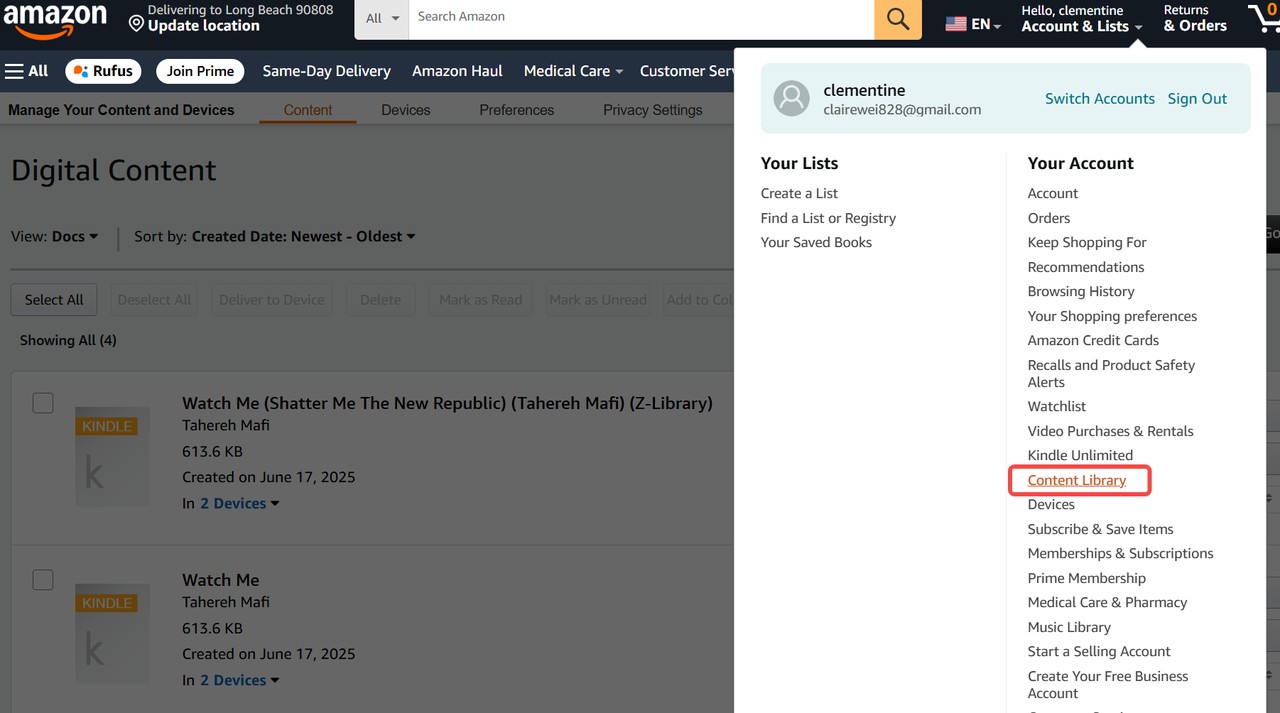
Step 3. Download the book to your PC
Find your target book and click the More actions button on the right side.

If the book is DRM-free and the author has enabled downloads, you will see an option labeled "Download EPUB/PDF." Click it, and the file will be saved to your browser's default download location (usually the "Downloads" folder on Windows or Mac).
How to Download Kindle Books with BookFab Kindle Converter
In reality, the vast majority of Kindle books are protected by DRM (Digital Rights Management). This means that for the most popular titles, the official 2026 direct download method will likely be unavailable.
If you need to backup or convert DRM-protected books, your best bet is to use professional conversion software, such as BookFab Kindle Converter, with the Kindle for PC app. This allows you to download your Kindle library to your computer and save them as PDF or EPUB files.
- Converts proprietary Kindle formats to EPUB or PDF, such as AZW3 to PDF.
- Automatically decrypts supported Kindle eBooks, including recent releases.
- Direct workflow compatibility with BookFab AudioBook Creator.
- Rapid conversion while preserving original layout and structure.
- Includes a plugin for decryption directly within the Calibre interface.
Here is how to download Kindle books with BookFab Kindle Converter and export fully compatible files.
Step 1. Launch BookFab and Set the Output Format
Open BookFab and navigate to the Kindle Converter section in the left sidebar.
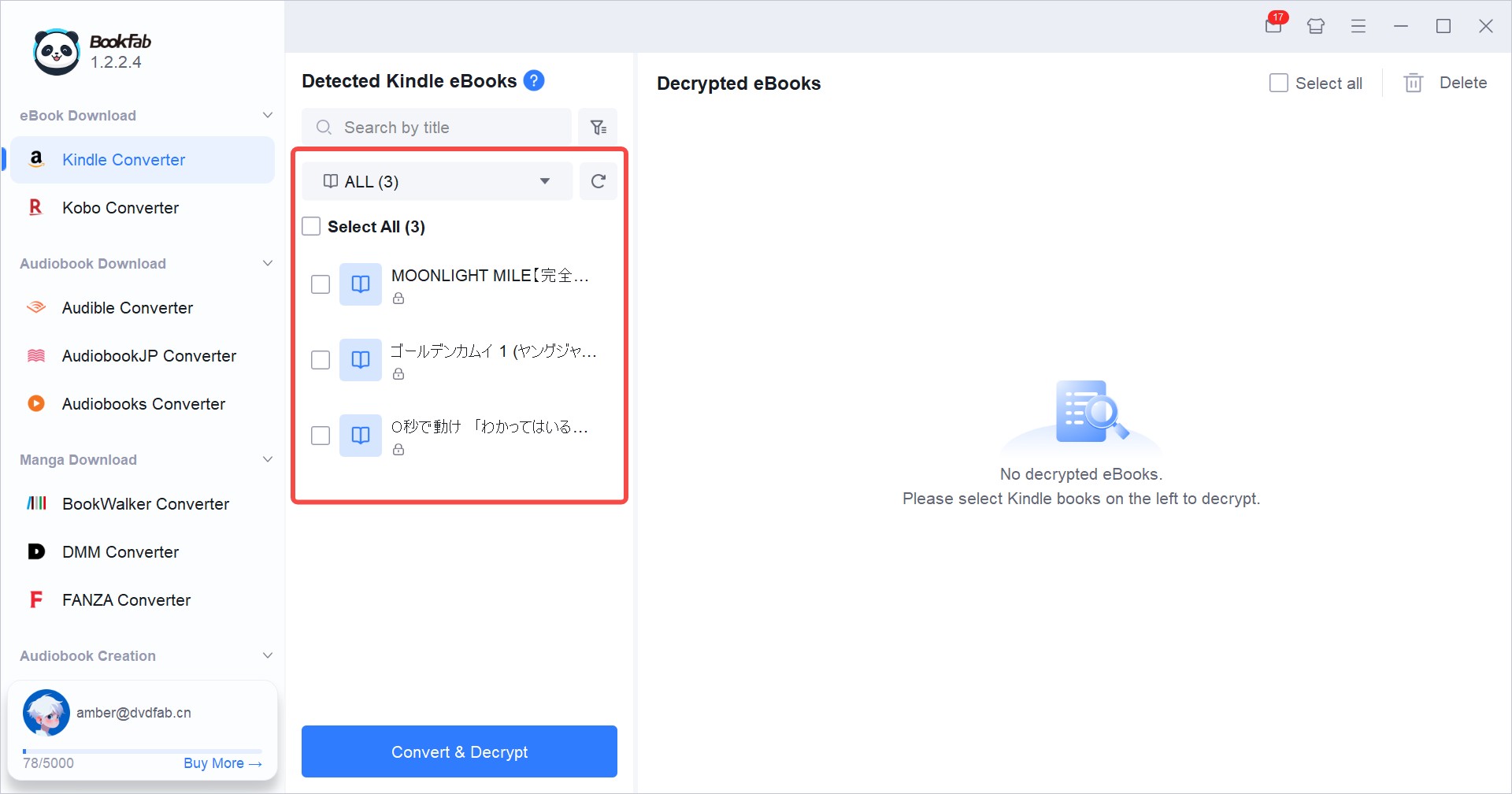
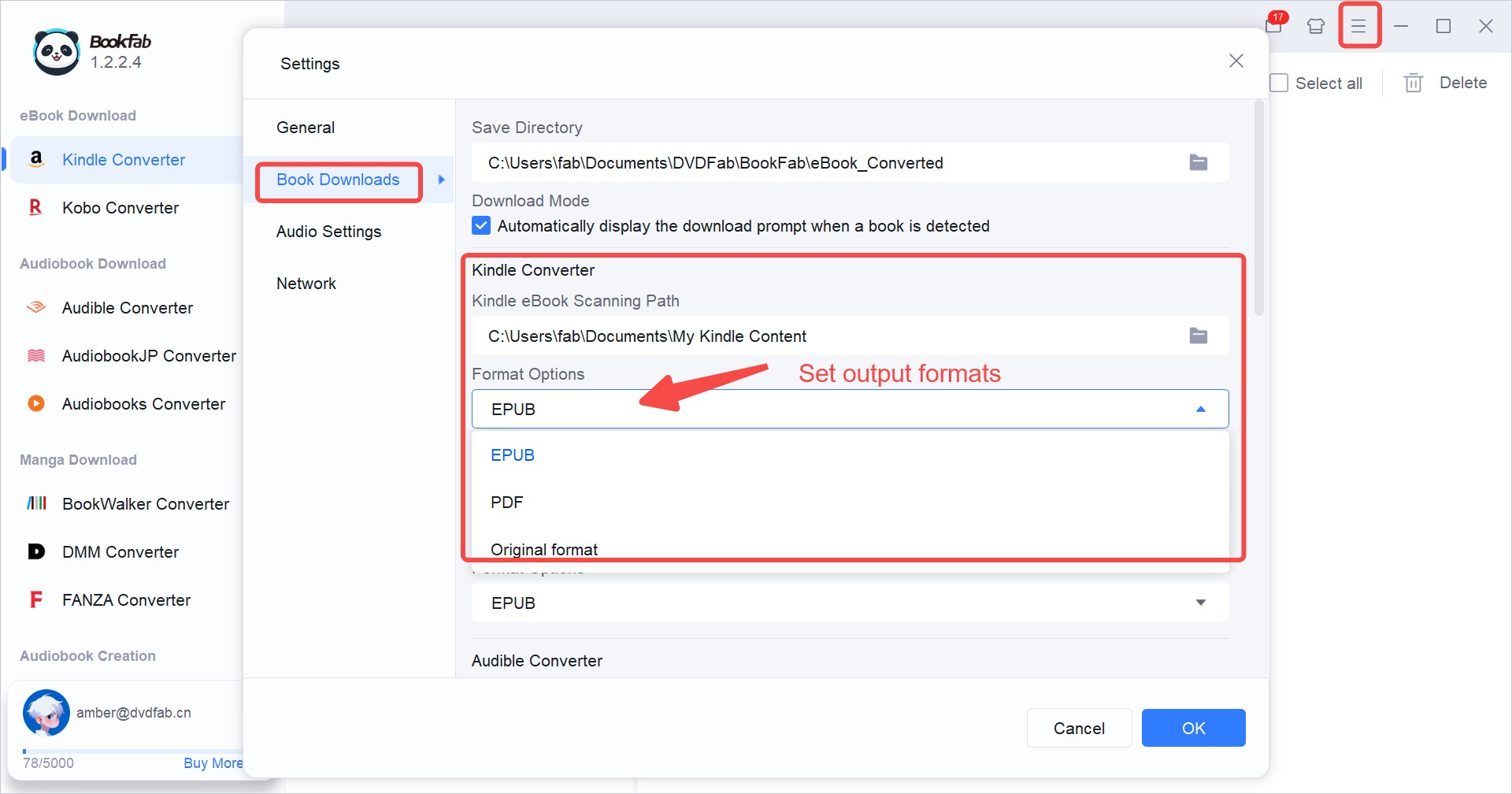
On the main BookFab interface, click the Menu icon in the top-right corner and go to Settings > Book Downloads > Kindle Converter > Format Options. Select EPUB or PDF from the drop-down menu and click OK to save your preferences.
Step 2. Download Kindle Books to PC
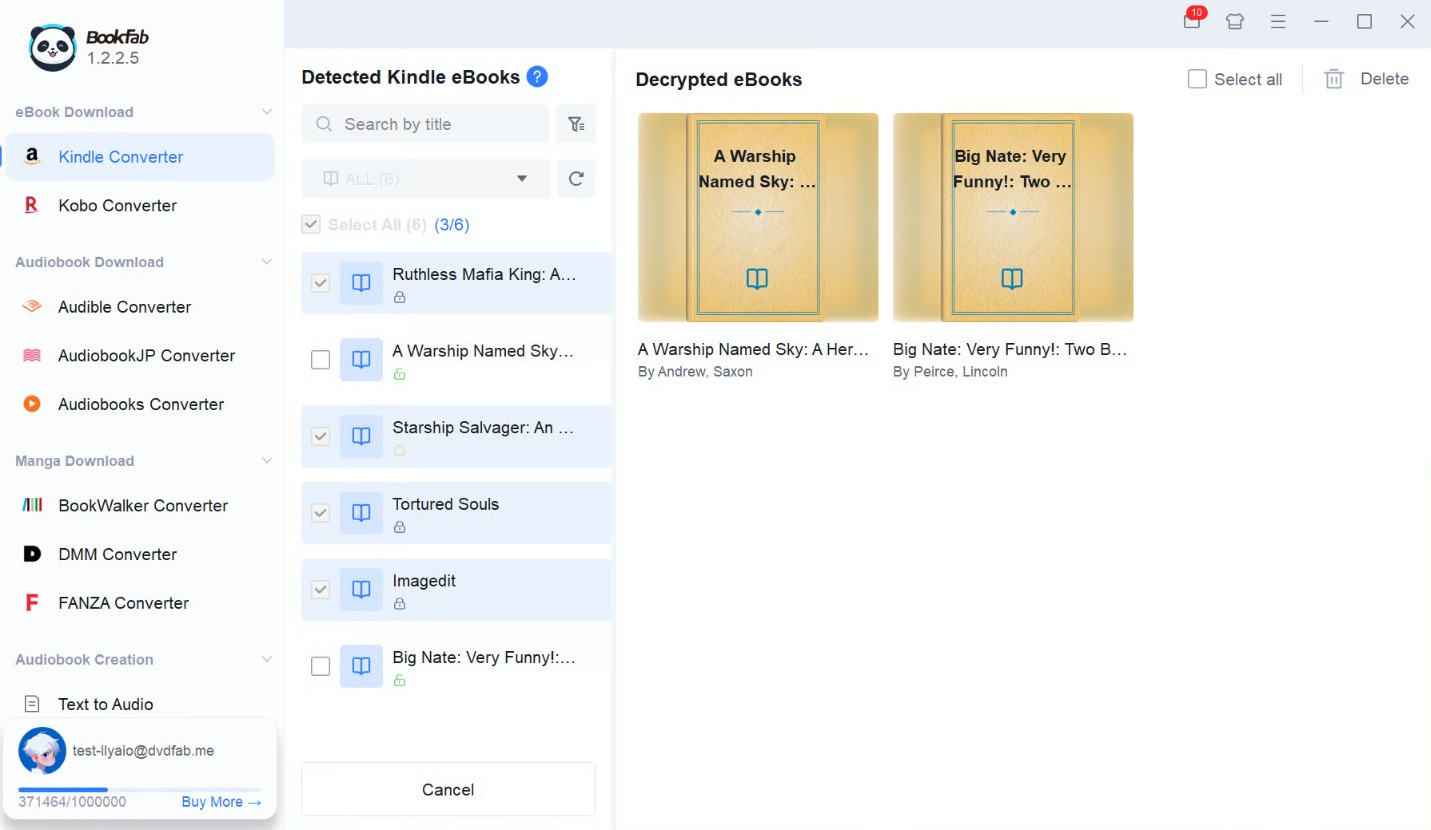
Open the Kindle Converter module, then click the Refresh icon. The program will scan Kindle for PC's storage folders and list the downloaded eBooks automatically.
When the books show up, tick the ones you need and click Decrypt & Convert. BookFab automatically remove DRM from Kindle books and export books as PDF or EPUB.
Step 3. Locate the Downloaded Books
After conversion, the processed books appear with their covers and title information on the right side of the window. You can import the EPUB versions into Calibre or Apple Books, open the PDF copies with your preferred PDF reader, or send them to BookFab AudioBook Creator if you want to create an audiobook version.
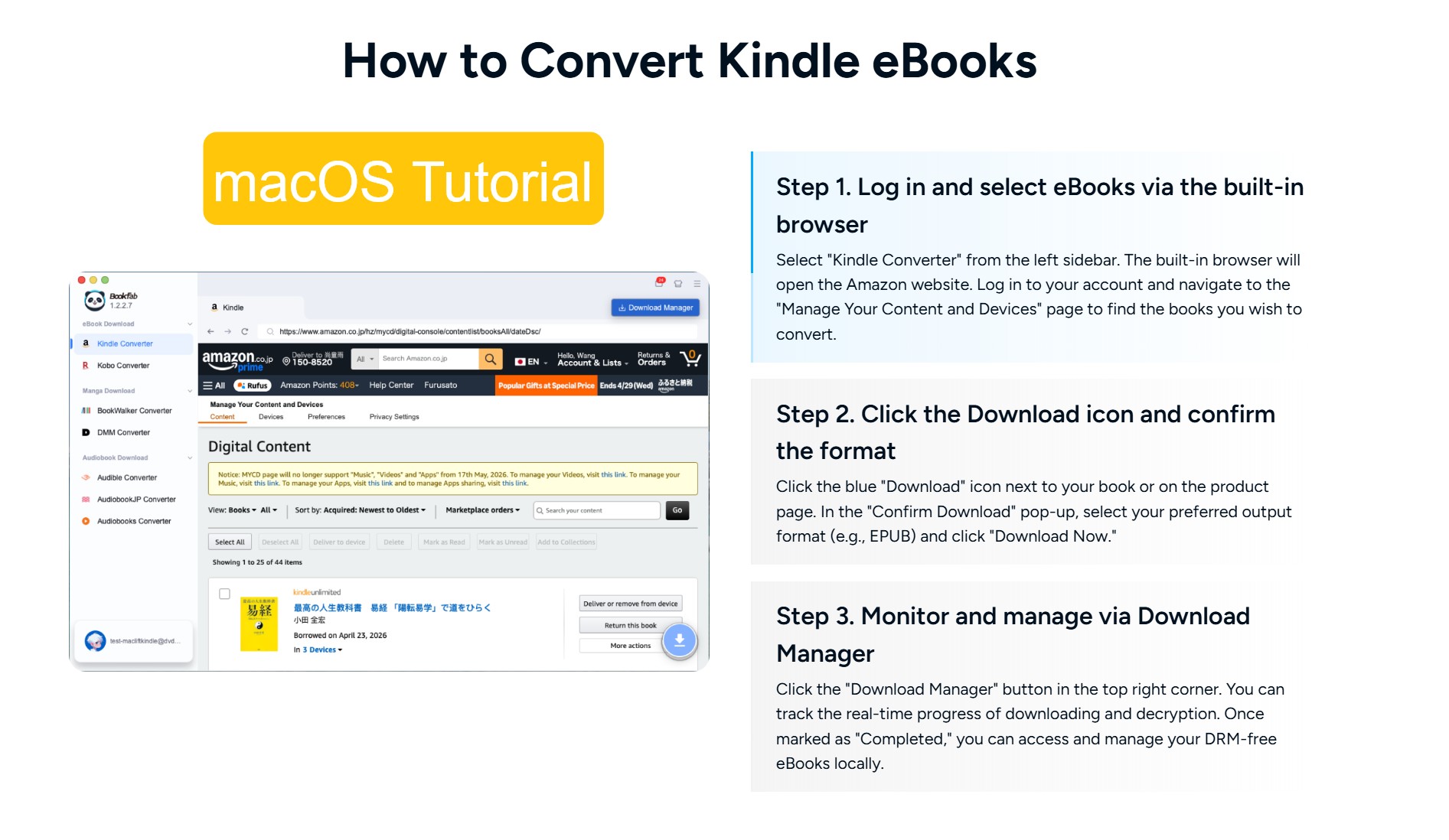
❗For macOS users: While the Windows process is detailed above, Mac users can use BookFab Kindle Converter without installing Kindle for PC. Simply open the Kindle Converter module, use the built-in browser to log in and select your books, then click the blue download button to save them directly as EPUB or PDF files.
Video Tutorial: How to Download Kindle Books as PDF/EPUB
For a more intuitive tutorial, you can watch the video guide below. It demonstrates step by step how to download Kindle books to a PC or Mac and export them as DRM-free PDF or EPUB files.
What to Do If Your Kindle Books Won't Download
Downloading Kindle books is usually quick, but network issues, account problems, or device limits can still cause downloads to fail.
Solution 1. Check your connection, restart, and sync again
Many download errors are caused by a weak connection or a temporary glitch in the app or device.
- Make sure the device is online.
- Restart your Kindle device or app.
- Sync your Kindle library again.
Solution 2. Fix account, payment, and license issues
If the connection is stable and basic sync does not help, the problem may be related to your Amazon account, payment details, or the number of devices that are allowed to hold the book.
- Confirm that the order is complete and the payment method is valid. In your Amazon account, open Your Orders or Digital Orders and check that the Kindle book shows as completed.
- Go to Manage Your Content and Devices on Amazon's website, find the title, and verify that it is set to deliver to the device or app you are using.
- Some Kindle books can only be used on a limited number of devices at the same time. If you see a License Limit Reached or similar message, deregister older Kindle hardware from Manage Your Content and Devices.
Solution 3. Understand special limits and irreversible actions
A few situations are not true errors but built-in limits that affect how or where you can download Kindle books.
- Kindle Cloud Reader no longer supports offline downloads.
- Deleting a book from your Kindle cloud library is permanent.
- Re-registering should be a last step, not the first.
FAQs
Is it legal to download and convert Kindle Books?
How to download books to the Kindle app on iPhone or Android?
How do I find and view my downloaded Kindle books?
How to download Kindle Books for free legally?
How does Amazon DRM affect downloading Kindle books?
Conclusion
I have walked through how to download Kindle books in three reliable ways. For users who simply want a raw backup file, using the Kindle desktop app is the easiest route. If you are an active eReader user, you can easily transfer Kindle books to your computer via USB. My top recommendation is to download Kindle books to PC in EPUB or PDF format, either through the 2026 official "Download EPUB/PDF" feature or by combining Kindle for PC with BookFab Kindle Converter. This ensures your downloaded Kindle books are truly universal, allowing you to read them on any device or app without restrictions.
Disclaimer: This guide is intended for informational and educational purposes only. Any actions involving the downloading Kindle books must comply with Amazon's Terms of Service, your local copyright laws, and the specific licensing conditions attached to each title.

 4 Easy Ways to Convert Kindle to PDFBy Amber Collins - May 18, 2026
 How to Print Kindle Books Without Losing QualityBy Amber Collins - May 14, 2026
![[Quick Solution] How to Remove Kindle DRM on Mac](https://images.dvdfab.cn/media/未命名的设计__87__crpyru.png/public) [Quick Solution] How to Remove Kindle DRM on MacBy Amber Collins - May 11, 2026
[Quick Solution] How to Remove Kindle DRM on MacBy Amber Collins - May 11, 2026![How to Convert Kindle Books to EPUB Easily [2026 Verified]](https://r5.dvdfab.cn/upload/bookfab/en/convert-kindle-to-epub-RDlf.jpg) How to Convert Kindle Books to EPUB Easily [2026 Verified]By Amber Collins - May 6, 2026
How to Convert Kindle Books to EPUB Easily [2026 Verified]By Amber Collins - May 6, 2026