



From Kindle DRM to Universal EPUB & PDF Formats

Latest Kindle eBook Support

Automatically Remove DRM from Any Kindle eBooks & KU Titles

With BookFab Kindle Converter, you can effortlessly remove DRM protection from the latest Kindle eBooks and Kindle Unlimited (KU) subscriptions, giving you the freedom to read your purchased or borrowed content on any device. BookFab Kindle Converter automatically analyzes and decrypts files, ensuring your "Kindle for PC" account safety and privacy without interacting with Amazon servers. Even after your KU subscription expires, your favorite titles remain accessible forever.
For more details on secure Kindle eBook conversion, account safety, and the latest DRM updates, refer to our technical overview of Kindle DRM removal.
Automatically Remove DRM from Any Kindle eBooks & KU Titles
Effortless Format Conversion

Convert Kindle for PC eBooks to EPUB & PDF

While safeguarding your personal account, this best eBook Converter enables you to decrypt your Kindle eBooks in "Kindle for PC" from private formats like AWZ3 and MOBI, and convert them to widely used formats such as EPUB and PDF. With just one click, your books are made compatible with Apple Books, Calibre, Adobe Digital Editions, standard PDF readers, and countless mobile apps and eReaders.
convert Kindle books to EPUB

Best Companion for Calibre

Free Calibre Plugin

Free Calibre Plugin to Seamlessly Integrate Kindle Converter with Calibre

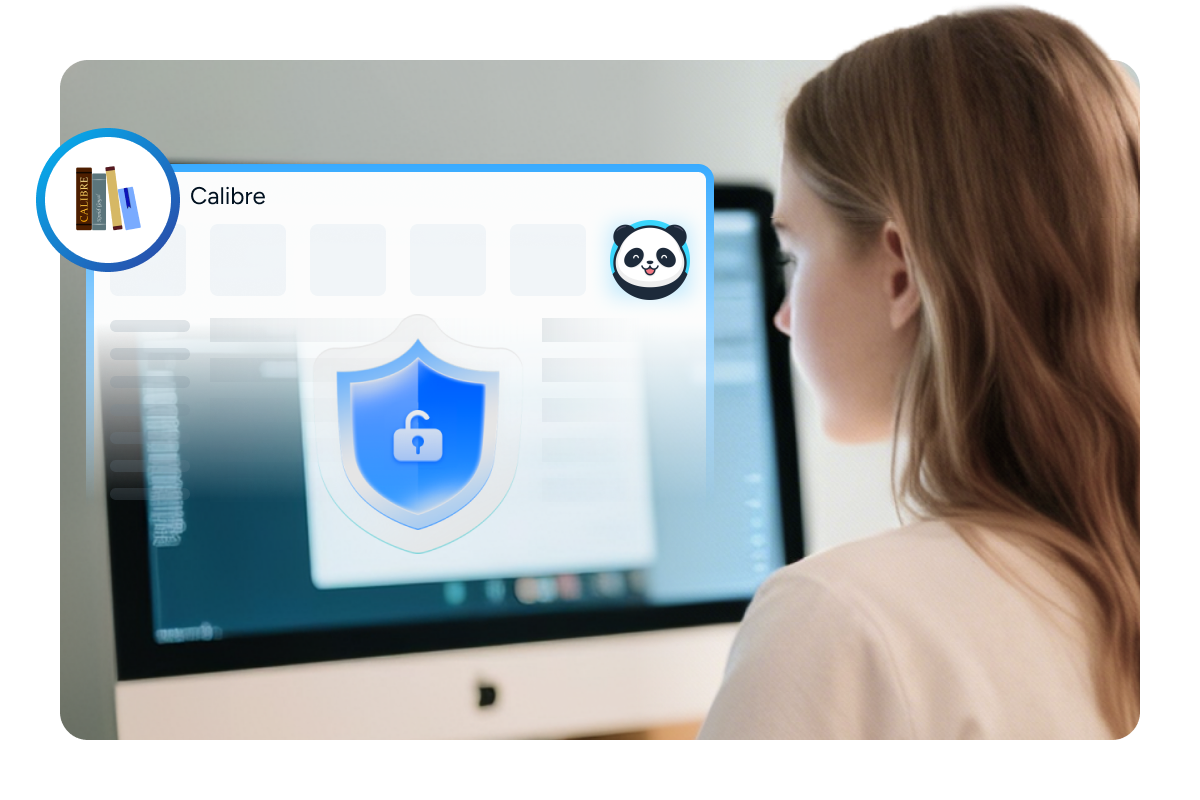
BookFab now integrates directly with Calibre through our newly released Calibre Plugin, delivering a smoother and more unified eBook management experience. After downloading Kindle eBooks via "Kindle for PC", you can run BookFab's built-in decryption directly in Calibre to quickly and reliably remove DRM, with full support for the latest Kindle titles. The resulting DRM-free files can then be organized, edited, and converted right in Calibre - no tool switching required.

With this new plugin, BookFab truly becomes the ideal companion for Calibre, offering a streamlined workflow and a more seamless reading and library management experience (Currently available for Windows only).

More Features of BookFab Kindle Converter

Batch Management

Manage Task Queue and Batch Operations

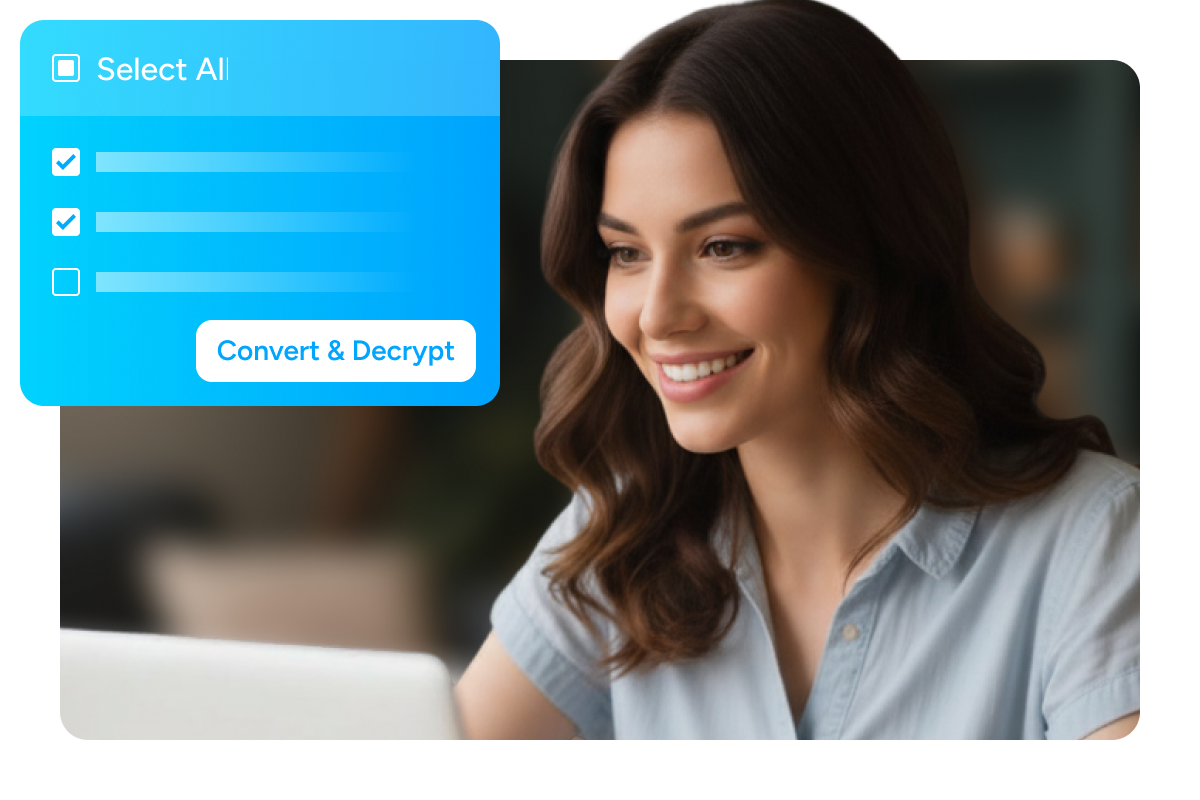
The unified task manager lets you queue multiple Kindle eBook conversions, monitor decryption progress in real-time, and apply bulk actions—such as "Select All" for batch processing or deletion—to keep your digital library perfectly organized.
Manage Task Queue and Batch Operations
Convert in Seconds

Experience Lightning-Fast Conversion

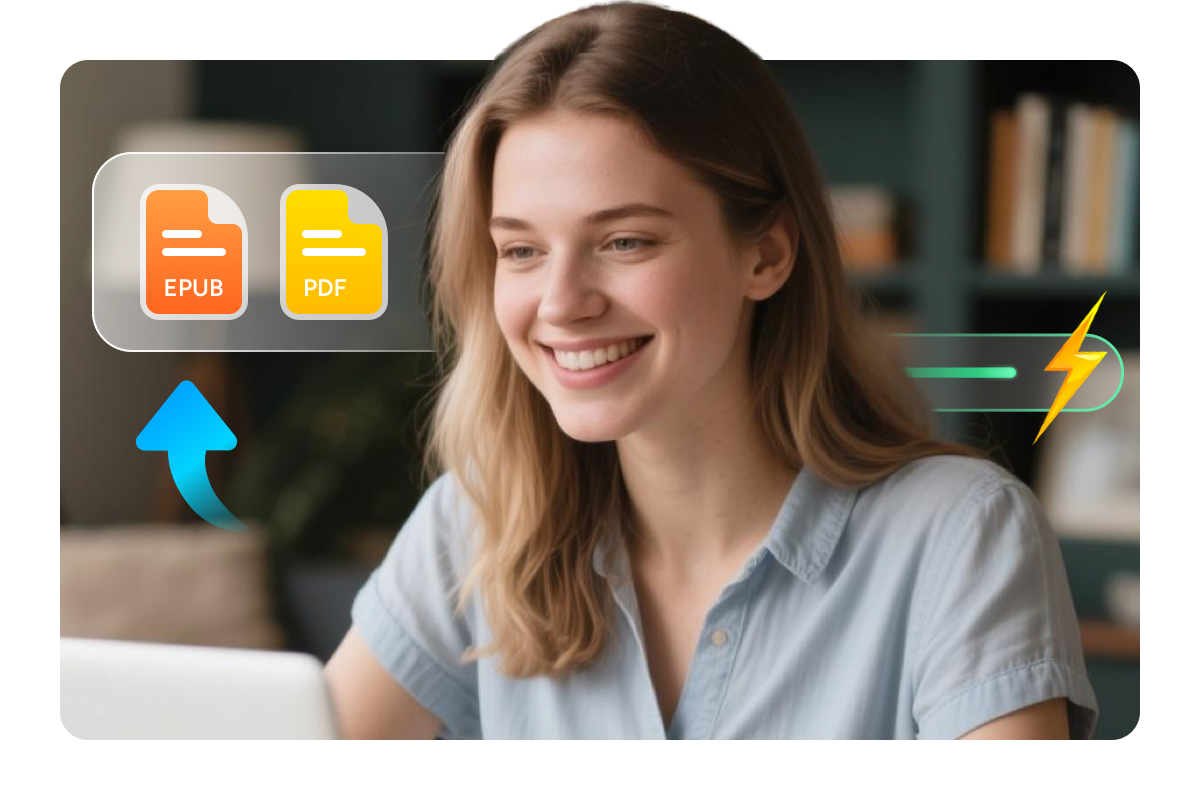
Spend less time waiting and more time reading. This Kindle to EPUB/PDF Converter is optimized for performance, delivering ultra-fast conversions of your eBooks without sacrificing quality.
Thanks to intelligent processing, the whole conversion completes in just seconds, whether you're converting a single book or an entire library.
convert kindle to epub quickly
Text-to-Audio Integration

Convert Kindle eBooks to Audiobooks

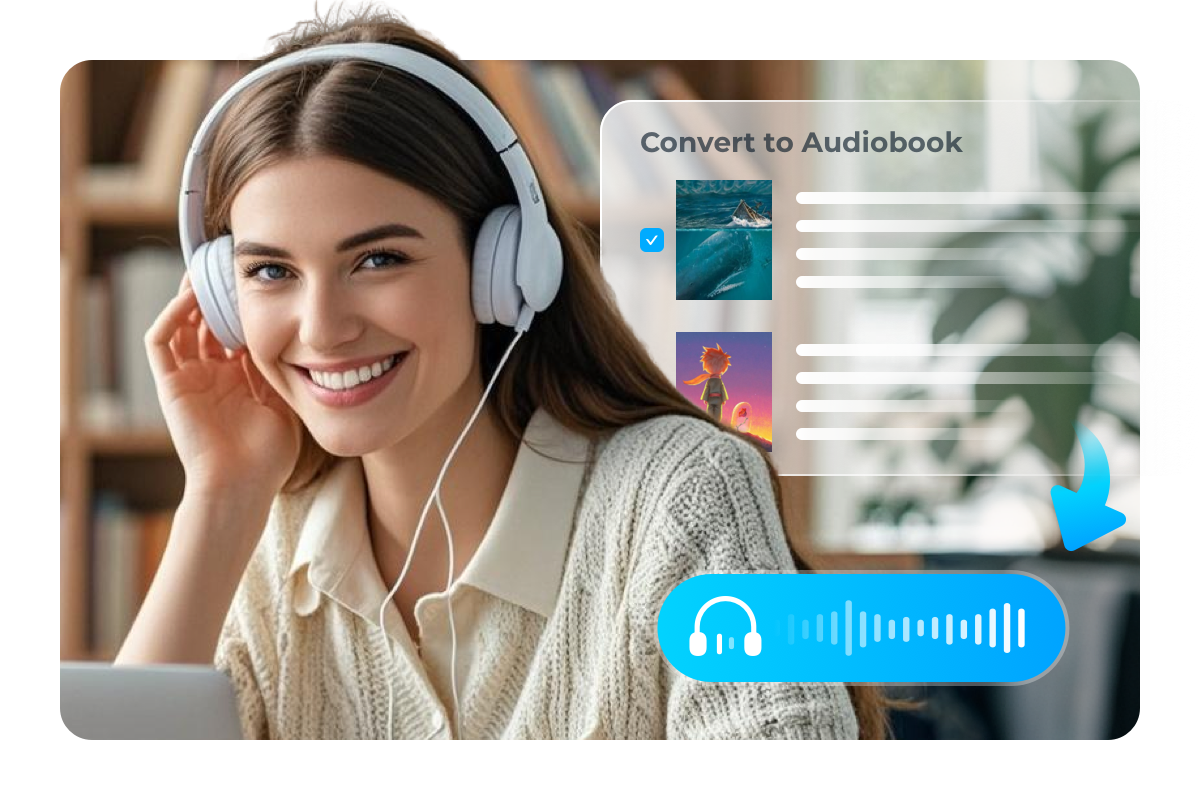
This Kindle Converter works hand-in-hand with BookFab AudioBook Creator, enabling you to convert text into high-quality audiobooks without the need for third-party tools.
You can enjoy your favorite eBooks and audiobooks whether you're commuting or multitasking at home.
convert kindle ebook to audiobook

What Users Say About BookFab Kindle Converter

log in to kindle
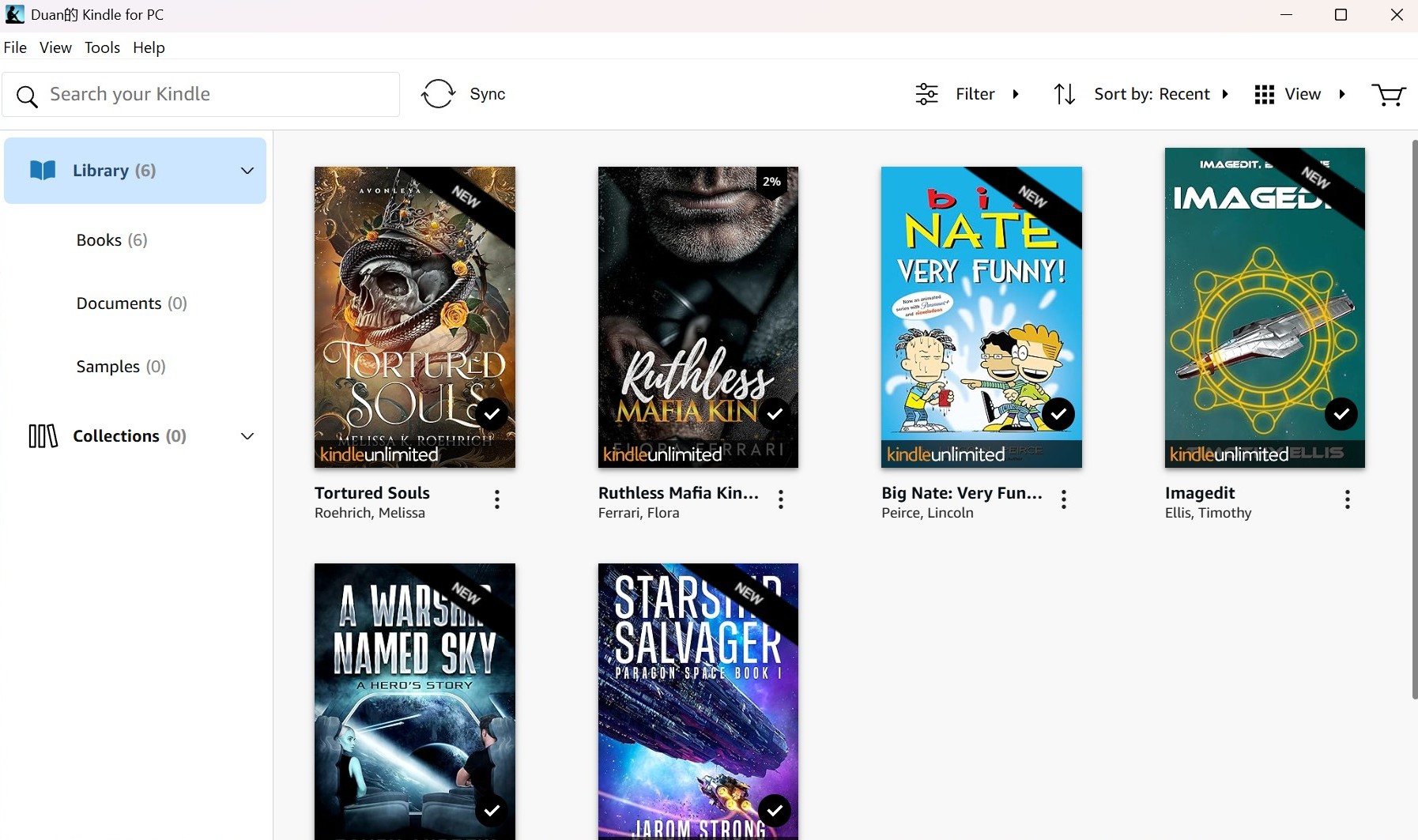
Step 1. Download eBooks in Kindle for PC
Open Kindle for PC and go to your "Library". Find the Kindle book you want to decrypt, click the "three-dot" icon next to the book title, and then choose to download the eBook to your computer.
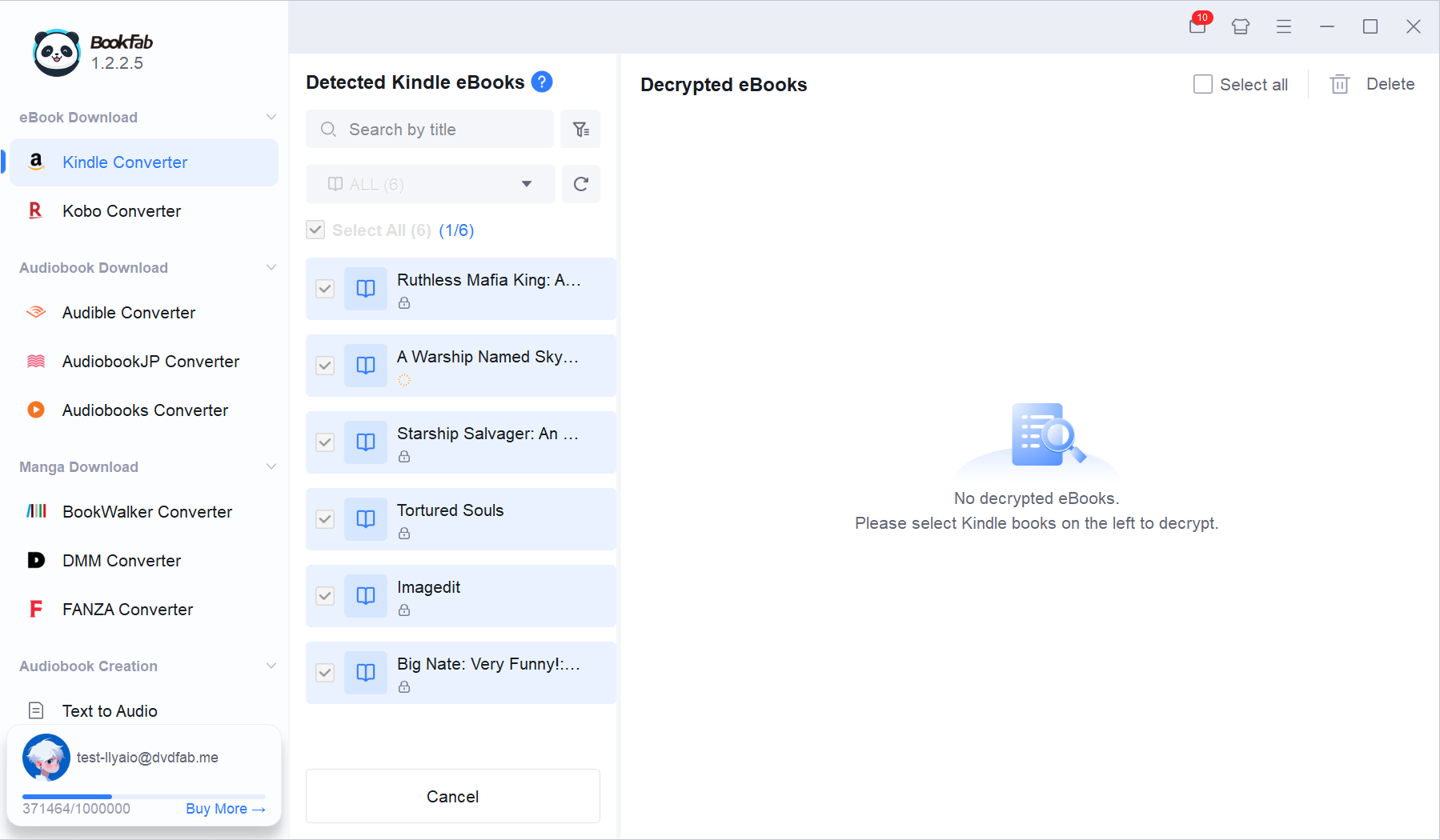
Step 2. Launch BookFab to Decrypt the Downloaded eBooks
Launch BookFab and select "Kindle Converter" from the left sidebar. BookFab will automatically import the eBooks downloaded from Kindle for PC. Select the books you want to convert, then click "Convert & Decrypt" to start the conversion.
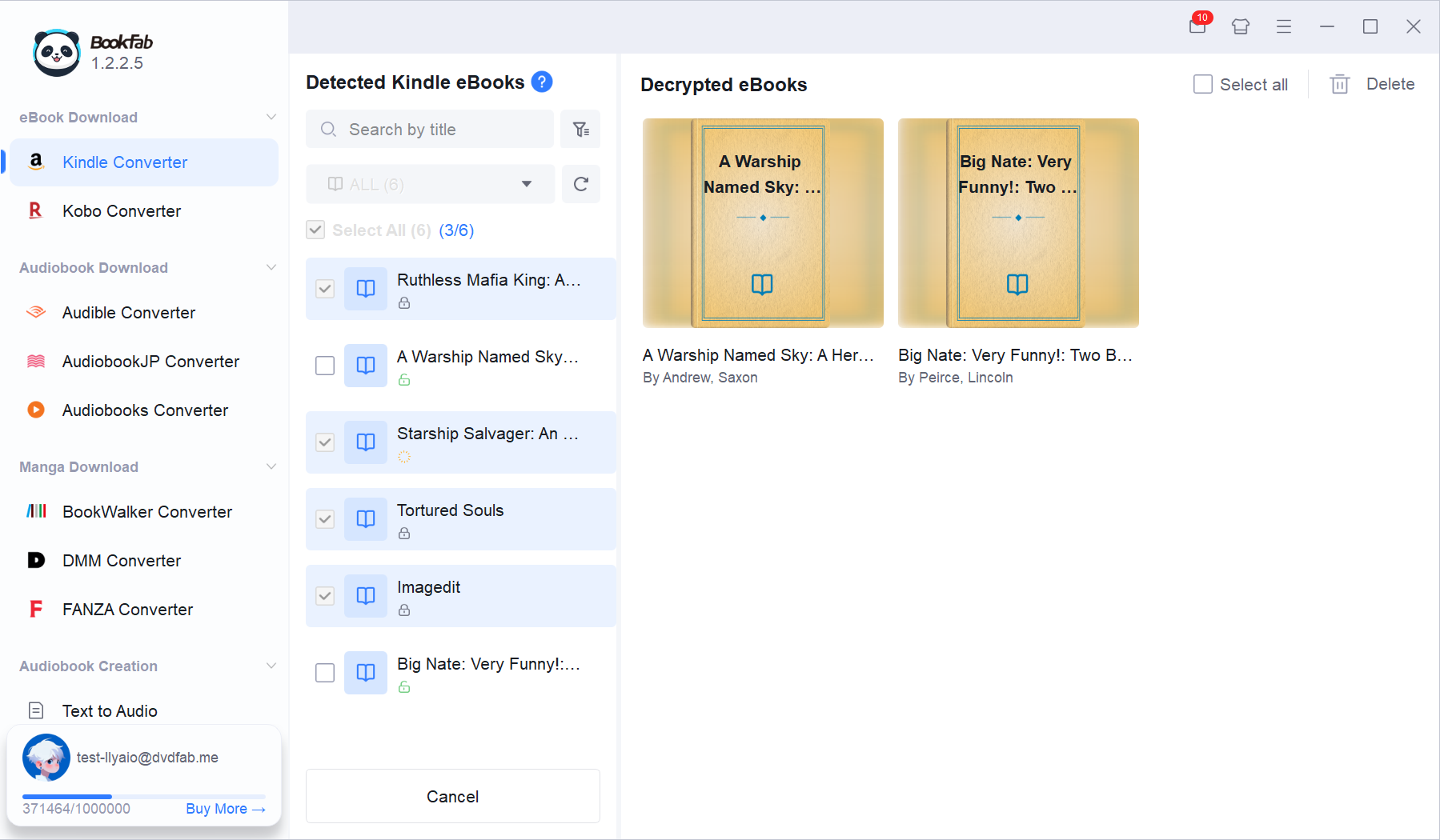
Step 3. View and Manage Decrypted eBooks
The decrypted eBooks will display their cover, title, and author name on the right side. You can quickly open the local folder of the decrypted eBooks.

System Requirements

Icon
Windows 11/10 (32/64 bit)
4GB of RAM or above
40GB of free hard disk space or above
Live Internet connection required
Kindle for PC installed

Frequently Asked Questions

  • Can I use BookFab Kindle Converter without installing Kindle for PC?

    No. To access and download Kindle eBooks, you need to install and log into the official Kindle for PC application. After that, you can manually select the eBooks you want to decrypt within BookFab.

  • Does BookFab Kindle Converter support other eBook platforms?
  • Will BookFab Kindle Converter affect the quality or structure of my eBook?
  • Is there a file size limit for converted eBooks?
  • Is it safe to use BookFab Kindle Converter?
  • How to decrypt Kindle eBooks?
  • How to use Calibre plugin?
