
How to Convert Kindle Books to EPUB Easily [2026 Verified]

Summary: To convert Kindle to EPUB, you can use BookFab Kindle Converter or Calibre with the DeDRM plugin to handle DRM-protected books. Based on our testing, we highly recommend BookFab Kindle Converter for its reliable ability to handle the latest Kindle encryption and format conversions.
Table of Contents
![How to Convert Kindle Books to EPUB Easily [2026 Verified]](https://c2.dvdfab.cn/upload/bookfab/en/convert-kindle-to-epub-dzlQ.jpg)
Converting Kindle to EPUB is a common need for readers who want to manage their ebooks in a more flexible format. EPUB works with many reading apps, ebook managers, and non-Kindle devices. However, the process of converting Kindle to EPUB has become less predictable in 2026. Newer Kindle books may use formats such as KFX-ZIP, while some older Calibre or Kindle for PC workflows may no longer work consistently.
After testing, I have summarized 2 ways to convert Kindle to EPUB on Windows and macOS that still work, including detailed tutorial steps, what each Kindle to EPUB converter can handle, and where its limitations are.
Method 1: Convert Kindle to EPUB with BookFab Kindle Converter (Win/Mac)
- Best for: Converting newer Kindle books to EPUB; a practical choice for both Windows and macOS users who want a simpler workflow without being tied to a specific Kindle for PC version.
BookFab Kindle Converter helps convert Kindle to EPUB from modern Kindle formats such as AZW3 and KFX. It supports both Windows and macOS and offers a simpler option than Calibre plugin workflows. Here is how to use BookFab Kindle Converter to turn Kindle books into EPUB files.
Step 1. Download BookFab and Select Kindle Converter
Download and install BookFab on your computer. Once installed, launch the program and click Kindle Converter in the left sidebar. This will take you to the main Kindle conversion workspace.
Step 2. Sync Your Downloaded Kindle Books to BookFab
Open Kindle for PC and download Kindle books you want to convert to your computer first. Then go back to BookFab and click the Refresh button. BookFab will scan and analyze the Kindle books already downloaded on your device. After the scan is complete, your books will appear in the BookFab interface.
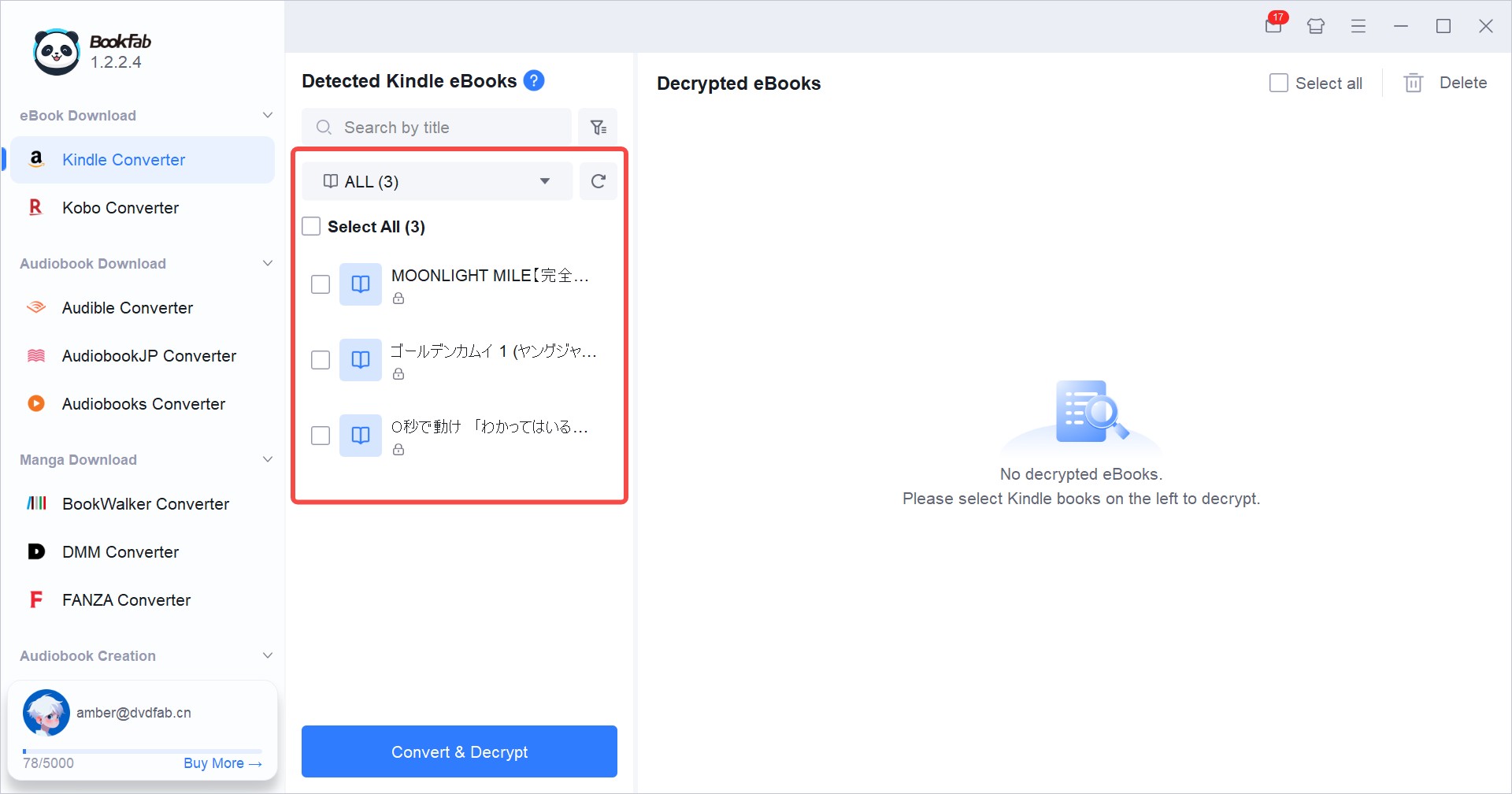
Step 3. Set EPUB as the Output Format
Click the hamburger menu in the top-right corner of BookFab and go to Settings > Book Downloads > Kindle Converter > Format Options. Select EPUB as the output format, then click OK to save your settings.
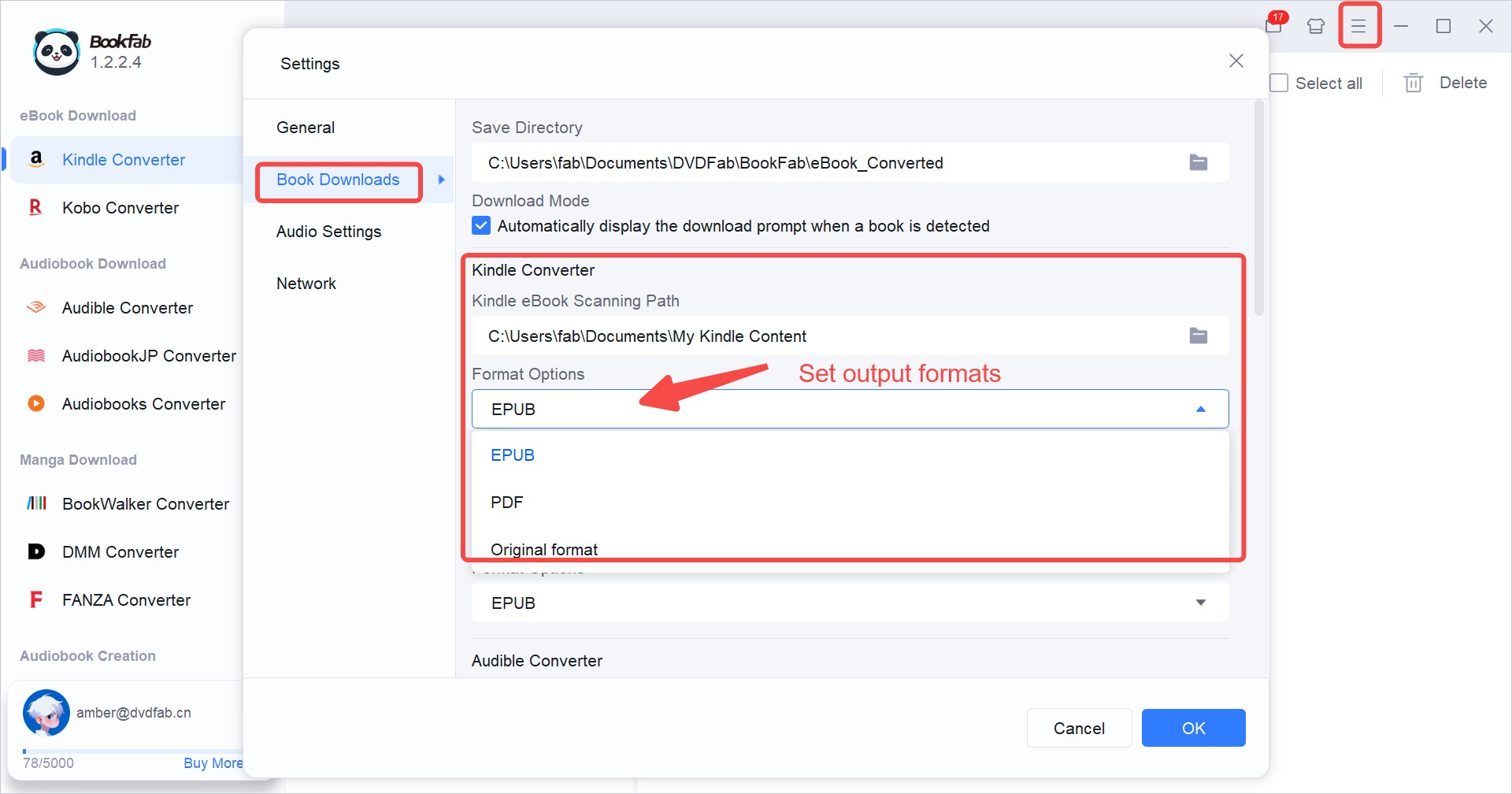
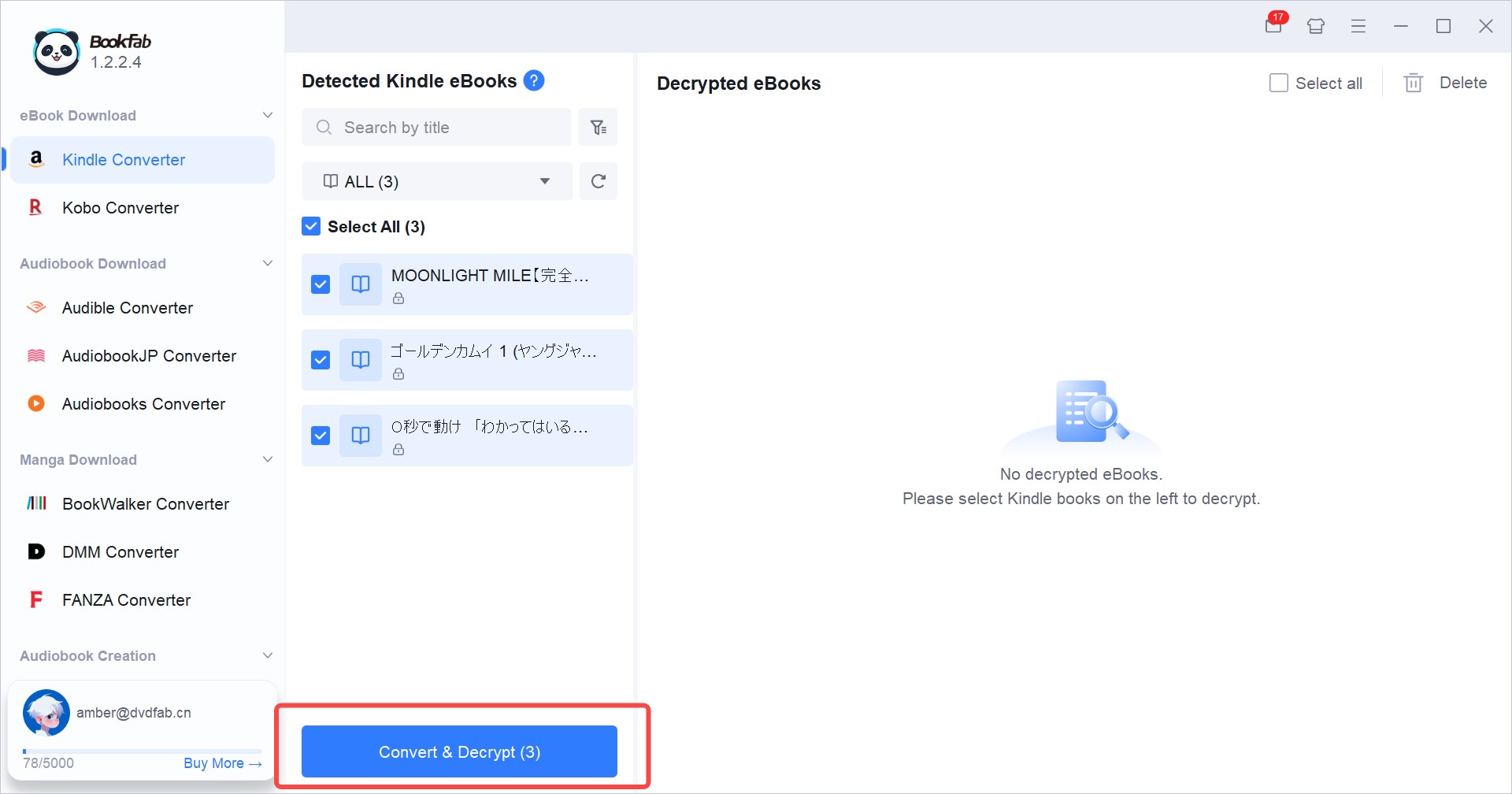
Step 4. Convert Kindle to EPUB
Return to the main Kindle Converter screen in BookFab, select the books you want to convert, and click Convert & Decrypt. Within seconds, the converted titles will appear in the Decrypted Books panel on the right. To open the output folder and locate your converted EPUB files, click the folder icon on the book cover.
If you want to turn the converted EPUB into an audiobook, click the "e" icon on the cover to send it directly to BookFab AudioBook Creator.
Note: The steps above are for Windows. On Mac, converting Kindle books to EPUB with BookFab Kindle Converter is even easier, and Kindle for PC is not required. BookFab Kindle Converter for Mac comes with a built-in browser. You only need to select the Kindle Converter module, log in to your Kindle account, choose the book you want to convert, click the blue download button in BookFab, select the output format, and download the book directly as an EPUB file.
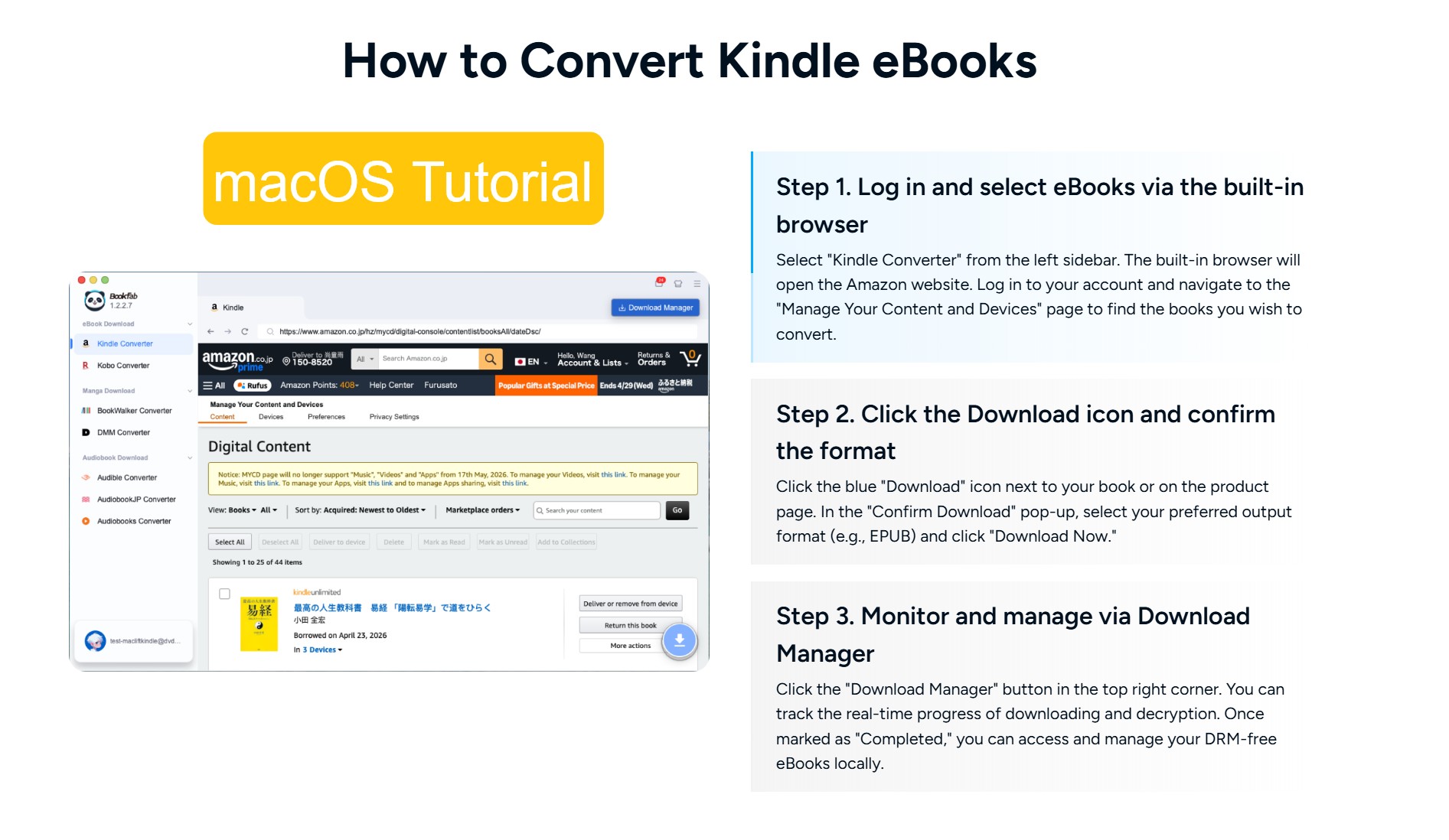
Method 2: Convert Kindle to EPUB with Calibre
- Best for: Converting older Kindle books to EPUB on Windows, especially if you are comfortable using plugins and older Kindle for PC apps such as version 2.4.0.
If you want a free way to convert Kindle to EPUB, Calibre is still one of the most common tools people turn to. For older Kindle books, especially standard MOBI and AZW files, Calibre can still be a useful Kindle to EPUB converter. The trade-off is that the setup is less beginner-friendly, since it often requires tools like the DeDRM plugin and the KFX-Input plugin, and newer Kindle books frequently need additional workarounds.
Step 1. Install Calibre and Needed Plugins
Download Calibre from its official website and install the version for your system. Then, download DeDRM_tools.zip and KFX_Input.zip to your computer. Then unzip DeDRM_tools.zip to get DeDRM_plugin.zip.
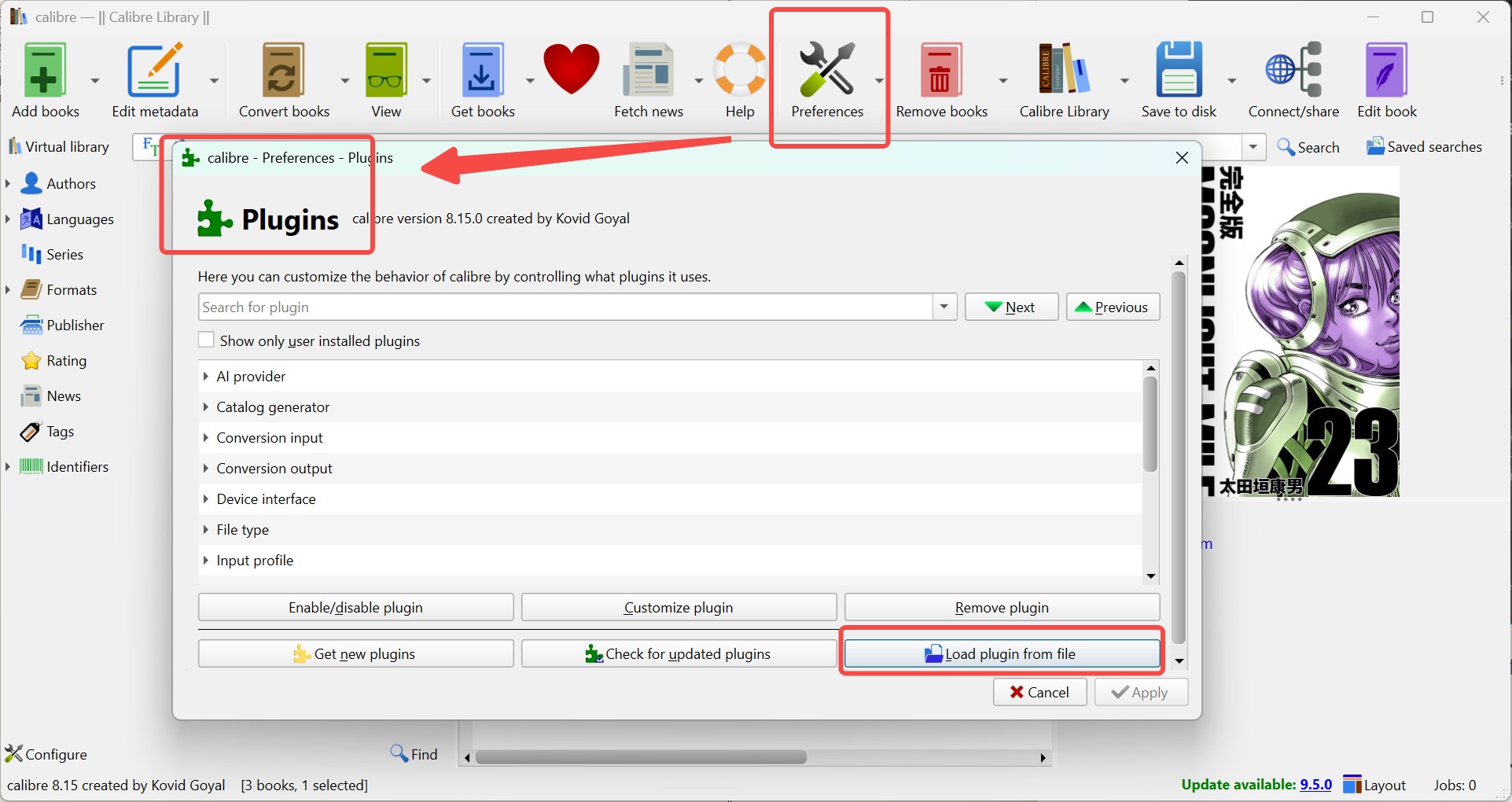
Open Calibre, go to Preferences > Plugins > Load plugin from file, then install KFX_Input.zip and DeDRM_plugin.zip. After that, restart Calibre to activate them.
Step 2. Add Kindle Books to Calibre
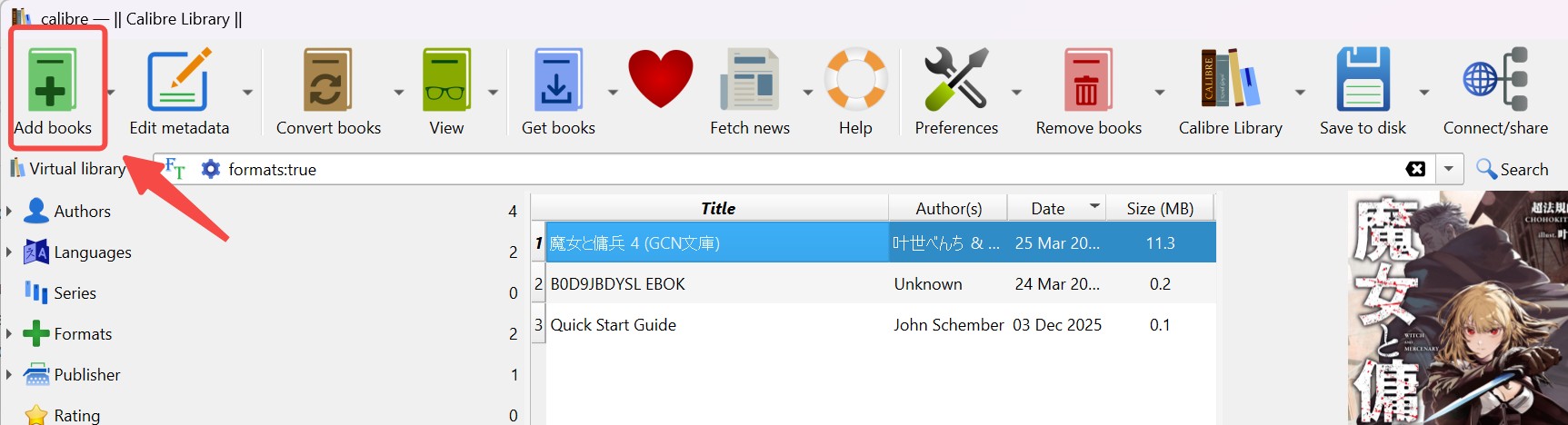
Download your Kindle books to your computer using Kindle for PC or transfer them from a Kindle device via USB. Then open Calibre, click Add books, and import the Kindle books you want to convert.
Step 3. Convert Kindle to EPUB Format
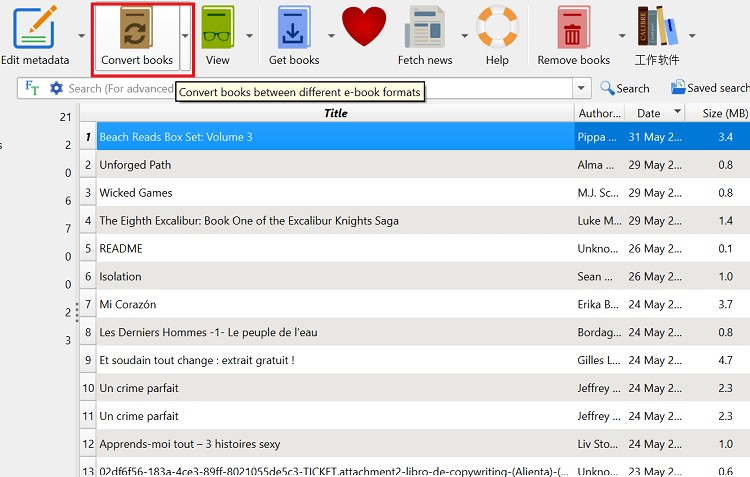
Select the book in Calibre and click Convert books. Choose EPUB as the output format, then click OK to start the conversion. Once the process is complete, the EPUB version will appear in Calibre and can be opened or saved for use on any EPUB-compatible device or app.

The above steps explain how to use Calibre to convert books downloaded from Kindle for PC into EPUB format. If your books are exported from a Kindle e-ink device, you also need to configure your Kindle serial number in the DeDRM plugin first:
- Install the DeDRM plugin in Calibre.
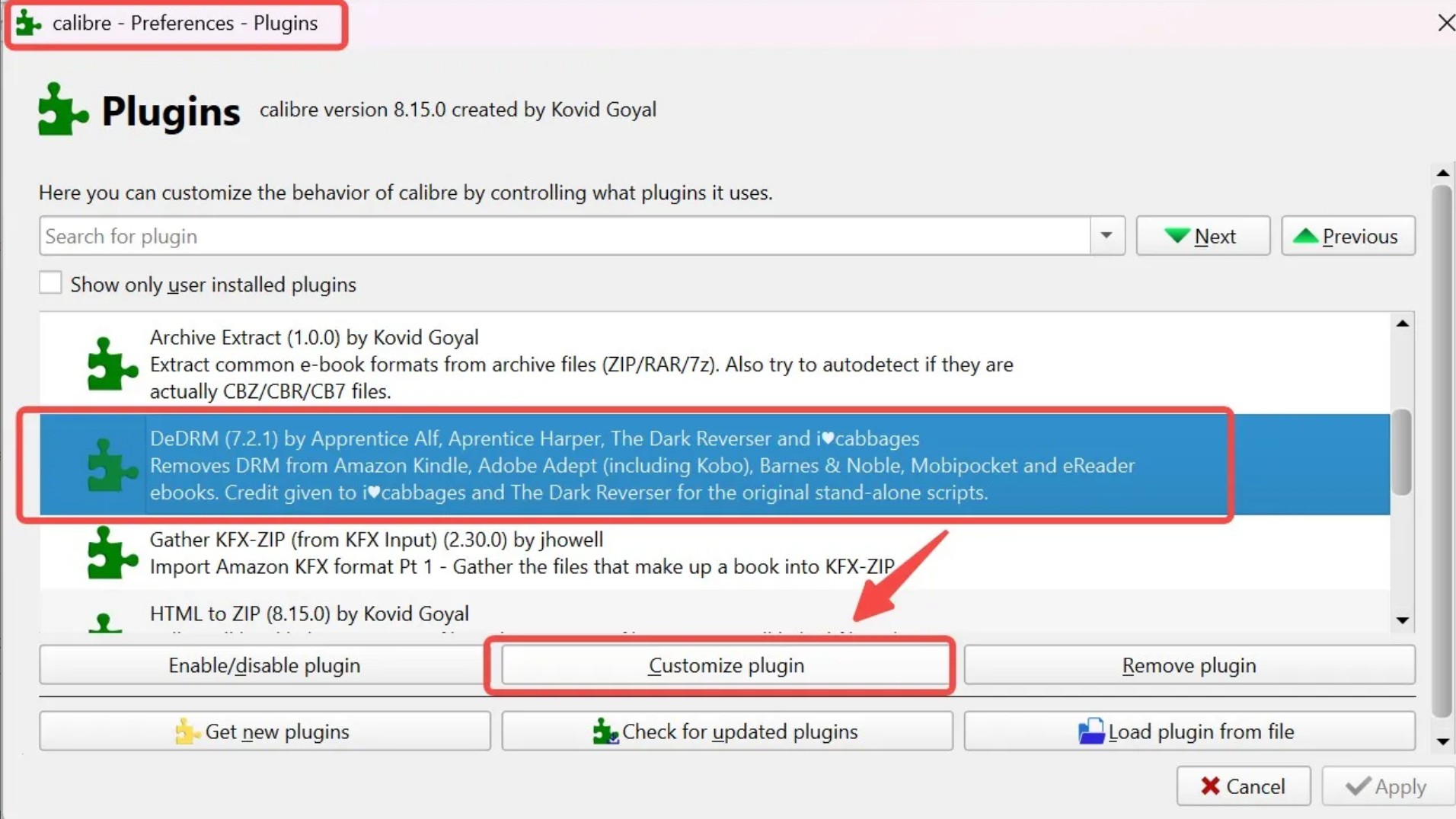
- Go to "Preferences > Plugins".
- Select "DeDRM" and click "Customize plugin".
- Choose "eInk Kindle ebooks" and click the green "+" icon.
- Enter your Kindle serial number and click "OK".
- Click "Add books" to import the books from your e-ink Kindle. Calibre will remove the DRM, and then you can convert the books to EPUB.
Note: Calibre has better compatibility on Windows. On Mac, many users have reported that DeDRM cannot remove DRM from Kindle books. If you are using macOS, we recommend running Windows 11 in a virtual machine and following the steps above, or using BookFab Kindle Converter for Mac directly.
Troubleshooting Kindle to EPUB Conversion
1. "The Calibre plugins are installed, but the book is still locked."
Reason: This is a common Calibre issue. The book imports normally, but the conversion still fails with a DRM error. Simply installing the DeDRM plugin does not always solve the problem, especially for KFX files or newer Kindle books.
Fix: Check where the file came from, not just its extension. Older AZW and AZW3 books usually work better. For newer books, you can also try the BookFab Calibre Plugin, which adds BookFab Kindle Converter’s DRM removal capability to Calibre and supports both older and newer Kindle formats, including KFX.
2. "My converted EPUB opens, but the formatting looks off."
Reason: This can happen even when the conversion succeeds. Books with complex layouts, lots of images, comics, or heavy styling often do not convert perfectly from Kindle format to EPUB.
Fix: If the EPUB mostly works, you can use Calibre to clean up metadata, the table of contents, and some formatting details. If you want a simpler option with less manual cleanup, BookFab Kindle Converter usually gives you cleaner EPUB output.
FAQs
What should I do if my converted EPUB file won't open?
1.Verify the file extension: Check that the file is actually saved with the .epub extension and not under a different format by mistake.
2.Try other readers: Try opening the file in another EPUB reader. Common options include Apple Books, Calibre, FBReader, and Adobe Digital Editions.
3.Validate EPUB file: Use an EPUB validator such as EPUBCheck to test the file and see whether there are structural errors that prevent it from opening.
4.Try another format: Convert the EPUB file to a different format (such as MOBI or PDF) with a tool like BookFab Kindle Converter, and check whether the converted file opens correctly.
Do I need to remove DRM from Kindle books before converting them to EPUB?
Is it legal to convert Kindle books to EPUB?
DRM-Free Books: Yes, absolutely. If the book doesn't have DRM, converting it to EPUB or any other format is 100% legal.
DRM-Protected Books: You should check your local laws and regulations, as rules may vary by region. If the book is DRM-protected, make sure you only convert books you have legally purchased and use the converted files for personal purposes only.
Final thoughts: Which Kindle to EPUB Converter Should You Choose?
The two Kindle to EPUB converters covered in this article each have their own strengths.
Choose BookFab Kindle Converter if you want a quick and effective solution. It converts Kindle books to EPUB without extra plugins, works more reliably with newer Kindle books, supports Mac, and does not tie you to a specific Kindle for PC version. Choose
Calibre if you mainly work with older Kindle books and want more control over metadata. The downside is that it usually needs extra setup, and it is less stable with newer books.
If you still prefer Calibre, you can try the BookFab Calibre Plugin instead of the DeDRM and KFX Input plugins. It gives Calibre more stable DRM removal while letting you keep your usual EPUB workflow.

 4 Easy Ways to Convert Kindle to PDFBy Amber Collins - May 18, 2026
 How to Print Kindle Books Without Losing QualityBy Amber Collins - May 14, 2026
![[Quick Solution] How to Remove Kindle DRM on Mac](https://images.dvdfab.cn/media/未命名的设计__87__crpyru.png/public) [Quick Solution] How to Remove Kindle DRM on MacBy Amber Collins - May 11, 2026
[Quick Solution] How to Remove Kindle DRM on MacBy Amber Collins - May 11, 2026 How to Download Kindle Books to PC in 2026 (The Complete Guide)By Amber Collins - May 9, 2026