
4 Easy Ways to Convert Kindle to PDF

Summary: To convert Kindle to PDF, you must remove the encryption using specialized software first and then convert the format. This tutorial summarizes four easiest ways to convert Kindle to PDF to help you manage your books flexibly.
Table of Contents
PDF is a fixed-layout format that keeps text, images, fonts, and page structure consistent across devices. For Kindle users, converting Kindle to PDF can make books easier to read outside the Kindle app, annotate, print, and back up for personal use.
So, how can you convert Kindle to PDF? In this guide, I will walk through four simple but practical methods: Calibre with a DeDRM plugin, BookFab Kindle Converter, online Kindle-to-PDF converters, and screenshot or print workarounds. Each Kindle to PDF converter fits a different situation, giving you more control over how you manage, read, and back up your Kindle library.
Best Ways to Convert Kindle to PDF at a Glance
To help you choose the right method more quickly, the table below compares the main Kindle to PDF converters based on DRM support, pricing, and the types of users they suit best.
| Kindle to PDF converter | Free/Paid | Works for DRM Books | Best For |
| BookFab Kindle Converter | Paid (Full free trial available) | Yes | Converting Kindle books in any format and batch processing |
| Calibre + DeDRM plugin | Free | Yes (with extra plugins) | Users who already use Calibre to manage their Kindle library |
| Online converter (Zamzar) | Free/Paid | No | DRM-free Kindle files and quick one-time conversions |
| Screenshot workaround | Free | Yes | Saving a few selected Kindle pages |
1. Convert Kindle to PDF with Calibre (Free Method)
We know Calibre is an open-source eBook manager, but it also works as a Kindle to PDF converter. It runs on Windows, Mac, and Linux, and can convert Kindle formats such as AZW, MOBI, and KFX to PDF. However, Calibre alone cannot convert encrypted Kindle books. To make this workflow work with Kindle books downloaded from the Kindle app, you usually need two extra parts: a compatible DeDRM plugin and the KFX Input plugin. Once these tools are prepared, the setup is not difficult if you follow the steps below.
- Requirements: Calibre, DeDRM_plugin.zip, Kindle for PC (2.8.0 is recommended)
Step 1: Install Kindle for PC and Download Kindle Books
Install Kindle for PC and sign in with the Amazon account that owns the book. Open your Kindle library inside the app, then double-click the book cover to download it to your computer.
Step 2: Install Calibre and Plugins
Download and install Calibre on your computer.
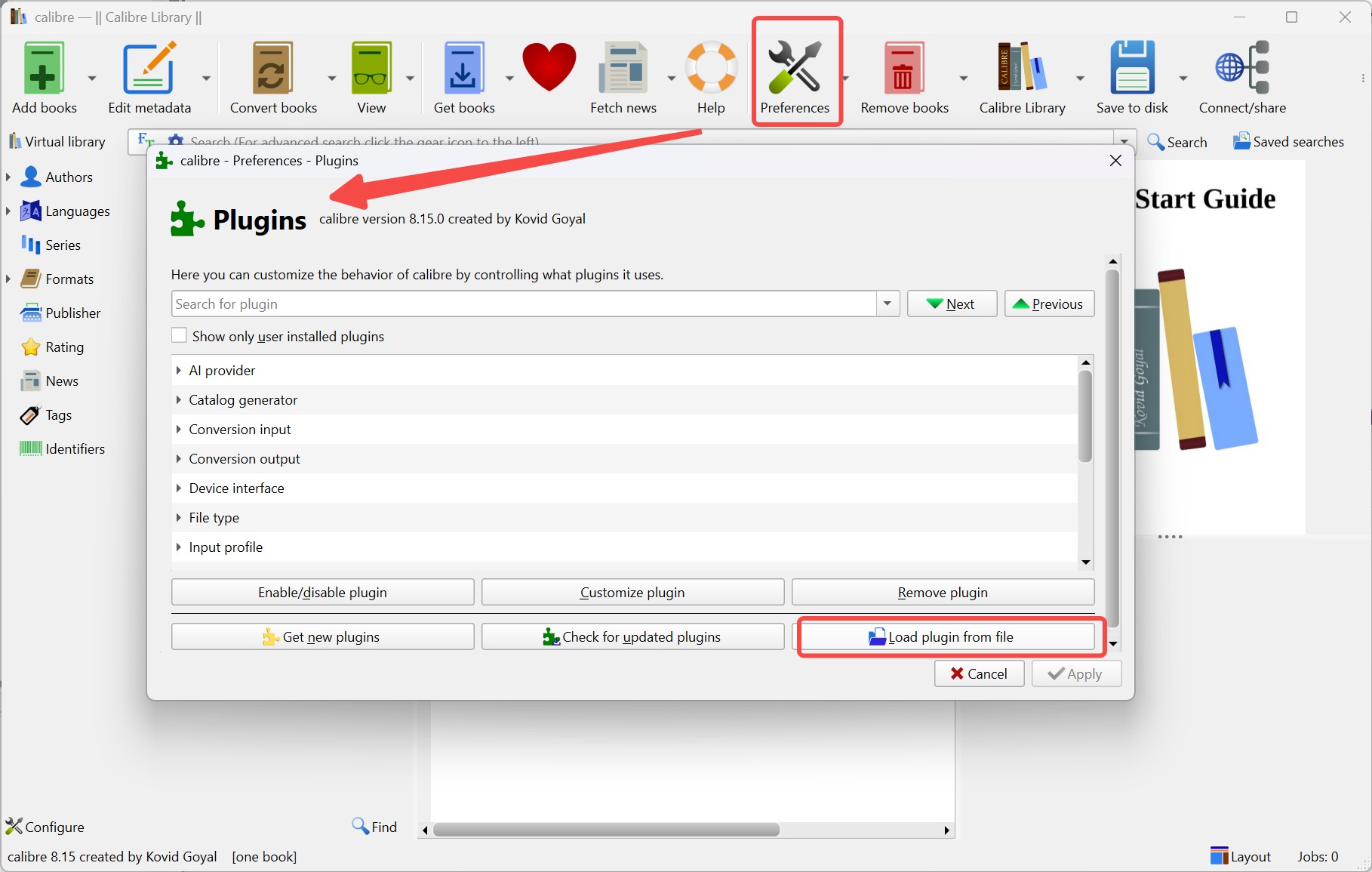
Then, install the DeDRM plugin. Download the latest stable DeDRM_tools package from the Satsuoni's GitHub release page. After downloading DeDRM_tools_xxx.zip, extract it first. Open the extracted DeDRM_tools_xx folder, then find the Calibre plugin file named DeDRM_plugin.zip. In Calibre, go to Preferences > Plugins > Load plugin from file, select DeDRM_plugin.zip, confirm the warning, and restart Calibre when prompted.
Some Kindle books downloaded through newer Kindle apps may use the KFX format. To help Calibre read this format, install the KFX Input plugin as well. In Calibre, go to Preferences > Plugins > Get new plugins. Search for KFX Input, select it, and install it. After installation, restart Calibre again.
Step 3: Convert the Kindle Book to PDF
In Calibre, click Add books and import the Kindle book downloaded through Kindle for PC.
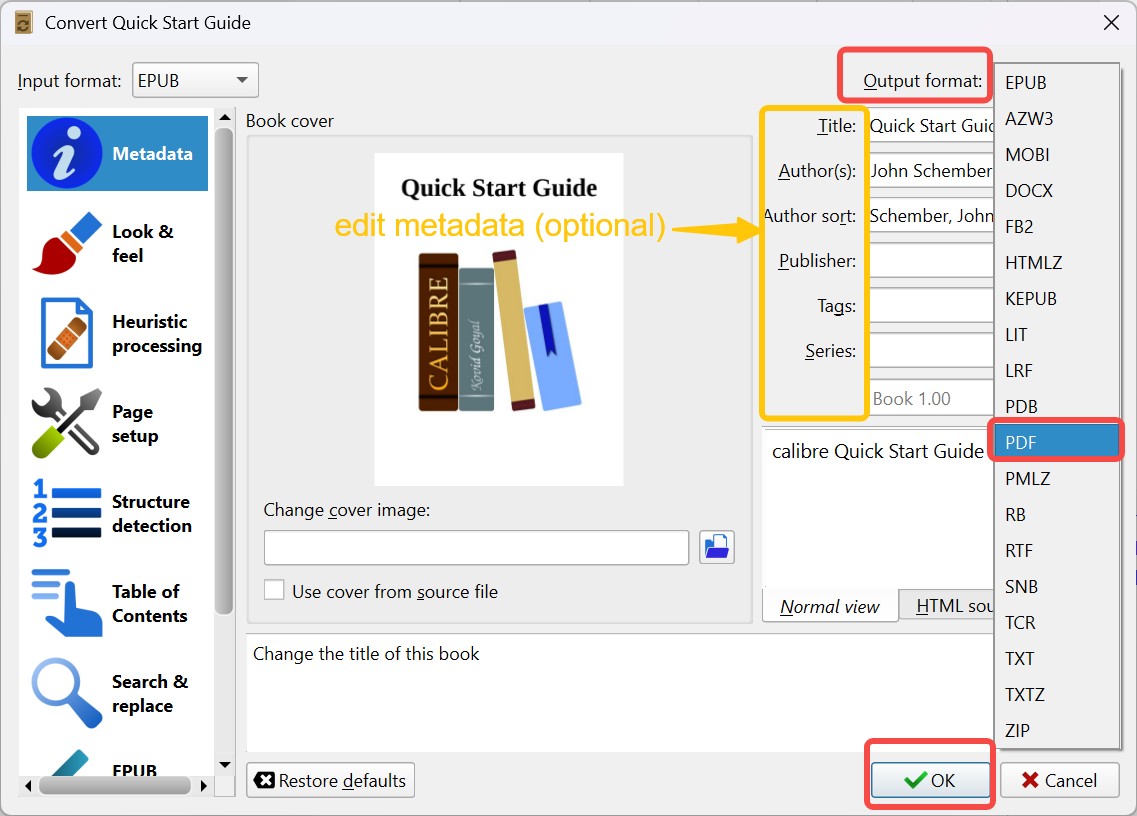
Select the book in your Calibre library and click Convert books. In the upper-right corner of the conversion window, choose PDF as the output format. Click OK.
Step 4: Check the PDF Output
Click Jobs in the bottom-right corner of the Calibre interface to see the books currently being converted. When the task finishes, open the PDF and check the cover, page order, images, table of contents, and print preview. If the PDF looks messy, go back to Calibre's conversion settings and adjust the page size, margins, and font options before converting again.

2. Convert Kindle to PDF with BookFab Kindle Converter (Simplest Method)
BookFab Kindle Converter is a dedicated Kindle to PDF converter. It converts Kindle books to PDF or EPUB and removes DRM at the same time. This method is especially beginner-friendly. Unlike Calibre, it does not require you to install any plugins or search for an old version of Kindle for PC. It automatically detects the books you have downloaded through Kindle for PC, so all you need to do is select the books and convert them with one click. I would use it when I need to process several Kindle books and want a cleaner workflow. Calibre is powerful, but it can feel like a toolchain. BookFab is more focused on the Kindle conversion task itself.
- Requirements: BookFab, Kindle for PC (required on Windows but not on Mac)
Video Tutorial: How to Convert Kindle to PDF with BookFab Kindle Converter
For a more visual, step-by-step walkthrough, you can watch the tutorial video we created.
Step 1: Download Kindle Books via Kindle for PC
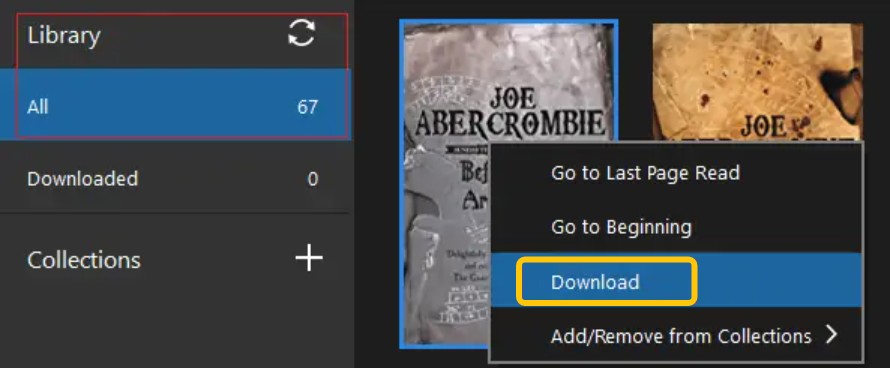
Launch Kindle for PC and log in. In your Library, right-click the book you want to decrypt and choose Download. Ensure the download finishes completely. By default, Amazon saves these files to your "My Kindle Content" folder within your Documents directory.
Step 2: Open BookFab Kindle Converter
Download and install the BookFab program on your computer. Once installed, launch the application and select Kindle Converter from the left-hand sidebar.
Step 3: Select Output Format and Kindle Books
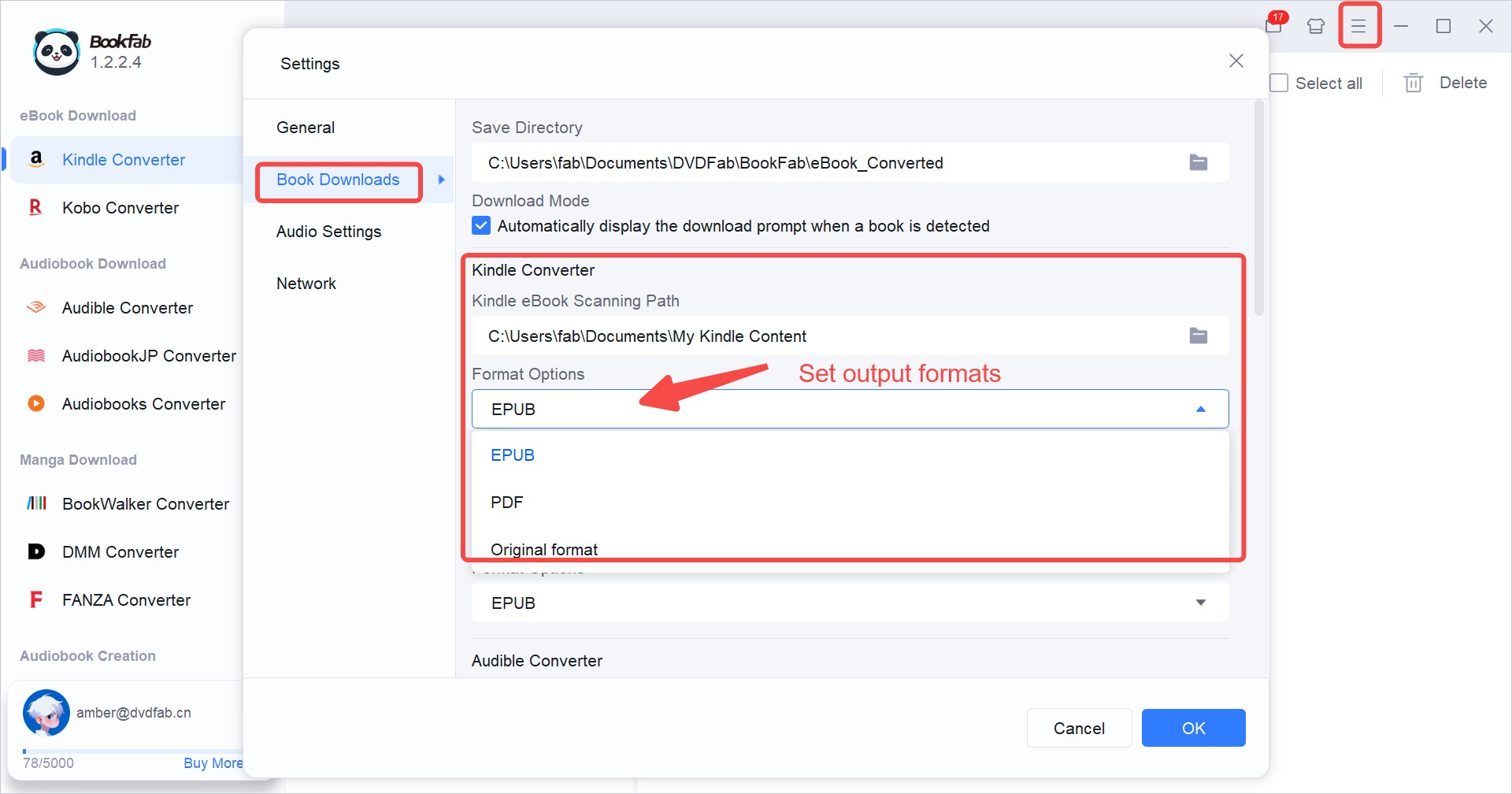
Click the three-line menu icon in the upper-right corner and choose Settings. In the dialog box, go to Book Downloads > Kindle Converter > Format Options, pick PDF from the drop-down list, then click OK to save your changes.
Click the Refresh button in BookFab. The program will automatically scan your computer for Kindle books downloaded via Kindle for PC and display them in the interface. 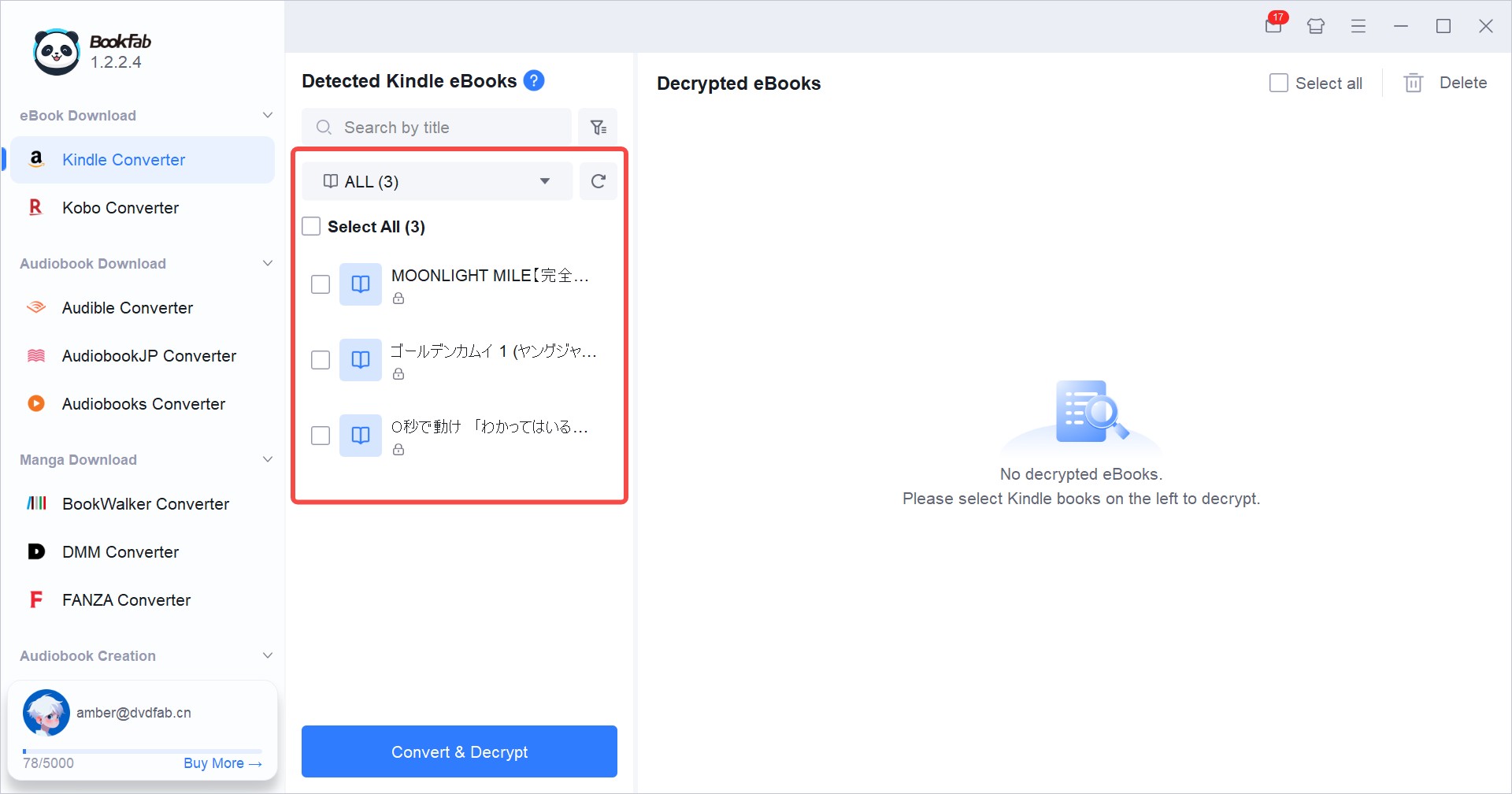
Step 4: Convert Kindle to PDF
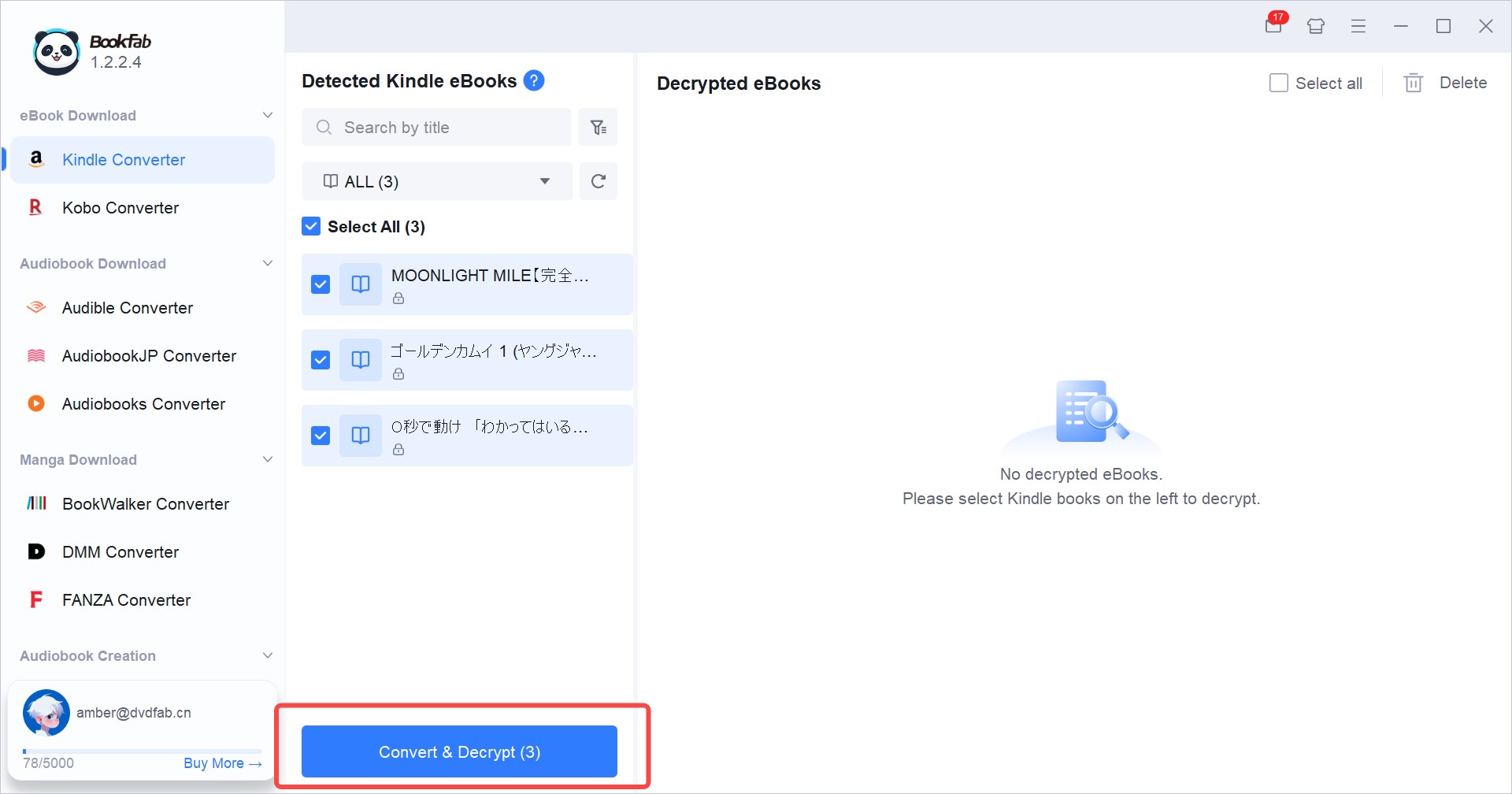
Click the Convert & Decrypt button to begin the process. BookFab will simultaneously remove the DRM and transform your books into PDF files.
After the conversion is complete, hover over the converted book and click the folder icon to open the output folder, where you will find your DRM-free PDF files ready for reading on any device or app.
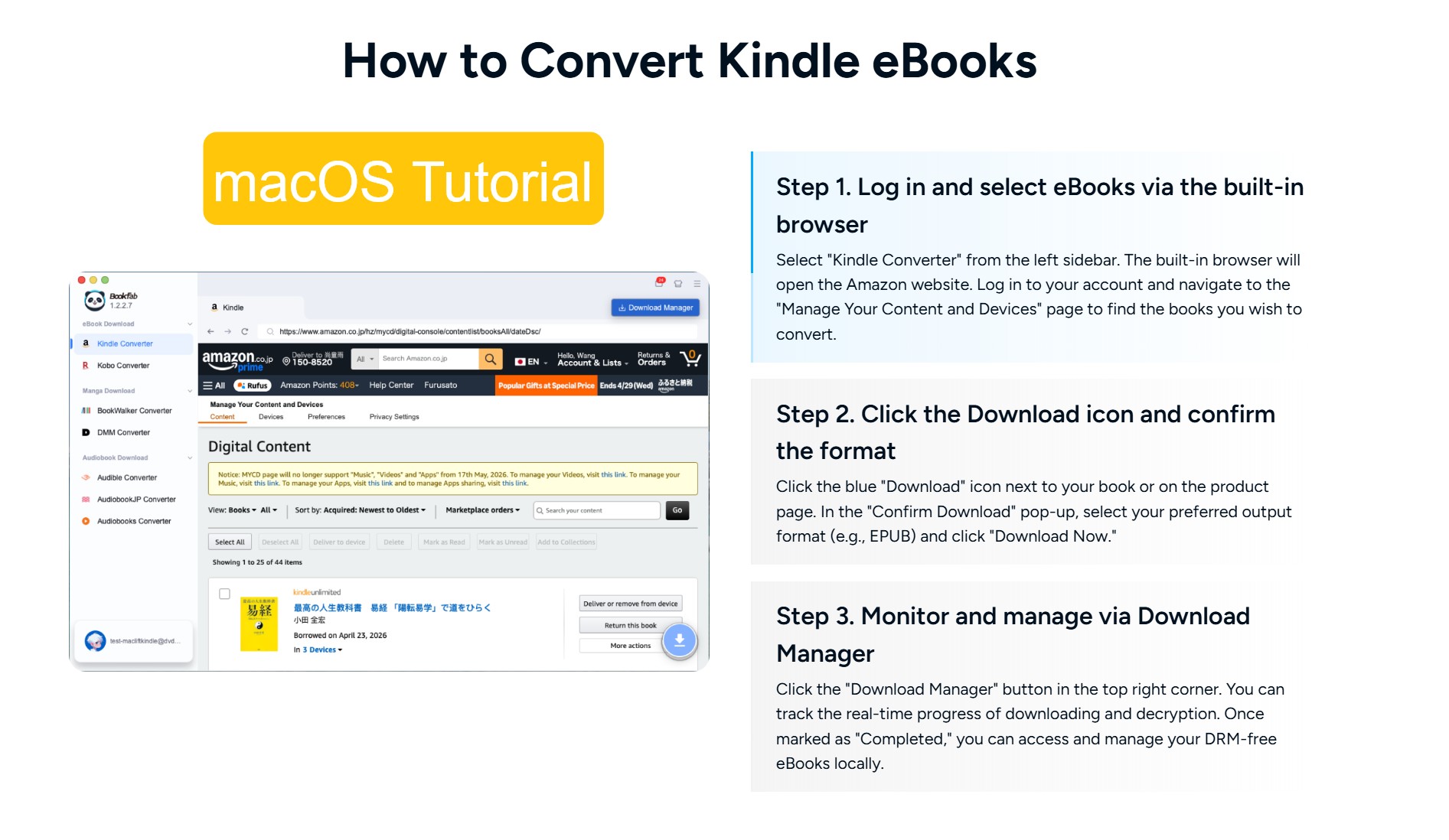
Note: On Mac, BookFab Kindle Converter is even simpler and removes the need for Kindle for PC. Using the built-in browser, just log in to your account, select a book, and click the blue download button to save it directly as a PDF.
3. Convert Kindle to PDF Online (Best for Small DRM-free Books)
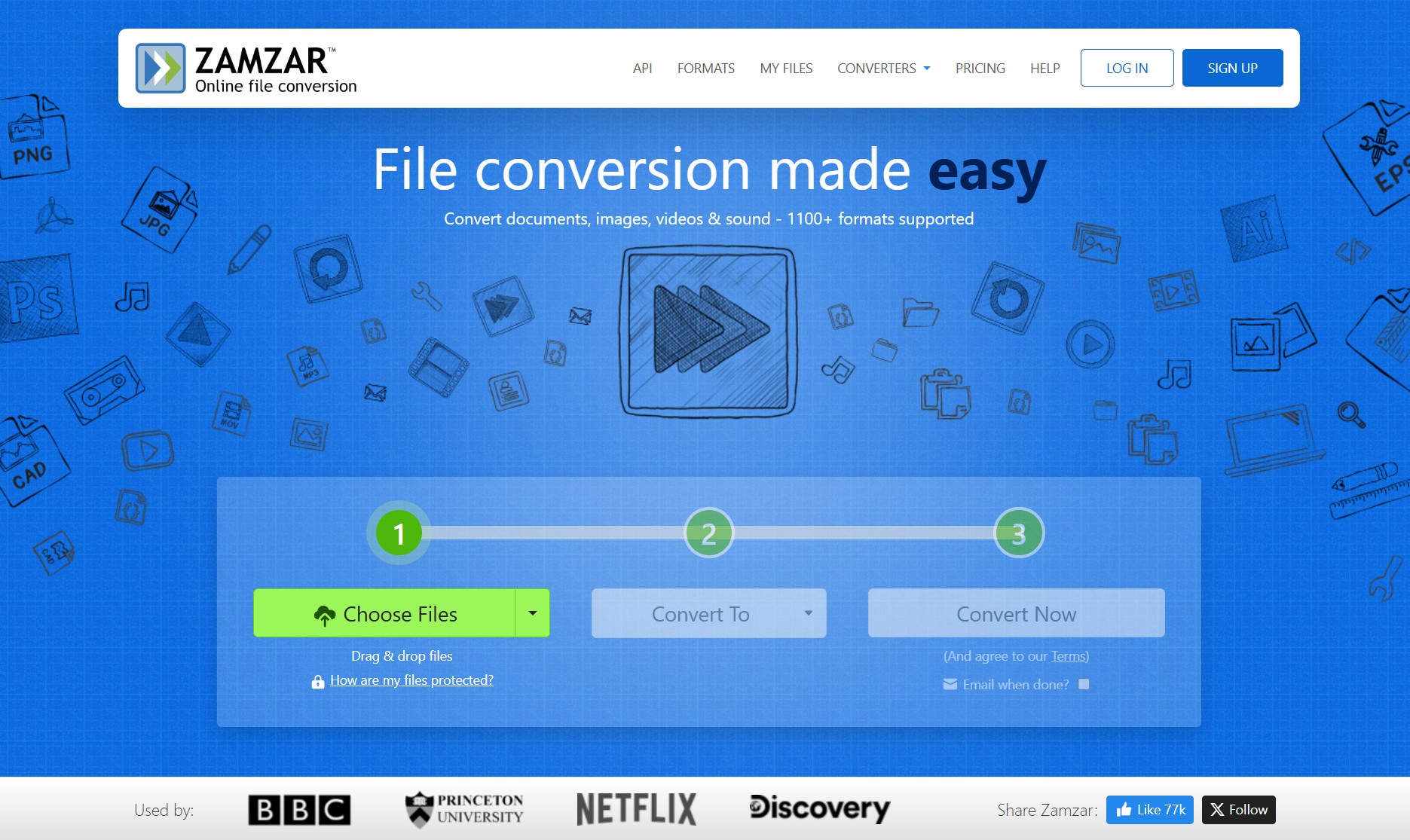
If you prefer not to download any software and are looking for the most convenient way to convert Kindle to PDF, Zamzar is a good choice. This online Kindle to PDF converter offers a simple drag-and-drop interface and support for popular formats, and lets you convert DRM-free Kindle eBooks to PDF for personal backup.
That said, this convenience comes with some clear limitations. In my testing, the free version only supports files up to 50 MB and does not support DRM-protected Kindle books. As a result, it is not the most cost-effective or practical solution for most users, and is mainly suitable for occasional conversion of small DRM-free Kindle files. Below is a step-by-step guide.
Step 1: Upload Kindle Books to Zamzar
Open the Zamzar AZW-to-PDF converter in your browser. Click Choose Files and select your Kindle file from your computer, or drag and drop it into the upload area. You can also import files from cloud services such as Google Drive, Dropbox, or OneDrive if needed.
Keep in mind that free accounts have a size limit, so very large Kindle files may require you to sign up for a plan.
Step 2: Convert Kindle to PDF Online
In the "Convert To" drop-down list, select PDF as the target format. Then click Convert Now to start converting your Kindle file to PDF. For small, DRM-free files, the process usually finishes in a short time.
Step 3: Download Converted PDF Files
Once the conversion is complete, this Kindle to PDF converter will display a Download button next to your file. Click it to save the PDF to your computer or device. Converted files are stored on the servers only for a limited time, so it's best to back up your PDF promptly. Note that, like other online converters, Zamzar works with DRM-free Kindle files.
4. Convert Kindle Books to PDF via Screenshot (Best for Selected Pages Only)
If you only need a few Kindle pages, screenshots can be the quickest workaround. This method does not truly convert a Kindle book into a PDF, but it can help you save selected pages, charts, illustrations, or short reference sections as image-based PDF files.
I do not recommend this method for a full Kindle book. It is slow, the text may not be searchable, and the final PDF quality depends on your screen resolution. However, for one or two pages, it is simple and does not require plugins or conversion settings.
Step 1: Open the Kindle Book on Your Computer
Open Kindle for PC or Kindle for Mac and sign in with the Amazon account that owns the book. Open the title you want to capture, then go to the page you want to save.
For better results, adjust the reading window before taking screenshots. I usually make the Kindle window large enough, choose a clean background, and use a comfortable font size so the captured page stays readable later.
Step 2: Capture the Kindle Page
On Windows, press Win + Shift + S to open the screen snipping tool, then drag to select the Kindle page area you want to capture. You can also use the Snipping Tool app if you prefer a visible interface.
On Mac, press Shift + Command + 4, then drag to select the Kindle page area. Release the mouse or trackpad to save the screenshot.
Then, repeat for the pages you need.
Step 4: Combine the Screenshots into a PDF
After capturing the pages, combine the images into one PDF.
On Windows, you can select the screenshots, right-click, choose Print, and use Microsoft Print to PDF. You can also insert the images into Word or a PDF editor and export them as a PDF.
On Mac, open the screenshots in Preview, arrange them in the correct order, then export or print them as a PDF.
Can You Download Kindle Books as PDF Directly?
You might be wondering: "Do kindles allow PDF downloads so I can skip the Kindle to PDF conversion entirely?" The answer is yes, but only for DRM-free titles where the author has explicitly enabled download permissions.
Since January 20, 2026, Amazon has begun allowing users to download certain DRM-free books directly from their website in EPUB or PDF formats. To check this, log in to your Amazon account on the web and navigate to "Manage Your Content and Devices." If the author or publisher has enabled downloads in the Publisher Center and the book is DRM-free, you will see an option to download it directly as a PDF. However, with 97% of Kindle eBooks being DRM-protected, this method is quite limited and doesn't work for Kindle Unlimited titles.
Another workaround is using the Kindle Cloud Reader in your web browser and using a browser extension to "screenshot" every page to compile a PDF. However, this method is highly impractical and results in poor image quality and broken layouts.
So, if you want high-quality PDF versions of your Kindle library, including those protected books, the most effective way is to convert Kindle to PDF with specialized software. Using Calibre or BookFab Kindle Converter will yield the best results.

FAQs about Kindle to PDF Conversion
Is converting Kindle to PDF legal?
Why is the converted PDF badly formatted?
If you want to minimize formatting issues, you can try BookFab Kindle Converter. As a dedicated format conversion tool, it generally delivers higher-quality output and is less likely to cause layout problems during Kindle to PDF conversion.
Can I convert KFX to PDF?
How can I transfer the converted PDF to other devices?
How long does it take to convert a Kindle book to PDF?
Desktop tools such as Calibre tend to be faster once everything is set up. Online converters may take longer if your internet connection is slow or if the service is busy.
How to convert a PDF for a Kindle?
Conclusion
Converting Kindle books to PDF is a practical way to ensure your library stays accessible on any device. If you're comfortable with manual setups, Calibre is a solid free option. For those who want a faster, more reliable way to convert Kindle books in any format, BookFab Kindle Converter is a practical option worth considering. Regardless of the tool, moving to PDF gives you more control over your digital content and permanent backups.
Disclaimer: The Kindle to PDF methods mentioned in this article are intended for personal backup purposes only. Please ensure that your actions comply with all applicable copyright laws and regulations.

 How to Print Kindle Books Without Losing QualityBy Amber Collins - May 14, 2026
![[Quick Solution] How to Remove Kindle DRM on Mac](https://images.dvdfab.cn/media/未命名的设计__87__crpyru.png/public) [Quick Solution] How to Remove Kindle DRM on MacBy Amber Collins - May 11, 2026
[Quick Solution] How to Remove Kindle DRM on MacBy Amber Collins - May 11, 2026 How to Download Kindle Books to PC in 2026 (The Complete Guide)By Amber Collins - May 9, 2026
![How to Convert Kindle Books to EPUB Easily [2026 Verified]](https://r5.dvdfab.cn/upload/bookfab/en/convert-kindle-to-epub-RDlf.jpg) How to Convert Kindle Books to EPUB Easily [2026 Verified]By Amber Collins - May 6, 2026
How to Convert Kindle Books to EPUB Easily [2026 Verified]By Amber Collins - May 6, 2026