
How to Print Kindle Books Without Losing Quality

Summary: To print Kindle books, the best solution is to convert them to PDF format with BookFab Kindle Converter first, and then print the converted PDF. If you only want to print just a few pages, screenshots may work, but they often produce lower-quality results.
Table of Contents
Amazon Kindle does not offer a native printing feature. You cannot connect a Kindle device directly to a printer, nor can you export Kindle books to a printable format on your computer, even the Kindle for PC app lacks a print option.
If you are looking for the simplest way to print Kindle books while maintaining original, high-resolution quality, the best solution is to convert your Kindle books into PDF format first. This guide will walk you through the most effective method to print Kindle books.
Essential Tools for Printing Kindle Books
The main reason printing Kindle books is difficult is due to DRM (Digital Rights Management) restrictions. While you can download books to your computer using the Kindle for PC app, the files are not saved in standard formats like PDF. Because of this, you won't find a direct print option in the software.
However, with the right tools, printing Kindle books is actually quite simple. You only need four tools (Mac users only need three) to print your books:
- A Computer (Windows or Mac)
- A Printer
- Kindle for PC: This is required for Windows users to download Kindle books from the cloud to a local drive.
- BookFab Kindle Converter: This software is used to remove restrictions and convert your Kindle books into a high-quality PDF format.
How to Print Kindle Books: Step-by-Step Tutorial
Once you have your tools ready, you can follow these steps to print your books. The process is designed to ensure the highest output quality for your physical copies.
Step 1: Download Your Books via Kindle for PC
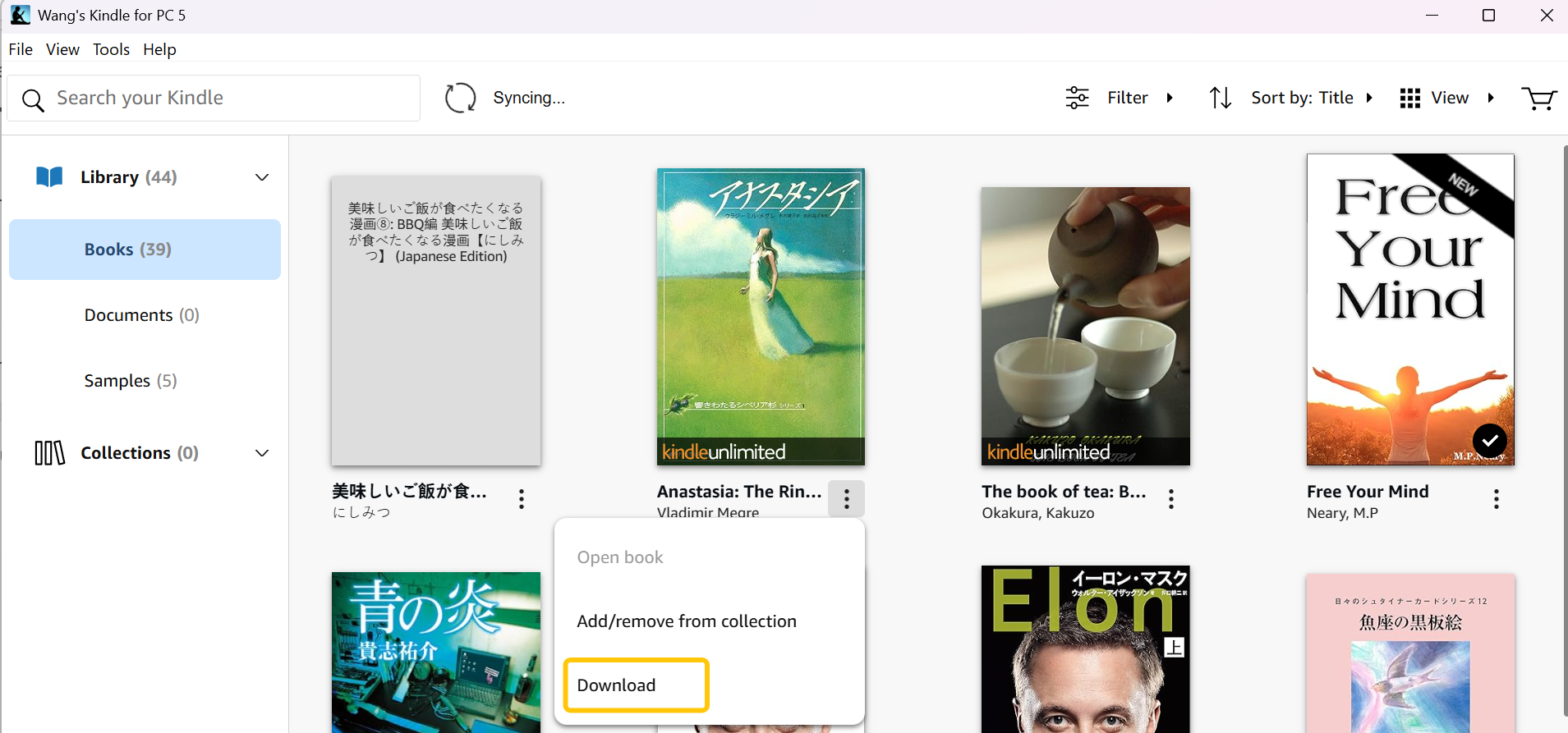
First, open the Kindle for PC app on your computer. Log in to your Amazon account and locate the book you wish to print in your library. Right-click on the book cover and select "Download". This saves the book file locally on your hard drive so the converter can access it.
Step 2: Import Books into BookFab Kindle Converter
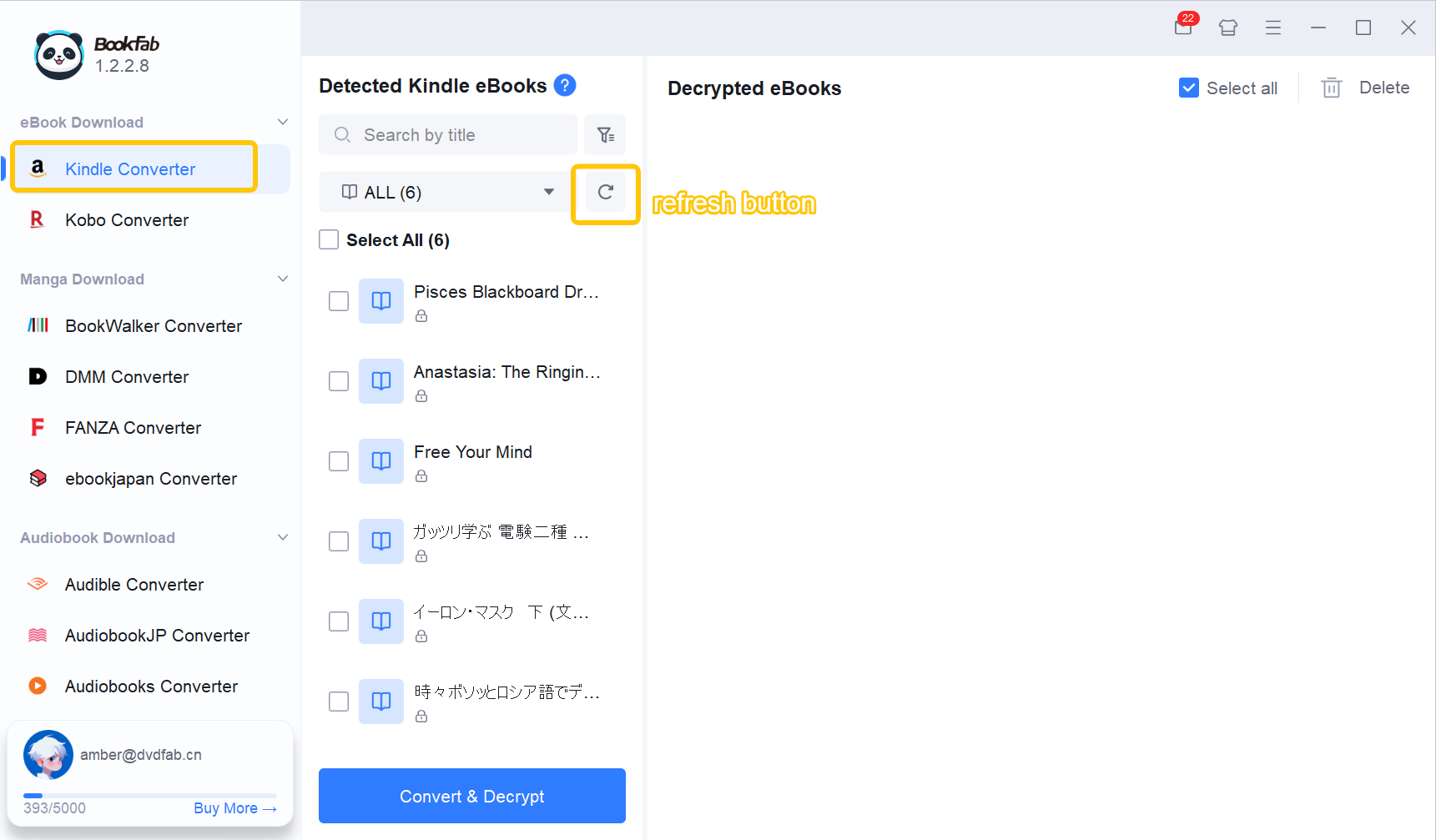
Launch BookFab and select Kindle Converter. Click "Refresh" button, and the software will automatically detect the books you downloaded in the previous step.
Step 3: Choose PDF as the Output Format
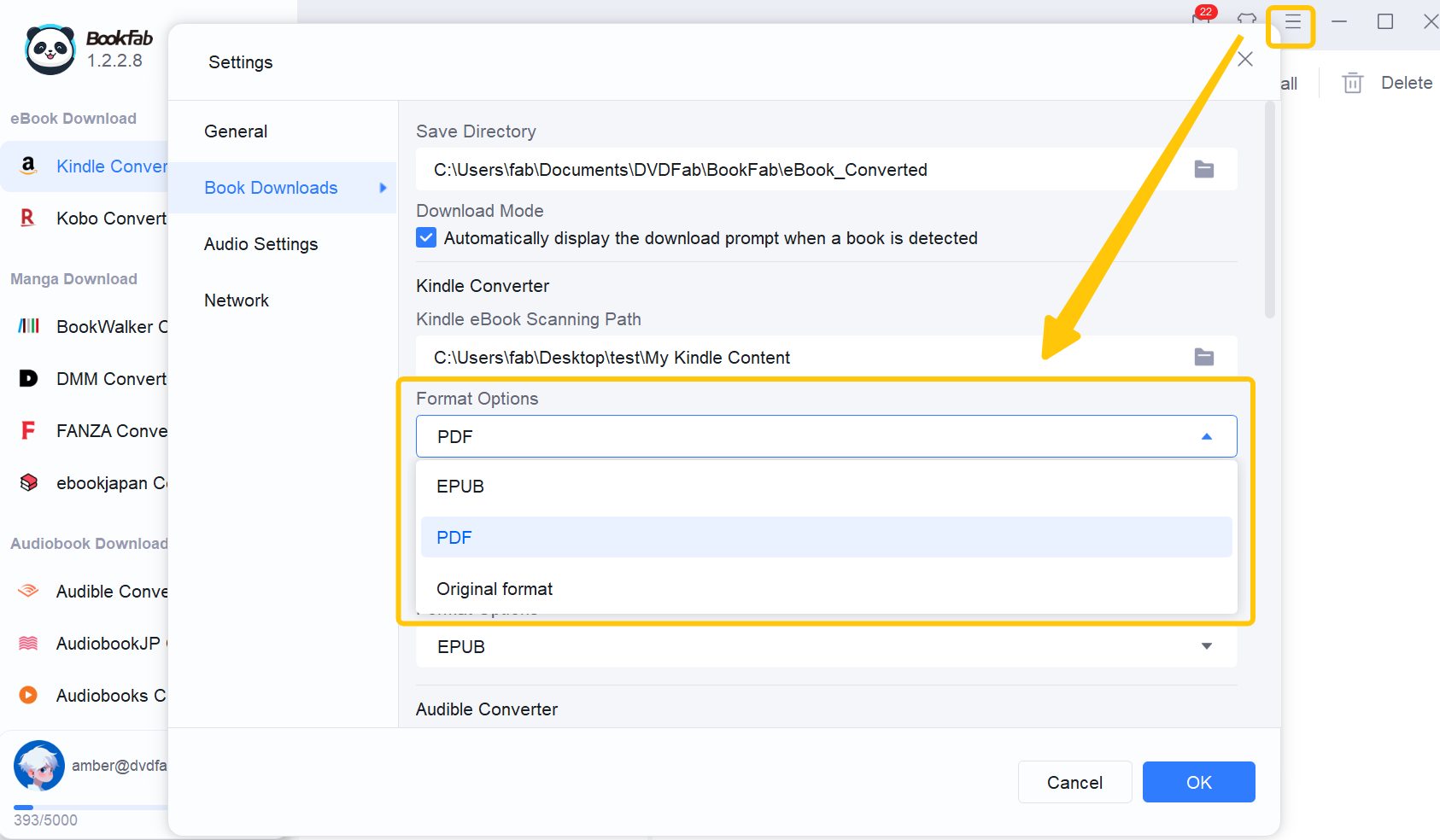
Go to Settings > Book Downloads > Kindle Converter > Format Options and select PDF as your target format. Since PDF preserves the Kindle book's original layout, fonts, and images, it is the most reliable format for printing. Click "OK" to save your changes.
Step 4: Export Your Kindle Books to PDF
Check the boxes next to the Kindle books you want to print, then click the "Convert & Decrypt" button to convert Kindle to PDF. Wait for the conversion process to finish.
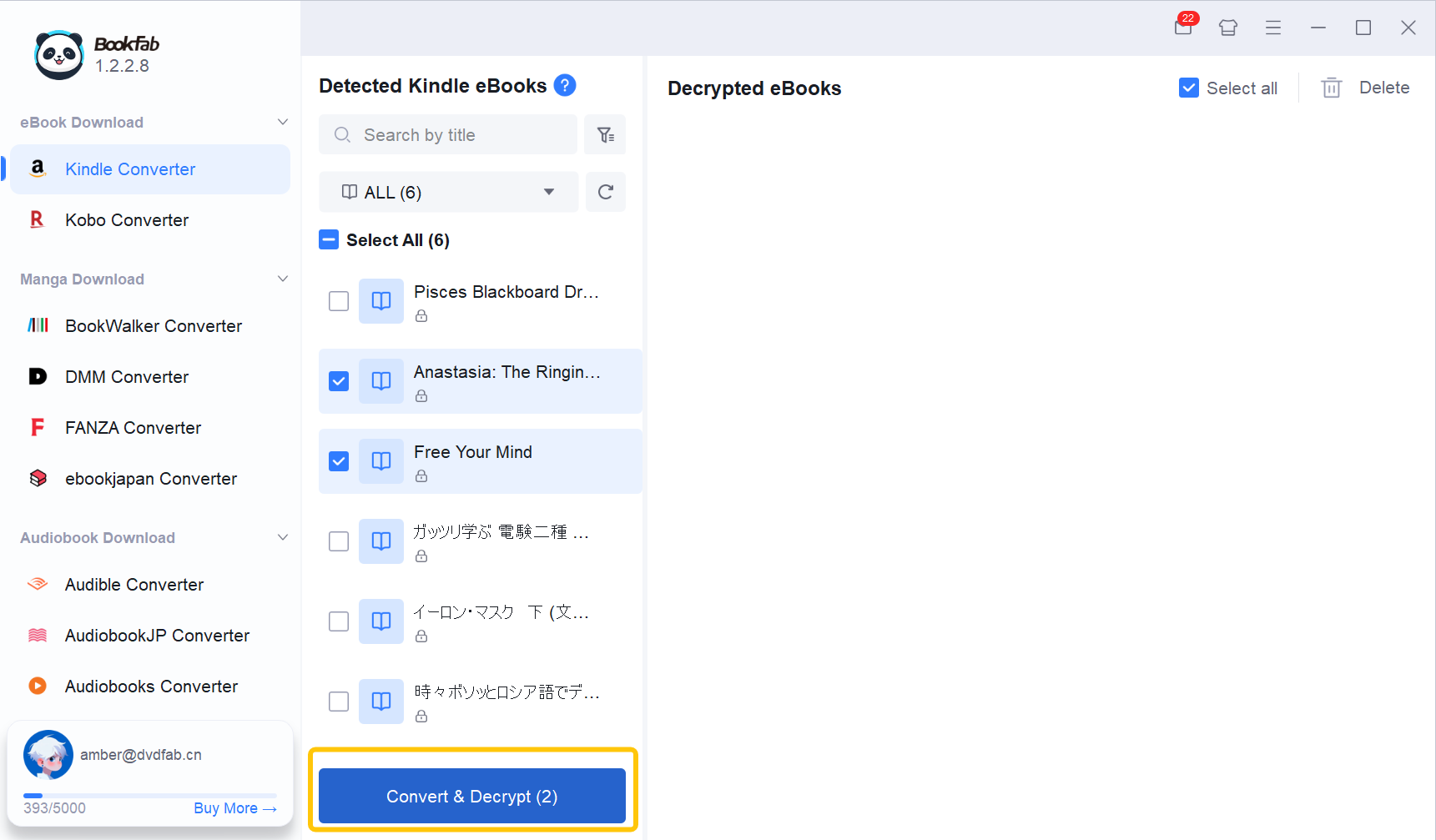
Once successful, the books will appear in the "Decrypted eBooks" panel on the right. You can then click the "Open Folder" icon on the book cover to access the folder where your PDF files are stored.
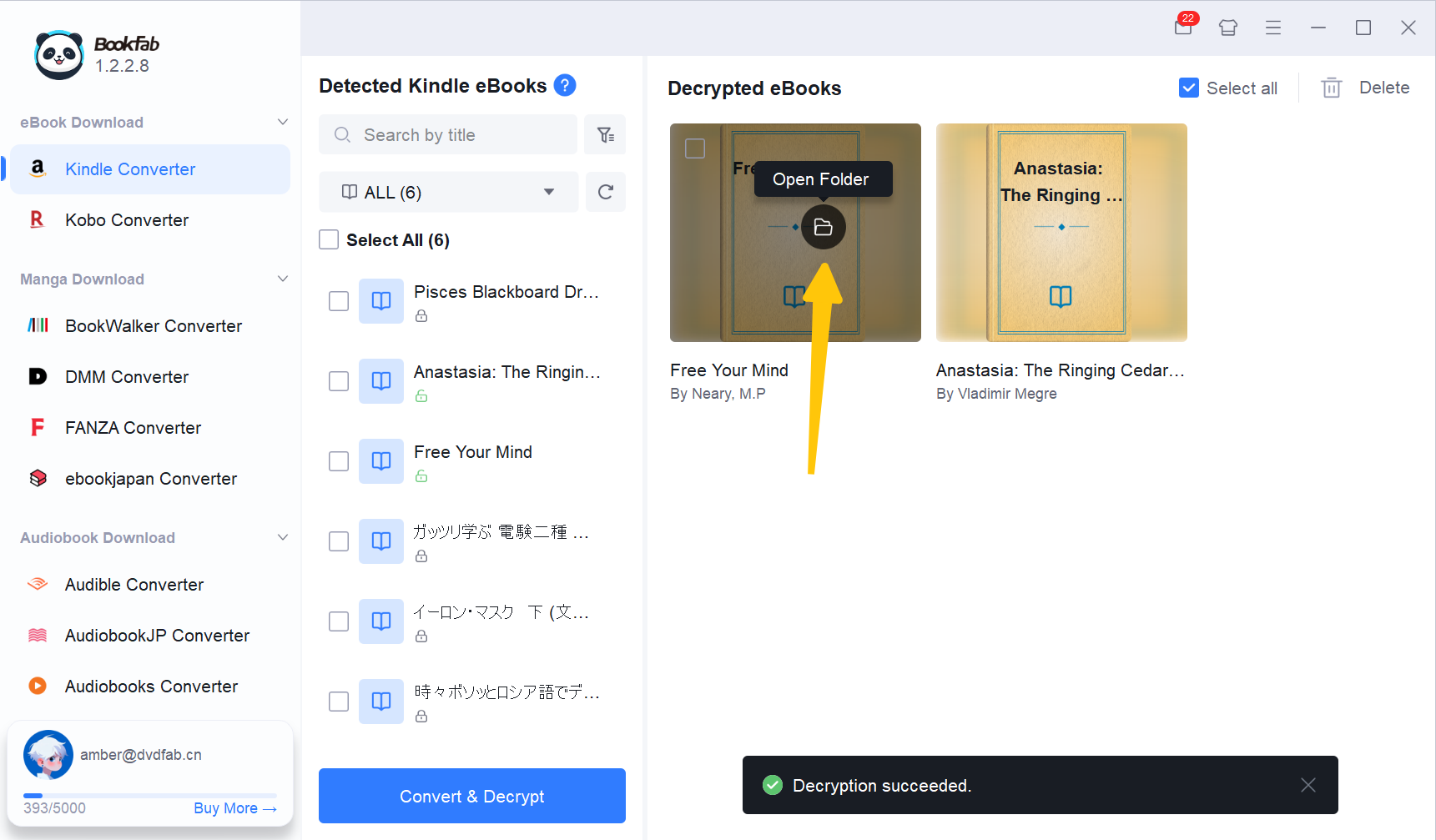
Step 5: Print Your Kindle Books
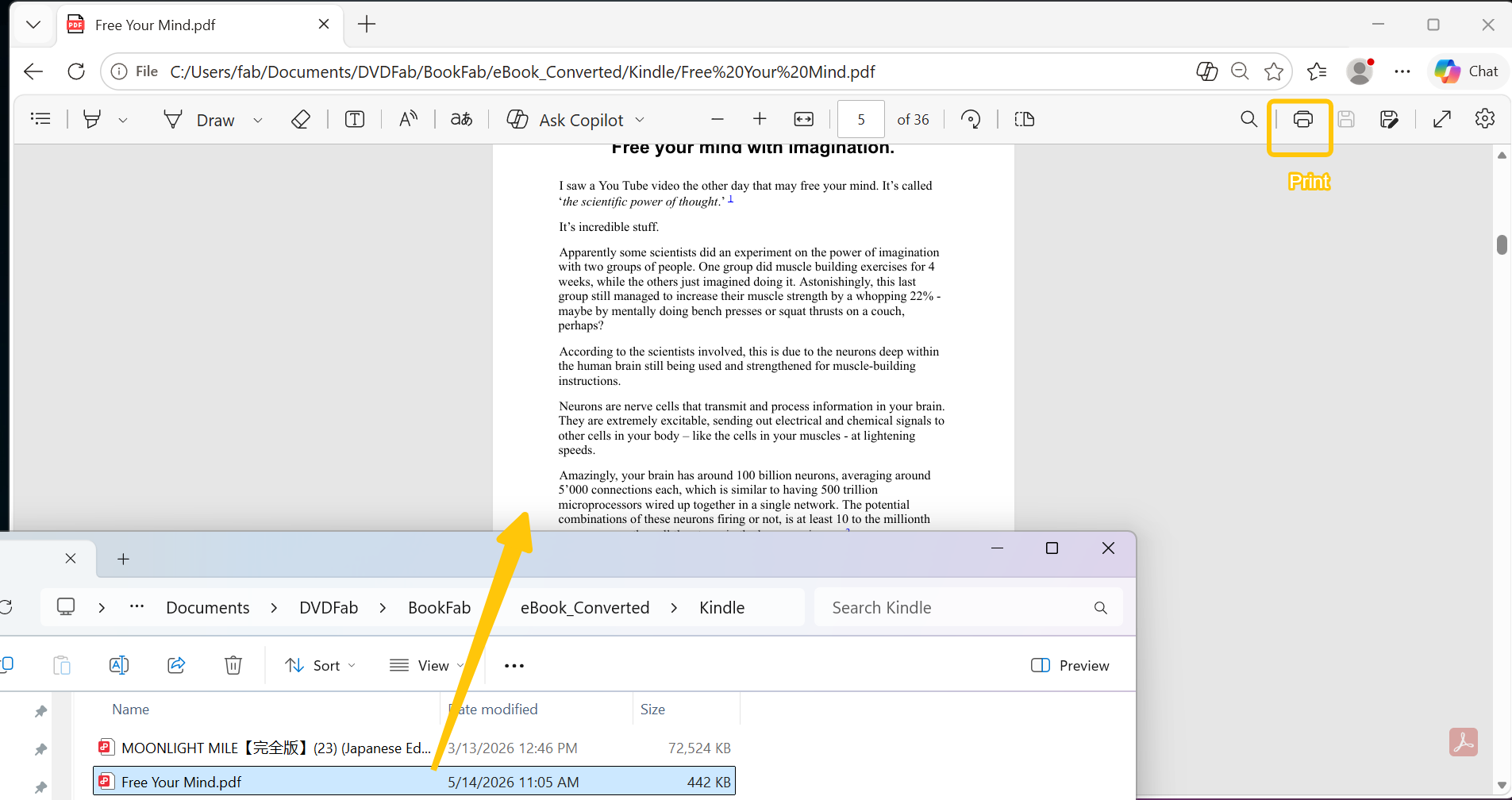
Open the converted PDF file using any standard PDF viewer or your web browser. Ensure your computer is connected to your printer, then select the Print command (usually Ctrl + P or Cmd + P). Adjust your print settings, such as page range or paper size, and click Print to create your high-quality physical copy.
Mac Tutorial: How to Print Kindle Books
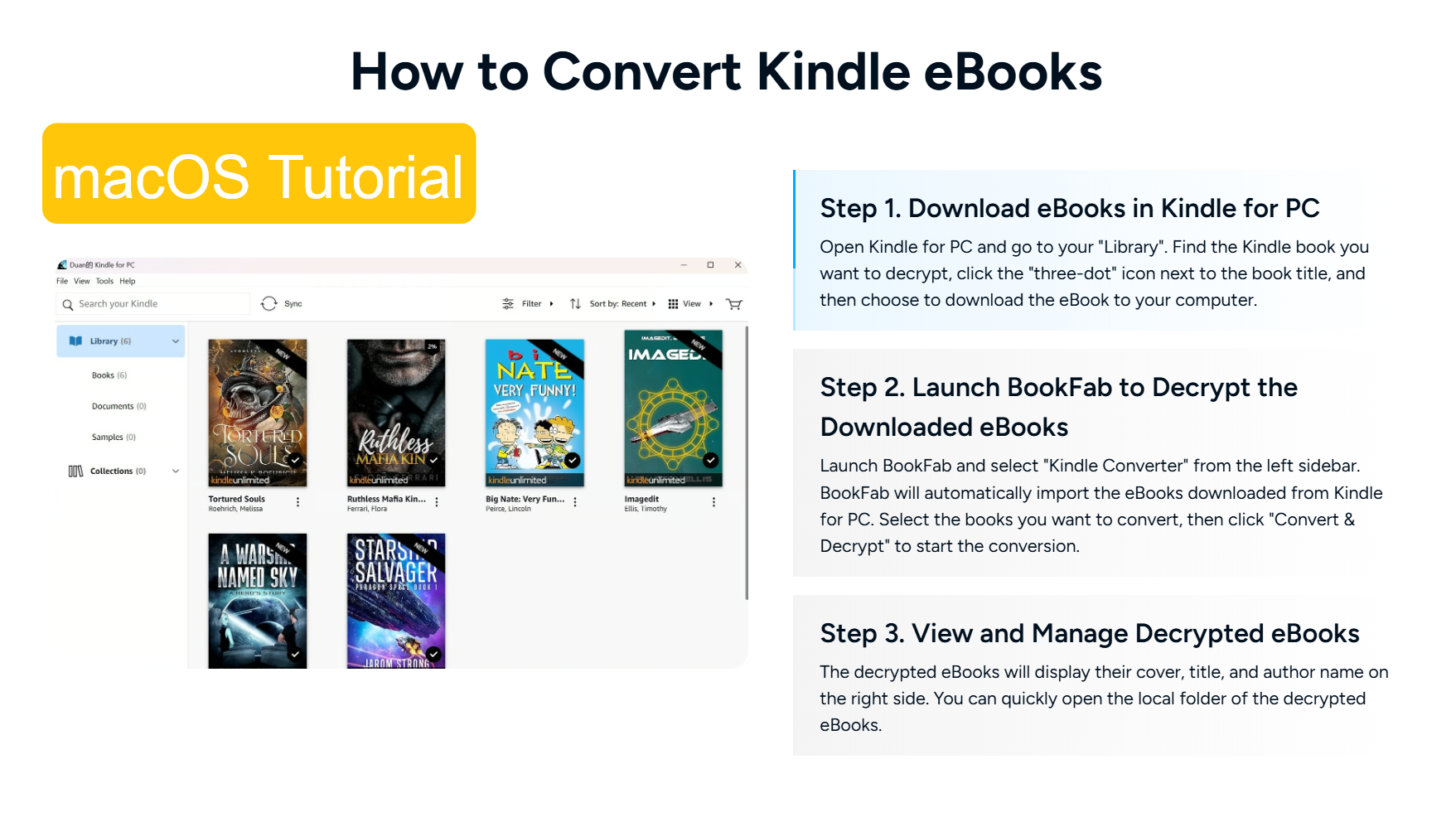
Mac users do not need to download the Kindle for Mac app, as the current version often prevents downloading the latest purchased books for local storage. Instead, you can use the built-in browser within BookFab Kindle Converter for a much simpler process:
1. Open BookFab Kindle Converter and use the integrated browser to log in to your Kindle account.
2. Navigate to the detail page of the book you wish to print. Click the blue Download button and select PDF as your output format to begin the download.
3. Once the download is complete, locate the PDF file in your output folder and proceed with printing as you would with any standard document.
Alternative Kindle Printing Method: Using Screenshots
If you only need to print a few specific pages, such as a worksheet, a technical diagram, or a recipe, you can use the manual screenshot method mentioned by many users on the Amazon Forum. While Kindle for PC does not have a "Print" button, you can capture the screen and print the resulting image.
1. Launch the Kindle for PC or Kindle for Mac app and navigate to the page you want to print.
2. Capture the Screen.
- Windows: Press Windows Key + Shift + S to select the page area, or use the Print Screen (PrtSc) key.
- Mac: Press Command + Shift + 4 to select the specific page area.
3. Paste the capture into a program like Microsoft Word, Paint, or Preview, and then send that file to your printer.
Troubleshooting Kindle Printing Problems
If you run into missing books, blank pages, blurry screenshots, cropped text, or layout issues, use the tips below to fix the most common Kindle printing problems before printing the full book.
The printed text is too small. How do I make it readable?
Before printing the whole book, open the converted PDF and print only one test page. In the print dialog, try Actual Size, Fit, or Scale settings to see which one gives the most readable result.
The PDF looks fine on screen, but the printed copy is cut off.
This is usually caused by a mismatch between the PDF page size and your printer paper size. For example, a PDF formatted for Letter paper may print incorrectly on A4 paper, or the printer may crop the margins.
Open the print dialog and check three things: paper size, orientation, and scaling. Try Fit to printable area or Shrink oversized pages if the edges are cut off. If tables or images are wider than the page, try landscape printing for those pages.
Tables are split across pages. Can I prevent that?
If a table is wider than the PDF page, it may be split, squeezed, or pushed onto the next page. Try printing that section in landscape orientation. If your PDF viewer allows custom scaling, reduce the scale slightly, such as 90% or 95%, and print a test page.
The printed copy has huge margins. How can I reduce them?
Huge margins may come from either the PDF conversion settings or the printer's default printable area. In the print dialog, try switching from Actual Size to Fit, or adjust the scale manually.
Conclusion
In this guide, I've covered the highest quality method to print Kindle books by converting them to PDF, as well as a quick screenshot workaround for when you only need a few pages. Both methods ensure you can enjoy your digital library in a physical format that suits your reading style.
However, please remember that these methods should be used for personal use only. Printing Kindle books for distribution or sale is a violation of copyright and the author's rights. We hope this tutorial helps improve your reading experience and makes your favorite titles more accessible for your personal study and enjoyment.

 4 Easy Ways to Convert Kindle to PDFBy Amber Collins - May 18, 2026
![[Quick Solution] How to Remove Kindle DRM on Mac](https://images.dvdfab.cn/media/未命名的设计__87__crpyru.png/public) [Quick Solution] How to Remove Kindle DRM on MacBy Amber Collins - May 11, 2026
[Quick Solution] How to Remove Kindle DRM on MacBy Amber Collins - May 11, 2026 How to Download Kindle Books to PC in 2026 (The Complete Guide)By Amber Collins - May 9, 2026
![How to Convert Kindle Books to EPUB Easily [2026 Verified]](https://r5.dvdfab.cn/upload/bookfab/en/convert-kindle-to-epub-RDlf.jpg) How to Convert Kindle Books to EPUB Easily [2026 Verified]By Amber Collins - May 6, 2026
How to Convert Kindle Books to EPUB Easily [2026 Verified]By Amber Collins - May 6, 2026