
How to Remove DRM from Kindle Books in 2026 [Tested & Verified]

Summary: To remove DRM from Kindle books, you can use tools such as BookFab Kindle Converter or Calibre with the DeDRM plugin. The general process is to install the software, get your Kindle books onto your computer, and then import them into the DRM removal tool for decryption. This article will introduce 3 ways to remove DRM from Kindle books, including using Calibre, BookFab Kindle Converter and Python scripts.
To remove DRM from Kindle books, you need updated tools that can bypass Amazon's latest encryption. Since Amazon removed the "Download & Transfer via USB" option, traditional decryption methods frequently fail. This guide provides step-by-step instructions for the 3 working solutions in 2026: the simplest method using BookFab Kindle Converter (for both Windows and Mac), a free, technical workaround using Calibre and the Python script method.
Method 1. Remove DRM from Kindle Books with Calibre
OS: Windows (Kindle DRM removal on Mac/Linux is highly restricted)
Calibre can remove Kindle DRM, but requires the Calibre DeDRM plugin (v10.0.17+) and the KFX Key Extractor tool in 2026. I have tested multiple versions and found that Calibre offers the best compatibility with books downloaded via Kindle for PC version 2.8.2 (build 70987). This guide walks through the complete process, takes about 30 minutes to set up, and is best suited for tech-savvy users.
Step 1: Install Kindle for PC and Block Updates
Install Kindle for PC 2.8.2 (build 70987) but do NOT open it.
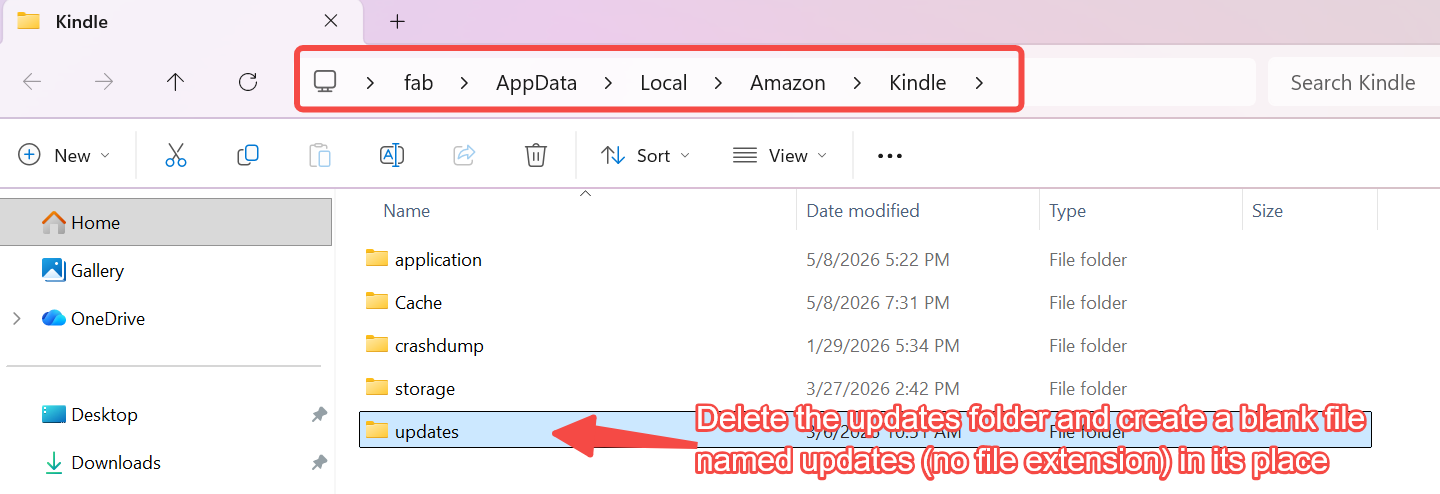
Press Windows + R, type %LOCALAPPDATA%\Amazon\Kindle, and press Enter. In the folder window that appears, delete the updates folder. Then create a blank file named updates in the same location. Make sure the file has no file extension, delete the updates folder and create a blank file named updates (no file extension) in its place.
Open Kindle for PC, immediately go to Tools > Options > General, and uncheck "Automatically install updates".
Step 2: Download Kindle Books
Log in to your Amazon account in Kindle for PC. Right-click and download the books you want to backup. They will be saved to C:\Users\<YourUsername>\Documents\My Kindle Content\.
Step 3: Install Calibre DeDRM/KFX Plugins
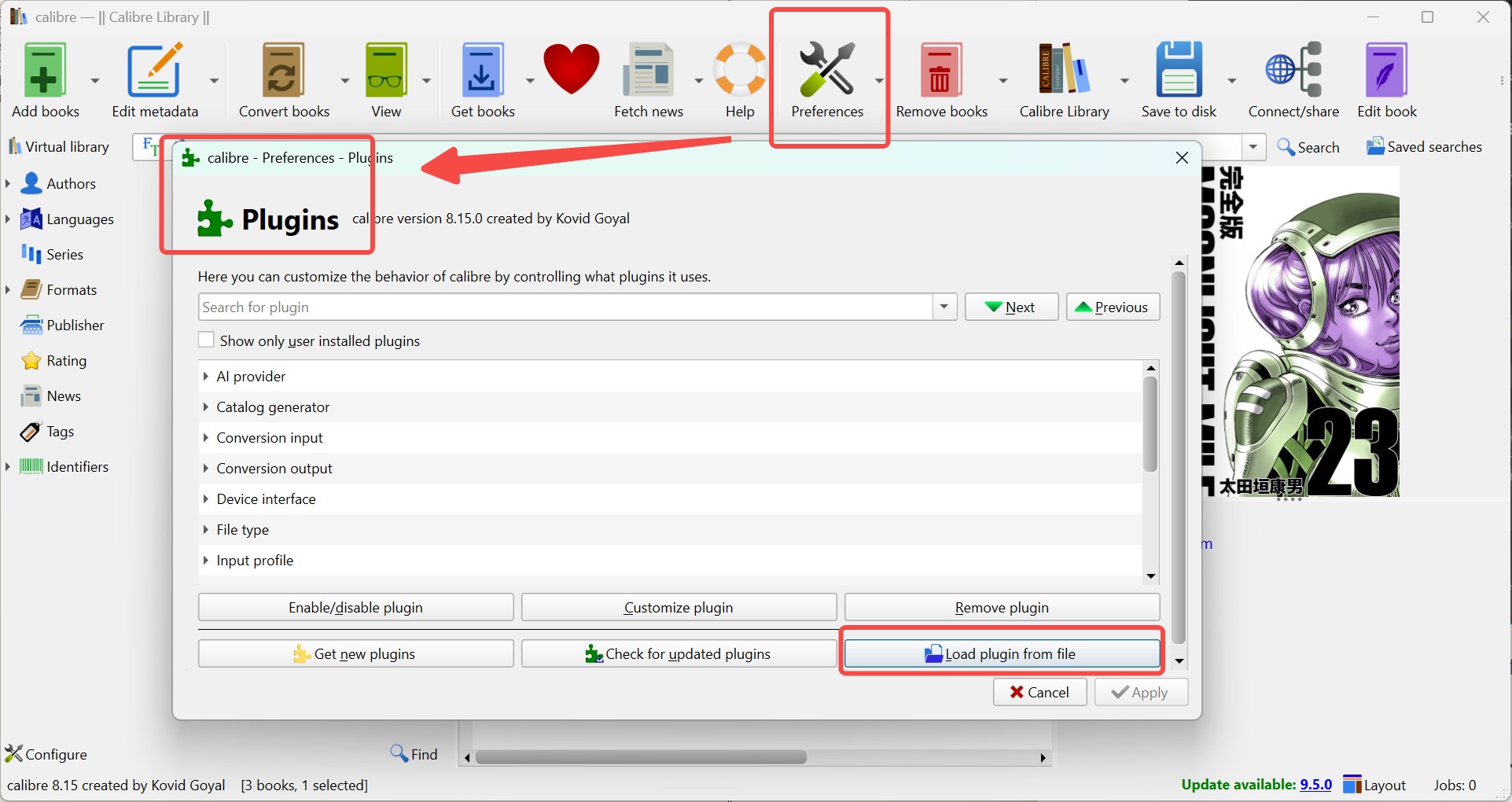
Download and extract the v10.0.17 release zip from the Satsuoni/DeDRM_tools GitHub page. Install and open Calibre, go to Preferences > Plugins > Load plugin from file, and select DeDRM_plugin.zip from your extracted folder. Then, click Plugins > Get new plugins, search for "KFX Input", install it, and restart Calibre.
Step 4: Remove Kindle DRM in Calibre
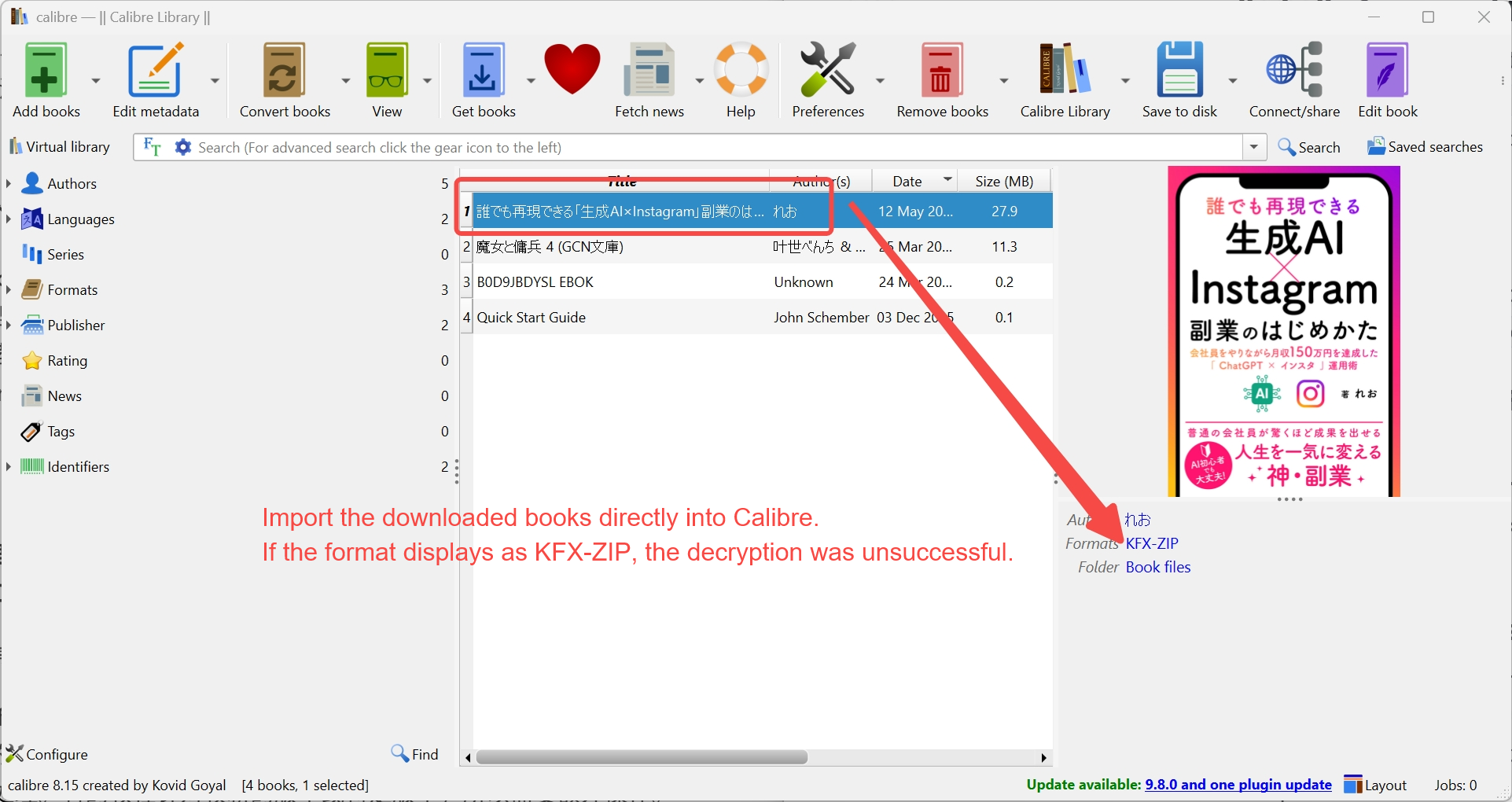
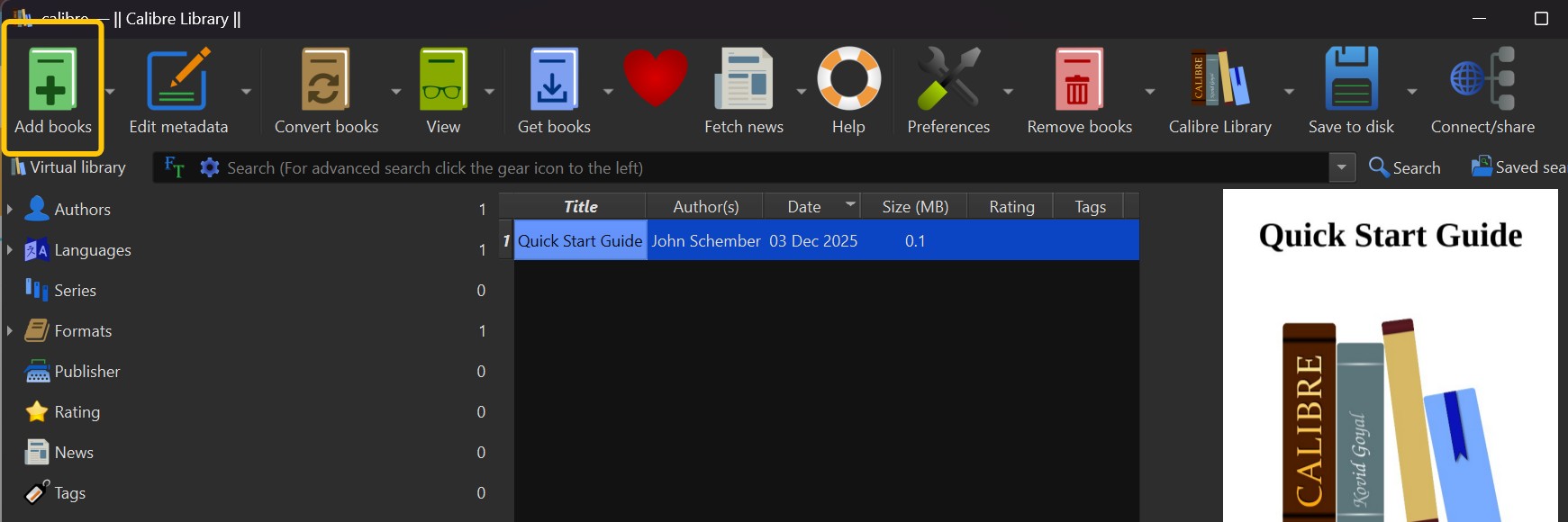
A. You can try clicking Add books in Calibre to import the book directly. The decryption should run automatically during import. If the book opens in Calibre afterward, it has been decrypted successfully. If it still cannot be opened, or if it appears as a KFX-ZIP file after importing, the book may use stronger Kindle DRM encryption. In that case, continue with the steps below.
B.
- Create a new folder named kindle_books in your Downloads directory.
- Make sure Kindle for PC is open and that you are signed in with your Amazon account.
- Open PowerShell as Administrator.
- In PowerShell, go to your extracted DeDRM tools folder. For example:
cd "C:\Users\<YourUsername>\Downloads\DeDRM_tools" - Run the following command. Replace <YourUsername> with your actual Windows username:
.\KFXArchiver282.exe "C:\Users\<YourUsername>\Documents\My Kindle Content" "C:\Users\<YourUsername>\Downloads\kindle_books" "C:\Users\<YourUsername>\Downloads\kindle_key.k4i" - Wait for the tool to process your Kindle library. When it finishes, you should see .kfx-zip files in the kindle_books output folder.
- Open Calibre, then drag and drop the generated .kfx-zip files into calibre. These books are decrypted Kindle books. Then, you can use Calibre "Convert ebooks" feature to convert Kindle to PDF, EPUB and other formats.
Method 2. Remove DRM from Kindle Books with BookFab Kindle Converter
OS: Windows 11/10 (32/64-bit), macOS (10.13 - 15.x)
BookFab Kindle Converter is a dedicated DRM removal software that converts Kindle books (MOBI, AZW, AZW3, KFX) into EPUB or PDF. It is especially useful for handling Amazon's hardened KFX encryption, which free tools may not support. The software also offers a free trial that lets users convert up to 3 full books for free.
For users who prefer managing eBooks in Calibre, BookFab also offers a free BookFab Calibre Plugin. It brings BookFab's Kindle DRM removal capability directly into Calibre, allowing users to decrypt Kindle books within their existing library workflow. After decryption, the DRM-free books are automatically added to the Calibre library.
Tutorial: Remove DRM from Kindle Books with BookFab Kindle Converter
Step 1: Install BookFab and Select Kindle DRM Removal Module
Download and install BookFab on your computer. Launch the program and click Kindle Converter in the left sidebar.
Step 2: Download Kindle Books via Kindle for PC
Open Kindle for PC and log in to your Amazon Kindle account. In the "Library > Books", you will see all your purchased Kindle books and Kindle Unlimited books. Select a book and double-click the cover to download Kindle books.
Step 3: Remove DRM from Kindle Books
Go back to the BookFab Kindle Converter, click the Refresh button, and BookFab will automatically detect all books downloaded via Kindle for PC and display them in the main interface.
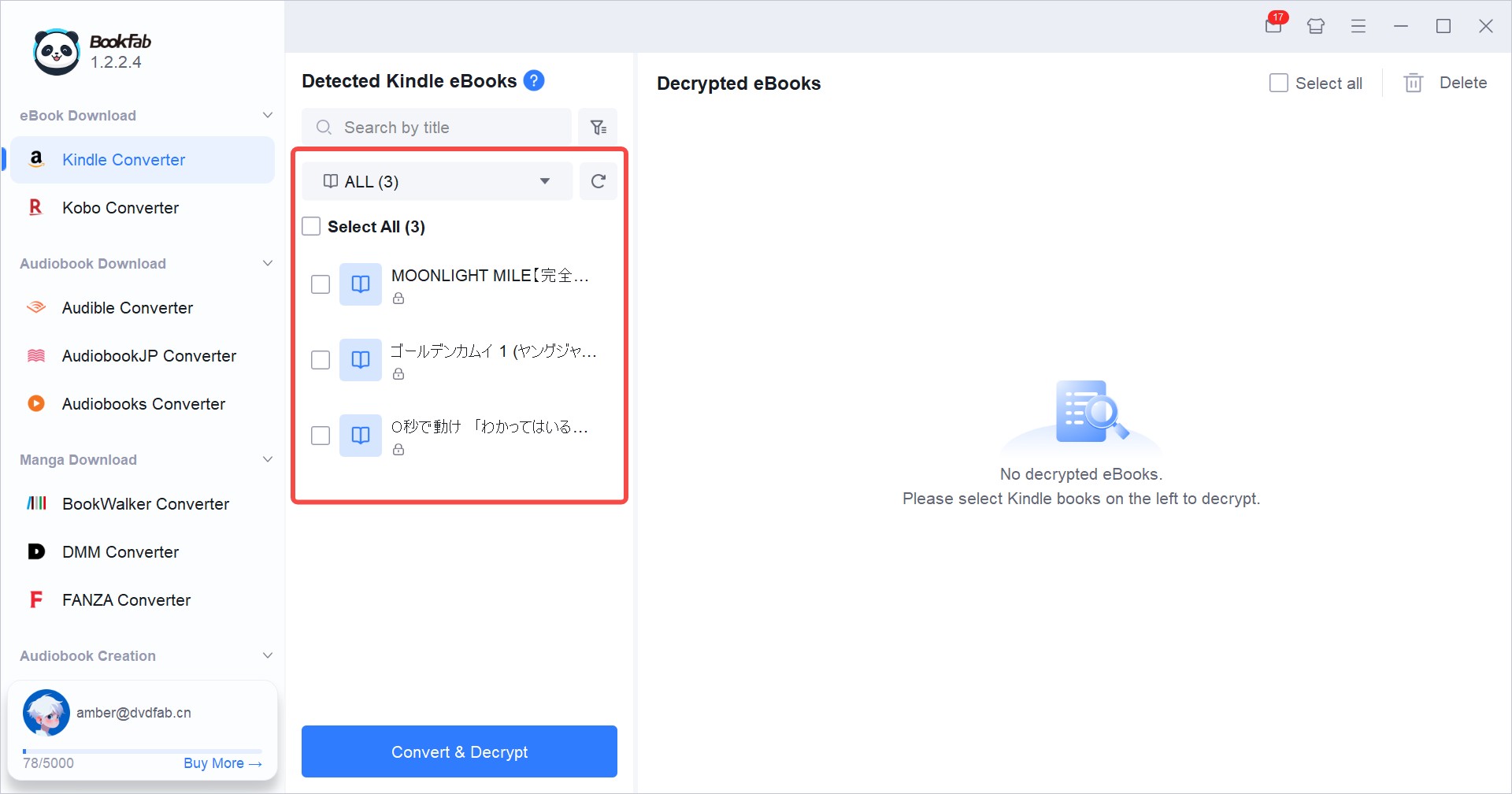
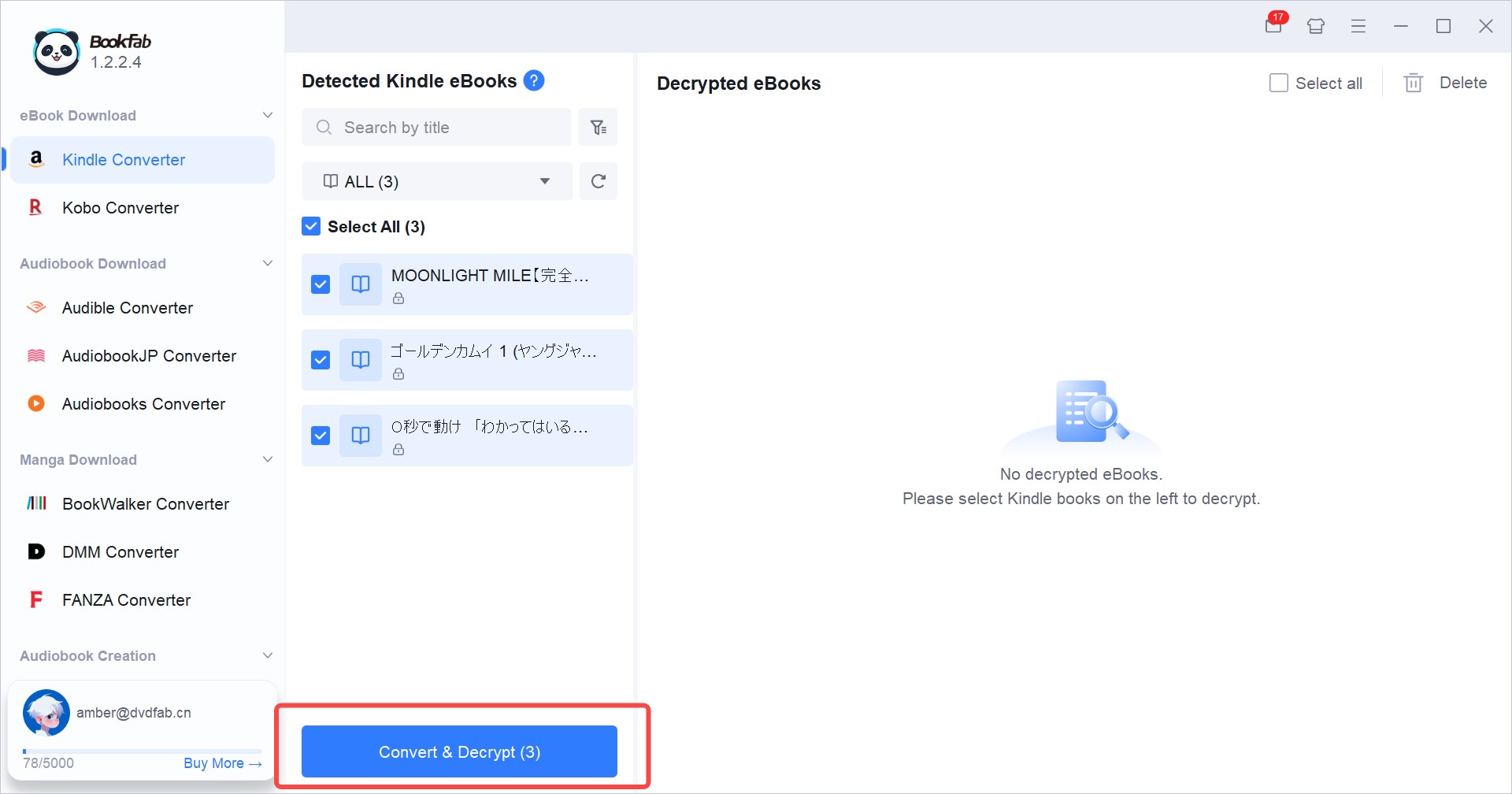
Select the books you want to process, and click the "Convert & Decrypt" button. Your DRM-free files will be saved in the designated output folder. If you convert Kindle to EPUB format, you can also click the "e" icon on the book cover to turn them into audiobooks.
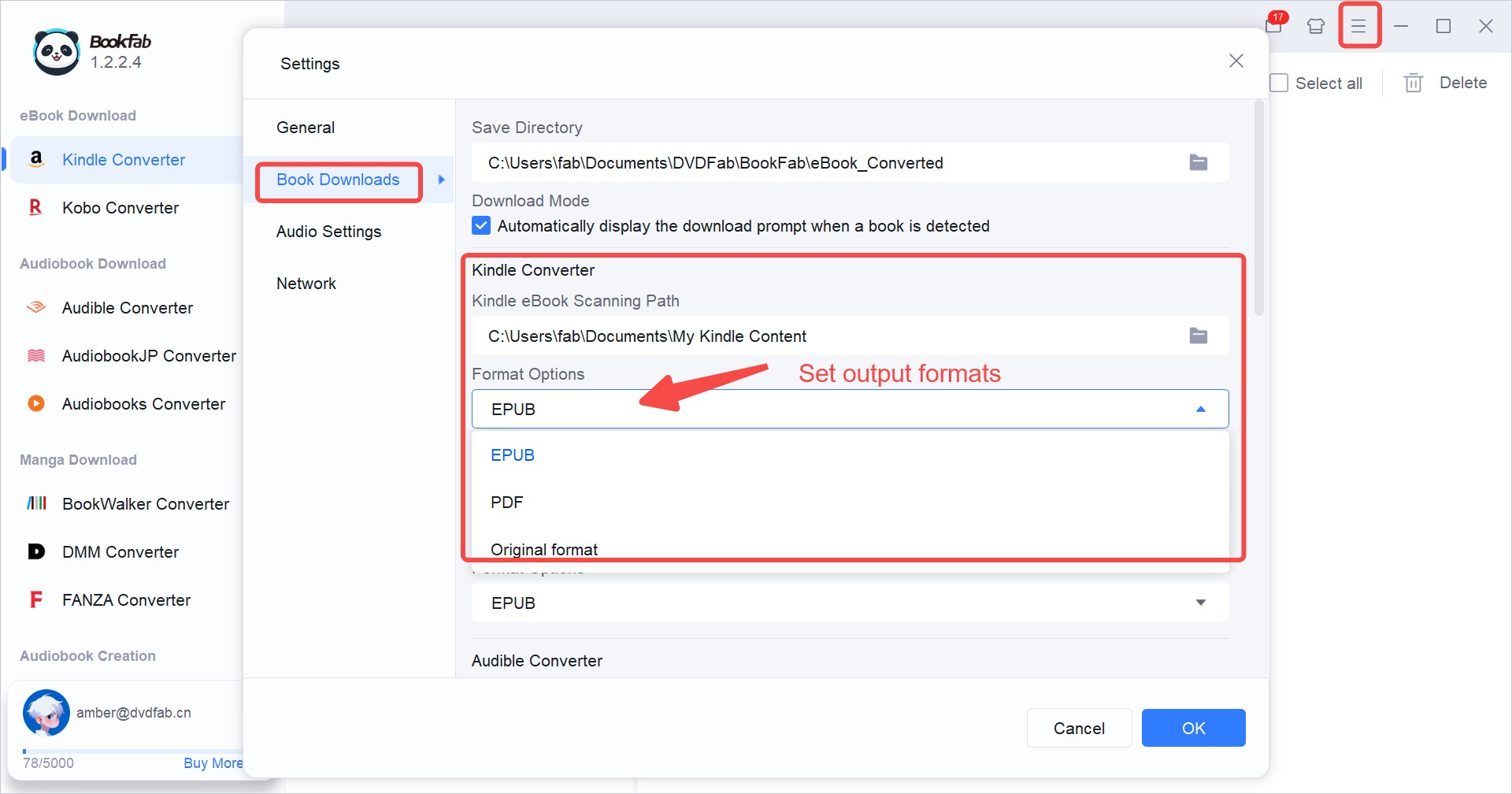
Optional: If you have specific output format requirements, click the "hamburger icon" in the top-right corner, click "Settings > Book Downloads > Kindle Converter". Then, select your preferred format (PDF, EPUB, or Original) under "Output Formats", change the saving path, and click "OK" to save your settings.
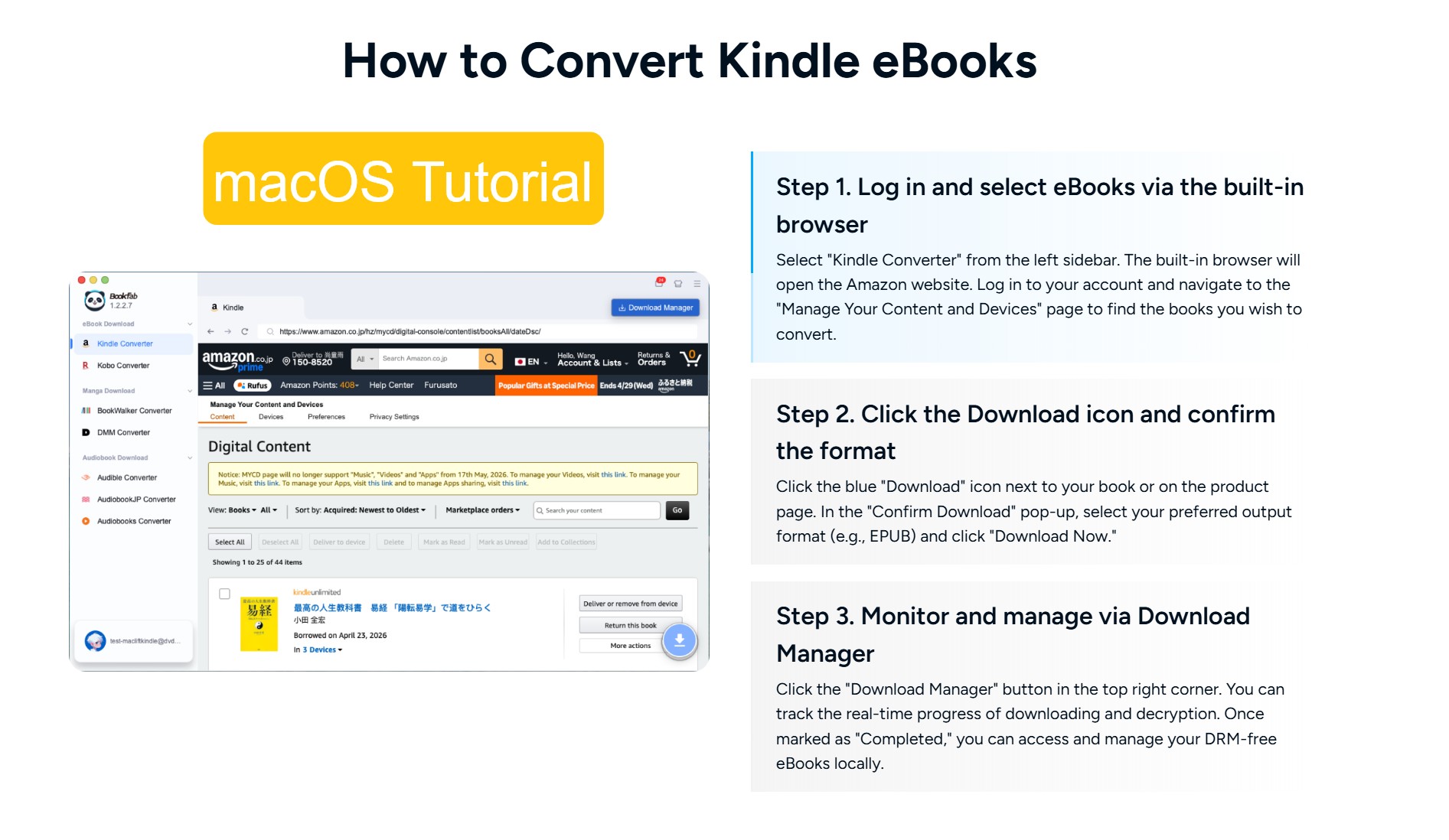
Note: The steps above are for Windows. On Mac, remove Kindle DRM with BookFab Kindle Converter is even easier, and Kindle for PC is not required. BookFab Kindle Converter for Mac comes with a built-in browser. You only need to select the Kindle Converter module, log in to your Kindle account, choose the book you want to convert, click the blue download button in BookFab, select the output format, and download the book in DRM-free formats directly.
Tutorial: Remove Kindle DRM with BookFab Calibre Plugin
Step 1: Download Your Books with Kindle for PC
Download and install Kindle for PC, then open the app and sign in to your Amazon account. In the Library, find the Kindle book you want to decrypt and double-click the cover to download it, or right-click it and select "Download".
Step 2: Install BookFab, Calibre, and the BookFab Calibre Plugin
Download and install BookFab and Calibre on your computer. Then download the Bookfab Calibre Plugin.zip file.
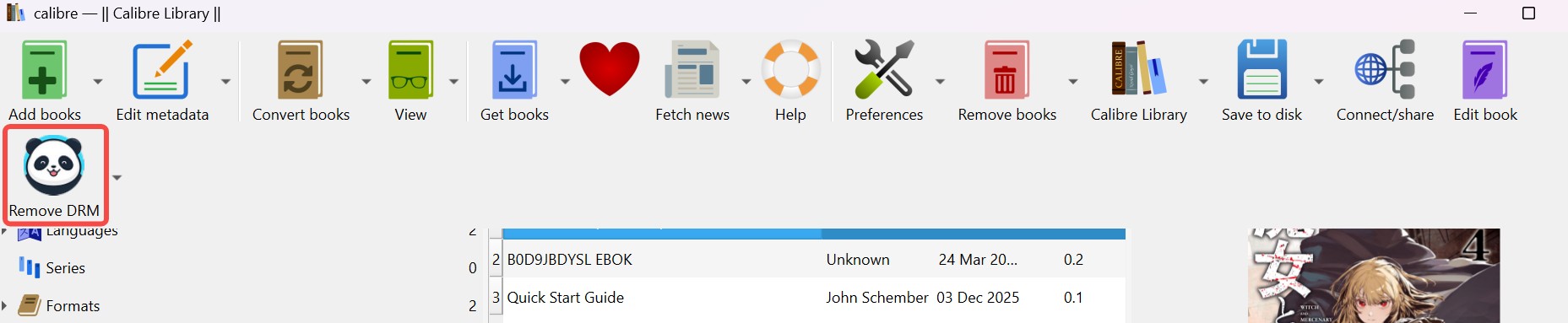
Open Calibre, go to "Preferences" > "Plugins", and choose "Load plugin from file." Select the downloaded zip file to install it, then restart the app to activate the plugin. You will now see a "Remove DRM" tool in your top toolbar.
Step 3: Import Kindle Books to Calibre and Remove Kindle DRM
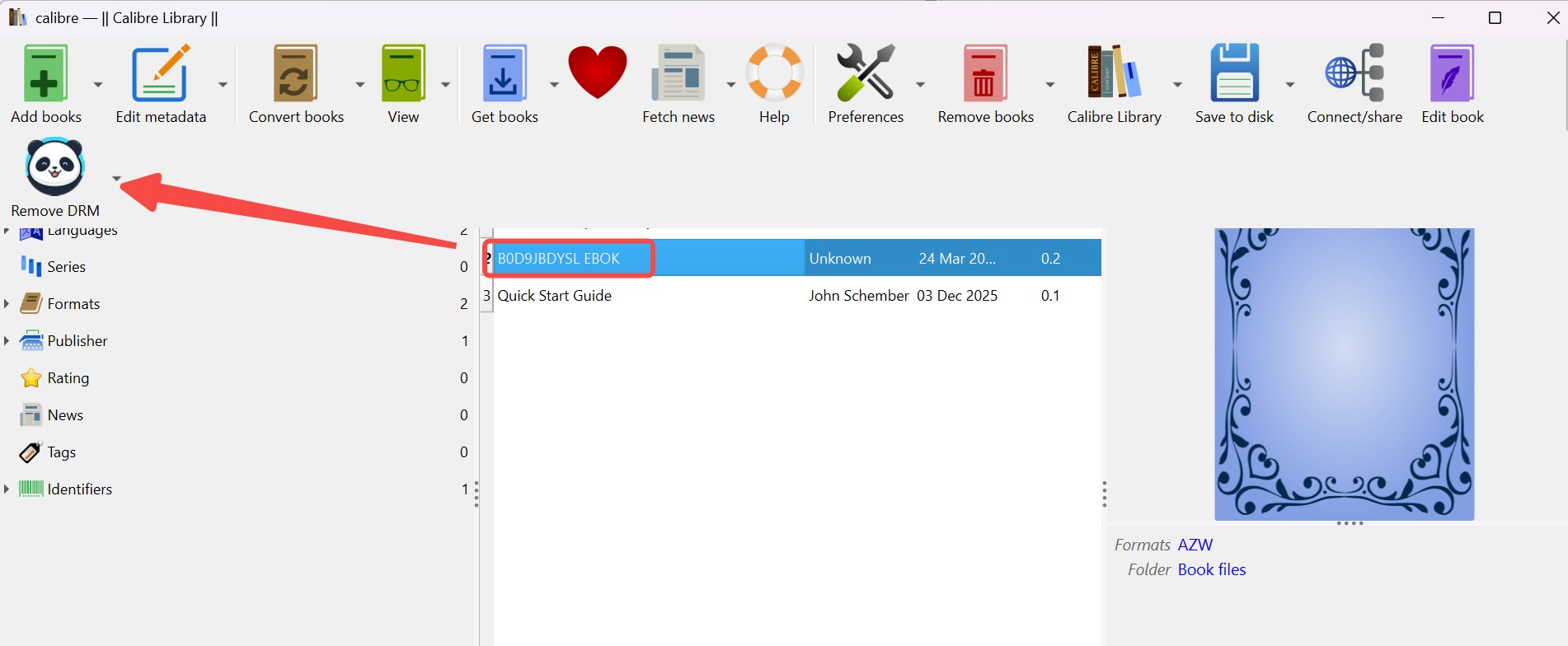
Open Calibre and click Add books to import your downloaded Kindle books into the library. Once imported, select the target book in Calibre and click the "Remove DRM" button in the top toolbar. The software will call the BookFab engine to do heavy lifting, usually finishing the decryption in less than 5 seconds per book. After the process is complete, the DRM-free books will remain in your Calibre library, you can transfer the files to other devices and read Kindle books on iPhone or iPad.
The above are the two Kindle DRM removal tools provided by BookFab. We have also prepared video tutorial. Please watch the video to learn how to use them to deDRM Kindle.
Method 3: Remove Kindle DRM with Python Scripts
Besides using dedicated Kindle DRM removal software like BookFab and Calibre, tech-savvy users can also remove Kindle DRM using Python scripts. Here is how:
Step 1: Install Python
Most Kindle DRM removal scripts are written for Python 2.x, so you need to install Python on your computer first. The most commonly used version for this purpose is Python 2.7.
Step 2: Install PyCrypto
DRM removal scripts require PyCrypto to decrypt key data. You need to download and install the version that matches your system:
- Windows: pycrypto‑2.1.0.win32‑py2.6.exe (or a similar compatible version)
- Mac / Linux: Download pycrypto‑2.6.1.tar.gz, then extract it and run python setup.py install inside that folder
Step 3: Download a Python DRM Removal Script
There are several Python scripts in the community that can remove Kindle DRM. One commonly used example is the kindle_dedrm script. Download kindle_dedrm script here: https://github.com/ch33s3w0rm/kindle_dedrm
Step 4: Run the Script in the Command Line to Remove Kindle DRM
Open your terminal or command prompt, change to the directory containing the Python script, and run:
python kindle_dedrm.py
When the script runs, it will ask you to enter:
- The path of the Kindle file you want to decrypt
- The output file path
- The key information (either the Kindle device serial number or a key file extracted from Kindle for PC/Mac)
After you enter these details, the tool will begin to remove the DRM from the Kindle book. Once decryption is complete, you can find the resulting file in the output folder (generally as an unencrypted MOBI or AZW3 file).
FAQ
Is it illegal to remove DRM from ebooks?
What is Kindle DRM and why is it so hard to remove?
How can I tell if my Kindle book is DRM-protected?
Can you open a DRM file on Kindle?
How do I convert kindle books after DRM removal?
How do I turn off DRM on my Kindle?
What are AZW, AZW3, and KFX Formats?
Conclusion
Removing DRM from Kindle books has become more difficult since Amazon strengthened KFX encryption in 2025. However, based on my own testing, the three free Kindle DRM removal tools above are still effective in 2026. Among them, BookFab Kindle Converter offers the highest success rate and the simplest workflow, making it a strong choice for users who prefer a more straightforward solution without dealing with technical details. Calibre with the DeDRM plugin remains the best free option, and the Python scripts approach is recommended as a backup method because it is more difficult to use.
Disclaimer: This article is strictly for educational purposes. Please ensure you only remove DRM from Kindle books you legally own, and solely for personal use.

 4 Easy Ways to Convert Kindle to PDFBy Amber Collins - May 18, 2026
 How to Print Kindle Books Without Losing QualityBy Amber Collins - May 14, 2026
![[Quick Solution] How to Remove Kindle DRM on Mac](https://images.dvdfab.cn/media/未命名的设计__87__crpyru.png/public) [Quick Solution] How to Remove Kindle DRM on MacBy Amber Collins - May 11, 2026
[Quick Solution] How to Remove Kindle DRM on MacBy Amber Collins - May 11, 2026 How to Download Kindle Books to PC in 2026 (The Complete Guide)By Amber Collins - May 9, 2026