
Where Are Kindle Books Stored on PC, Mac, Android, and Kindle Devices?

Summary: Generally, Kindle books downloaded from Kindle apps are stored in the "My Kindle Content" folder on PC and Mac, or the "com.amazon.kindle/files/" data directory on Android. On Kindle e-readers, they reside in the "documents" folder. Locating these paths is essential for accessing, managing, and backing up your local library files.
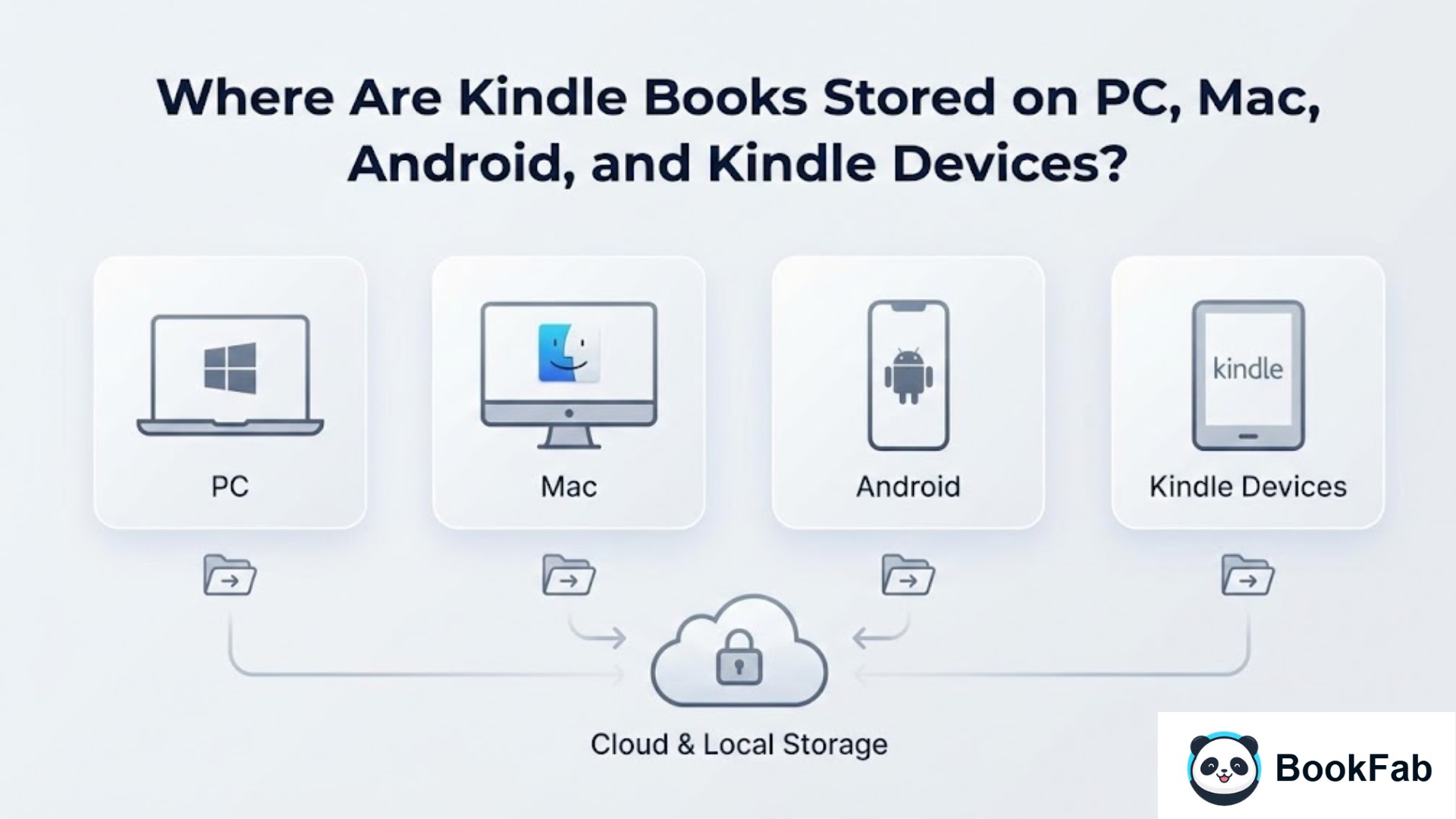
Have you ever downloaded a Kindle book to your computer or phone, then wondered where the file actually lives? It's a question I see a lot because the Kindle app makes it easy to read but not so obvious where the books are stored. Whether you're on a Windows PC, a Mac, an Android phone, or a Kindle e‑reader, knowing where your Kindle books are can help you back them up or manage them better. This post will walk you through exactly where Kindle books are stored on each of these devices and how you can find them.
Quick Answer: Where Are Kindle Books Stored on PC/Mac/Android/e-Readers
Use the table below to quickly locate your Kindle book storage paths across different platforms.
| Device | Where Kindle Books Are Stored |
| Windows PC | C:\Users\[Username]\Documents\My Kindle Content |
| Mac | For Amazon Kindle App Downloaded from Mac App Store: ~/Library/Containers/com.amazon.Lassen/Data/Library/eBooks |
| For Kindle Classic App Downloaded from Mac App Store: /Users/[Username]/Library/Containers/com.amazon.Kindle/Data/Library/Application Support/Kindle/My Kindle Content | |
| For Kindle for Mac Installed via .dmg package from official website: ~/Library/Application Support/Kindle/My Kindle Content | |
| Android | ~/Android/data/com.amazon.kindle/files/ |
| Kindle E-reader | Found in the /documents folder when connected via USB |
If you want to know exactly how to locate these files, keep reading for a detailed breakdown of where Kindle books are stored.
Where Are Kindle Books Stored on PC
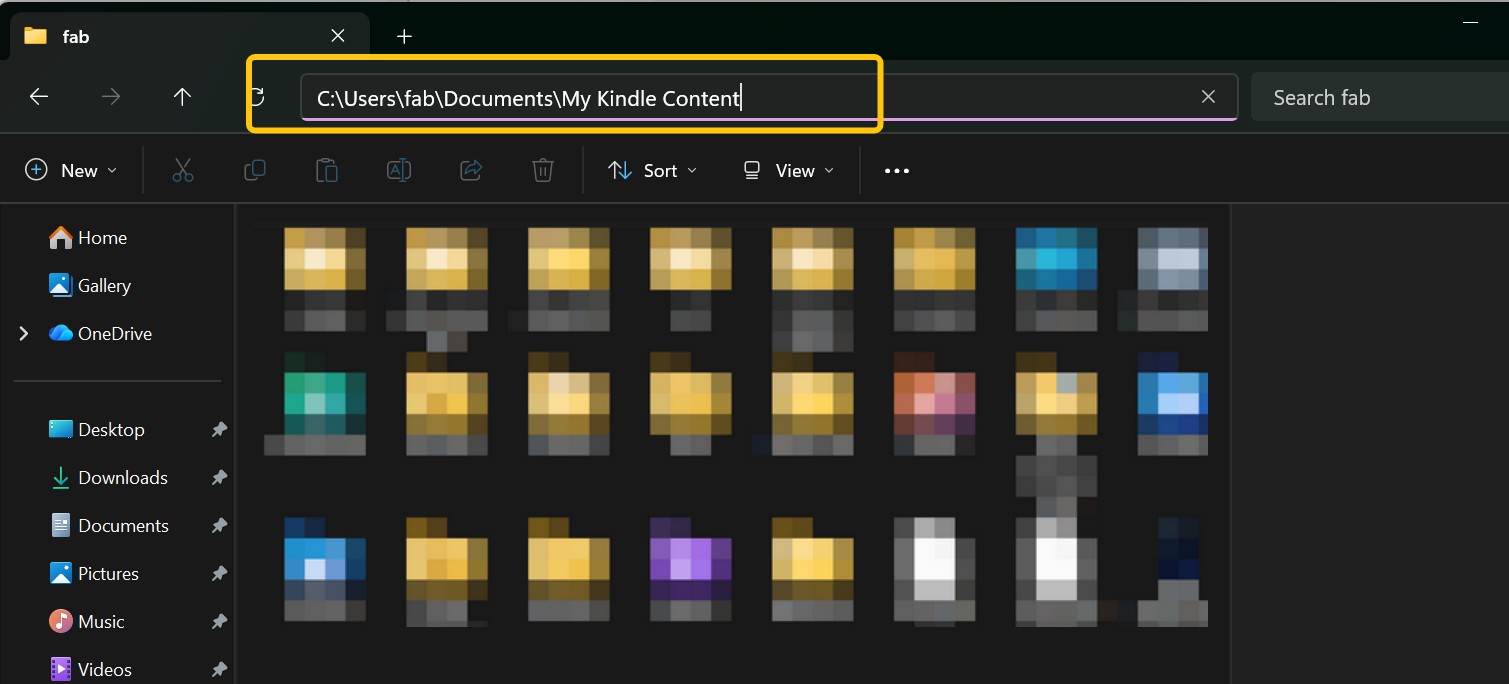
If you download your purchased eBooks using the Kindle for PC app, Windows 10 and 11 typically store them in a fixed folder within your user documents: C:\Users\
To access the folder where Kindle books are stored on your computer quickly, you can copy the path above, paste it into the address bar of your File Explorer, and hit Enter.
Alternatively, you can navigate there manually: open File Explorer, enter the Documents folder, and locate My Kindle Content.
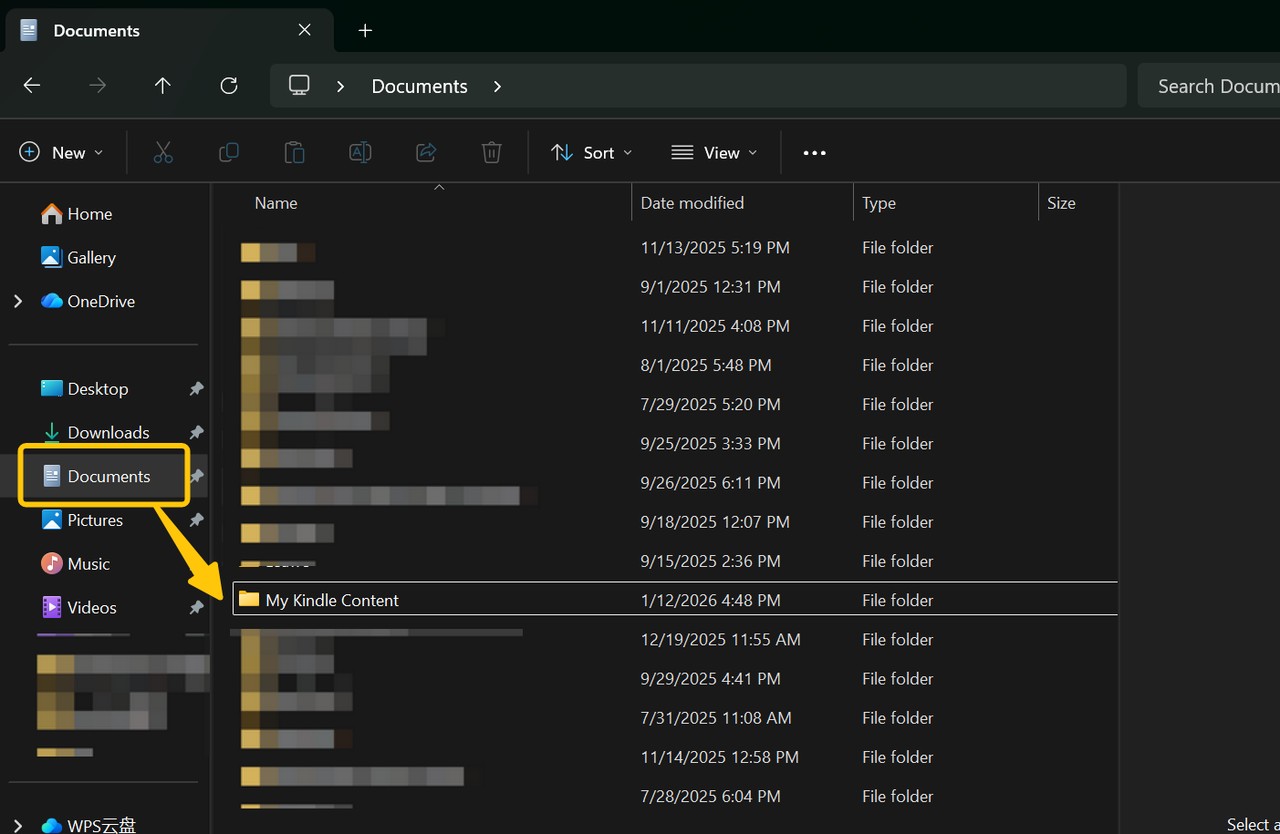
Then you can find the Kindle books stored on your PC. However, keep in mind that these files are generally protected by DRM.
Why Can't I Find My Kindle Books in the Default Path on PC
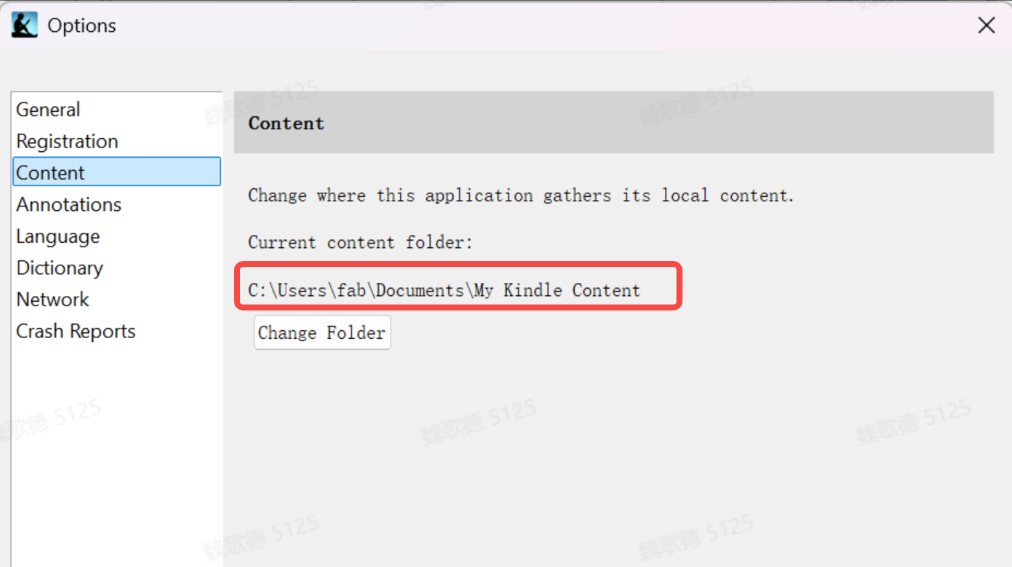
If the default folder is empty or doesn't exist, you may have changed the default storage location in the past. To find where your Kindle books are stored now, follow these steps:
1. Open the Kindle for PC app.
2. Go to Tools > Options.
3. Select Content from the left-side menu.
4. Look for the Current content folder section. The path listed there is the exact location of your books. If you want to move your library, you can also click Change Folder in this same menu to select a new directory.
Where Are Kindle Books Stored on Mac
If you're trying to figure out where your Kindle books are stored on Mac, the exact location depends on how you installed the app and which version you are running. Amazon has updated the Mac app several times, and each version stores data in a different place. Here is how to find your books based on your specific setup.
If You Installed Kindle for Mac via a DMG File
If you downloaded the Kindle for Mac installer (.dmg file) directly from the Amazon website or a third-party software site, your books are stored in a standard application support folder.
Path: ~/Library/Application Support/Kindle/My Kindle Content
How to access it: Open Finder, click Go in the top menu, select Go to Folder..., paste the path above, and hit Enter.

If You Installed Kindle App from Mac App Store
Apps from the Mac App Store are "sandboxed," which is a security feature that keeps their files tucked away in a specific system folder called "Containers." Because of this, you first need to check which app you're using—the new Amazon Kindle or the older Kindle Classic—to determine exactly where your Kindle books are stored.
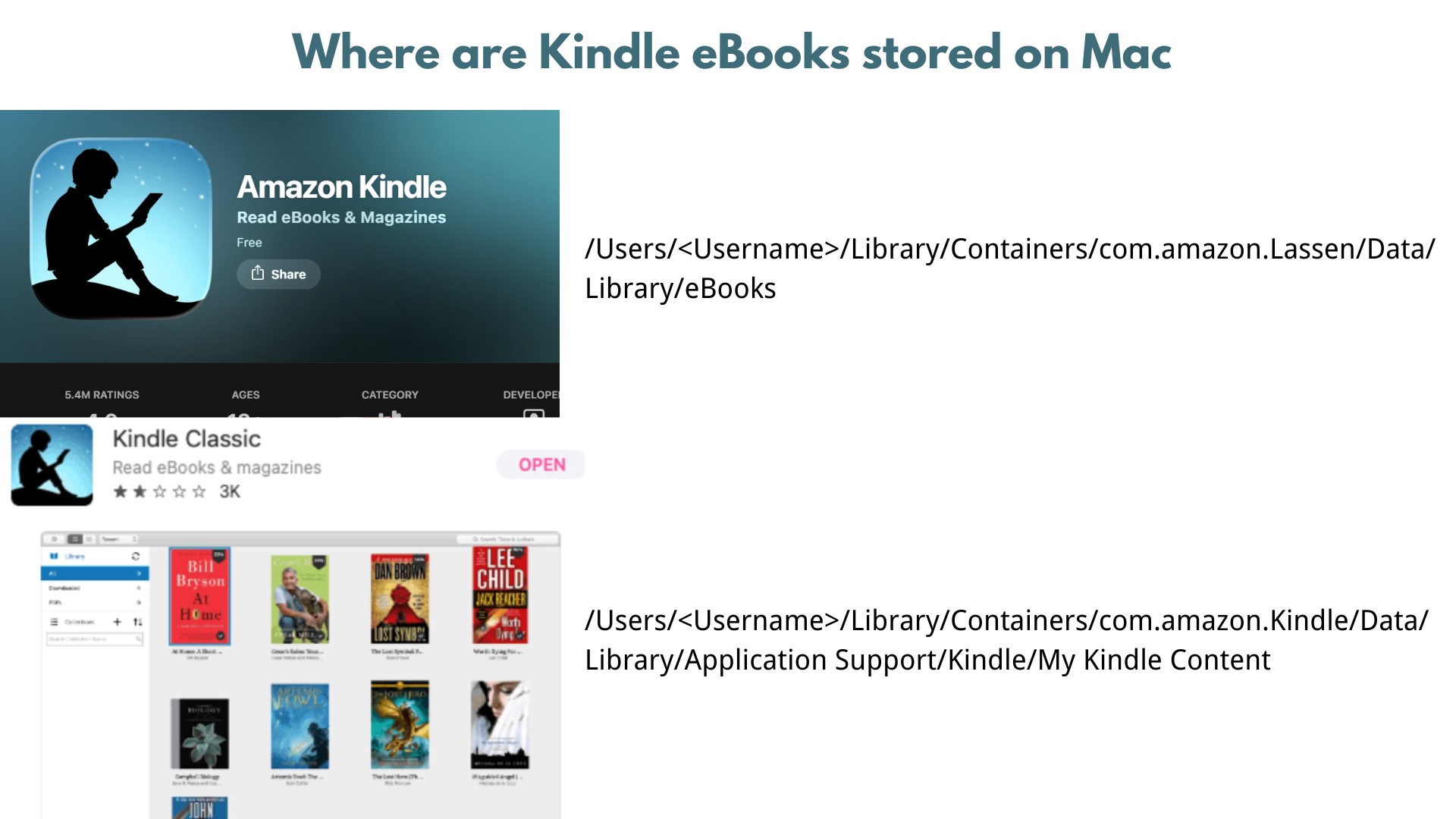
For the "Amazon Kindle" App: This is the modern version of the app. It usually stores eBooks here: /Users/
For the "Kindle Classic" App: If you are using the older version, use this path: /Users/
In both cases, you can use the Command + Shift + G shortcut in Finder to paste these paths and jump directly to your library.
Where Are Kindle Books Stored on Android
When you download and install the Kindle app on an Android device, the app automatically creates a dedicated folder to save your eBooks. The exact location of this folder can vary depending on whether you've chosen to store your books on your internal storage or an external SD card. Regardless of the storage medium, the sub-path remains Android/data/com.amazon.kindle/files. The only difference is the root directory (internal vs. external) that appears before the Android folder.
Stored in Default Internal Storage Location
On most Android phones and tablets, if you simply install the Kindle app from Google Play and start downloading books, the app saves them to internal storage in its own app folder.
The typical full path looks like this:
/storage/emulated/0/Android/data/com.amazon.kindle/files/
This is the standard Android app data directory for the Kindle app. Inside files, Kindle creates additional subfolders and files for each book and for the reading data. You'll see file names and extensions such as .azw, .kfx, .prc, .res and so on – these are all normal for Kindle.
Stored in External Storage Location (SD card)
Some Android devices (especially budget phones and many tablets) offer an SD card option inside the Kindle app. When you choose this, new downloads are stored on the SD card instead of internal storage, but the folder structure is almost the same.
On many devices, the SD card path looks like: /storage/
The exact
However, keep in mind that Kindle books stored on Android are DRM-protected. This means you can only access and read these files within the Kindle app itself; you won't be able to open or use them on other apps or devices.
Where Are Kindle Books Stored on a Kindle E-reader
If you own a physical Kindle device (such as a Paperwhite, Oasis, or the basic Kindle), finding your book files is usually easier because the device shows up like a standard USB drive when connected to a computer. Kindle books are typically stored in the /documents folder. However, you won't be able to view these files directly on the Kindle itself. You need to connect the device to a computer to access them. To locate your book files, follow these steps:
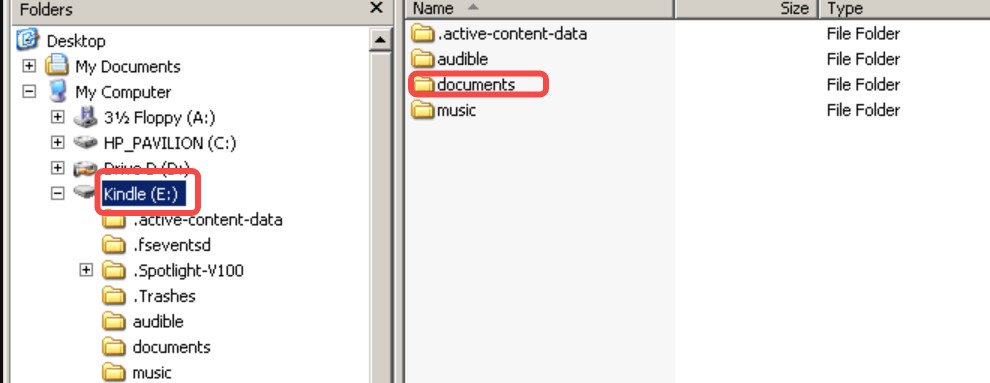
1. Connect your Kindle to your computer using a USB cable. Your Kindle will appear as a removable drive (usually named "Kindle").
2. Open the drive and locate the folder named "documents". Inside this folder, you will find your library.
3. Depending on the age of your Kindle and the book's format, you'll see several types of files:
- Individual Files: You might see .azw3, .mobi, or .pdf files directly.
- Subfolders: For newer KFX books, you'll usually see a main .kfx file in the documents folder plus a matching .sdr folder with the same name. The .sdr folder holds metadata like highlights and reading progress, and for KFX it also contains an assets subfolder with the internal data chunks.
If your goal is to manage, copy, or back up the actual files, you must connect the Kindle to a computer via USB. Once connected, the Kindle acts like a flash drive, allowing you to see the "documents" folder where everything is stored.
Can I access my Kindle library on my computer this way? Absolutely. This is the easiest way to manually back up your books. Just copy the documents folder to your PC or Mac. However, remember that most books purchased from Amazon are DRM-protected, so they will only open on the device they were originally intended for unless you use a converter.
The Best Way to Locate Your Kindle Books on PC
All the methods above help you find where Kindle books are stored on PC, Mac, Android, or a Kindle e-reader, but there's still one big limitation: those files are protected by DRM. Even if you copy them for backup, you usually can't open or read them in non-Kindle apps. If you want maximum freedom to store Kindle books on your PC and manage them like normal files, a more flexible approach is to use BookFab Kindle Converter to import and convert your Kindle downloads so you can organize and read them on your own terms.
Before you start, make sure you've installed Kindle for PC and downloaded the books you want to work with in that app. Then install BookFab on your computer.
1. Launch BookFab on your PC.
2. In the left sidebar, choose Kindle Converter.
3. Click the Refresh button. BookFab will automatically scan the folders used by Kindle for PC and list all the ebooks you've downloaded.
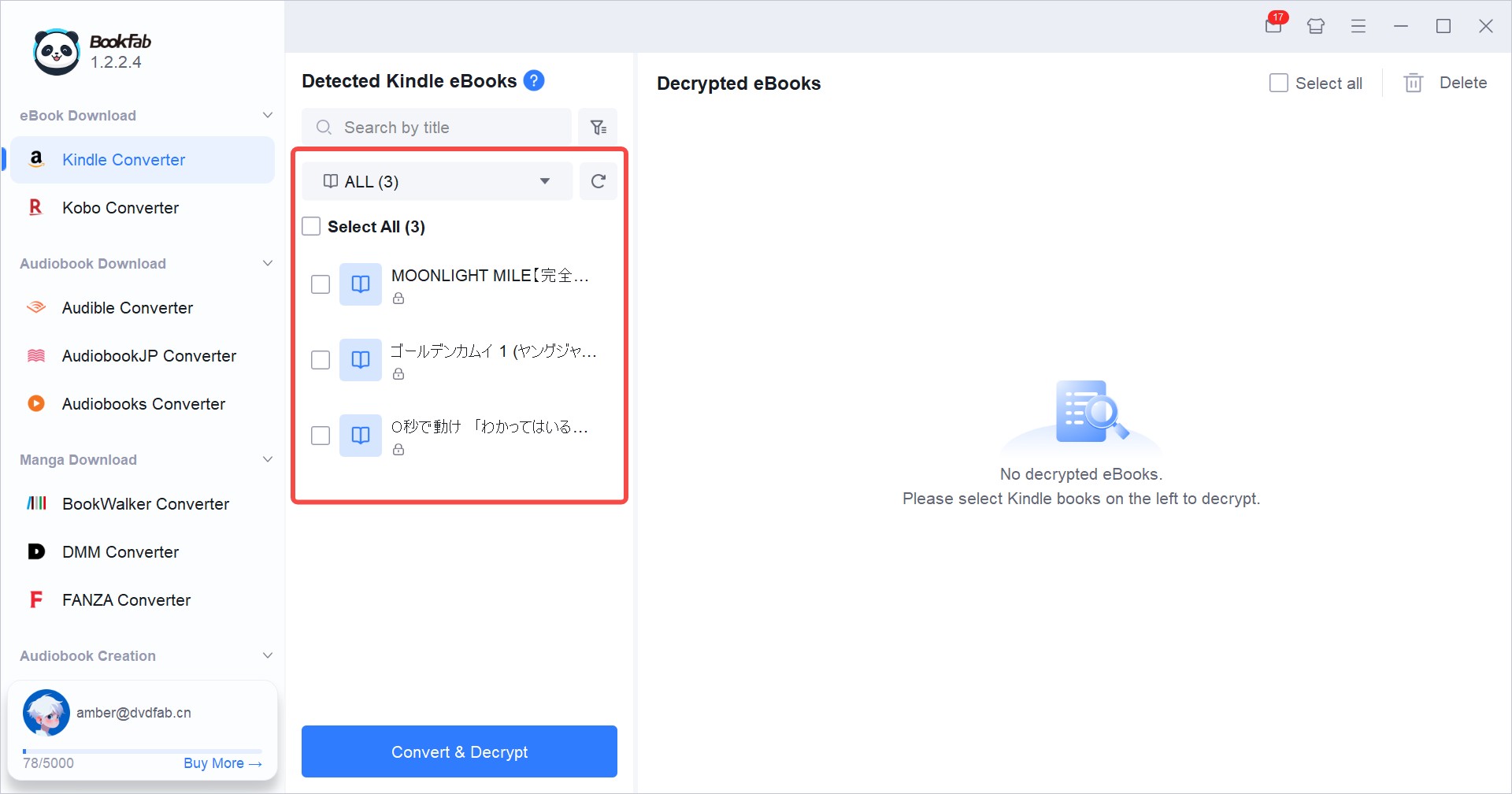
4. After your Kindle library appears in the list, select the titles you want to convert and click the Decrypt & Convert button. BookFab removes DRM from Kindle books and converts these Kindle books to PDF/EPUB formats so they can be used outside the Kindle app.
By default, BookFab stores the converted Kindle ebooks to:
C:\Users\
These copies are no longer locked to the Kindle app, which means you can move them anywhere you like and read them on any device or app that supports formats such as EPUB or PDF.
FAQ
Can I access my Kindle library on my computer without the app?
Yes, you can use the Kindle Cloud Reader through your web browser to read books. However, to access the actual book files for backup or offline use, you must install the Kindle for PC or Mac app and download the books to your local drive.
Why do my Kindle books stored on PC look like folders instead of single files?
Newer Kindle books often use the KFX format. Instead of one .mobi or .azw3 file, Amazon stores the book as a collection of smaller data fragments within a folder named after the book's ASIN. This is normal for modern versions of the Kindle app.
Where are my Kindle books stored on iOS (iPhone/iPad)?
You can't access the actual Kindle book files on iOS. On iOS/iPadOS, Kindle books you download for offline reading are stored inside the Kindle app's private sandbox (its own app container). Apple assigns each app a unique home directory and blocks normal user access to another app's files, so there is no user-browsable "folder path" you have on macOS or Windows.
Conclusion
Knowing where your Kindle books are stored on PC, Mac, Android and e-readers is the key to taking control of your digital library. The storage paths on Mac, Windows, Android, and e-reader devices are all different. While Amazon's file structures can be complex, following these specific storage paths for PC, Mac, and Android will help you find exactly what you need.

 4 Easy Ways to Convert Kindle to PDFBy Amber Collins - May 18, 2026
 How to Print Kindle Books Without Losing QualityBy Amber Collins - May 14, 2026
![[Quick Solution] How to Remove Kindle DRM on Mac](https://images.dvdfab.cn/media/未命名的设计__87__crpyru.png/public) [Quick Solution] How to Remove Kindle DRM on MacBy Amber Collins - May 11, 2026
[Quick Solution] How to Remove Kindle DRM on MacBy Amber Collins - May 11, 2026 How to Download Kindle Books to PC in 2026 (The Complete Guide)By Amber Collins - May 9, 2026