
Calibre DRM Removal Plugin: Hands-on Review and Tutorial [2026]

Summary: Calibre DeDRM plugin is a third-party Calibre extension that removes DRM from supported eBooks. This hands-on guide explains how to install it, how to remove DRM with Calibre DeDRM plugin, and how to fix common issues.
Table of Contents
![Calibre DRM Removal Plugin: Hands-on Review and Tutorial [2026]](https://images.dvdfab.cn/media/2d0ae14a-d2a6-4e9a-a5b7-09ee7afe0e29_hkex6e.png/public)
Calibre is one of the most useful free tools I use for managing my eBook library. But DRM removal is not a built-in Calibre feature. To handle protected eBooks, Calibre needs third-party plugins such as DeDRM, Obok, or KFX Input, and the workflow can easily fail when the plugin version, book source, or file format does not match.
After using Calibre for more than 12 years, I wrote this hands-on review and tutorial to explain how the Calibre DeDRM plugin works, what it can and cannot handle in 2026, and how to fix common DRM removal issues.
What Is Calibre DeDRM Plugin/Calibre DRM Removal Plugin?
Calibre DeDRM plugin is a third-party tool that extends Calibre's normal eBook management and conversion features. Calibre itself does not remove DRM by default. After installing the right plugin package, Calibre can remove DRM when you import eBooks into your Calibre library.
The DeDRM tools have changed hands over time. The original apprenticeharper/DeDRM_tools repository is no longer maintained. noDRM/DeDRM_tools is a fork of Apprentice Harper's project that took over maintenance and added fixes. Satsuoni/DeDRM_tools is a later community fork of noDRM with more frequent updates.
The current DeDRM tools are usually distributed as a plugin package for Calibre. The tools are released mainly as two Calibre plugins: DeDRM and Obok. The DeDRM plugin is used for eBooks protected by Amazon DRM, Adobe Digital Editions DRM, Barnes & Noble DRM, and some older formats, while the Obok plugin is designed for Kobo DRM.
| eBook source | Required Plugins |
| Amazon Kindle | DeDRM plugin, sometimes KFX Input plugin |
| Adobe Digital Editions | DeDRM plugin |
| Kobo | Obok plugin |
| Barnes & Noble (NOOK has changed its DRM policy, so most newer books are no longer supported) | DeDRM plugin |
How to Install DeDRM Plugin to Calibre
Calibre DRM removal plugin is not built into the Calibre software, so you need to download and install it separately. Below are the detailed steps to install DeDRM Plugin.
Step 1: Download and Install Calibre
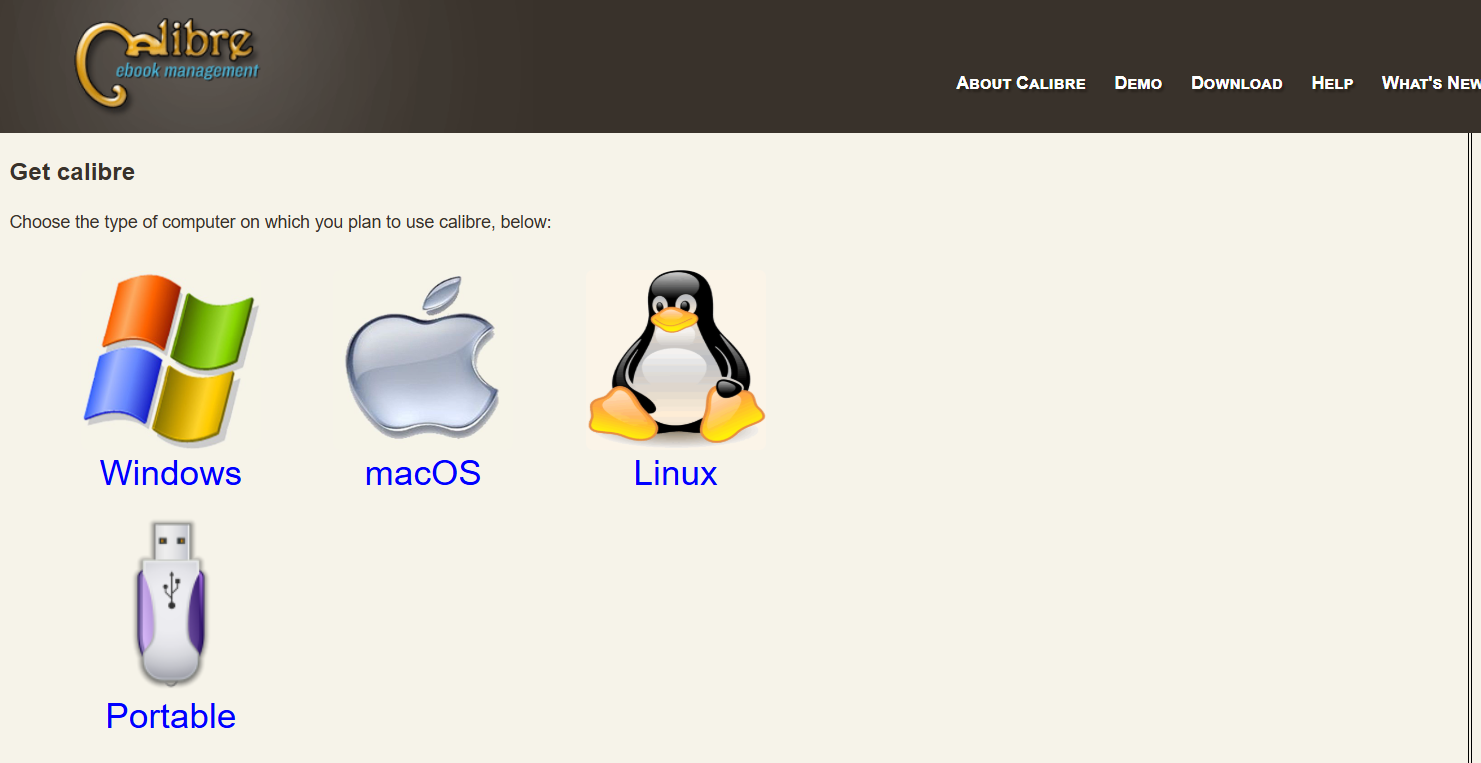
Go to the official Calibre download page and install the version that matches your operating system. The latest version of Calibre is currently 9.8.0, released in May 2026.
Step 2: Download Calibre DRM Removal Plugin
Download the DeDRM plugin according to the Calibre version you have installed. If you have downloaded the latest Calibre 9.8.0 version, I recommend going directly to the Satsuoni GitHub page to download the DeDRM tools v10.0.20.
If you have already installed another version of Calibre, you can refer to the plugin documentation and install the corresponding plugin version.
| Calibre version | DeDRM version to use |
| Calibre 8.x or later | Recent Satsuoni builds, such as DeDRM 10.0.18-10.0.20 |
| Calibre 5.x or later | DeDRM 7.2.0 or later |
| Calibre 4.23 or earlier | DeDRM 6.8.x |
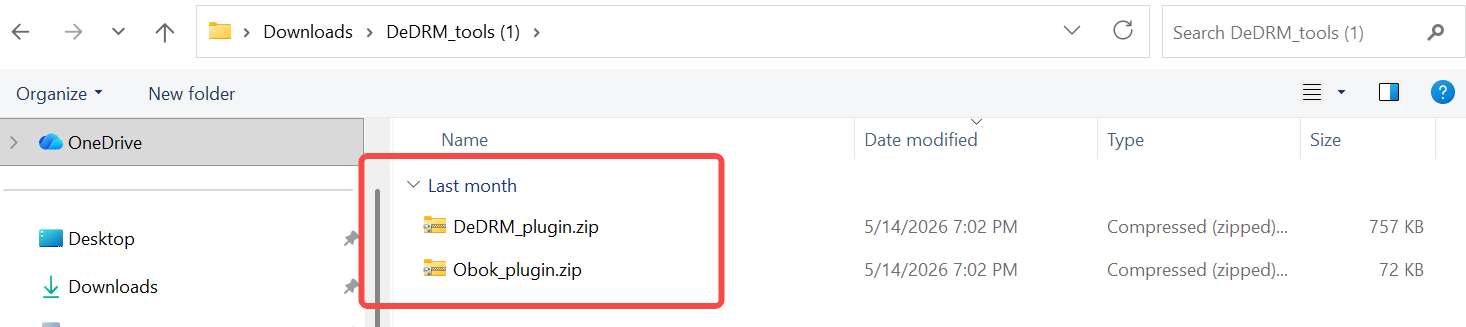
After downloading, you will get a plugin package named DeDRM_tools_xxx.zip. Extract it, and you will see DeDRM_plugin.zip and Obok_plugin.zip.
Step 3: Install DeDRM_plugin.zip in Calibre
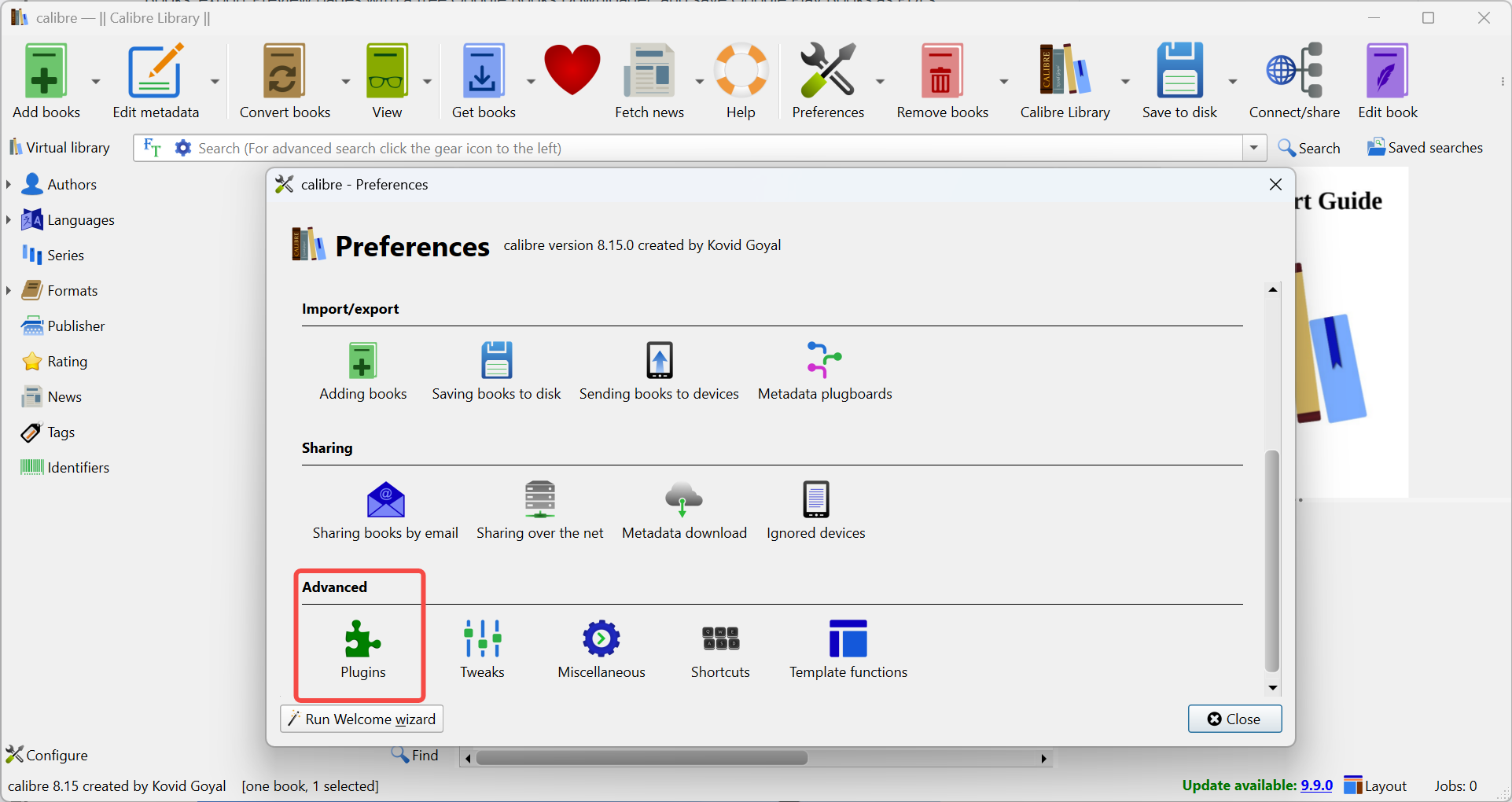
Open Calibre and go to Preferences.

Click Plugins under the Advanced section.
Click Load plugin from file and select DeDRM_plugin.zip you just downloaded.
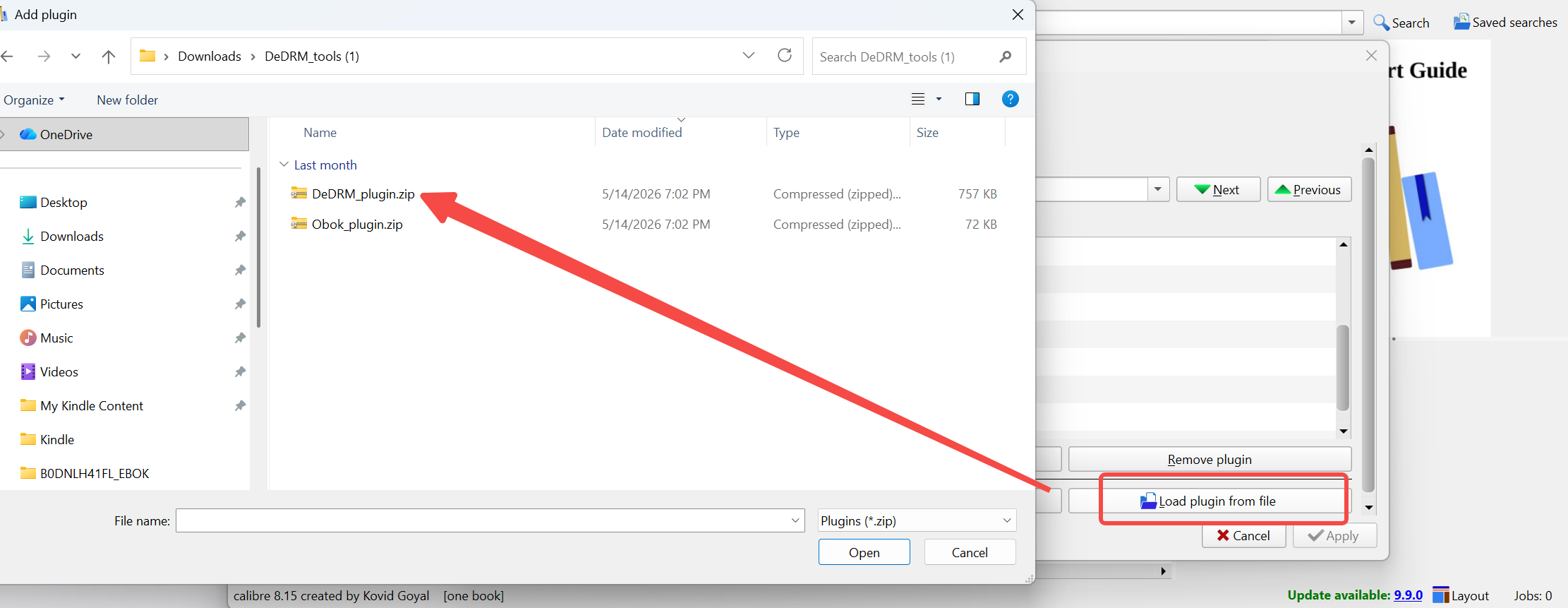
Confirm the third-party plugin warning to install it. Then, restart Calibre.
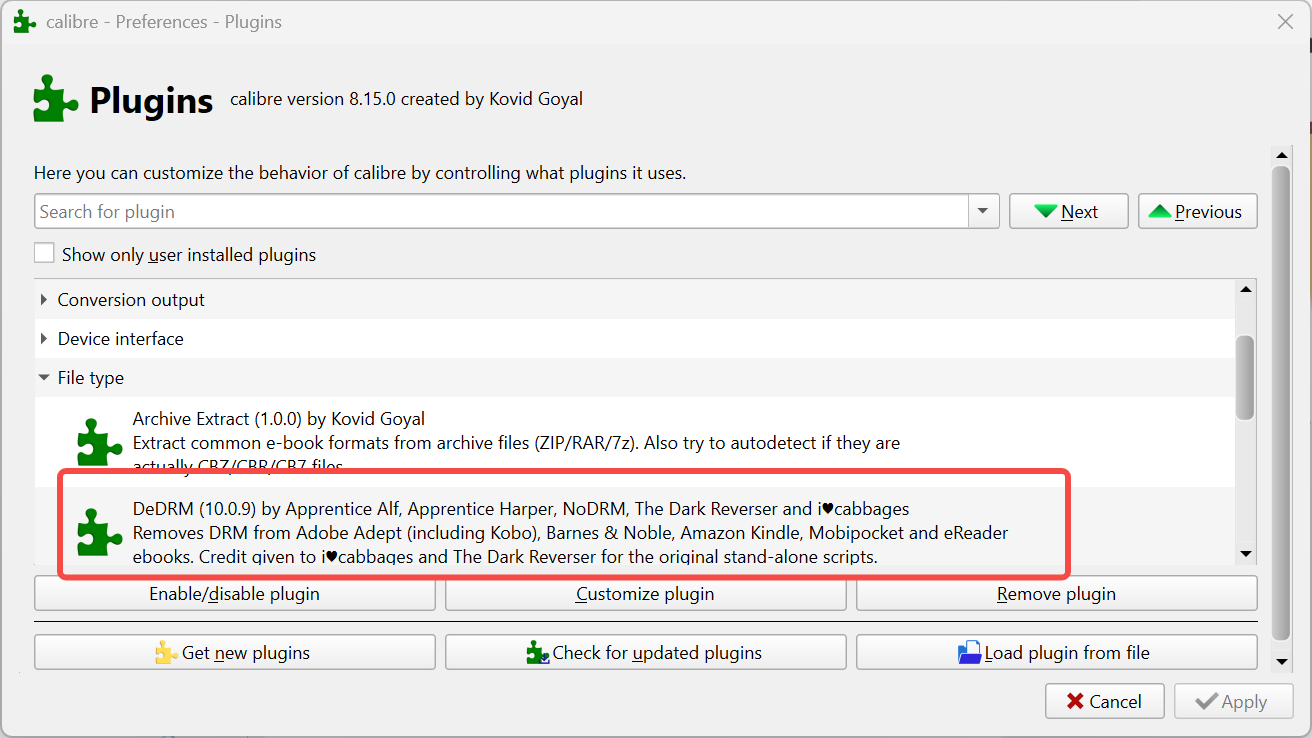
Go back to Preferences > Plugins > File type and check whether DeDRM appears in the list. If DeDRM appears under File type plugins, the plugin has been installed successfully. After that, Calibre DRM removal will run automatically when you import supported eBooks into Calibre.
How to Use Calibre DeDRM Plugins to Remove DRM
With DeDRM_plugin.zip and Obok_plugin.zip installed, Calibre can remove DRM from supported Adobe, Kobo, and Kindle books. Below are the most common DRM removal methods for three types of eBooks: Kobo, Adobe Digital Editions, and Kindle. NOOK and iBooks are not supported in 2026.
For Kindle
1. Open the Kindle for PC/Mac app and download the Kindle eBooks you want to convert to a local folder.
Default saving path:
- Windows: C:\Users\[Username]\Documents\My Kindle Content
- Mac: ~/Library/Application Support/Kindle/My Kindle Content
2. In Calibre, click Add books to import your books. Alternatively, you can drag and drop the files directly from File Explorer into the Calibre window.
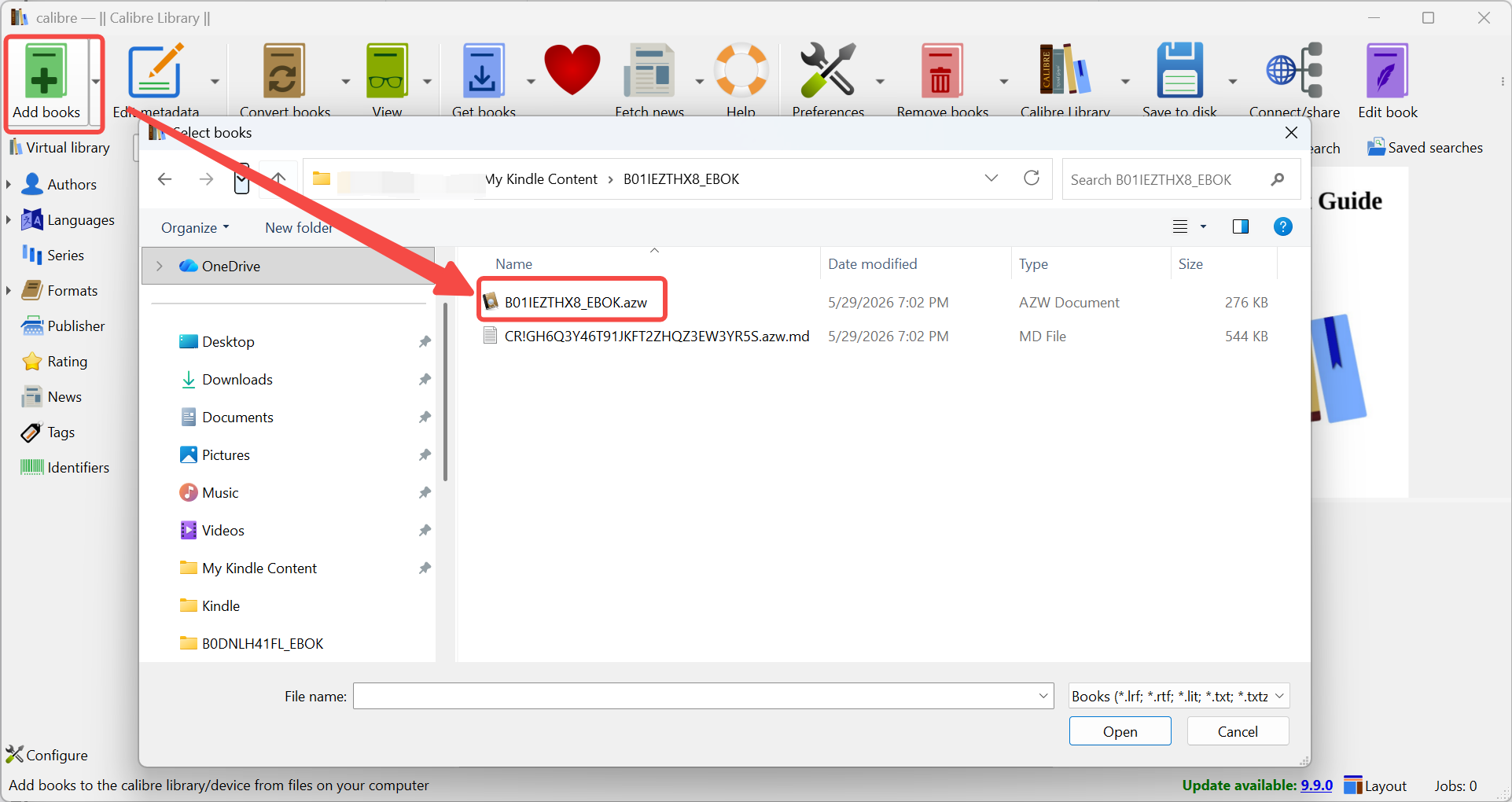
3. During the import process, Calibre will call the DeDRM plugin to decrypt the Kindle books. If the decryption is successful, you can double-click the imported entry and preview the book smoothly.
For Kobo
1. Please make sure you have installed Obok_plugin.zip in Calibre by following the same steps in the previous section.
2. Download your Kobo books to your computer using Kobo for PC/Mac.
3. Launch Calibre and select Obok DeDRM from the top menu bar. A new window titled "untitled Obok DeDRM" will pop up, and all your downloaded Kobo books and their lock status will be displayed in detail. Click Select All, then click OK.
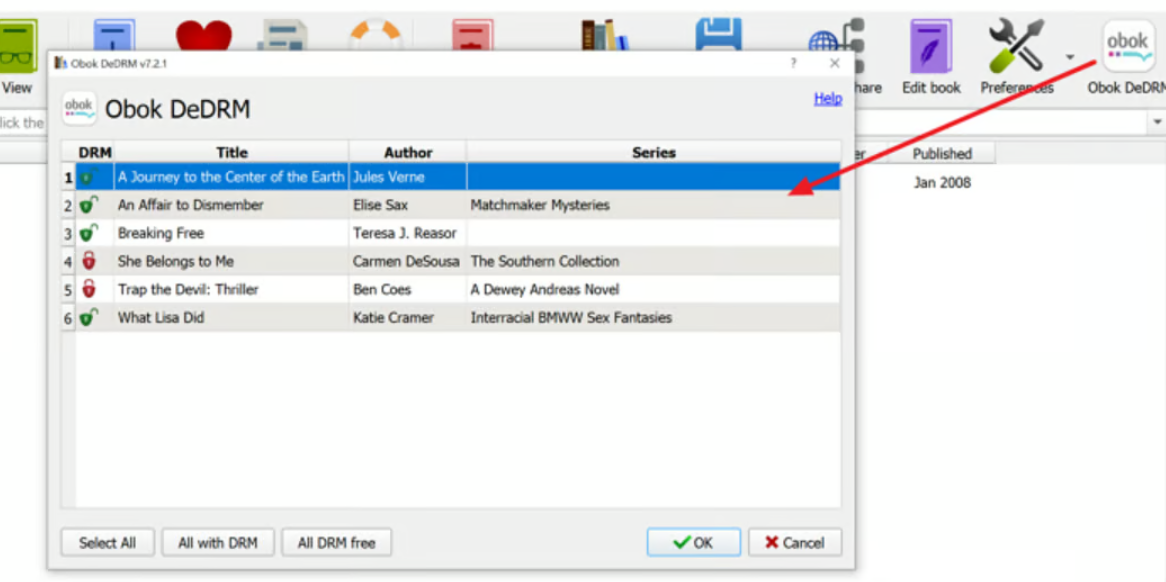
4. Calibre will begin the process of removing the DRM from your chosen Kobo books and will incorporate them into your Calibre library automatically. Once the process is finished, click OK.
For Adobe Digital Editions (ACSM Files)
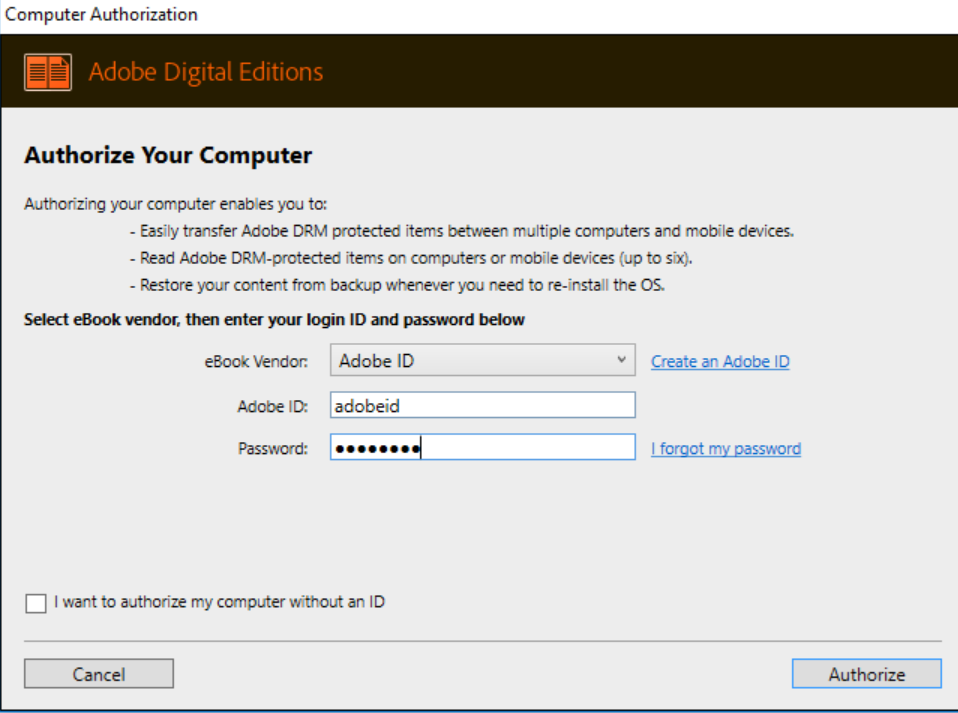
1. In Adobe Digital Editions on your computer, download the book to your local drive. In this step, you need to authorize Adobe Digital Editions first, then export the book as a PDF or EPUB file, which is still encrypted.
Default saving path:
- Windows: C:\Users\[Username]\Documents\My Digital Editions
- Mac: ~/Documents/Digital Editions
2. Click Add Books. Browse to the My Digital Editions folder and select the EPUB/PDF files you want to import into Calibre. Similarly, during the import process, the DeDRM plugin will decrypt the book. After importing, you will get a DRM-free file and can continue converting formats, editing metadata, and more.
Common Calibre DRM Removal Issues and How to Fix Them
DeDRM plugin for Calibre is not officially developed or maintained by the Calibre team. Therefore, it has relatively strict working requirements, and there are situations where Calibre still cannot decrypt an eBook even if the plugin is installed. Below are some commonly reported errors and their corresponding solutions.
| Problem | Solution |
| Calibre SyntaxError | Download and install the latest plugin that supports Calibre 5.x, remove old DeDRM entries from Plug-ins, add the new ZIP, then restart Calibre. |
| Failed to decrypt with error: Cannot decode library or rented eBooks | Make sure the book is a purchased title. If the ebook is rented one, you should purchase the eBook first and then decrypt it with DeDRM. |
| DRM cannot be removed from Kindle books (PC/Mac or device downloads) |
|
From the common issues above, it is clear that Calibre DeDRM plugin has some inescapable limitations:
- The newer Kindle KFX format cannot be handled directly by Calibre.
- Its compatibility is very fragile and can easily break when Calibre updates.
- The installation and configuration process is complicated.
- Its stability and maintenance cannot be guaranteed.
- It cannot handle books borrowed from services like Kindle Unlimited.
So, although Calibre dominates the eBook management space and is arguably the best "librarian," it is not the best "locksmith." Does this mean eBook decryption and management is an unsolvable problem? Not at all. Next, I'll show you a smoother, simpler, and far more powerful decryption workflow by using Calibre's best companion, BookFab, to upgrade your eBook decryption experience.
BookFab Calibre Plugin: An Easier Alternative to Calibre DeDRM
If the traditional Calibre DeDRM plugin feels too unstable, BookFab Calibre Plugin is a simpler option for Kindle DRM removal. It lets you call BookFab's decryption engine directly inside Calibre, so you do not need to deal with DeDRM forks, KFX Input, or plugin compatibility issues.
- • Works directly inside Calibre.
- • One plugin can handle Kindle books in AZW, AZW3, and KFX formats.
- • Supports purchased Kindle books and Kindle Unlimited books.
- • Writes the decrypted eBook back into Calibre automatically.
- • Best for users who want to keep managing Kindle books in Calibre.
BookFab also provides a desktop app BookFab Kindle Converter for converting Kindle books to PDF and EPUB. It also supports KFX, AZW, AZW3 decryption, and it's compatible with both Windows and macOS. If you do not have to use Calibre, I recommend using BookFab Kindle Converter directly, as the workflow is simpler.
Note: BookFab Calibre Plugin is only available for Windows. Mac users can use BookFab Kindle Converter instead.
How to Use BookFab Calibre DeDRM Plugin
1. Install the BookFab desktop app and Calibre.
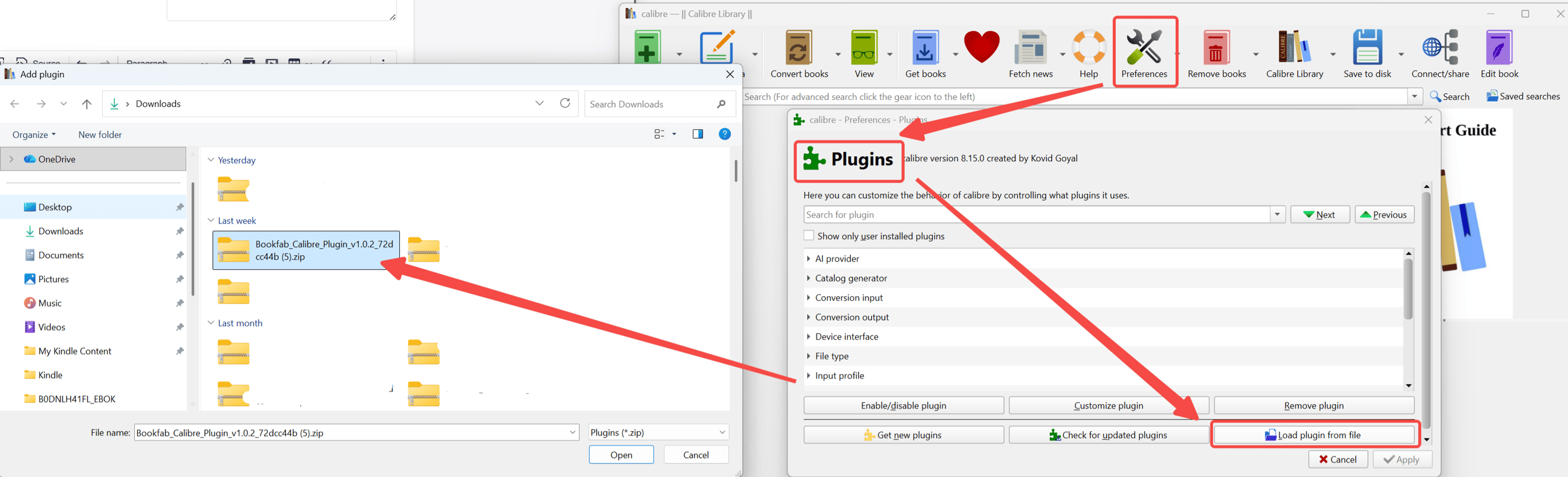
2. Download Bookfab_Calibre_Plugin.zip. Open Calibre, click Preferences > Plugins > Load plugin from file to import this plugin, then restart Calibre.
3. Use Kindle for PC to download your Kindle books, then import them into Calibre with Add books.
4. Select the Kindle book in Calibre and choose Remove DRM. After decryption, the DRM-free file will be written back into Calibre automatically.

How to Use BookFab Kindle Converter
1. Download your eBooks using the Kindle for PC desktop application.
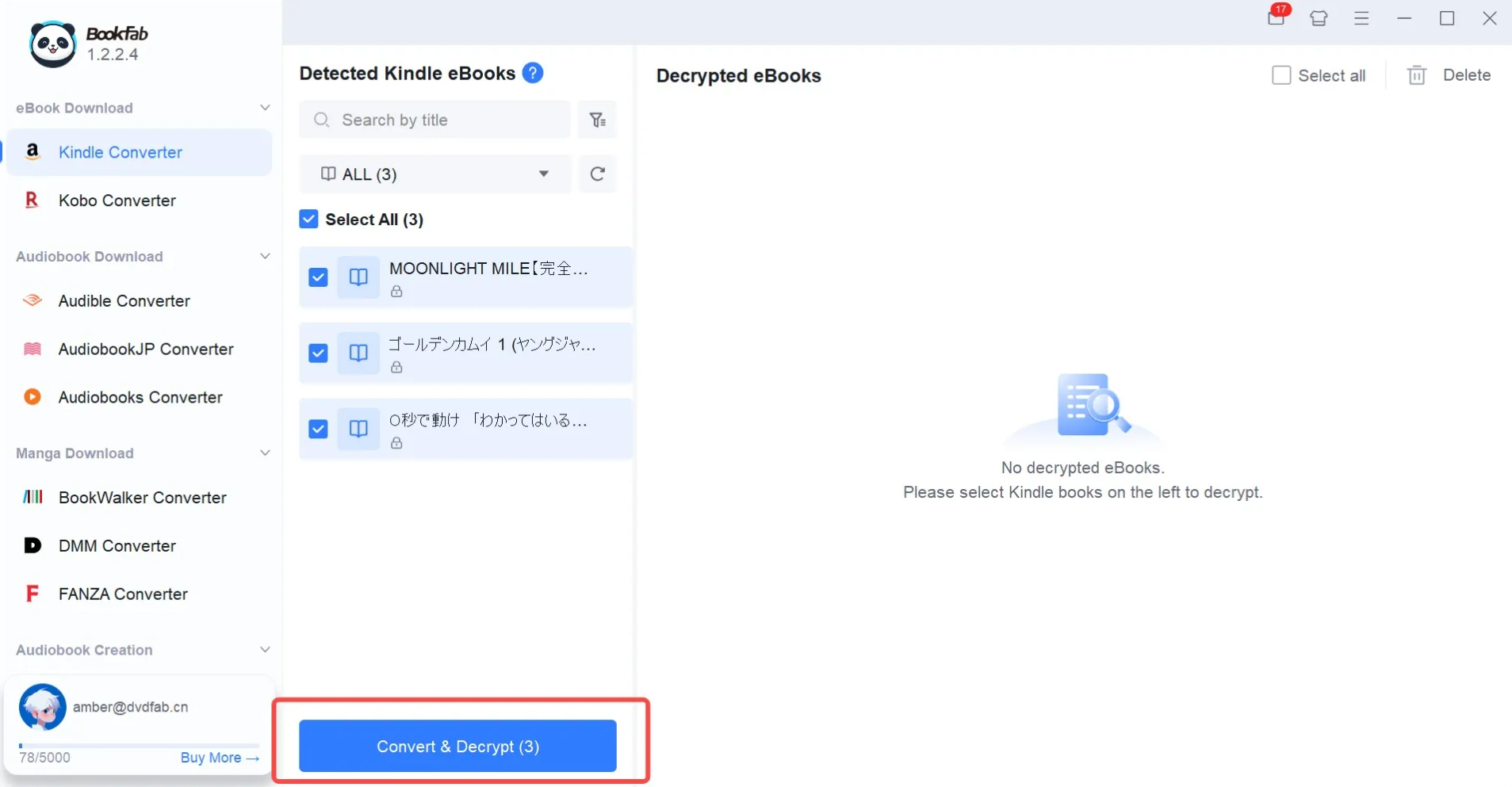
2. Download and launch BookFab. Select the Kindle Converter module. Click Refresh button, the software will automatically detect your downloaded books.
3. Select your titles and click Decrypt & Convert to save your DRM-free files to the output folder.
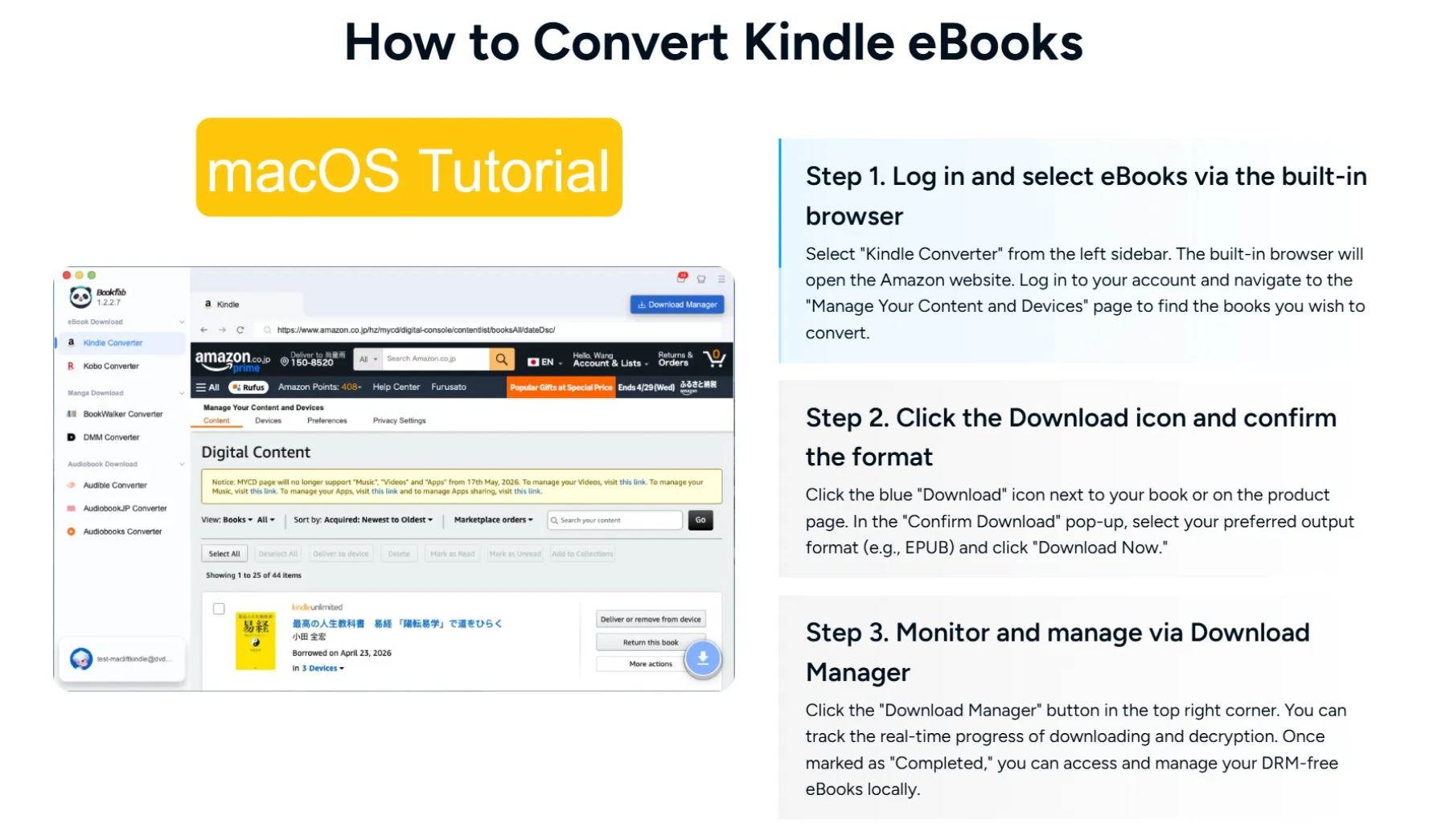
Mac Tutorial: Open the built-in browser in the BookFab Kindle Converter module, log in to your Amazon account, select your book, and click Download Now to save it directly as a DRM-free EPUB or PDF.
FAQ about Calibre DRM Removal Plugin
Is Calibre DRM removal legal?
Calibre itself is completely legal software. The legal gray area comes from using third-party tools like the DeDRM plugin to bypass DRM. If you remove protection from an eBook for commercial purposes, such as distributing or selling it, that is illegal. If you remove DRM purely for personal backup, this is allowed in some regions.
In any case, you should check your local laws before removing DRM and strictly avoid any behavior that infringes on other people's copyright.
Is Calibre free?
Yes. Calibre is completely free and open source software. There is no subscription and no paid Pro tier. You can download and use the full program at no cost on Windows, macOS, and Linux. The developer accepts donations, but they're optional.
Is the DeDRM plugin for Calibre free to use?
Yes. The DeDRM tools, including the Calibre DeDRM plugin and the Obok plugin for Kobo, are open-source and free to download from GitHub and related mirrors.
Which eBook formats does DeDRM Calibre support in 2026?
The DeDRM Calibre plugin doesn't support every format, but it covers most major retail ecosystems. According to the DeDRM documentation and FAQs, it can remove DRM from:
- Amazon Kindle: MOBI, AZW, AZW1, AZW3, AZW4, AZW8, Topaz/Print Replica titles
- Adobe Digital Editions: DRM-protected EPUB, DRM-protected PDF
- Kobo: kePub / Kobo EPUB titles linked to your Kobo account
- Older formats: eReader PDB and a few legacy schemes, where still supported
Is Calibre safe to download?
Yes, Calibre is generally considered safe. It is an open source eBook management tool released under the GPLv3 license, with its source code fully public and continuously reviewed and maintained by the community. What really needs attention are the download source and version updates. The Calibre team recommends downloading the installer only from the official website and avoiding third-party download sites that may offer tampered or ad-bundled versions.
Conclusion
Calibre is a powerful, free, and safe eBook management tool. With the help of the third-party DeDRM plugin for Calibre, it can remove DRM from eBooks. However, the plugin is hard to set up, has poor compatibility, and does not support the latest Kindle DRM. That's why I recommend using the BookFab Calibre plugin instead: let Calibre handle library management and let BookFab handle decryption, so you can enjoy the smoothest eBook workflow Calibre has ever had.
Disclaimer: DeDRM plugins can only be used for personal backups of books you have purchased.

 4 Easy Ways to Convert Kindle to PDFBy Amber Collins - May 18, 2026
 How to Print Kindle Books Without Losing QualityBy Amber Collins - May 14, 2026
![[Quick Solution] How to Remove Kindle DRM on Mac](https://images.dvdfab.cn/media/未命名的设计__87__crpyru.png/public) [Quick Solution] How to Remove Kindle DRM on MacBy Amber Collins - May 11, 2026
[Quick Solution] How to Remove Kindle DRM on MacBy Amber Collins - May 11, 2026 How to Download Kindle Books to PC in 2026 (The Complete Guide)By Amber Collins - May 9, 2026