
How to Remove Kobo DRM from KEPUB and ACSM Kobo Books

Summary: To remove DRM from Kobo eBooks, BookFab Kobo Converter is the easiest way to directly save books as DRM-free EPUB or PDF files. If you already have source files, use Calibre with Obok for KEPUB books, or ADE with DeDRM for ACSM downloads. Advanced users can also try kobodl as a command-line solution.
If your purchased Kobo book cannot be opened on another eReader, Kindle app, or eBook manager, it is usually protected by Kobo DRM, Adobe DRM, or saved as a KEPUB file. In this guide, I will show four practical ways to remove Kobo DRM from purchased Kobo eBooks and convert them to EPUB or PDF for personal reading and backup.
Quick Choice: Which Kobo DRM Removal Method Should You Use?
| Method | Best for | Difficulty |
| BookFab Kobo Converter | Beginners who want to remove Kobo DRM without handling source files, Kobo Desktop folders, plugins, or command-line tools | Easy |
| Calibre + Obok Plugin | Users who have Kobo books downloaded through Kobo Desktop, usually Kobo/KEPUB books | Medium |
| ADE | Users who downloaded Kobo books from the Kobo website as .acsm files and need to process the Adobe DRM EPUB/PDF path | Hard |
| kobodl | Technical users who prefer a command-line workflow and do not want to use ADE, Kobo Desktop, or other desktop software | Very Hard |
Method 1: Remove Kobo DRM with BookFab Kobo Converter
BookFab Kobo Converter is one of the easiest tools for Kobo DRM removal. It lets you sign in to your Kobo account through a built-in browser, open a purchased book's detail page, and download the book as a DRM-free EPUB or PDF file. No plugins, Kobo Desktop file searching, or command-line setup are required. With this tool, you do not need to know whether your Kobo book uses Kobo DRM or Adobe DRM before starting. Since BookFab detects the book directly from your Kobo account, you do not have to download the Kobo book to your computer first.
Step 1: Open Kobo Converter in BookFab
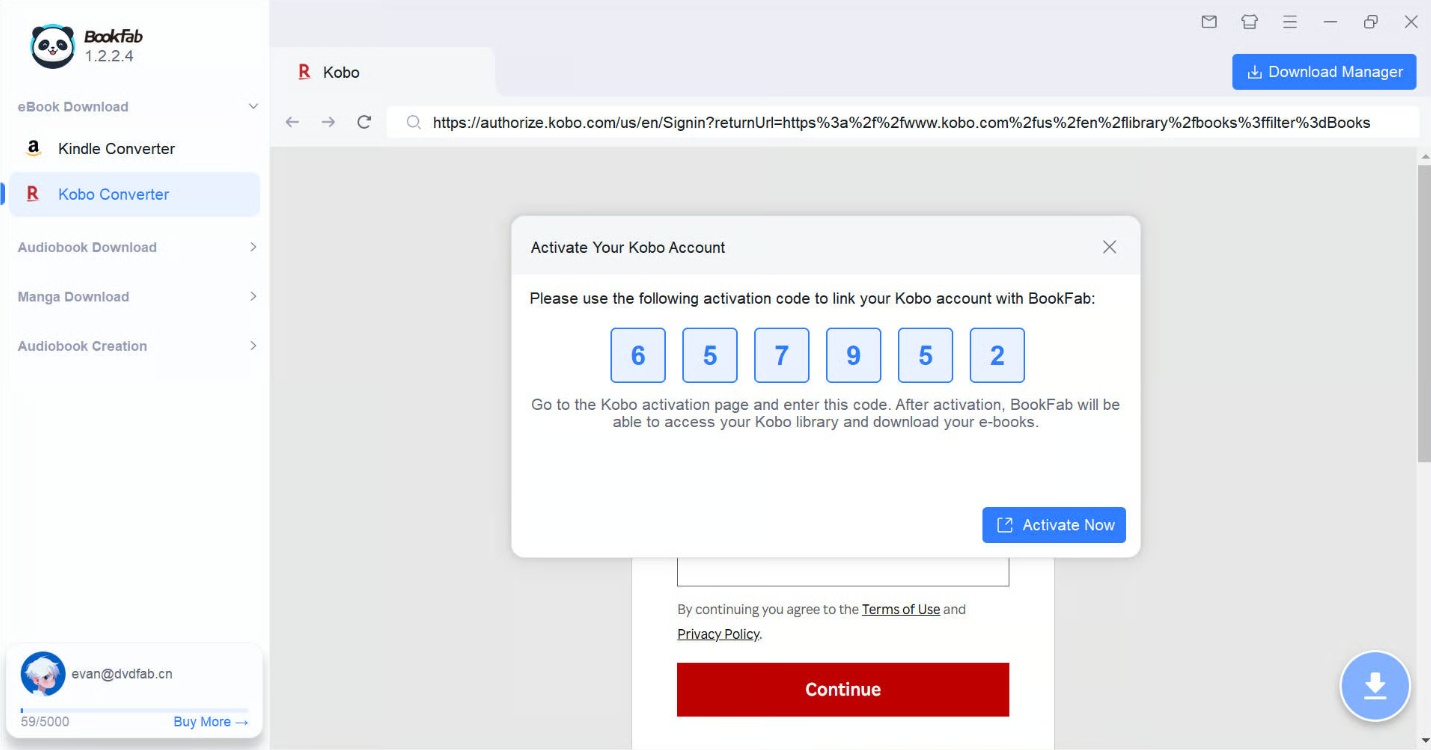
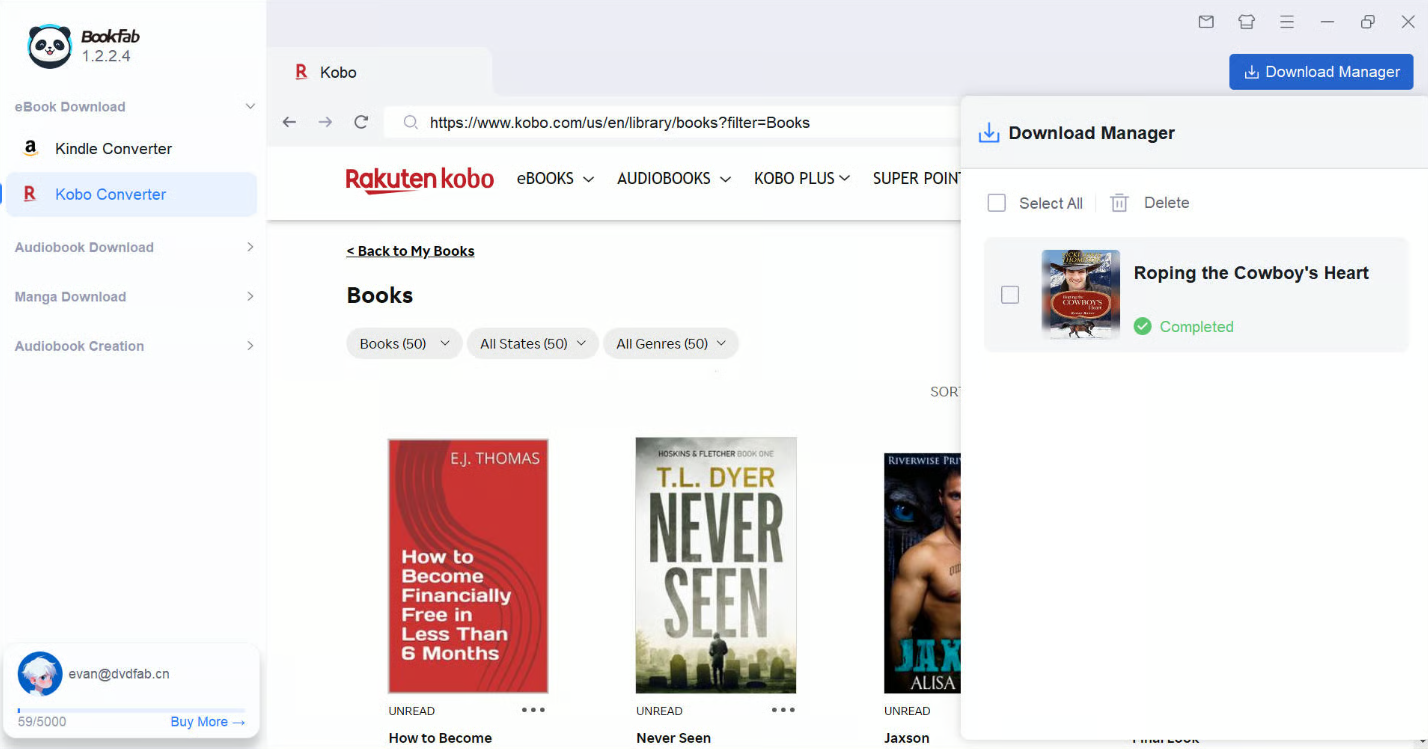
Start BookFab and choose Kobo Converter from the sidebar. BookFab will load Kobo in its built-in browser, so you can work with your Kobo account without leaving the software. When you use this module for the first time, BookFab may ask you to connect or activate your Kobo account before downloading books.
Step 2: Complete Kobo Account Activation
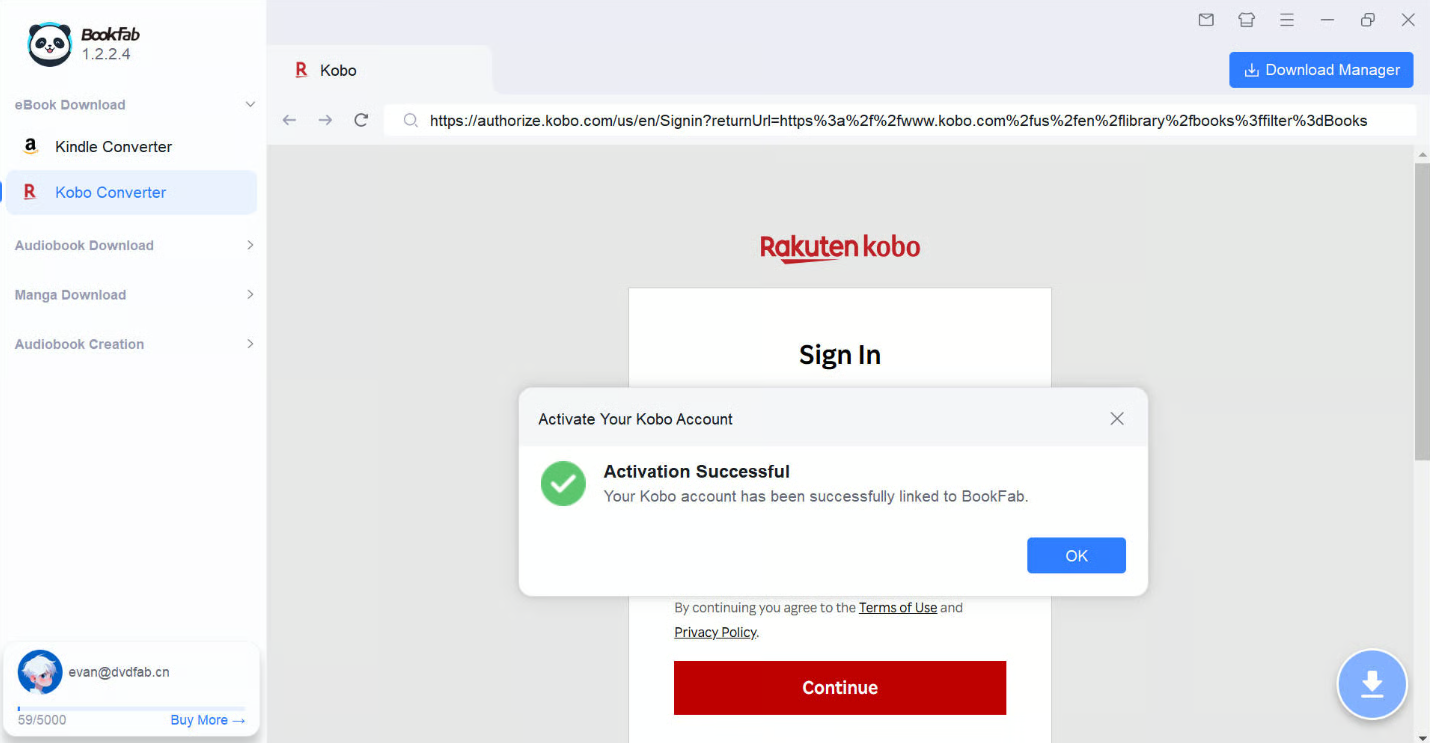
Follow the activation prompt shown in BookFab. Open the activation page, enter the code provided by the software, and then return to BookFab. Once the account connection is complete, BookFab will confirm that activation has succeeded. After that, you can continue browsing your Kobo library inside the software.
Step 3: Open the Kobo Book and Choose an Output Format
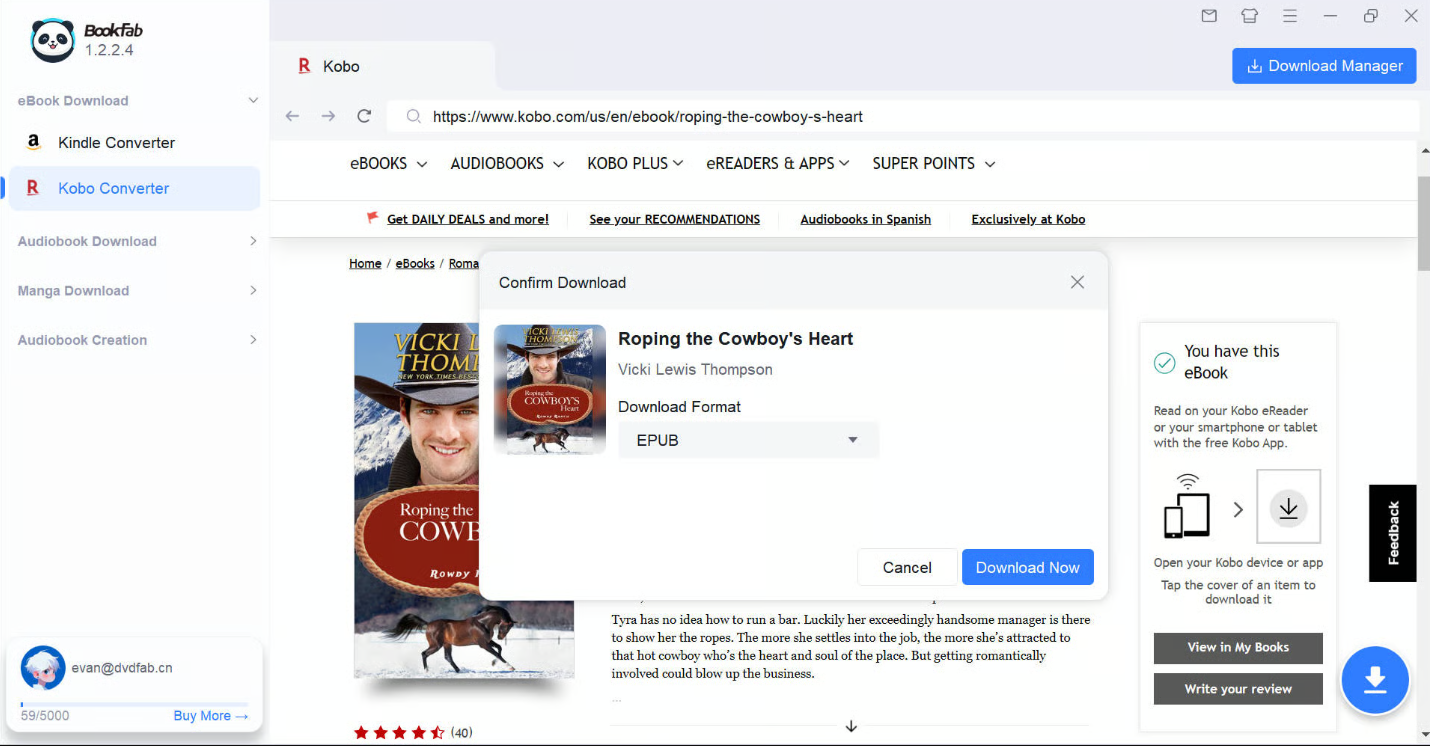
Use the built-in browser to locate the Kobo book you want to convert and open its detail page. When BookFab recognizes the book, the blue download button will become active. Click it, select an output format in the pop-up window, such as EPUB, PDF, or Original, and then click Download Now to begin decrypting and downloading the book.
Step 4: Check the Download Progress
After the task starts, you can continue browsing other Kobo books while BookFab handles the download in the background. Open the Download Manager to check current tasks, queued books, and completed downloads. When the download finishes, open the output folder to check the EPUB or PDF file.
Method 2: Remove Kobo DRM with Obok Plugin in Calibre
Calibre is a free, open-source eBook manager available on Windows, macOS, and Linux. With the third-party Obok plugin, it can be used to remove Kobo DRM from purchased Kobo books downloaded through Kobo Desktop. This method is free, but the setup may depend on your Calibre version, the Obok plugin version, and whether Kobo Desktop has properly downloaded the books to your computer.
Step 1: Install Kobo Desktop and sync your books
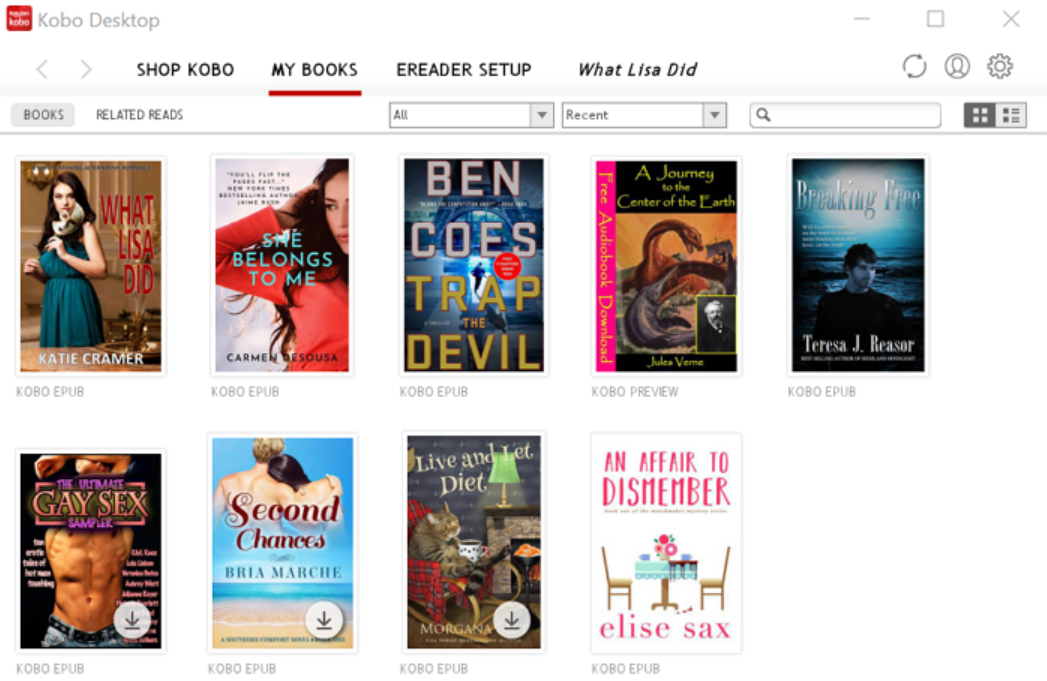
Install Kobo for PC/Mac on your computer and sign in with the same Kobo account that purchased the books. Open your Kobo library and make sure the books are fully downloaded for offline reading.
Step 2: Install Calibre and the Obok plugin
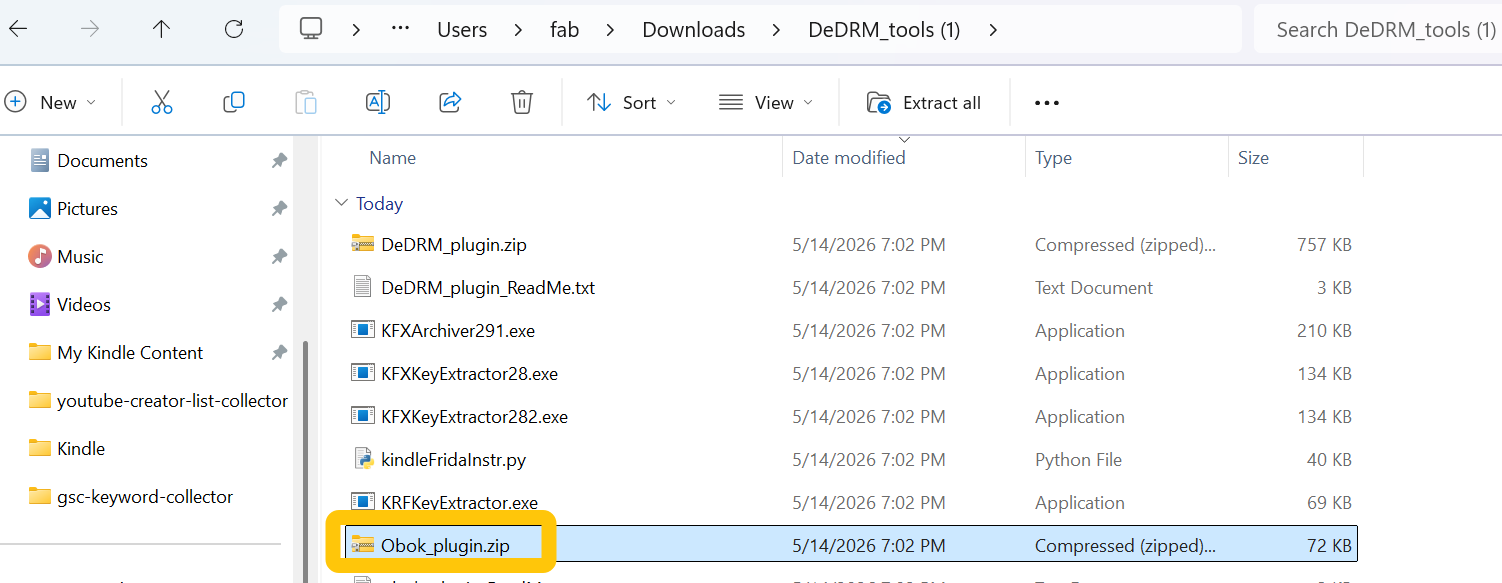
Download the latest DeDRM_tools.zip package and extract it on your computer. After extraction, find the Calibre plugin file named Obok_plugin.zip.
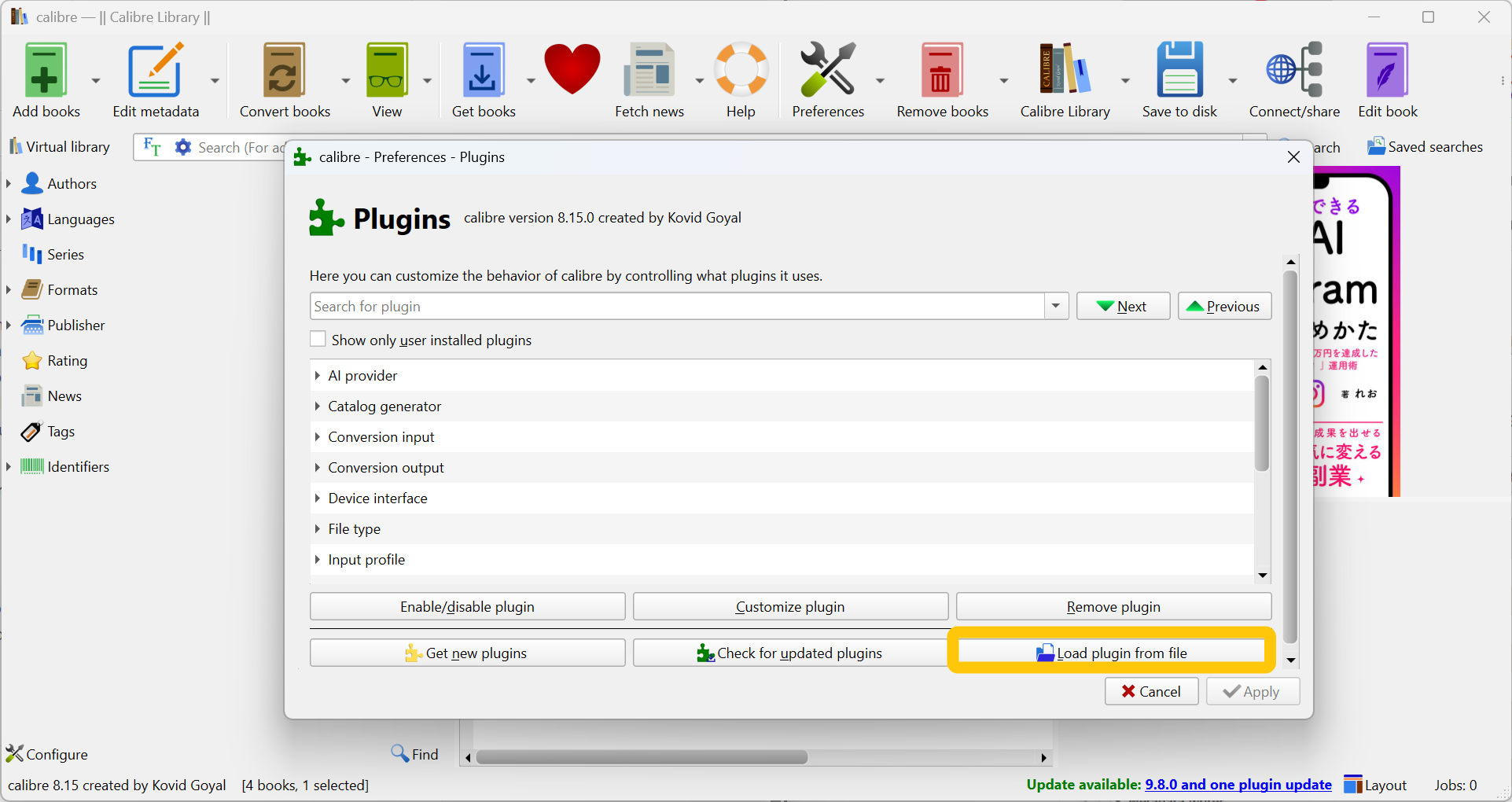
Install and start Calibre, then go to Preferences > Plugins > Load plugin from file. Select Obok_plugin.zip from the extracted DeDRM tools folder and confirm the installation. After the plugin is loaded, restart Calibre. If the installation is successful, you should see Obok DeDRM in Calibre's top toolbar.

Step 3: Import Kobo Books Through Obok
Click Obok DeDRM in the top toolbar. Obok will look for Kobo books that have already been downloaded through Kobo Desktop and display the titles it can find, along with their DRM lock status.
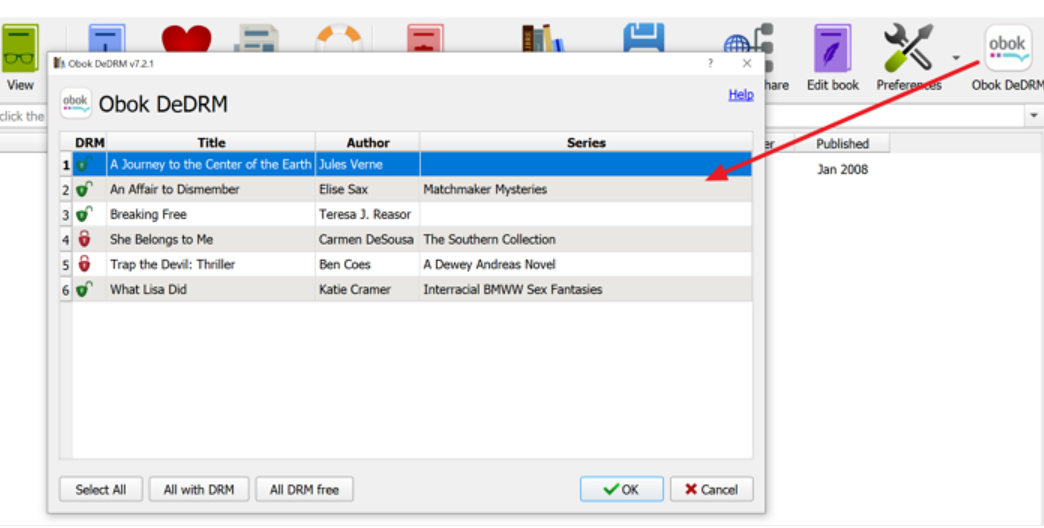
Select the books you want to process, then click OK. Obok will start decrypting the selected Kobo books and add them to your Calibre library after the process finishes.
Method 3: Remove DRM from Kobo eBooks with ADE
If your Kobo book was downloaded from the Kobo website as an .acsm file, you need to open it in Adobe Digital Editions first. ADE will use the ACSM file to download the actual encrypted EPUB or PDF book to your computer. After that, import the downloaded EPUB or PDF file into Calibre and use the DeDRM plugin to decrypt it.
Step 1: Download the ACSM File from Kobo
Sign in to your Kobo account on the Kobo website and go to your purchased books. If the book offers an Adobe Digital Editions download option, save the .acsm file to your computer.
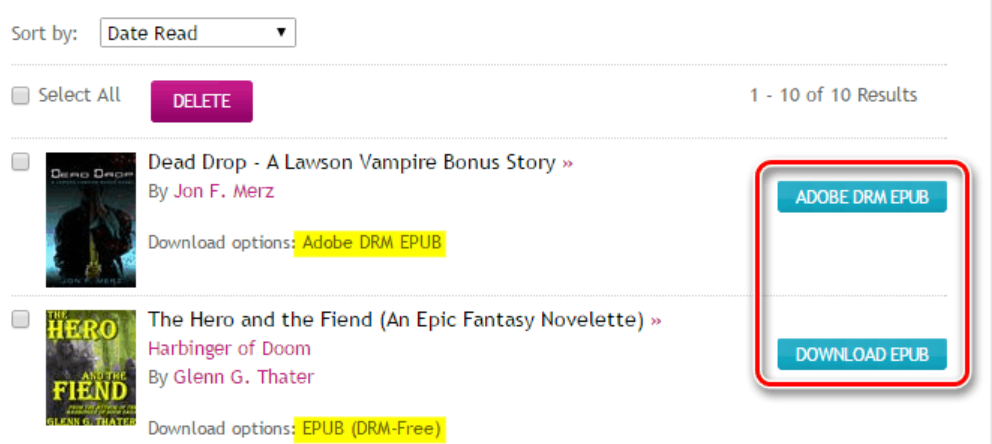
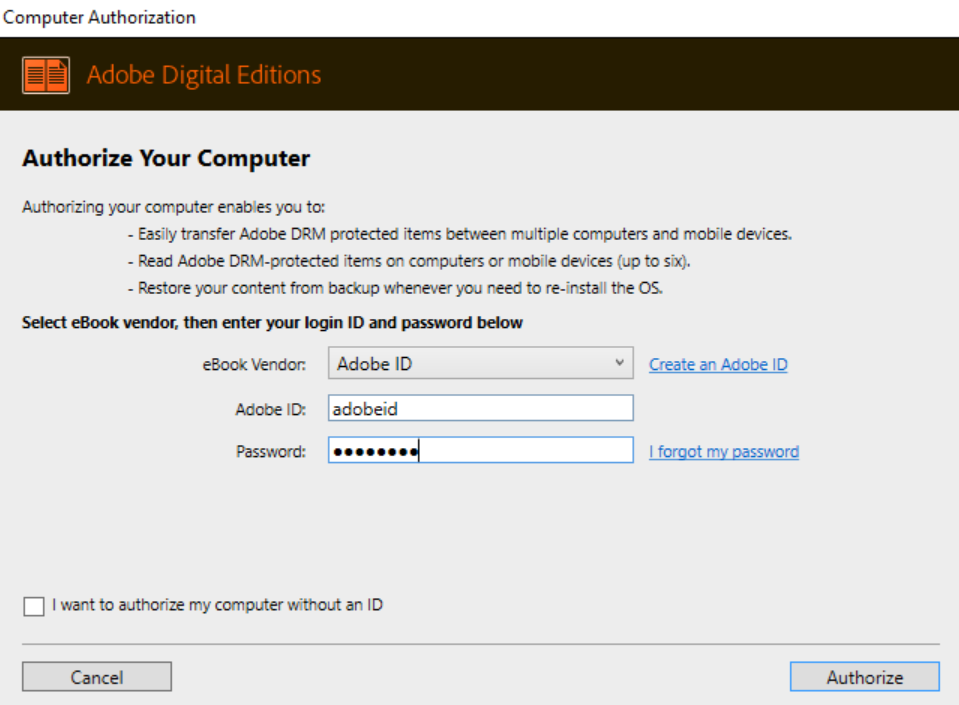
Step 2: Open the ACSM File in Adobe Digital Editions
Install Adobe Digital Editions and authorize your computer with your Adobe ID from Help > Authorize Computer. Then open the .acsm file in ADE. ADE will download the real EPUB or PDF file and add the book to its library. Locate the book file downloaded by ADE. On Windows, it is usually saved here: C:\Users\[username]\Documents\My Digital Editions\
Step 3: Install DeDRM_plugin.zip in Calibre
Download the latest DeDRM_tools package and extract it on your computer. In the extracted folder, find DeDRM_plugin.zip. Open Calibre and go to Preferences > Plugins > Load plugin from file. Select DeDRM_plugin.zip, confirm the installation, and restart Calibre.
Step 4: Import the ADE-Downloaded EPUB or PDF
Import the EPUB or PDF Kobo book downloaded by Adobe Digital Editions. If DeDRM_plugin.zip is installed and configured correctly, the Kobo DRM removal process should run when the file is added to Calibre.
Method 4: Use kobodl for Kobo DRM Removal
kobodl is a command-line tool for downloading and removing DRM from purchased Kobo eBooks. It does not require Adobe Digital Editions, ACSM files, Kobo Desktop, or a Kobo eReader pre-download. This method is mainly for technical users who are comfortable with Terminal, PowerShell, or command-line tools.
Step 1: Download kobodl-windows.exe
Download kobodl-windows.exe from the latest release assets and save it to your Downloads folder. To keep the following commands consistent, this tutorial uses:
C:\Users\your_username\Downloads
Step 2: Open Command Prompt or PowerShell
Press Win + R, type cmd or powershell, and press Enter.
Step 3: Go to the Download Folder
In the terminal, go to the folder where you saved kobodl-windows.exe: cd C:\Users\your_username\Downloads
Then run the program once: .\kobodl-windows.exe
If it opens correctly, you can continue with the account activation step.
Step 4: Add Your Kobo Account
Run: .\kobodl-windows.exe user add
kobodl will show an activation link and an activation code. Open the link in your browser, enter the code on Kobo's activation page, and sign in to your Kobo account if prompted. After the activation succeeds, kobodl will save access tokens, so you should not need to activate the same account again.
Step 5: List Your Kobo Books
Run: .\kobodl-windows.exe book list
This will display the Kobo books linked to your account. Find the book you want to download and copy its revision ID. The revision ID is usually a UUID-style value, not a simple number.
Step 6: Decrypt a Kobo Book
To download one book, run: .\kobodl-windows.exe book get <revision-id>
(Replace <revision-id> with the actual revision ID from the book list.)
By default, kobodl saves decrypted books to: .\kobo_downloads
To decrypt all available books, run: .\kobodl-windows.exe book get --get-all
FAQ about Kobo DRM Removal
Is it legal to remove Kobo DRM?
Are KEPUB DRM and ACSM / Adobe DRM the same?
A KEPUB file usually comes from Kobo Desktop, the Kobo app, or a Kobo eReader sync process. It is Kobo's own EPUB-based format used inside the Kobo ecosystem. This path is commonly handled with tools such as the Obok plugin.
An ACSM file usually comes from the Kobo website when you choose the Adobe DRM EPUB download option. The ACSM file is not the actual eBook. It is a small file used by Adobe Digital Editions to download the real EPUB or PDF file, which may be protected by Adobe DRM.
How do I download an ACSM file for a Kobo book?
After that, open the .acsm file with Adobe Digital Editions. ADE will use it to download the actual EPUB or PDF book and add it to your ADE library.
Where does Kobo Desktop store KEPUB files?
For Windows: C:\Users\[username]\AppData\Local\Kobo\Kobo Desktop Edition\kepub
For Mac: ~/Library/Application Support/Kobo/Kobo Desktop Edition/kepub
Conclusion: Which Method Is Best?
The best Kobo DRM removal method depends on how technical you want the process to be.
- For most readers, BookFab Kobo Converter is the easiest place to start. It can convert purchased Kobo books to DRM-free EPUB or PDF files without requiring you to download or handle the original source files first.
- For users who want a free method and already use Calibre, Calibre is worth trying. It takes more setup, but it can fit nicely into your eBook library workflow.
- For advanced users, especially Linux users or people who prefer standalone tools, kobodl is the most flexible option.
No matter which method you choose, keep the purpose narrow: purchased books, personal reading, and private backup. Once the book is available as a clean EPUB or PDF, your library becomes easier to organize, preserve, and read across the devices you actually use.

 How to Remove DRM from EPUB: 2 Best Free EPUB DRM Removal ToolsBy Amber Collins - Apr 21, 2026
 How to Convert iBooks to PDF in 2026 (Read iBooks on Any Device)By Amber Collins - Dec 9, 2025