
How to Remove DRM from EPUB: 2 Best Free EPUB DRM Removal Tools

Summary: To remove DRM from EPUB files, you can use Calibre for Adobe DRM-protected EPUB books, or choose BookFab Kobo Converter for Kobo EPUB and KEPUB books with no plugin setup required.
"Can I remove DRM from EPUB books I purchased and read them on other devices?"
This is one of the most common questions eBook users ask after buying titles from Kobo, Google Play, and similar platforms. Since DRM limits how and where you can open your files, many readers look for a practical way to remove DRM from EPUB. In this guide, I will cover the two best free EPUB DRM removal tools for EPUB files from multiple eBook platforms, along with a simple tutorial to help you get started.
Free EPUB DRM Removal Tool: Calibre
Calibre is one of the most commonly used tools for EPUB DRM removal, especially for users who need a free option or want to handle books from multiple platforms. However, Calibre itself cannot remove DRM from EPUB files, so you need to install additional plugins. Calibre DeDRM plugin can decrypt EPUB books downloaded through Adobe Digital Editions (ADE), such as books from Google Play Books. Obok plugin can remove DRM from .kepub or .epub files downloaded from Kobo.
As you can see, using Calibre to remove DRM from EPUB eBooks requires some basic computer knowledge. Otherwise, the setup process can feel confusing, especially for beginners. If most of your books come from the Kobo platform, we recommend trying the second EPUB DRM removal tool, BookFab Kobo Converter.
- Supports a wide range of plugins for DRM removal
- Free and open-source, with no subscription required
- Compatible with many eBook formats, including EPUB, MOBI, AZW, PDF, and KFX
- Includes format conversion, eBook editing, metadata editing, and library management features
- Helps organize your eBook library by title, author, tags, and more
- Available on Windows, macOS, and Linux
- Requires manual plugin installation and some technical setup
- Takes time to get familiar with
- EPUB DRM removal success may vary depending on the book
How to Remove DRM from EPUB with Calibre?
Step 1: Download and install the latest version of Calibre from the official site https://calibre-ebook.com/.
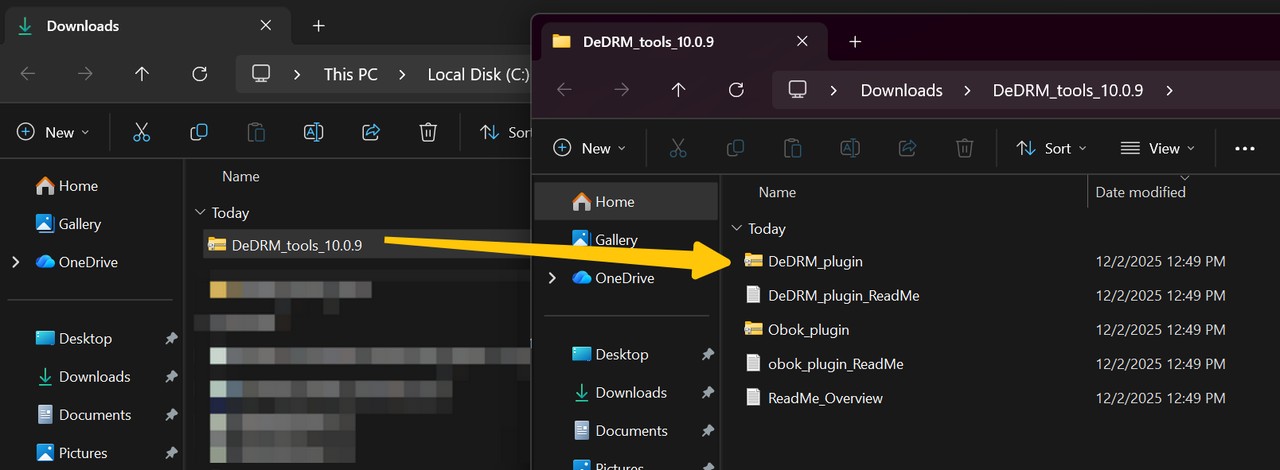
Step 2: Go to the DeDRM_tools GitHub Releases page and download the DeDRM_tools.zip. Extract it to a folder, and you will find two important plugin files: Obok_plugin.zip for Kobo-purchased EPUB or KEPUB books, and DeDRM_plugin.zip for Adobe DRM-protected EPUB books downloaded through ADE.
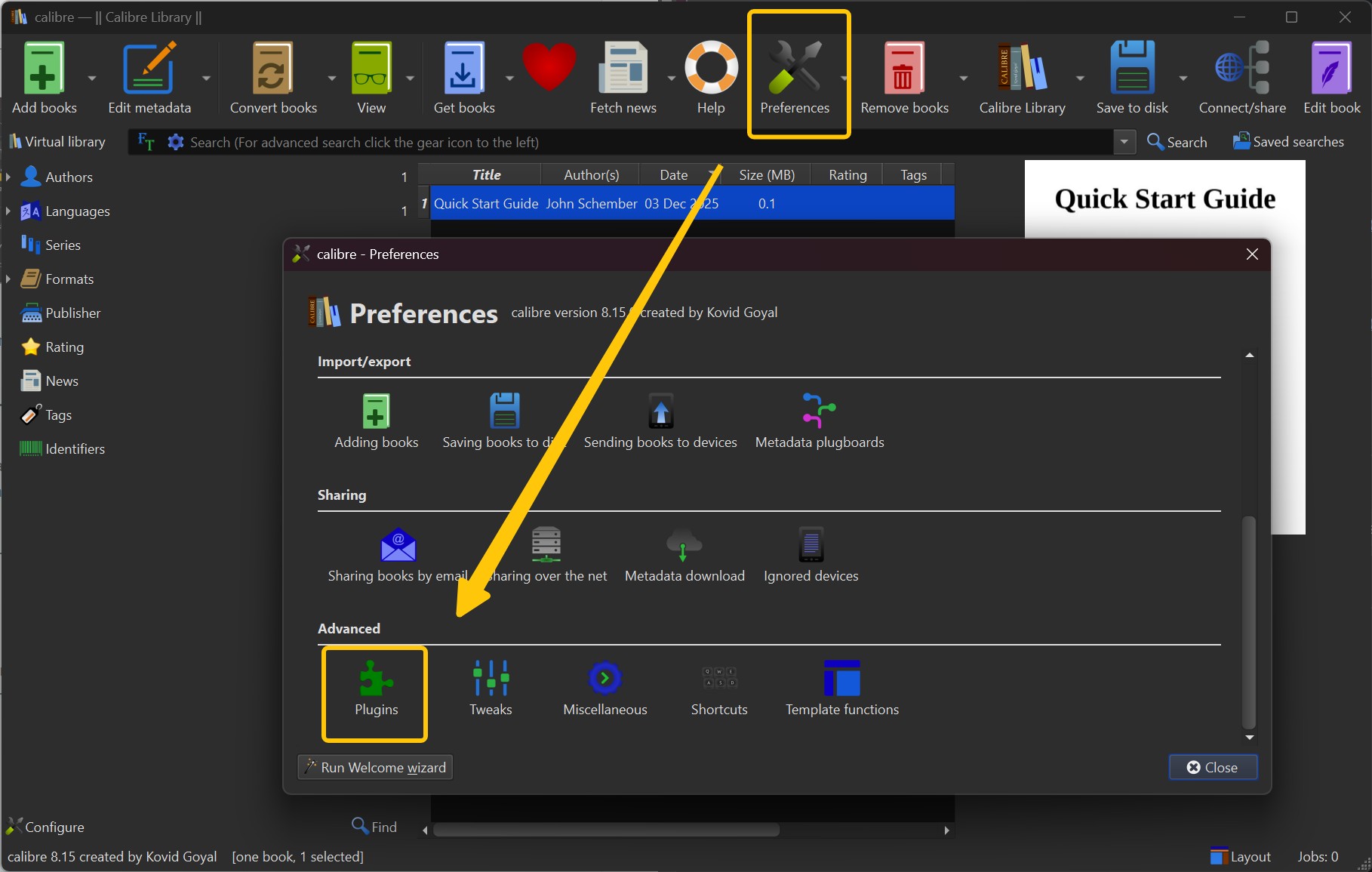
Step 3: Open Calibre and click "Preferences" > "Plugins > Load plugin from file". First install DeDRM_plugin.zip, then repeat to install Obok_plugin.zip if you want to remove EPUB DRM from Kobo books. Restart Calibre so both plugins become active.
Step 4: Once the plugins are installed, you can import your downloaded EPUB files into Calibre to remove DRM. The process varies depending on the ebook platform and DRM type.
📕For EPUB eBooks from Google Play, Nook, e-library, and other Adobe DRM-based platforms:
Step a. Authorize Adobe Digital Editions
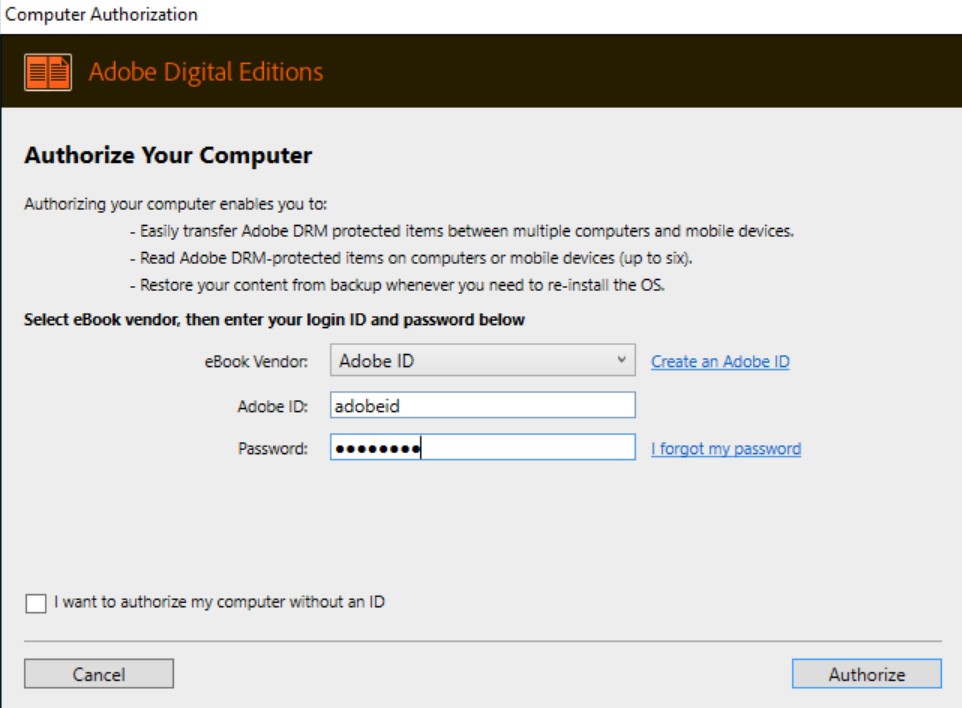
Download and install Adobe Digital Editions from Adobe's website. Open ADE and go to "Help > Authorize Computer". Log in with the Adobe ID you used to purchase or access your books.
Step b. Download the Protected EPUB
Retailers using Adobe DRM usually provide an .acsm file instead of the actual EPUB. Open the .acsm file in Adobe Digital Editions, and ADE will download the DRM-protected EPUB or PDF. Once the book appears in your ADE library, right-click it and select Show in Explorer/Finder to locate the file on your computer.
Step c. Remove Adobe DRM from EPUB in Calibre
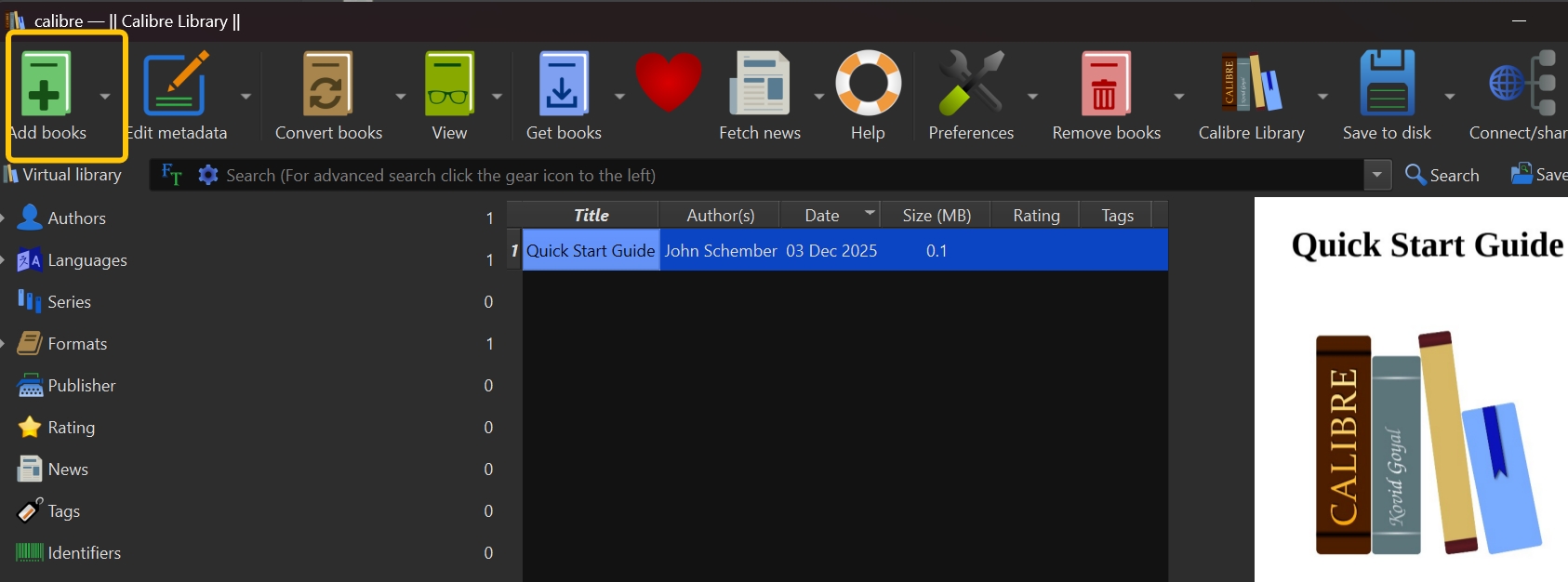
Open Calibre and click "Add books". Navigate to the folder where ADE placed the downloaded EPUB. Select that file to import it into Calibre. Then, the DeDRM plugin will automatically detect the Adobe DRM and remove it during import. After this, the book appears in your Calibre library as a DRM-free EPUB you can read, convert, or export.
📕For EPUB books from Kobo:
Kobo uses its own DRM variant, and the Obok plugin is designed to handle it. Once installed, Obok can pull your purchased Kobo ebooks from a desktop app or connected Kobo device and strip their DRM automatically.
Step a. Download Kobo Books to Your Computer
Install and open the Kobo Desktop App (Windows or macOS). Sign in with your Kobo account. Download the ebooks you want to process so they're stored on your computer.
Step b. Romove Kobo DRM from EPUB
Close the Kobo Desktop App to ensure ebook files are not in use. Open Calibre and click "Add books". Select the Kobo files (.kEPUB or .EPUB) you just downloaded. The Obok plugin will detect the Kobo DRM, remove it, and add the decrypted book to your Calibre library. The resulting files will be standard DRM-free EPUBs ready for reading or converting.
A Simpler EPUB DRM Removal Option for Kobo: BookFab Kobo Converter
If your EPUB books mainly come from Kobo and you do not want to spend time figuring out ADE, ACSM, DeDRM, or Obok, a more streamlined and reliable tool may be easier to use.
BookFab Kobo Converter is a specialized EPUB DRM removal tool designed to remove DRM from purchased Kobo eBooks without going through the more manual Calibre setup. It can convert DRM-protected Kobo EPUB books into open EPUB or PDF formats. While its platform support is limited to Kobo, the workflow is more straightforward than Calibre. There is no need to install plugins. After signing in to your Kobo account in the software, you can select the books you want and download them directly as DRM-free EPUB or PDF files.
- Automatically removes DRM when it converts your purchased titles to standard EPUB or PDF files.
- It outputs DRM-free EPUB/PDF files that you can import into Calibre, or send to other devices.
- It works together with BookFab Audiobook Creator, so you can turn your EPUB eBook into audiobook.
- Within the same BookFab suite, you can try other modules, like converting Kindle to EPUB.
- It only supports DRM removal for EPUB books purchased from the Kobo store.
How to Remove DRM from EPUB eBooks with BookFab Kobo Converter?
Step 1. Open BookFab and choose Kobo Converter
Install and launch BookFab on your computer.
From the left-side panel, select "Kobo Converter" to enter the module. Once opened, the built-in browser will automatically load the Kobo website, so you can access your Kobo library without switching to another app or browser window.
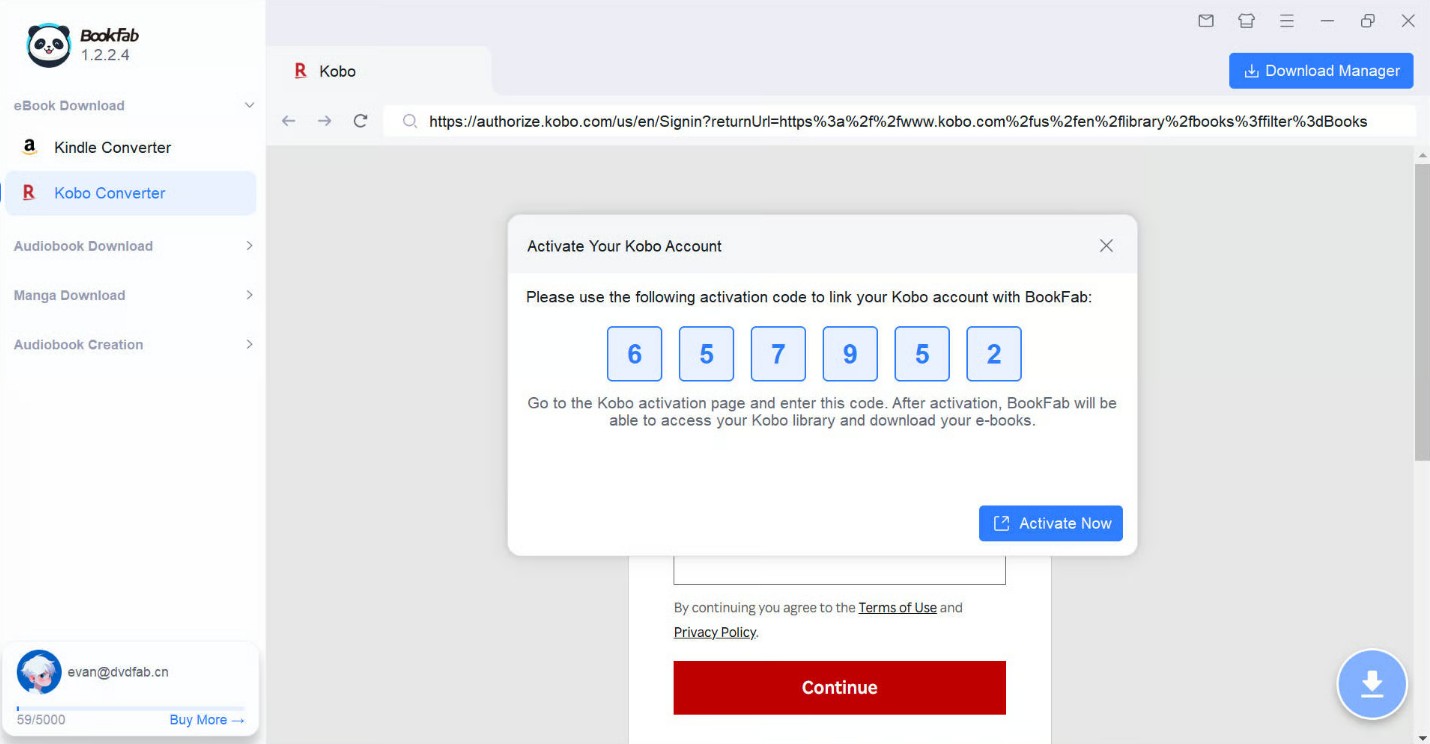
If this is your first time using the Kobo Converter module, the software may prompt you to sign in to your Kobo account. At the same time, a small pop-up window may appear with an activation code that is required to link your Kobo account within the program.
Step 2: Complete Kobo account activation
When the activation window appears, click Activate Now. This will open the Kobo activation page in your default browser. Enter the activation code shown in BookFab and finish the verification process on the Kobo page.
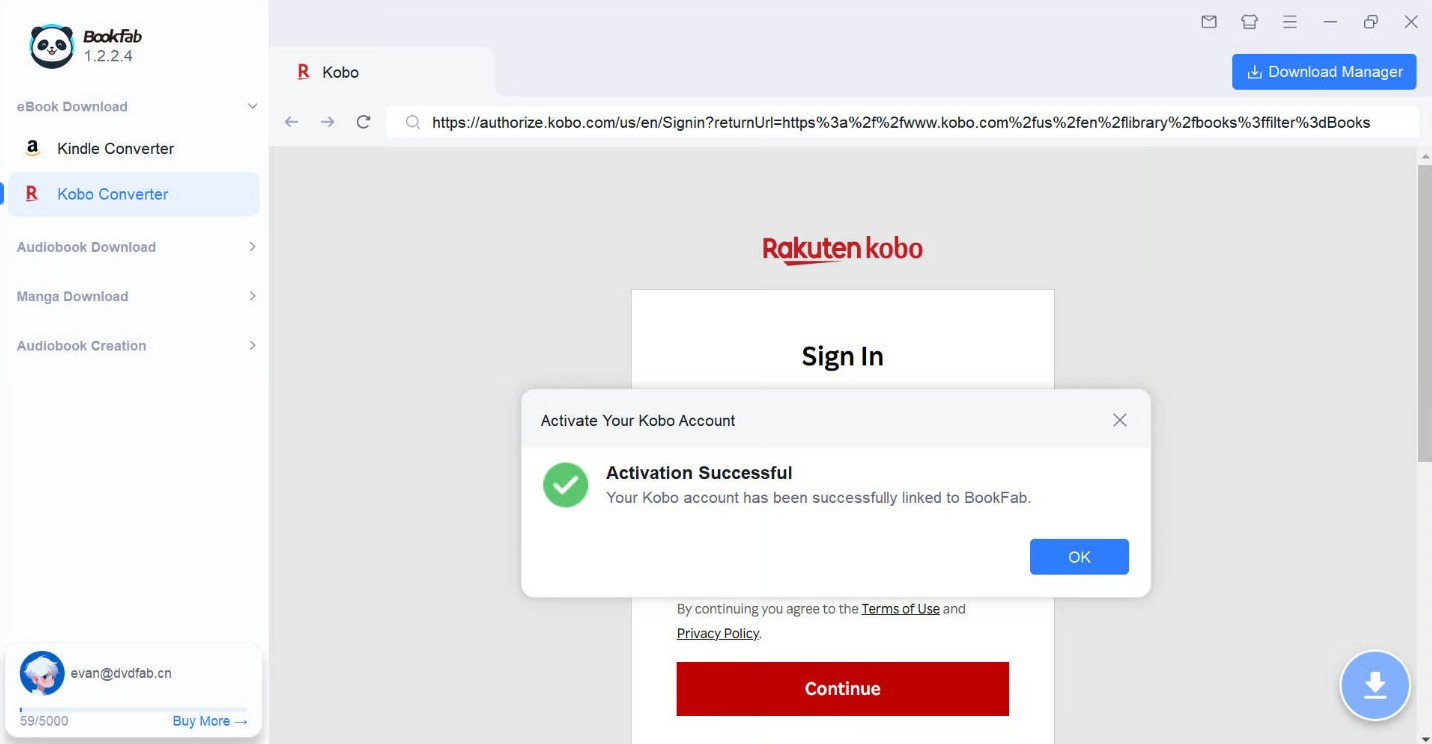
After the code is confirmed, return to BookFab. The program should then display a message such as Activation Successful, indicating that your Kobo account has been linked correctly and that you can continue accessing your purchased books inside the built-in browser.
Step 3: Find the book you want to convert
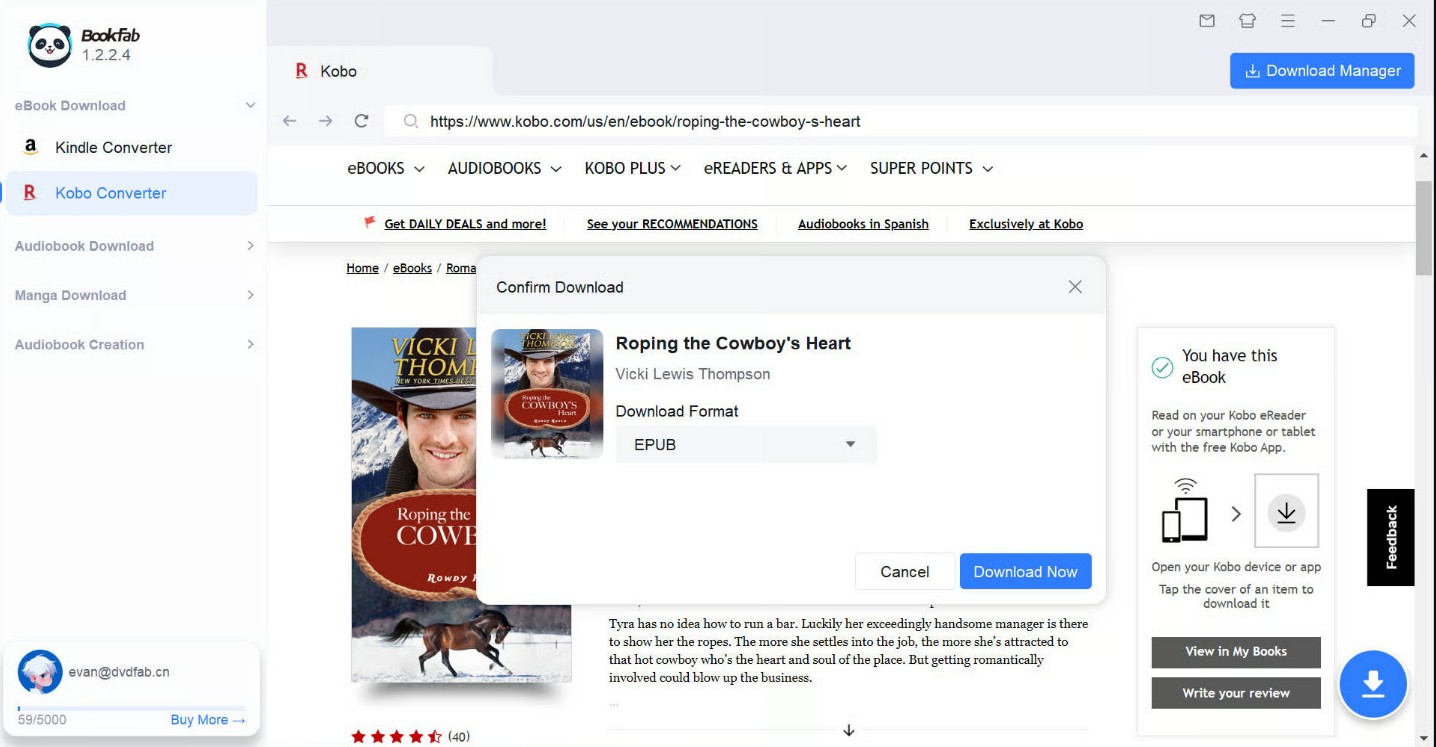
After activation, use the built-in browser in BookFab to sign in and browse your Kobo library. Open the detail page of the eBook you want to process. Once BookFab detects that the title can be handled, it will show a download prompt or a download button for that book.
At this stage, you can choose your preferred output format, such as EPUB, PDF, or Original, depending on how you plan to read or store the file. After selecting the format, click "Download Now" to remove DRM from Kobo EPUB books.
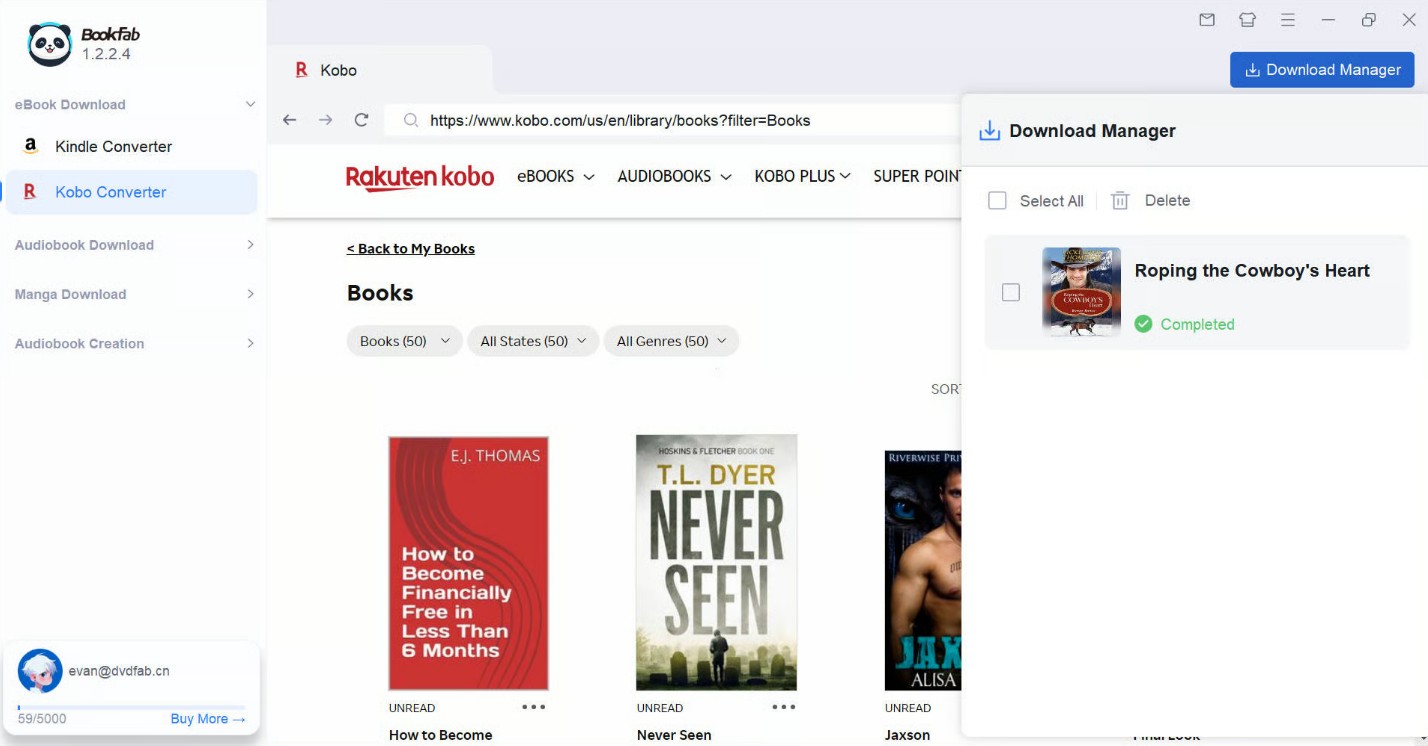
Step 4. Download DRM-free EPUB books to PC
Once the task is added, BookFab will start downloading and processing the selected Kobo book automatically. You do not need to stay on the same page while this is happening. You can continue browsing your Kobo library and queue more books if needed.
FAQs
Is It Legal to Remove DRM from EPUB eBooks?
The legality of DRM removal depends on your country or region. In some countries, such as the United States, personal, non-commercial use may be legal. However, circumventing DRM (even for private use) is considered illegal in many jurisdictions. Be sure to check your local copyright laws before attempting to remove DRM from eBook formats such as EPUB, Kindle, or PDF.
Is It Safe to Remove DRM from eBooks?
Yes, DRM removal is generally safe if you use trusted tools like BookFab or Calibre. However, please be aware of a security issue: avoid downloading DRM tools from unknown sources to prevent malware.
Does Removing DRM Affect EPUB File Quality or Format?
No. Removing DRM does not change the content, layout, format, or metadata of the file. The process only removes encryption that restricts access.
Can I read DRM-free EPUB files on Kindle?
Yes, but Kindle doesn't natively support EPUB. After removing DRM, we suggest you use Calibre to convert EPUB to MOBI or AZW3, and then transfer the files to Kindle device.
Conclusion
If you want to remove DRM from EPUB books, the right tool depends mainly on where your eBooks come from and how much setup you are willing to handle. Calibre is a better fit for users who want a free and more flexible EPUB DRM removal solution, while BookFab Kobo Converter is easier and more reliable for readers who mainly buy EPUB books from Kobo. By choosing the tool that matches your library, you can make your EPUB eBooks easier to read, manage, and transfer across devices.

 How to Remove Kobo DRM from KEPUB and ACSM Kobo BooksBy Amber Collins - May 14, 2026
 How to Convert iBooks to PDF in 2026 (Read iBooks on Any Device)By Amber Collins - Dec 9, 2025