
How to Send Books from Calibre to Kindle in 2026 (via USB or Email)

Summary: To send books from Calibre to your Kindle, you can either connect your Kindle to your computer via USB and transfer files in Calibre, or set up your Kindle email in Calibre for wireless delivery. This article explains both methods in detail and answers real-world questions and issues you may run into.
Table of Contents
"Can I still send books from Calibre to Kindle? I have some books that I downloaded from Libgen, converted to EPUB and MOBI but it never arrives to my Kindle."
Calibre has long been a go-to tool for Kindle users. It can be used to convert ebook formats, send books to your Kindle device, and even remove Kindle DRM. But as Amazon's ecosystem becomes more restrictive, many users are starting to wonder: is sending books from Calibre to Kindle still doable? The answer is yes. In this guide, I'll walk you through two methods—wired and wireless—to transfer books from Calibre to your Kindle, along with troubleshooting tips for common Calibre-to-Kindle delivery problems.
Send Books from Calibre to Kindle via USB
The simplest and most reliable method is to grab your USB cable, connect your Kindle to your computer, and use Calibre's "Send to Device" feature. The books you import can be in either MOBI or EPUB format.
Step 1: Install and Set up Calibre
Download and install the latest version of Calibre for your operating system from the official website. During installation, choose your preferred interface language and select a location for your Calibre library. You will also be asked to select your Kindle model. Simply choose the device manufacturer and the specific model from the menu, then click Next.
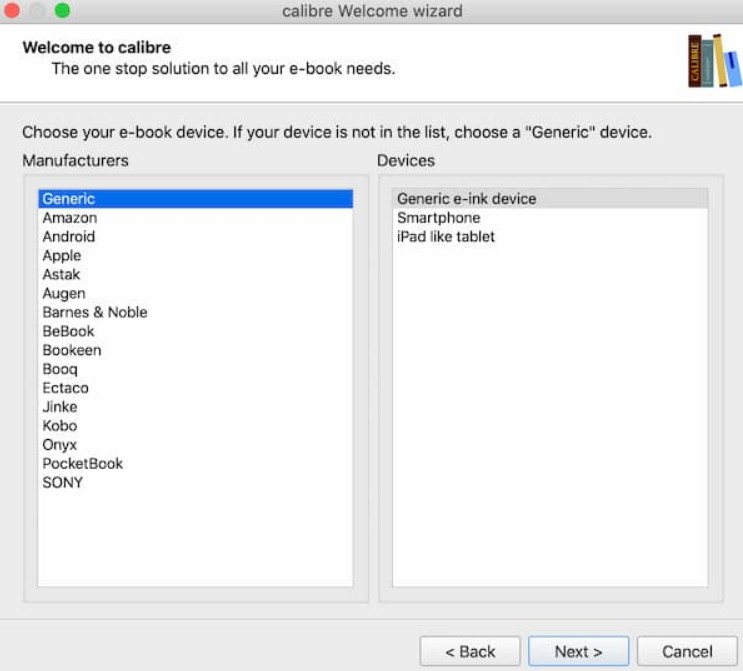
On the next screen, Calibre will ask you to configure wireless email delivery. Since you plan to transfer books via USB, simply click Next to skip this step.
The initial setup is now complete. Click Finish to launch Calibre.
Step 2: Add Books to Calibre
In Calibre, click Add books. In the pop-up window, select the books you want to send to your Kindle. Once the import is complete, Calibre will automatically pull in the book's metadata, cover, and other available details.
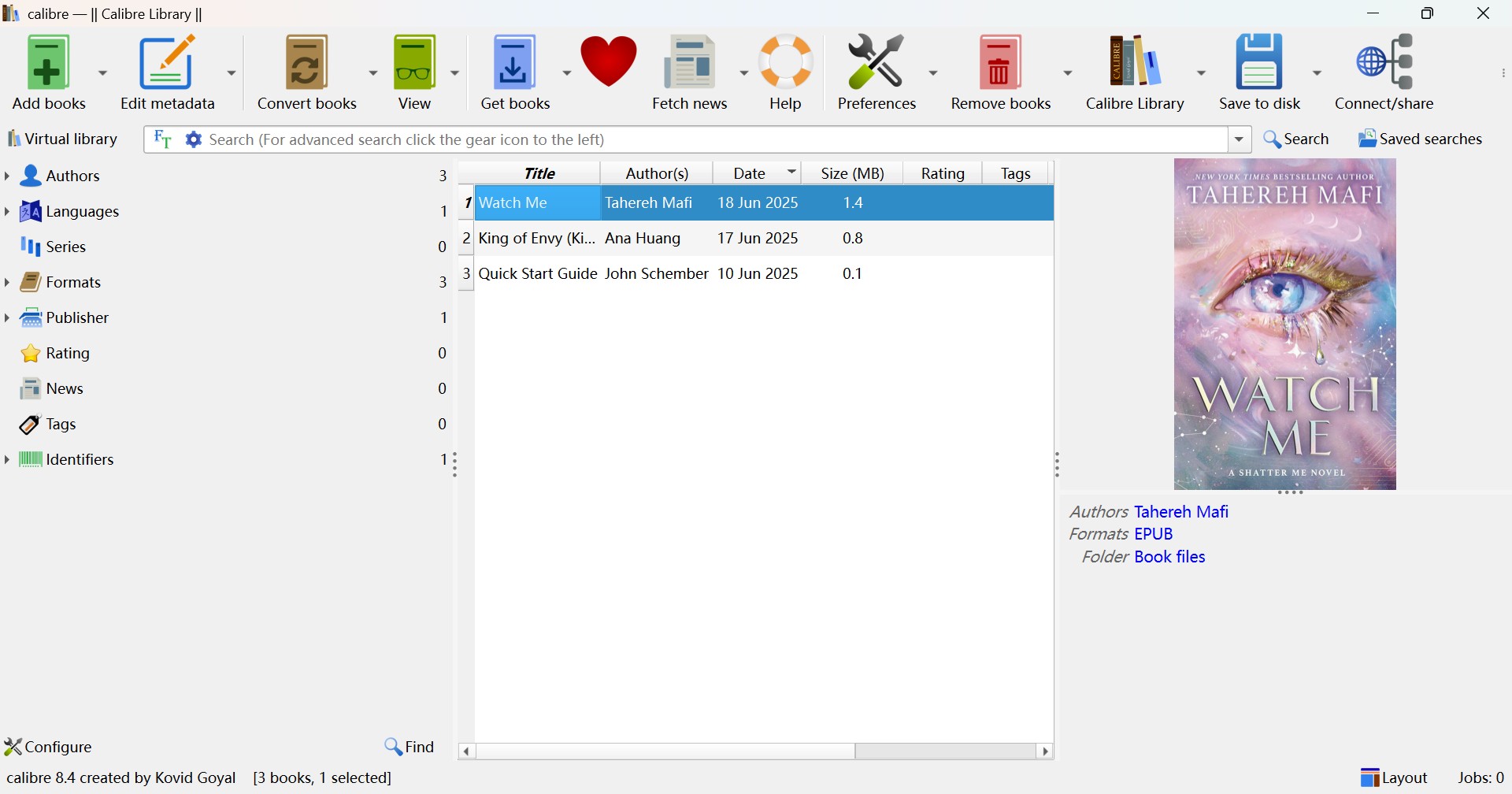
Step 3: Send Books from Calibre to Kindle via USB
Use a USB cable to connect your Kindle to your computer. Calibre should detect the device automatically. Once connected, an On Device column will appear in the book list.
Select one or more books, right-click, and choose Send to device > Send to main memory.
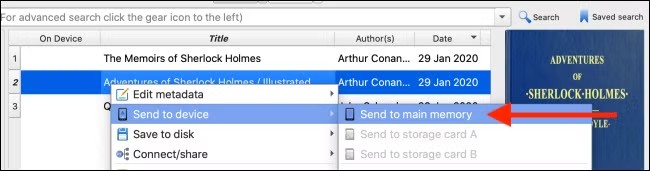
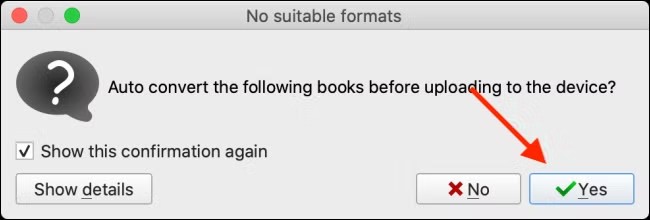
If the book is already in MOBI format, Calibre will transfer it to your Kindle immediately. If the book is in EPUB format, Calibre will prompt you to convert it first. Click Yes in the dialog box to continue. Calibre will convert the book to MOBI format and then send it to your Kindle. To monitor the process, click Jobs in the bottom-right corner of the Calibre interface.
Step 4: Eject Your Kindle Device
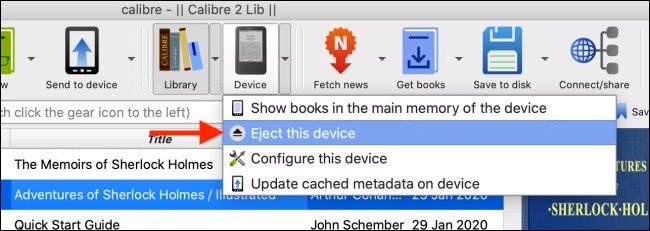
Once the transfer finishes, click the Device > Eject this device from the drop-down menu. After that, you can unplug your Kindle from the computer.
Send Books from Calibre to Kindle via Email
Another way to send books from Calibre to your Kindle is through wireless email delivery. To set this up, you need two email addresses:
- Sender email: the address Calibre will use to send the books (this tutorial uses a Gmail account as an example)
- Kindle email: your Kindle device email address that will receive the eBooks
Once both are configured correctly, Calibre can send EPUB books directly to your Kindle, and they will sync over Wi-Fi. Below is a step-by-step guide to setting up both email addresses and sending books from Calibre to Kindle.
Step 1: Add Your Kindle Email Address in Calibre
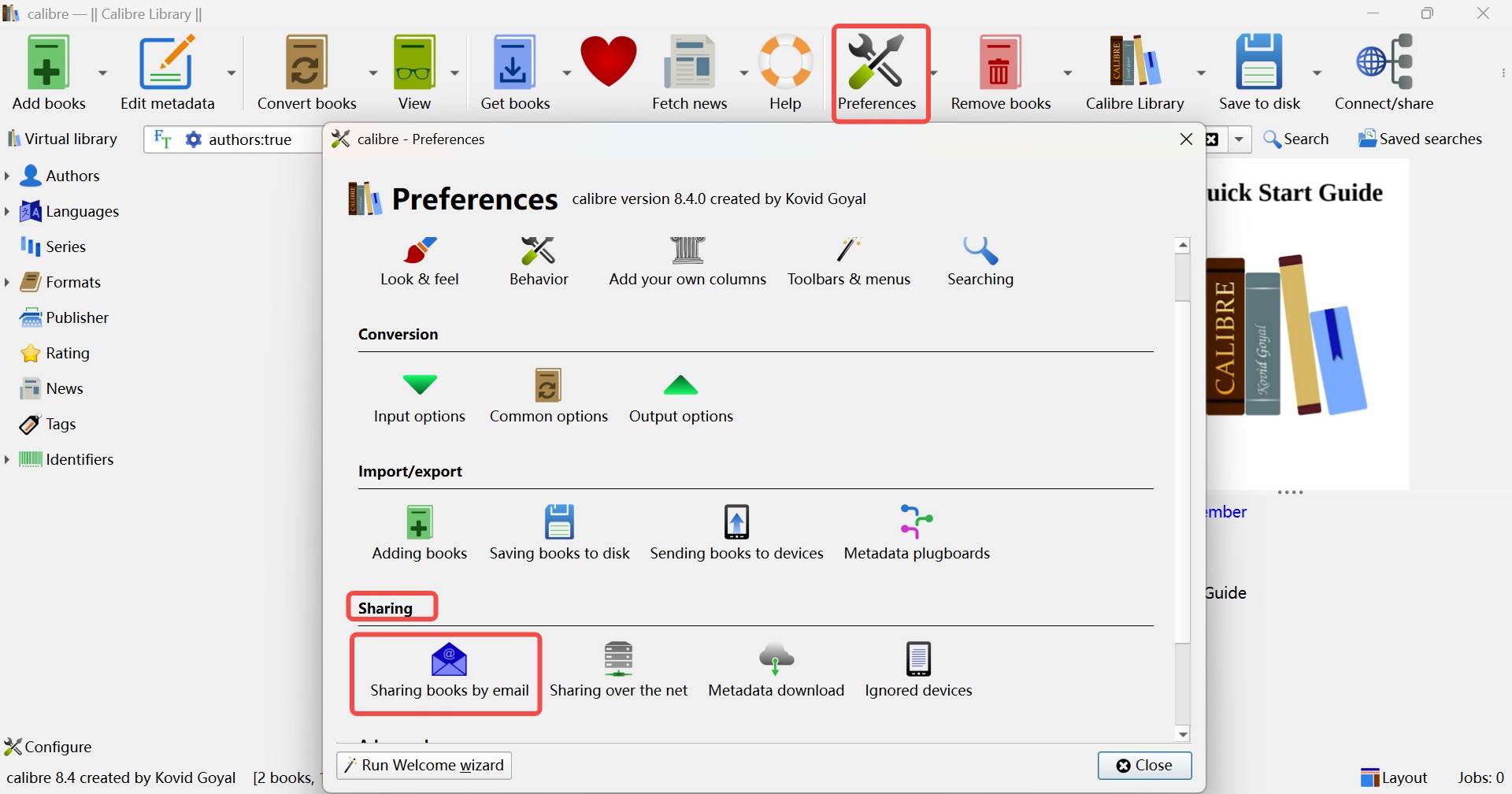
Open Calibre, go to Preferences > Sharing > Share books by email.
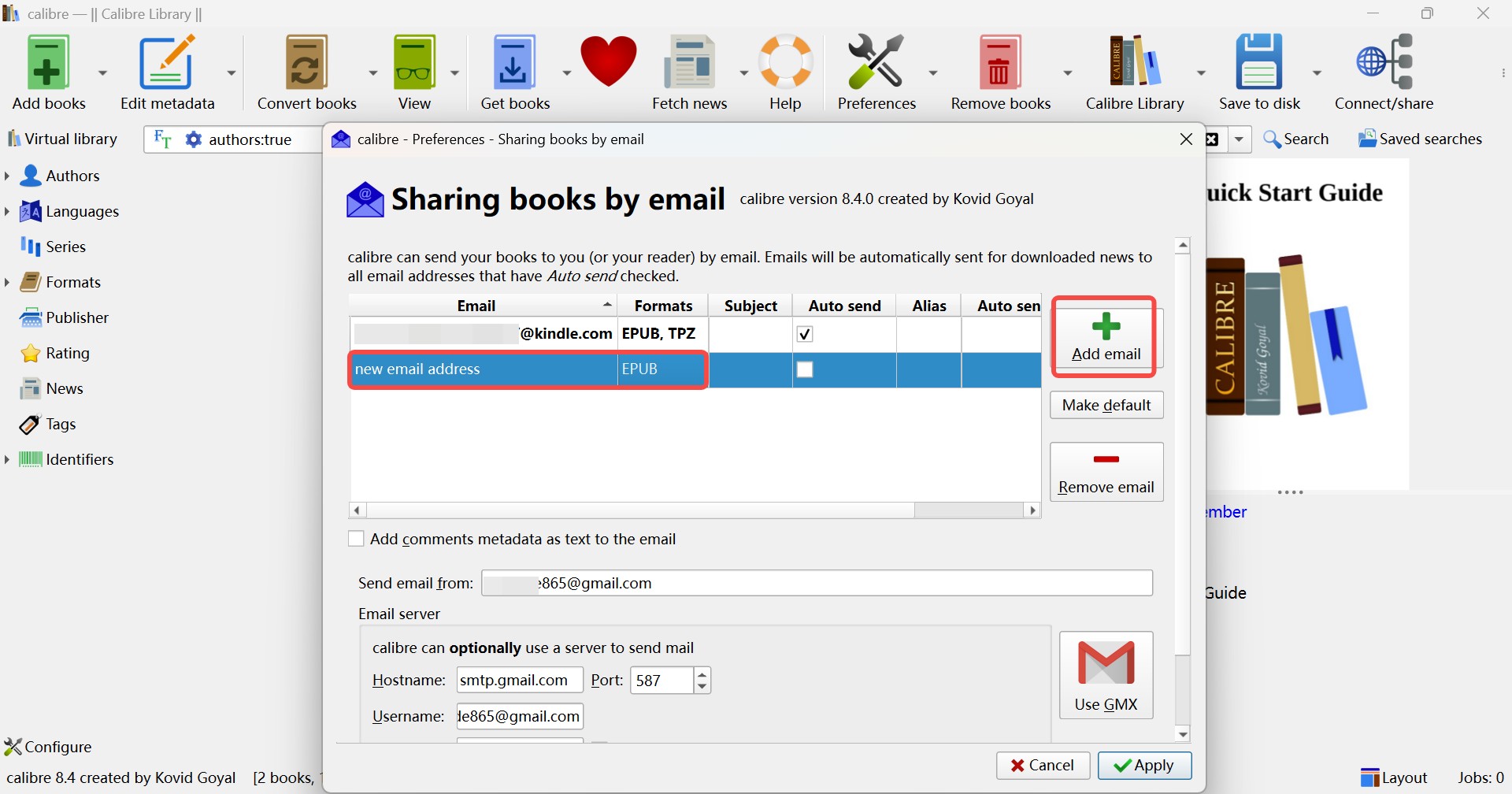
In the window that opens, click Add email and enter your Kindle email address. Set it as the default recipient. Then change Formats to EPUB only, removing MOBI if it appears in the list.
Step 2: Whitelist Your Sender Email in Amazon
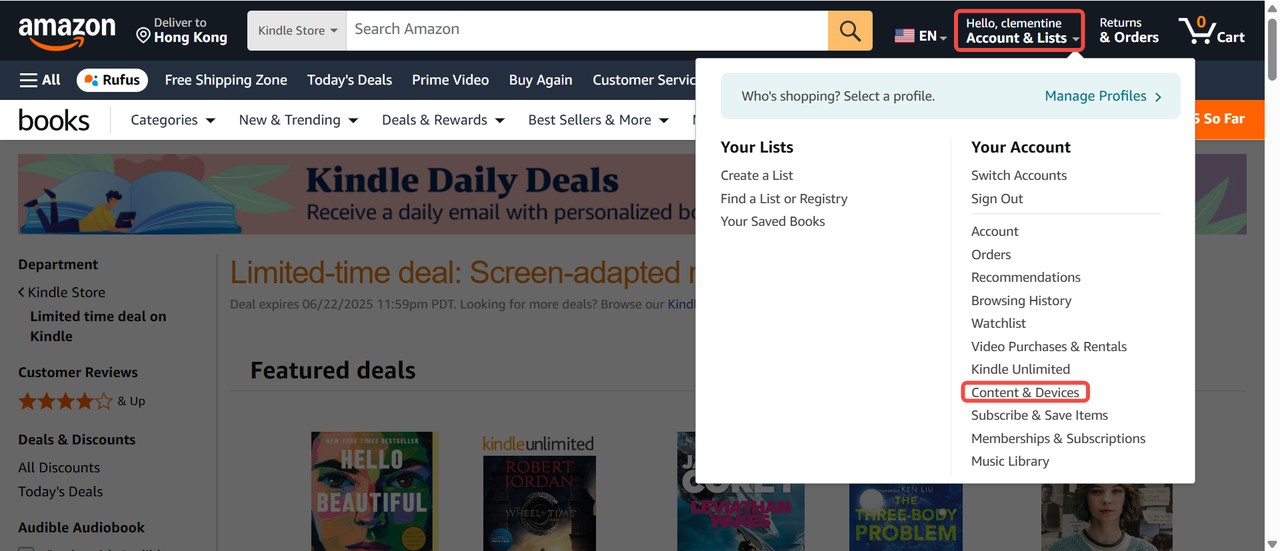
Go to Amazon > Account & Lists > Content & Devices > Preferences > Personal Document Settings.
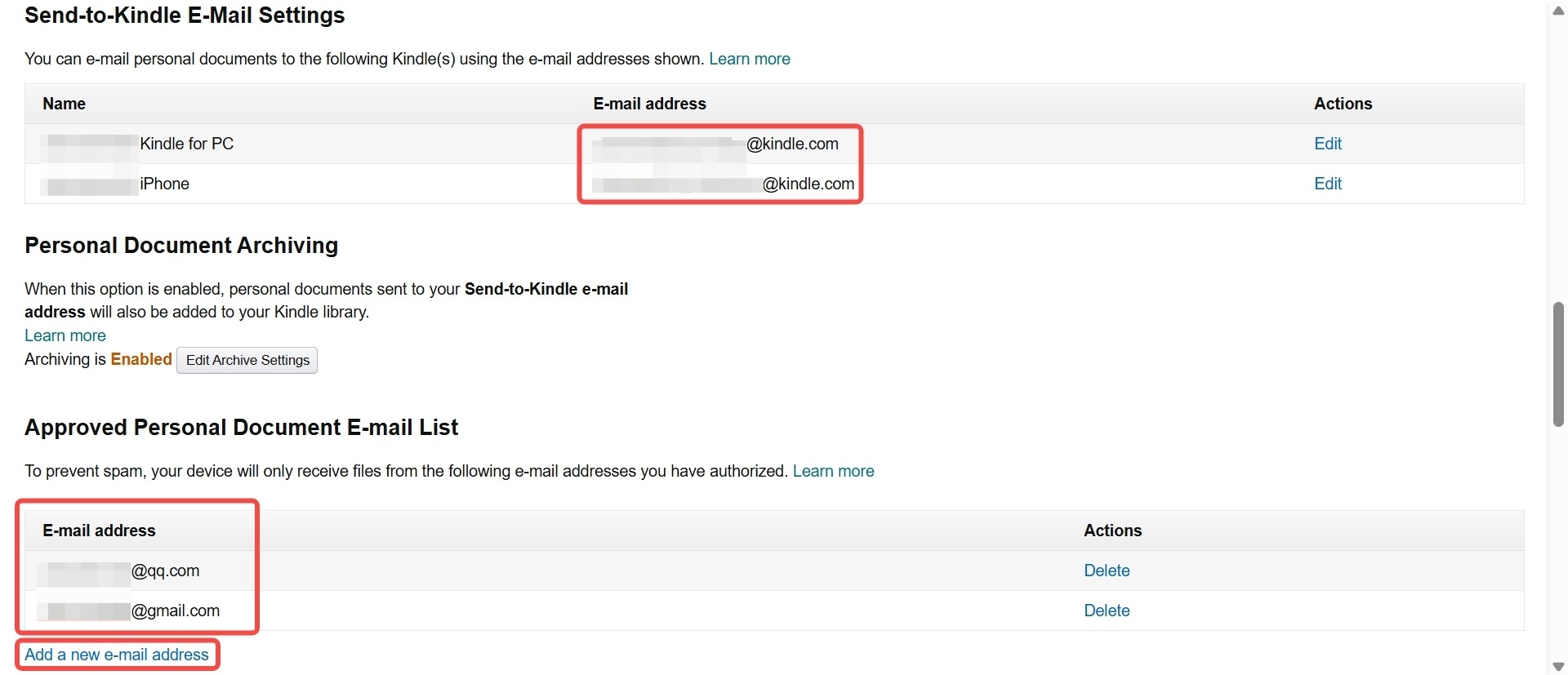
Under Approved Personal Document E-mail List, click Add a new e-mail address and enter your sender email address. This is the Gmail address Calibre will use to send books. Once it appears in the list, the sender email has been approved by Amazon.
Step 3: Set up the Sender Gmail Account for Calibre
This step configures the sender email, not your Kindle email.
A. Enable POP/IMAP in Gmail
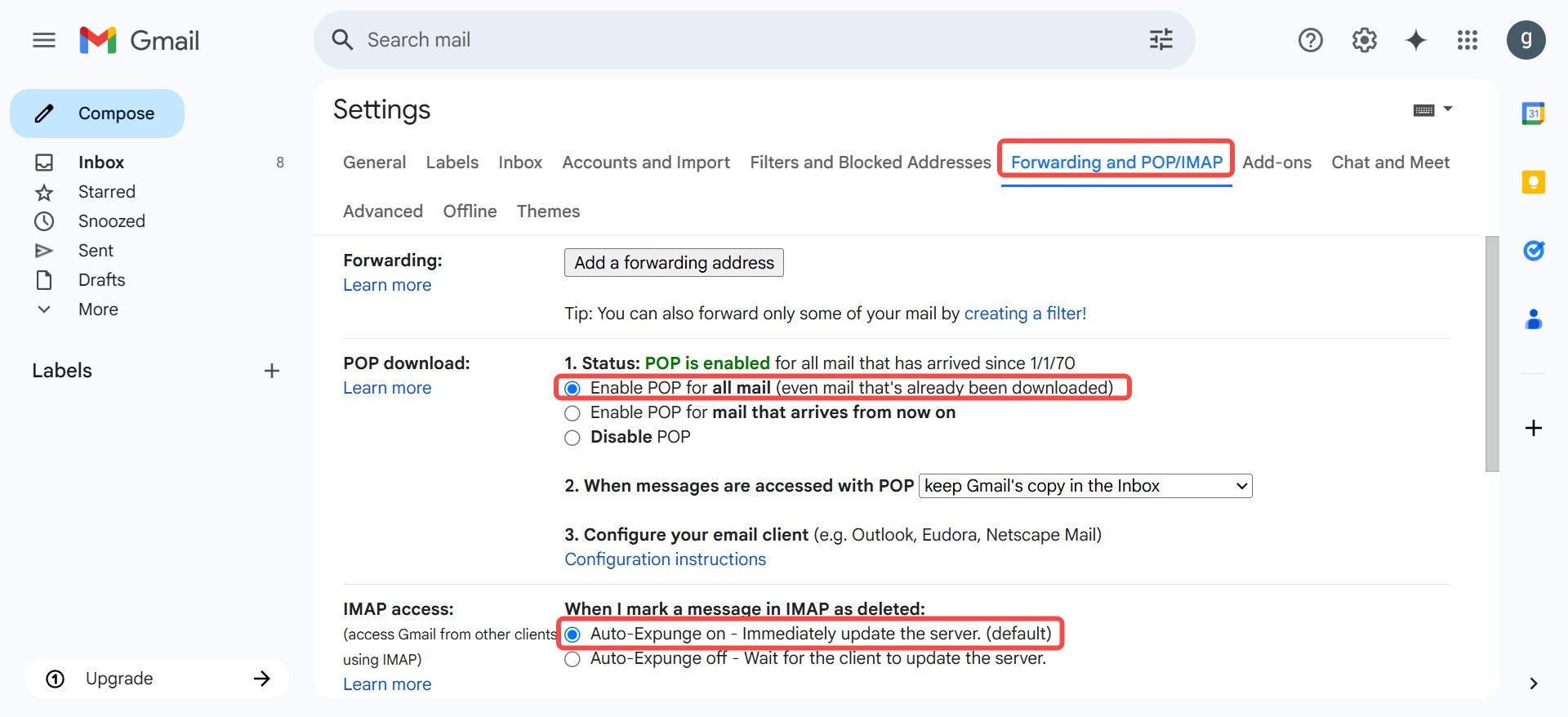
Sign in to Gmail, click the gear icon, then go to See all settings > Forwarding and POP/IMAP.
- Under POP download, choose Enable POP for all mail or Enable POP for mail that arrives from now on
- Under IMAP access, choose Enable IMAP
Click Save Changes.
B. Turn on Two-Step Verification
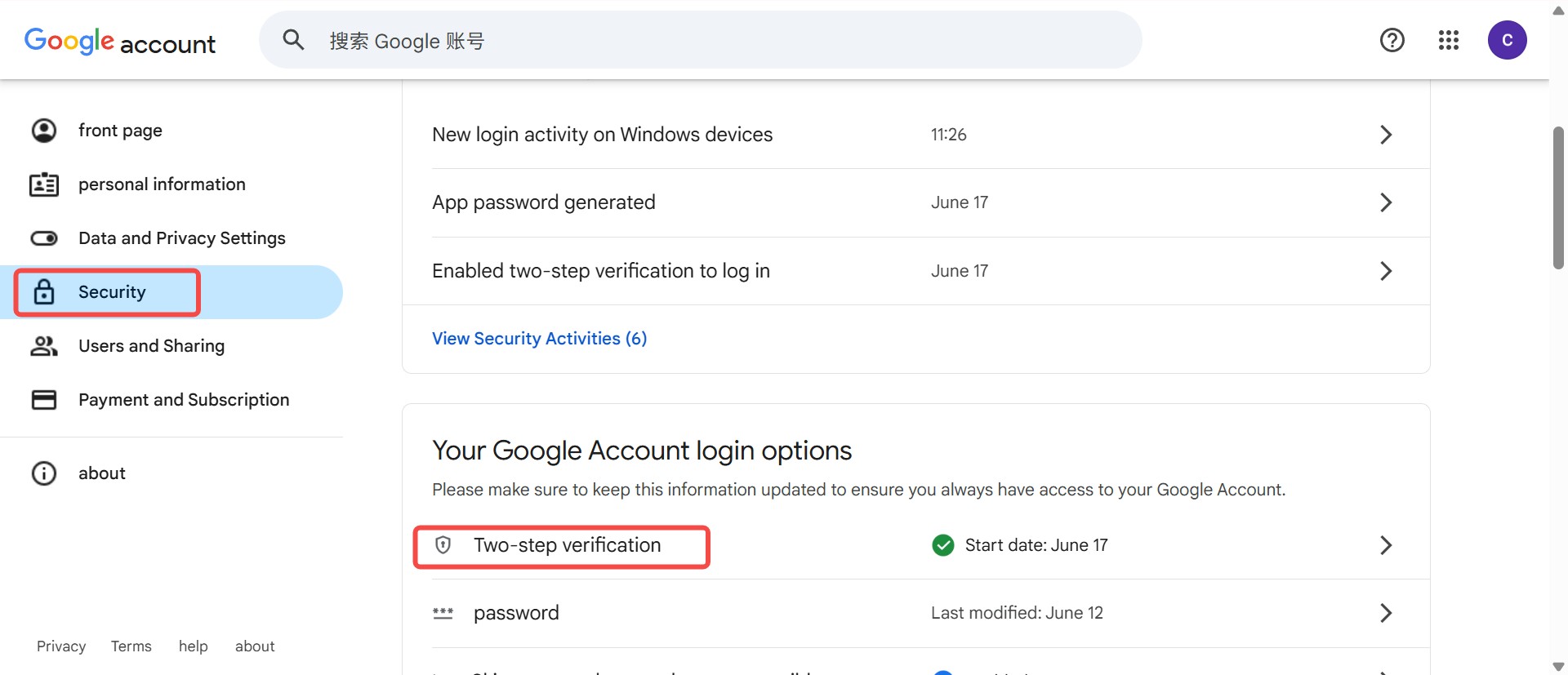
Go to your Google Account Security Center page, open Security > 2-Step Verification, and follow the steps to enable it.
C. Generate an App Password
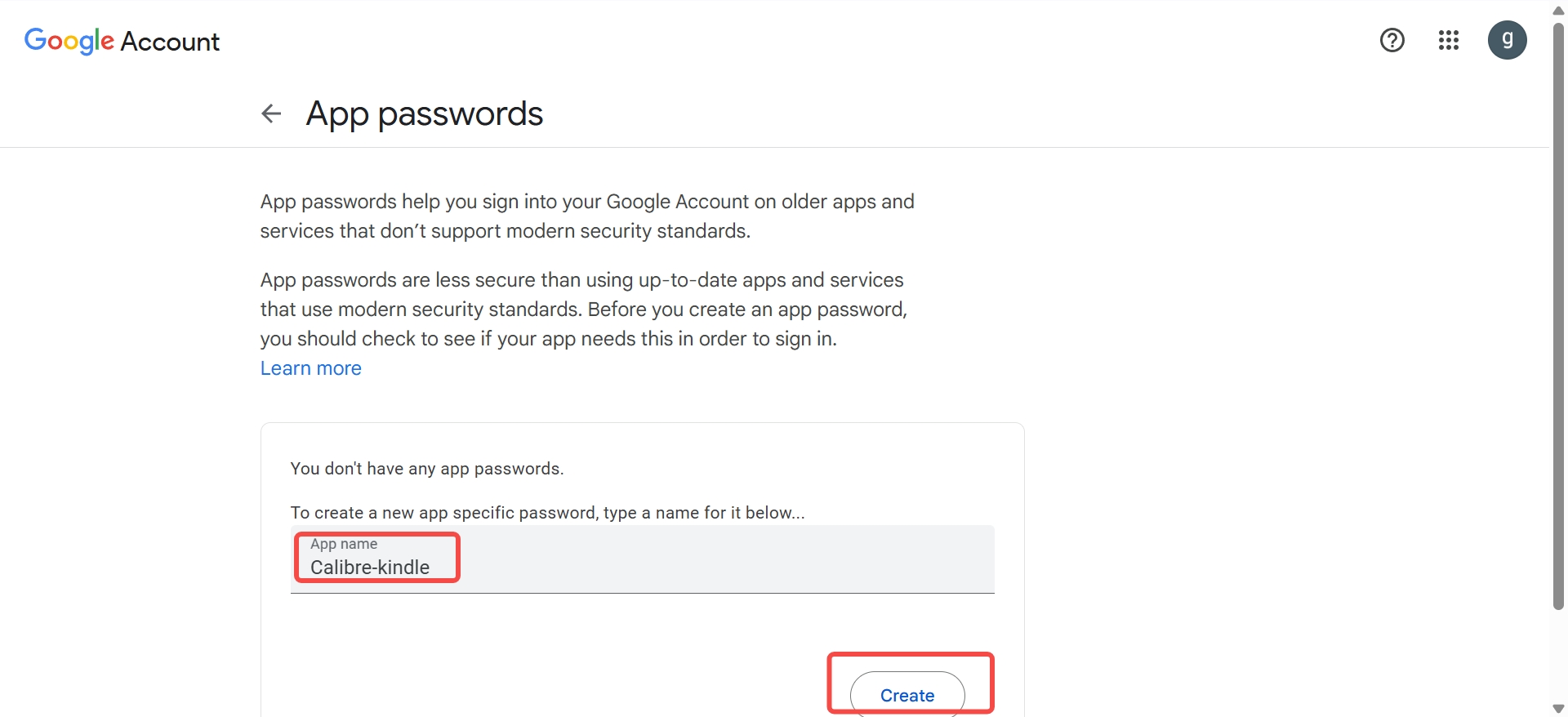
Still under Security, go to App passwords. Enter a name (for example, Calibre-Kindle), and then click Create. Google will generate a 16-character app password for you (example: "abcd efgh ijkl mnop"). Copy and save it.
D. Enter the sender email details in Calibre
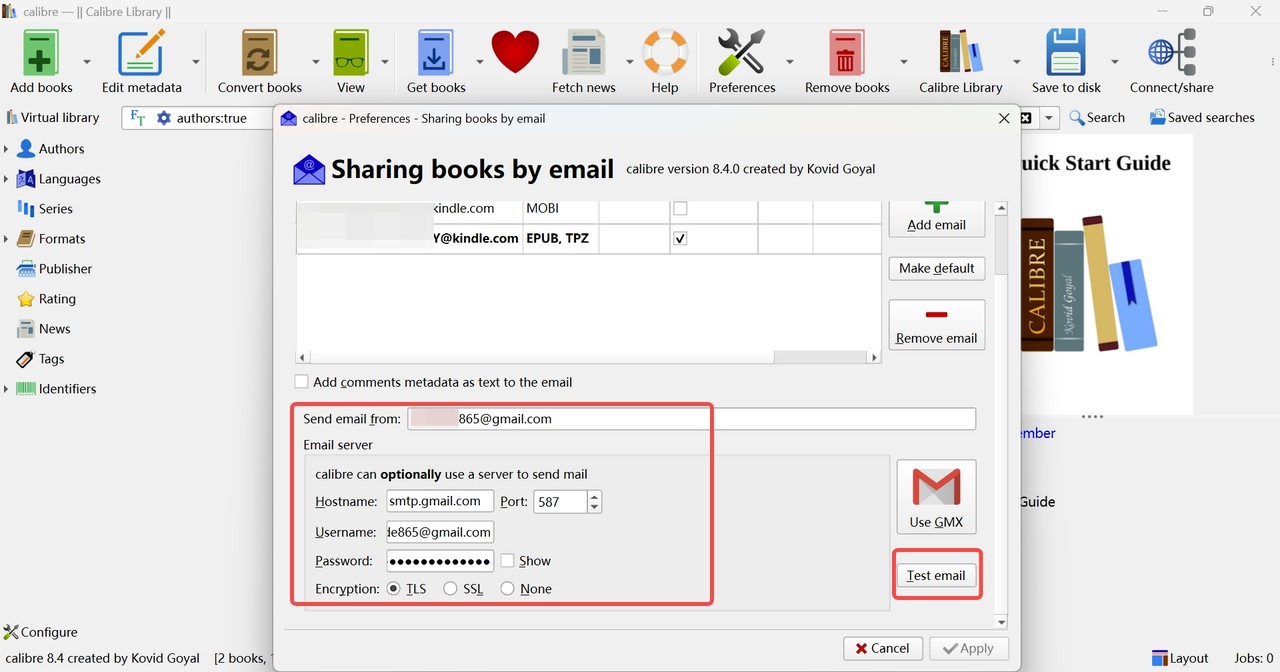
Go back to Calibre's Share books by email settings and fill in the email server fields using your sender Gmail account:
- Hostname: smtp.gmail.com
- Port: 587
- Encryption: TLS
- Username: your sender Gmail address
- Password: the 16-character app password you generated (remove the spaces)
Then click Test email to verify Calibre can send successfully.
Step 4: Send EPUB Books to Kindle from Calibre Wirelessly
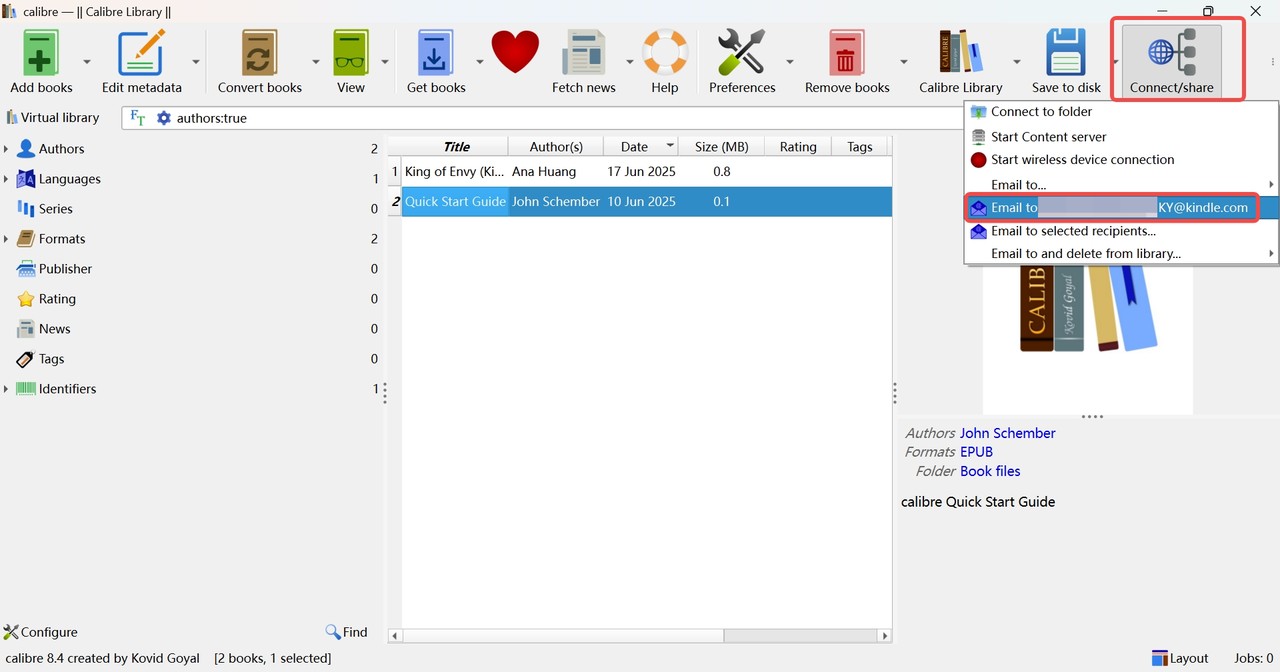
Go back to the main Calibre interface and click Add books to import the EPUB files you want to send. Select the books, then choose Connect/Share > Email to.... Calibre will send the books from your sender email to your Kindle email. Make sure your Kindle is connected to Wi-Fi. After delivery, the books will appear on your Kindle and be ready to read.
- You can use any email as the sender email. Different email providers require different email server settings. Gmail is used in this guide as an example.
- If you do not want to deal with these setup requirements, Amazon's official Send to Kindle service is often faster and shows you clear error messages when something is wrong.
Troubleshooting: Common Calibre Send to Kindle Problems
Even if your settings look correct, sending books to Kindle from Calibre can fail for reasons that aren't obvious, especially with email delivery. Below are the most common real-world problems readers run into, what they usually mean, and the quickest fixes you can try before switching to a more reliable method like USB transfer.
1. Calibre test email fails with Gmail (SMTP 535 / BadCredentials)
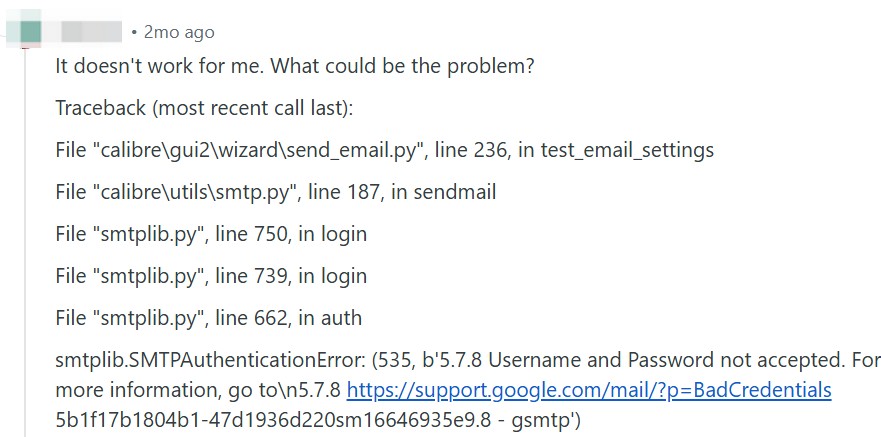
Symptoms: Calibre test email shows SMTPAuthenticationError (535) Username and Password not accepted.
Why it happens: Gmail has become increasingly hostile to third-party SMTP sending, and Calibre's official FAQ notes Google has "broken" SMTP support and recommends using a different provider.
Fixes:
- Use an App Password (requires 2-Step Verification).
- If you are using a Google Workspace account (company/school), App Password/SMTP may be blocked by admin policy.
- Instead of using Gmail, switch to another sender mailbox (such as GMX or Outlook). For GMX configuration, you can refer to the following guide: https://gist.github.com/aminalhazwani/dc161f32024f63291a9f0157a8ce1627
2. E999 "Send to Kindle Internal Error"

Symptoms: Amazon may send a failure email with a message like "Internal send to kindle error E999" or "E999 - Send to Kindle Internal Error."
Why it happens: E999 is often related to EPUB file structure or metadata issues. In many cases, the file has already been uploaded to Amazon, but it fails during Amazon's server-side parsing/conversion process. That's why E999 is more likely a file-level problem rather than an issue with your account settings or network connection.
Fixes:
- Re-download the EPUB and resend it.
- Check and correct metadata in Calibre.
- Go to Edit metadata and make sure fields like Title / Author / Language are complete and reasonable. Filling in missing metadata can resolve Send to Kindle failures.
- Convert "EPUB to EPUB" in Calibre. Convert the book to EPUB again (output format still EPUB), then send the newly generated file. This often rebuilds the EPUB internals and removes details that Amazon's converter may reject, without changing the book's actual content.
3. Kindle never receives the book
Symptoms: Calibre sends successfully, but nothing arrives on Kindle (or arrives only sometimes).
Why it happens: Amazon requires your sender email to be added to the Approved Personal Document E-mail List. Amazon forum guidance explicitly points to this list.
Fixes:
- Re-check Amazon: Manage Your Content and Devices > Preferences > Personal Document Settings > Approved Personal Document E-mail List.
- Confirm you're sending from the exact whitelisted address (aliases can break delivery).
Frequently Asked Questions
Why can't I send AZW3 and MOBI to my Kindle email?
KFX, AZW3, and MOBI formats must be sideloaded via USB from a computer to the Kindle. When using email to transfer files, only EPUB format is supported. This is because Amazon automatically converts EPUB files to KFX format during the email transfer process. However, Amazon Cloud cannot convert AZW3, MOBI, or KFX to KFX—its conversion capability is limited to EPUB files. As a result, the Kindle email system only recognizes EPUB formats for this method of transfer.
Can Calibre remove DRM from Kindle books?
Calibre itself does not remove DRM from Kindle books by default. Its core function is ebook management and format conversion. If a Kindle book is DRM-protected, Calibre alone will not be able to unlock it unless additional third-party tools or plugins are used. That is why many users treat Calibre as a library manager and conversion tool, while relying on separate Kindle DRM removal solutions such as BookFab Kindle Converter when needed.
What can you do with Calibre for Kindle?
Calibre can help you manage, convert, and send ebooks to your Kindle more easily. With Calibre, you can organize your ebook library, convert books into Kindle-friendly formats, edit metadata, and transfer books to your device either by USB or wirelessly through email. For users who manage large ebook collections, Calibre is also useful for keeping books sorted and searchable in one place.
How to put Kindle Books in a Calibre folder on my computer?
Connect your Kindle to the computer via a USB cable. Calibre will detect your device and you can download books from it. However, Kindle books often have DRM protection, which could prevent you from converting or transferring them. If you encounter this issue, you may need to look into DRM removal tools such as BookFab Kindle Converter. It is suggested that you check your local copyright regulations before removing DRM.
Can I transfer Kindle books to other devices with Calibre?
Yes, but not with Calibre alone. Since Kindle books are usually DRM-protected, you need to remove the DRM first before converting them for use on non-Amazon devices. That is where the BookFab Calibre Plugin comes in, adding Kindle DRM removal directly to Calibre and making the process far more convenient.
How to convert books for Kindle using Calibre?
To convert books for Kindle in Calibre, first add the book to your Calibre library, then select it and click Convert books. Choose a Kindle-compatible output format, such as AZW3 or EPUB. If you plan to send the book to Kindle by email, EPUB is usually the safer choice for compatibility. Once the conversion is complete, you can transfer the file to your Kindle by USB or send it wirelessly through Calibre's email feature.
Conclusion
Calibre is a great helper for managing Kindle books and makes it easy to send books to your Kindle. When sending books to Kindle with Calibre, USB transfer is usually the fastest and most reliable choice. If you prefer wireless delivery, Calibre's email feature can work well too, as long as your sender address is approved by Amazon and you use supported formats such as EPUB. With the right setup, Calibre can make the whole Kindle transfer process much smoother and more convenient.

 4 Easy Ways to Convert Kindle to PDFBy Amber Collins - May 18, 2026
 How to Print Kindle Books Without Losing QualityBy Amber Collins - May 14, 2026
![[Quick Solution] How to Remove Kindle DRM on Mac](https://images.dvdfab.cn/media/未命名的设计__87__crpyru.png/public) [Quick Solution] How to Remove Kindle DRM on MacBy Amber Collins - May 11, 2026
[Quick Solution] How to Remove Kindle DRM on MacBy Amber Collins - May 11, 2026 How to Download Kindle Books to PC in 2026 (The Complete Guide)By Amber Collins - May 9, 2026