
2 Practical Ways to Remove DRM from Kindle KFX eBooks

Summary: To remove DRM from Kindle KFX books, you first need to get the books from a supported source. On Windows or Mac, you can use BookFab Kindle Converter to decrypt Kindle books after downloading them through the required workflow. Alternatively, you can download books to a compatible Kindle e-ink device, import them into Calibre, and remove DRM during import. This guide walks through both methods step by step.
Table of Contents
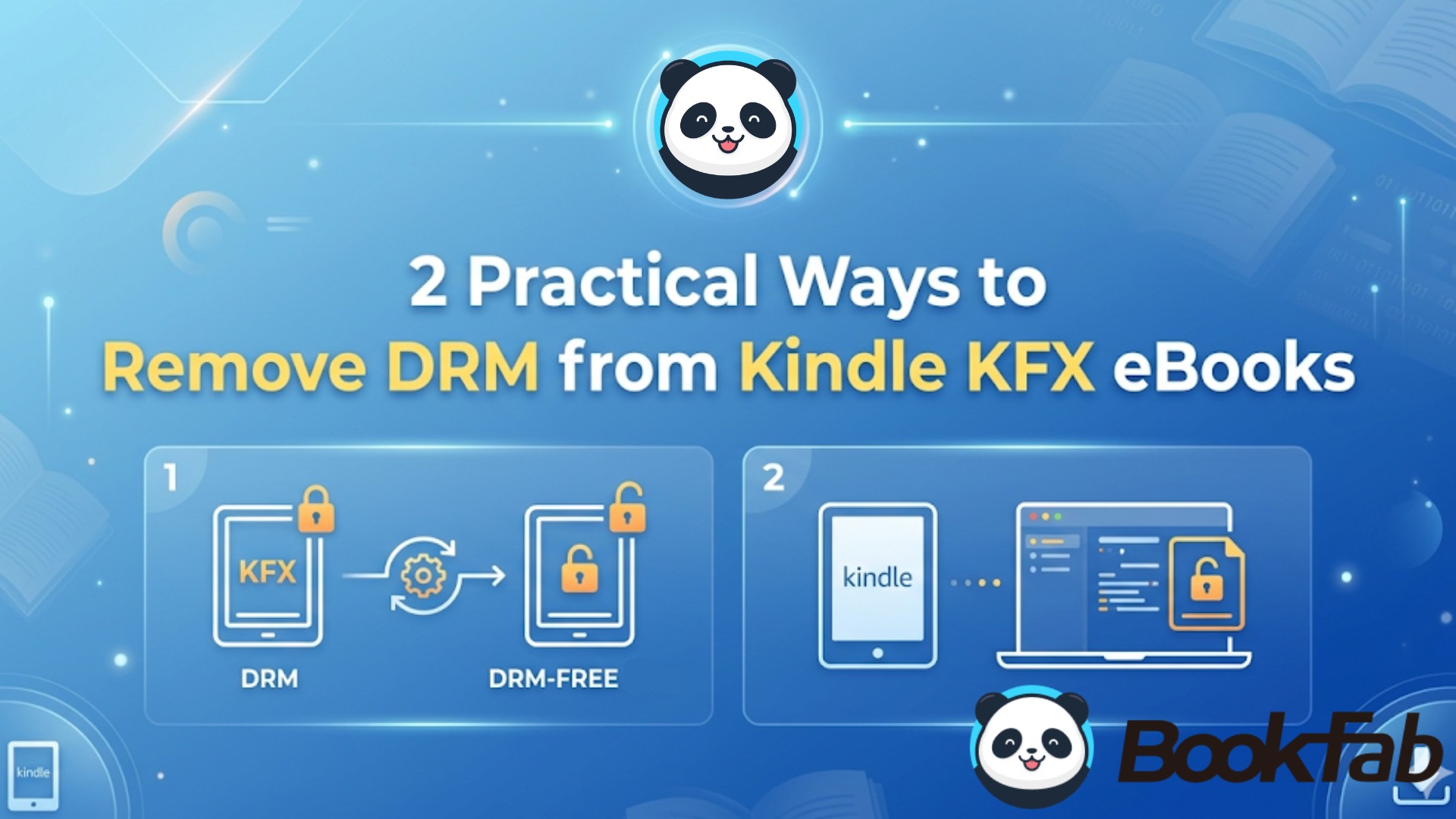
KFX DRM removal feels harder than before because many older DRM removal tools and Calibre workflows no longer work reliably after Amazon's recent DRM changes. If your KFX books show errors or appear as KFX-ZIP after being imported into Calibre, you still have workable options. In this guide, I'll show you the two simplest ways to remove DRM from KFX books: using BookFab Kindle Converter on Windows/Mac, or using Calibre with the KFX Input plugin and DeDRM plugin for Kindle e-ink devices running firmware earlier than 5.18.5.
Which KFX DRM Removal Method Should You Choose?
Before jumping into the steps, use this quick table to choose the right free KFX DRM removal method based on your device, system, and comfort level.
| Usage condition | Method | Difficulty |
| Windows users who want to avoid complicated plugin setup and Calibre errors | BookFab Kindle Converter | Easy |
| Mac users who want a stable macOS workflow | ||
| Technical Windows users with a compatible Kindle e-ink device running firmware earlier than 5.18.5 | Calibre + DeDRM Plugin (v10.0.14 to v10.0.18) + KFX Input Plugin | Hard |
Method 1: Remove DRM from Kindle KFX Books with BookFab Kindle Converter (Win/Mac)
For readers who want a simple KFX DRM removal solution, BookFab Kindle Converter is a more beginner-friendly option than manually setting up Calibre plugins or going through repeated troubleshooting. It is built to help users remove DRM from KFX books and convert Kindle eBooks into more flexible formats for personal reading, backup, or use on non-Kindle devices.
- Input formats: KFX/KFX-zip, AZW, AZW3, MOBI
- Output options: Convert KFX to PDF, EPUB, or DRM-free original format
- System support: Windows and Mac
- Plugin-free workflow: No manual DeDRM, NoDRM, or KFX Input setup
- KFX-ZIP alternative: Useful when Calibre import or conversion fails
- Technical support: 48-hour response for conversion issues
- Free BookFab Calibre Plugin: Included with purchase, but currently available for Windows only.
Tutorial: Remove DRM from KFX Kindke Books on Windows
BookFab Kindle Converter supports Windows 10 and Windows 11, and on Windows you first download your Kindle books locally using Kindle for PC. Once downloaded, you can use BookFab to remove the DRM from KFX, KFX-zip and other Kindle formats and convert them into usable formats like EPUB or PDF.
Step 1.Download Kindle books via Kindle for PC
First install Kindle for PC, sign in with your Amazon account and open your Kindle library. Find the Kindle books you want to work on and download them fully.
Step 2. Open BookFab Kindle Converter
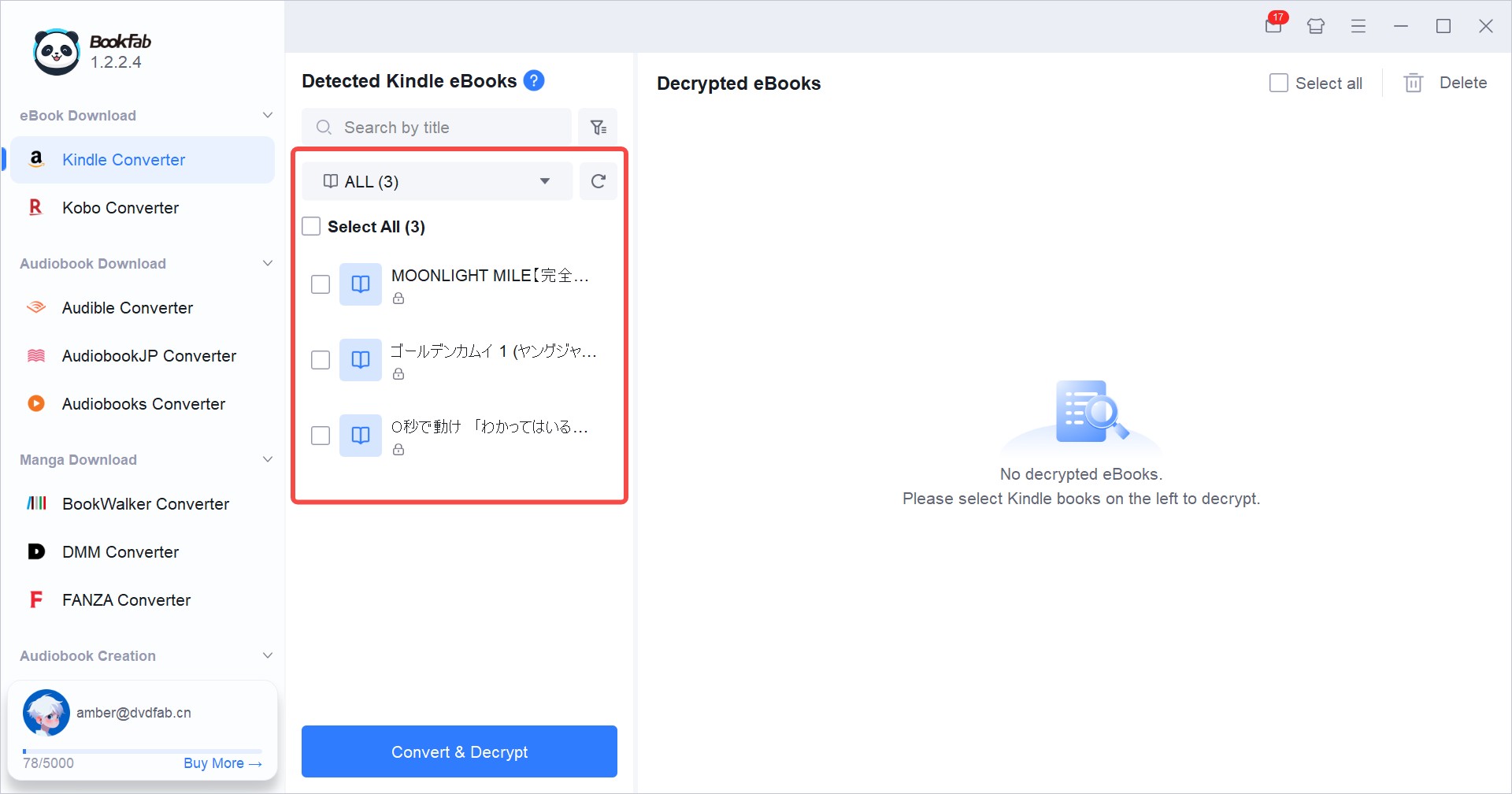
Launch BookFab. In the sidebar, go to the Kindle Converter section and click the Refresh button — BookFab will automatically scan and list all the KFX (and other Kindle) files you downloaded.
Step 3. Select Kindle books and set output format
In the scanned list, check the KFX books you want to remove DRM from. In settings > Book Downloads > Kindle Converter > Format Otions, Choose your preferred output format (e.g., EPUB or PDF).
Step 4. Convert and remove KFX DRM
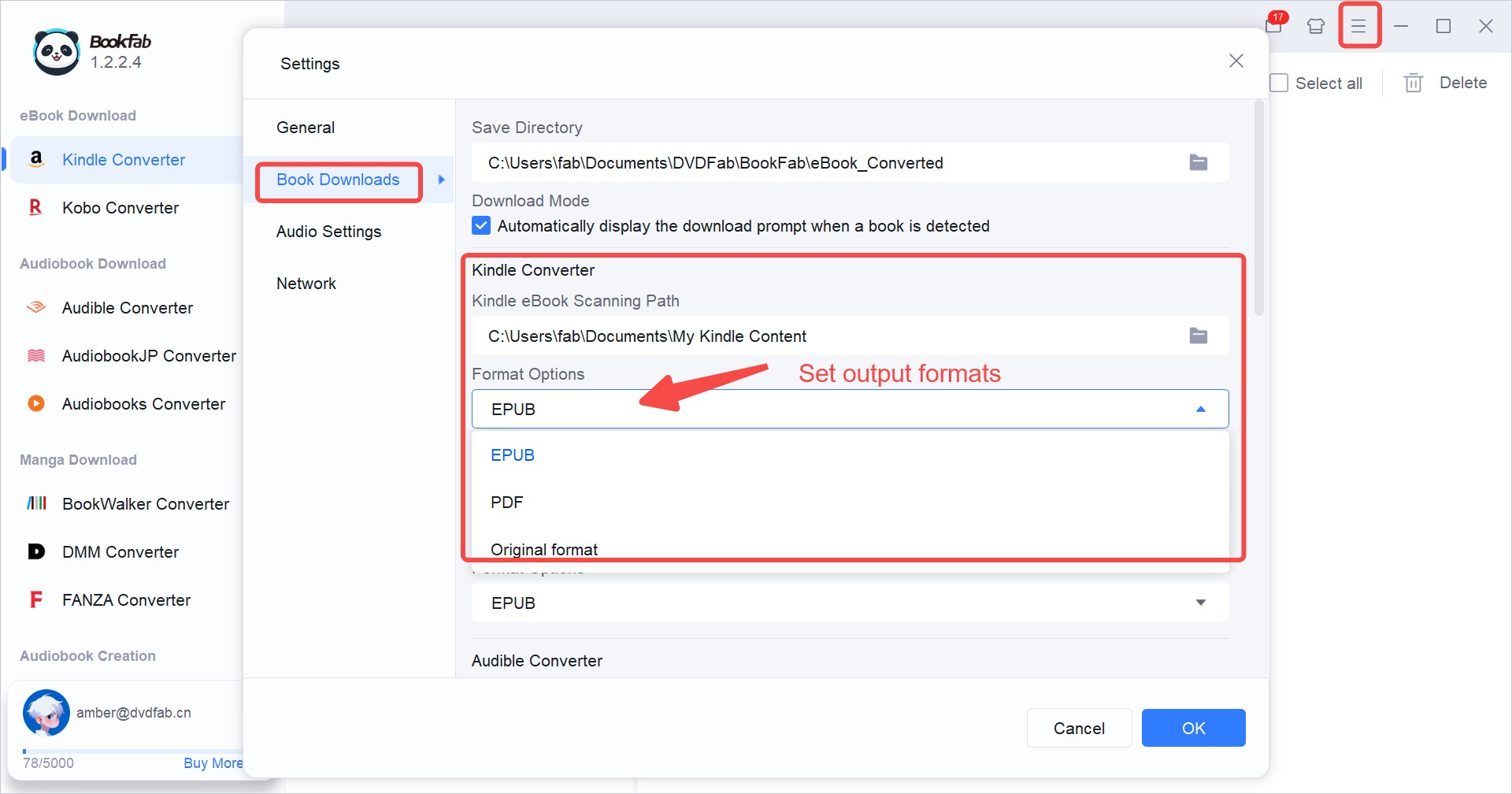
Click Convert & Decrypt. BookFab will automatically remove DRM from the selected Kindle books and convert them into your chosen format. Once finished, the DRM‑free copies will be saved in your output folder.
Tutorial: Remove KFX DRM on macOS
BookFab Kindle Converter supports macOS 10.13 – 15.x, and unlike Windows, the macOS version does not require Kindle Desktop. On Mac you can simply log in to your Amazon Kindle account using the built‑in browser in BookFab Kindle Converter and download Kindle books directly in the format you choose, with no need to first download KFX files and then manually convert them.
Step 1. Open BookFab and log in with the built‑in browser
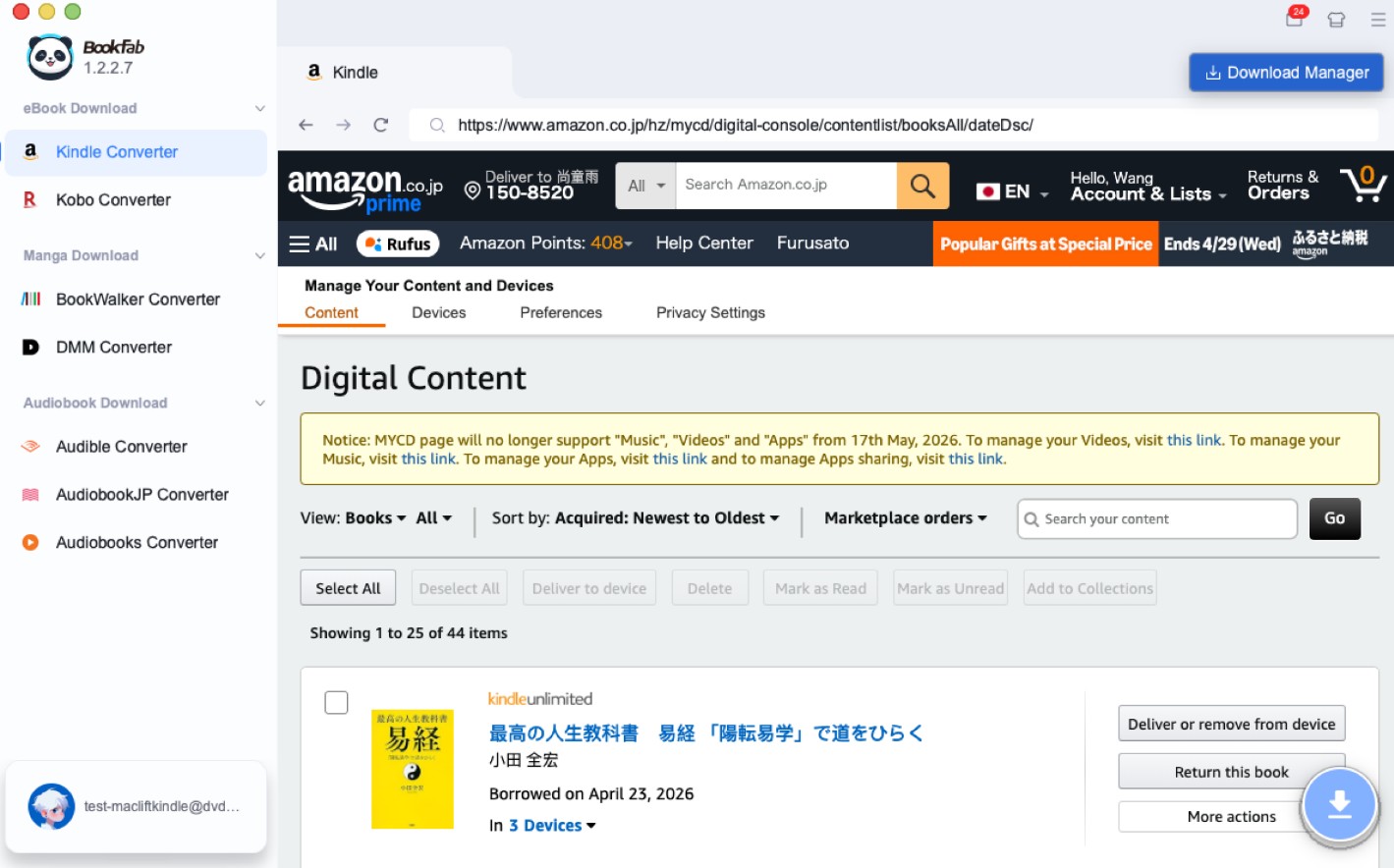
Launch BookFab on your Mac. In the left sidebar, switch to the Kindle Converter section — this opens the built‑in browser inside the app. Use that browser to sign in to your Amazon account and go to the Manage Your Content and Devices page, where you'll find the Kindle books you want to remove DRM from.
Step 2. Download your KFX books through the browser
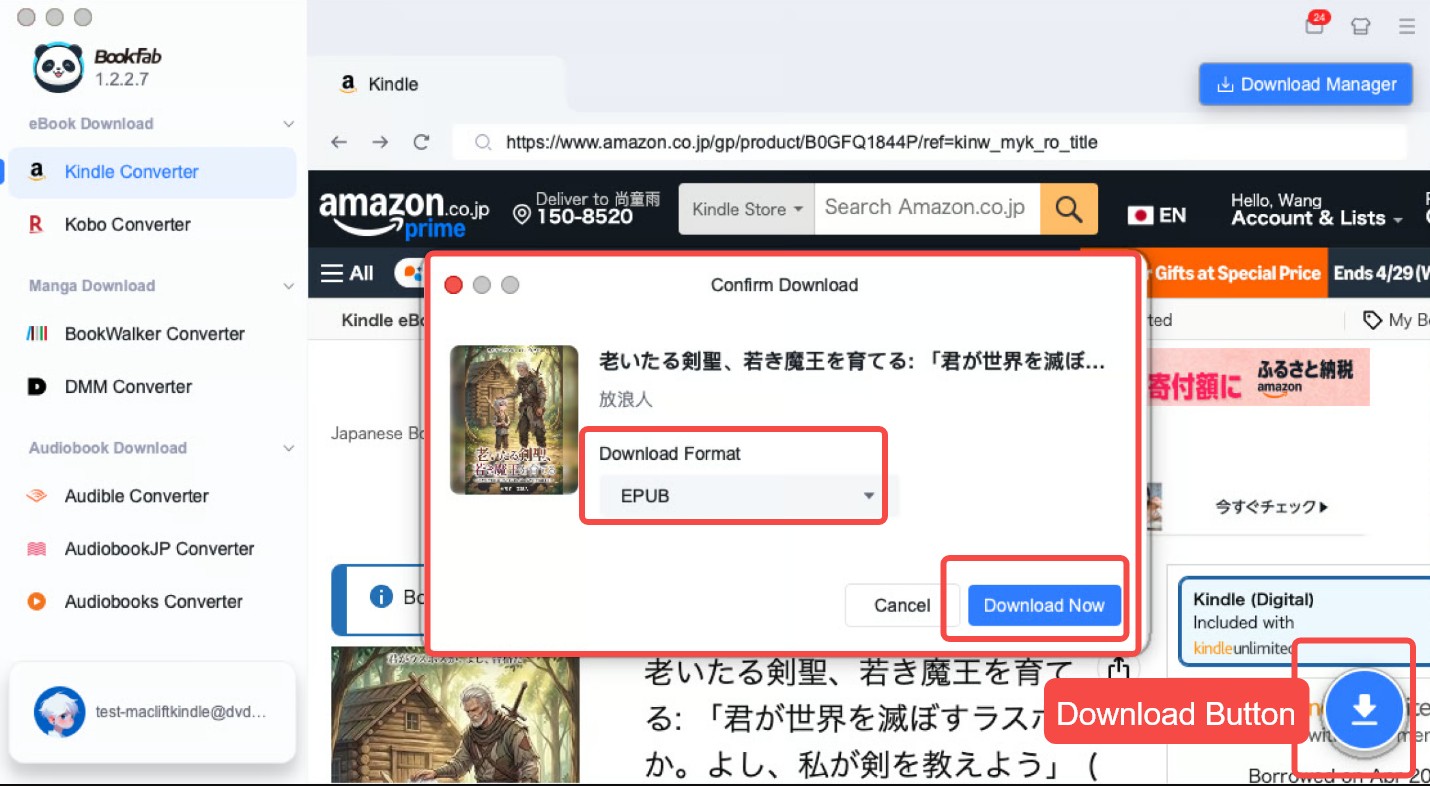
On the Manage page, click the Download button next to a book or on the book's product page. When the "Confirm Download" dialog appears, pick the format you prefer (e.g., PDF/EPUB) so BookFab starts downloading the Kindle book in the format you choose.
Step 3. Monitor downloads and decryption in Download Manager
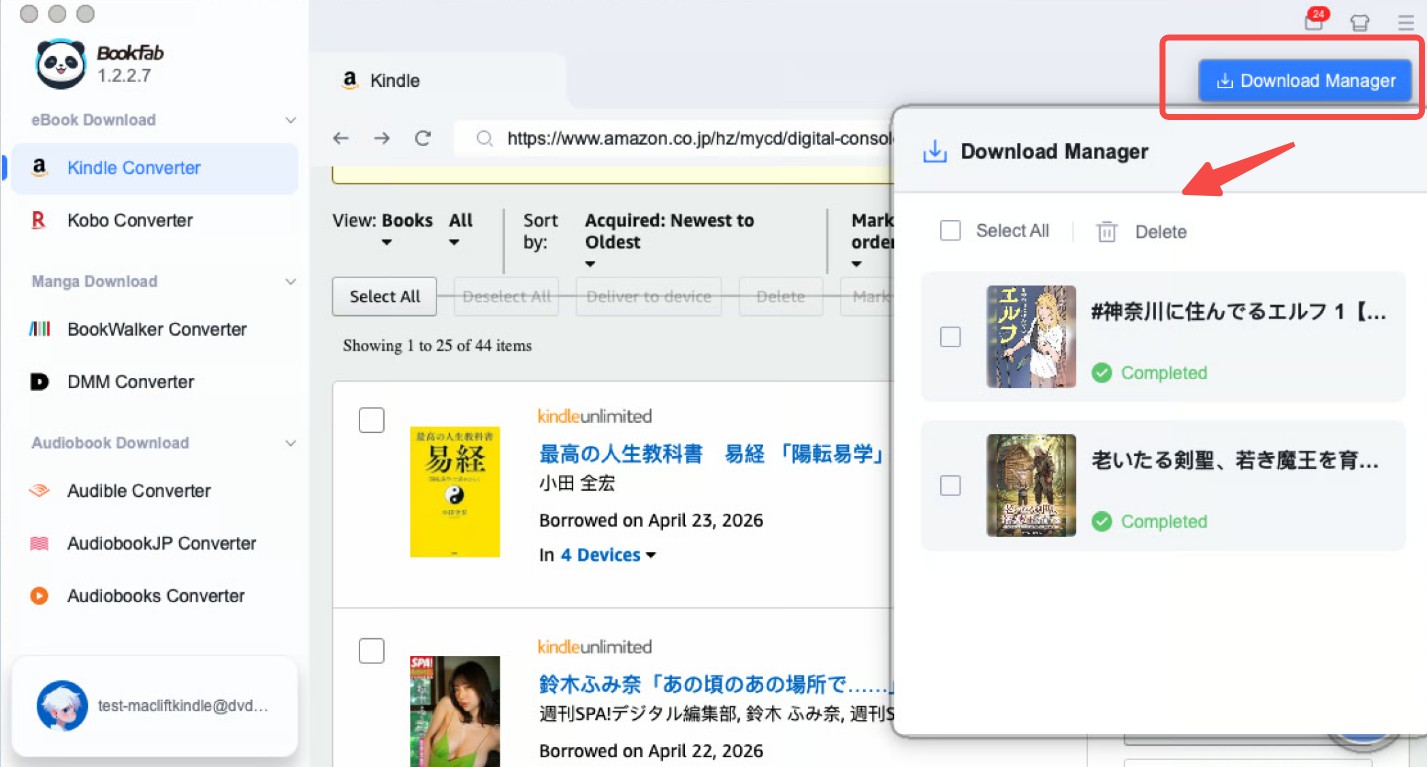
After initiating downloads, open the Download Manager to watch progress. When a book's status switches to Completed, the DRM removal and format conversion are done, and you can locate the DRM‑free file directly from there.
Method 2: Remove DRM from KFX downloaded from Kindle E-ink Devices with Calibre (firmware < 5.18.5)
This method works by taking the actual encrypted KFX files that your Kindle e‑ink device has downloaded and letting Calibre strip the DRM using the DeDRM and KFX Input plugins. Calibre can access the decryption keys tied to that device's serial and remove the protective wrapper as it imports.
However, newer Kindles running firmware 5.18.5 or later use a strengthened DRM system that many Calibre‑based workflows can no longer strip — books downloaded after that update may appear as locked KFX‑ZIP files and won't be decrypted by the usual Calibre plugins. If your device is running firmware later than 5.18.5, it's recommended to download the books via Kindle for PC first and then remove the DRM from those downloaded files.
Tutorial: Remove DRM from KFX Kindle Books with Calibre
Before you begin, find your Kindle's serial number in your Kindle's Settings > Device Info or in Amazon's Manage Your Content and Devices. You'll need it when configuring the plugin.
Step 1. Install the DeDRM plugin and KFX Input plugin
Download the DeDRM Tools package (recommended versions are v10.0.14 – v10.0.18, which include improved KFX key extraction support). Unzip it so you have access to the DeDRM_plugin.zip file.
In Calibre go to Preferences > Plugins > Load plugin from file, then select that DeDRM_plugin.zip file to install. After installing, restart Calibre so the plugin becomes active.
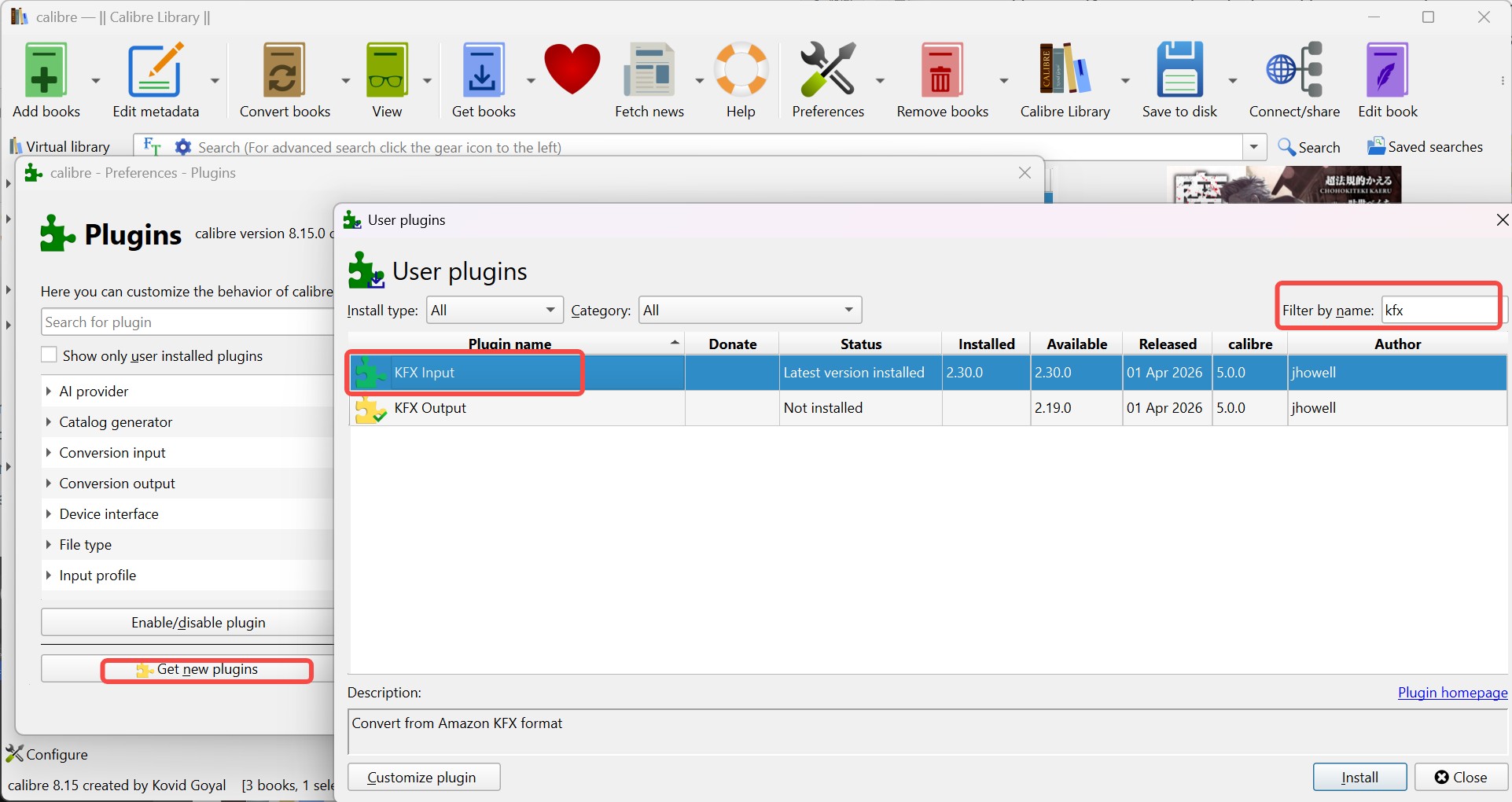
In Calibre's Preferences > Plugins > Get new plugins, find and install the KFX Input plugin so Calibre can recognize and unpack KFX files. After installation, restart Calibre again to activate it.
Step 2. Configure the DeDRM plugin with your Kindle serial number
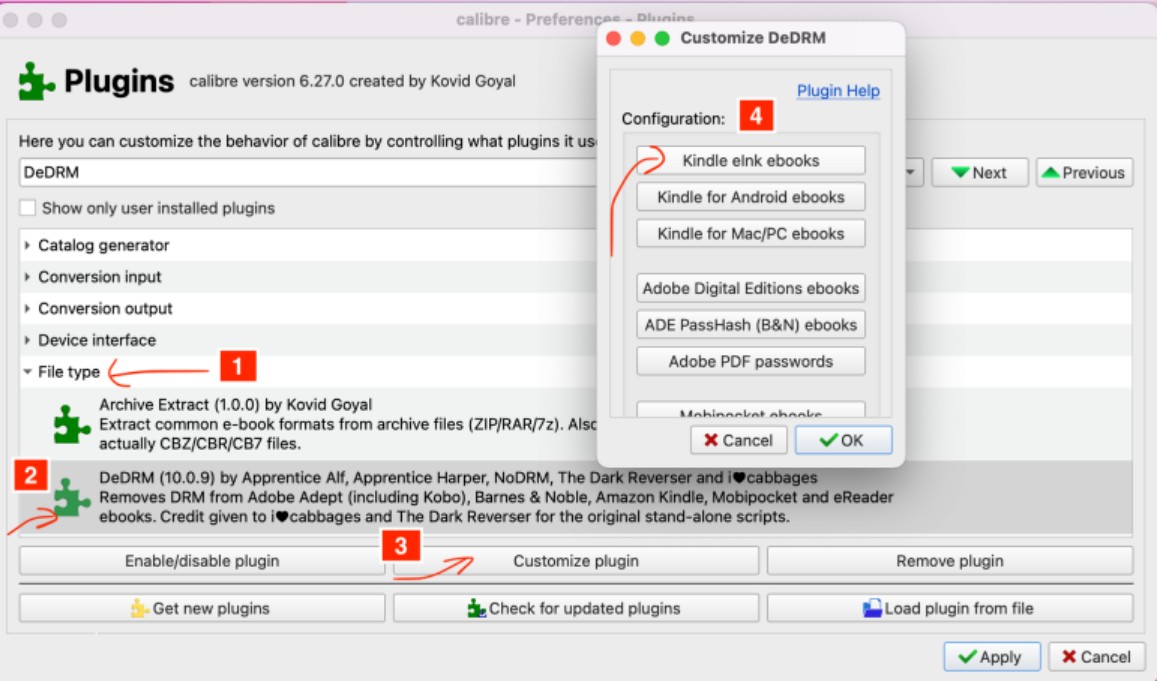
Go to Preferences > Plugins > File type plugins > DeDRM in Calibre and locate the DeDRM plugin entry.
Click Customize plugin. In the configuration window choose eInk Kindle eBooks and enter your Kindle's serial number exactly as it appears. Save the settings and close the dialog.
Step 3. Connect your Kindle to your computer
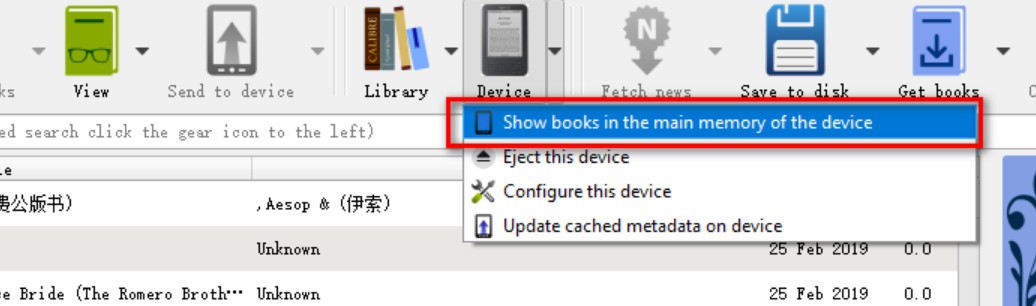
Use a USB cable to connect your Kindle e‑ink device. Calibre should detect the device and display a Device button or icon in the top menu. Click it and choose Show books in the main memory of the device to browse the books stored on your Kindle.
Step 4. Add books to your Calibre library
In the device view, select the KFX books you want to process. Right‑click the selection and choose Add books to library.
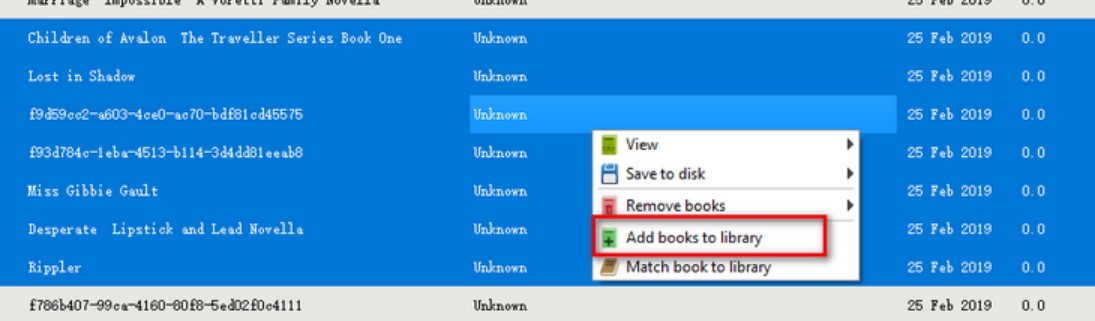
Calibre will copy the books into your main library, and with the DeDRM and KFX Input plugins configured, it will attempt to remove Kindle DRM during the import. When successful, the books appear in your Calibre library without DRM.
Important:
- Calibre with the DeDRM and KFX Input plugins used to work for books downloaded via Kindle for PC, but this no longer works reliably if Kindle for PC has been updated to version 2.4.1 (70946) or later. If your Kindle for PC version is too recent and Calibre fails to remove DRM, you can try the BookFab Calibre Plugin, which brings BookFab's decryption engine into Calibre for broader compatibility with modern KFX formats.
- Also note that Calibre DRM removal tends to work better on Windows than on macOS; many macOS users report that DeDRM/KFX workflows do not succeed on Mac. If you're using macOS, the simplest and most reliable way to remove KFX DRM is to use BookFab Kindle Converter instead.
Troubleshooting: Calibre KFX DRM Removal
1. DeDRM not working for KFX-ZIP files
If a book you imported into Calibre appears as KFX‑ZIP, it means the DRM removal didn't succeed and the file remains protected. This usually happens when the DeDRM plugin can't strip the encryption after the KFX Input plugin packages the book.
Quick fixes:
- Make sure DeDRM v10.0.14 – v10.0.18 and the latest KFX Input plugins are installed and enabled.
- Delete the failed book from Calibre, restart the app, then re‑add the original book file; DRM removal only runs at import.
- Make sure you click "show books in main memory of the device" from the device menu, then click the books you want and do add to library. Adding from the main memory view increases the chance that Calibre sees full KFX files rather than partial KFX‑ZIP containers.
2. Incompatible Kindle for PC version
Books downloaded with newer Kindle for PC versions (e.g., v2.4.1/70946 and later) often import as KFX‑ZIP that DeDRM can't strip because of stronger DRM.
Quick fixes:
- If possible, install an older compatible Kindle for PC and re‑download the books before importing.
- Alternatively, use a more robust solution like the BookFab Calibre Plugin that is designed to handle modern DRM variants.
FAQ
Is removing DRM from Kindle KFX books legal?
It depends on your country or region. This guide is only for personal backup and reading on your own devices. Please only process Kindle books you have purchased yourself, and do not share, upload, sell, or distribute DRM-free copies. Respecting copyright helps protect authors and publishers.
What is Kindle KFX format?
Kindle KFX is Amazon's newer Kindle eBook format, introduced around 2015 and widely used for Kindle books in later years. It was designed for better reading features such as enhanced typesetting, improved layout, Page Flip, comics support, and richer image handling.
A KFX book may not always look like a .kfx file. On Kindle e-ink devices, you may see files with the .kfx extension. But books downloaded through Kindle for PC can still be KFX internally even if the main file shows as .azw. KFX may also involve related files such as .azw.res, .azw.md, .azw8, .azw9, .voucher, or other supporting files.
That is why KFX DRM removal is harder than older Kindle formats. KFX is often made of multiple parts, and Calibre needs the KFX Input plugin to combine those parts correctly. If the import succeeds, Calibre may create a normal KFX file. If it fails, the result may stay as KFX-ZIP, which usually means the book is still protected and cannot be converted normally.
Are all Kindle books now KFX?
Not literally all, but KFX is now very common for modern Kindle downloads, especially from newer Kindle apps and devices. Some older books, DRM-free publisher uploads, or special formats may still appear differently.
Conclusion
Removing DRM from KFX Kindle books now depends heavily on where your book comes from: Kindle for PC, macOS, or a Kindle e-ink device. BookFab offers a simpler route for most users, while Calibre remains a free but more technical option. Whichever method you choose, keep the files for personal backup and your own reading devices only.

 4 Easy Ways to Convert Kindle to PDFBy Amber Collins - May 18, 2026
 How to Print Kindle Books Without Losing QualityBy Amber Collins - May 14, 2026
![[Quick Solution] How to Remove Kindle DRM on Mac](https://images.dvdfab.cn/media/未命名的设计__87__crpyru.png/public) [Quick Solution] How to Remove Kindle DRM on MacBy Amber Collins - May 11, 2026
[Quick Solution] How to Remove Kindle DRM on MacBy Amber Collins - May 11, 2026 How to Download Kindle Books to PC in 2026 (The Complete Guide)By Amber Collins - May 9, 2026