
How to Exit a Book on Kindle Device/App: A Beginner's Guide

Summary: To exit a book on Kindle e-readers (Paperwhite, Scribe, Oasis), tap the top of the screen and select the back arrow or Library/Home icon; on Fire tablets, tap the bottom of the screen to select Home or Library; on the mobile app, tap the center of the screen and hit Library; and on the desktop version, simply click Library in the top menu bar.
Table of Contents
Amazon's Kindle is widely loved for its distraction-free design. However, this same minimalism can be a bit frustrating for new users. Because the reading interface is so clean, many readers find themselves unsure of how to exit a book on Kindle or switch to a different one.
If you've ever felt "stuck" inside a Kindle eBook with no visible back button or home icon, don't worry, you haven't broken anything. This guide will explain exactly how to exit book on Kindle and get back to your library, whether you are using a dedicated Kindle device or the mobile Kindle app.
How to Exit a Book on Kindle E-readers (Paperwhite, Oasis, Scribe, Basic)
Most modern Kindle models, including the latest Paperwhite and the large-screen Scribe, do not have a physical "Home" or "Back" button. Everything is controlled through the touchscreen. Specifically, the upper part of the screen is used to reveal the menu. If you are currently reading a book and want to exit, follow these steps:
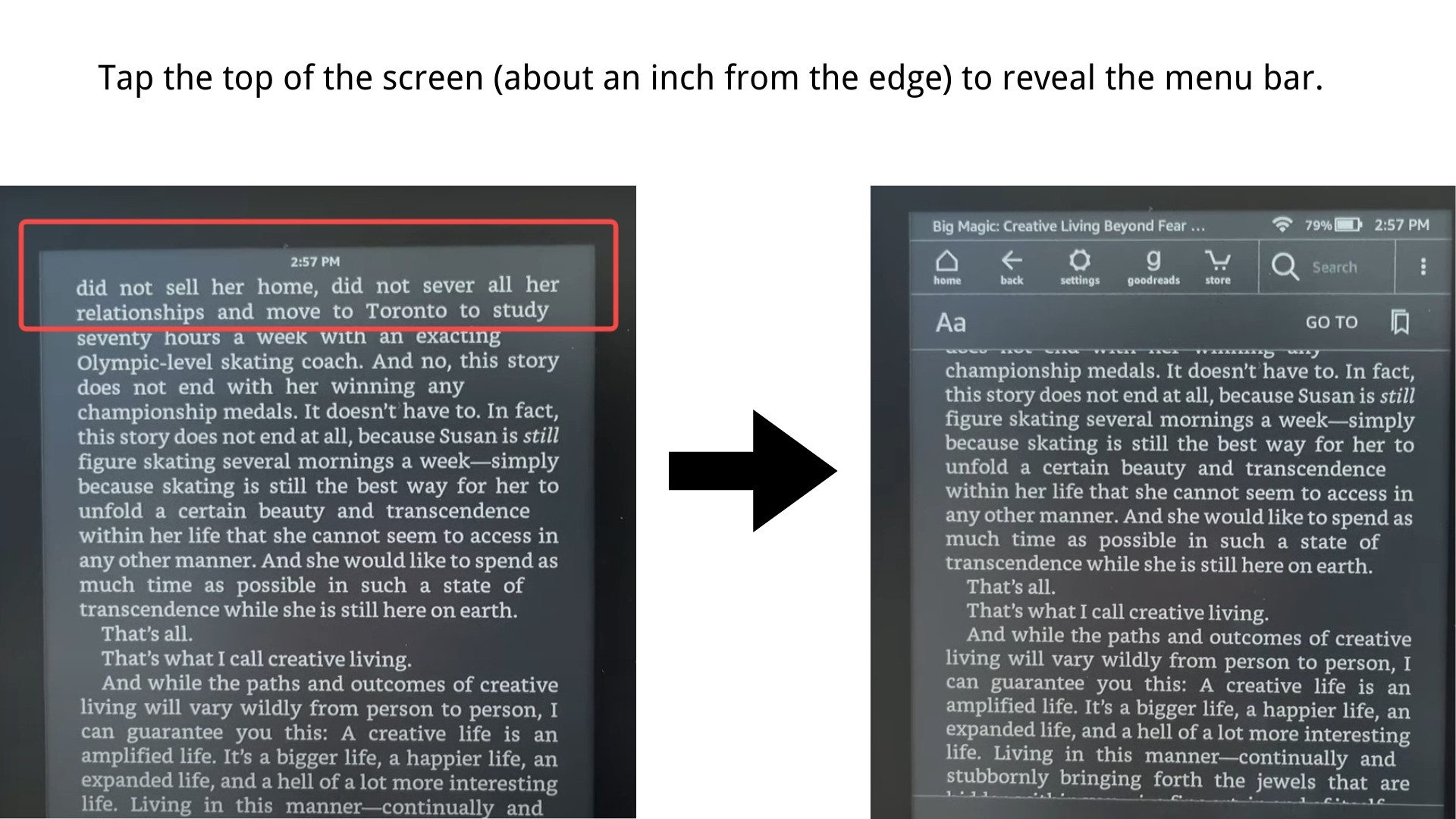
Step 1: Tap the Top of the Screen
While you are on a book page, tap once near the very top of the screen (about half an inch from the top edge).
Step 2: Wait for the Toolbar
This action will trigger the reading toolbar to drop down. You will see several icons and settings appear at the top and bottom of the screen.
Step 3: Tap "home" icon or "Back Arrow"
Look at the top-left corner of the screen. You will see a small house icon followed by the word "Home." Tap this button to immediately close the book and return to your main dashboard. Alternatively, you can tap the left-facing Back Arrow to return to the previous screen.
Once you return to the main interface, your book is automatically closed. The next time you open this book, it will continue reading from exactly where you left off.
Note: Depending on how you opened the book, the options may vary slightly. If you opened the book from the Home screen, you will see the back arrow and a "Home" option. If you opened it from your library, you will see the back arrow and a "Library" option.
How to Exit a Book on Kindle Fire Tablets
If you are using a Kindle Fire (now simply called Amazon Fire) tablet, the interface looks a bit more like a standard tablet than an e-reader. To exit your book on a Kindle Fire tablet, follow these steps:
Option 1: Locate the "Home" Icon
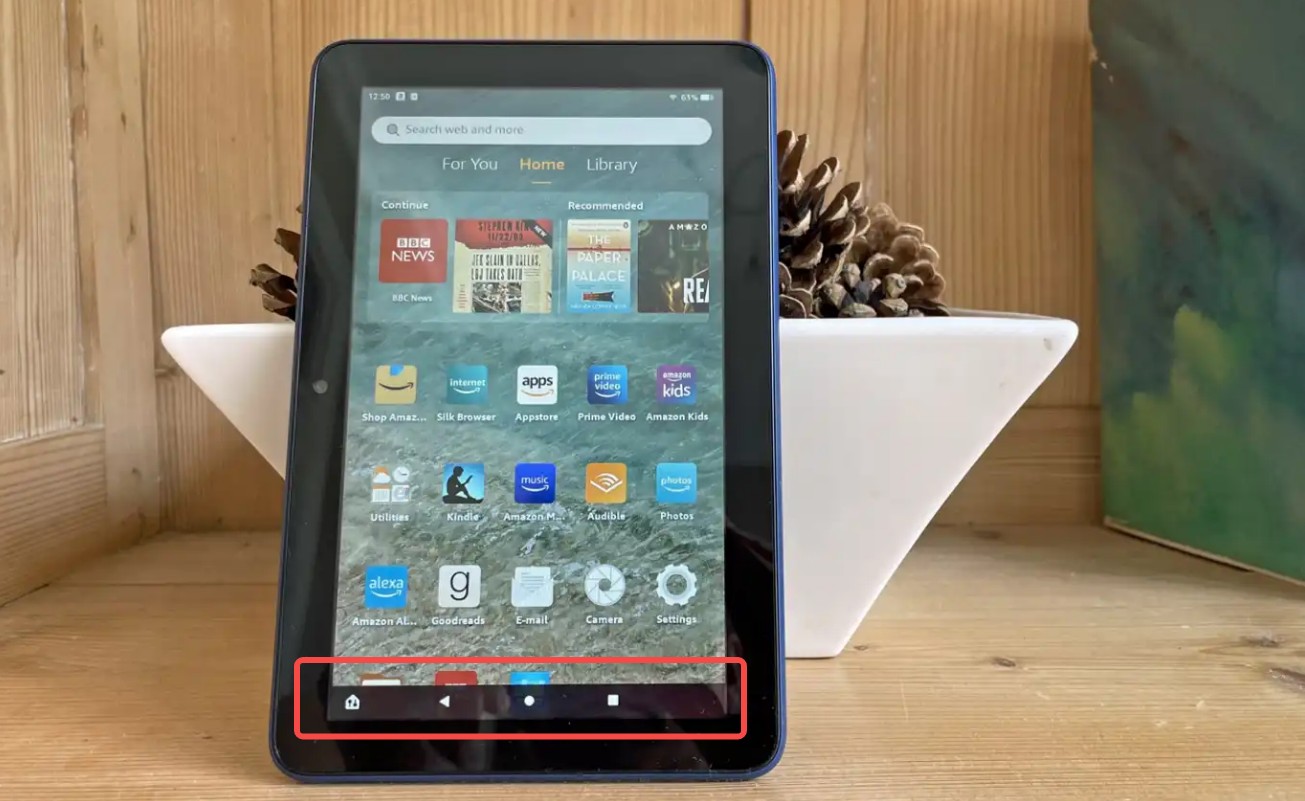
While reading, look at the bottom-left corner of the screen. You should see a small "Home" icon that looks like a tiny house with some slider-like setting bars above it. Tapping this will take you straight back to your main home screen.
Option 2: Bring up the Navigation Bar
If you don't see any icons at the bottom, the navigation bar is likely hidden to give you a full-screen reading experience. Simply tap the center of the screen once to wake up the interface and reveal the bottom bar.
Option 3: Use the Three-Dot Menu to Exit a Book
On some versions of the Fire OS, you may also see three vertical dots (the menu button) at the bottom. Tapping these dots and selecting "Home" is another quick way to close your current book and return to your dashboard.
How to Exit Book on Kindle App
The Kindle app is also designed to maximize screen space for your text on a mobile device or a computer, which often means the navigation buttons are hidden.
How to Close a Book on Kindle App For iOS, Android, and iPad
If you are using the Kindle app on your smartphone or tablet, follow these steps to return to your library:
Step 1: Tap the Center of the Screen
While you are reading, tap once in the middle of the page. This will bring up the navigation bars at the top and bottom of the screen.
Step 2: Locate the Downward Arrow
Look at the top-left corner of the app. You will see a small downward-facing arrow or the word "Library."
Step 3: Return to Your Collection
Tap that icon, and the book will close immediately, returning you to your main Kindle library.
On most tablets and larger phones, the app also supports a quick-switch feature at the bottom of the screen, allowing you to jump between your library and your current book with a single tap.
How to Get out of a Book on Kindle App For Mac and PC
Exiting out of a book on Kindle desktop version is slightly different since you are likely using a mouse or trackpad:
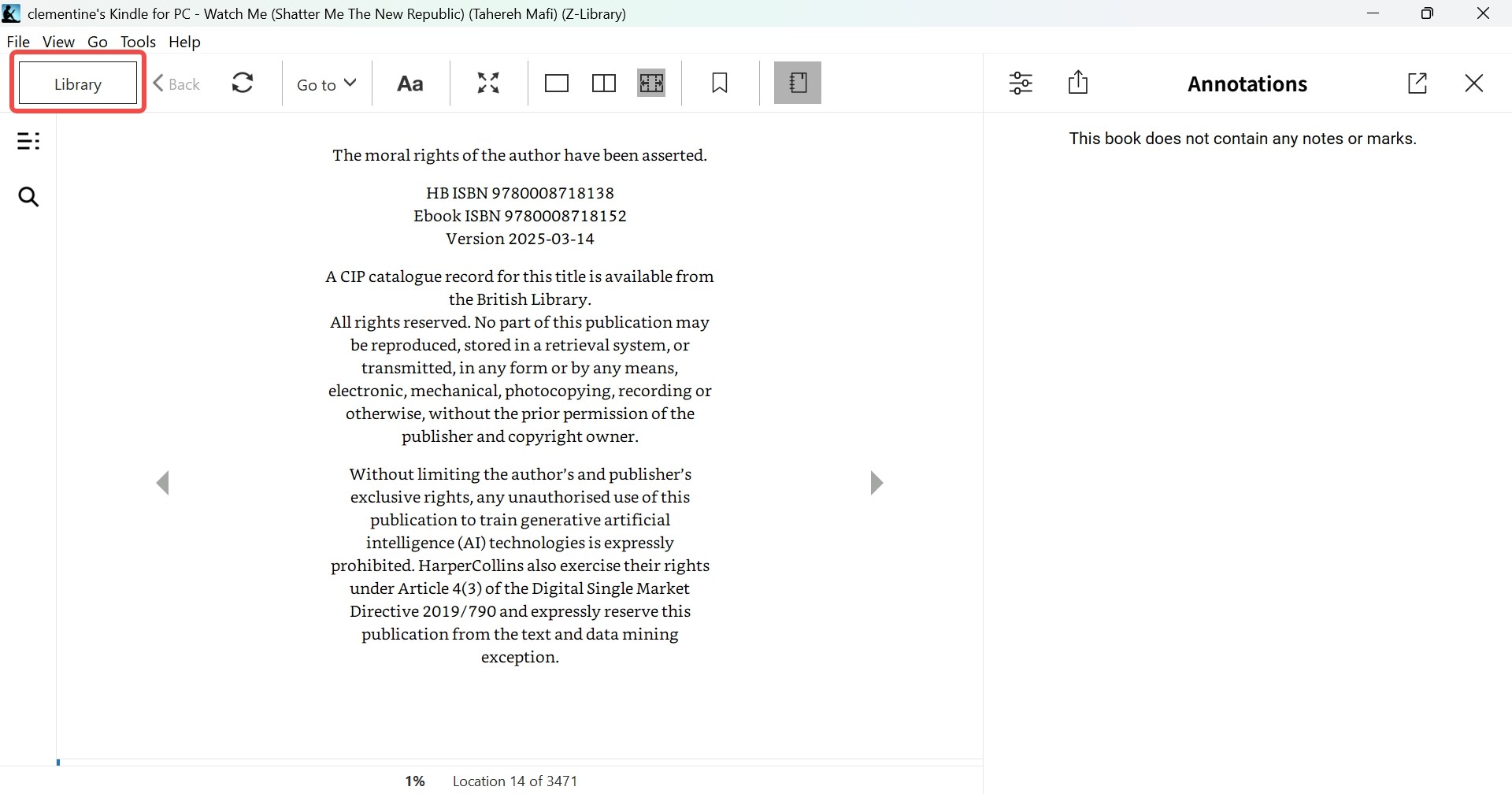
Option 1: Click the "Library" Button
In the top-left corner of the Kindle window, there is usually a permanent "Library" button (represented by an arrow or a book icon). Clicking this will instantly take you out of the book.
Option 2: Use the "Esc" Key
If you are reading in full-screen mode and the menus are hidden, simply press the Esc key on your keyboard. This will exit the full-screen view and reveal the navigation controls.
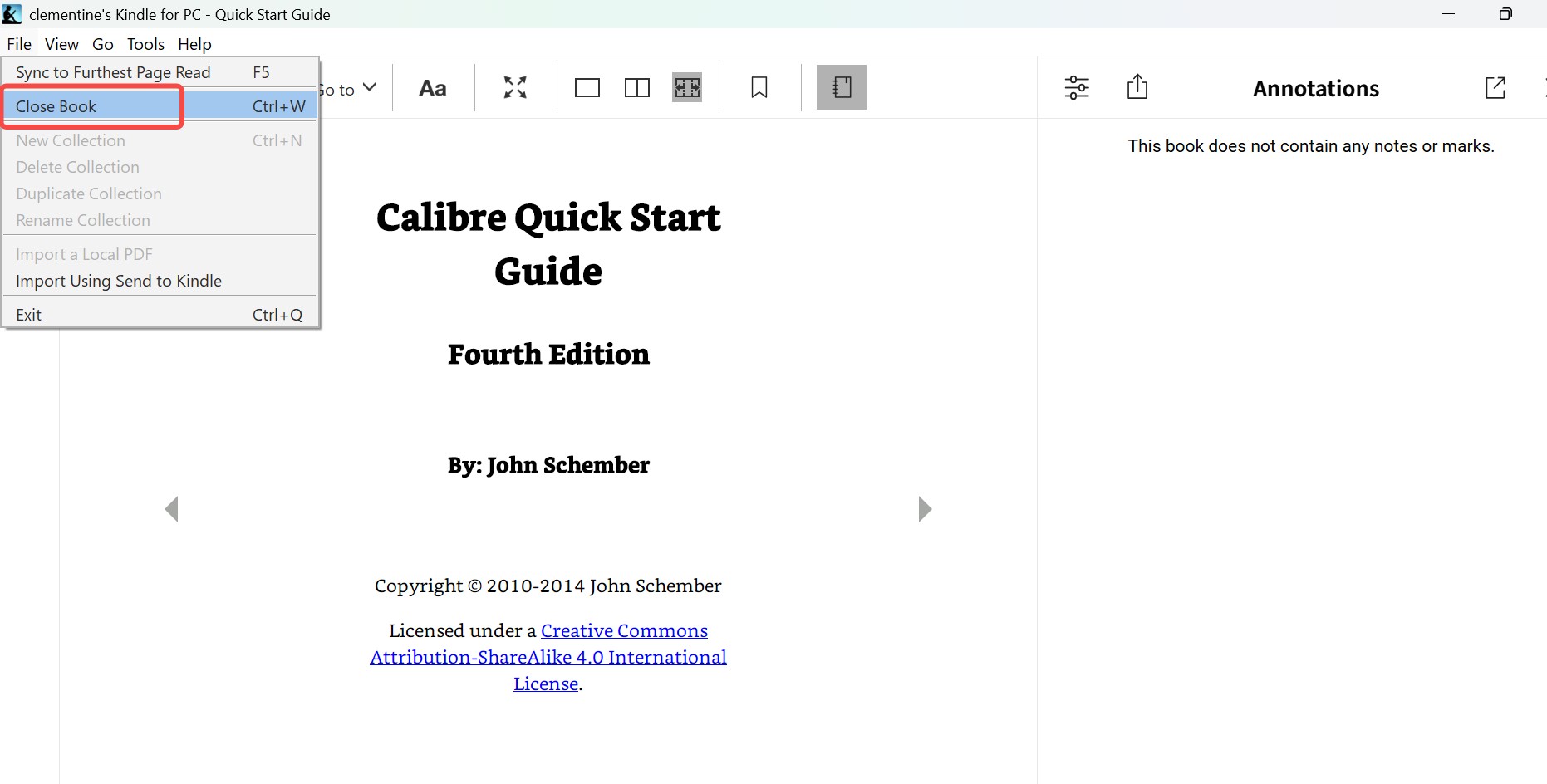
Option 3: Use "Close Book" in the Menu Bar
To exit a book on the Kindle desktop app, you can also go to "File > Close Book" in the menu bar. Windows users can use the keyboard shortcut "Ctrl + W" to close the current book instantly.
Other Tips for Kindle Users
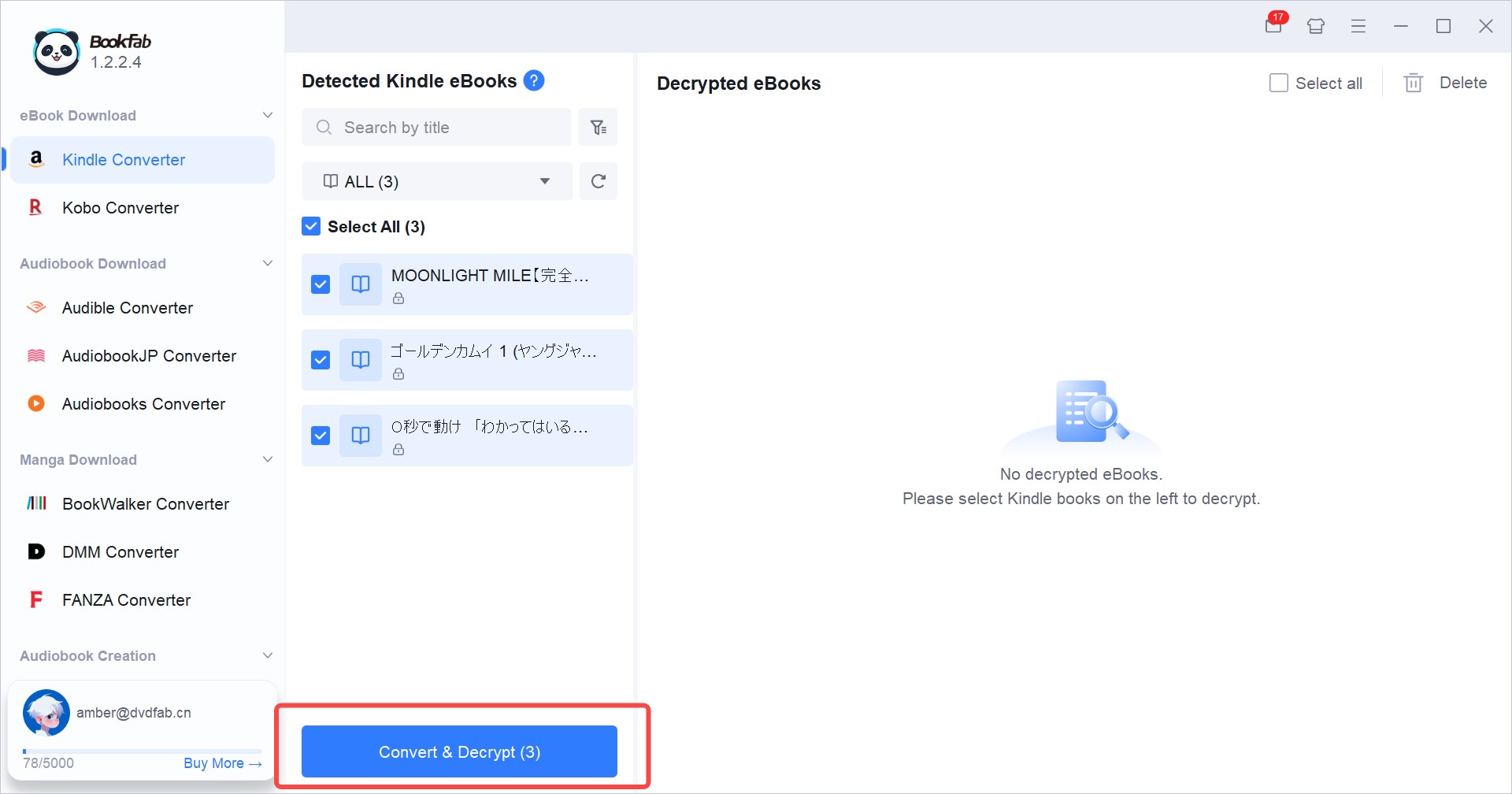
Once you've mastered how to get out of a book on Kindle and navigate your e-reader, you might want even more freedom with your eBook collection. While Kindle is a great ecosystem, many users find it helpful to have their books available in other formats for backup or for reading on non-Kindle devices. This is where a tool like BookFab Kindle Converter comes in handy. It allows you to easily convert your Kindle titles into common formats like EPUB or PDF, ensuring you truly own your library and can enjoy your books on any screen you choose.
FAQ
Will I lose my reading progress if I close a book?
No, your progress is safe. Kindle automatically saves your place every time you turn a page or exit a book. Thanks to a feature called Whispersync, your furthest page read, bookmarks, and highlights are synced to the cloud. This means you can exit a book on your Kindle Paperwhite and pick up exactly where you left off on your phone or tablet later.
Do I need to "close" a book to save battery?
You do not need to exit a book on Kindle to save battery. Kindle uses E-ink technology, which only consumes power when the screen "refreshes" (like when you turn a page). If you leave a book open and simply press the power button to put the device to Sleep Mode, it will use virtually no battery. Exiting to the home screen won't provide any extra battery savings.
What should I do if tapping the top of the screen doesn't work?
If your Kindle is frozen or the menu won't appear when you tap the top, you may need to perform a hard restart:
- Press and hold the Power Button for a full 40 seconds.
- Ignore any pop-up menus that appear and keep holding the button until the screen goes blank and the device restarts.
- This usually clears up any software glitches that prevent the navigation bars from showing.
How do I delete a book instead of just exiting it?
If you want to remove a book from your device entirely to save space, you can do so from your Library:
1. Go to your Library (after exiting the book).
2. Find the book cover and long-press it (hold your finger down for two seconds).
3. Select Remove Download from the menu. This removes it from the device but keeps it in your cloud account if you want to download it again later.
How can I quickly switch between books?
On newer Kindle models, you can swipe up from the bottom of the screen while reading to see a "Recent Books" tray. This allows you to jump back into a different title without having to go all the way back to the Library.
Conclusion
Closing a book on Kindle is easy: just tap the top of the screen to bring up the menu, then hit the "Home" or "Library" button. If you've spent your life reading paper books, these digital steps might feel a bit strange at first. However, taking a few minutes to learn these simple shortcuts, such as finding out how to close a Kindle book or where kindle books are stored will help you get the most out of your device. The more you use these little tricks, the more you'll realize how much easier Kindle makes your daily reading.

 4 Easy Ways to Convert Kindle to PDFBy Amber Collins - May 18, 2026
 How to Print Kindle Books Without Losing QualityBy Amber Collins - May 14, 2026
![[Quick Solution] How to Remove Kindle DRM on Mac](https://images.dvdfab.cn/media/未命名的设计__87__crpyru.png/public) [Quick Solution] How to Remove Kindle DRM on MacBy Amber Collins - May 11, 2026
[Quick Solution] How to Remove Kindle DRM on MacBy Amber Collins - May 11, 2026 How to Download Kindle Books to PC in 2026 (The Complete Guide)By Amber Collins - May 9, 2026