
Epubor Ultimate Review: Is It Worth Your Time and Money in 2026?

Summary: Epubor Ultimate is an ebook DRM removal tool that supports Kindle, Kobo, and Adobe DRM. For Kindle books, it still works reasonably well with older AZW and AZW3 titles. However, it has become less stable with newer books, with common issues including KFX decryption failures, poor compatibility across Kindle for PC versions, and weak macOS support. If you need a more stable solution for handling newer Kindle books, you may want to explore some alternatives to Epubor.
Table of Contents

Epubor Ultimate is a well-known ebook converter and DRM removal tool that promises users more control over their digital libraries. But does it still live up to that promise in 2026? As ebook encryption becomes increasingly difficult to handle, especially in the Kindle ecosystem, reputation alone is no longer enough. In this Epubor Ultimate review, I take a close look at its features, safety, and real-world performance based on my own testing to see whether this ebook DRM removal tool is still reliable today.
Overview of Epubor Ultimate

Epubor Ultimate is an ebook conversion tool aimed at users who want DRM removal and format conversion in one place. As Epubor's broader package, it can convert purchased Kindle and Kobo ebooks, as well as ebooks protected by Adobe DRM (with some platform-specific tools also sold separately). In Epubor Ultimate, DRM removal and format conversion are separate steps, which means you remove DRM first and then convert the file to formats such as PDF or EPUB. Like BookFab, Epubor also sells audiobook tools such as Epubor Audible Converter, but these are not included in Epubor Ultimate and require a separate purchase.
- Convert eBooks to PDF, MOBI, EPUB, Docx, TXT and AZW3
- Remove Kindle DRM, Kobo DRM and Adobe DRM
- A clean workspace for a simplified conversion
- Detect devices and load books automatically
- Available for both Windows and macOS
Pros & Cons of Epubor Ultimate (Based on Real Users' Feedback)
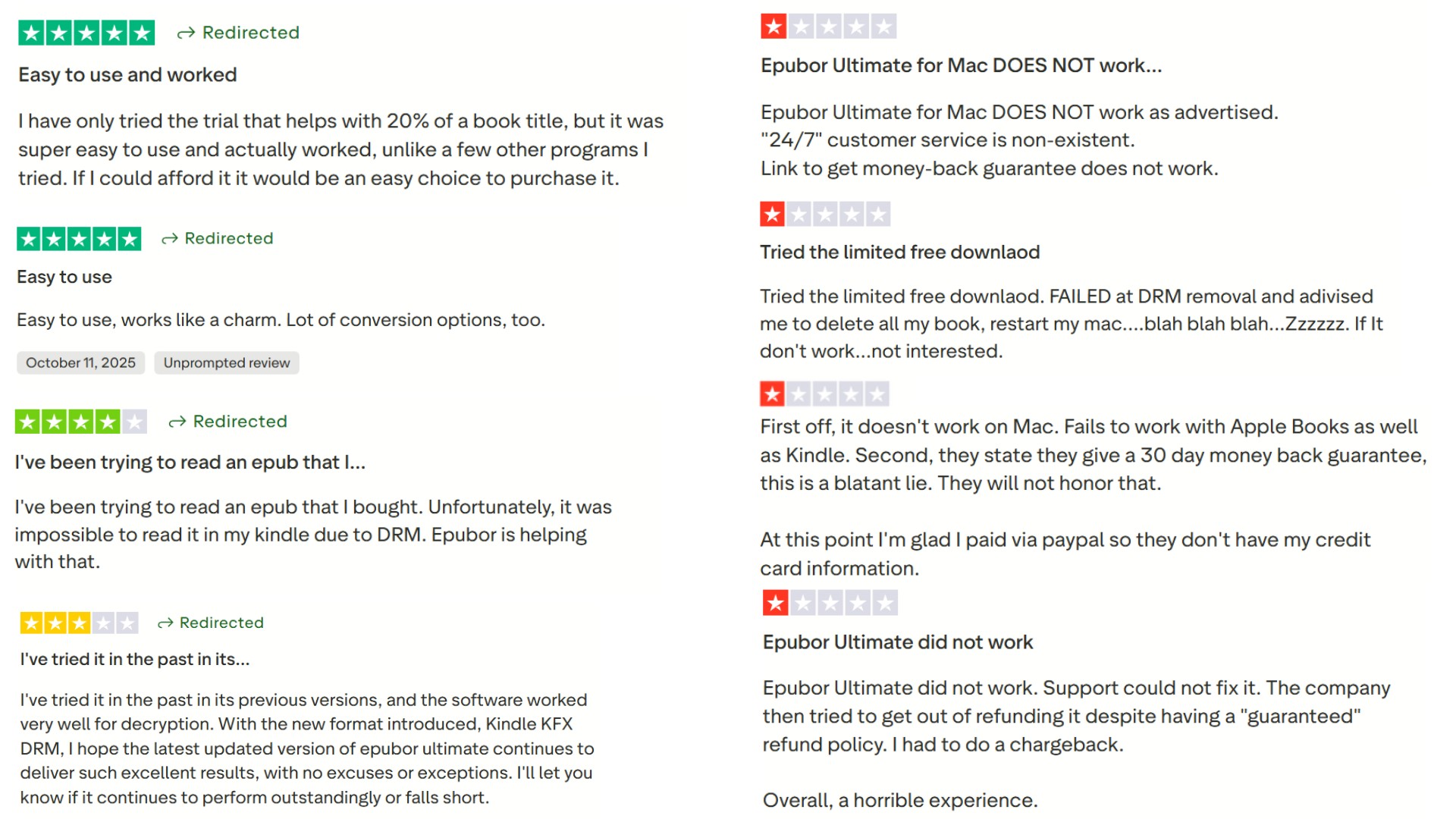
Epubor Ultimate has received mixed feedback from ebook users worldwide. To get a clearer picture of its real-world performance, I collected user reviews from Trustpilot and G2. Here is a summary of its ratings and user feedback updated in 2026.
| Rating Sites | Ratings and Reviews |
| Trustpilot | 4.6/5 (1319 reviews) |
| G2 | 4.5/5 (155 reviews) |
- Extensive output format support
- Supports DRM removal for ebooks from multiple platforms (Kindle, Kobo, and Adobe DRM)
- Lightweight software
- Easy to use
- Very limited free trial, converting only 20% of the original content and exporting only to TXT, with images and formatting stripped out
- DRM removal is not always reliable, especially for Kindle books
- Poor Mac compatibility, with users likely to run into issues
- Slow or inconsistent customer support
- Unclear refund policy and inefficient refund handling
Putting Epubor to the Test: Does Epubor Ultimate Remove Kindle DRM?
- Unstable support for Amazon's 2025 KFX DRM updates, with a low success rate for converting newer KFX titles
- Not compatible with all versions of Kindle App, meaning users may need to install specific older versions to remove Kindle DRM
- Buggy PDF conversion for image-heavy books, where parts of images may be duplicated on every other page
- Requires disabling SIP on macOS, which adds complexity and raises security concerns
To see whether Epubor Ultimate can still handle Kindle DRM removal as Amazon continues to tighten its encryption, I tested it on both Windows 11 and macOS 15 using the latest available version, Epubor Ultimate v3.0.16. Since Kindle decryption remains the main reason most people consider buying this software, that was the core focus of my testing. I wanted to evaluate how it performed in a real setup, from installation and Kindle app compatibility to DRM removal success and output quality after conversion.
How I Tested Epubor Ultimate
I first installed Epubor Ultimate v3.0.16 on two separate computers. On Windows, the installer triggered a security warning, but I was still able to proceed by clicking Run anyway. On macOS, the process was more concerning. Epubor Ultimate effectively required SIP to be disabled, which means bypassing macOS's built-in system protection, in order to perform Kindle DRM removal.
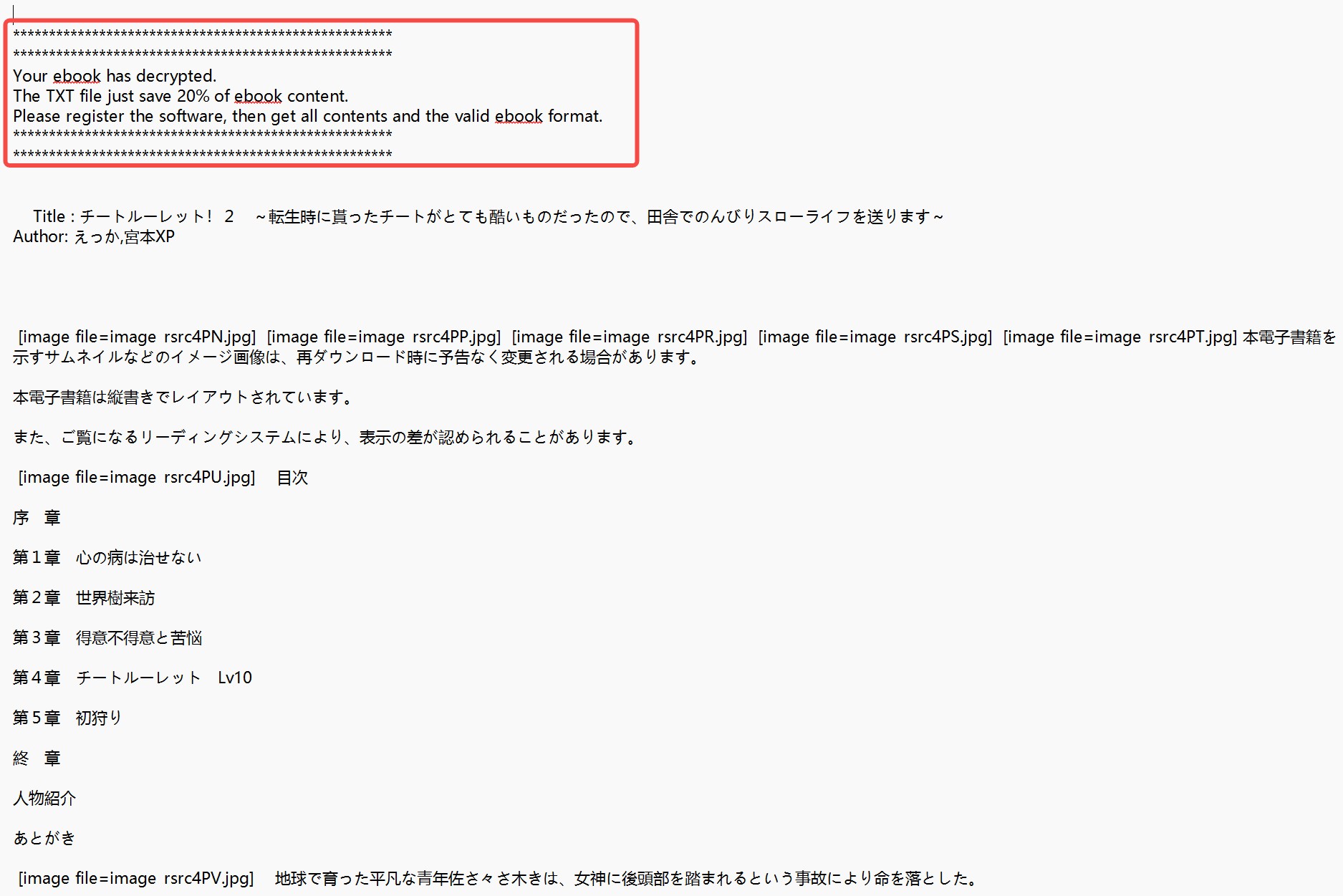
After installation, I started with the free trial. However, the trial turned out to be too limited for any serious evaluation. It only processes the first 20% of a book and exports the result in TXT format only. In other words, you cannot actually judge the real output quality for PDF or EPUB unless you buy the full version. To continue the test properly, I purchased the paid version.
I then downloaded my Kindle books locally through Kindle for PC. My computer was originally running Kindle for PC 2.8.0, but Epubor could not detect any of the books I had downloaded. I followed the official recommendation and downgraded Kindle for PC to version 2.4.0, but that still did not fix the issue. In the end, I updated Kindle for PC to version 2.9.0 and reinstalled Epubor. Only then was the software finally able to recognize my downloaded books.
What Worked in My Test
Once the books were detected, the basic workflow was easy enough to follow. I dragged the downloaded titles into the panel on the right and started the DRM removal process. I tested 10 books in total. For AZW and AZW3 titles, Epubor performed reasonably well. These older formats were decrypted successfully, and the process itself was fairly quick.
For text-only books, the EPUB/PDF output was also acceptable. The output kept a readable structure, and the formatting was generally clear enough for casual reading.
Where Epubor Ultimate Failed
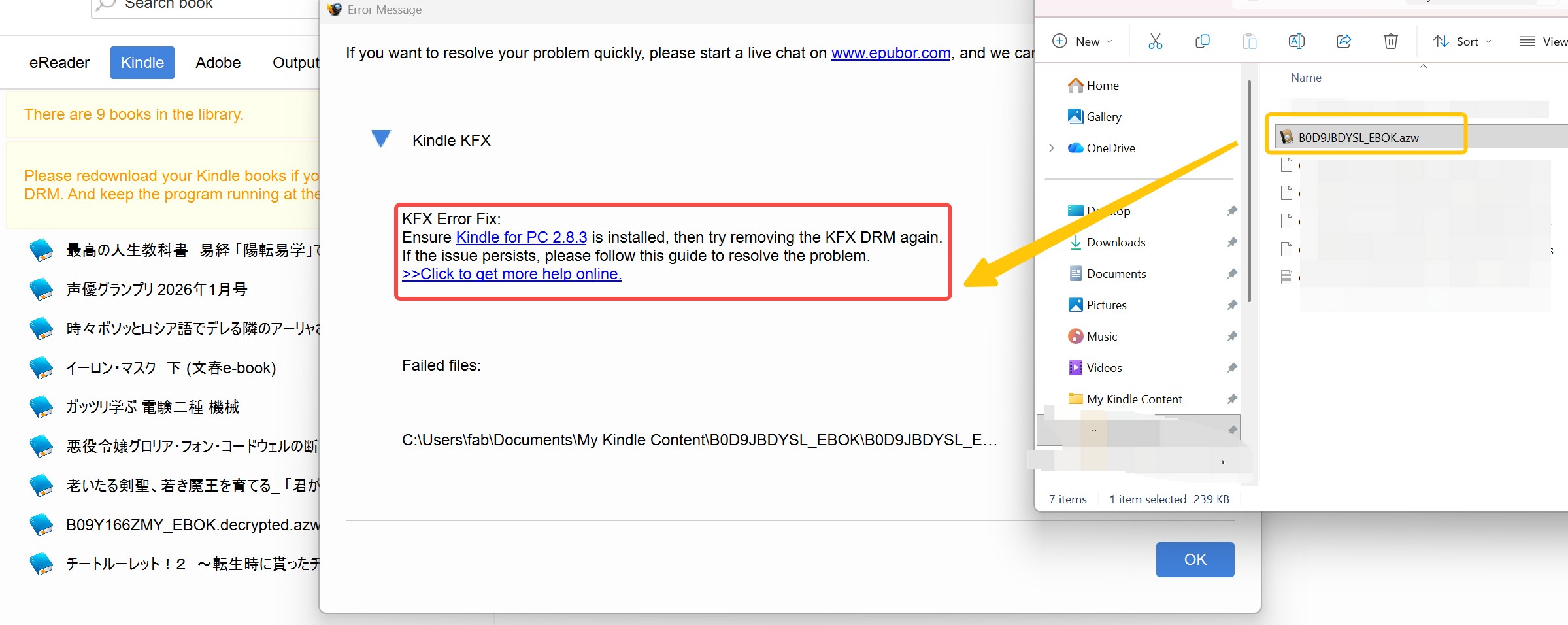
I encountered a format recognition error when using Epubor. Plus, Epubor is very dependent on specific Kindle app versions. I imported an AZW-format Kindle book into Epubor. A pop-up appeared during decryption saying: "KFX Error Fix: Ensure Kindle for PC 2.8.3 is installed, then try removing the KFX DRM again." Epubor recognized this AZW book as a KFX file and required Kindle for PC 2.8.3 to be installed before decryption. This makes the process a bit less convenient.
Another issue appeared during PDF conversion for illustrated books. While plain text books looked fine, image-heavy titles, especially comics, showed obvious bugs. Parts of the illustrations were duplicated on every other page, which noticeably hurt the reading experience.
On macOS devices with M1, M2, M3, or M4 chips, the need to disable SIP is also a drawback. This adds extra setup friction and pushes users to lower their system security just to make the software work. Since many Mac users also report poor compatibility with Epubor Ultimate, macOS users should think twice before relying on it.
My Epubor Ultimate Test Verdict
Epubor Ultimate can still remove DRM from some Kindle books when used with specific Kindle for PC versions, but the overall experience does not feel reliable enough to fully support its claims. It performs better with older AZW and AZW3 titles, while newer KFX books remain more hit or miss. Mac setup adds another layer of friction, and PDF conversion for image-heavy books introduces further quality problems. For casual users with simple text-based libraries, it may still be usable. For users who expect stable Kindle DRM removal for newer books and cleaner conversion results, however, it is much harder to recommend.
Best Epubor Ultimate Alternative for Removing Kindle DRM
If efficiency and a higher success rate matter most to you, BookFab Kindle Converter is a strong alternative to Epubor. BookFab Kindle Converter is a leading tool designed for Kindle DRM removal and format conversion. It can decrypt Kindle books and export them as PDF, EPUB, or their original DRM-free format. All you need to do is download the books you want to process through Kindle for PC, and BookFab Kindle Converter can automatically detect the titles you have already downloaded. From there, you can simply select the books you want and decrypt or convert them in batches.
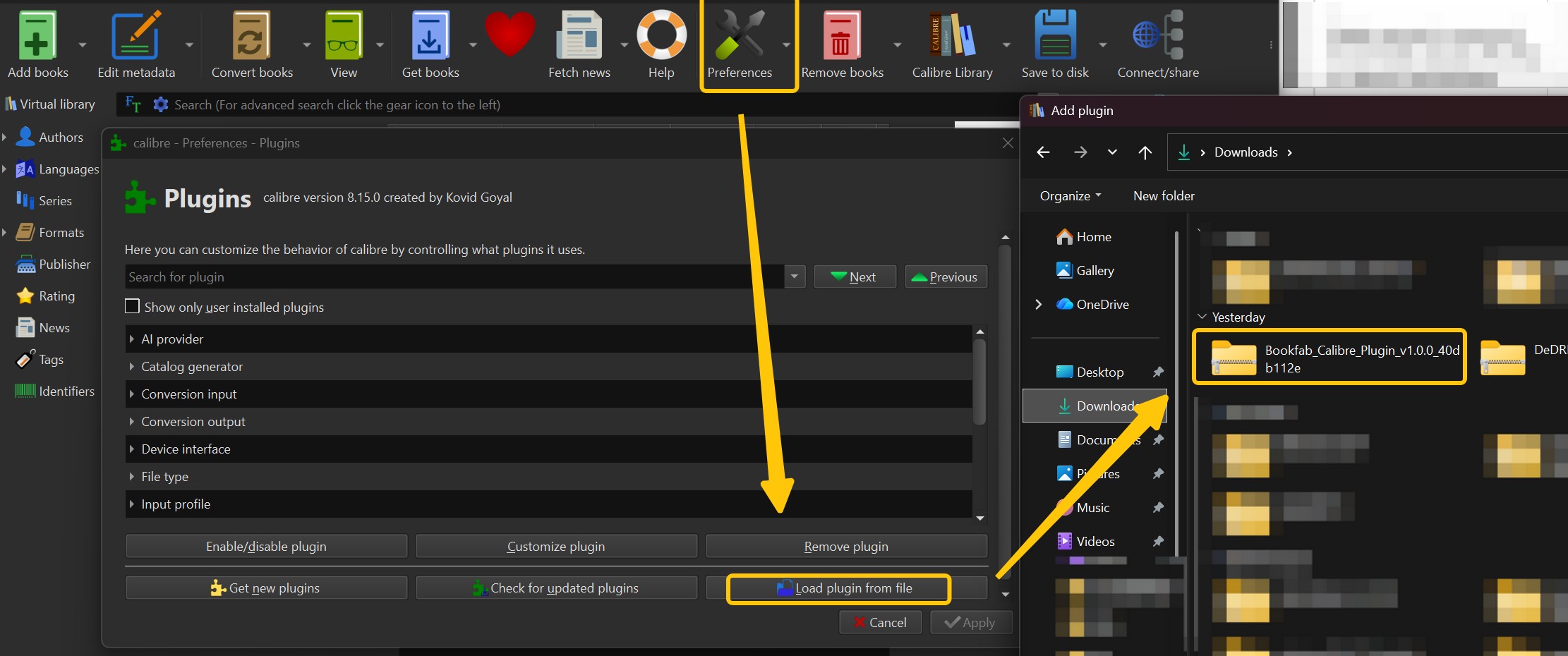
BookFab Kindle Converter also works especially well with Calibre. It offers a free plugin that brings BookFab's Kindle decryption capability directly into Calibre, which helps streamline the overall workflow for users who already rely on Calibre to manage their ebook libraries.
- Decrypts and converts Kindle books into PDF or EPUB in one workflow
- Offers both a standalone desktop application and a free Calibre plugin
- Supports nearly all major Kindle ebook formats, including MOBI, AZW, AZW3, and KFX
- Available for both Windows and macOS
- Provides responsive customer support with more professional assistance
- Receives ongoing updates to keep up with Amazon's latest Kindle DRM changes
- Outputs DRM-free EPUB books that can also be turned into audiobooks with the Audiobook Creator module (sold separately)
BookFab vs Epubor Ultimate: Which Kindle Converter Is Better?
| Feature | BookFab Kindle Converter | Epubor Ultimate |
| Supported OS | Windows, Mac | Windows, Mac |
| DRM Removal Performance | Stable and reliable | Less stable |
| Supported Kindle Formats | MOBI, AZW, AZW3, KFX | MOBI, AZW, AZW3, KFX (limited) |
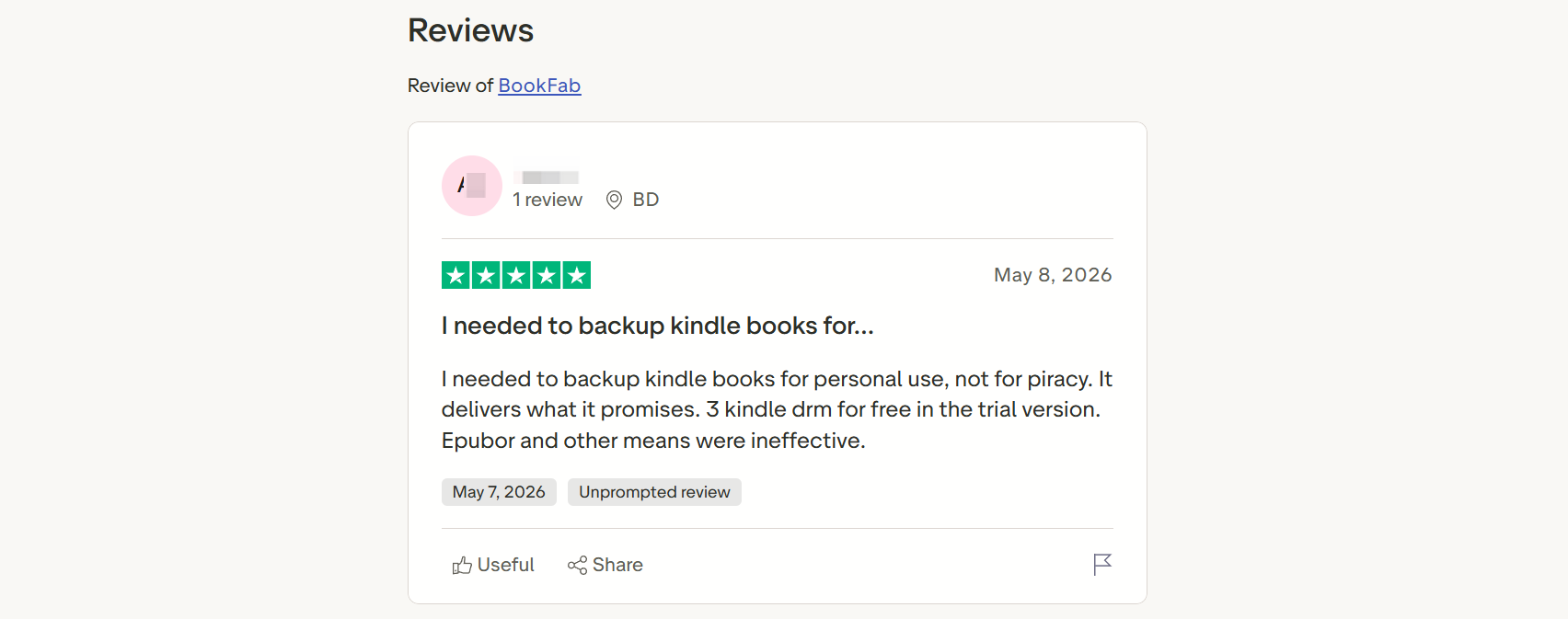
| Free Trial | 3 full book conversions for free | Only 20% of each book can be converted, TXT output only |
| Extra Value | Free BookFab Calibre Plugin included | No extra bonus |
| User Experience | Beginner-friendly | Beginner-friendly |
| Product Updates | Frequent updates (ongoing support for new eBook platforms) | Updated less often |
| Customer Support | Responsive dedicated support | Slower response |
| Refund Guarantee | 14-day money-back guarantee | 30-day refund policy |
How to Use BookFab Kindle Converter to Remove DRM from Kindle Books
Before you begin, download your Kindle books to your computer using the Kindle desktop app.
Option 1: Using the BookFab Desktop App
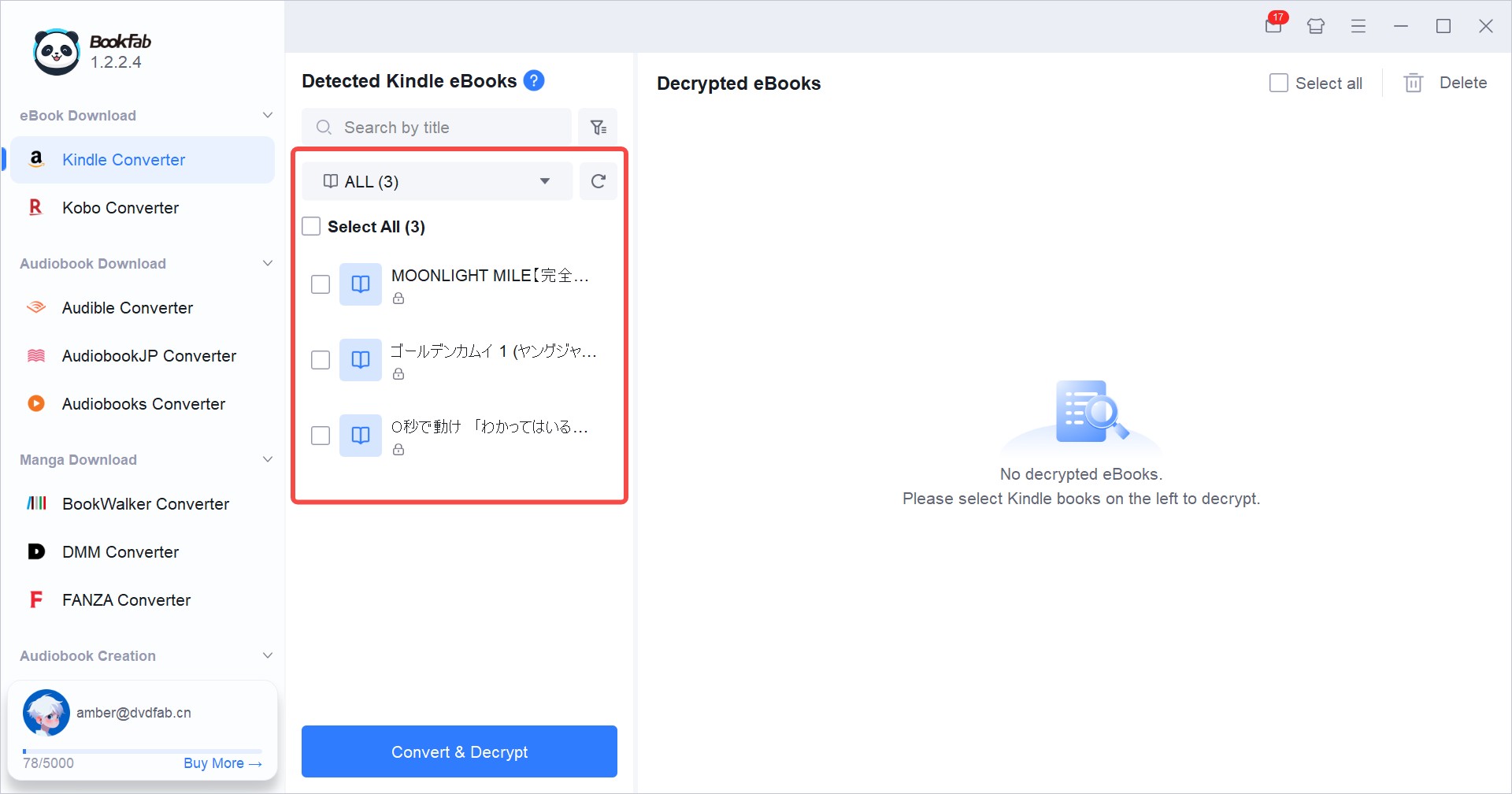
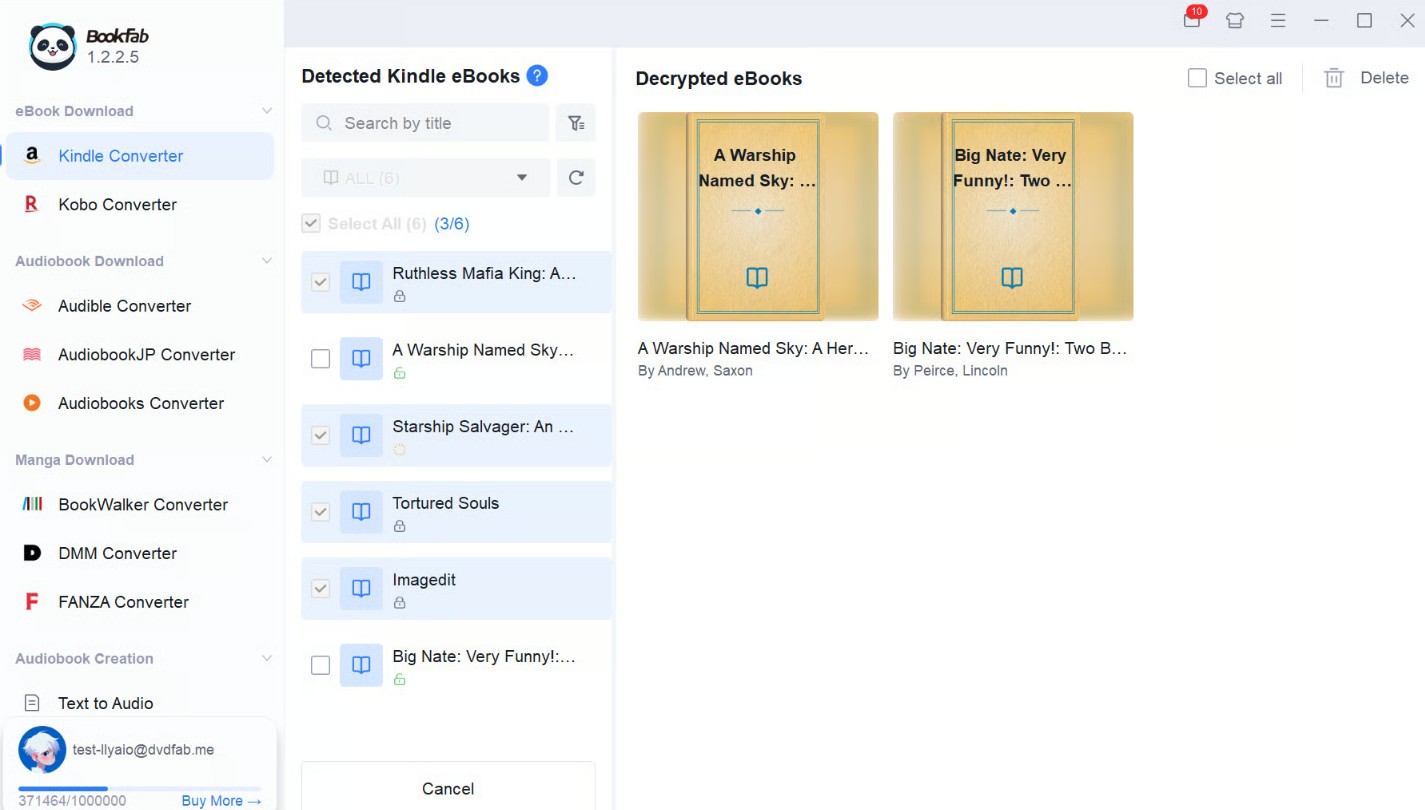
Note: The steps above are for Windows. On Mac, BookFab Kindle Converter makes the process easier with a built-in browser, so Kindle for PC is not required. Simply log in to your Kindle account, choose a book, click the blue download button, select the output format, and download it directly.
Option 2: Using the BookFab Plugin in Calibre
FAQs
Is Epubor Ultimate safe and legit?
Yes. Epubor Ultimate is considered a safe and legitimate software to download and use. The site claims it is 100% safe and free from any malware. Independent review sites also confirm it as a completely clean software with no viruses. However, some antivirus programs have flagged the installation as suspicious. This may be due to false positives of its DRM-removal functionality. However, Reddit users praise its ease of use and reliability for removing DRM and converting formats.
How much does Epubor Ultimate cost?
Epubor Ultimate is available for Windows and Mac computers with no difference in the subscription plans. Both users can avail themselves of the software's yearly plan at US$29.99. They must spend US$59.99 to get a lifetime license and US$109.99 to grab a family license for 2 to 5 PCs and Macs. However, all the premium plans offer a 30-day money-back guarantee.
Is Epubor crack legal and safe?
No. Using a cracked version of any program or software, be it Epubor Ultimate Converter, is illegal. Cracked versions are obtained through unofficial channels, such as torrent sites. They are a form of copyright infringement with no legality. We recommend downloading and using software only from its official website. Using cracked software versions can expose you to legal consequences and repercussions. They may expose your device to malware and viruses.
Does Epubor Ultimate support the latest Kindle ebooks in KFX format?
Partly, but not always reliably. Epubor's latest public pages say the newest version of Epubor Ultimate can handle Kindle KFX books and supports newer Kindle for PC/Mac environments. However, Epubor's own FAQ also notes that when Amazon releases a new Kindle app with stronger DRM, support may take time to catch up, and older support pages still mention limited support for the latest Kindle for Mac. In practice, that means KFX support exists, but stability can still vary depending on the Kindle app version, the book itself, and recent DRM changes.
Is Epubor Ultimate worth buying?
It depends on what you need and how much instability you are willing to tolerate. If your library mostly consists of older AZW or AZW3 books and you only need basic DRM removal and format conversion, Epubor Ultimate may still be usable. But if you mainly want reliable Kindle DRM removal for newer KFX titles, smoother compatibility across Kindle app versions, or a less fragile setup on macOS, it is harder to recommend without reservations.
Final Wrap Up
Epubor Ultimate is a useful program to convert digital books and remove DRM from eBooks. Based on my real-world testing and review, Epubor Ultimate is still usable, but it no longer feels like the most dependable option for Kindle DRM removal in 2026. It performs well with older ebook formats, but newer Kindle books, app-version sensitivity, and weaker Mac support make the overall experience less convincing. If you only handle a few books from time to time, Epubor Ultimate may still be enough. But for users who want better stability and a smoother workflow, BookFab Kindle Converter is the stronger alternative.

 4 Easy Ways to Convert Kindle to PDFBy Amber Collins - May 18, 2026
 How to Print Kindle Books Without Losing QualityBy Amber Collins - May 14, 2026
![[Quick Solution] How to Remove Kindle DRM on Mac](https://images.dvdfab.cn/media/未命名的设计__87__crpyru.png/public) [Quick Solution] How to Remove Kindle DRM on MacBy Amber Collins - May 11, 2026
[Quick Solution] How to Remove Kindle DRM on MacBy Amber Collins - May 11, 2026 How to Download Kindle Books to PC in 2026 (The Complete Guide)By Amber Collins - May 9, 2026