
How to Download Google Books as PDF: 3 Effective Ways in 2026

Summary: To download Google Books as PDFs, the right method depends on whether the book is available in Full View, Preview, or your Google Play Books library. This guide explains how to download Full View Google Books, export Preview pages with a free Google Books Downloader, and save Google Play Books as PDFs, covering all your Google Books download needs.
Table of Contents
Google Books is one of the first places I check when I want to preview an old title, compare editions, or find a public-domain book for offline reading. But how exactly do you download these rich resources as PDFs for personal archiving or note-taking? In this guide, I'll walk you through how to download Google Books as PDF (both Full View and Preview), as well as how to save Google Play Books, all in just a few simple steps.
Can You Download Google Books as PDF?
Yes, you can download Google Books as a PDF, but the method depends on the type of book you are viewing.
People often confuse Google Books with Google Play Books, so I like to clarify the difference before we start. Google Books is the search and preview service found at books.google.com. Google Play Books, on the other hand, is the store and library service where your purchased or added books live. Because the download methods differ for each, you can use the table below to quickly find the right tutorial steps based on your book's source.
| Book Source | Type / Attribute | Can you download it as PDF? | Third-Party Tool Required? | Download Tutorial |
| Google Books | Full View / Free Book | Yes | No | Part 1 |
| Preview Only | Yes (Preview pages only) | Yes | Part 2 | |
| Snippet / No Preview | No | / | / | |
| Google Play Books | Purchased Books | Yes | Yes | Part 3 |
Part 1. Download Google Books as PDF (Full View Books)
This is the cleanest way to download Google Books as PDF. It works for books that Google makes available in Full View, often because they are public-domain works, copyright-free materials, or titles that the copyright owner has allowed users to read and download.
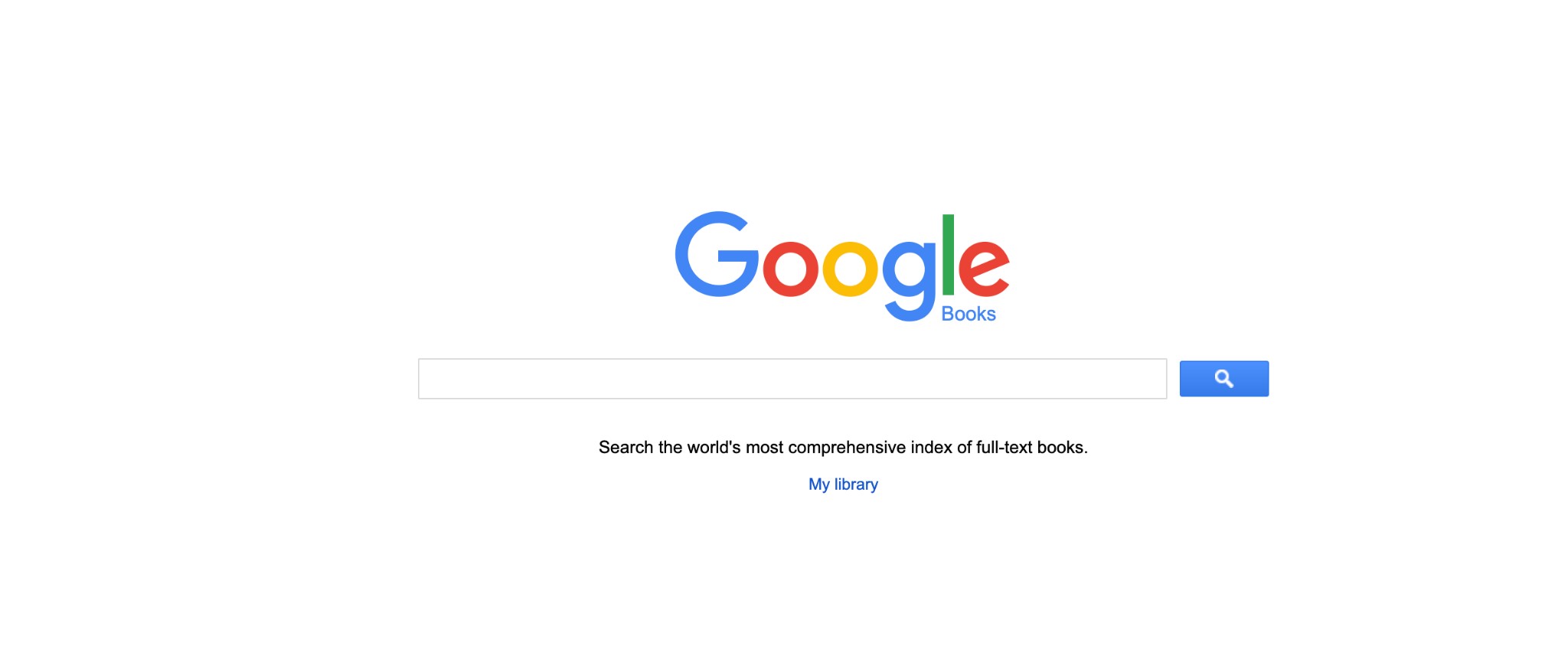
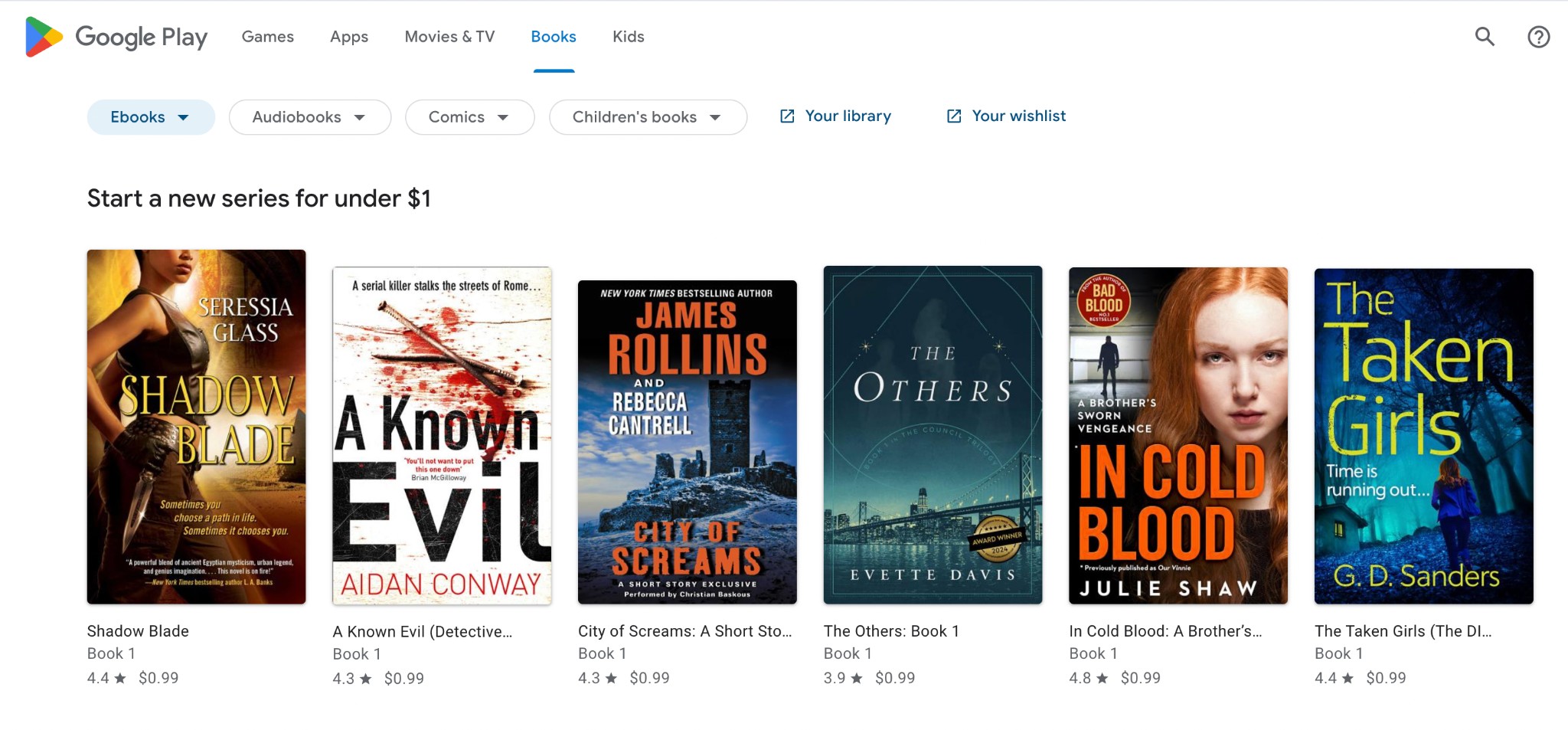
Step 1: Open a web browser and go to Google Books. Enter the book title (or author name) in the search box, then run the search.
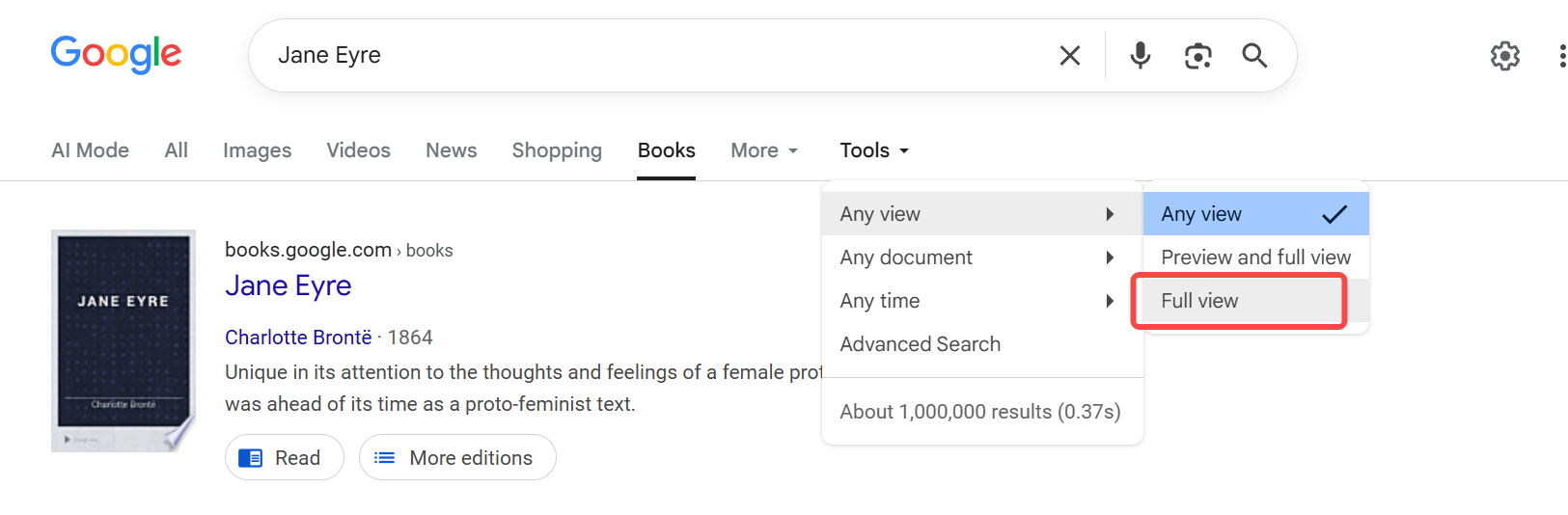
Step 2: On the results page, use the filter bar to change Any view to Full view (if available) and switch Any document to Books. These filters help surface titles that can be read in full, and a custom publication date range can also be applied if needed. If a book is under copyright, only a preview or sample may be available, and the PDF download option may not appear.
Step 3: Click the desired title from the search results to open it. A preview or reading window will appear.
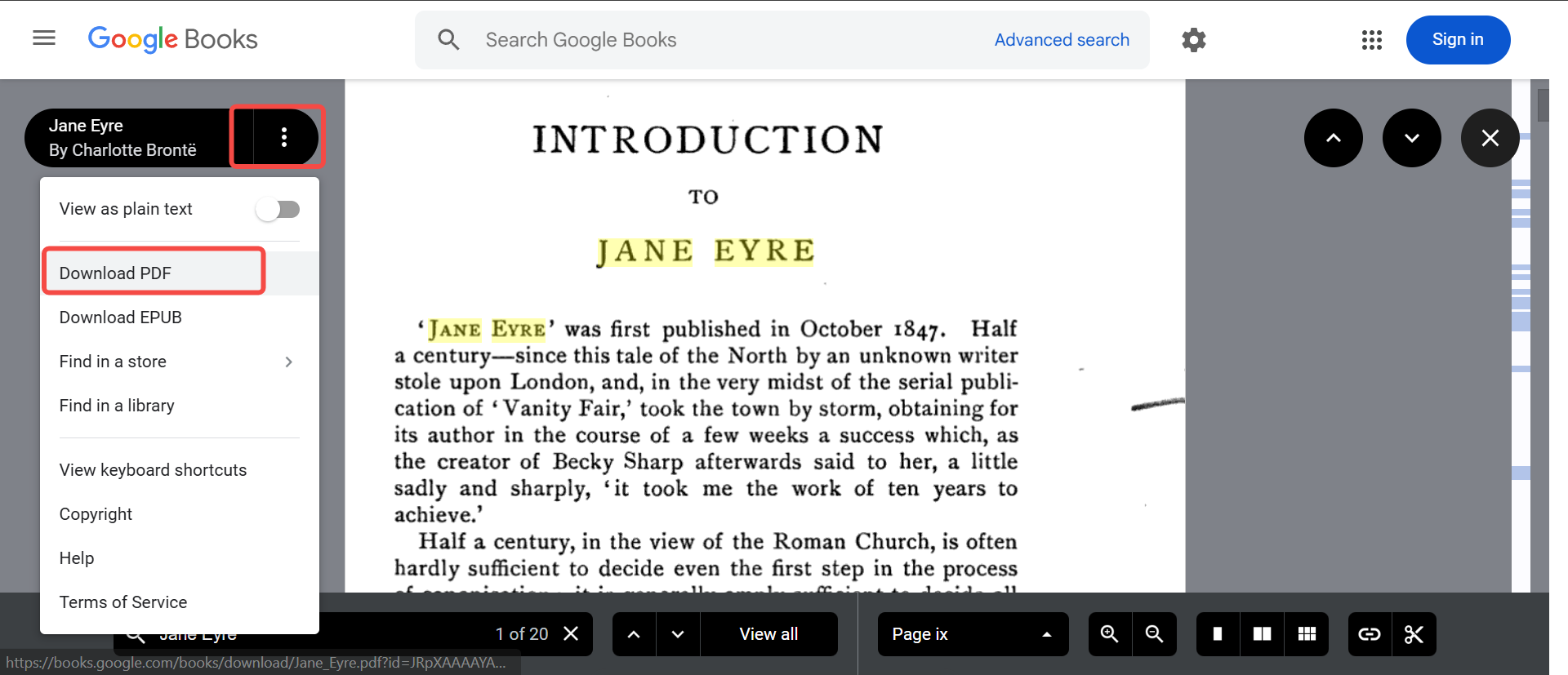
Step 4: In the preview interface, open the More options menu (often the three-dot icon). If the title supports downloading, select Download PDF to save it.
Part 2. Save Preview Google Books as PDF with EDS Google Books Downloader
However, you might find that many Google Books do not support a "Full View"—they only offer a "Preview" and lack a "Download PDF" button. So, how can you download these preview-only books? You will need to use a third-party tool like Google Books Downloader. There are plenty of tools like this out there; essentially, you just paste the book's URL into the software to download the PDF.
Keep in mind, though, that you can still only download the pages that are available for preview. For this, I use EDS Google Books Downloader. It is a simple and effective tool that allows you to load a Google Books URL and save available pages as a PDF, PNG, or JPG.
Step 1: Open Google Books in your browser and search for the book you want to save. Click the book result and make sure it opens with readable Preview pages. Copy the URL from the browser address bar after opening the preview page.
Step 2: Download and install EDS Google Books Downloader. Since this is third-party Windows software, install it carefully. If the installer shows optional offers or bundled software, read each installation screen before clicking Next.
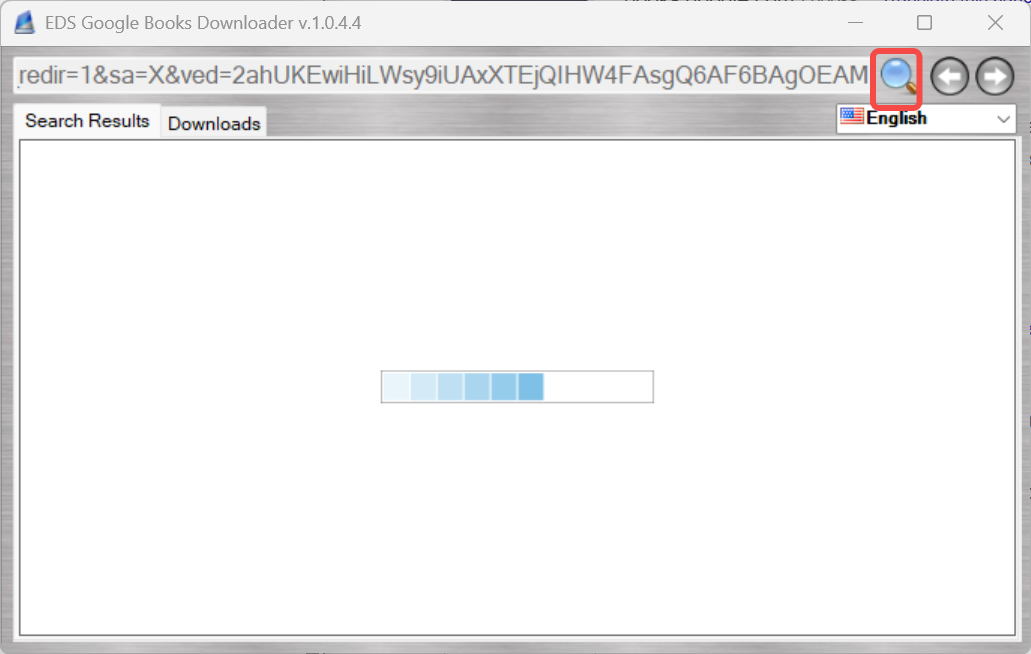
Step 3: Launch EDS Google Books Downloader and paste the copied Google Books URL into the URL field. Then click the Search button so the program can fetch the available pages from Google Books.
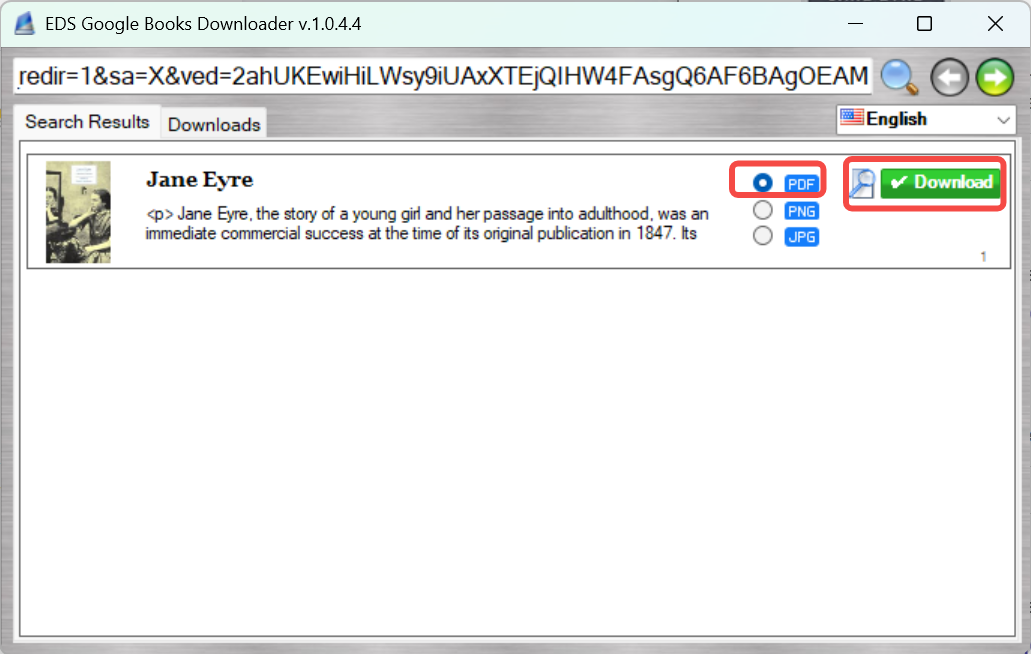
Step 4: Choose PDF as the output format. Click the Download button and wait for the process to finish.

1. The tool cannot load the Google Books URL.
If EDS Google Books Downloader does not recognize the link, copy the URL again from the Google Books search result. Right-click the book result and choose Copy link address, instead of copying the URL from the browser address bar after opening the book.
2. The downloaded file is missing pages.
This is common with Preview books. Google only displays selected pages based on publisher permissions, so a downloader may save only the pages that are visible to you. It cannot fill in hidden pages.
Part 3. Download Google Books as PDF from Google Play
This method applies to books in a Google Play Books library, but the available download format depends on publisher settings. Some titles provide direct PDF/EPUB downloads, while others only provide an ACSM file that must be opened in Adobe Digital Editions (ADE) to obtain the actual PDF or EPUB. Both methods are simple. Here is the step-by-step tutorial.
Step 1: Open Google Play in a browser and sign in. Click the profile icon in the top-right corner, go to Library and devices, switch to Books, and locate the target title in the library list (purchased or added books).
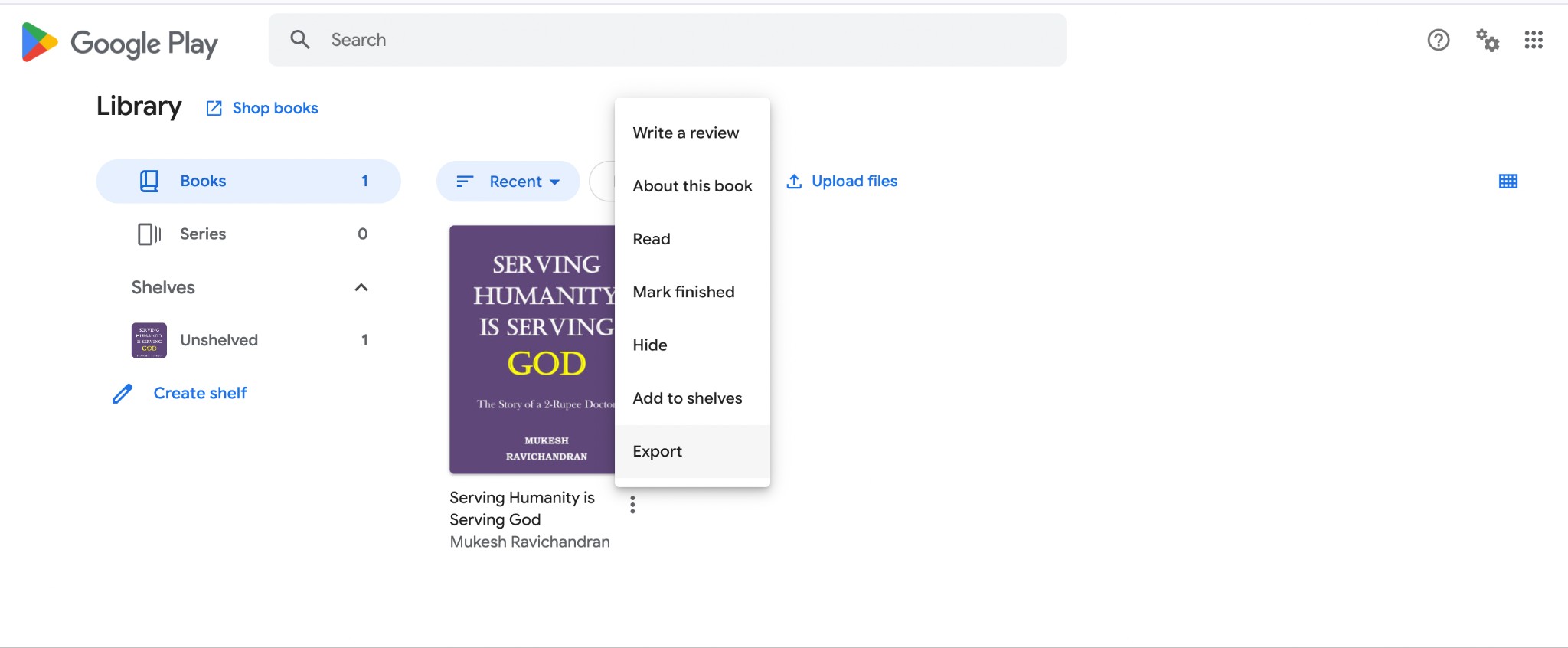
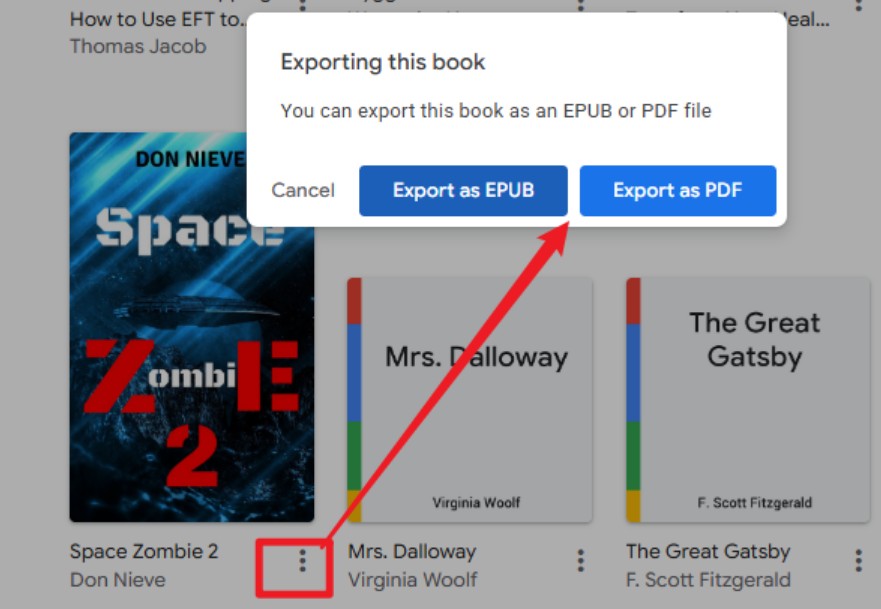
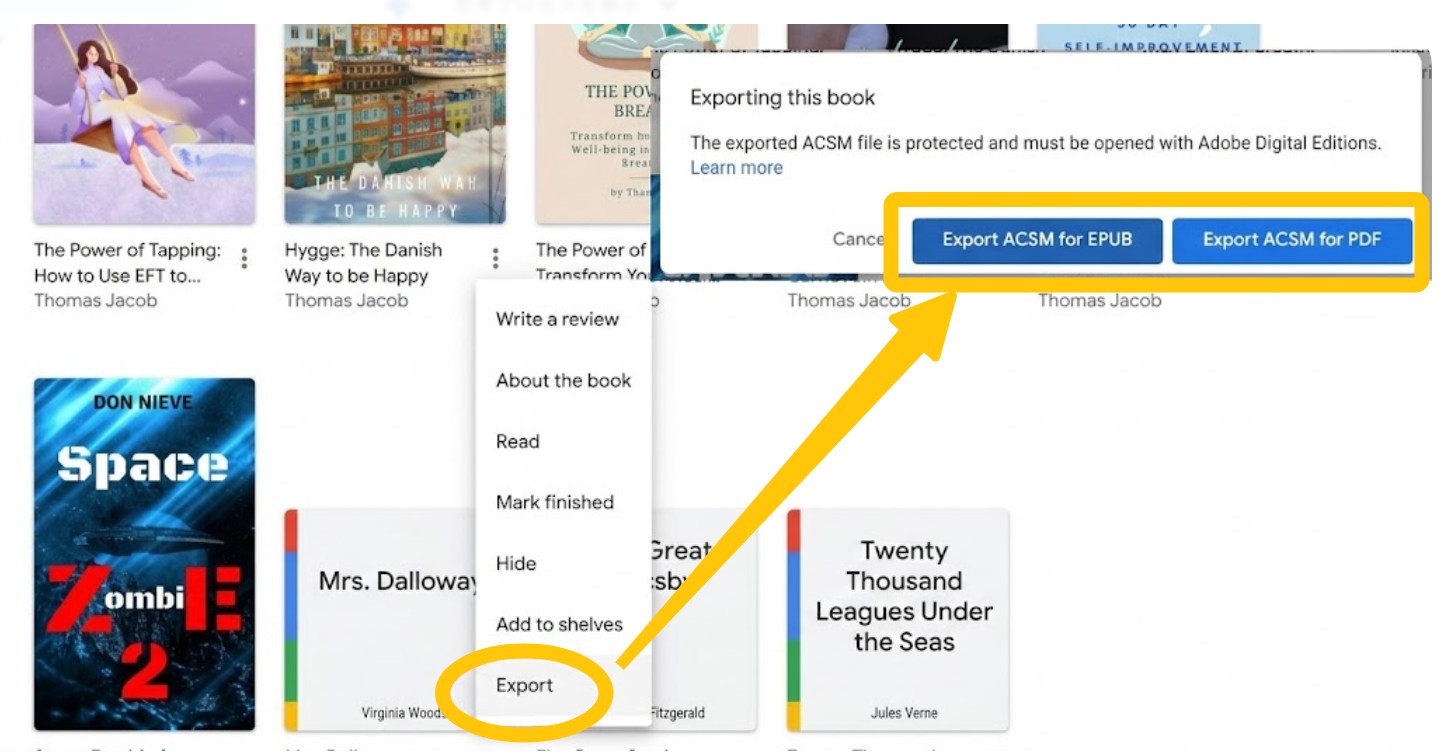
Step 2: Click More (three dots) on the target book and select Export to check which export type is offered for that specific title. The export options shown here determine which path to follow next.
👉If the menu shows Export as PDF or Export as EPUB:
Select Export as PDF or Export as EPUB to download the book directly to the computer.
If only EPUB is available but a PDF is required, convert the downloaded EPUB to PDF after downloading (this is commonly possible when the exported EPUB is DRM-free).
👉If the menu shows Export ACSM for PDF or Export ACSM for EPUB:
Select the ACSM option to download an .acsm file to the computer. Note that the .acsm file is not the book itself, so it must be opened with Adobe Digital Editions (ADE) to fetch the real PDF/EPUB.
Install Adobe Digital Editions (ADE), launch it, and authorize it with an Adobe ID (create one if needed). Open the downloaded .acsm file in ADE, and ADE will download the full book file in the corresponding format (PDF or EPUB) for offline access.
Note: The PDF file downloaded using this method is protected by ACSM DRM. If you want to remove the DRM, you can use the free software Calibre paired with the DeDRM plugin. For a step-by-step guide, feel free to read our detailed Calibre DRM removal tutorial.
👉If Export is missing, or none of the PDF/EPUB/ACSM options appear, the publisher may have disabled downloads for that title or the book may be a rental, so downloading a PDF through official methods may not be supported.
1. There is no Export option.
Some Google Play Books do not support file export. This may happen when the publisher disables downloads, the book is a rental, or the file is too large. If the menu only lets you read the book, there may be no official PDF download path for that title.
2. You only see EPUB or ACSM instead of PDF.
Not every Google Play book provides a direct PDF export. Some titles offer EPUB only, while others provide an ACSM file that must be opened with Adobe Digital Editions before the real book file is downloaded. If you get an EPUB and need a PDF, you can use Calibre to convert it after downloading.
3. Adobe Digital Editions cannot authorize the book.
If ADE fails during authorization, make sure you are using the correct Adobe ID and that the same account is authorized on your device. Some users run into vendor/account confusion when opening Google Play ACSM files in ADE.
FAQ
Is it safe to use a free Google book downloader?
Is it legal to use Google books downloaders?
What are other free Google Book downloaders?
aprikyan/google-books-downloader: An open-source Python tool for saving available Google Books pages as images and then combining them into a PDF. It is better for users who are comfortable with command-line tools.
GoBooDo: A Python-based Google Books downloader with proxy support. It may offer more control than a simple desktop tool, but it is more technical and may not be actively maintained.
saeedeh/google-books-download: A lightweight browser-script option. It can save visible loaded pages, but it requires using the browser console and is not beginner-friendly.
Browser Print to PDF: A simple option for saving a few visible pages manually, but it only captures pages that your browser can display or print.
How to download Google Books to PDF on Android devices?
Step 1: Open the Google Play Books app on your smartphone. Move to the Library.
Step 2: Tap Download next to the book you want. When the download is finished, a Downloaded icon will appear on the cover, and you can read the book offline inside the app.
Note: On Android version 2023.04.17.00 and later, touch and hold a book to select multiple titles, then tap Download to get all selected books at once.
Can I download my Google Books from Google Drive to my computer?
Step 1: Sign in to Google Drive.
Step 2: Find the Google Book's PDF version you wish to download and save.
Step 3: Right-click the book and select Download. It will automatically save to your computer.
Conclusion
Downloading Google Books as PDF depends entirely on the type of book you are dealing with. If it is a Full View book, the safest option is to use the official "Download PDF" button directly within Google Books. If the book is only available as a Preview, a tool like EDS Google Books Downloader can help you save the visible pages. For titles in your Google Play Books library, the official Export option is always the best place to start. By choosing the right method for your specific book, you can easily build your offline digital library safely and efficiently.

 4 Easy Ways to Convert Kindle to PDFBy Amber Collins - May 18, 2026
 How to Print Kindle Books Without Losing QualityBy Amber Collins - May 14, 2026
![[Quick Solution] How to Remove Kindle DRM on Mac](https://images.dvdfab.cn/media/未命名的设计__87__crpyru.png/public) [Quick Solution] How to Remove Kindle DRM on MacBy Amber Collins - May 11, 2026
[Quick Solution] How to Remove Kindle DRM on MacBy Amber Collins - May 11, 2026 How to Download Kindle Books to PC in 2026 (The Complete Guide)By Amber Collins - May 9, 2026