
6 Best Free Kindle DRM Removal Tools: Tested for You

Summary: To help you choose the most effective Kindle DRM removal tool, this article compares six popular options, including online DRM removal tools, Calibre with DeDRM plugins, OCR-based solutions, and BookFab Kindle Converter. Based on hands-on testing, it highlights the strengths and limitations of each tool and explains which DRM removal solution is best for different situations.
Table of Contents
If you want to read your Kindle books on another eReader or anywhere outside the Kindle app, you need a Kindle DRM removal tool to unlock the book first.
The problem is that this topic gets messy very quickly. Some free Kindle DRM removers look promising but fail the moment you test them with a real Kindle file. Some methods still work, but only if you are comfortable with command lines, extra setup, or output quality that is far from ideal. To find the most useful free Kindle DRM removal options, I looked at the methods people talk about most, tested and compared how they actually work, and focused on one simple question: which DRM removal tool is genuinely worth your time?
Quick Picks: Which Kindle DRM Removal Tool Should You Choose?
Dedicated DRM removal software ⭐⭐⭐⭐⭐ (My Top Pick)
- Best for: Readers who want a simple cleaner, file-based conversion instead of rebuilding the book through screenshots and OCR.
- How they work: These tools are designed to remove Kindle DRM permanently and convert the original file directly into formats like EPUB or PDF.
- Recommended Tools: Calibre, BookFab Kindle Converter
OCR-based Kindle DRM removal tool ⭐⭐⭐
- Best for: Tech-savvy readers who mainly want a readable copy.
- How they work: These tools do not remove DRM from the original Kindle file. Instead, they capture pages from Kindle Web Reader or Kindle for PC, then use OCR to turn those screenshots into readable text, EPUB, or PDF files.
- Recommended Tools: Kindle-AI-Export, kindle-pdf-ocr, KindleOCR
Online Kindle DRM removal tool ⭐ (Not Recommeded)
- Best for: Honestly, not much. They are easy to try, but not reliable for actual Kindle DRM removal.
- How they work: These tools ask you to upload your Kindle file to a website and process it online. They sound convenient, but in real-world testing they always fail on DRM-protected Kindle books.
- Recommended Tools: Various web-based Kindle converters like Zamzar
Kindle-AI-Export (AI-Based OCR Method)
- Best for: Users who want flexible output formats and do not mind a more technical setup.
- Rating: ⭐⭐⭐⭐
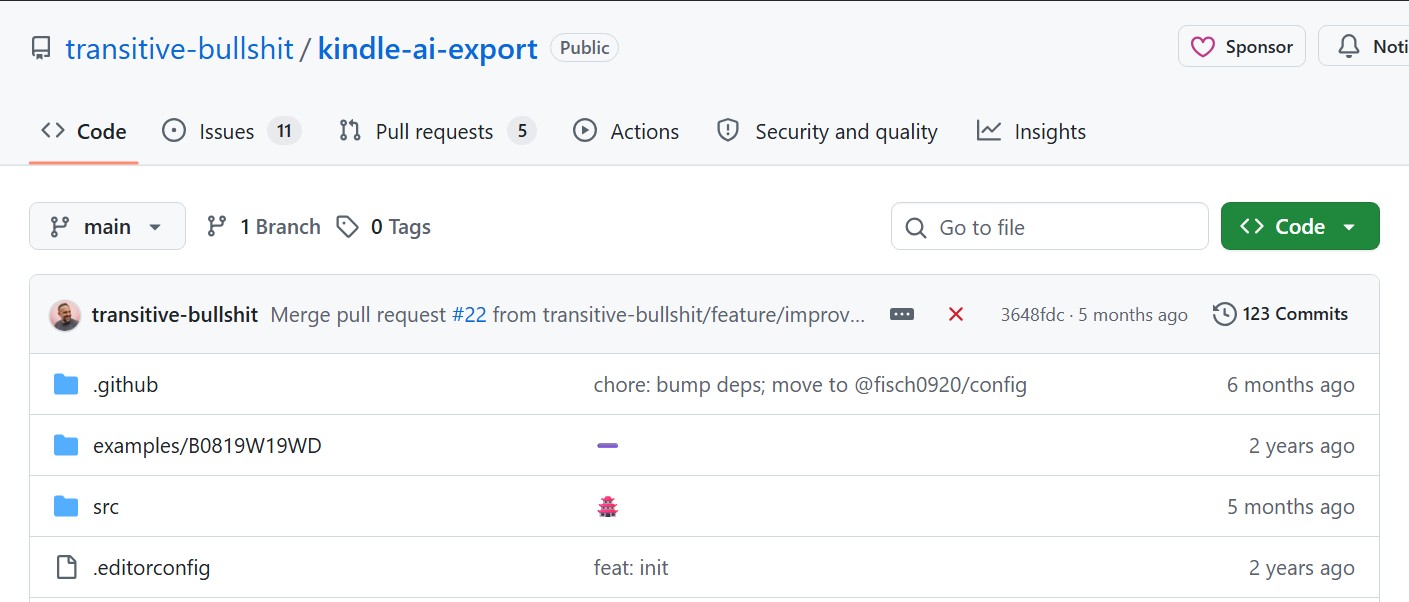
Kindle-AI-Export takes a very different approach from traditional Kindle DRM removal software. Instead of working on the original Kindle file, it logs into Kindle Web Reader, captures each page as an image, and uses AI OCR to rebuild the book as text, PDF, EPUB, Markdown, or even an AI-narrated audiobook. It requires a valid Kindle account and an OpenAI API key, so the setup is more involved than with simpler tools. API cost is also something you need to keep in mind.
My Test Result 💻
On Windows 11, it handled a few newly purchased Kindle books without issues and exported them to PDF as expected. Because it works by capturing pages, the original Kindle format doesn't really matter as long as the book opens in the Web Reader. The downside is clear, though: using an OpenAI API key means each book can end up costing a few dollars. I also ran into an issue where the process got stuck on the last page during screenshot capture, which interrupted the workflow.
- Can produce EPUB, PDF, and Markdown
- Works from Kindle Web Reader
- More flexible than basic OCR tools
- Available on both macOS and Windows
- Requires an OpenAI API key
- Setup and command-line use can be too technical for many readers
- Slower than direct file conversion
- Final output still depends on OCR accuracy
How to Use This AI OCR Kindle DRM Removal Tool
Step 1: Clone the Github project and install dependencies.
Step 2: Create a .env file and fill in:
- AMAZON_EMAIL=
- AMAZON_PASSWORD=
- ASIN=
- OPENAI_API_KEY=
You can find the ASIN from the Kindle Web Reader URL.
Step 3: Run the extraction script:
npx tsx src/extract-kindle-book.ts
This will log into Kindle Web Reader and capture all pages as images.
Step 4: Convert images to text using AI OCR:
npx tsx src/transcribe-book-content.ts
This step processes all pages and rebuilds the book content.
Step 5: Export the final file (optional):
npx tsx src/export-book-pdf.ts
or convert to EPUB depending on your needs.
- Detailed Official Guide: https://github.com/transitive-bullshit/kindle-ai-export
kindle-pdf-ocr (Screenshot OCR via Kindle4PC)
- Best for: Readers who want a free Kindle DRM removal option for shorter books, but not large or complex ones.
- Rating: ⭐⭐⭐
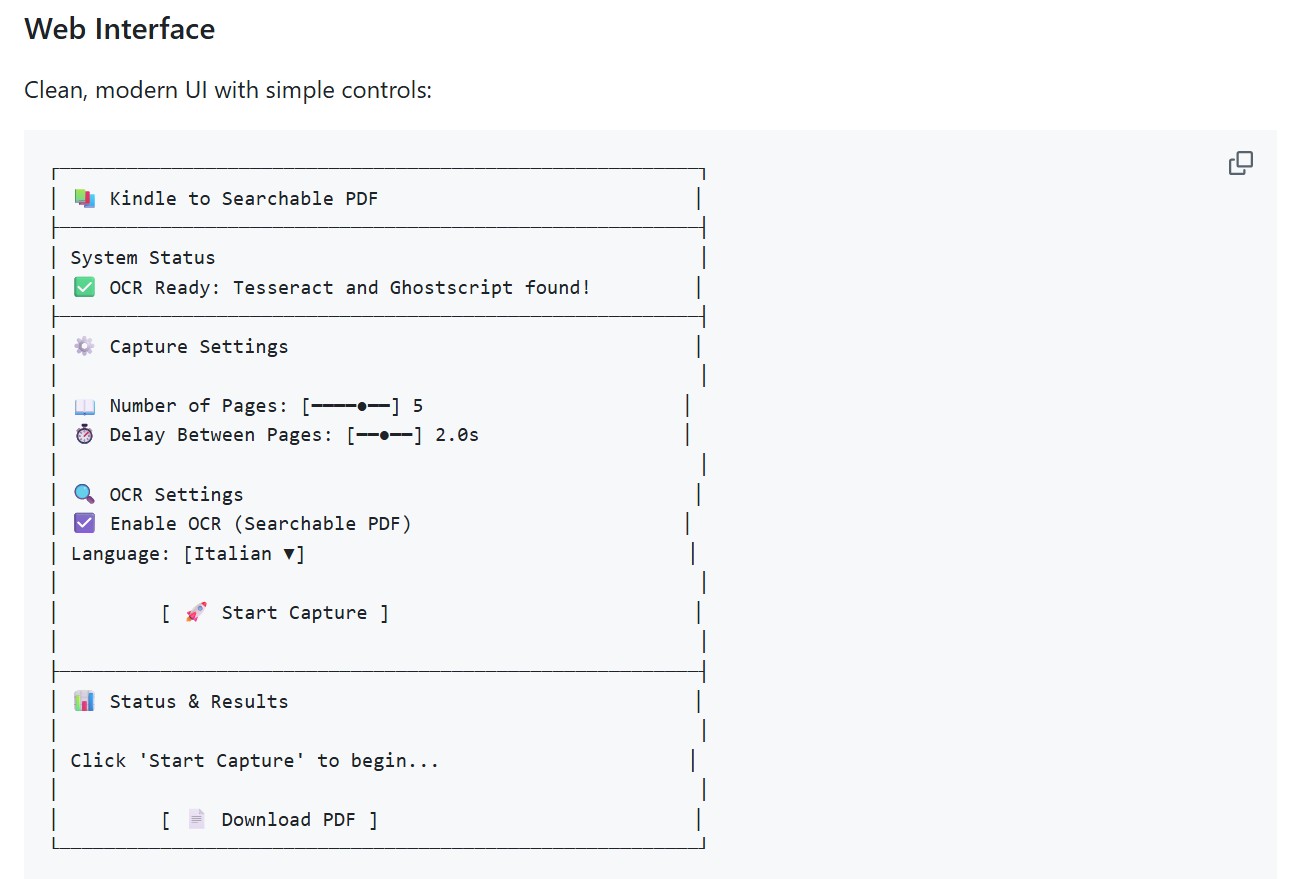
kindle-pdf-ocr captures screenshots from Kindle for PC and turns them into a searchable PDF with an invisible text layer. This means you get a fully readable PDF that can also be indexed and searched by common document readers.
My Test Result 💻
What surprised me first is that the PDF is actually searchable, not just image-based, which already makes it more practical than basic screenshot tools. The automatic page capture also works most of the time, so you don't have to flip pages manually.
The trade-offs, however, are hard to ignore. Setting up the environment alone took me 20 minutes. Furthermore, the DRM-free output suffers from frequent OCR errors, resulting in a noticeable drop in text quality compared to the original. I even encountered missing pages when processing larger files. It can work for short books, but for anything longer, it's simply not stable enough to rely on.
- Generates searchable PDF (not image-only)
- Fully automated page capture, no manual flipping needed
- Can handle books that other DRM tools fail on
- Output is usable for searching and basic reading
- OCR errors are noticeable and frequent
- Text quality is visibly worse than the original
- Page capture can miss pages during long runs
- Not stable enough for long books
- Lower resolution compared to original Kindle content
How to Remove DRM with kindle-pdf-ocr
Step 1: Install Python, then install dependencies and required tools (Tesseract + Ghostscript).
Step 2: Run the program:
python app.py
Open the local web interface in your browser.
Step 3: Set capture options (page number, delay, OCR language) in the interface.
Step 4: Open your book in Kindle for PC, switch to fullscreen (F11), and go to the first page.
Step 5: Click Start Capture, let it automatically flip pages and take screenshots.
Step 6: Wait for OCR processing, then download the final searchable PDF.
- Detailed Official Guide: https://github.com/josscit/kindle-pdf-ocr
KindleOCR (Basic OCR Workaround)
- Best for: Readers who just want a free workaround that actually works and don't mind slow speed or rough output, especially Linux users who can't rely on traditional Kindle DRM removal software.
- Rating: ⭐⭐⭐
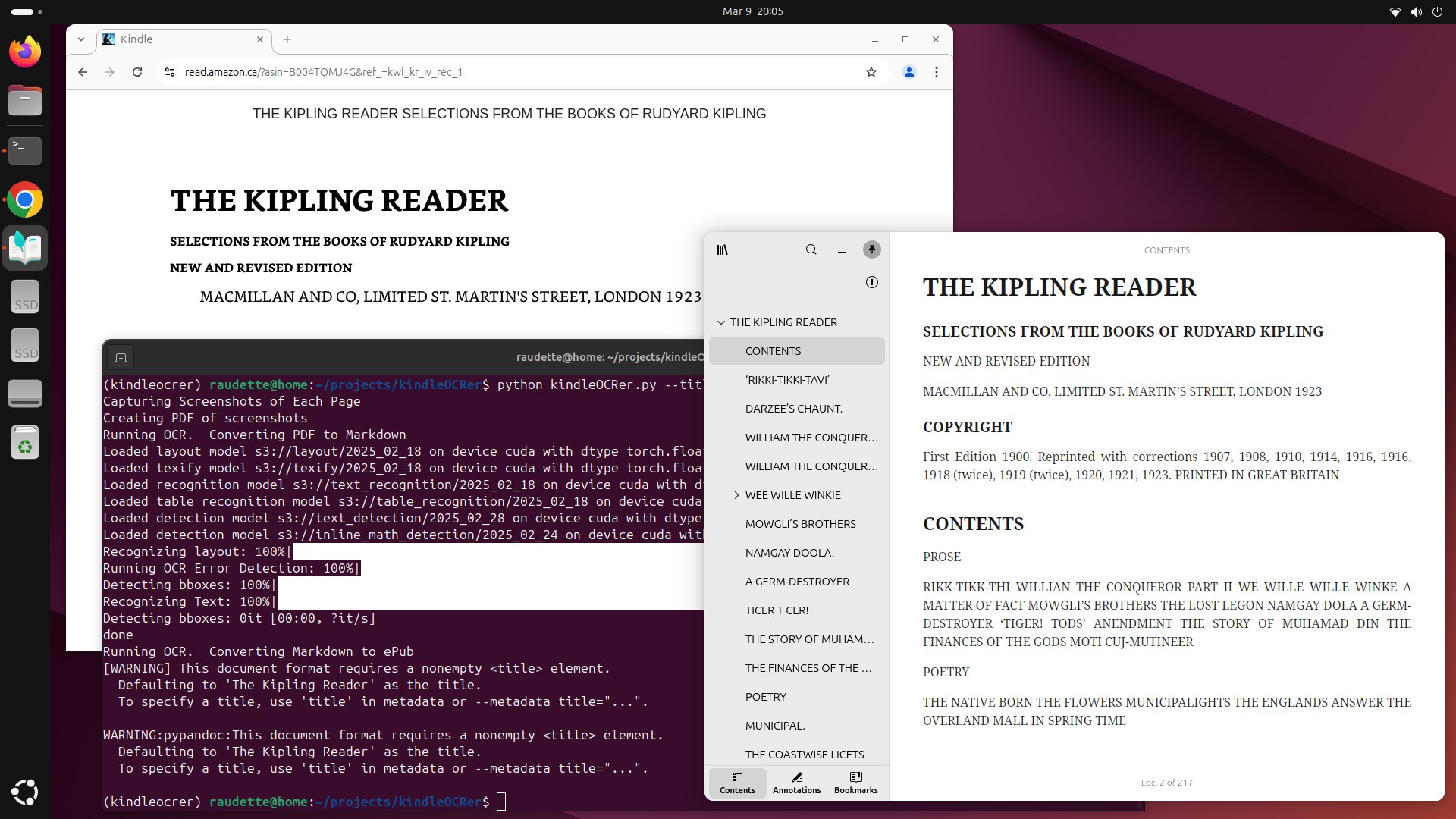
KindleOCR is essentially an improved fork of kindleOCRer, but both follow the same core idea. Instead of working on the original Kindle file, they open Kindle Web Reader in a browser, automatically flip pages, capture screenshots, and rebuild the book into EPUB or PDF using OCR. Compared to the original script, KindleOCR improves chapter detection and produces EPUB files that better match the structure of the original book.
My Test Result 💻
The tool was able to complete the full process and generate a readable PDF that works across different readers. However, it is noticeably slow, and CPU usage stays high during execution. It first outputs all page screenshots, then generates a final merged file. OCR errors are quite visible, and the overall text quality drops compared to the original. Also, since the original script was only tested on Linux, getting it to run on macOS or Windows requires some technical setup and troubleshooting.
- Actually works, even when other methods fail
- Completely free and open source
- Not tied to Kindle file formats
- Works as long as the book opens in Web Reader
- Rebuilds a readable EPUB or PDF reading
- Very slow, especially for longer books
- High CPU usage during processing
- OCR errors are frequent and noticeable
- Output quality is clearly lower than original
- Requires manual setup and troubleshooting
How to Export DRM-Free Books with KindleOCR
Step 1: Download the project from GitHub and unzip it. Open the folder in your terminal, then install the required dependencies:
pip install -r requirements.txt
Step 2: Inside the folder, find the file called sampledotenv, rename it to .env, and fill in your Kindle account details. This file is used to store login information for the script.
Step 3: Open your book in Kindle Web Reader using Chrome, go to the first reading page (skip the table of contents), then close the browser before continuing.
Step 4: Run the script:
python kindleOCRer.py --title="Book Title" --jobname="your_job"
The script will reopen the browser, log in, flip pages automatically, and capture screenshots of the entire book.
Step 5: Wait for it to finish. It will process all screenshots with OCR and generate a final EPUB or PDF file in the output folder.
- Detailed Official Guide: https://github.com/PolarisFx/KindleOCR
Calibre + DeDRM (Free DRM Removal Software)
- Best for: Readers who want a free Kindle DRM remover with better output quality and don't mind some setup.
- Rating: ⭐⭐⭐⭐
Calibre combined with the DeDRM plugin is still the most widely used free Kindle DRM removal software. It works directly on downloaded Kindle files, removing DRM during import and allowing you to convert books into EPUB, PDF, and other formats. With the KFX Input plugin, it can also handle newer Kindle formats like KFX, although the success rate is lower, especially for heavily protected KFX files.
Calibre also depends heavily on the Kindle for PC version. If you plan to download books through the Kindle app, using an older version (such as 2.4.0 or earlier) is usually required. Alternatively, you can transfer books from a Kindle device via USB and then import them into Calibre for DRM removal.
My Test Result 💻
On Windows 11, this method worked reliably once everything was set up correctly. I tested several Kindle books, including KFX and AZW formats downloaded via Kindle for PC 2.4.0, and DRM was removed automatically during import into Calibre.
I have to say this approach has a major limitation. Because it relies on older Kindle for PC versions, it no longer works well for newer books. Since around April 2025, Amazon has restricted older app versions from downloading newly released titles . As a result, Kindle for PC 2.4.0 cannot download many books purchased in 2026, which makes this method less effective for newer content. For newer Kindle books, Calibre with plugins alone is often not enough, and you may need to use more advanced tools like BookFab Kindle Converter instead.
- True Kindle DRM removal from original files (not OCR-based)
- High-quality output close to the original formatting
- Supports multiple formats (EPUB, PDF, AZW3, etc.)
- Fully free and open-source software
- Plugin setup is complex and not beginner-friendly
- Depends heavily on specific Kindle app versions
- Often fails on newer Kindle books or hardened KFX formats
- Compatibility issues on macOS
How to Use Calibre for Kindle DRM Removal
Step 1: Install Calibre, then download the DeDRM plugin and KFX Input plugin.
Step 2: Open Calibre → Preferences → Plugins → "Load plugin from file", and install the DeDRM plugin.
Step 3: Download your Kindle books using Kindle for PC (preferably version 2.4.0 or earlier).
Step 4: Drag the downloaded Kindle files into Calibre. Wait for import. DRM will be removed automatically.
Step 5: Convert the book into EPUB, PDF, or other formats as needed.
- Android / Emulator method: Uses an older Kindle for Android version to extract keys and files, then imports them into Calibre. Works in some cases but not stable.
- Kindle_Key_Finder: Automatically extracts Kindle keys and imports them into DeDRM, making setup easier but still dependent on compatible files.
BookFab Kindle Converter (Most Reliable and Simplest Option)
- Best for: Users who want a simple, stable Kindle DRM removal solution that works on both old and new books without complex steps.
- Rating: ⭐⭐⭐⭐⭐
BookFab Kindle Converter is the most reliable Kindle DRM removal software designed to handle modern Kindle formats with minimal effort. Unlike Calibre or OCR-based methods, it supports formats like AZW, AZW3, and KFX without being limited by specific Kindle for PC versions. It automatically detects books downloaded through Kindle for PC, removes DRM, and exports them to EPUB or PDF while preserving formatting and quality.
My Test Result 💻
On both Windows and macOS, BookFab Kindle Converter handled multiple Kindle books smoothly, including newer titles with hardened KFX that failed with Calibre. I installed the latest Kindle for PC (version 2.9.1), downloaded several books, and BookFab automatically detected and displayed them in its interface. From there, I simply selected the books I wanted and completed the DRM removal and conversion with a single click.
- One-click Kindle DRM removal and conversion
- Supports KFX, AZW, AZW3, and other formats
- Works with newer Kindle books
- Clean output with preserved formatting and layout
- No plugins, scripts, or manual configuration needed
- Offers a free trial (convert up to 3 books)
- Includes a free BookFab Calibre plugin for handling newer KFX files
How to DeDRM Kindle with BookFab Kindle Converter?
Step 1: Install Kindle for PC, then log into your Amazon account. Download the Kindle books you want to process.
Step 2: Install and open BookFab. Go to the Kindle Converter module. Your downloaded Kindle books will appear automatically.
Step 3: In settings, choose an output format (EPUB or PDF).
Step 4: Select the books you want to convert, and click Convert & Decrypt to start the Kindle DRM removal process.
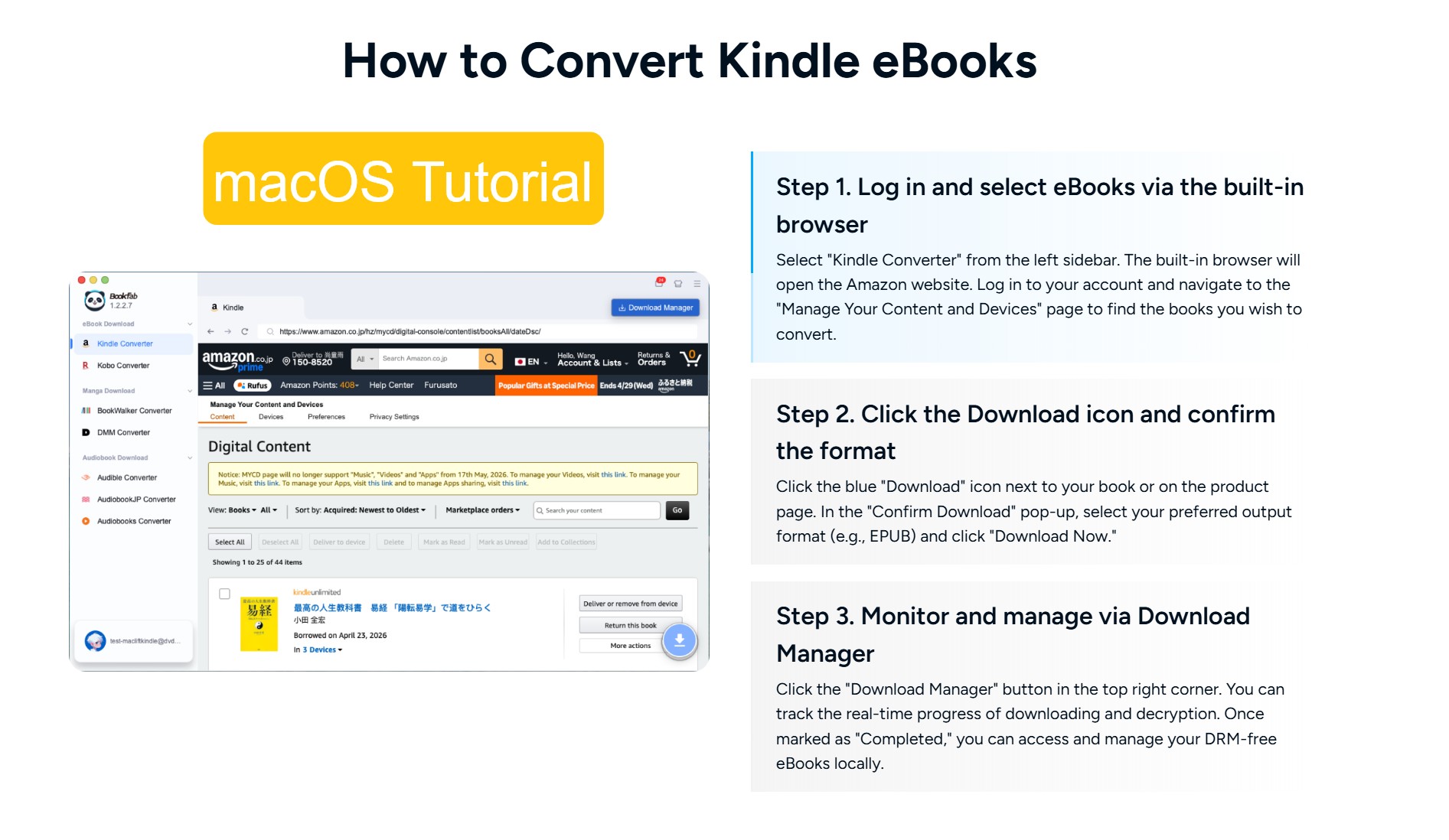
Note: The steps above are for Windows. On Mac, BookFab Kindle Converter includes a built-in browser, so Kindle for PC is not required. Users can log in to their Amazon Kindle account within BookFab and download selected books directly as EPUB or PDF files.
Online Free Kindle DRM Removal Tool (Proven Not Working)
- Best for: Readers who just want to try the simplest possible method first, but should not expect it to work with real Kindle DRM.
- Rating: ⭐
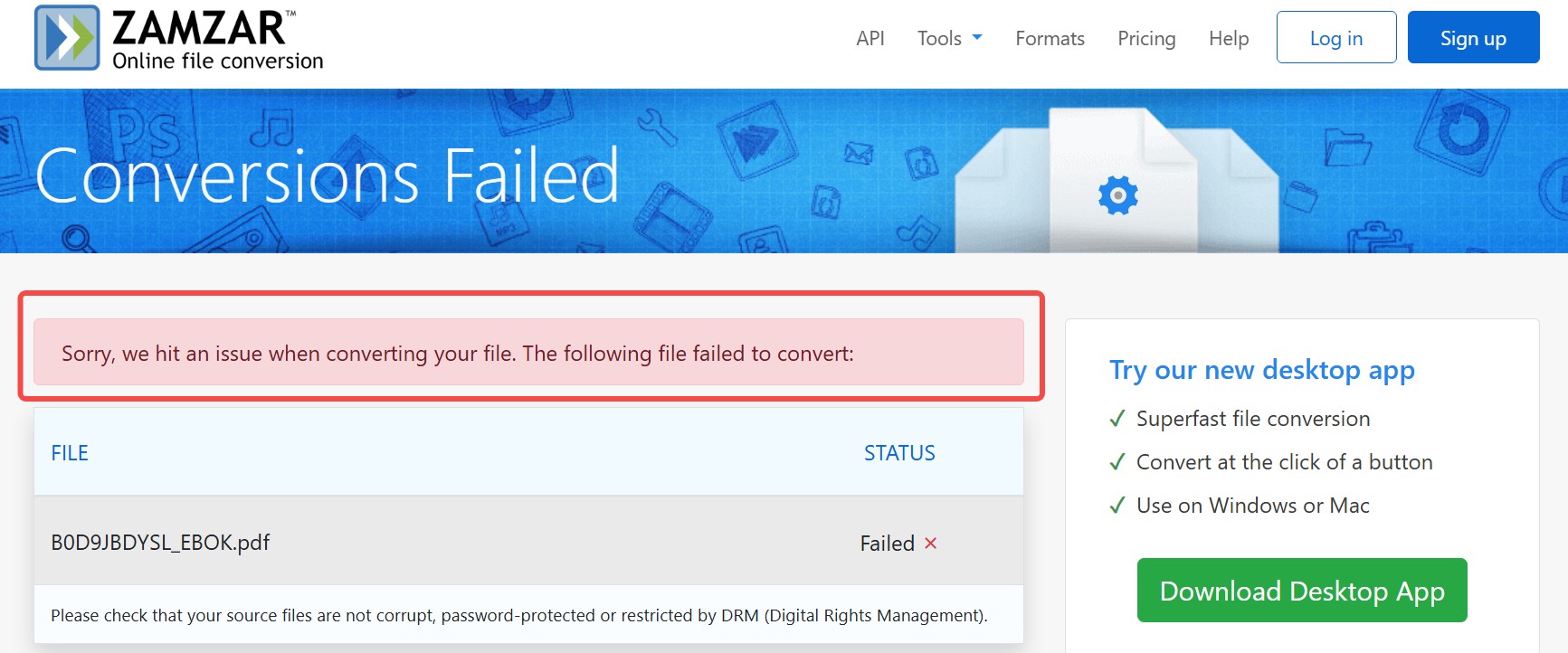
Online free Kindle DRM removal tools usually claim to convert Kindle files directly in your browser. The process is simple: upload your Kindle file, click convert, and download the result. However, in reality, most of these tools cannot handle actual Kindle DRM and only work if the file is already DRM-free.
My Test Result 💻
I tested a few popular online converters such as Zamzar and Online-Convert on both Windows and macOS using AZW files downloaded from Kindle for PC. Although these tools technically support the format, the DRM protection prevents them from working properly. In most cases, the tools either failed to process the file or returned an error almost immediately. None of them were able to remove DRM or generate a usable output file, even after multiple attempts.
- Extremely easy to use (no installation required)
- Works directly in a browser
- No setup or technical knowledge needed
- Does not work with DRM-protected Kindle books
- Returns errors or unusable output
- No real success in practical testing
Final Verdict
Not all Kindle DRM removal methods are worth the effort. Some ask you to spend half an hour setting things up, only to fail on the actual book you want to save. Some work, but feel more like technical experiments than something an average reader would want to deal with.
So instead of trying everything, it makes more sense to choose the method based on your situation.
- If your books were purchased before April 2025: try Calibre + DeDRM as your first choice.
- If you are comfortable with the command line and setting up script environments: OCR tools are a free Kindle DRM removal workaround. However, you must be willing to accept the occasional text recognition errors inherent to OCR technology.
- If you want the easiest and most effective solution, with zero quality loss and flexible output formats: Go with BookFab Kindle Converter.
Disclaimer: This article is for educational and informational purposes only. Kindle DRM removal may violate local copyright laws, like the DMCA, and Amazon's Terms of Service. These tools should only be used to create personal backups of legally purchased books for private use.

 4 Easy Ways to Convert Kindle to PDFBy Amber Collins - May 18, 2026
 How to Print Kindle Books Without Losing QualityBy Amber Collins - May 14, 2026
![[Quick Solution] How to Remove Kindle DRM on Mac](https://images.dvdfab.cn/media/未命名的设计__87__crpyru.png/public) [Quick Solution] How to Remove Kindle DRM on MacBy Amber Collins - May 11, 2026
[Quick Solution] How to Remove Kindle DRM on MacBy Amber Collins - May 11, 2026 How to Download Kindle Books to PC in 2026 (The Complete Guide)By Amber Collins - May 9, 2026