
AZW DRM Removal Guide: How to Remove DRM from AZW3 & AZW

Summary: To remove DRM from AZW3 or AZW files, you can use BookFab Kindle Converter or Calibre with the DeDRM plugin. BookFab is the most reliable, beginner-friendly solution supporting all Kindle formats. In contrast, Calibre is a free, open-source option that requires manual setup and has more limitations. This guide provides a detailed walkthrough for both AZW DRM removal tools to help you unlock your Kindle library.
While many veteran Kindle users are ready to move on to a non-Amazon e-ink device, they often find their Kindle library trapped in Amazon's proprietary AZW and AZW3 formats. To read these books on a new device, removing the AZW DRM is an essential but simple step. In this guide, I'll show you how to remove DRM from AZW3 or AZW using two proven methods: exporting directly from your E-ink device or using the Kindle for PC app. Let's get your Kindle library ready for your next e-reader.
What Are AZW and AZW3 Files
AZW and AZW3 are Amazon's primary proprietary formats used for most of its modern eBooks. Simply put, AZW is the older Kindle-exclusive format, whereas AZW3 is its upgraded successor. Also commonly known as KF8, AZW3 was launched in 2011 alongside the Kindle Fire tablet, offering much richer formatting and styling capabilities compared to the original AZW.
AZW3 has been supported since the 4th generation of Kindle devices. For instance, if you own a Kindle Paperwhite 2, the eBooks exported from it are highly likely to be in the AZW3 format. In addition to direct exports from E-ink devices, local files downloaded via Kindle for PC or Kindle for Mac are also frequently saved in these AZW or AZW3 formats.
So, is it easy to remove DRM from AZW3 or AZW? Absolutely. Whether you are dealing with an AZW3 file exported directly from your e-reader or an AZW file downloaded from Kindle for PC, the encryption can be stripped away effortlessly, even for absolute beginners. Below, we will introduce the specific AZW DRM removal tool you'll need, along with a detailed step-by-step guide.
Method 1: Remove DRM from AZW/AZW3 with Calibre DeDRM Plugin
Calibre has long been the go-to solution for free AZW DRM removal. Since AZW is an older, legacy format, Calibre handles it with remarkable stability. You'll only need the DeDRM plugin to get the job done—no extra KFX plugins required.
Route 1: Remove DRM from AZW via Kindle E-ink Device
Step 1: Install Calibre and the DeDRM Plugin
Download and install the latest version of Calibre on your computer. Next, download the DeDRM plugin archive from its official source and locate the "DeDRM_plugin.zip" file inside.
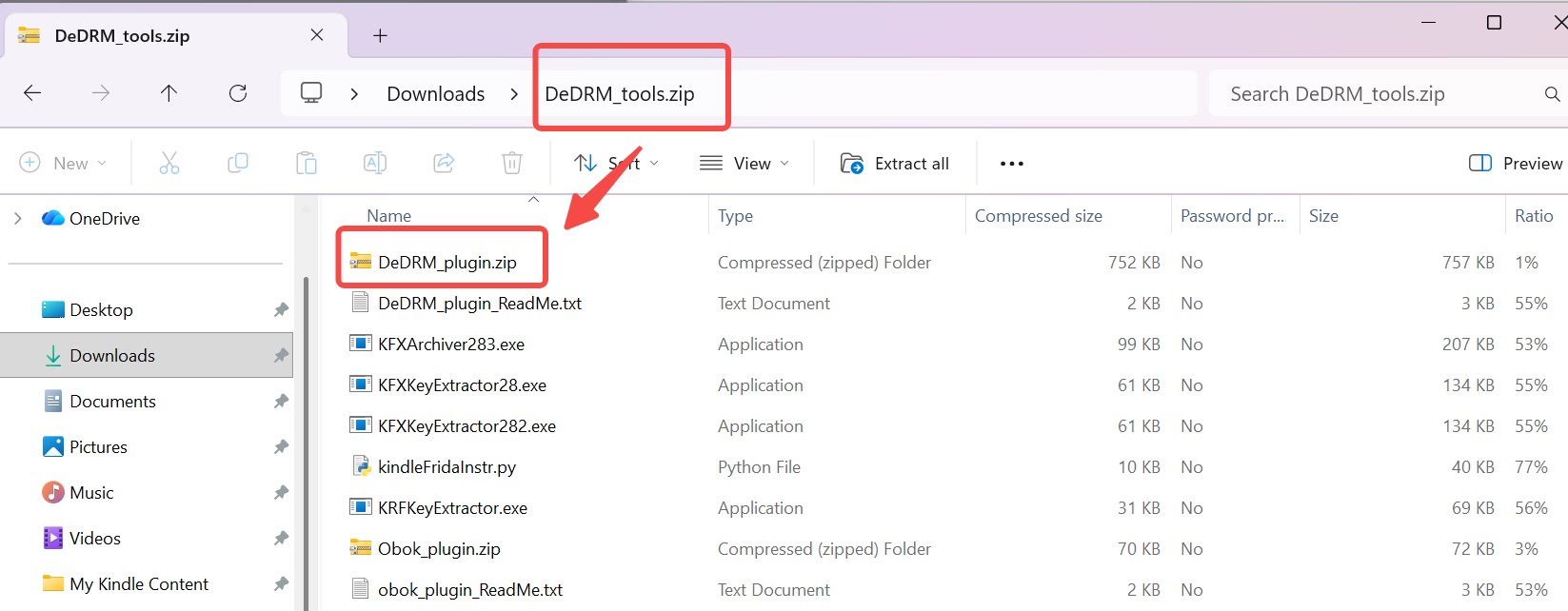
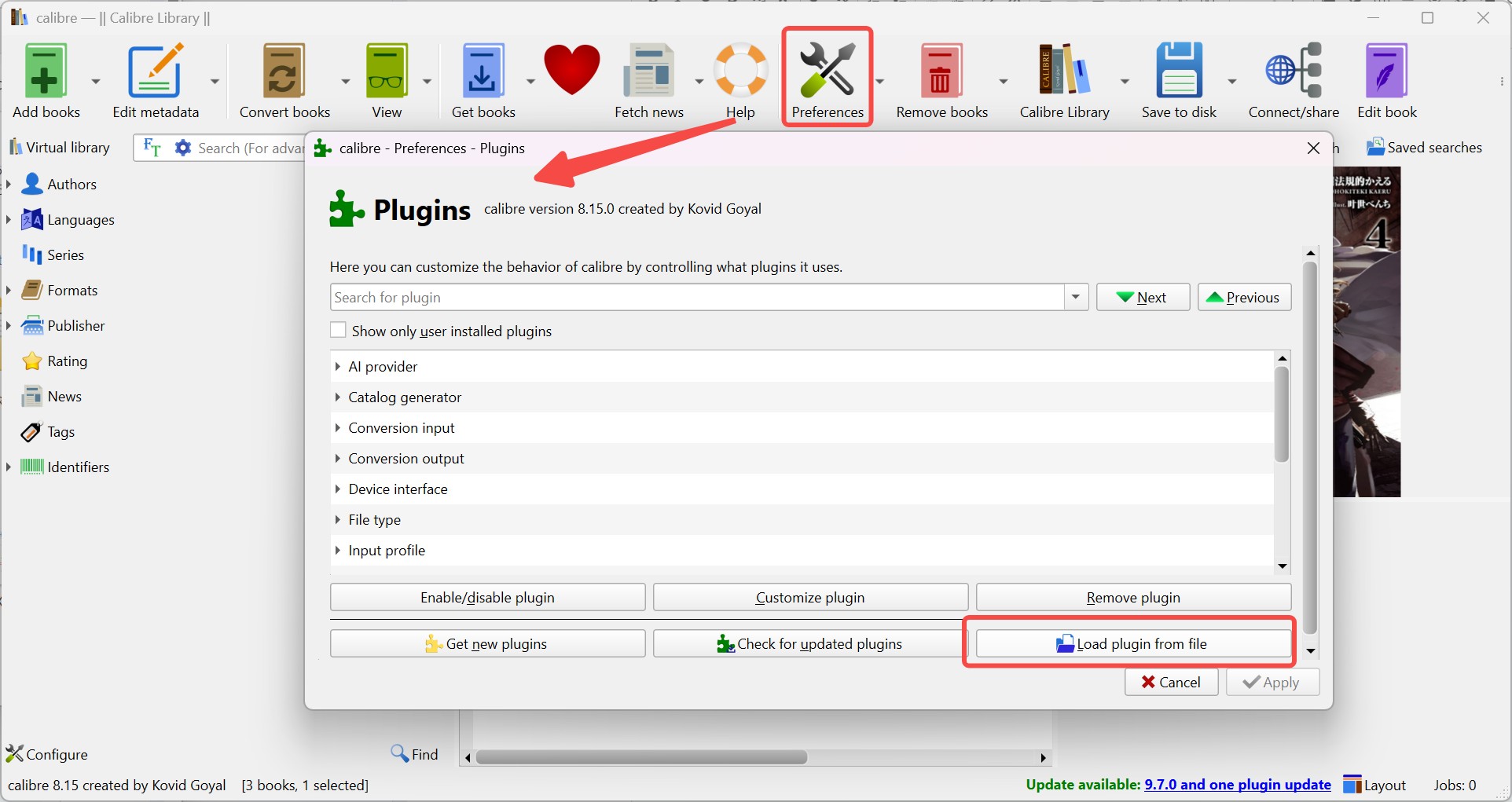
In Calibre, navigate to Preferences > Plugins > Load plugin from file, select the "DeDRM_plugin.zip" to install it, and restart Calibre to enable the AZW decryption features.
Step 2: Get Your Kindle Serial Number
On your physical Kindle, go to Settings > Device Options > Device Info to find your 16-digit Serial Number. Write this number down carefully without any spaces, as it is required for the plugin to recognize and decrypt the AZW files associated with your hardware.
Step 3: Configure the DeDRM Plugin
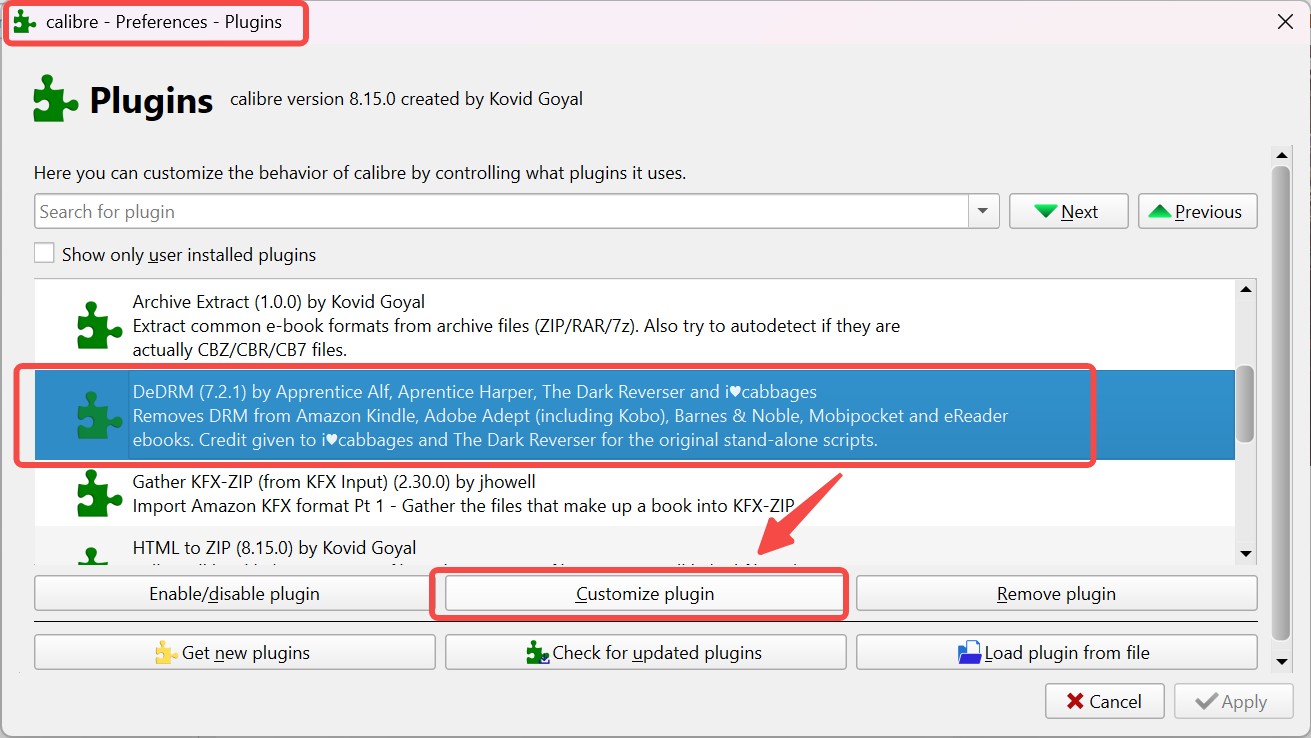
Return to the Plugins menu in Calibre, find DeDRM under the "File type" section, and click "Customize plugin." Select "eInk Kindle ebooks" from the list, click the green plus icon, and enter your Kindle's Serial Number. Click OK and apply the changes.
Step 4: Import and Decrypt AZW Files
Connect your Kindle to your computer via USB and locate the "documents" folder within the device's storage. Find the .azw files you wish to unlock and drag them directly into the Calibre main window. Calibre will instantly use the configured serial number to remove Kindle DRM.
Route 2: Remove DRM from AZW via Kindle for PC
Step 1: Install Kindle App and Calibre
Install an old version of the Kindle for PC app (before v2.4.0) and the latest version of Calibre. Next, download the DeDRM plugin archive from its official source and locate the "DeDRM_plugin.zip" file inside.
Step 2: Add the DeDRM Plugin to Calibre
Open Calibre's Preferences, select the Plugins icon, and click "Load plugin from file" to install the DeDRM zip archive you downloaded. This step prepares Calibre to handle background decryption automatically. Make sure to restart Calibre after installation to ensure the plugin is fully active and ready for the next steps.
Step 3: Download AZW Books to Your PC
Locate your purchased books in the library, right-click them, and select "Download." This will save the books as .azw files in your "My Kindle Content" folder.
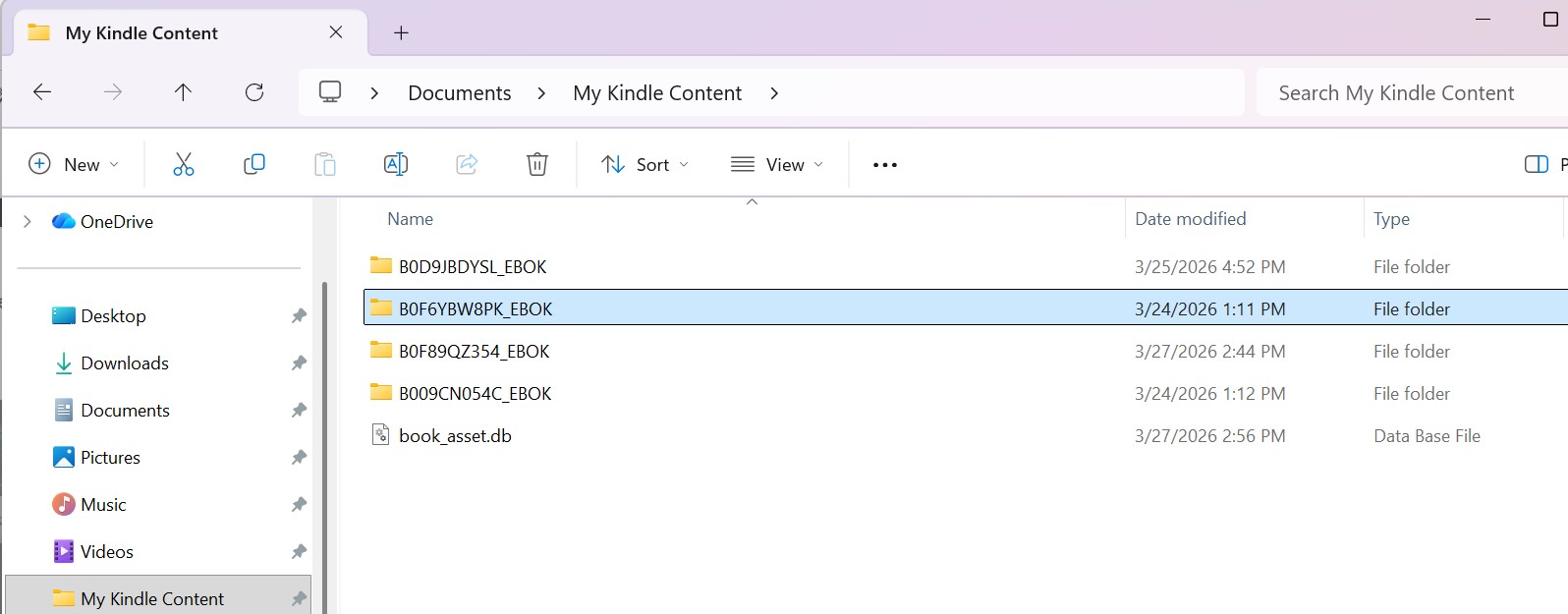
Step 4: Decrypt by Importing to Calibre
Drag downloaded .azw files into the Calibre library. Calibre will automatically detect the protection and remove it during the import. After that, you can click "Convert books" to convert AZW3 to PDF or other formats.
If you are trying to remove DRM from AZW3 or AZW books published after this date, your options are:
- Export the book file using a Kindle E-Ink device.
- Install the new DeDRM plugin for the latest Kindle for PC (extremely difficult to set up). https://github.com/Satsuoni/DeDRM_tools/releases/
- (Recommended) Try BookFab Kindle Converter, the most straightforward AZW DRM removal tool.
Method 2: Remove DRM from AZW3/AZW with BookFab Kindle Converter
BookFab Kindle Converter is a professional AZW DRM removal software. It requires no plugins to remove DRM from AZW3, AZW, and KFX formats, and can output DRM-free books in PDF or EPUB. Unlike Calibre, it is compatible with the latest version of Kindle for PC, ensuring you can successfully download books purchased and released in 2026.
- No-plugin DRM removal (AZW, AZW3, KFX).
- Convert Kindle to PDF, EPUB, or DRM-free original format.
- Auto-detect books from the Kindle app.
- High-speed batch conversion in seconds.
- Compatible with the latest Kindle app.
- Offer free BookFab Calibre Plugin for DRM removal in Calibre.
- Beginner-friendly, one-click conversion.
Step 1: Free Download BookFab
Download BookFab for free and install it on your computer.
Step 2: Download eBooks via Kindle for PC
Open Kindle for PC. In your library, locate the books you want to decrypt, right-click the covers, and select "Download." Ensure the download is 100% complete so that the .azw or .kfx files are stored locally in your "My Kindle Content" folder, making them ready for the conversion process.
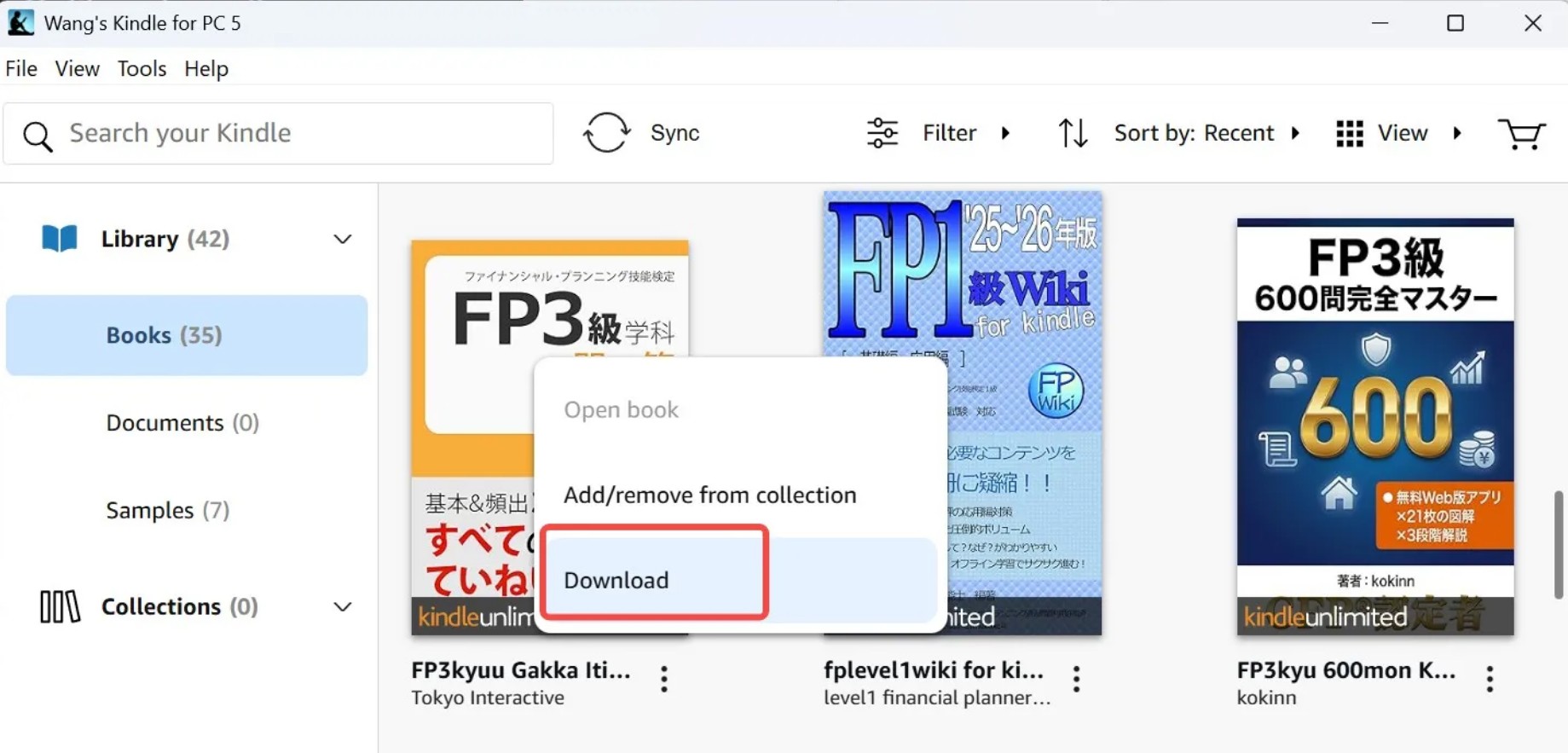
Step 3: Sync Your Library with BookFab
Launch BookFab and navigate to the "Kindle Converter" tab in the left sidebar. The software will automatically scan your computer and detect all books downloaded via the Kindle app. If you don't see your latest purchases, click the "Refresh" button to sync your library.
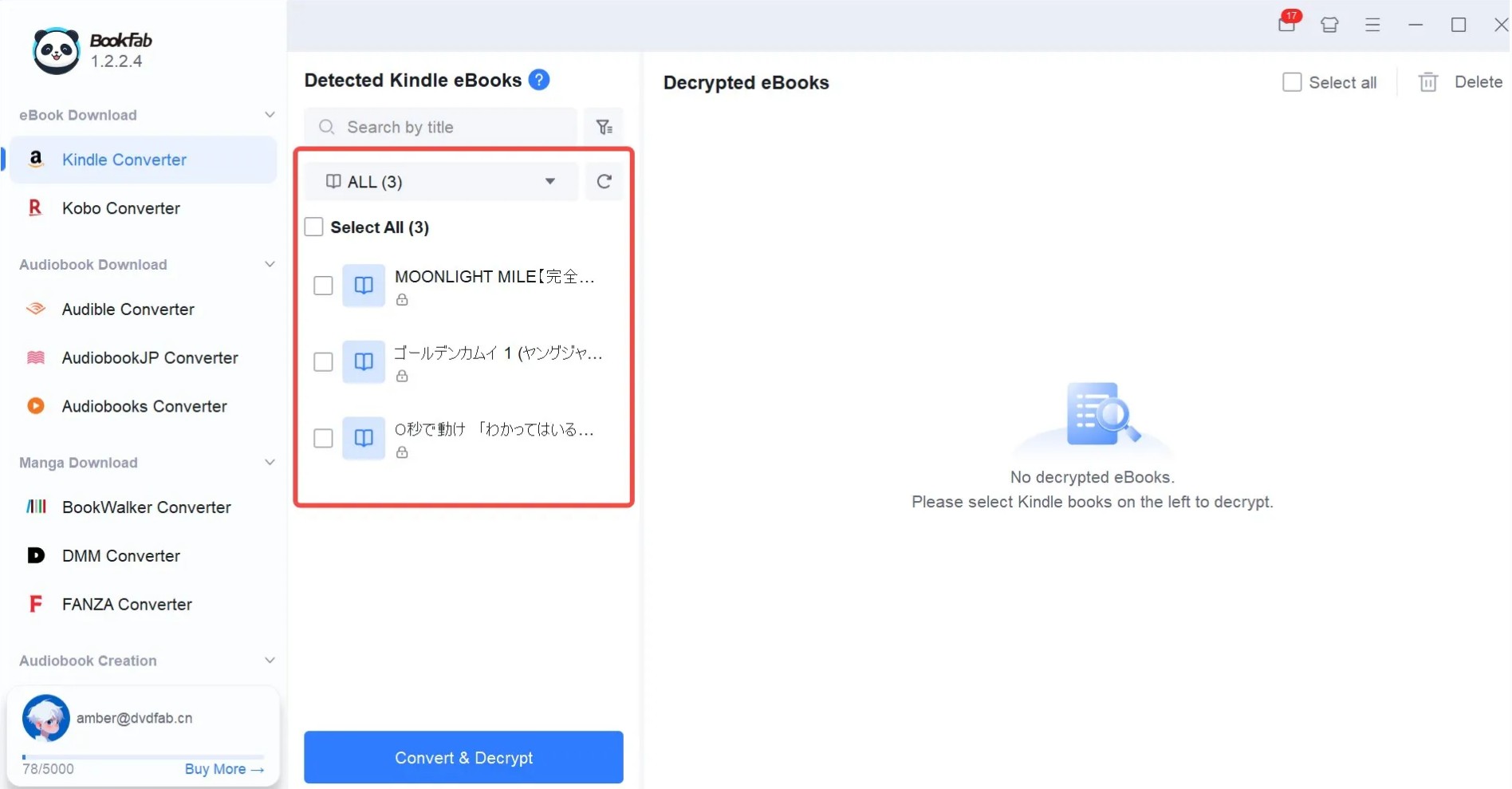
Step 4: Decrypt and Convert Your eBooks
Select the books you wish to process from the list. If you need a specific format, in settings, you can adjust the output to convert Kindle to PDF, EPUB, or keep the original format. Finally, click the "Convert & Decrypt" button to start the removal process. Within seconds, your DRM-free files will be saved to your designated output folder.
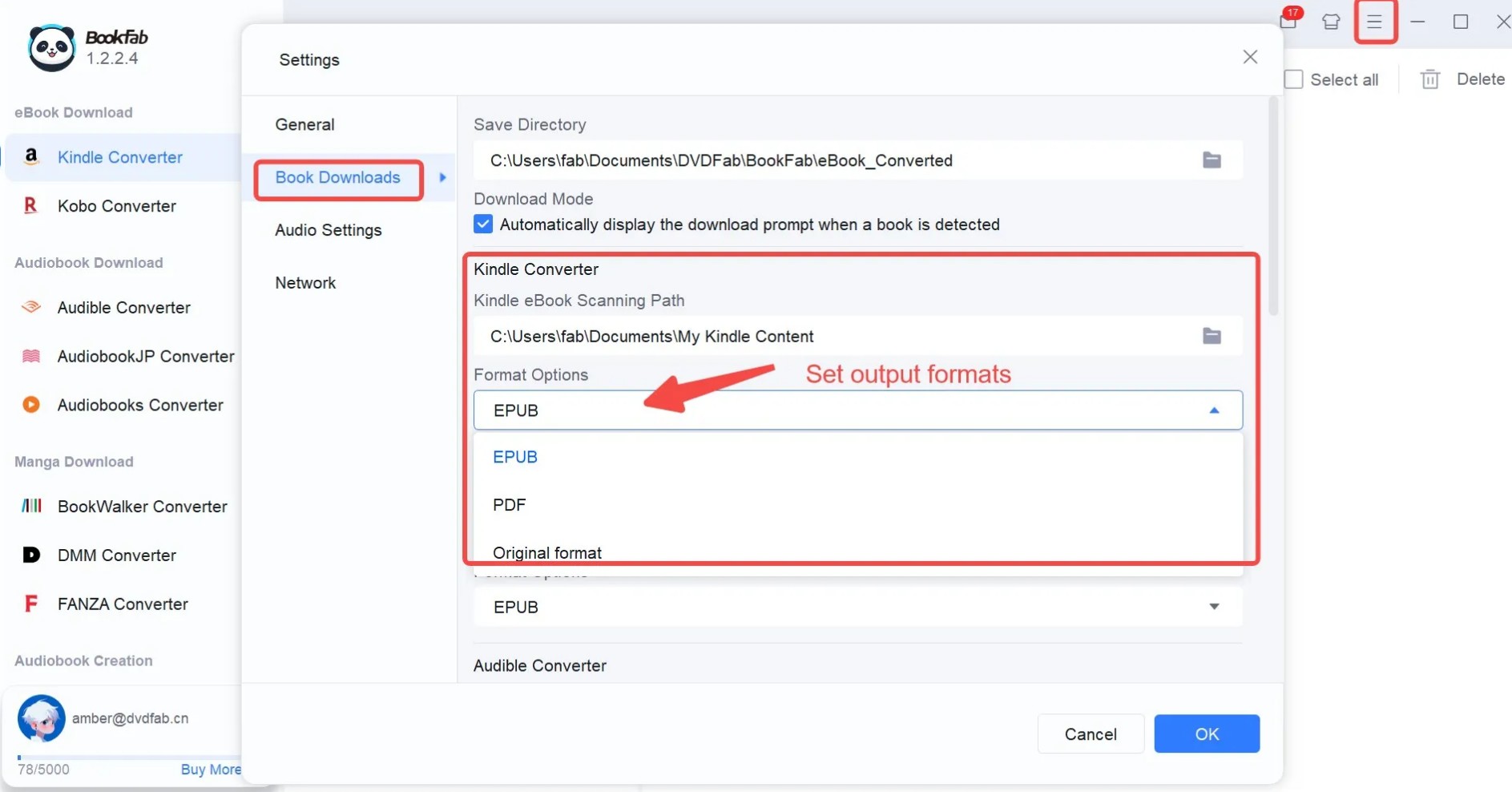
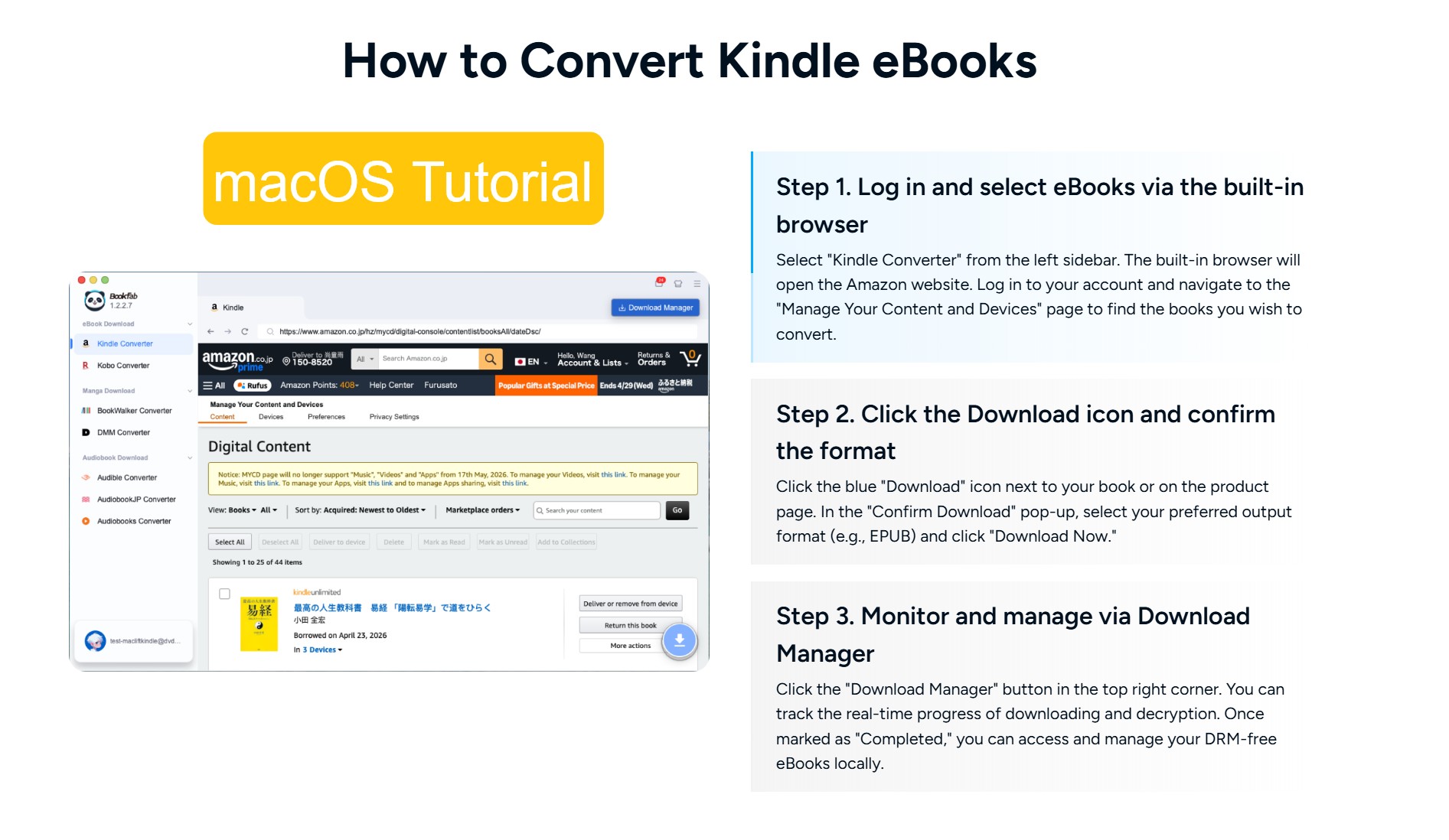
Note: The steps above are for Windows. On Mac, converting Kindle books to EPUB with BookFab Kindle Converter is even easier, and Kindle for PC is not required. BookFab Kindle Converter for Mac comes with a built-in browser. You only need to select the Kindle Converter module, log in to your Kindle account, choose the book you want to process, click the blue download button in BookFab, select the output format, and remove DRM.
FAQ
Is it legal to remove DRM from Kindle AZW books?
Removing Kindle DRM is generally prohibited under laws like the U.S. DMCA. While personal use is often tolerated in practice, sharing or selling DRM-free copies is strictly illegal. Please ensure you only use these tools for books you have personally purchased. Legality depends on your location, so always check your local regulations first.
Does AZW have DRM?
Most of the time, yes. If you purchase the book directly from the Amazon Kindle Store, it is almost certainly wrapped in DRM to prevent it from being opened in non-Kindle apps. However, AZW itself is just a "container." If you download a DRM-free book from a public domain site and it happens to be in AZW format, it won't have encryption.
What is the difference between AZW3 and KFX?
While AZW3 is a single-file format similar to EPUB and relatively easy to decrypt, KFX is a more complex format that fragments a book into multiple data pieces to support "Enhanced Typesetting." This fragmented structure makes KFX significantly harder to unlock with standard plugins, which is why most readers now rely on BookFab Kindle Converter to handle these newer, tougher files automatically.
Can I remove AZW DRM on a Mac?
Yes, many DRM removal tools are fully compatible with macOS. However, Calibre AZW DRM removal often requires more troubleshooting to get plugins running correctly compared with the Windows version. For a more seamless experience, BookFab Kindle Converter is the preferred choice for Mac users. Its Mac version includes a built-in browser, so Kindle app is not required. Users can log in to their Kindle account within BookFab and download selected Kindle books directly as EPUB files.
Conclusion
After trying both methods, I feel they can cover most AZW DRM removal situations I would normally run into. If the AZW or AZW3 files come from an older Kindle device, Calibre is still worth using. But for books downloaded through the latest Kindle for PC, especially newer books published after 2025, BookFab Kindle Converter feels much easier and more reliable. Of course, I only recommend using these tools for books you have purchased yourself and for personal reading convenience. Sharing or distributing decrypted books is never acceptable.
Disclaimer: This guide is for educational and personal use only. Please ensure you own the books before removing DRM and comply with your local laws and Amazon's Terms of Service.

 4 Easy Ways to Convert Kindle to PDFBy Amber Collins - May 18, 2026
 How to Print Kindle Books Without Losing QualityBy Amber Collins - May 14, 2026
![[Quick Solution] How to Remove Kindle DRM on Mac](https://images.dvdfab.cn/media/未命名的设计__87__crpyru.png/public) [Quick Solution] How to Remove Kindle DRM on MacBy Amber Collins - May 11, 2026
[Quick Solution] How to Remove Kindle DRM on MacBy Amber Collins - May 11, 2026 How to Download Kindle Books to PC in 2026 (The Complete Guide)By Amber Collins - May 9, 2026