
How to Transfer Kindle Books to Kobo: Read Kindle Books on Kobo Easily

Summary: To transfer Kindle books to a Kobo, download your Kindle books to your PC, convert them to EPUB format, and then send the converted files to your Kobo device via USB. This guide explains how to get Kindle books on Kobo in two cases: converting DRM-protected Kindle books, and directly transferring DRM-free files to Kobo.
Table of Contents
Kindle has built one of the biggest eBook ecosystems, but its closed formats and DRM can be frustrating. That is one reason many users start looking at Kobo, which works more naturally with EPUB and other open reading formats.
So, how do you transfer Kindle books to Kobo after getting a new Kobo eReader? The basic idea is simple: convert your Kindle books to a Kobo-friendly format, usually EPUB, and then transfer the converted files to your Kobo via USB.
In this tutorial, I will cover two practical cases:
- Case 1: Transfer DRM-protected Kindle books to Kobo.
- Case 2: Transfer DRM-free Kindle books to Kobo.
Case 1: Transfer DRM-Protected Kindle Books to Kobo
Most purchased Kindle books are not plain EPUB files. They are saved in Kindle formats such as AZW, AZW3, or KFX, and many of them come with DRM protection. Since Kobo is built around a different reading ecosystem, it cannot reliably open those original Kindle files as normal books.
To read Kindle books on Kobo, the practical solution is to remove the Kindle DRM first and convert the books to EPUB, a format Kobo supports well. BookFab Kindle Converter is a more direct solution for this situation. Below is how to use it to transfer Kindle books to Kobo.
Before you start, prepare these things:
- A computer: Windows or Mac. The steps below focus on Windows. If you use a Mac, you can follow this simpler Mac Kindle DRM removal guide.
- Kindle for PC app: Required for the Windows workflow, so BookFab can detect the Kindle books downloaded to your computer.
- A Kobo eReader and a USB data cable: You will need them to transfer the converted EPUB files to Kobo.
Step 1: Open BookFab Kindle Converter
Download and install BookFab on your computer. Open the program, then choose Kindle Converter from the left sidebar.
Step 2: Import Kindle Books into BookFab
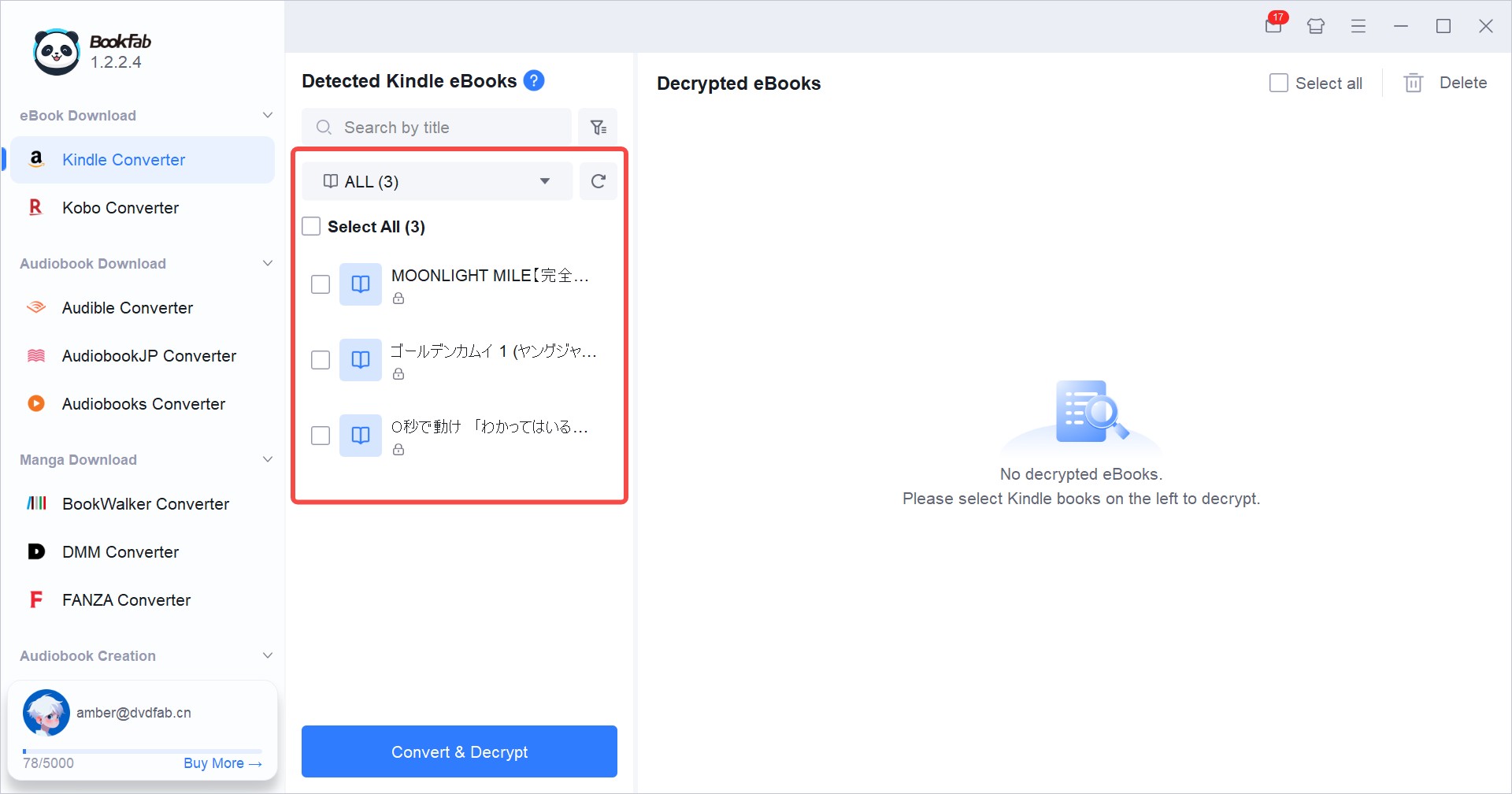
Open Kindle for PC, go to your Kindle library, and double-click the book covers to download the books you want to transfer. After the downloads are complete, close Kindle for PC.
Return to the BookFab Kindle Converter interface and click the Refresh button. The downloaded Kindle books should then appear in BookFab.
Step 3: Set EPUB as the Output Format
Go to Settings > Book Downloads > Kindle Converter > Format Options, then choose EPUB as the output format. Click OK to save the setting.
For Kobo users, EPUB is the better choice in most cases. It lets Kobo adjust font size, line spacing, margins, and page flow in a way that feels natural on an eReader. Kobo officially supports EPUB and PDF among other formats, but EPUB is usually more comfortable for text-based books.
If you also want to convert Kindle to PDF, you can refer to this Kindle to PDF guide.
Step 4: Convert Kindle Books to Kobo-Supported EPUB
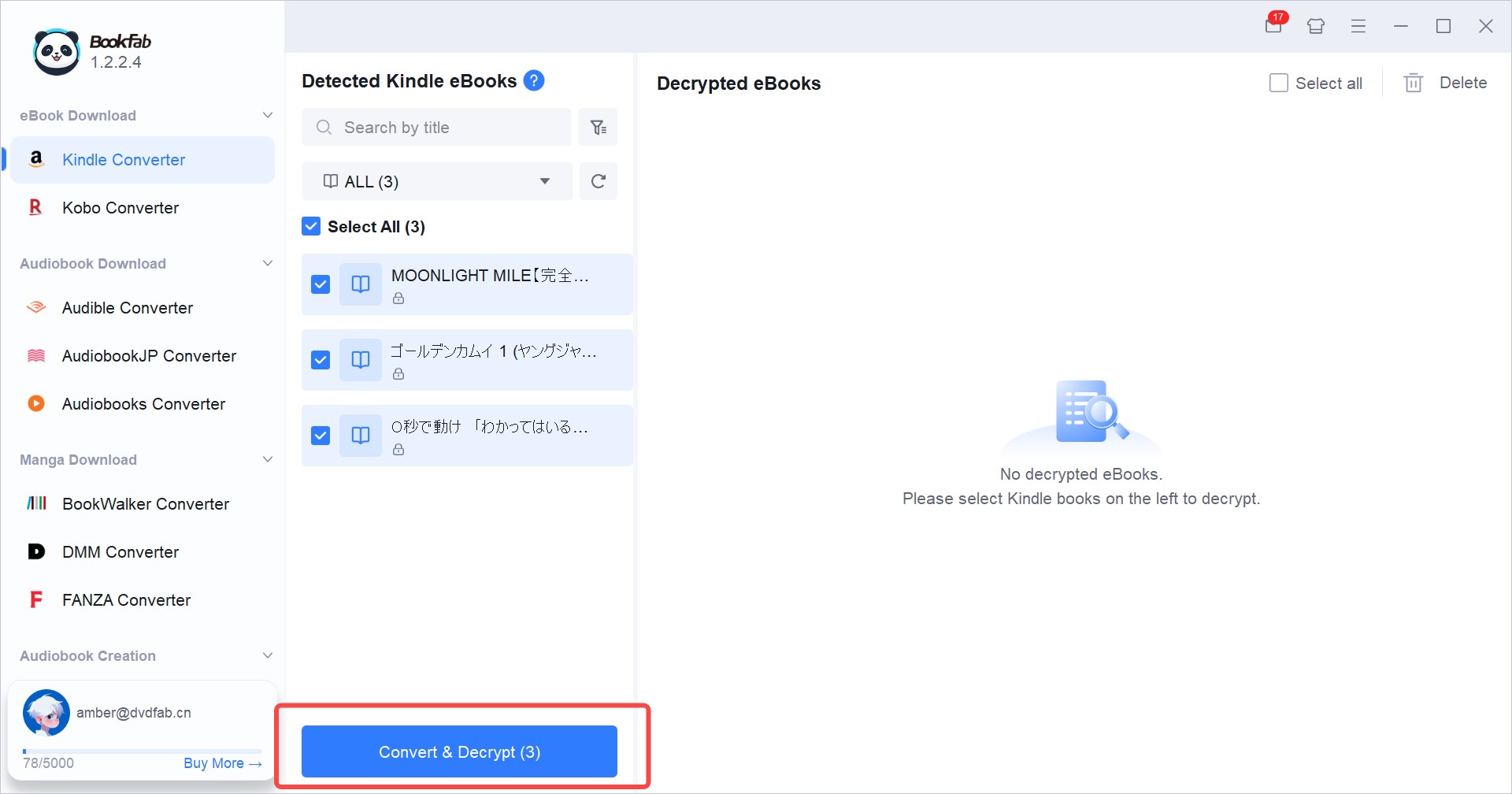
Select the Kindle books you want to transfer, then click "Convert & Decrypt" to start the conversion. Wait for BookFab to export the EPUB files.
After the conversion finishes, open the output folder and check the files before transferring them to Kobo. The exported file should end in .epub, and it should not look like a sample or incomplete file.
Step 5: Transfer Converted Kindle Books to Kobo via USB
Connect your Kobo eReader to your computer with a USB data cable. When the Kobo screen shows the computer connection prompt, tap Connect. Your computer should show a drive named KOBOeReader or something very similar.
Open the Kobo drive and drag the converted EPUB file into it. After the copy finishes, eject the Kobo safely and unplug the cable. Kobo will scan the new file and add it to your library. Now you have successfully transferred Kindle books to Kobo and can read them on your Kobo eReader.
Case 2: Transfer DRM-Free Kindle Books to Kobo
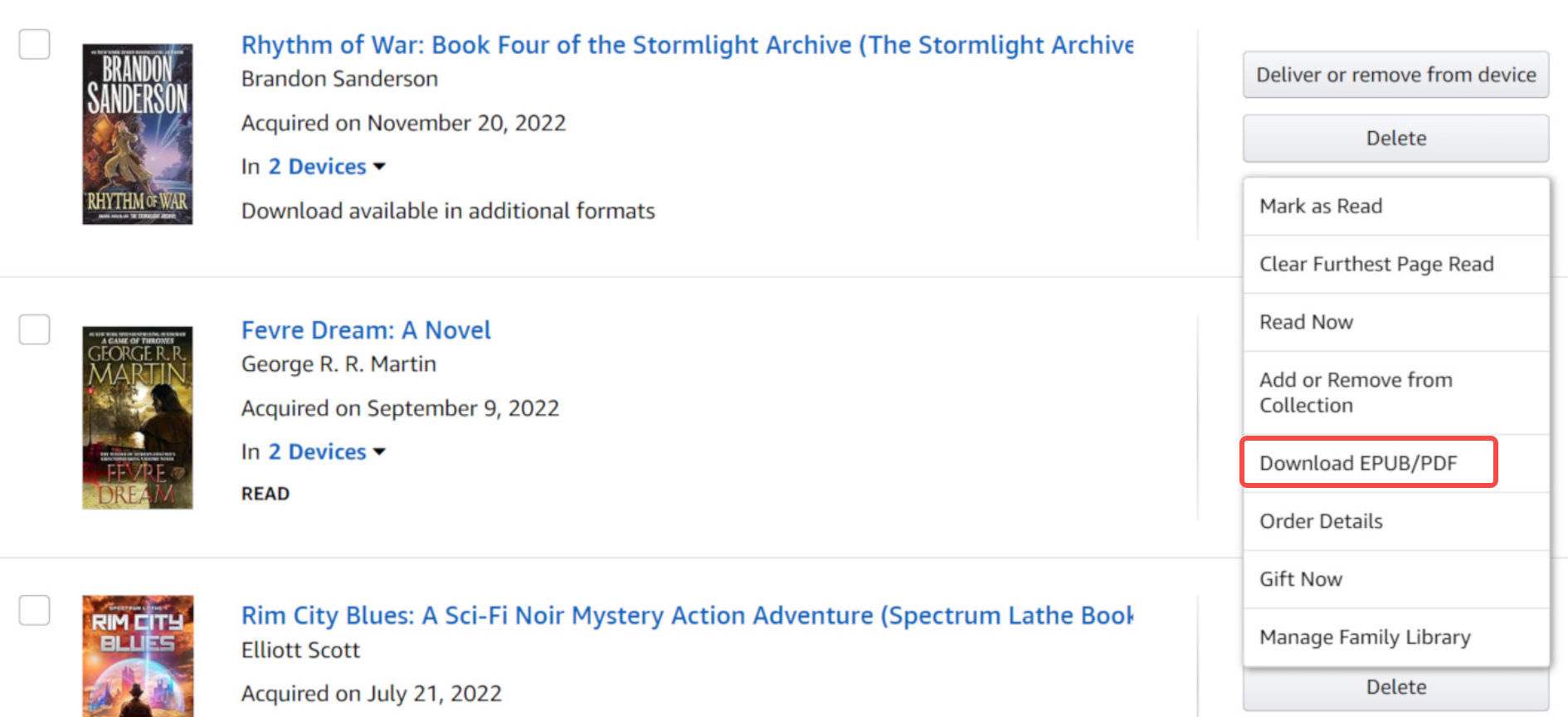
In 2026, Amazon introduced a DRM-free option for Kindle eBooks, allowing some titles to be downloaded as EPUB or PDF files. However, this does not apply to every Kindle book. Authors and publishers decide whether to offer DRM-free downloads, and many major publishers may still keep DRM enabled.
If you can already download a DRM-free EPUB or PDF file, you do not need a Kindle converter. Kobo supports EPUB and PDF, so you can transfer the file directly to your Kobo eReader via USB.
Here is the simple process: download the DRM-free EPUB or PDF file to your computer, connect your Kobo with a USB data cable, then drag the file into the Kobo drive. After the copy finishes, safely eject your Kobo. The book should appear in your Kobo library after the device finishes scanning the new file.
Troubleshooting Kindle to Kobo Transfer Problems
Kobo Does Not Show the Transferred Book
First, check the format. If you copied an AZW, AZW3, or KFX file directly to Kobo, that is probably the issue. Convert the book to EPUB or PDF first.
If the file is already EPUB or PDF, reconnect Kobo and confirm that the file is actually on the device. If it is missing, the copy may not have finished. Try copying it again and ejecting the device properly.
Kobo Connects to the Charger but Not the Computer
Try another USB cable. This comes up time and time again with eReaders. A cable can look perfectly fine but still only support charging. If possible, connect the Kobo directly to the computer instead of using a USB hub.
Kobo also notes that some USB-C hubs may not detect Kobo eReaders, and recommends connecting directly whenever possible.
The Book Opens, But the Layout Looks Bad
If the book is a PDF and the text looks too small, try EPUB instead. EPUB is usually better for reflowable reading because Kobo can adjust the text to the screen.
If the book is image-heavy or fixed-layout, PDF may preserve the original page design better. It depends on the book. This does not mean all ebooks from one store behave the same way, of course. The format and layout matter.
The Cover Does Not Display
This is common with sideloaded books. The book may still be completely readable. You can try removing the file, updating the metadata or cover on your computer, then transferring it again.
If the cover matters a lot to your library organization, EPUB with clean metadata is usually easier to manage than a random converted file with missing title or author details.
The Exported File Looks Like a Sample
Open the converted file on your computer before blaming Kobo. If the computer version is incomplete too, the issue happened during conversion or source recognition. Re-import the Kindle book, convert again, and test the output before sending it to Kobo.
The Book Still Will Not Open After Conversion
Try converting to EPUB first, then PDF as a backup. If both fail, the original file may be damaged, unsupported, or not fully accessible. In that case, I would test another book from the same library to see whether the problem is one title or the whole setup.
FAQ
Can Kobo read Kindle books directly?
What is the best format for Kindle to Kobo transfer?
Is it legal to send Kindle books to Kobo?
Conclusion
Although Kindle books are often stored in DRM-protected AZW, AZW3, or KFX formats, it is still possible to read Kindle books on Kobo with the right workflow. For DRM-protected Kindle books, you can use BookFab Kindle Converter to convert them to EPUB first, then transfer the converted files to your Kobo via USB. For DRM-free Kindle books, copy the EPUB or PDF file to Kobo directly, since Kobo supports common formats like EPUB and PDF.
With these steps, you can manage the books you legally purchased more freely and enjoy your Kindle library on a Kobo eReader for personal reading.

 4 Easy Ways to Convert Kindle to PDFBy Amber Collins - May 18, 2026
 How to Print Kindle Books Without Losing QualityBy Amber Collins - May 14, 2026
![[Quick Solution] How to Remove Kindle DRM on Mac](https://images.dvdfab.cn/media/未命名的设计__87__crpyru.png/public) [Quick Solution] How to Remove Kindle DRM on MacBy Amber Collins - May 11, 2026
[Quick Solution] How to Remove Kindle DRM on MacBy Amber Collins - May 11, 2026 How to Download Kindle Books to PC in 2026 (The Complete Guide)By Amber Collins - May 9, 2026