
How to Read Libby Books and Audiobooks Offline

Summary: Libby supports offline access by automatically downloading borrowed books and audiobooks when connected to Wi-Fi. Once the download is complete, you can read or listen without an internet connection. Alternatively, you can use third-party tools, such as the libby-download-extension for Firefox or BookFab Kindle Converter, to download titles directly to your local storage. This allows you to enjoy your library on any device or media player of your choice.
Table of Contents

Libby, developed by OverDrive, is an online digital library app that offers free access to thousands of ebooks and audiobooks. To make the most of the app, it's essential to know how to use its offline capabilities. Can you listen to Libby audiobooks offline? And can you read Libby books offline?
Fortunately, Libby makes it easy to download titles for offline use. In this article, I'll walk you through the steps for reading and listening offline, covering both the official methods and more flexible ways to enhance your experience.
Part 1. How to Listen to Libby Audiobooks Offline
Actually, the Libby app already has a built-in feature for easy offline listening, and there are also some community tools that give you more flexibility to save audio files for offline use. Below are two ways you can listen to Libby audiobooks offline.
How to Listen to Libby Audiobooks Offline via Libby App
Listening to Libby audiobooks offline is simpler than you might think: once you borrow and download them in App while connected to the internet, the files are stored on your device so you can open and play them later without a connection.
Step 1: Install the Libby app on your device
First, make sure you've installed the official Libby app on your iOS, Android, or tablet device and signed in with your library card. Libby is the modern app from OverDrive that connects you with your library's digital collection of ebooks and audiobooks for free.
Step 2: Search for and borrow an audiobook
Browse or search in the Libby app to find an audiobook you want to listen to, then tap the Borrow button. Once borrowed, the audiobook will appear on your Shelf.
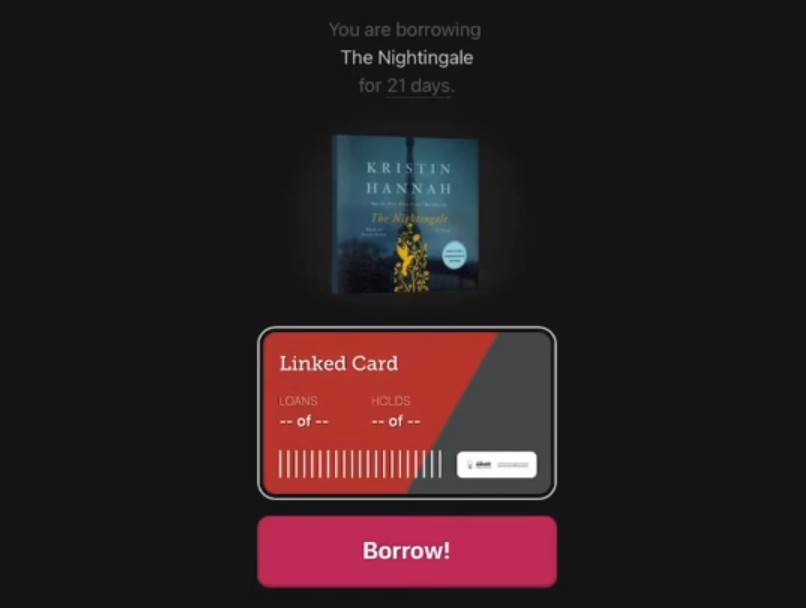
Step 3: Download the Libby audiobook
Go to your Shelf and Libby will usually download your borrowed audiobooks automatically when connected to Wi-Fi (this is the default behavior). If it doesn't download automatically, you can tap the download icon to start it manually. When the audiobook shows a checkmark, it means it's ready for offline listening.
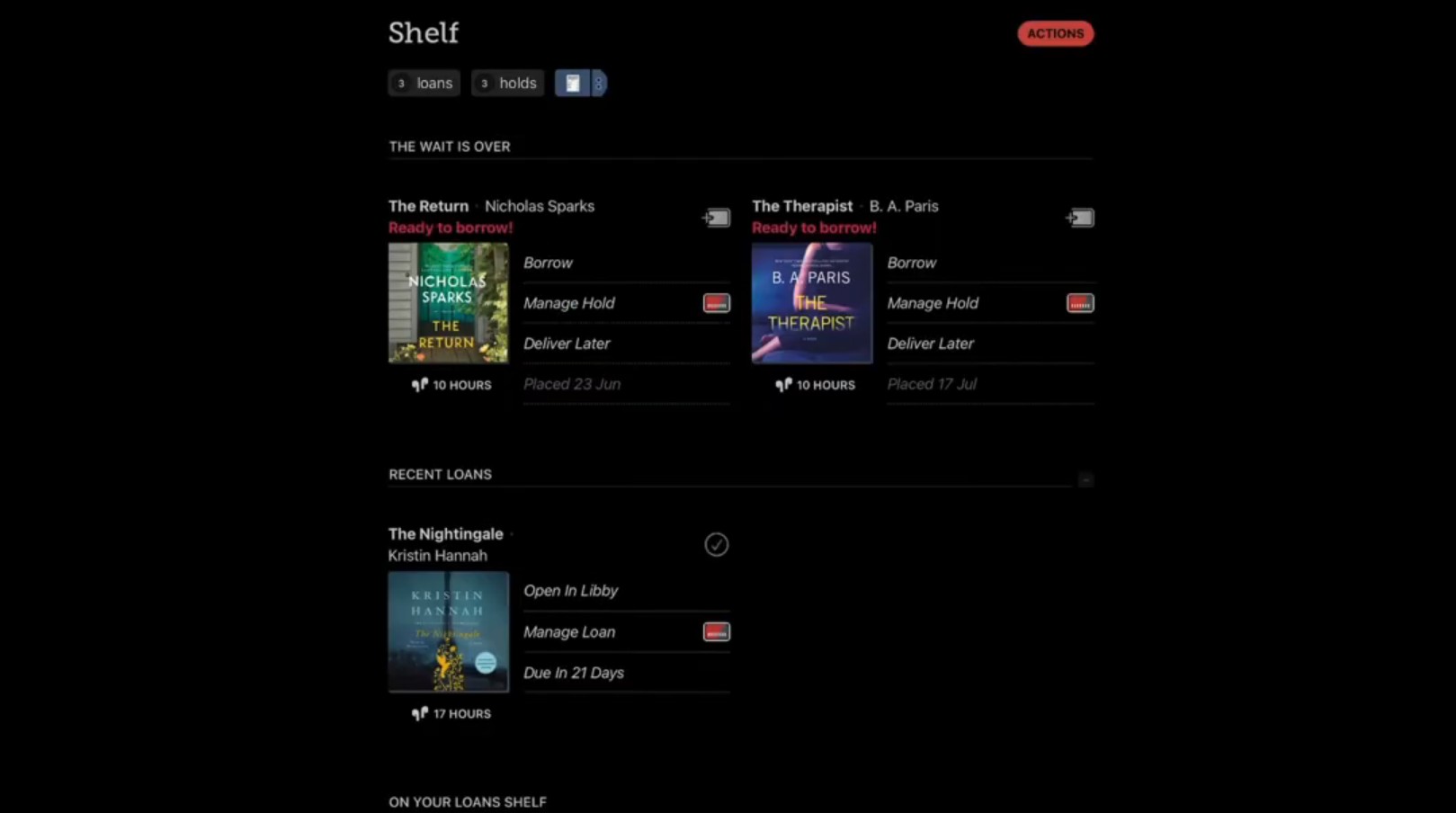
Step 4: Listen to libby audiobooks offline
After the download is finished, you can open the Libby app and listen to your audiobook even when you're offline. This is perfect for times without internet access, such as flights, buses, or places with weak mobile coverage.
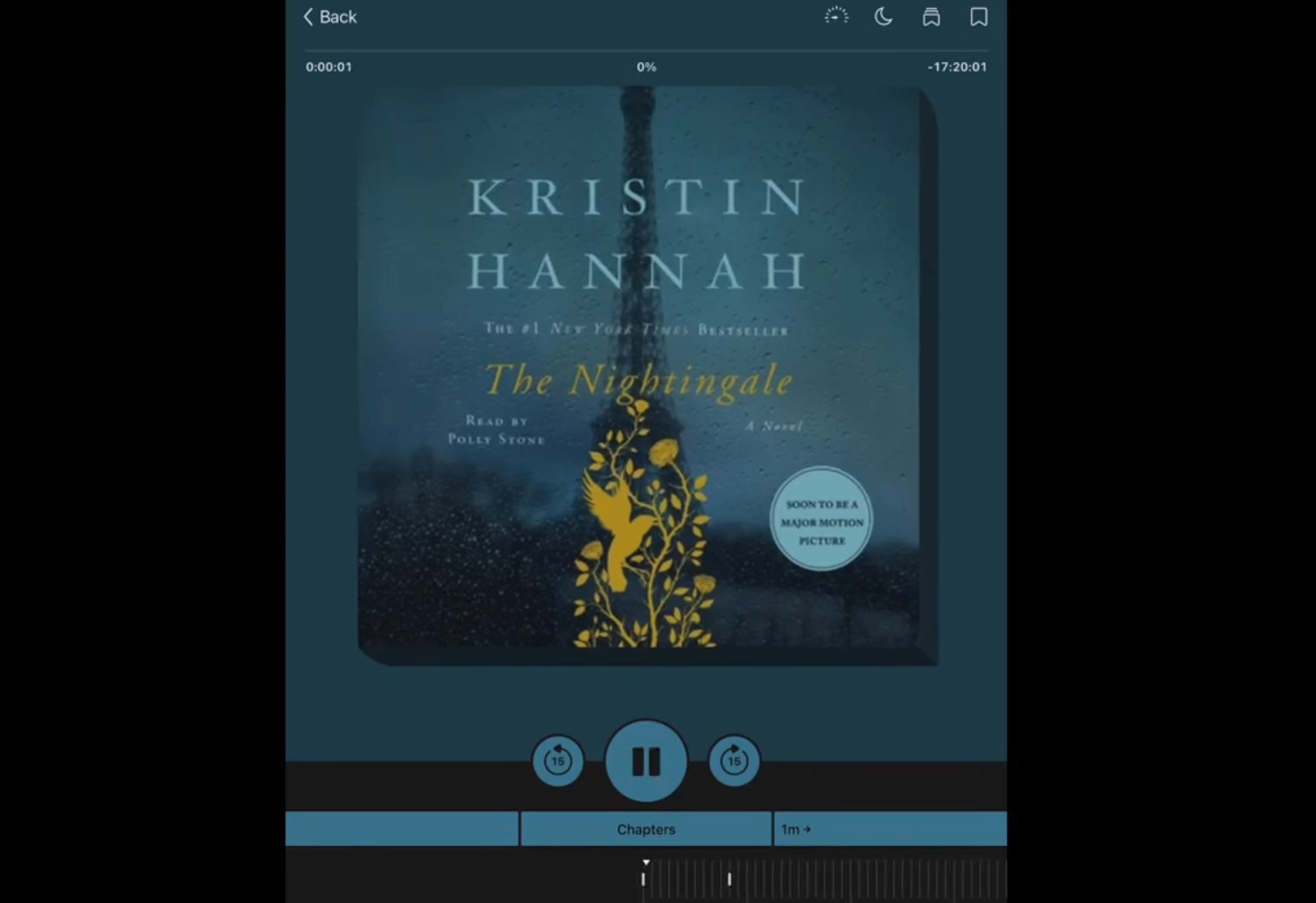
How to Download and Listen to Libby Audiobooks Offline Without Limitation
Official offline downloads mainly rely on Libby's built-in features, but many users want to save their borrowed Libby audiobooks in a format they can listen to on other players or devices. To meet this need, some Libby users have developed a Firefox browser extension called Libby Downloader. This tool helps you download Libby audiobooks directly to your computer as MP3 files, so you can play them offline anywhere. It's not an official Libby tool, but an open-source community project. Here is the step-by-step tutorial on downloading libby audiobooks to local storage for limitless offline listening.
Step 1: Install the libby-download-extension
Download the Libby Downloader extension (also known as libby-download-extension) from its GitHub releases page. Note that the minimum supported version for Firefox is 102 ESR.
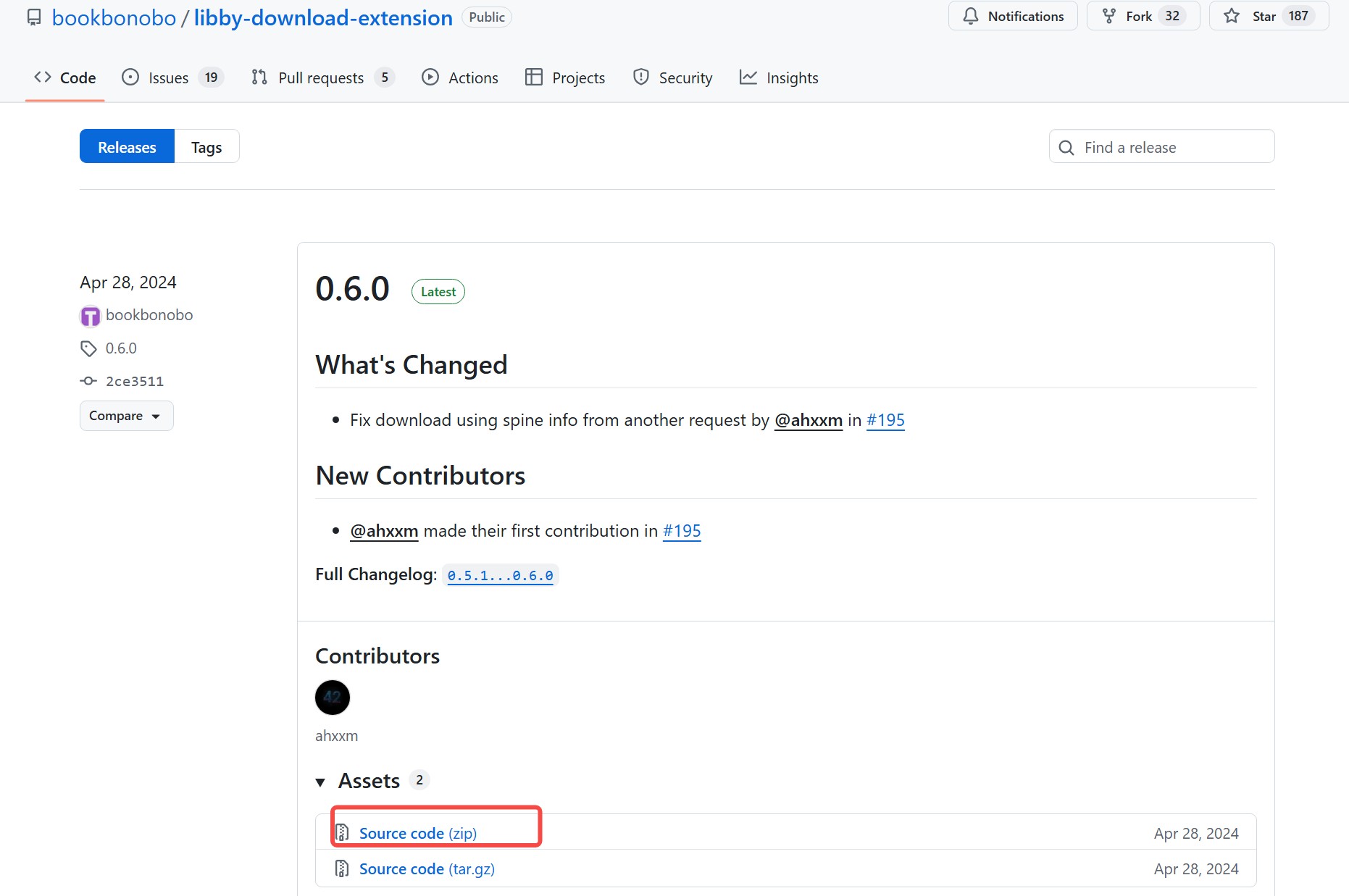
Step 2: Open a borrowed audiobook page in your browser
In Firefox, log in to the Libby website and navigate to a page for an audiobook you have borrowed. Once the page loads, the extension will insert a Download button into the interface.
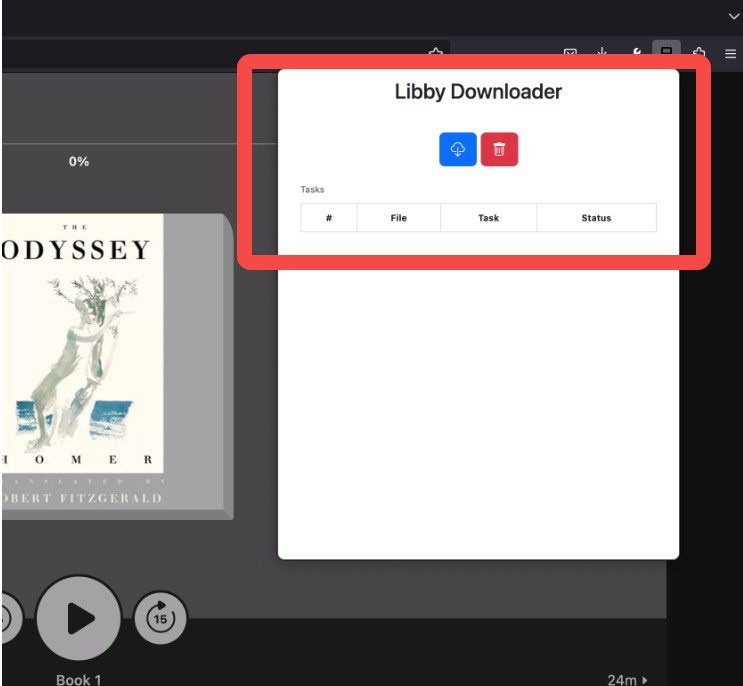
Step 3: Click the download button to generate files
Click the Download button added by the extension, and it will process the audiobook into a compressed file (ZIP) that includes a merged MP3 file with chapters and metadata. After the download completes, you'll find it in your computer's downloads folder.
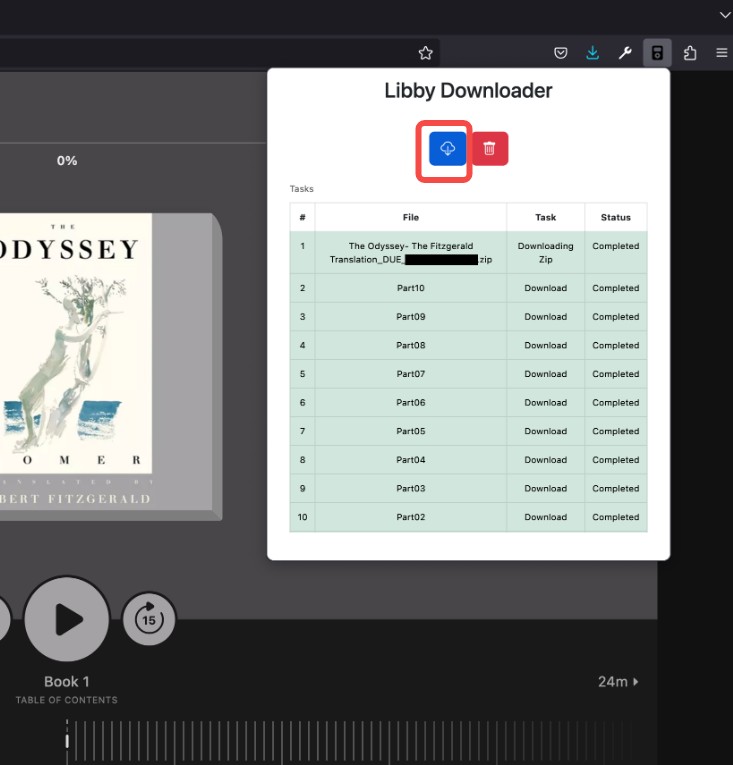
Step 4: Listen to Libby audibooks offline on any audio player
The MP3 file you get can be imported into any audio player or device without being restricted to the Libby app. This is especially useful for devices that don't support Libby (for example, older MP3 players) or if you want to use your phone's native player to listen to Libby audiobooks offline.
Part 2. How to Read Libby Books Offline
Since we've covered audiobooks, you might wonder: what about Libby ebooks? The answer is yes—and interestingly, you actually have more ways to read them offline.
The key thing to know is that Libby ebooks are typically protected by DRM (Digital Rights Management) and come in .acsm format. Because of this, your offline reading options generally fall into three categories: using the native Libby app, using Adobe Digital Editions (ADE) for cross-device transfers, or using a DRM removal tool to eliminate format restrictions entirely. Here are three simple methods to read Libby books offline on your phone, laptop, e-reader, or any other device.
How to Read Libby Books Offline on Mobile Devices [via Libby App]
Step 1: Sign into Libby and borrow your titles
Open the Libby app, sign in with your library card, and browse the catalog. Tap Borrow on the ebook or audiobook you want. Once borrowed, the title appears on your Shelf, which is where Libby manages both online and offline content. Offline reading and listening only work through the mobile app, not in a web browser.
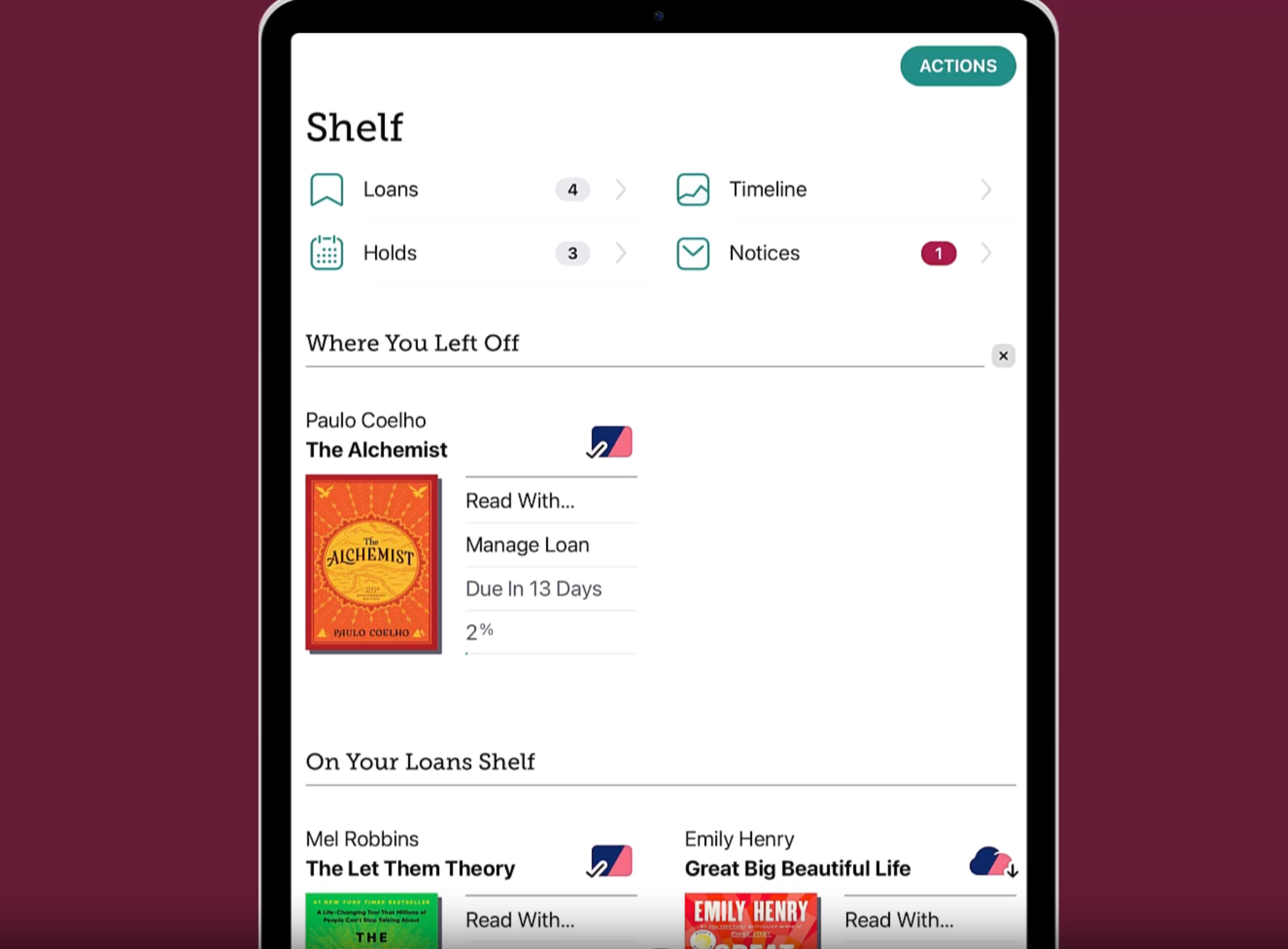
Step 2: Check your download settings
Before you leave a Wi-Fi network, open Settings > Downloads and review how Libby handles downloads. By default, Libby automatically downloads ebooks when you borrow them over Wi-Fi. You can also choose whether you want Libby to download titles automatically or limit downloads by file size.
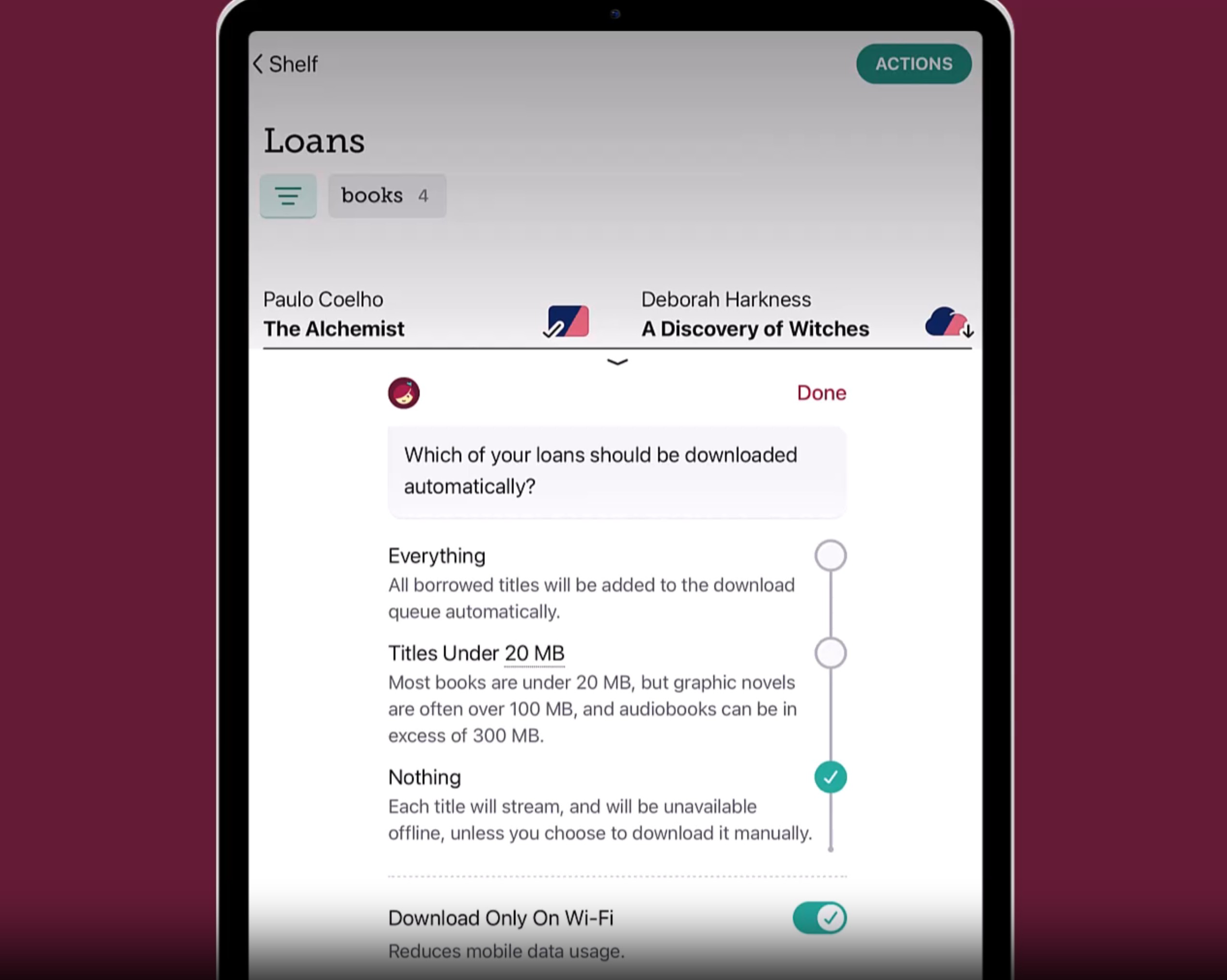
If you want to download your books without Wi-Fi, go to Settings > Downloads and turn off Download Only On Wi-Fi. This lets Libby use cellular data to download your loans, which is useful if you're preparing for offline reading on the go.
Step 3: Confirm your titles are fully downloaded
Go back to your Shelf > Loans and check the icons next to your books. A checkmark means the title is downloaded to your device and ready for offline use, while a cloud icon means it still needs to be downloaded. Always wait for the checkmark before switching to airplane mode or going offline.
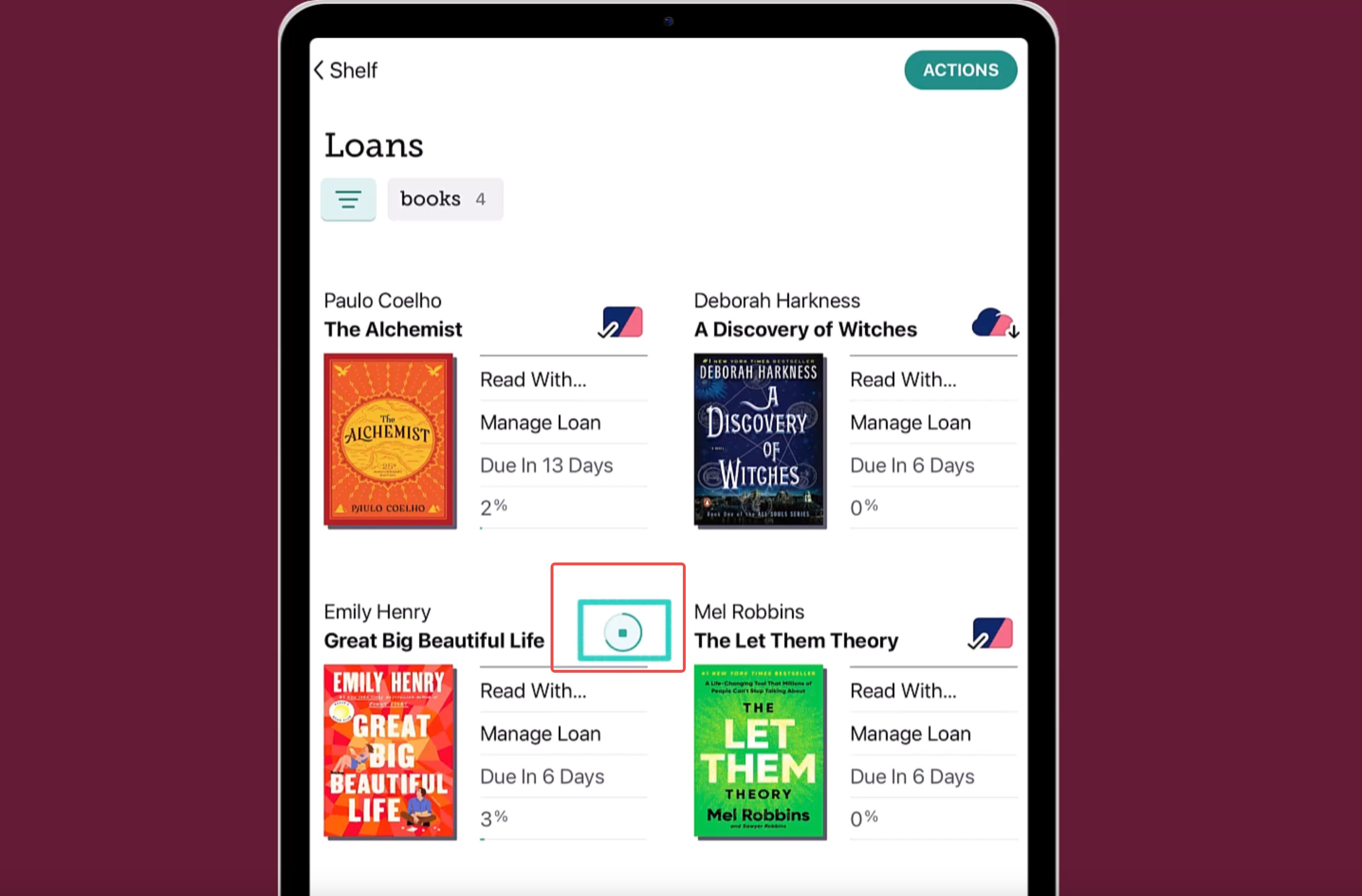
Step 4: Read Libby books offline via Libby APP
Once your titles show as downloaded, simply tap the cover on your Shelf to start reading Libby books without an internet connection. Keep in mind that offline access lasts only until your loan expires.
How to Read Libby Books Offline on Computer [via ADE]
Step 1: Access Libby and Sign In
Open your web browser and go to libbyapp.com. Choose your local library and sign in with your library card credentials. Once logged in, your account will sync across devices and show you your borrowed titles on the Shelf.
Step 2: Search for and Borrow a Title
Use the catalog search to find the ebook you want. Click Borrow to add it to your loans. If a title is currently unavailable, use Place Hold to join the waitlist. Once borrowed, the book remains on your Shelf until the loan period expires.
Step 3: Download the eBook as a .acsm File
On your Shelf, select Read With… next to the borrowed book. Choose Other Options..., then pick EPUB or PDF (availability varies by title). This will download an .acsm file, which is a small license file used by ADE to fetch the actual ebook content.
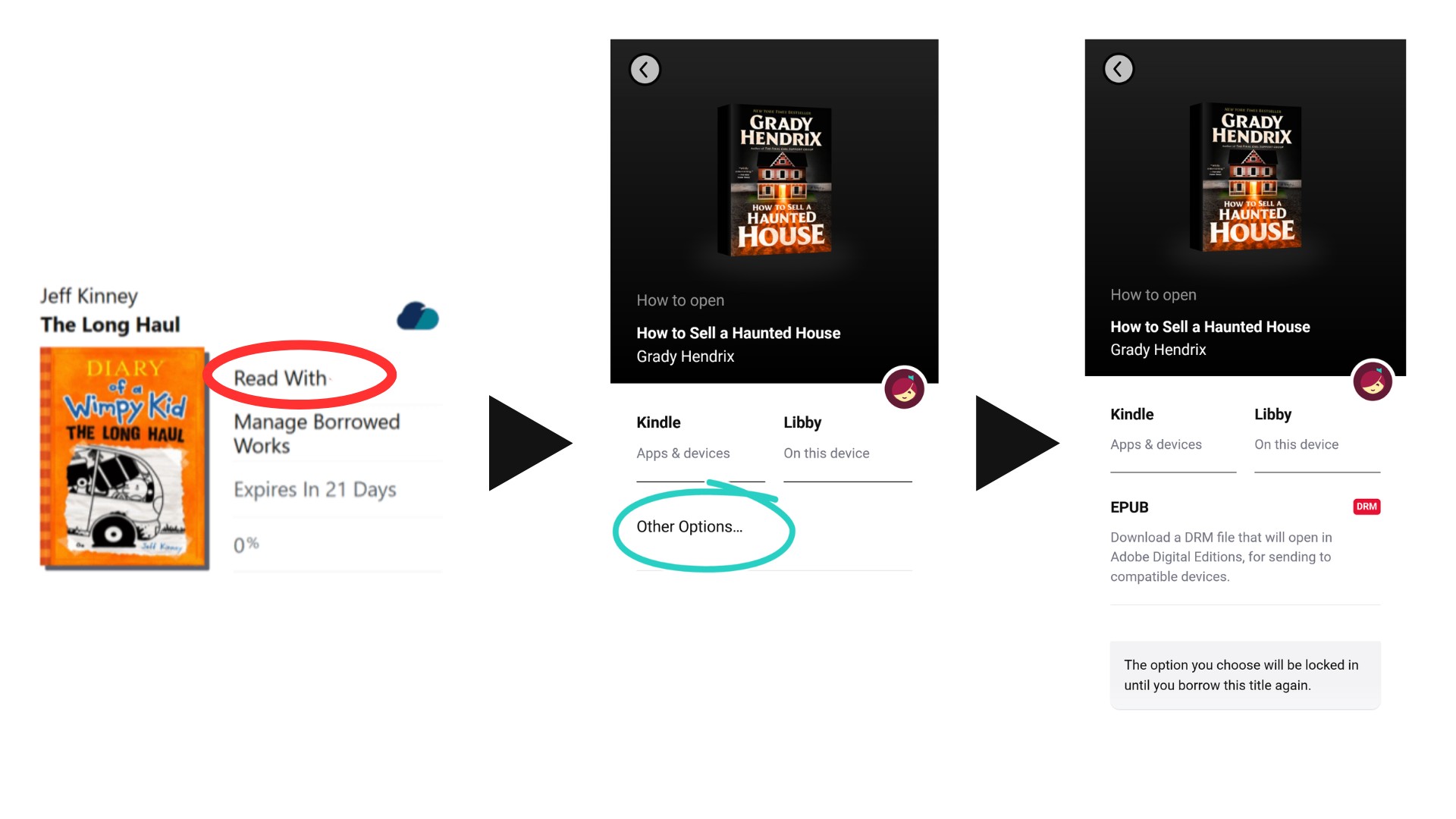
Step 4: Read Your Libby Books Offline in ADE
To open and read your downloaded Libby books offline:
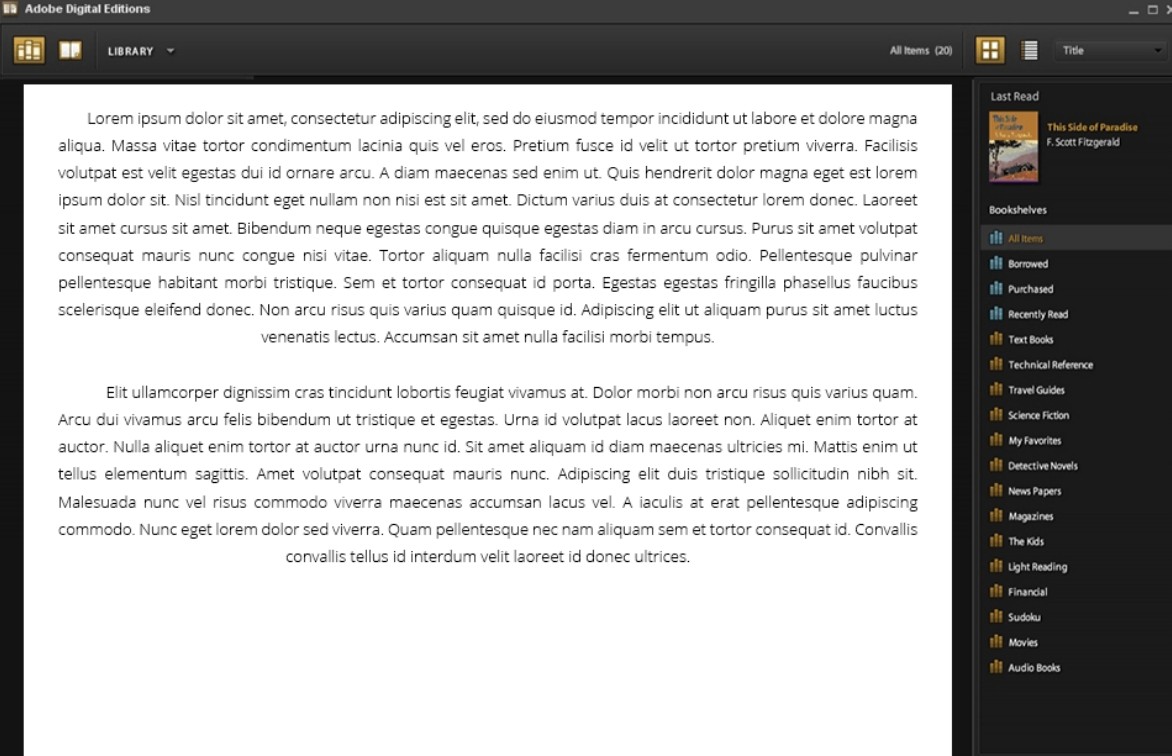
1. Download and install Adobe Digital Editions from the official Adobe website (free for Windows and macOS).
2. Launch ADE and authorize your computer using your Adobe ID (Help > Authorize Computer). If you don't have an Adobe ID, you can create one for free.
3. Find the .acsm file in your Downloads folder and double-click it or drag it into ADE. ADE will then download the full EPUB or PDF and add it to your ADE library.
4. Once the download completes, you can read the ebook offline in ADE anytime without an internet connection.
How to Read Libby Books Offline on Any Device
Libby ebooks are protected with DRM. Even if you download Libby ebooks for offline reading through Libby or ADE, you still can't open them in third-party e-readers like Kindle or Kobo, or in general reading apps. If you want to read Libby books without these restrictions and use them on any device or app you choose, you'll need to remove the DRM and convert the files into standard formats like EPUB or PDF. Below is a method to read libby books offline without limitation by using Kindle delivery and DRM removal tool BookFab Kindle Converter.
Step 1: Send Your Libby Book to Your Kindle Library
Access your library's collection at libbyapp.com and find a borrowed book on your Shelf. Click Read With... and select Kindle. You will be redirected to Amazon, where you must sign in to your account and click Get Library Book to sync the title to your Kindle library.
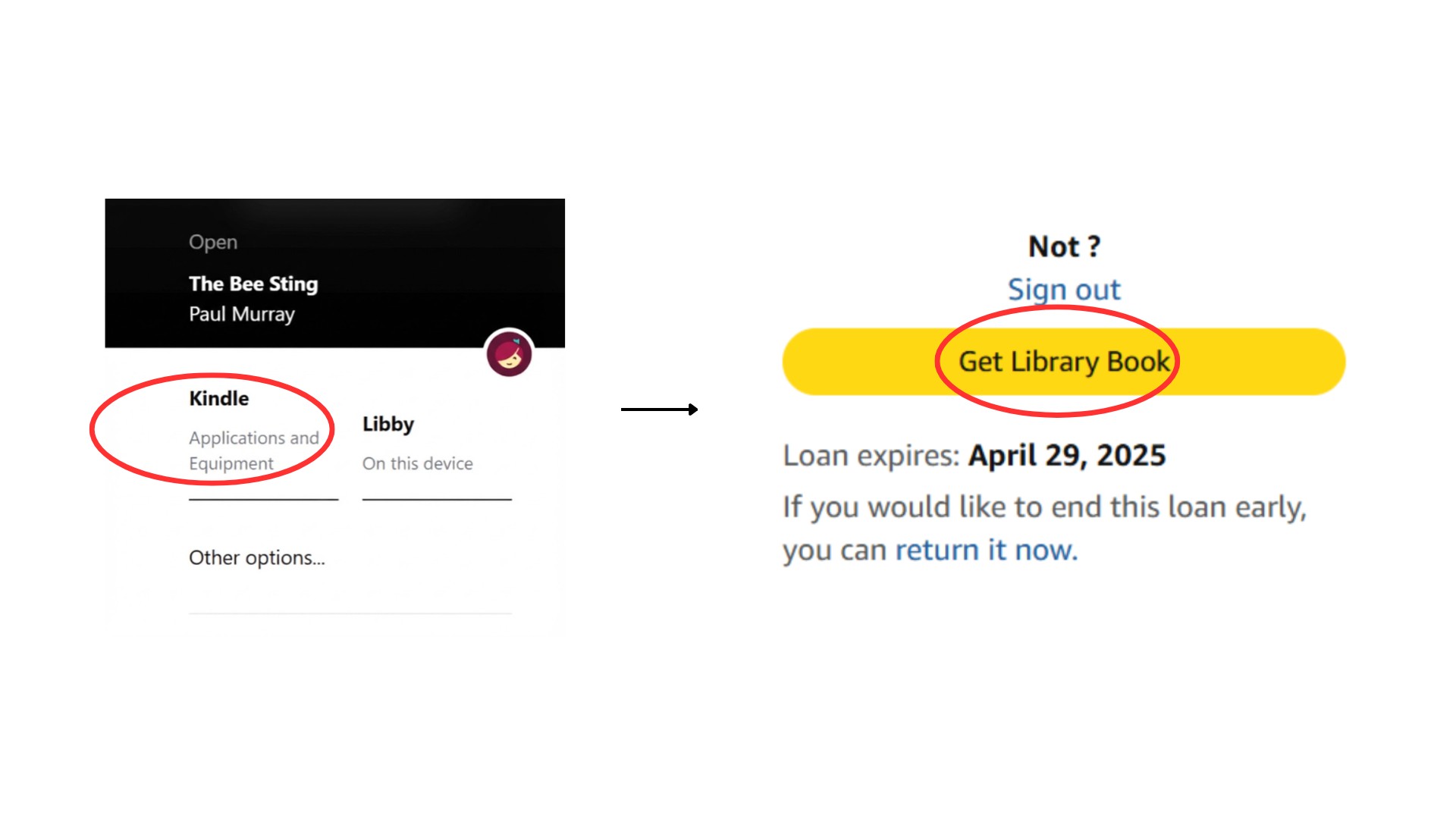
Step 2: Download Libby on Kindle
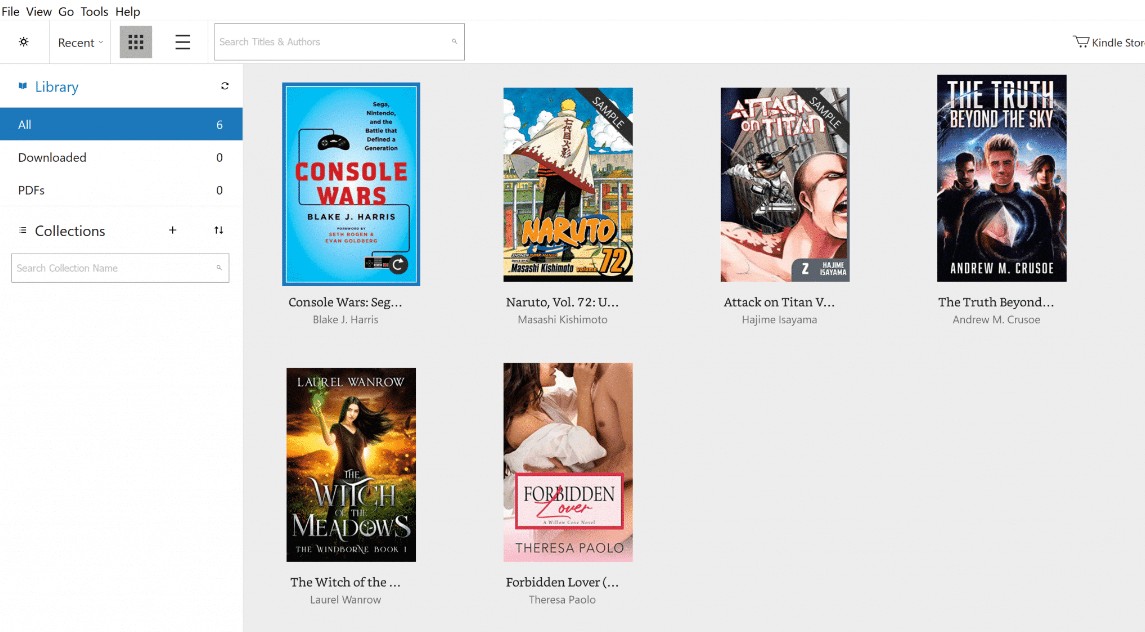
Open the Kindle for PC application on your computer and sign in. Click Sync to show the newly added libby books to Kindle library. Locate the newly added Libby book in your library and double-click the cover to download it to your local storage.
Step 3: Remove DRM with BookFab Kindle Converter
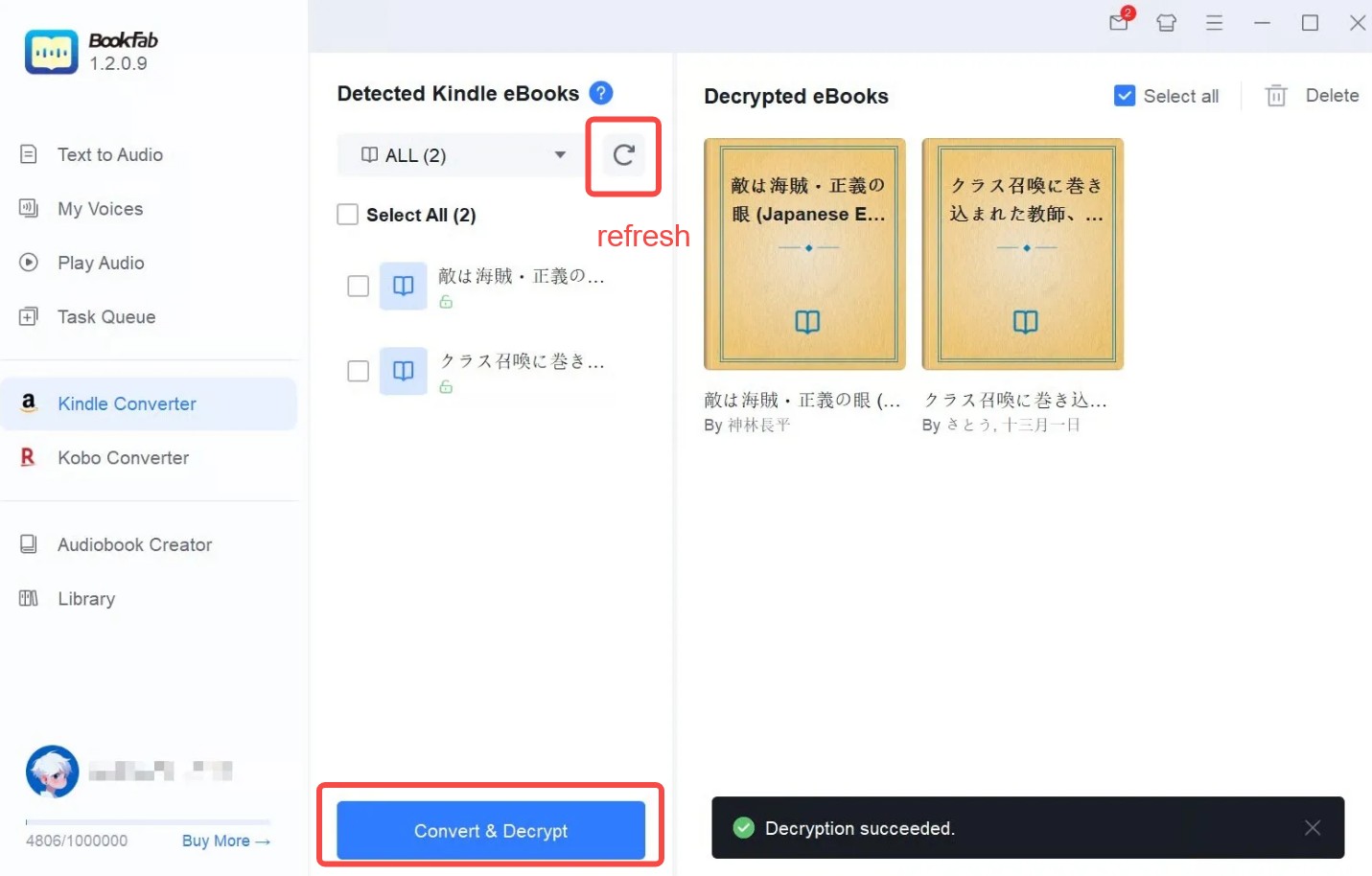
Install and launch BookFab, the click Kindle Converter in the left sidebar. Click Refresh button to sync the Libby books you've downloaded with Kindle for PC. Then, select the Libby books you wish to convert. Click "Convert & Decrypt" to remove the DRM protection.
Step 4: Read Libby Books Offline Without Limitation
After the conversion finishes, navigate to the output folder to find your DRM-free ebook. You can now move this file to any device or app of your choice, effectively completing the process of how to read Libby offline without being restricted to the Kindle or Libby applications.
FAQs
Can I listen to my libby audiobook without Wi-Fi?
Yes, you can listen to your Libby audiobooks without Wi-Fi as long as you download them first in the Libby app on your device. When you borrow an audiobook in the Libby mobile app and it finishes downloading, it is saved to your device's storage and becomes available for offline listening even if you later switch off Wi-Fi or cellular data. You can check whether a title has been downloaded by looking for a checkmark icon next to it in your Shelf. If you see a cloud icon instead, it means the audiobook has not been downloaded and still needs an internet connection to play.
Can I use Libby while traveling?
Yes, you can absolutely use Libby while traveling, and many people do exactly that. The key is to prepare your content ahead of time. Before you leave Wi-Fi coverage, open Libby on your phone or tablet and download the ebooks and audiobooks you want to access later. Once they show up with the checkmark icon on your Shelf, those titles are saved to your device and can be read or listened to offline during your trip.
If you prefer downloading over cellular data before you travel, you can adjust Libby's download settings so it doesn't restrict downloads to Wi-Fi only. This gives you maximum flexibility to prepare your favorite reads and listens for journeys where connectivity might be limited.
How can I change the download settings on Libby?
Libby download settings control whether you can download titles automatically right after you borrow them. You can select:
- Everything
- Titles Under…
- Nothing
When you select Titles Under…, you can auto-download smaller book titles. This exclusion applies to larger books, such as graphic novels and audiobooks.
Tap the underlined 20 MB. This way, you can choose the file size you want to download automatically. Most books are under 20 MB. The graphic novels are often over 100 MB, and audiobooks are usually over 300 MB.
Can I download books on Libby?
Yes. The Libby mobile app allows you to download books and audiobooks for offline use with a Wi-Fi connection. However, you cannot download magazines automatically. But you can manually download any issues you'd like.
What devices are compatible with Libby?
The Libby app works seamlessly with:
- iOS 10+
- Android 7.1+
- New Fire tablets
You can try the Libby web version for Windows, Mac computers, and Chromebooks. Ensure you use the latest version of your web browser, such as Google Chrome, Safari, Microsoft Edge, or Mozilla Firefox.
Final Wrap Up
Whether you use the official app or third-party tools to convert titles, accessing Libby books and audiobooks offline is entirely achievable. For most users, the native app provides a straightforward experience. However, if you require more flexibility, using a reliable DRM removal tool to download Libby books into standard formats ensures your library is accessible across any device or software.

 4 Easy Ways to Convert Kindle to PDFBy Amber Collins - May 18, 2026
 How to Print Kindle Books Without Losing QualityBy Amber Collins - May 14, 2026
![[Quick Solution] How to Remove Kindle DRM on Mac](https://images.dvdfab.cn/media/未命名的设计__87__crpyru.png/public) [Quick Solution] How to Remove Kindle DRM on MacBy Amber Collins - May 11, 2026
[Quick Solution] How to Remove Kindle DRM on MacBy Amber Collins - May 11, 2026 How to Download Kindle Books to PC in 2026 (The Complete Guide)By Amber Collins - May 9, 2026