
Kindle Not Downloading Books? 8 Easy Fixes That Work

Summary: To fix a Kindle book not downloading, cancel the stuck download and retry it first. If the book still stays queued, restart your Kindle, reconnect to a stable Wi-Fi network, and tap Sync to refresh your library. This article walks through 8 practical fixes for Kindle book not downloading issues, from basic connection and sync checks to account, delivery, storage, and older-device problems, so you can identify the real cause and get your book downloaded again.
Although Kindle has long been a well-known e-ink device brand, many users still run into errors, such as the common issue of Kindle not downloading books. If you are also dealing with download problems like queued, stuck, or missing books, there is no need to panic. In many cases, the cause is easy to identify and fix. This article introduces 8 common solutions. Try them one by one, and about 90% of Kindle download issues can be resolved.
Quick Fixes to Try First
- Make sure your Kindle is connected to Wi-Fi.
- Turn off Airplane Mode.
- Remove filters such as Collections, Docs, Unread, or Downloaded.
- Restart your Kindle and download the book again.
- Sync your Kindle.
- Check whether your Kindle has enough storage.
- If you use an older Kindle, check whether it still supports new Kindle Store downloads.
Why Is My Kindle Not Downloading Books?
If you’re stuck and your books won't download to your Kindle, here is usually why:
1. Slow Internet Connection
The main reason is that the Kindle device cannot download applications or e-books. This may be due to a slow or unstable internet connection that prevents the Kindle from downloading books.
2. Full Storage Room
Another reason your Kindle might not download books is low storage space. Like any other files, eBooks take up space on your device. So, a new book won't download on Kindle if your storage is full.
3. Outdated Kindle Application
An out-of-date version of the Kindle app could not handle new downloads. This often happens because of bugs or glitches in the app. If it hasn’t been updated for a while, you may run into compatibility issues that cause a Kindle download error. An outdated app can also create syncing problems, which may keep your purchased books from appearing in your library.
4. The Account Exceeded the Limit
Amazon imposes a limit on the number of devices allowed to connect to a single Kindle account. If you've reached the device limit, you may not be able to download new books until you remove one of the devices linked to your account. Each Kindle book has its own license rules, and going over the allowed number of devices can make some titles unavailable.
How to Fix Kindle Not Downloading Books
Now let's turn our attention to the solutions for resolving the Kindle not downloading issue. Here are several methods to resolve the Kindle download error.
1. Reboot Your Kindle
Rebooting a device can resolve various technical glitches or minor problems, as well as address incomplete tasks. When you face minor problems with your Kindle tablet, the initial step you should take is to restart it. Restarting assists in resolving temporary software errors, refreshing system memory, and establishing a reliable connection to Amazon’s servers.
Here is the process for rebooting your Kindle device:
Simply press and hold the power button till a menu shows up.
Choose Restart or turn off the device, and then power it back on.
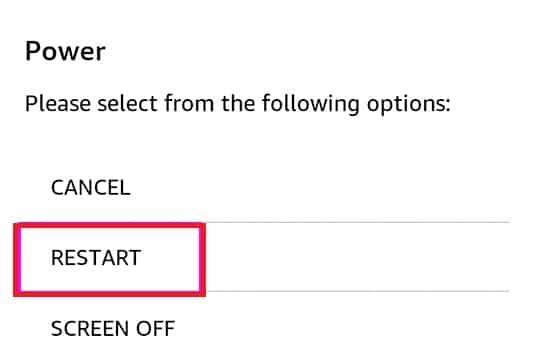
Please attempt to download the book once more.
If the tutorial above does not work, you can try to force restart the Kindle device by pressing and holding the power button for approximately 40 seconds until the device restarts.
2. Double-check the Internet Connection
To download books to your Kindle, a stable internet connection is needed. So, if your Kindle Book isn't downloading, it could be due to a slow or unreliable internet connection.
To ensure a reliable connection, kindly verify the following:
Restart the router or reconnect your Kindle's internet connection.
To resolve slow speeds and issues, push your router's reset button.
Conduct a Fast.com test to determine your current download and upload speeds. If the results indicate a problem with your connection, restart your modem or router. Unplug your modem or router from the outlet and allow a minimum of five seconds to pass before reconnecting it.
Choose a more suitable plan or reach out to your service provider.
3. Clear Out Storage Space
When your Kindle storage reaches capacity, you won't be able to download new books. To resolve this issue, you should manage your storage by removing e-books that you no longer need or have already completed reading.
Check the storage space by following the steps below:
Navigate to Settings on your Kindle.
Choose Device Options, followed by Advanced Options.
Select Storage to view the available space.
Make sure your Kindle has sufficient storage room for the new book. If it doesn’t, think about removing books you’ve already read to make room for the new one.
To remove a book, press and hold the book, then select Delete or Remove from Device.
4. Review Digital Orders
When you download or buy an e-book, it appears on the Your Content and Devices page. If the books are not showing up on Kindle, it is likely due to the order you made not being completed yet.
Follow the steps below to confirm your order on Amazon:
Navigate to Manage Your Content and Devices, then proceed to Your Orders.
To view the list of all your digital orders, click on the Digital Orders tab located at the top.
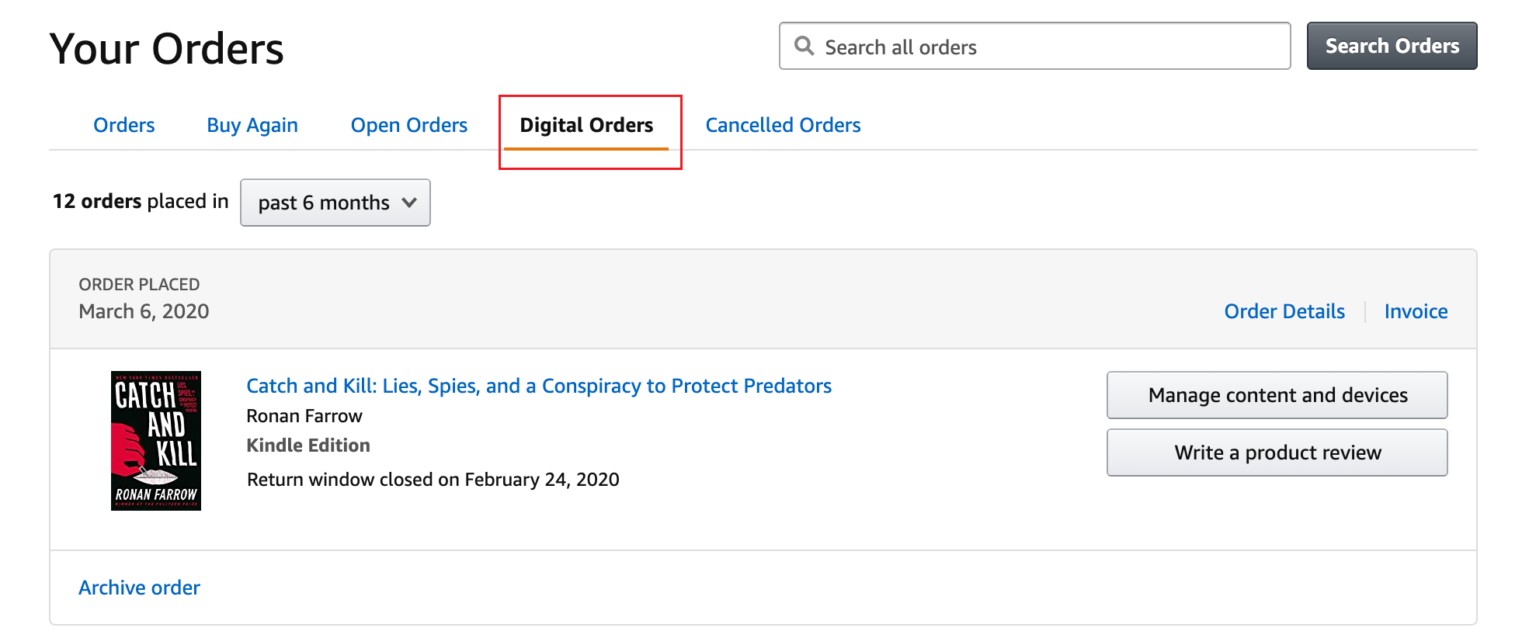
You can now view all the orders you have placed and opt to download the file once more.
5. Manage Content and Devices
An important update: Amazon officially shut down the USB transfer option in 2025, so this fix method is history. If you still need to save your Kindle books, just follow this how to download Kindle books guide instead.
You can also manage your content and device settings to resolve issues with Kindle not downloading books. This section allows you to view books that are not available on Kindle as follows:
Open Amazon and sign in to your account.
Select the All tab, then tap on Kindle E-readers and eBooks.
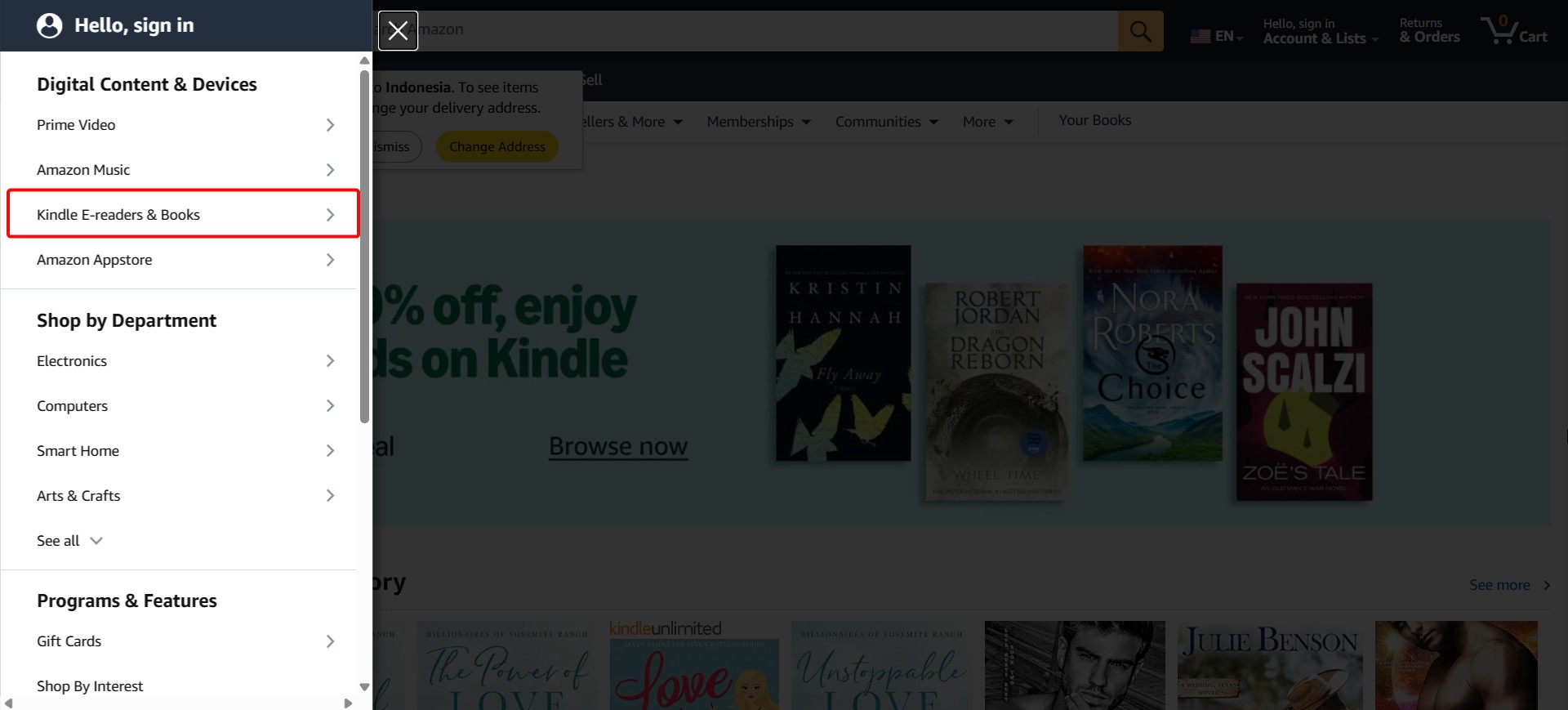
Navigate to the Apps and Resources part and choose to Manage Your Content and Devices.
Find the book that isn't downloading and select More actions.
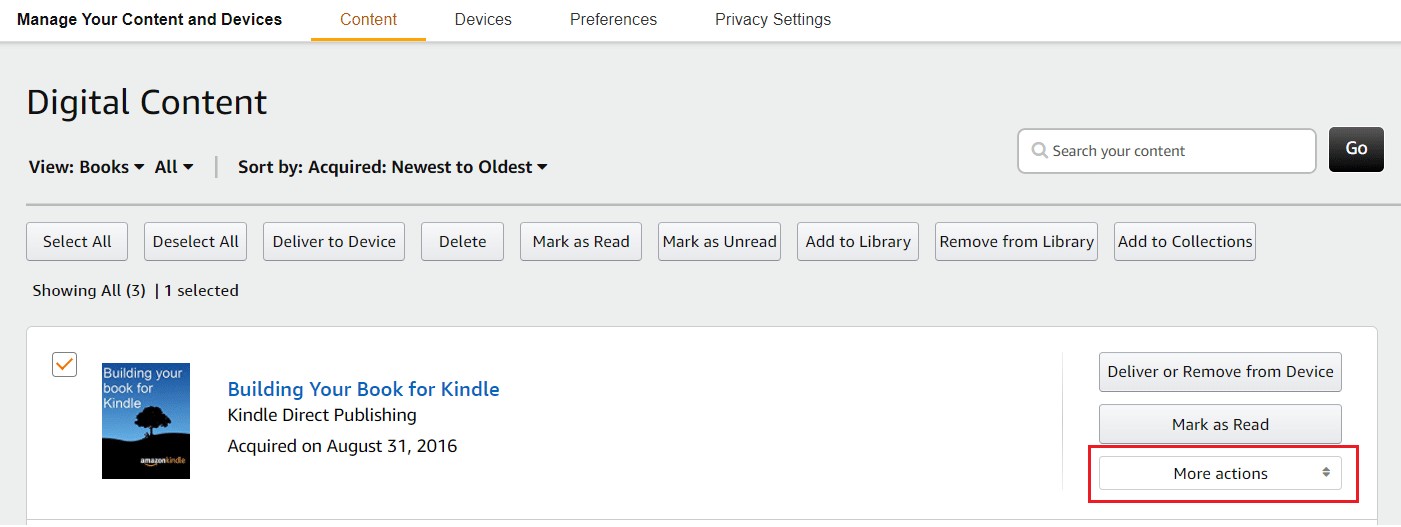
Choose the option to send the book to your mobile device or download it to your PC and subsequently transfer it to your device using a USB cable.
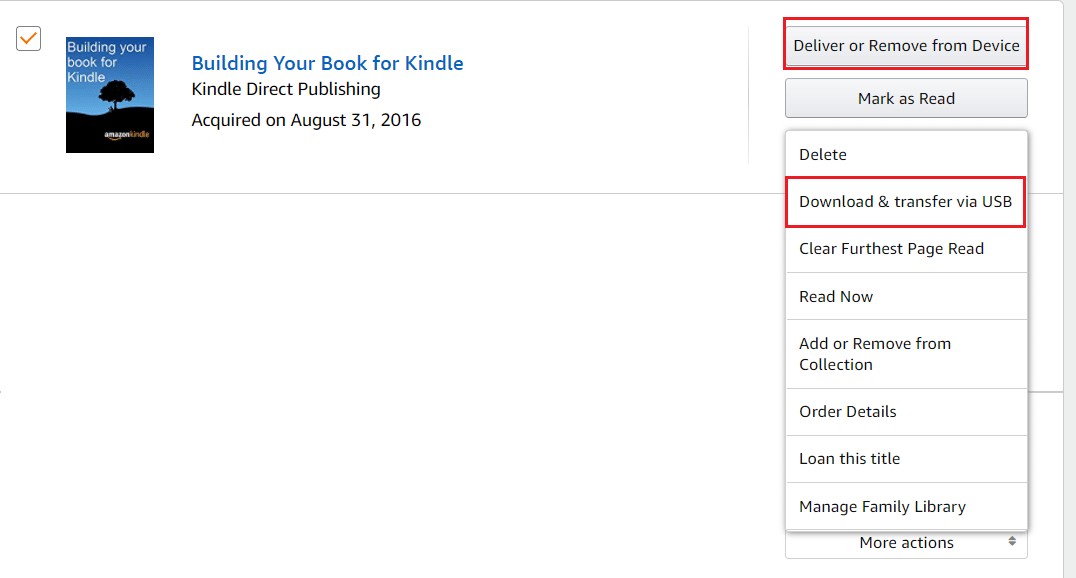
6. Re-download the e-Book
At times, the download of the book may not succeed due to an incomplete process. The issue could come from an unstable or corrupt internet connection.
Please attempt to re-download the book by following the tutorial provided below:
Remove the app or E-book that you are having trouble viewing.
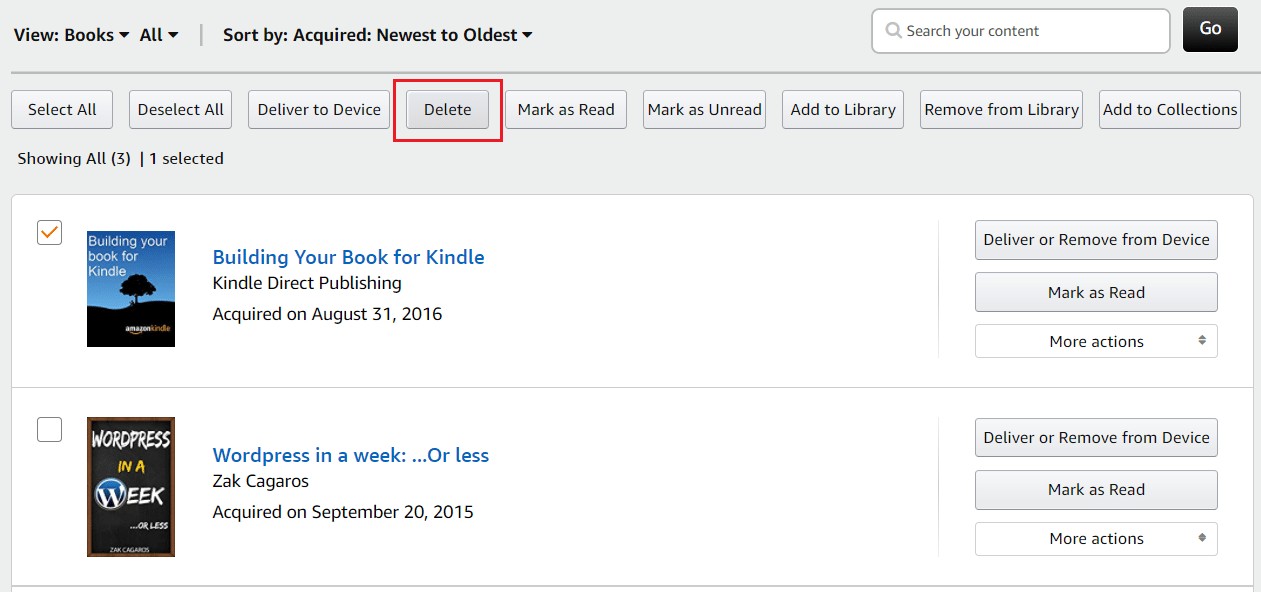
Then, redownload the ebook.
7. Update the Kindle App
If you're still having trouble downloading e-books, try updating your Kindle software to the latest version. Older apps can run into issues that interrupt the download process. Keeping the app up to date can help it run more reliably and address security gaps.
Here is what you should do:
Check that your Kindle has access to Wi-Fi.
Next, go to Settings and select More in the top-right corner.
After that, select Update Your Kindle and proceed with the instructions provided.
Consistent updates boost user experience, increase speed, and resolve potential issues such as books being stuck in the download queue.
8. Contact Amazon Support
If none of the steps above fix the problem, your last option is to contact Amazon’s support team. There may be an account-related issue that needs their help.
Go to Amazon’s Help & Customer Service page and submit a ticket about the problem you’re facing. Include a clear description of what’s happening so they can review it.
What If Kindle Still Won't Download Your Purchased Books?
If all else fails and you still cannot download your Kindle books, here is the ultimate workaround: You can use BookFab Kindle Converter alongside the Kindle for PC app to download your titles locally as universal EPUBs or their original DRM-free formats. This approach does more than just bypass device-specific download glitches. It actively creates a permanent, DRM-free backup of your entire library, allowing you to access your books on any device, even outside the Amazon ecosystem.
Download Kindle books as EPUB or PDF format.
Works smoothly with AudioBook Creator to convert text into audiobooks.
Easily remove DRM protection from Kindle and continuously support new encryption methods and platforms.
Step 1. Prepare Kindle for PC
Begin by installing "Kindle for PC" and signing in with your Amazon account. After logging in, download the Kindle books you want to convert, ensuring they are fully saved to your local device. The converter can only process books that have been downloaded through Kindle for PC.
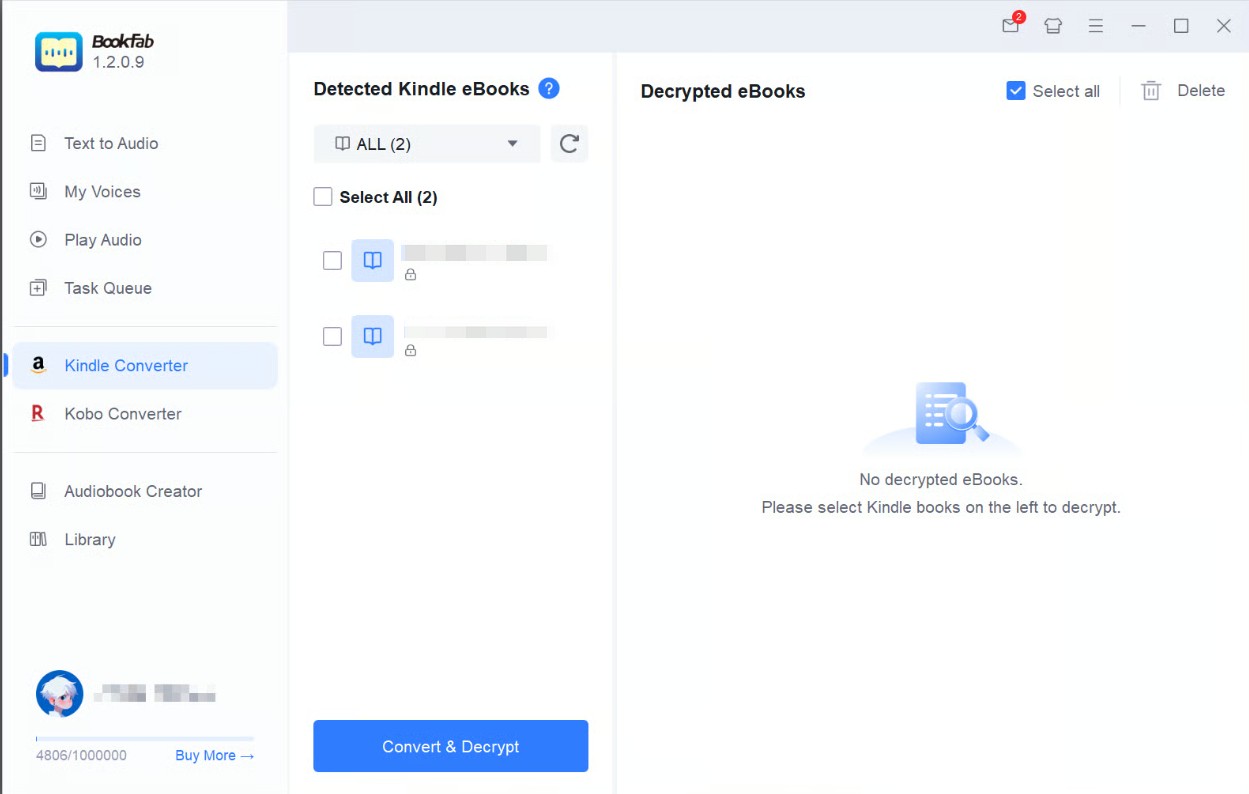
Step 2. Install BookFab Kindle Converter
Download and install BookFab Kindle Converter from the official product page. Once installed, launch the software to begin the conversion process.
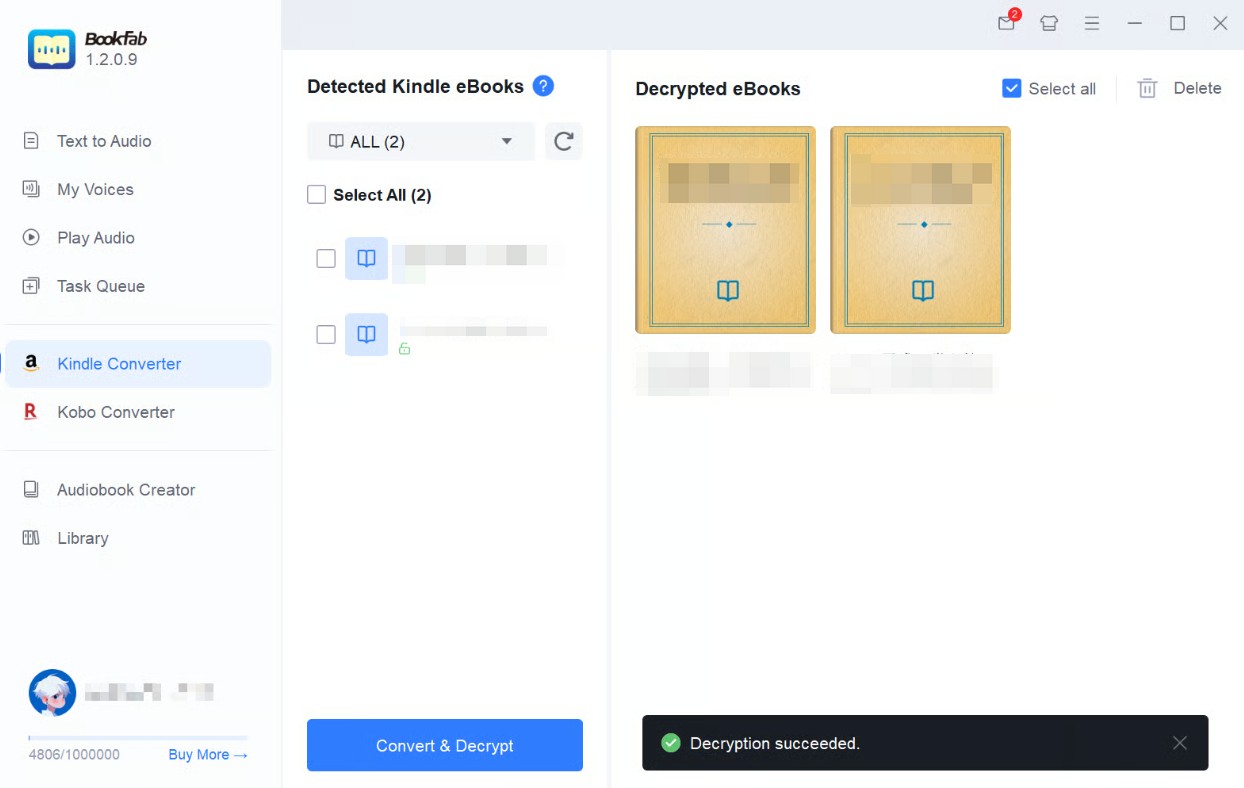
Step 3. Load Your Kindle Books
Inside the program, click the Refresh button so the software can automatically detect the books you previously downloaded via Kindle for PC. Your Kindle titles will then appear in the book list.
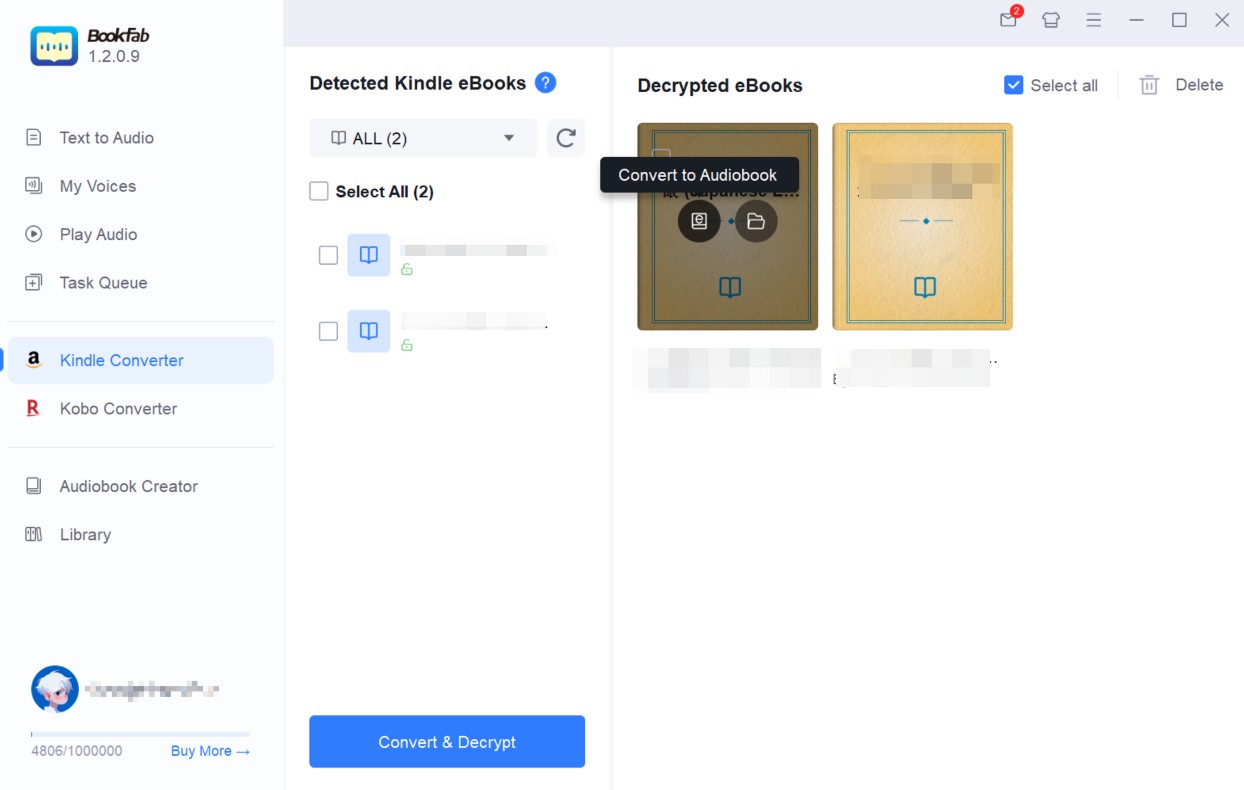
Step 4. Remove DRM and Convert
Select the Kindle books you want to convert and click Convert & Decrypt. The tool will remove DRM protection and convert the files to the PDF or EPUB format.
Note: This tool is intended for personal use only, such as reading on other devices. Always follow local laws and Amazon's terms of service.
FAQs
How can I fix a slow or incomplete download on my Kindle?
Can a software update help with Kindle download issues?
What to do if your Kindle says "Something Went Wrong" when downloading a book?
Conclusion
That wraps up our guide on how to fix the Kindle not downloading books issue. The cause can vary — it may be a slow internet connection or an outdated Kindle app. Try the suggestions above to see whether they resolve the problem.
If you've gone through most of them without success, it's best to contact Amazon Support and describe the issue clearly. You can also avoid the download error by using tools like BookFab Kindle Converter to convert and download Kindle books to EPUB.

 4 Easy Ways to Convert Kindle to PDFBy Amber Collins - May 18, 2026
 How to Print Kindle Books Without Losing QualityBy Amber Collins - May 14, 2026
![[Quick Solution] How to Remove Kindle DRM on Mac](https://images.dvdfab.cn/media/未命名的设计__87__crpyru.png/public) [Quick Solution] How to Remove Kindle DRM on MacBy Amber Collins - May 11, 2026
[Quick Solution] How to Remove Kindle DRM on MacBy Amber Collins - May 11, 2026 How to Download Kindle Books to PC in 2026 (The Complete Guide)By Amber Collins - May 9, 2026