
Does Kindle Need Wi-Fi? What Works Offline and What Requires Internet

Summary: You can read downloaded Kindle books without Wi-Fi, while new downloads, syncing, Kindle Store access, and software updates need internet. This guide compares what you can do with Wi-Fi and without Wi-Fi, plus how to prepare Kindle books for offline reading.
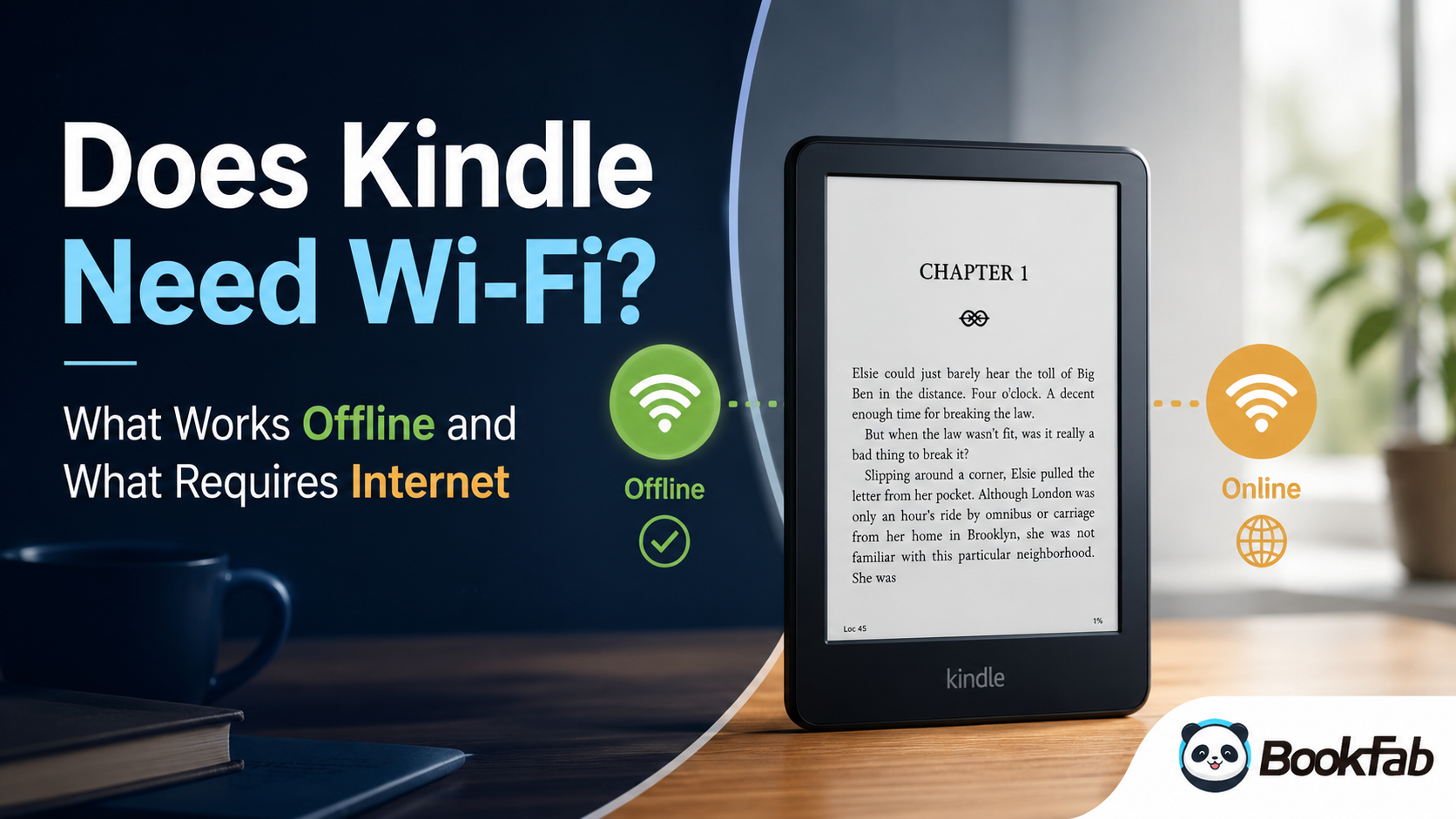
A Kindle does not need Wi-Fi for everyday reading if the books are already downloaded to the device or app. Wi-Fi mainly matters when you want to download new books, borrow Kindle Unlimited titles, sync reading progress, shop in the Kindle Store, use cloud-based features, or update the device. I usually treat Wi-Fi as a preparation step: connect before a trip, download what I need, check that each title opens, and then read comfortably offline.
Does Kindle eink Need Wi-Fi?
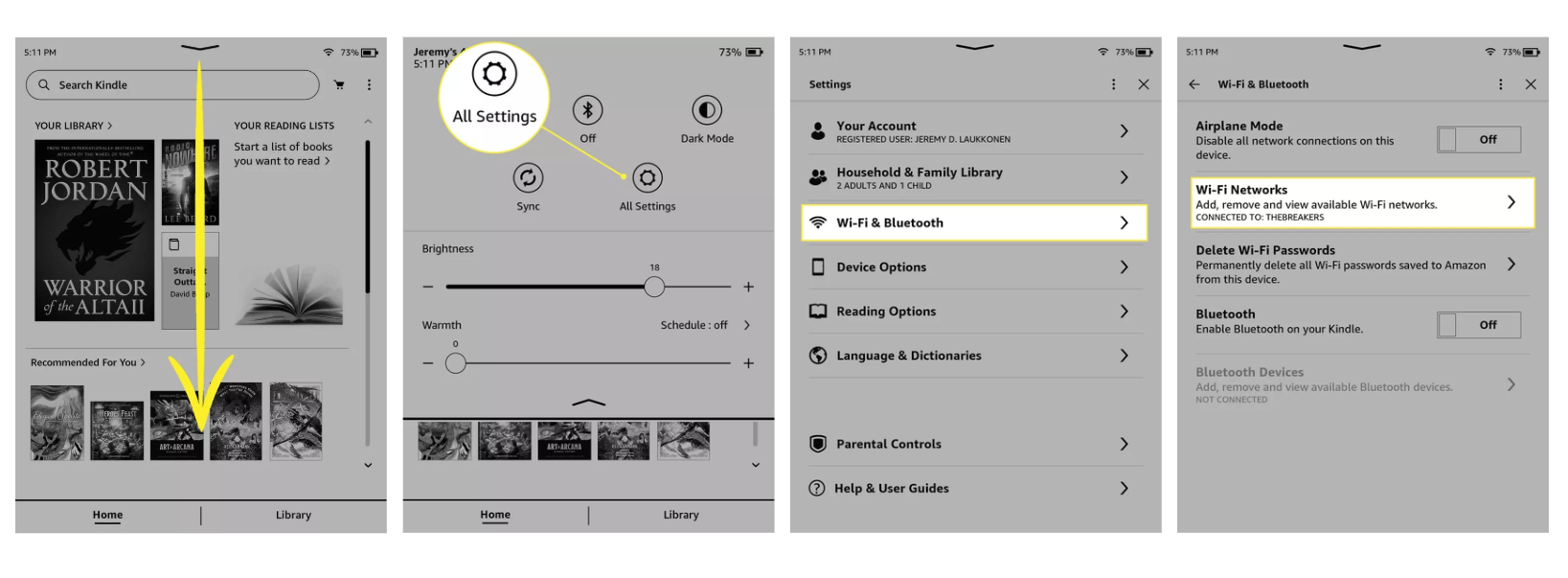
A Kindle e-ink reader does not need Wi-Fi all the time. Once a book is stored on the Kindle, page turning, font changes, bookmarks, notes, highlights, dictionary lookup, and basic reading settings can work without an active internet connection.
The key phrase is "already downloaded." A Kindle library often shows both local books and cloud books. A cover in the library does not always mean the full book is saved on the device. If the title has not been downloaded yet, the Kindle needs Wi-Fi to pull the file from your Amazon account.
A Kindle e-ink device also uses Wi-Fi for account registration, Kindle Store access, cloud delivery, library sync, software updates, and some content services. After setup and download, however, the device can stay offline for long reading sessions.
Does the Kindle App Need Wi-Fi?
The Kindle app on iPhone, iPad, Android, Fire tablet, PC, or Mac follows the same basic rule: it needs internet to download books and sync with Amazon, but it does not need Wi-Fi to read books that have already been downloaded inside the app. If the book is downloaded over Wi-Fi at home, the app can read it later in airplane mode. If the book is still only in the cloud, the app needs Wi-Fi or mobile data before it can open the full title.
What Can You Do on a Kindle Without Wi-Fi?
A Kindle without Wi-Fi is still useful as a reading device. The most important offline functions are straightforward:
- Read downloaded Kindle books.
- Open downloaded samples, PDFs, and compatible personal documents already stored on the device.
- Turn pages, search within many downloaded books, and change reading settings.
- Add bookmarks, notes, and highlights locally.
- Use the built-in dictionary if the dictionary file is installed on the device.
- Read Kindle Unlimited titles that were borrowed and downloaded before going offline.
- Read in airplane mode to save battery and avoid accidental syncing.
Just a heads-up, offline notes and highlights are not lost just because the Kindle is disconnected. They are saved locally first. The limitation is that they cannot sync to your Amazon account or other devices until the Kindle reconnects.
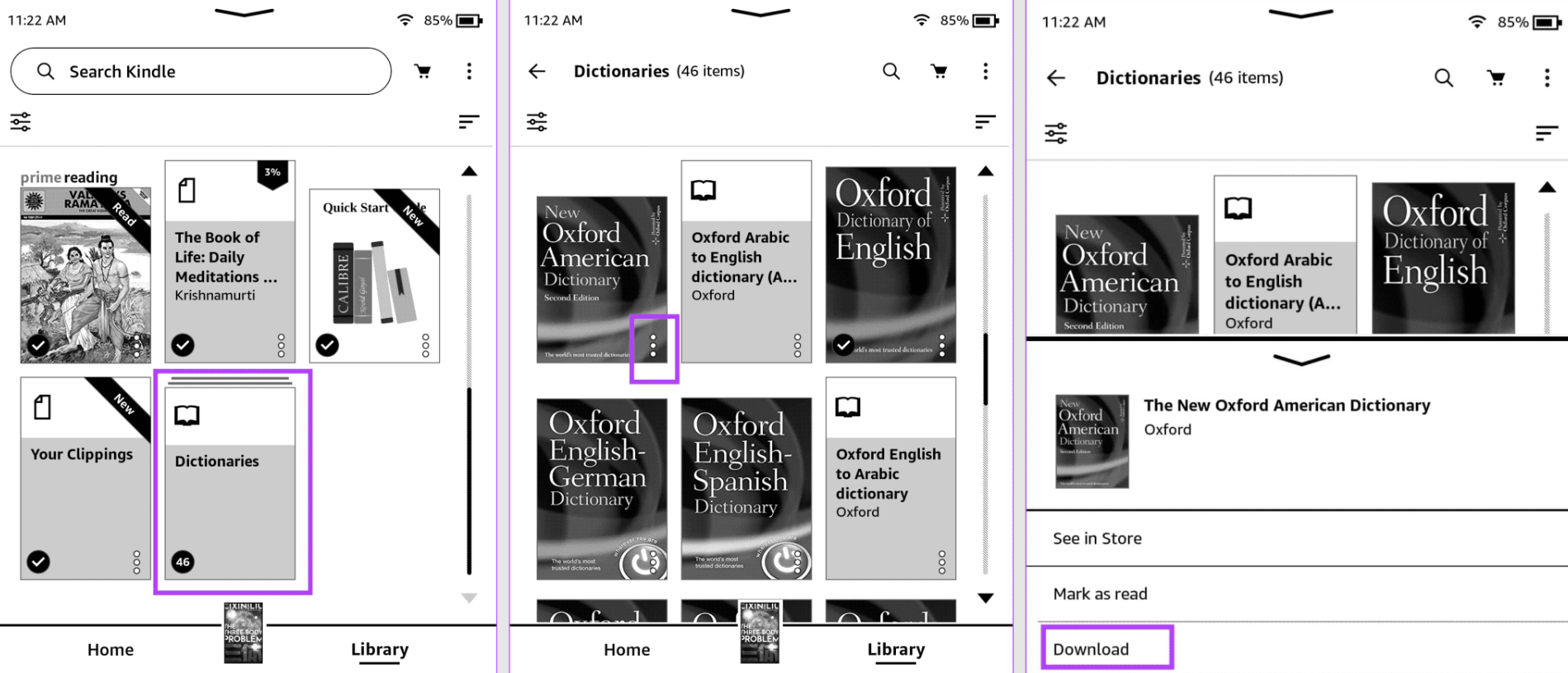
💡Quick Tip: How to use Kindle dictionary without wifi?
Connect your Kindle to the internet first, open your Library, and look for the Dictionaries collection or section. Choose the dictionary you want and download it to the device. After it is downloaded, you can look up words while reading even when Wi-Fi is turned off. If you have several dictionaries installed, go to Settings > Device Options > Language and Dictionaries > Dictionaries to choose your default dictionary.
What Benefits Will You Get If You Keep Kindle Without Wi-Fi?
Keeping Kindle offline can help with battery life, focused reading, library-loan reading, offline dictionary use, and manual device maintenance.
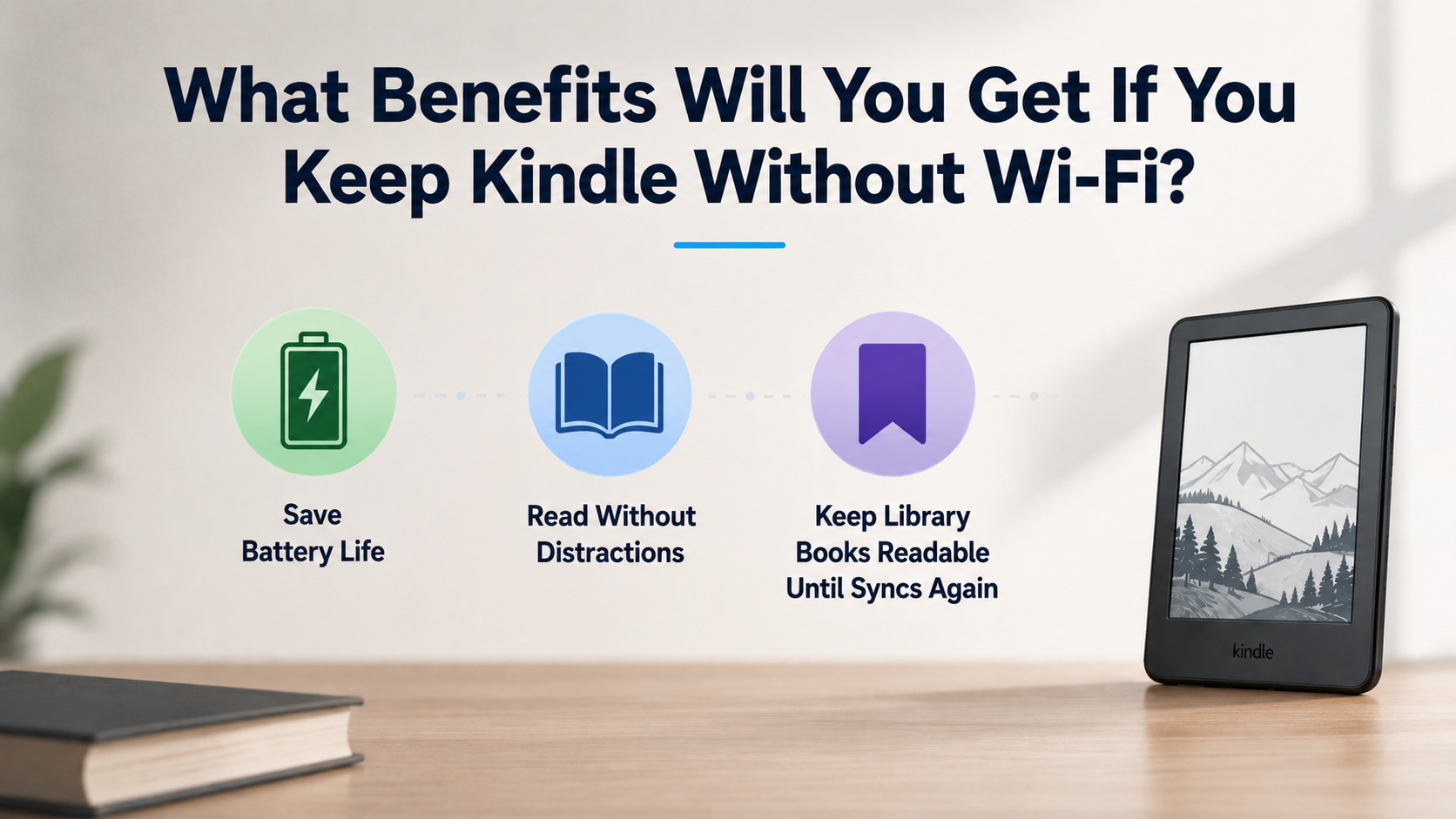
1. Save Battery Life
Turning off Wi-Fi or enabling Airplane Mode can reduce background wireless activity. This is useful when you are traveling, commuting, camping, or reading for several days without charging.
2. Read Without Distractions
Without Wi-Fi, Kindle will not refresh the store, sync reading progress, download recommendations, or push new samples to the device. The reading experience becomes simpler: open the book, read, and stop checking what else is available.
3. Keep Libby or OverDrive Books Readable Until Kindle Syncs Again
If you borrow a library book through Libby or OverDrive and send it to Kindle, Airplane Mode may keep the downloaded copy readable on that Kindle until the device reconnects and syncs again.
This does not extend the actual library loan. The book still expires in Libby or OverDrive, and other readers can still borrow it according to the library system. Once your Kindle goes back online, the expired book may be removed from the device.
What Requires Wi-Fi on a Kindle?
Wi-Fi, or another internet connection on Kindle apps, is needed for anything that reaches outside the local device. The main examples are:
- Downloading a purchased book from your Amazon library.
- Borrowing or downloading a Kindle Unlimited title.
- Shopping in the Kindle Store from the device.
- Registering or deregistering a Kindle.
- Syncing the furthest page read, notes, highlights, and bookmarks.
- Receiving Send to Kindle documents from the cloud.
- Downloading dictionaries, updates, and some reading feature data.
- Using Wikipedia lookup, web-based search, or the experimental browser where available.
- Listening to Audible or downloading Audible files on supported Kindle models.
One current detail is especially important: Amazon removed the old "Download & Transfer via USB" option for Kindle books in 2025. In the past, some users downloaded purchased Kindle books to a computer and moved them to a Kindle by USB. For current Kindle delivery, I would not build an offline plan around that old option. It is safer to download books directly to the Kindle or Kindle app while internet is available.
As you can see, many essential features actually require Wi-Fi in 2026. Some people even joke that without Wi-Fi, it's basically useless. Of course, that really depends on individual needs and preferences.
How to Prepare Your Kindle Before Going Offline
A good offline setup is less about changing Kindle settings and more about checking the library before the connection disappears. Here is the workflow I use before a flight or weekend trip.
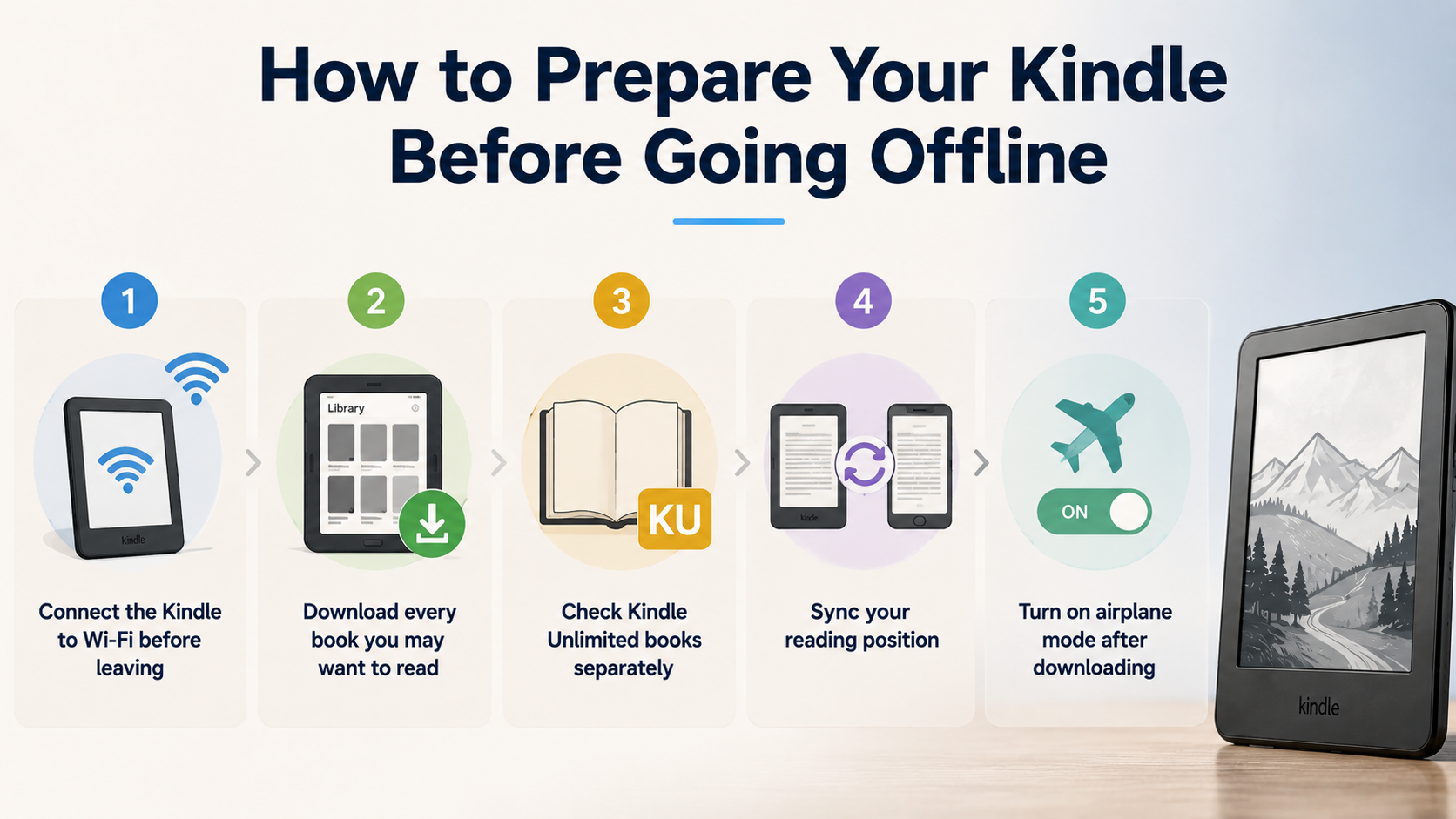
1. Connect the Kindle to Wi-Fi before leaving
A stable home or office network is usually better than airport or hotel Wi-Fi. Once connected, the Kindle can refresh your library, receive pending book deliveries, and sync your latest reading position.
2. Download every book you may want to read
Open the Library and tap the titles you want available offline. I do not rely on the cover alone. I open each important book for a few seconds and make sure the text loads past the cover or table of contents.
3. Check Kindle Unlimited books separately
Kindle Unlimited books need to be borrowed and downloaded while the device is online. If you plan to read subscription titles offline, the safest approach is to open each borrowed book once before leaving. This confirms that the license and file are already on the device.
4. Sync your reading position
If you move between a Kindle e-reader and the Kindle app, sync before going offline. This avoids the common problem where the phone is several chapters behind the e-reader, or the Kindle does not yet have the highlights made on another device.
5. Turn on airplane mode after downloading
Once the books are ready, airplane mode can help conserve battery and prevent the Kindle from trying to connect to weak networks. Reading, highlighting, and bookmarking can continue offline.
How to Read Kindle Books Without Wi-Fi?
You can read Kindle books without Wi-Fi as long as the books have already been downloaded to your Kindle device or Kindle app. After a title is saved locally, you can open it from your Library and keep reading even in Airplane Mode.
If your goal is only to read Kindle books without Wi-Fi, downloading the book to your Kindle is enough. But if you manage many Kindle books and want them in a standard local format, BookFab Kindle Converter can help convert Kindle eBooks to EPUB or PDF for personal backup, device compatibility, printing, or reading outside the Kindle ecosystem.
Here is how to read Kindle books offline with BookFab:
Step 1. Open Kindle for PC and go to your Library. Find the Kindle book you want to convert, click the three-dot icon next to the title, and download the eBook to your computer.
Step 2. Open BookFab and choose Kindle Converter from the left sidebar. Click Refresh, and BookFab will automatically import the Kindle eBooks downloaded from Kindle for PC. Select the books you want to convert, then click Convert & Decrypt.
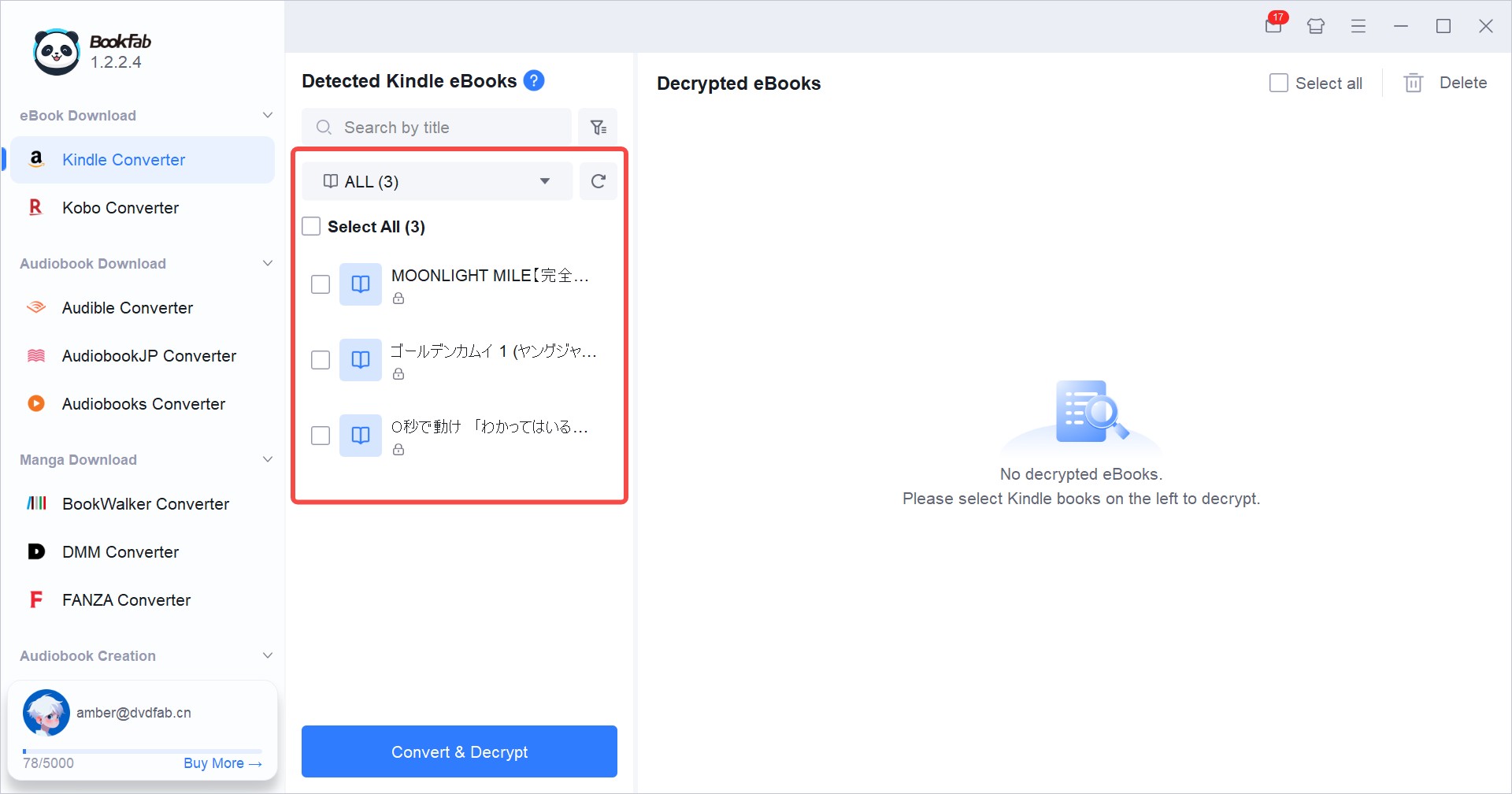
Step 3. After conversion, you can open the local output folder to manage the converted EPUB or PDF files. After conversion, these Kindle books can be read on any device withoud wifi.
FAQ
Can I buy Kindle books without Wi-Fi?
Can I connect Kindle to a phone hotspot instead of Wi-Fi?
Can I transfer Kindle books by USB without Wi-Fi?
Does Kindle Unlimited Work Without Wi-Fi?
There is also a practical limit: Kindle Unlimited is not an offline archive of every book in the catalog. It is a subscription library. I would not wait until the airport gate to choose a long reading list. A better approach is to borrow and download several titles beforehand, then open each one once to confirm it is ready.
Do New Kindles Have Cellular or Their Own Internet?
New Kindles also do not provide general-purpose internet like a smartphone. Even when a Kindle has a browser or web lookup feature, it is still an e-reader first. For travel, I would plan around Wi-Fi at home, hotel Wi-Fi, or a phone hotspot rather than expecting a Kindle to have its own independent internet service.
How to read books on Kindle Fire without Wi-Fi?
Conclusion
A Kindle does not need Wi-Fi for reading downloaded books, but it does need internet for getting new content and keeping the Amazon ecosystem in sync. The cleanest offline plan is simple: connect early, download the books, open them once, sync your place, and then switch to airplane mode. For casual readers, that is enough. For readers managing a larger personal eBook library, a separate backup or conversion workflow may be worth considering, as long as it stays within personal-use and copyright boundaries.

 4 Easy Ways to Convert Kindle to PDFBy Amber Collins - May 18, 2026
 How to Print Kindle Books Without Losing QualityBy Amber Collins - May 14, 2026
![[Quick Solution] How to Remove Kindle DRM on Mac](https://images.dvdfab.cn/media/未命名的设计__87__crpyru.png/public) [Quick Solution] How to Remove Kindle DRM on MacBy Amber Collins - May 11, 2026
[Quick Solution] How to Remove Kindle DRM on MacBy Amber Collins - May 11, 2026 How to Download Kindle Books to PC in 2026 (The Complete Guide)By Amber Collins - May 9, 2026