How to Listen to Audible on Mac: 4 Practical Methods

Summary: This guide explains four practical ways to listen to Audible on Mac, including online streaming, Apple Books, iTunes for older macOS versions, and converting Audible books to common audio formats for easier offline playback without device or format restrictions.
Table of Contents
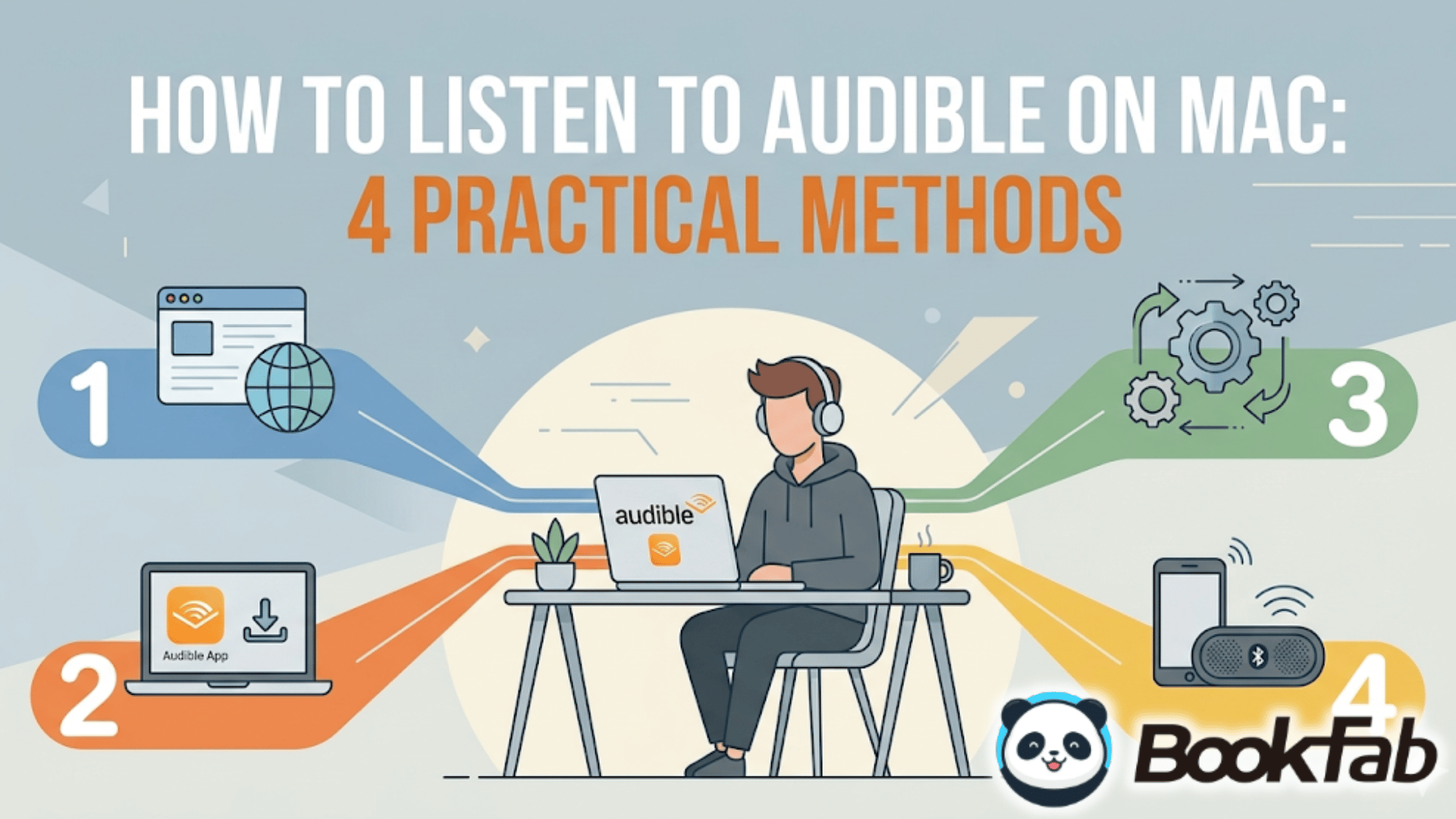
If you are wondering "does Audible have a desktop app for Mac?", the answer can be a little frustrating. As of 2026, Audible still does not offer an official native desktop app specifically built for macOS.
So, how can you listen to Audible on Mac in 2026? In fact, there are still four workable solutions. You can stream audiobooks online with Audible Cloud Player, download Audible titles and open them in Apple Books, use iTunes on older macOS versions, or choose a more universal method: download Audible audiobooks as MP3 files and play them with almost any media player on your Mac. Below, I will walk you through each method step by step.
How to Listen to Audible on Mac without Limitation (Recommended)
Best for: Listen to Audible on Mac without format restrictions; Long-term local backup
Instead of worrying about whether there is a player that can listen to Audible on Mac, a more permanent solution is to download Audible into a format like MP3, which can be played by native Mac players and most other media players. BookFab Audible Converter allows you to download Audible audiobooks as MP3, M4A, WAV, FLAC, OPUS, and other common formats, while preserving the original audio quality. The operation is also beginner-friendly. After conversion, you can even save the audiobooks to a USB drive for playback or backup.
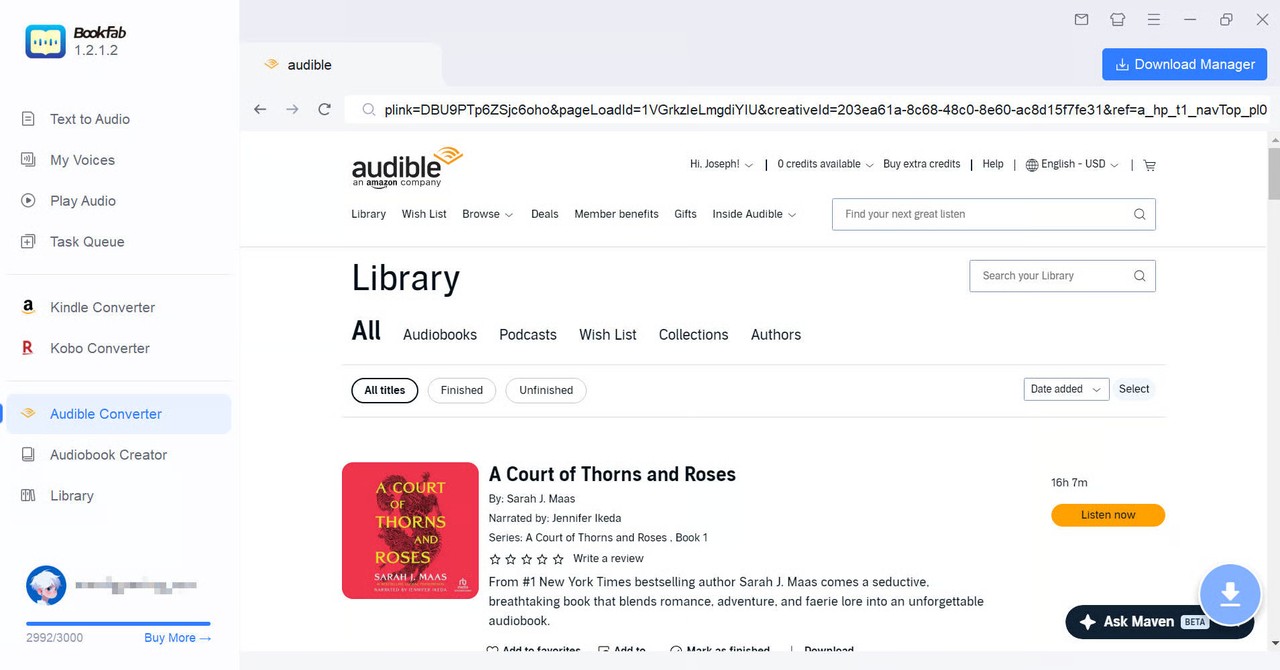
Step 1. Launch BookFab and Sign in to Audible
Download and open BookFab on your Mac. Choose Audible Converter from the main interface. Then sign in with your Audible account so BookFab can access the audiobooks in your library.
After signing in, you can browse your purchased Audible titles directly inside the program. This saves the trouble of downloading files from Audible first and then handling authorization separately.
Step 2. Locate Your Audiobooks and Choose an Output Format
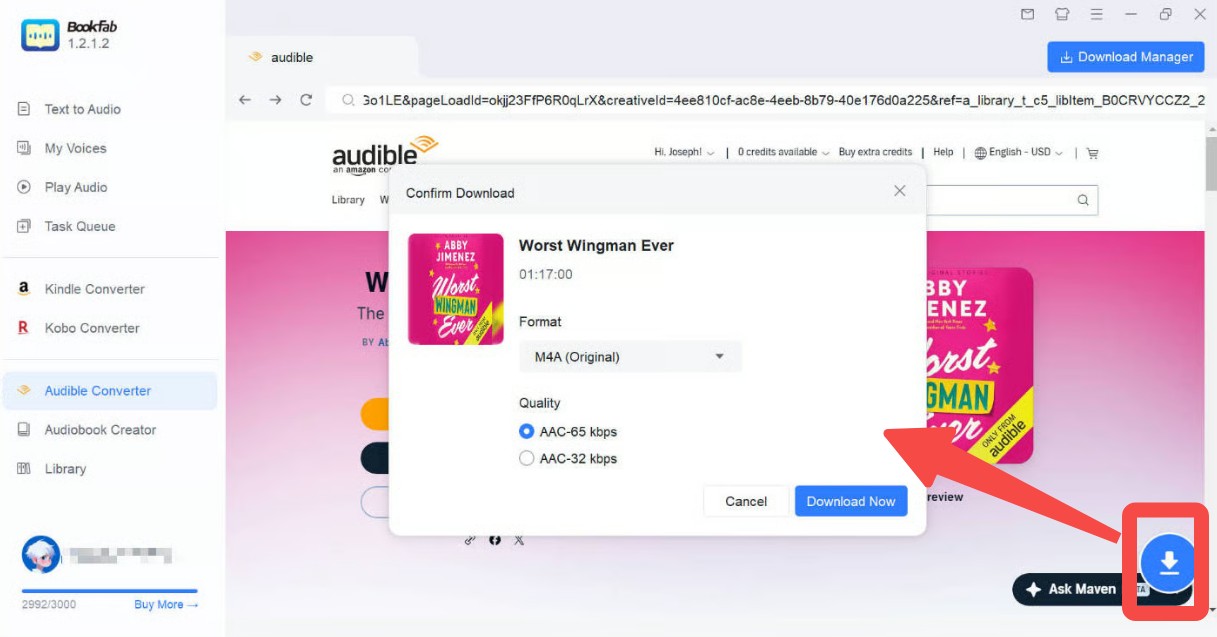
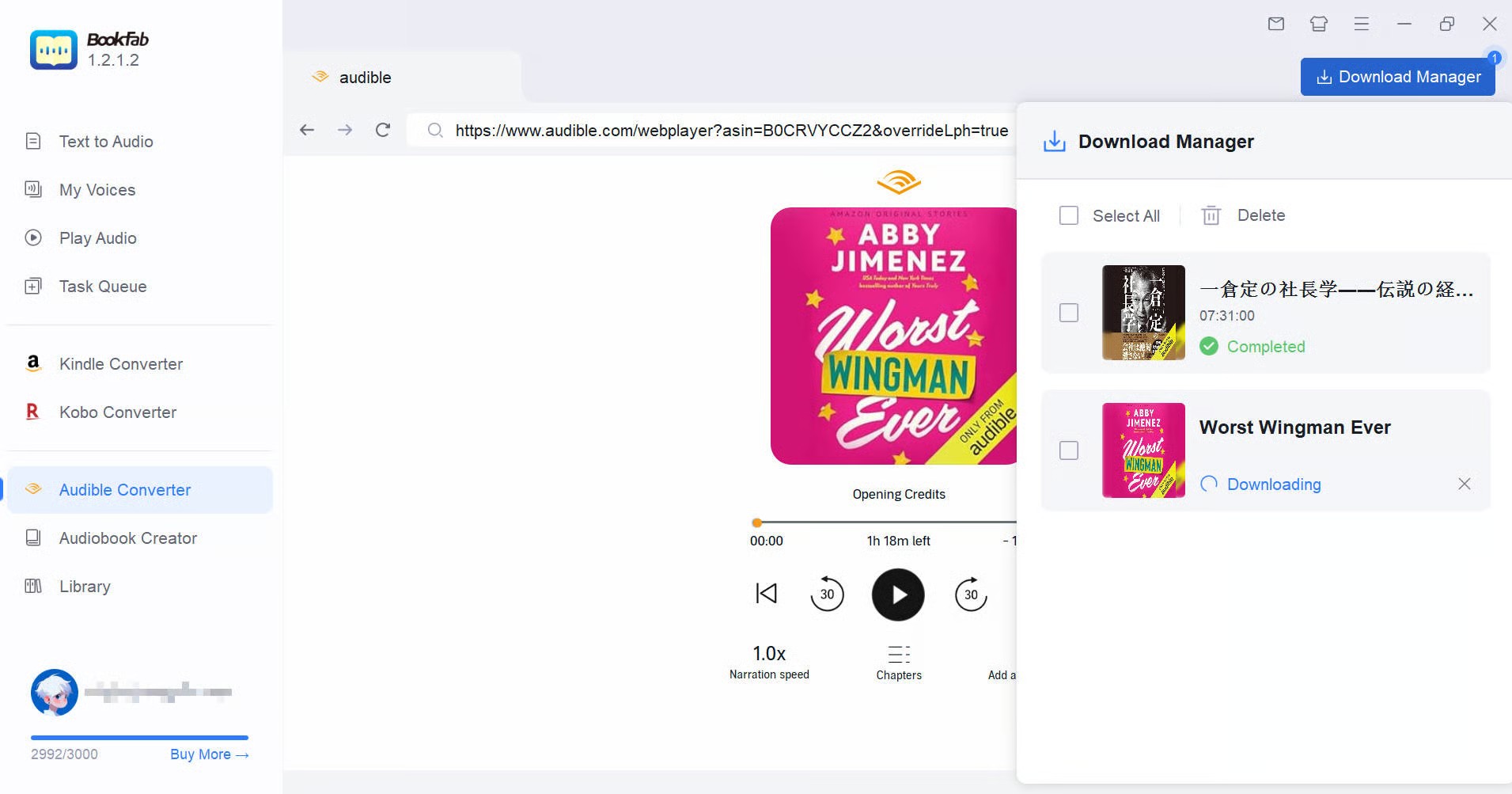
Find the audiobook you want to download and open its details page. Then click the Download button. In the Confirm Download window, you can choose the output format according to your playback needs.
If you want maximum compatibility, MP3 is usually the safest option. If you prefer better chapter support or Apple ecosystem playback, M4A can also be a good choice.
Step 3. Start the Download and Monitor the Progress
After confirming the format, click Download Now to start the task. The download status will appear in Download Manager. During this process, you can also open the details pages of other audiobooks and add them to the download queue.
Once the conversion is finished, the audiobook will be saved as a regular audio file. You can open it with almost any Mac player, transfer it to another device, or keep it in a local audiobook folder for long-term listening.
How to Listen to Audible on macOS with Audible Cloud Player (Online)
Best for: Quick online listening without installing any extra app.
If you do not want to download anything, Audible Cloud Player is the simplest official way to listen to Audible on Mac. The Cloud Player lets users stream Audible titles from a computer browser, and it supports current versions of major browsers such as Chrome, Firefox, Safari, and Microsoft Edge. This method works well when your internet connection is stable and you only need quick access to your audiobook library.
Step 1. Go to the Audible website on your Mac and sign in with your Audible or Amazon account.
Step 2. After signing in, open Library page from the site navigation. You will see the audiobooks you have purchased or added to your Audible account.
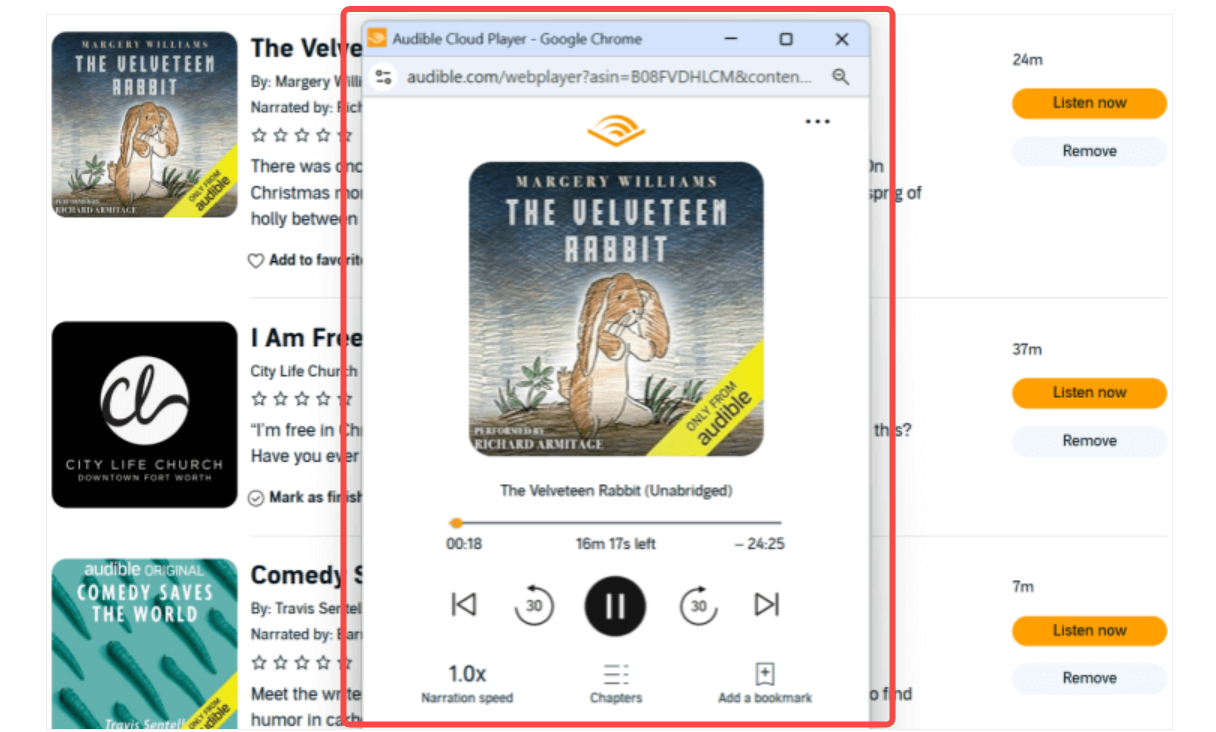
Step 3. Find the audiobook you want to listen to and click Listen now. Audible Cloud Player will open in a browser window and start playing the title.
How to Listen to Audible on Mac via Apple Books (Offline)
Best for: Mac users who prefer an official Apple playback method for downloaded audiobooks.
Apple Books is another way to listen to Audible on Mac, especially on newer macOS versions where iTunes is no longer the main media app.
Step 1. Visit the official Audible website in your browser, sign in to your account, and go to the Library page.
Step 2. Find the audiobook you want to listen to and click the Download option beside the title.

Step 3. When the download is finished, double-click the audiobook file in Finder. On newer versions of macOS, it should open in the Apple Books app. If not, right-click the file, choose Open With, and select Apple Books.
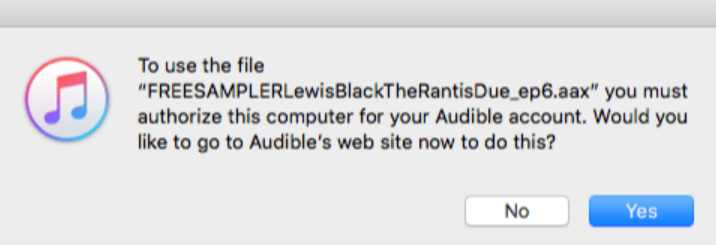
Step 4. If this is your first time opening an Audible file in Apple Books, a prompt will appear asking you to authorize your Mac. In that case, click Yes, sign in to Audible account, and follow the onscreen instructions to authorize your account.
Step 5. Once the file is imported and authorized, it will appear in the Audiobooks section of Apple Books. You can double-click the title to start listening.
How to Play Audible on Mac via iTunes (for Older Mac)
Best for: Users with older macOS versions where iTunes is still available.
If you are using an older Mac, especially macOS Mojave or earlier, iTunes may still be available as the default media manager. In that case, you can use iTunes to open and play downloaded Audible audiobooks.
This method is similar to Apple Books, but it applies mainly to older macOS versions. Since Apple replaced iTunes with separate apps such as Music, Podcasts, TV, and Books on newer macOS versions, most modern Mac users should use Apple Books instead.
Step 1. Open Audible in your browser and go to your Library page. Then click Download to the right of the audiobook you want to save to your Mac.
Step 2. Double-click the downloaded Audible file. On older macOS versions, it opens in iTunes by default.
Step 3. If this is the first time you are playing Audible content in iTunes, a pop-up may ask you to authorize your computer. Click Yes.
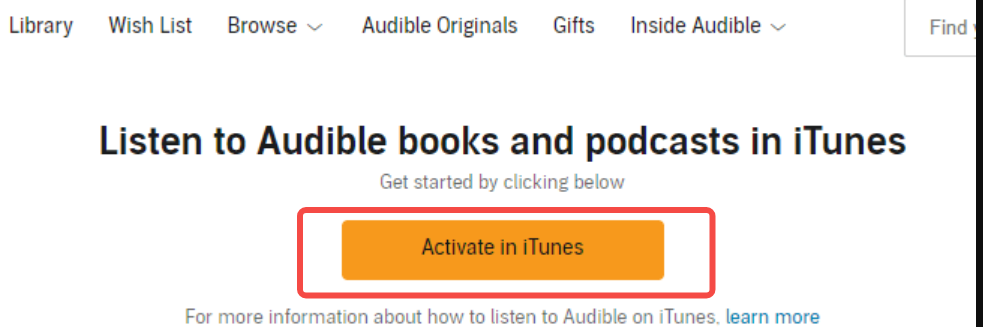
Step 4. Then enter your Audible sign-in information and click Activate in iTunes to complete the activation.
Step 5. After authorization, the audiobook should begin playing in iTunes. You can later find it in the Audiobooks section, where your Audible titles are stored.
FAQ
How to Listen to Audible on Windows?
Can I Convert Audible to MP3?
Conclusion: Which Method Should You Choose?
If you do not mind the internet requirement, Audible Cloud Player is enough. If you want an official offline method on a modern Mac, Apple Books is the better choice. If you are using an older version of macOS, iTunes can still work. But if you want to listen to Audible on Mac without repeated authorization issues, or if you want to convert AAX to MP3 for hassle-free playback, BookFab Audible Converter is the most practical solution.

 4 Easy Ways to Remove Audible DRM in 2026: Tool Reviews and TutorialBy Amber Collins - May 19, 2026
 How to Download Audible Books to PC and Phone: A Complete TutorialBy Amber Collins - May 19, 2026
 Convert AAX to MP3: 9 Best Free Audible Converters in 2026 (Tested)By Amber Collins - Apr 16, 2026
 How to Download Audible to Mac Easily: A Step-by-Step TutorialBy Amber Collins - Feb 24, 2026