Convert AAX to MP3: 9 Best Free Audible Converters in 2026 (Tested)

Summary: This article offers a hands-on review of the 9 best free Audible converters, complete with step-by-step tutorials on how to convert AAX to MP3. Our top picks range from professional software like BookFab Audible Converter to reliable open-source tools like Libation. Each review includes clear instructions to help you easily convert your Audible library for offline listening.
Table of Contents
Over the years I've listened to more than 300 audiobooks on Amazon's Audible. The catalog is huge, but I've also run into one big drawback: every book I buy lives inside the Audible app as an AA or AAX file, wrapped in DRM. It becomes very hard to keep listening freely on other devices. So from my very first year with Audible, I have been using free Audible converters and downloaders to turn audible to mp3 or m4b files.
In this article I will walk through the 9 best free AAX to MP3/M4B converters I have used over the years, what they can do, their pros and cons, and how I actually use them to convert Audible books to MP3 or other formats in daily life.
Why You Need a Audible converter:
- Audible listening is no longer locked inside the Audible app. You can convert Audible books to mp3 formats, then play your audiobooks almost on any device.
- Most of them can remove Audible's technical DRM restrictions for personal use, so you can back up the books you purchased instead of relying entirely on a single subscription app.
- Most audio editing tools support MP3, so you can cut and edit your Audible content more easily for study, note taking, or your personal collection.
At a Glance: Comparison of 9 Best Free Audible Converters
The table below highlights the key differences between the 9 best free Audible converters available. Before diving into the detailed reviews, you can quickly scan this table and compare their features at a glance to find the perfect tool to convert AAX to MP3 effortlessly.
| Tool | Free/Paid | Platform | Keeps Chapters | Output Formats | Best for |
| BookFab Audible Converter🥇 | Paid with Free Trial | Win/mac | Yes | MP3/M4A/FLAC/WAV/OPUS | Full-featured conversion |
| DragDropDo (AAX to MP3) | Free plan with limits | Online | No | MP3 | Quick online use |
| audible-tools.kamsker.at | Free | Online | Yes | MP3/M4B/FLAC | Free online conversion |
| AAX Audio Converter | Free | Win | Yes | MP3/M4A/M4B | Free Windows use |
| inAudible | Free | Win/mac(older version) | Yes | MP3/M4B/AAC/WAV | Older desktop workflows |
| AudibleChapters | Free | Win(old version) | Yes | MP3/WAV | Chapter-preserved output |
| AAXtoMP3 | Free | Win/mac/Linux | Yes | MP3/FLAC/M4A/OPUS | Cross-platform use |
| Libation | Free | Win/mac/Linux | Yes | MP3/M4B | Audible library management |
| Audacity | Free | Win/mac/Linux | No (manual splitting only) | MP3/WAV/AIFF | Backup AAX to MP3 recording solution |
Best Audible Converter/Downloader: BookFab Audible Converter [My Top Pick]
- Available on: Windows 10/11, macOS 10.13 - 15.x
- Best for: Users who want a stable, full-featured Audible converter with chapter retention and multiple output formats
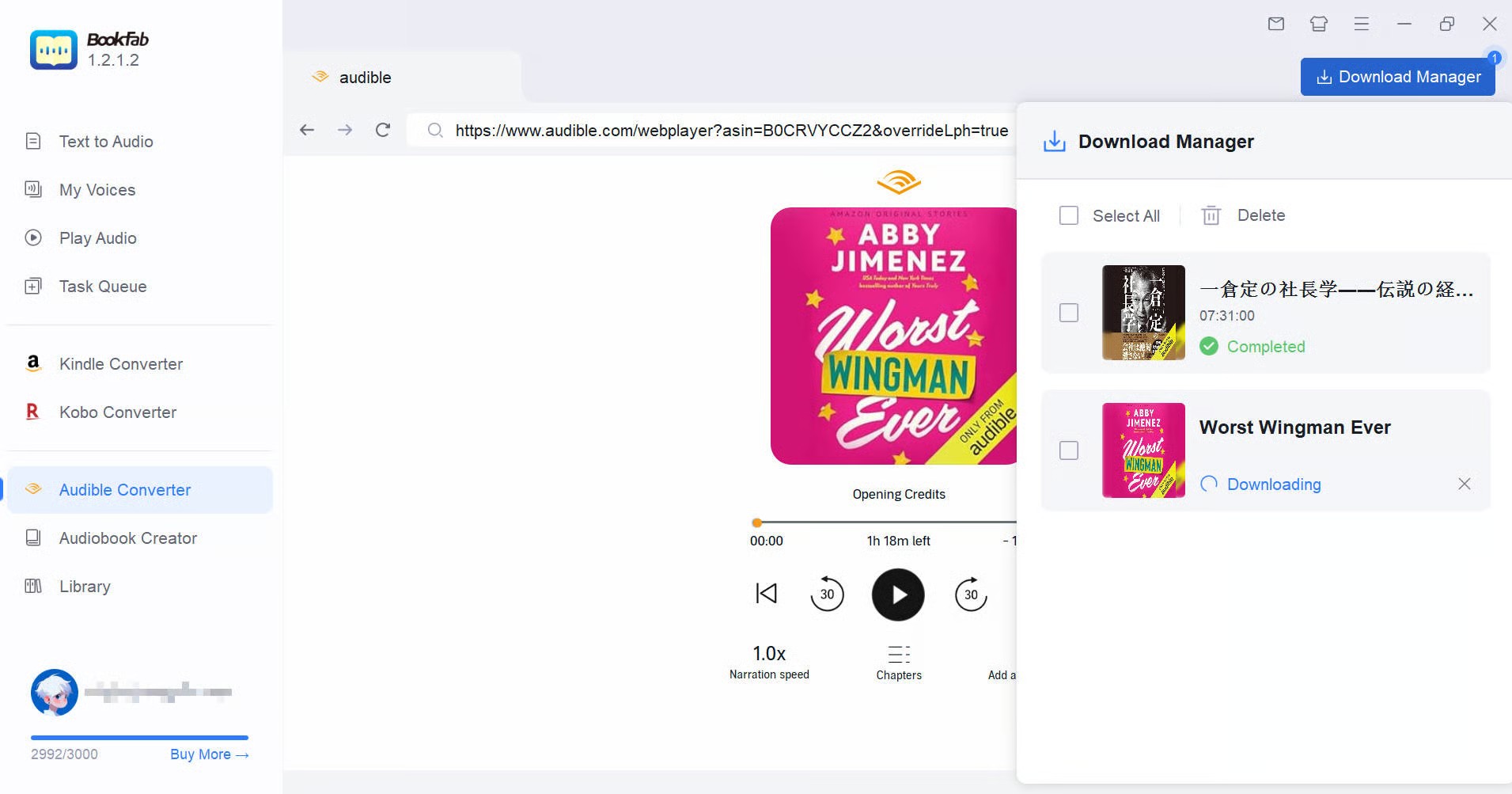
As my top pick, BookFab Audible Converter is a straightforward tool that can download Audible files to MP3 directly. Operating as a dedicated module within the BookFab suite, this best free Audible converter processes the audiobooks you've purchased by automatically handling the DRM and converting the AAX files into versatile formats like MP3, M4A, FLAC, WAV, or OPUS. Throughout the process, it consistently preserves the original chapters, cover art, and metadata.
The workflow here is noticeably more intuitive than most other free Audible converters. Instead of manually downloading your Audible .aax files to your computer first, you simply sign in through the built-in browser. The software instantly recognizes your purchased library and prepares the titles for local batch conversion.
I use this AAX to MP3 converter to turn my audiobooks into lightweight files for my gym sessions. What I appreciate most is how seamlessly it bridges the gap between the Audible app and traditional offline devices, making it easy to get an Audible book ready for a standard MP3 player. It reliably handles massive, full-length titles without crashing, and even when I queue up a large batch of audiobooks, the process never interrupts. For anyone with a large Audible library who wants a quick local backup, this Audible to MP3 converter is a great fit.
How to Convert AAX to MP3 with BookFab Audible Converter
Step 1: Download and install BookFab
Step 2: Open the Audible Converter module and sign in
Launch the program and click Audible Converter in the menu.
In the built-in browser, enter your Audible email and password to sign in. After signing in, your Audible library will appear inside BookFab.
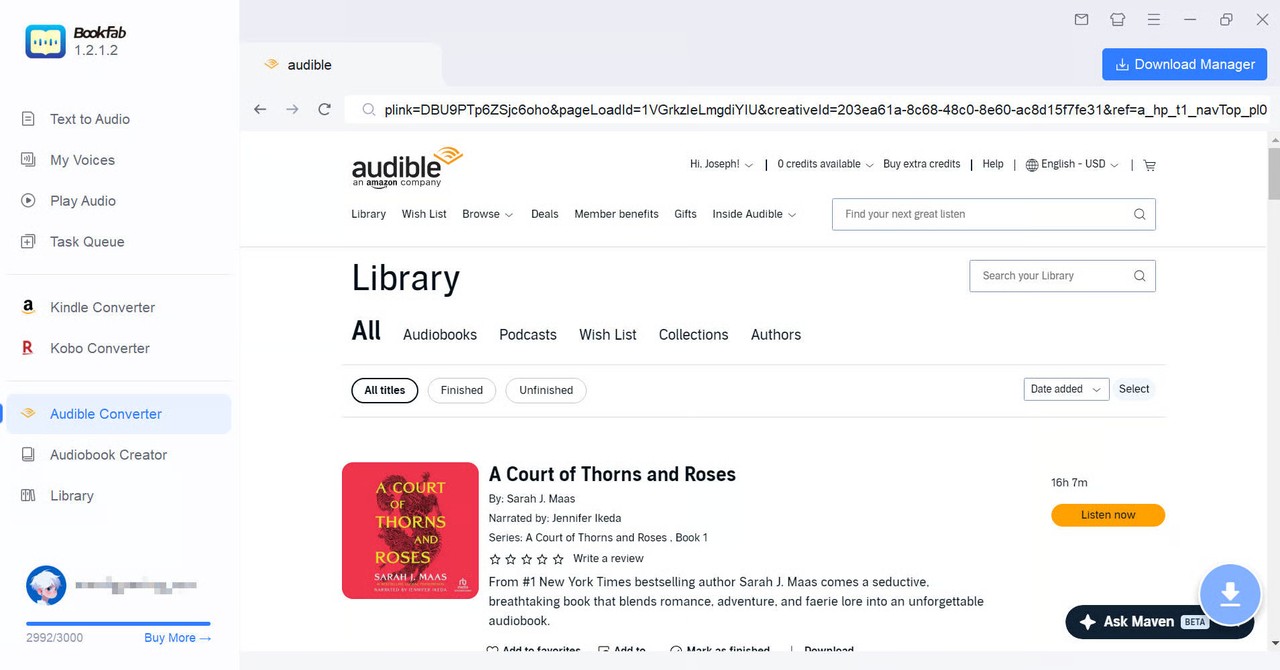
Note: BookFab Audible Converter's built-in browser does not store any of your account information. We place user privacy and data security first.
Step 3: Download audible books to mp3
Browse your Audible library within the integrated browser and navigate to the specific book's details page. BookFab will automatically detect the title and enable the Download button for you.
Click Download button, choose your desired format in the pop-up Confirm window, and hit Download Now to start the process.
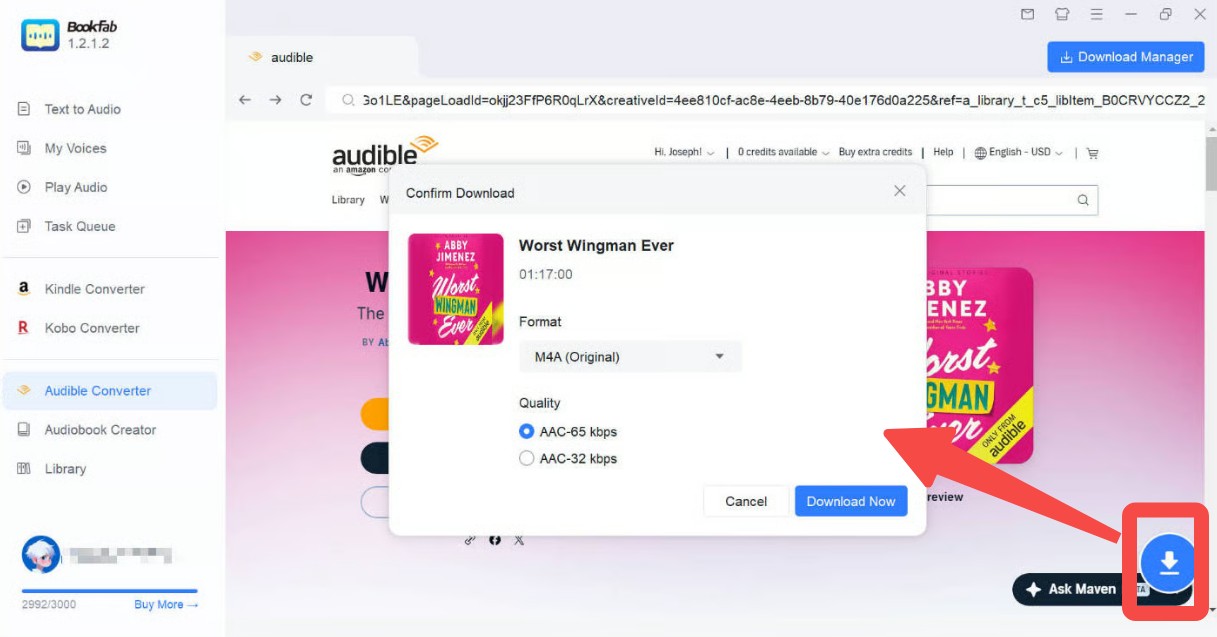
BookFab Audible Converter will download from Audible and convert locally to your chosen format, embedding chapters and metadata. When it finishes, you will find the converted files in your selected output folder.
8 Free Audible Converters: Reviews Based on Tests
#1 Libation
- Available on: Windows/Mac/Linux
- Best for: Users who want to manage and convert Audible books across multiple platforms
Libation is an open source Audible converter available for Windows, macOS, and Linux. Its primary advantage is the automated workflow. It handles downloading, DRM removal, and conversion to standard formats like MP3 or M4B in a single, integrated process. This eliminates the need to download AAX files through a browser or use a secondary downloading application.
I ranked it highly since Libation bypasses the common limitations of other free tools by offering native Mac and Linux support and fetching audiobooks directly from the server without plugins. Beyond conversion, it acts as a practical local library manager that preserves essential ID3 tags, provides precise chapter-splitting, and allows users to export their complete audiobook catalog to an Excel spreadsheet for easy offline organization.
However, this free Audible converter comes with a noticeable learning curve. The initial setup can be quite tricky, and its interface is packed with advanced features that might overwhelm beginners. If your only goal is a straightforward way to convert Audible to MP3 or M4A, you might find this tool a bit too heavy and complicated for such a simple task.
How to Convert AAX to MP3 with Libation?
1. Run Libation. Click Settings > Accounts. In the popup window, enter your Audible email address under Audible email. Then, select the correct Audible region from the Locale dropdown menu. Click the Save button in the lower right corner. Then, an Audible login page will appear. Enter your Audible username and password.

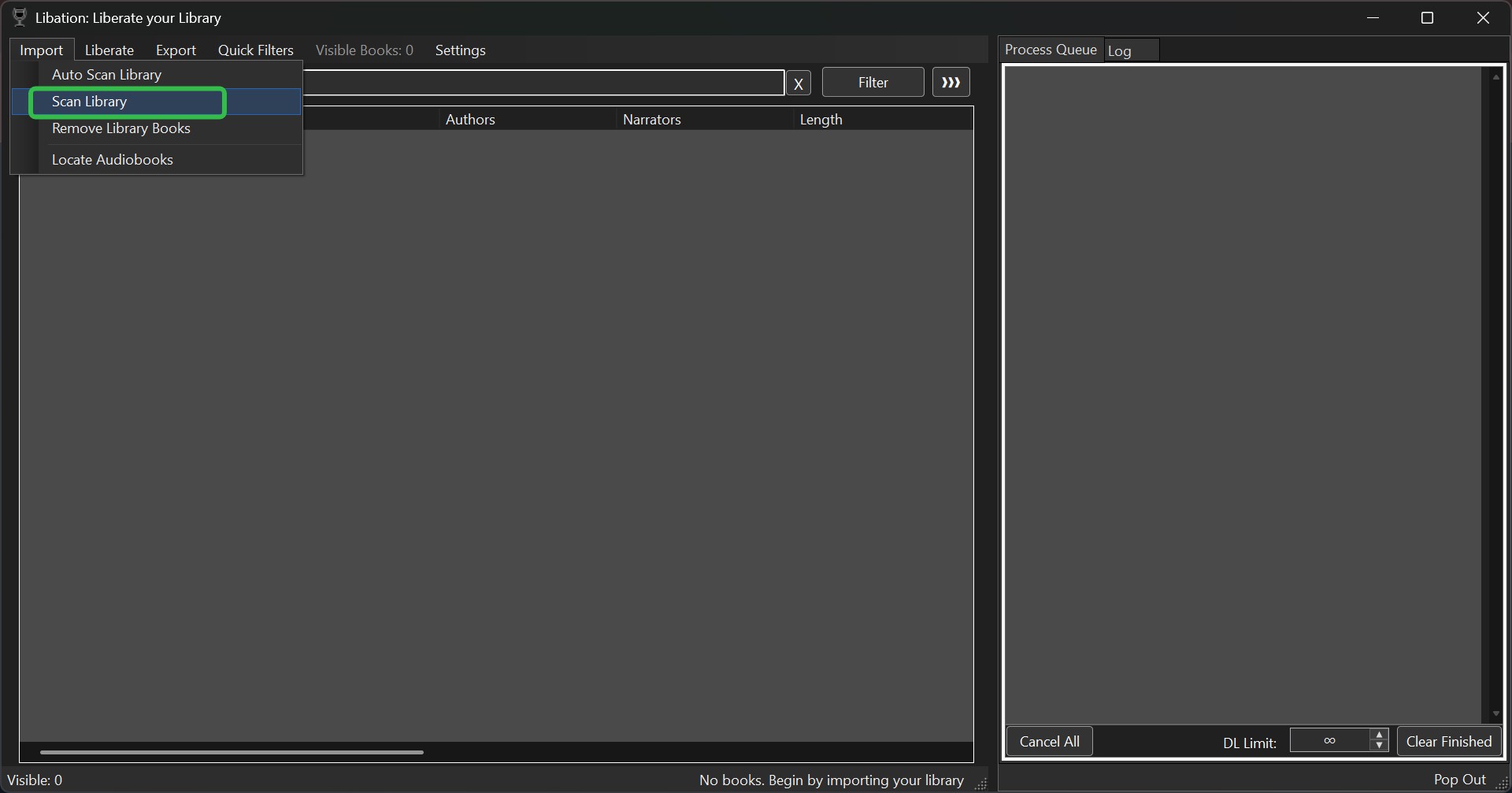
2. After a successful login, return to the main Libation interface, switch to the Import tab in the upper left, and select Scan library. Libation will then automatically sync and load all available audiobooks from your Audible account.
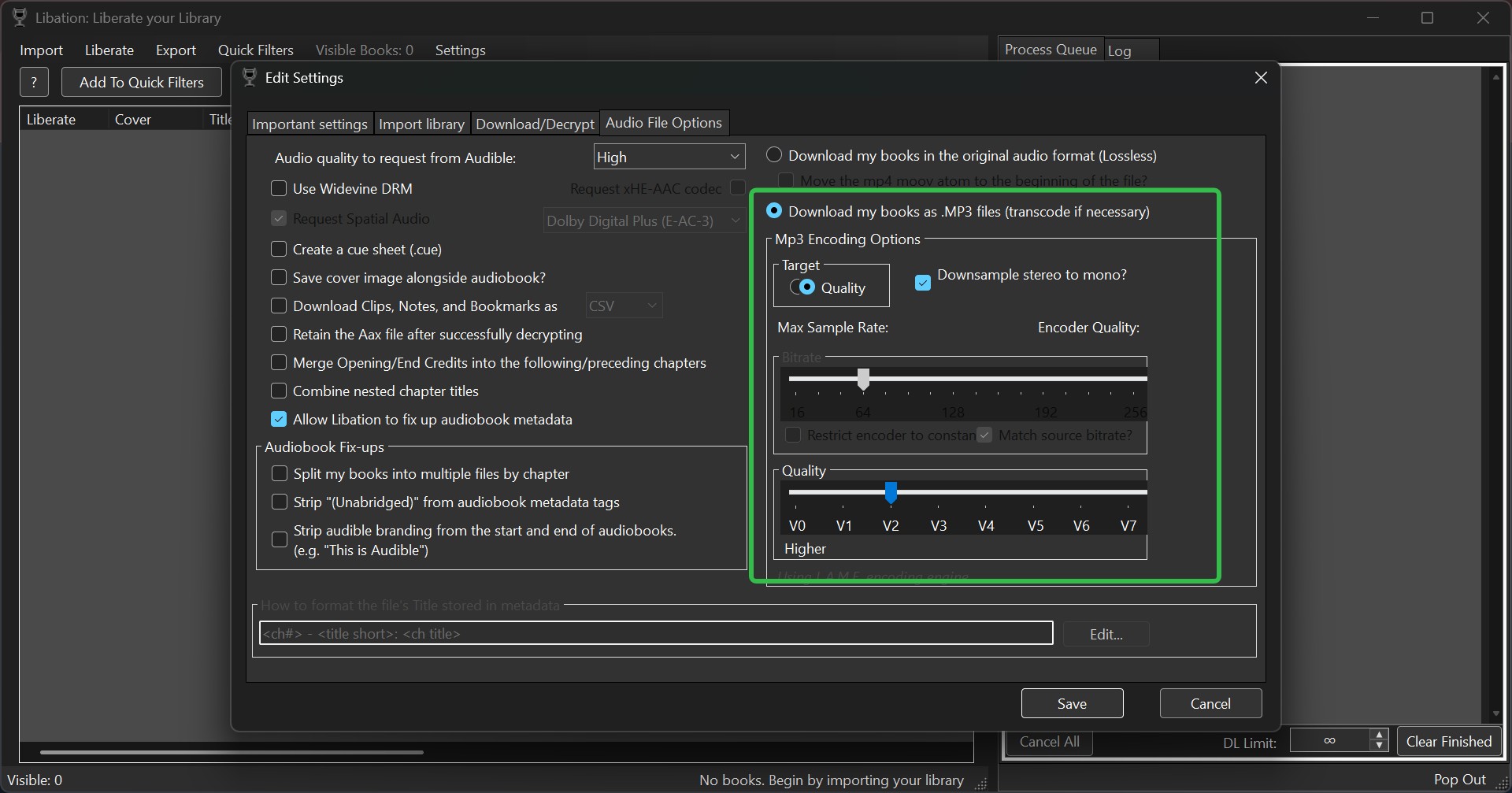
3. Click the traffic light icon next to the audiobook you want to download. Libation will automatically download audible book to M4B file and save it locally. If you want to download Audible books as MP3 files, go to Settings > Settings > Audio File Options and select Download my books as .MP3 files (transcode if necessary). After you apply this setting, your Audible books will be downloaded as MP3 files.
#2 AAX Audio Converter
- Available on: Windows 10/11
- Best for: Windows users who want a free desktop Audible downloader with chapter support
AAX Audio Converter (audiamus/AaxAudioConverter) is a free and open-source desktop application designed specifically for Windows. Hosted on GitHub, it provides a practical way to convert Audible .aax files into MP3, M4B, or M4A formats without file size limits or paywalls. It is frequently recommended in online audiobook communities by users who prefer maintaining local backups.
I noticed that a key difference between this Audible downloader and most web-based tools is its track-splitting capability. Navigating a lengthy audiobook as a single continuous file can be inconvenient. AAX Audio Converter offers several structural options: you can export the entire book as one file, split it by the original chapters, or divide it into fixed time segments (such as 30-minute intervals).
Additionally, it preserves the audiobook's metadata during the conversion process. When you transfer the files to a media player, they will retain the original cover art, author name, narrator, and chapter titles, rather than appearing as generic audio files like "Unknown Track 01."
How to Turn AAX into MP3 Using AAX Audio Converter?
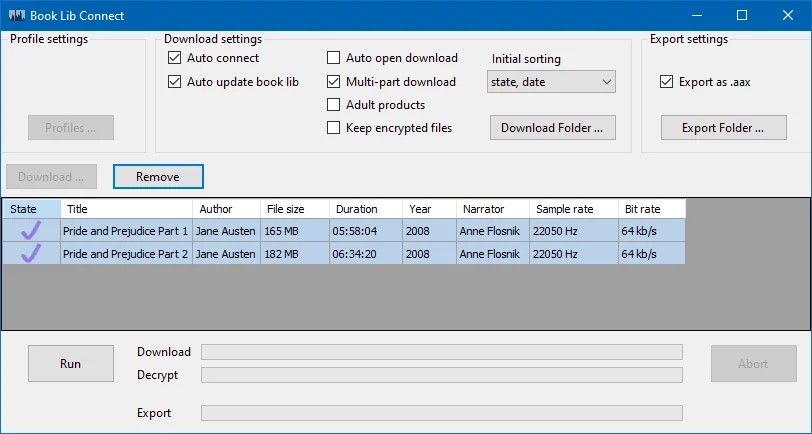
1. Download your Audible files. To avoid unnecessary hassle, it is recommended to install the developer's companion Audible downloader Book Lib Connect (completely free and safe) to download your Audible AAX files, then import them into AAX Audio Converter. If you do not download them via Book Lib Connect, you will be asked to provide the Audible activation code linked to your account, which is more cumbersome.
2. Download and install AAX Audio Converter. Make sure your system is Windows 10/11 and that .NET Framework 4.8 is installed. If it is missing, the program will prompt you and guide you through installing it.
3. Open AAX Audio Converter and add your local .aax files to the list. For multi-part audiobooks, the program can detect them and group them by book.
4. Choose the output format and processing mode.
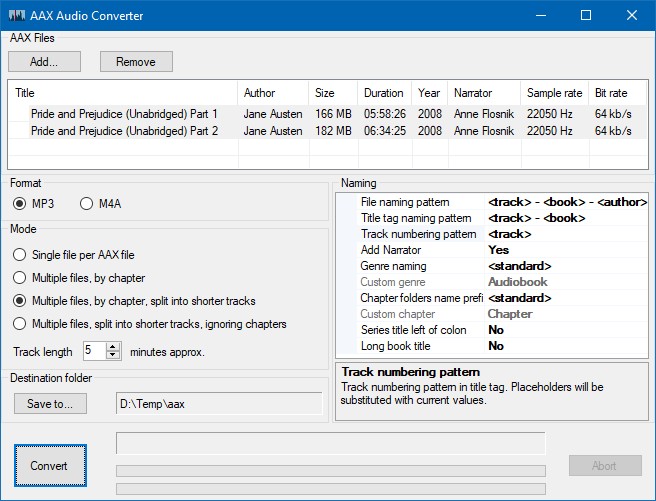
In the settings, select the output format: MP3 or M4A/M4B. Then, choose a processing mode:
- Output one file per book
- Split into multiple files by chapter
- Split by chapter and then further by fixed duration
- Ignore chapters and split only by fixed duration
If you have added multiple audiobooks, you need to configure these options for each book.
5. Click the Convert button to start to convert AAX to M4B or AAX to MP3.
#3 inAudible
- Available on: Windows/Mac
- Best for: Users comfortable with older tools and looking for flexible output options
inAudible is an unofficial free Audible converter created by GitHub user rmcrackan and available for Windows and macOS. It is also based on FFmpeg and can convert encrypted Audible AA or AAX audiobooks to four formats: MP3, M4B, WAV, and AAC (the macOS version does not support WAV output).
A notable advantage of this tool is the control it offers over audio parameters. Users can manually adjust the bitrate and sample rate prior to Audible conversion. This is particularly practical for spoken-word content, as it allows you to lower the bitrate to save device storage space without noticeably degrading the voice quality. It also includes options to split large files by designated chapters or custom time segments.
Although Mac-compatible, this free Audible converter is less optimized for macOS. The Windows version offers a much deeper feature set, acting as an all-in-one audio tool for batch conversion, CD ripping, and ID3 tag editing. Plus, the macOS version of this free Audible converter is outdated and incompatible with macOS Catalina or newer; I couldn't even download it on my MacBook. Therefore, this review focuses exclusively on the Windows version.
How to Use inAudible to Convert AAX files to M4B and MP3?
1. Download and install inAudible. Since inAudible has no official website, it is distributed through the community and third party sites, so you need to carefully check that your download source is safe.
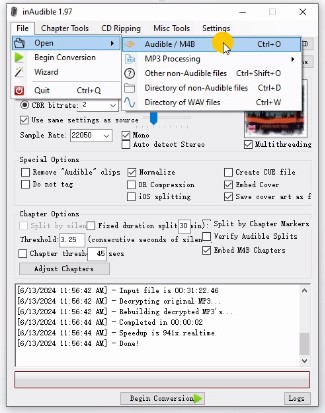
2. Open inAudible and click the Load files button to browse your computer and add the audiobooks you want to convert. To add more audiobooks for conversion, you can click File > Open > Audible/M4B.
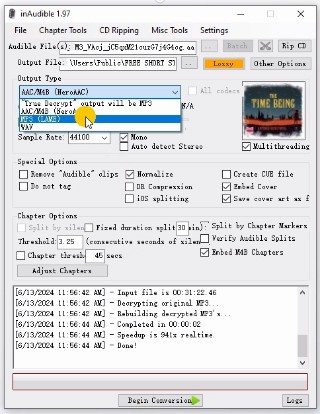
3. In Output Type box, choose the output format. You can also adjust the sample rate, select the audio channels, and so on.
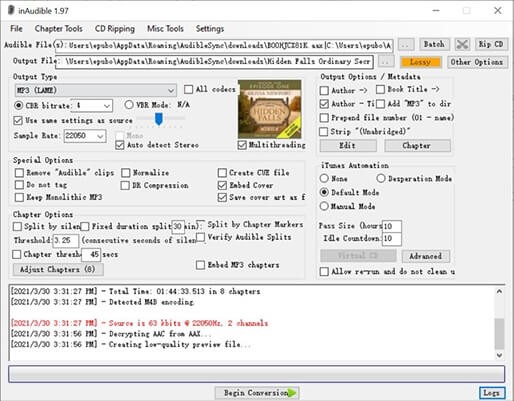
4. Click the Begin Conversion button and inAudible will start converting your Audible files to MP3 or other formats. When the conversion is complete, click Output files to open your output folder.
#4 AudibleChapters
- Available on: Windows
- Best for: Users who mainly need chapter-preserved conversion on older Windows setups
AudibleChapters is a long standing Windows Audible converter utility. It was originally designed to parse chapter information from Audible AA/AAX audiobooks and, together with an external encoder, split the whole book into chapter based MP3 or WAV files. This means each chapter becomes its own manageable audio track, which is highly practical for organizing your offline library or studying specific sections of a book.
Because it is an older piece of software, its interface and setup process are not as streamlined as modern, all-in-one Audible downloaders. It still remains a capable tool for technically inclined Windows users who prioritize strict chapter-splitting, but beginners might find the initial learning curve a bit steep.
How to Convert AAX to mp3 with AudibleChapters?
1. Download AudibleChapters, extract the zip, then run the application.
2. Choose the first option, "I have an AAX file, which plays fine in Audible Manager", to open the AAX conversion interface.
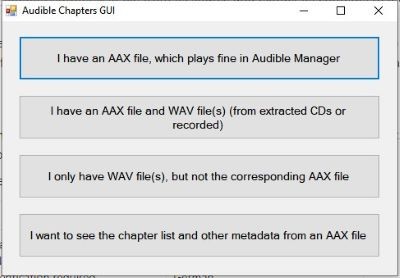
3. Upload the AAX file. In Compression Options, select the output format. Finally, set the destination path for the output files.
4. Click the Start button to begin the conversion. You can see the progress in the Status / Result section.
#5 audible-tools (Best Free Online AAX to MP3 Converter)
- Best for: Quick online conversion of small AAX files to MP3 without installing software
audible-tools.kamsker.at is the best free online Audible converter focused on downloading AAX files to M4B, MP3 and other audio formats. It performs conversions locally in the browser, which gives it better privacy compared with dragdrop. It also supports batch conversion and offers advanced options such as Expert Mode.
In the default mode, audible-tools is very intuitive: you only need to drag in the .aax file and choose an output format, and the tool will try to automatically handle the activation bytes required for decryption, then directly export M4B or MP3. Expert Mode is geared toward advanced users and exposes more low-level parameters, such as manually entering activation bytes and tweaking FFmpeg encoding options to control the output audio quality.
The biggest downside of this free Audible converter—and there's always a catch with free tools—is the 900MB file size limit. If you're a fan of epic fantasy novels like I am, this is an absolute dealbreaker. I once waited 20 minutes for a Brandon Sanderson audiobook to process, only for it to fail at the very last second because the file was too large.
How to Convert AAX to MP3 with audible-tools.kamsker.at?
1. Open audible-tools.kamsker.at in your browser. Drag one or more .aax files into the "Drag and drop AAX files here or click to select" area in the center of the page, or click that area to manually select files from your computer.
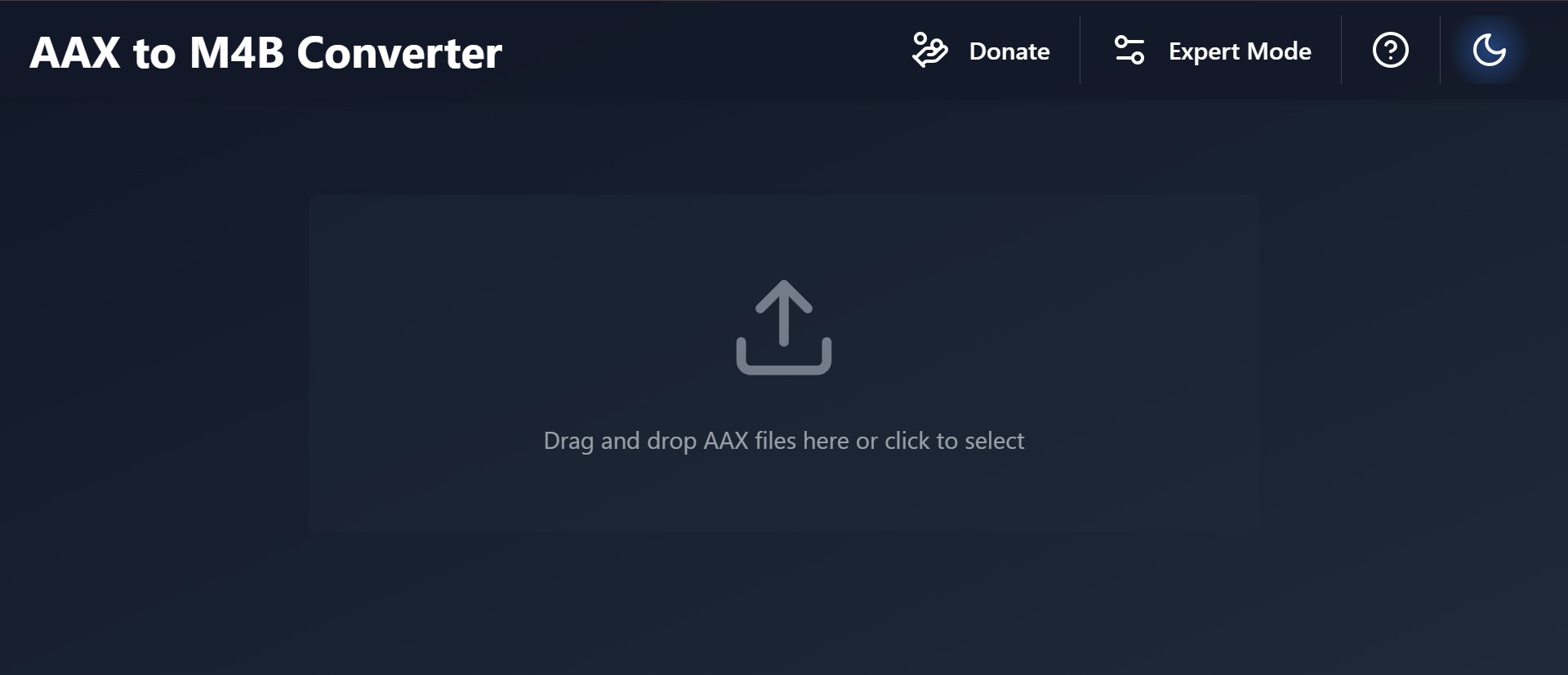
2. Choose the target output format. If you have specific requirements for audio quality or file size, you can enable Expert Mode and fine tune advanced encoding parameters such as bitrate.
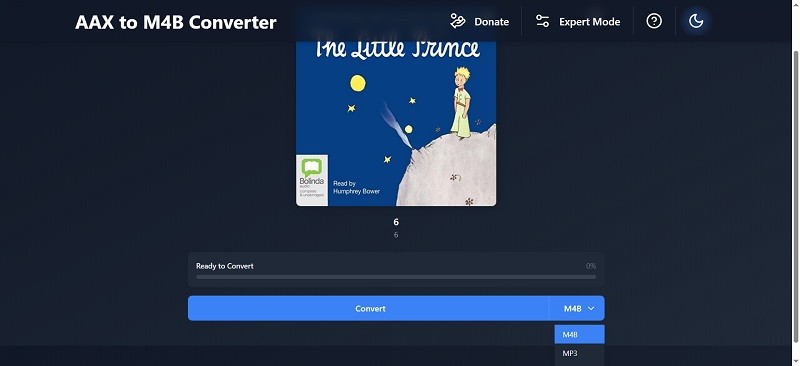
3. Click the Convert button and wait for the browser to finish local processing. Once the conversion is complete, the generated audio files will be automatically downloaded to your computer.
#6 DragDropDo (Online)
- Best for: Quick online conversion of small AAX files without installing software
DragDropDo is a free online Audible converter that runs entirely in your browser, with no software installation or account required. It supports many different formats, with a dedicated module for converting AAX to MP3, and it also supports encrypted file transfer. You can upload multiple files at once or even a whole folder, and DragDropDo can batch-convert these AAX files.
In my tests, what I liked most is that you don't need to worry too much about privacy: this Audible to MP3 converter promises that your uploaded files are automatically deleted after 24 hours. Plus, as an online Audible converter, it's one of the few online tools that supports batch conversion. But the downsides are also obvious. Hitting that 300MB limit per file on the free plan means it's practically useless for anything longer than a short novella. You hit the wall, and you're just stuck unless you pay.
How to Convert AAX to MP3 with DragDropDo Audible Converter?
1. Open your browser and visit DragDropDo's dedicated AAX to MP3 conversion page.
2. Drag and drop one or more .aax files (or an entire folder) onto the page, or click the Files or Folder button to select them manually.
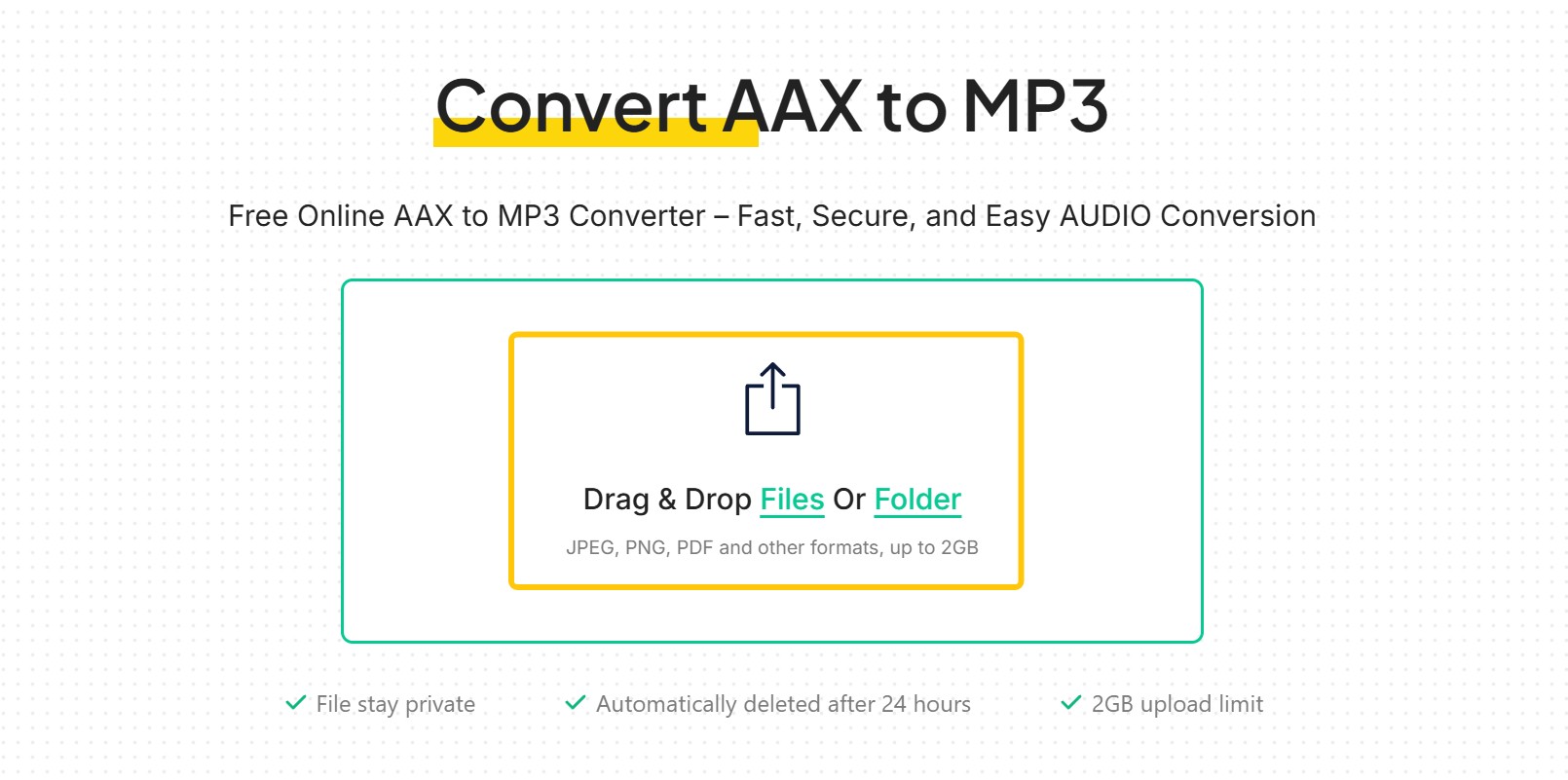
3. In the search box, type convert.
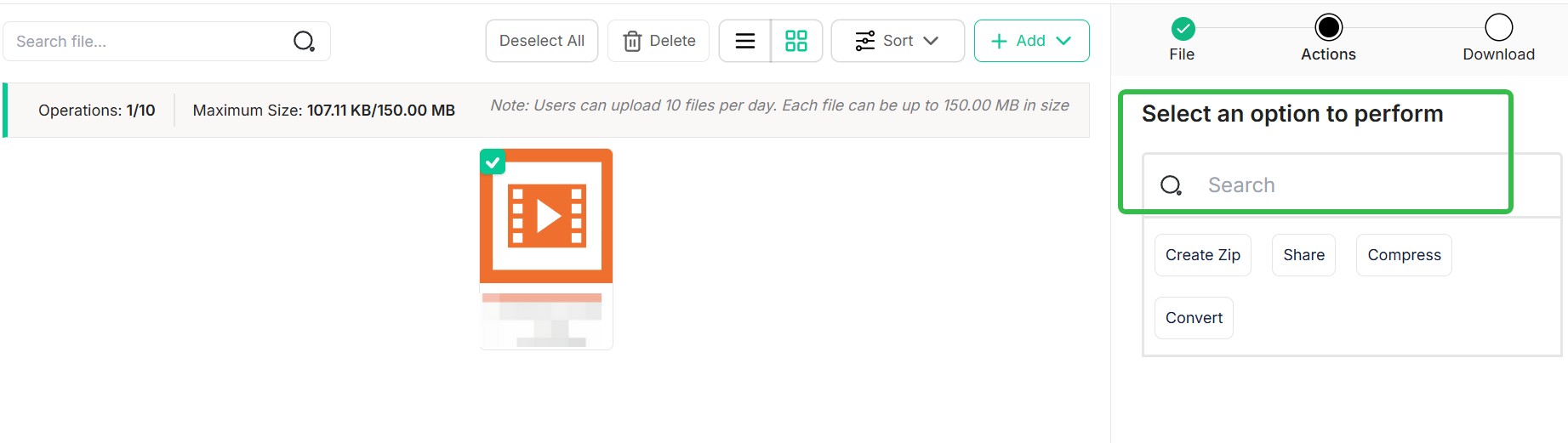
4. Click Audio, then set your output format, for example MP3.
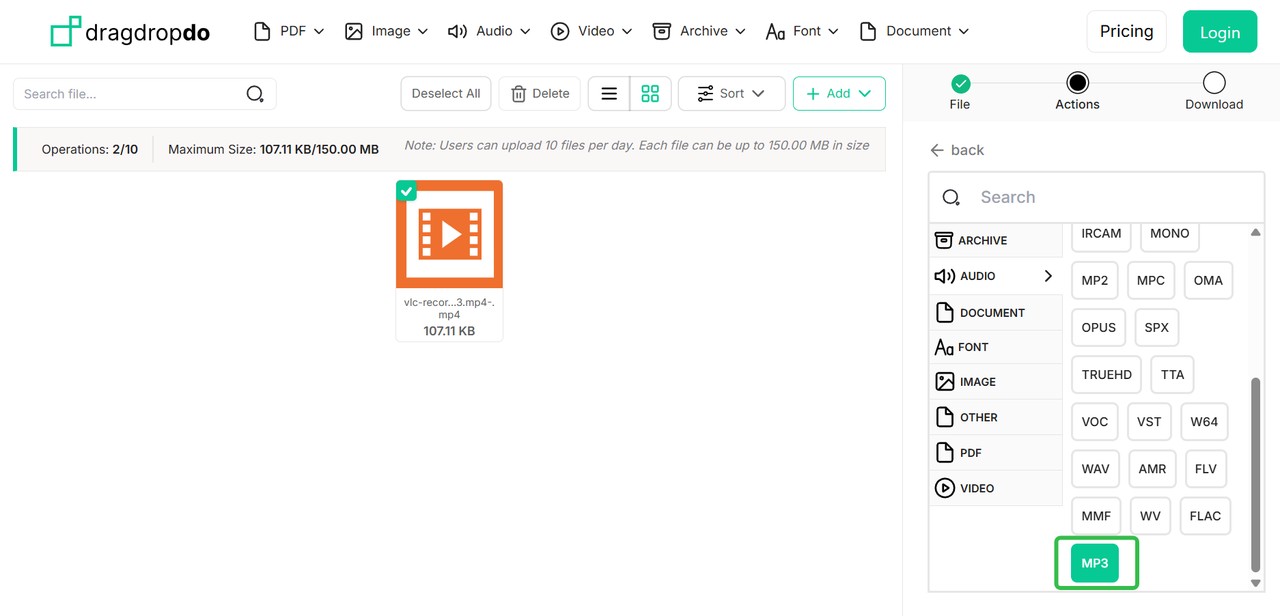
5. Click Continue. DragDropDo will complete the conversion on its backend servers and generate the corresponding MP3 output files. Click Download to save them to your computer.
#7 AAXtoMP3 Audible Converter
- Available on: Windows/Mac/Linux
- Best for: Users who want a free cross-platform AAX to MP3 converter with broad format support
AAXtoMP3 is a best free Audible converter and Audible downloader developed by GitHub user KrumpetPirate. It uses FFmpeg to convert Audible AAX/AAXC audiobooks into more common formats like MP3, M4B, M4A, FLAC, or OGG, which makes it easier to play and back up my audiobooks on more devices. Although this Audible to MP3 converter is completely free, the workflow involves the command line and is quite complex, so after testing it I would not recommend this method to beginners.
How to Use AAXtoMP3 Converter?
Since AAXtoMP3 is a Bash script, running it on Windows requires a compatible command line environment (such as Git Bash or WSL). So my workflow on Windows looks like this:
1. Prepare the runtime environment and dependencies
a. Install a Bash environment: If WSL is not installed, you can install Git for Windows, which comes with Git Bash. All subsequent commands are executed in this environment.
b. Install FFmpeg: AAXtoMP3 relies on FFmpeg to perform the actual transcoding. Make sure FFmpeg is installed either on my system or in my Git Bash/WSL environment. In Git Bash or WSL, check with:ffmpeg -version
2. Get the authorization code (Authcode)
AAX files require the 16 digit authorization code (Authcode) from my Audible account for decryption. This is the most critical step.
a. Install the Audible command line tool: In Git Bash or WSL, I first make sure Python and pip are installed, then install the audible-cli tool:pip install audible-cli
b. Get the Authcode: Run the following command. The tool guides you through logging into my Audible account and finally shows your 16 digit Authcode:python -m audible_cli activation-bytes
c. Save the Authcode: Copy the displayed 16 digit code (for example: 1A2B3C4D5E6F7890) and keep it somewhere safe.
3. Prepare the AAXtoMP3 script and input files
a. In the directory where you want to store my audiobooks, download the AAXtoMP3 script file with:wget https://raw.githubusercontent.com/KrumpetPirate/AAXtoMP3/master/AAXtoMP3
c. Grant the script execute permission:chmod +x AAXtoMP3
d. Place the .aax file you want to convert (for example my_book.aax) in the same directory.
4. Run the conversion command
In Git Bash or WSL, run the following commands, replacing the Authcode and file name with your actual values:
- Default conversion (split into multiple MP3 files by chapter):./AAXtoMP3 -A
my_book.aax - Convert to a single MP3 file (no chapter splitting):./AAXtoMP3 -A
-s my_book.aax
After the conversion is complete, you can find the output MP3 files in the current directory.
#8 Audacity (Audible Playback Recording)
- Available on: Windows/Mac/Linux
- Best for: Manual recording and editing when direct AAX to MP3 conversion failed
Audacity is actually not an Audible converter. It is a free, open source audio recording program. You can play Audible chapters on your computer, then use Audacity to record them and export the result as WAV or MP3, which works as a simple AAX to MP3 or M4B workaround. During my tests I ran into a small pitfall: while recording, you need to remember to turn off system notification sounds, otherwise they will be recorded as noise. Therefore, please make sure to disable all system notifications before using this Audible downloader.
How to Use Audacity to Download Audible Books to MP3?
1. Start Audacity. In Audacity's device settings, choose the audio host and recording device.
2. Open the app or webpage you use to listen to Audible, locate the chapter or segment you want to record, and pause it at the starting position. Turn off notification sounds and system alerts in other apps so they will not be recorded.
3. In Audacity, click the Record button to start capturing desktop audio. Then click Play on the Audible side and let the entire section play through at normal speed.
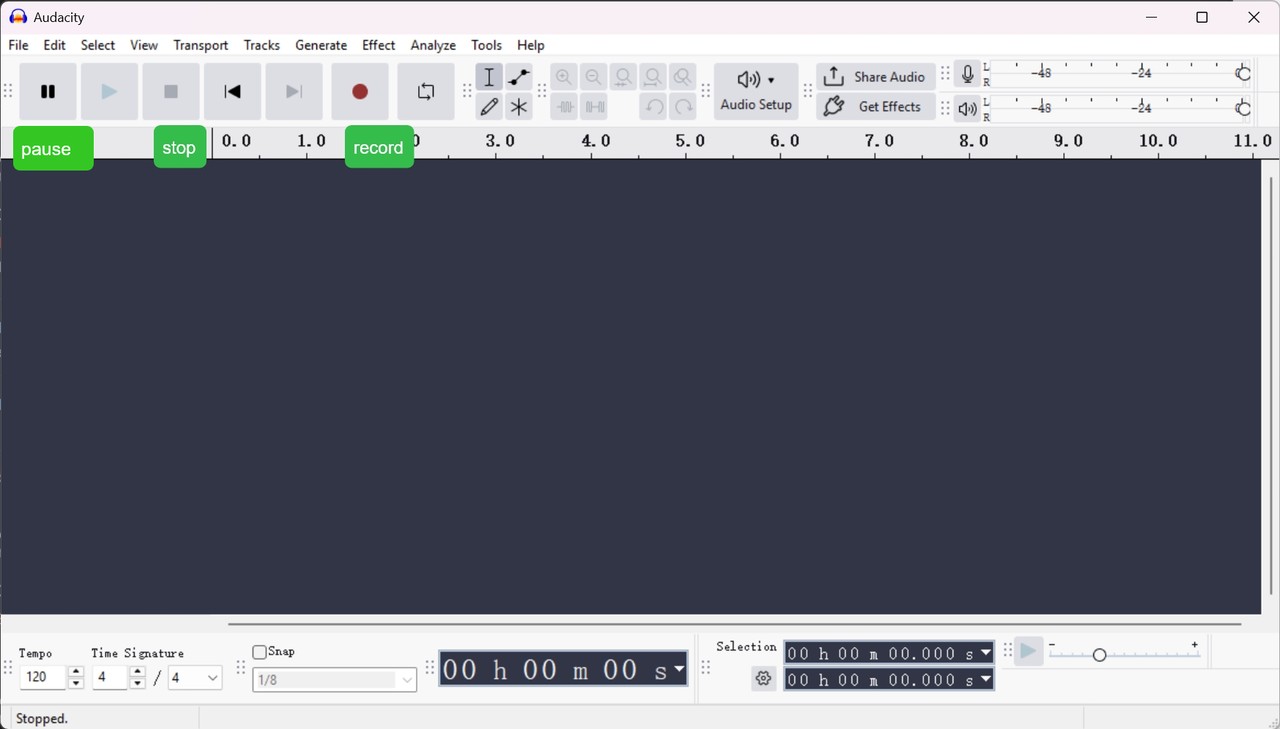
4. After Audible finishes playback, stop recording in Audacity. The full waveform will appear on the track. I usually delete the blank section at the beginning and any extra audio at the end, then add fade in and fade out effects.
5. In the Export menu, choose MP3 and save the recorded audiobook locally.
FAQs
Can Audible files be converted to MP3?
Yes. All the best free Audible converters mentioned here support converting Audible files to MP3. You can pick the one that fits your needs.
Can I download an Audible book to an MP3 player?
Yes. A tool that can directly download an Audible book to an MP3 player is BookFab Audible Converter. Here's how:
1. Connect your MP3 player to your computer with a data cable.
2. Open BookFab. In Settings, either set the save path to your MP3 player or keep the default path and copy the files to the player after conversion.
3. Click Audible Converter and sign in to your Audible account in the built-in browser.
4. Browse your Audible library, choose the titles you want to download, and let BookFab parse them and remove DRM.
5. Click Download. BookFab will download the books and convert them directly to MP3, saving them to the path you set.
Conclusion
After a comprehensive review of 9 best free Audible converters and Audible downloaders, I've found that each tool has its own characteristics.
- If you care about output format, audio quality, chapters and metadata, BookFab Audible Converter ticks all the right boxes. Personally, its flexibility has greatly improved my listening experience. I can say with this best free Audible downloader, you won't have to worry about your audiobook management anymore.
- If you prefer a online program to convert AAX files to MP3, audible-tools.kamsker.at is the way to go.
- If you just want a free and lightweight desktop app to convert AAX to M4B or MP3, go with AAX Audio Converter and pair it with the Audible downloader Book Lib Connect.
Disclaimer: BookFab discourages any DRM circumvention for commercial, distribution, or public sharing purposes. The tools outlined here are solely for users to manage and back up audiobooks they have legally purchased for personal use. Please comply with all local copyright laws when creating backups.

 4 Easy Ways to Remove Audible DRM in 2026: Tool Reviews and TutorialBy Amber Collins - May 19, 2026
 How to Download Audible Books to PC and Phone: A Complete TutorialBy Amber Collins - May 19, 2026
 How to Listen to Audible on Mac: 4 Practical MethodsBy Amber Collins - May 11, 2026
 How to Download Audible to Mac Easily: A Step-by-Step TutorialBy Amber Collins - Feb 24, 2026