

From Kindle DRM to Universal EPUB & PDF Formats

Latest Kindle eBook Support

Automatically Remove DRM from Any Kindle eBooks & KU Titles

With BookFab Kindle Converter, you can effortlessly remove DRM protection from the latest Kindle eBooks and Kindle Unlimited (KU) subscriptions, giving you the freedom to read your purchased or borrowed content on any device. BookFab Kindle Converter automatically analyzes and decrypts files, helping protect your account privacy while working with Kindle App downloads on Windows without interacting with Amazon servers. Even after your KU subscription expires, your favorite titles remain accessible forever.
For more details on secure Kindle eBook conversion, account safety, and the latest DRM updates, refer to our technical overview of Kindle DRM removal.
Automatically Remove DRM from Any Kindle eBooks & KU Titles
Effortless Format Conversion

Convert Kindle App eBooks to EPUB & PDF

While safeguarding your personal account, this best eBook Converter enables you to convert supported Kindle eBooks downloaded with the Windows Kindle App from private formats like AWZ3 and MOBI, and convert them to widely used formats such as EPUB and PDF. With just one click, your books are made compatible with Apple Books, Calibre, Adobe Digital Editions, standard PDF readers, and countless mobile apps and eReaders.
convert Kindle books to EPUB

Best Companion for Calibre

Free Calibre Plugin

Free Calibre Plugin to Seamlessly Integrate Kindle Converter with Calibre

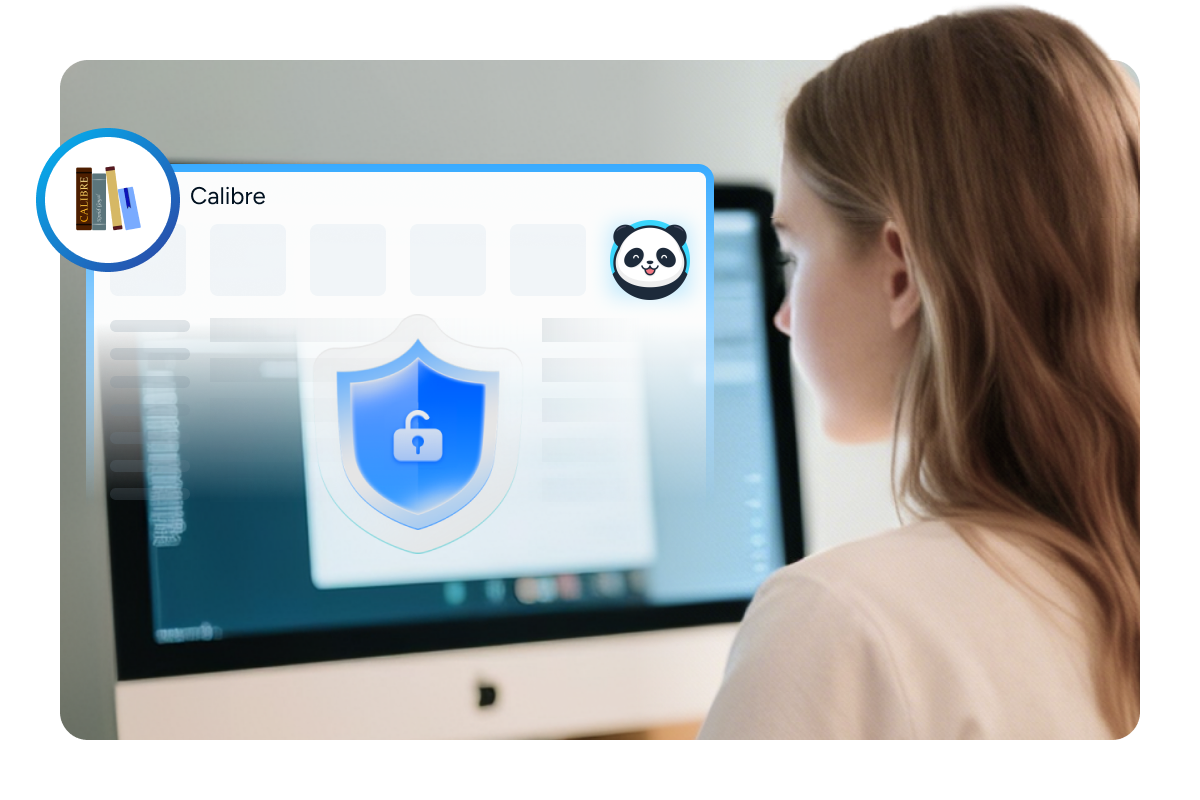
BookFab also provides a Calibre Plugin for users who prefer managing their eBook library in Calibre. After converting supported Kindle App downloads with BookFab, you can organize, edit, and manage the output files in Calibre when needed. The plugin is an optional companion and is currently available for Windows.

More Features of BookFab Kindle Converter

Batch Management

Manage Task Queue and Batch Operations

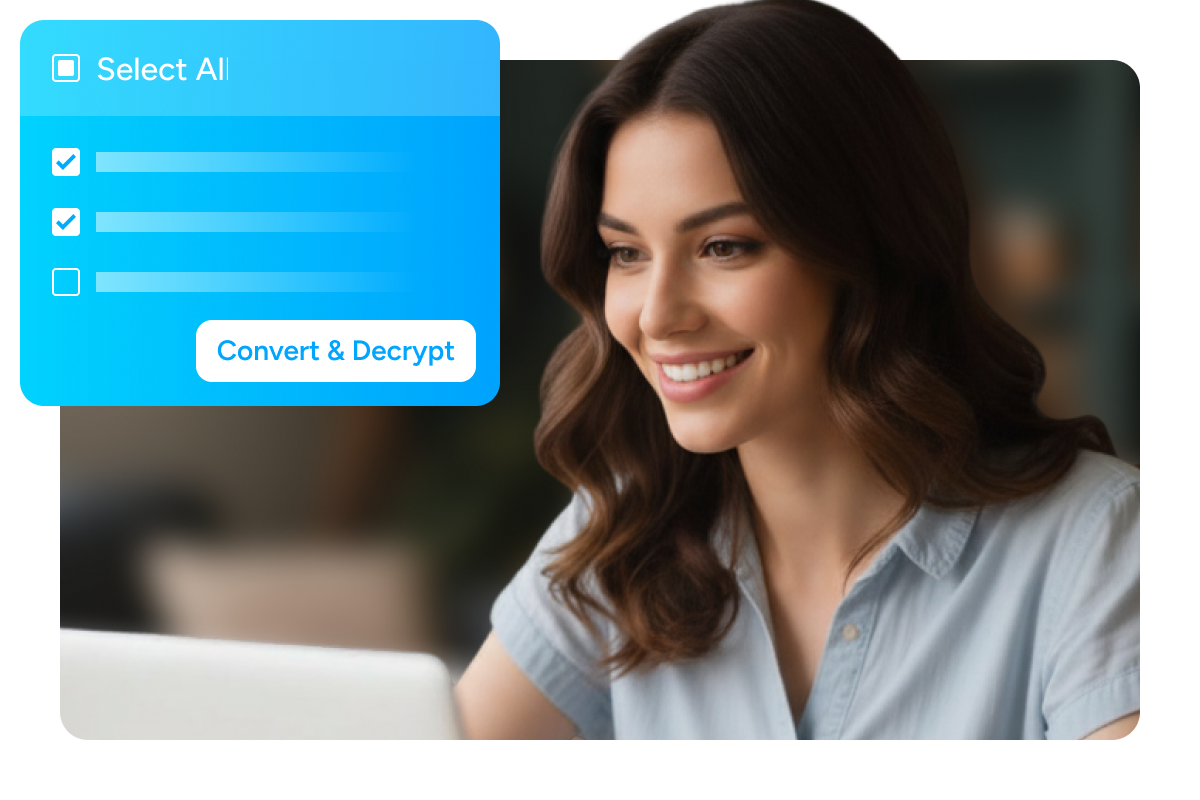
The unified task manager lets you queue multiple Kindle eBook conversions, monitor decryption progress in real-time, and apply bulk actions—such as "Select All" for batch processing or deletion—to keep your digital library perfectly organized.
Manage Task Queue and Batch Operations
Convert in Seconds

Experience Lightning-Fast Conversion

Spend less time waiting and more time reading. This Kindle to EPUB/PDF Converter is optimized for performance, delivering ultra-fast conversions of your eBooks without sacrificing quality.
Thanks to intelligent processing, the whole conversion completes in just seconds, whether you're converting a single book or an entire library.
convert kindle to epub quickly
Text-to-Audio Integration

Convert Kindle eBooks to Audiobooks

This Kindle Converter works hand-in-hand with BookFab AudioBook Creator, enabling you to convert text into high-quality audiobooks without the need for third-party tools.
You can enjoy your favorite eBooks and audiobooks whether you're commuting or multitasking at home.
convert kindle ebook to audiobook

What Users Say About BookFab Kindle Converter

log in to kindle
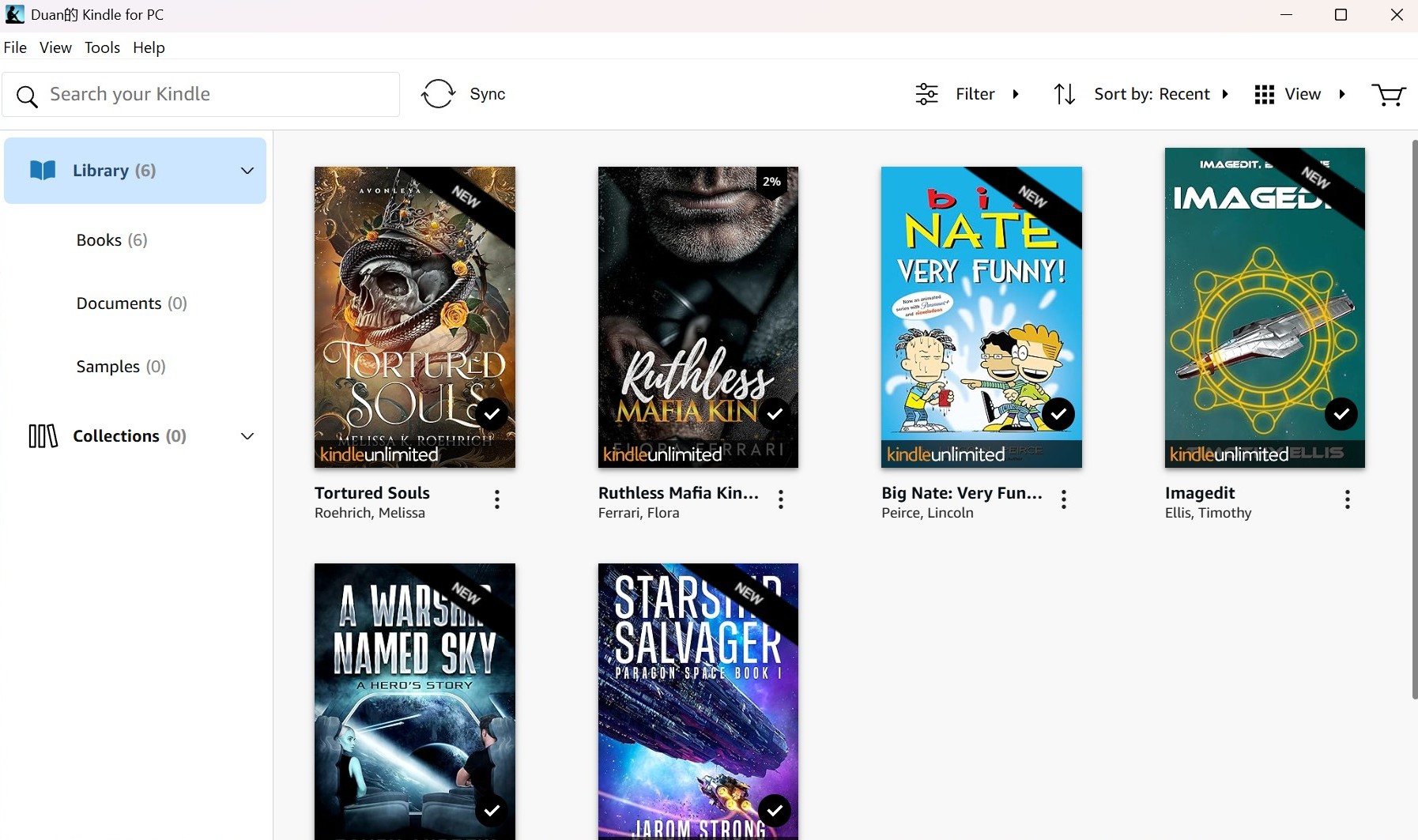
Step 1. Download eBooks in the Kindle App for Windows
Open the Kindle App on Windows and go to your Library. Find the Kindle book you want to decrypt, click the "three-dot" icon next to the book title, and then download the eBook to your computer.
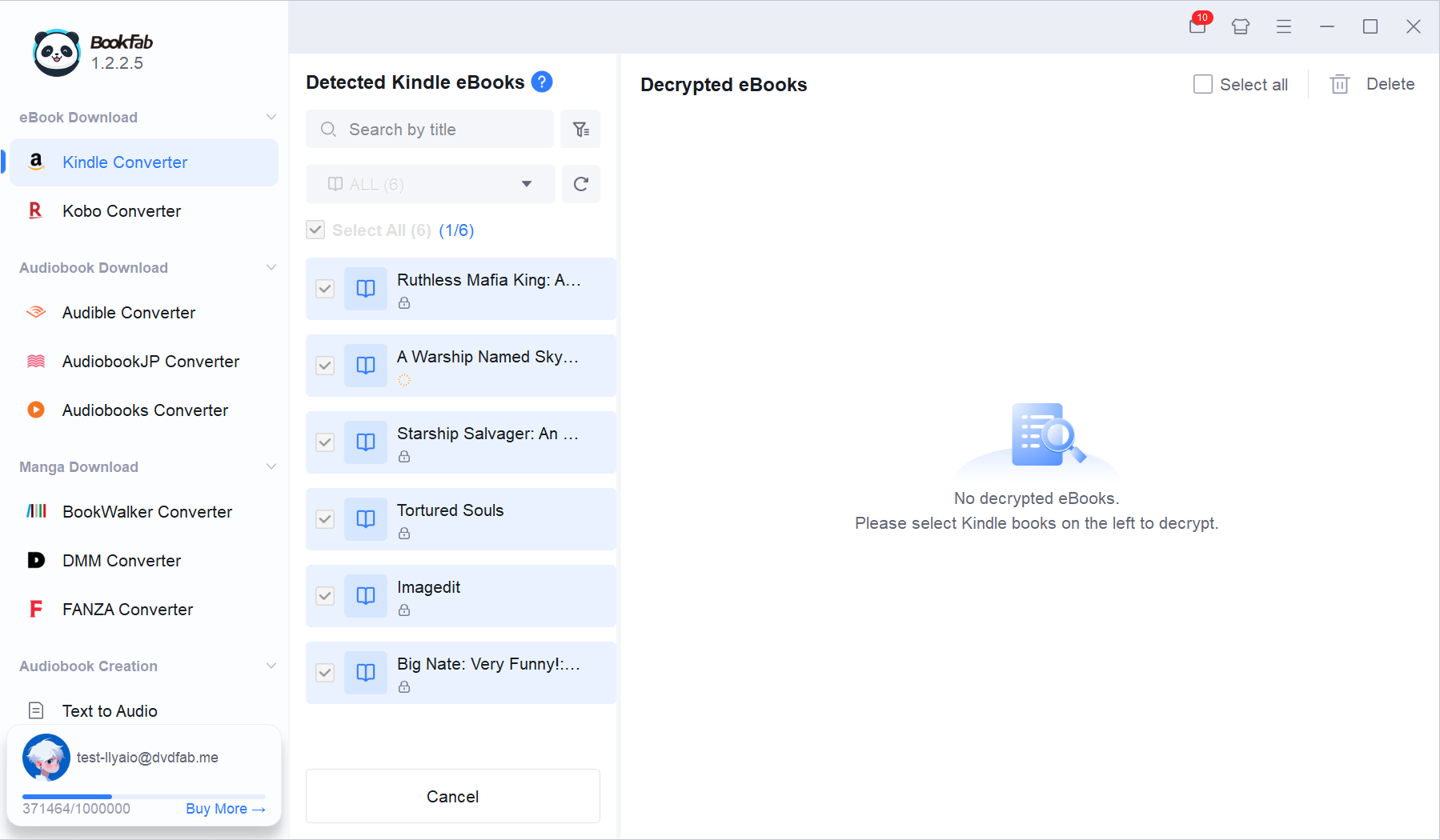
Step 2. Launch BookFab to Detect Kindle App Downloads
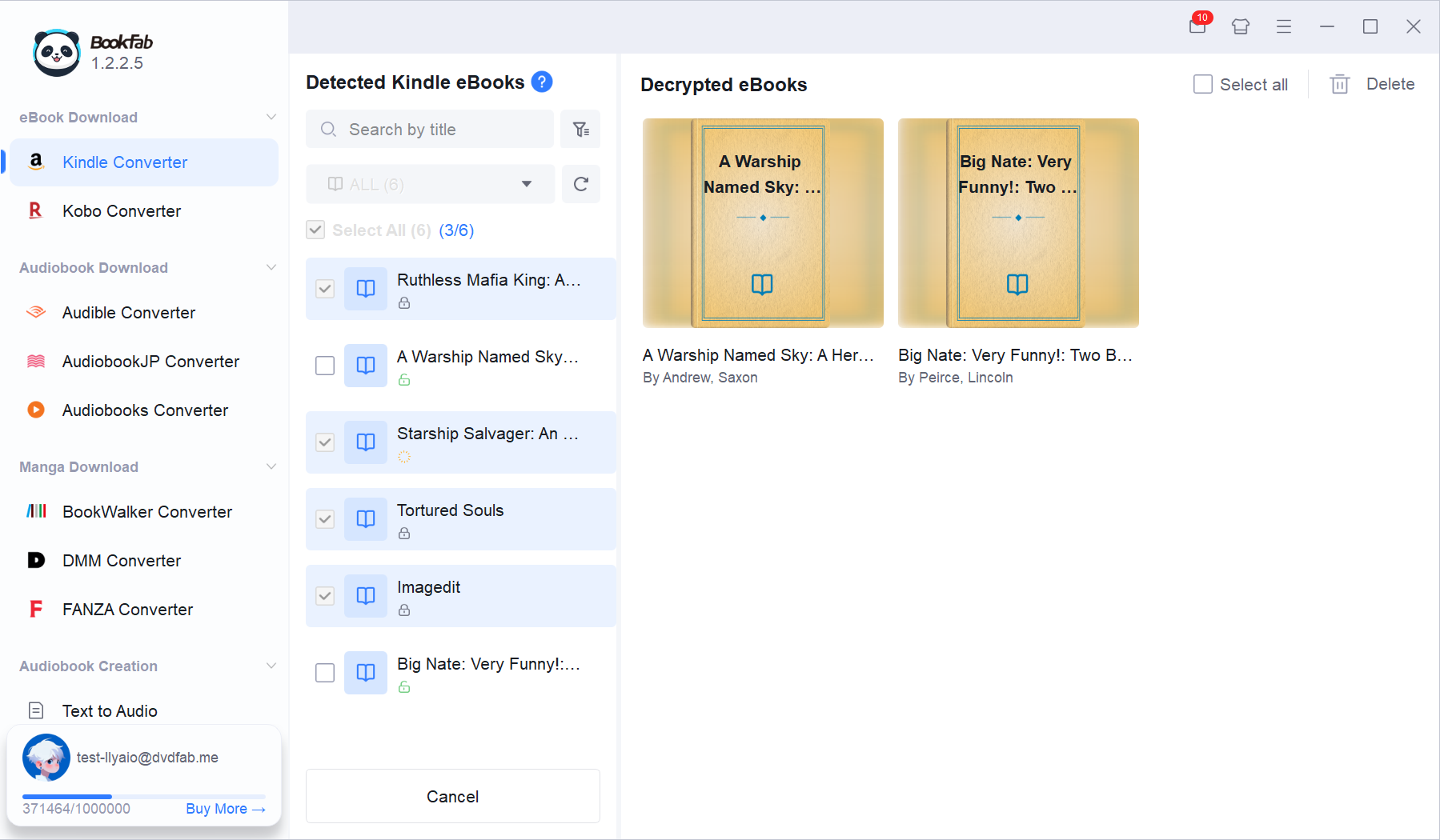
Launch BookFab and select "Kindle Converter" from the left sidebar. BookFab will automatically import supported eBooks downloaded from the Kindle App for Windows. Select the books you want to convert, then click "Convert & Decrypt" to start the conversion.
Step 3. View and Manage Decrypted eBooks
The converted eBooks will display their cover, title, and author name on the right side. You can quickly open the local folder and manage the output EPUB or PDF files.

System Requirements

Icon
Windows 11 / 10 (64-bit)
Intel i3 or higher
4 GB RAM or higher
40GB of free hard disk space or above
Live Internet connection required
Kindle App for Windows installed

Frequently Asked Questions

  • Can I use BookFab Kindle Converter without installing the Kindle App for Windows?

    No. To access and download your Kindle books locally on Windows, you need to install and sign in to the official Kindle App for Windows first. After downloading your books in the Kindle App, BookFab can detect supported files and convert them to EPUB or PDF.

  • Does BookFab Kindle Converter support other eBook platforms?
  • Will BookFab Kindle Converter affect the quality or structure of my eBook?
  • Is there a file size limit for converted eBooks?
  • Is it safe to use BookFab Kindle Converter?
  • How to decrypt Kindle eBooks?
  • How to use Calibre plugin?

Fair Use Policy : BookFab is legal only for personal needs and it's not allowed to share the downloaded content with any third party.
 
To avoid being blocked by content providers, a BookFab licensed account has a quota of 100 downloads per day from each supported content source. Whenever the quota is used up, it will refill at the start of the next day.