How to Download BookWalker Books: Official Methods & PDF/EPUB Output

Summary: BookWalker officially allows downloading books within its app; you simply download them from your library after purchase. But for permanent PDF or EPUB backups, you need a third-party BookWalker downloader (such as BookFab BookWalker Converter). This guide explains how to download BookWalker books and manga to your PC or phone, and how to convert them into PDF and EPUB formats.
Table of Contents
BOOK☆WALKER (also written as BookWalker) is a dedicated ebook store for Japanese manga, light novels, and other digital titles. It is generally divided into the Global Store (for international users), the Japan Store (for users in Japan). You can read on the web as well as via the official iOS/Android app, and you can also download titles for offline reading in the BookWalker view app.
Most ebooks sold by digital bookstores are protected by DRM, and BookWalker is no exception. This means that whether a title is free or purchased, you cannot download it as a PDF or EPUB for personal backup. However, this article will provide a comprehensive tutorial on downloading BookWalker books, covering both the official offline-reading method and more flexible ways to download them as PDF or EPUB, so you can truly back up your BookWalker library.
Before Downloading: Purchasing Books on BookWalker
If you want to download BookWalker books and manga, you need to register an account first and purchase the books. Here are the specific steps:
1. Register or sign in, and confirm the store region
Open the BookWalker website and log in (create a free account if needed). One account can usually be used for both the Global Store and the Japan Store, but the available titles and promotions may differ, so confirm which store you're in before buying.
2. Find the book you want and add it to your cart
Search for the title or browse categories (manga/light novels). Open the product page, check the language, volume, and price, then click Add to Cart. Add more titles if you want, and check out together.
3. Go to checkout and complete payment
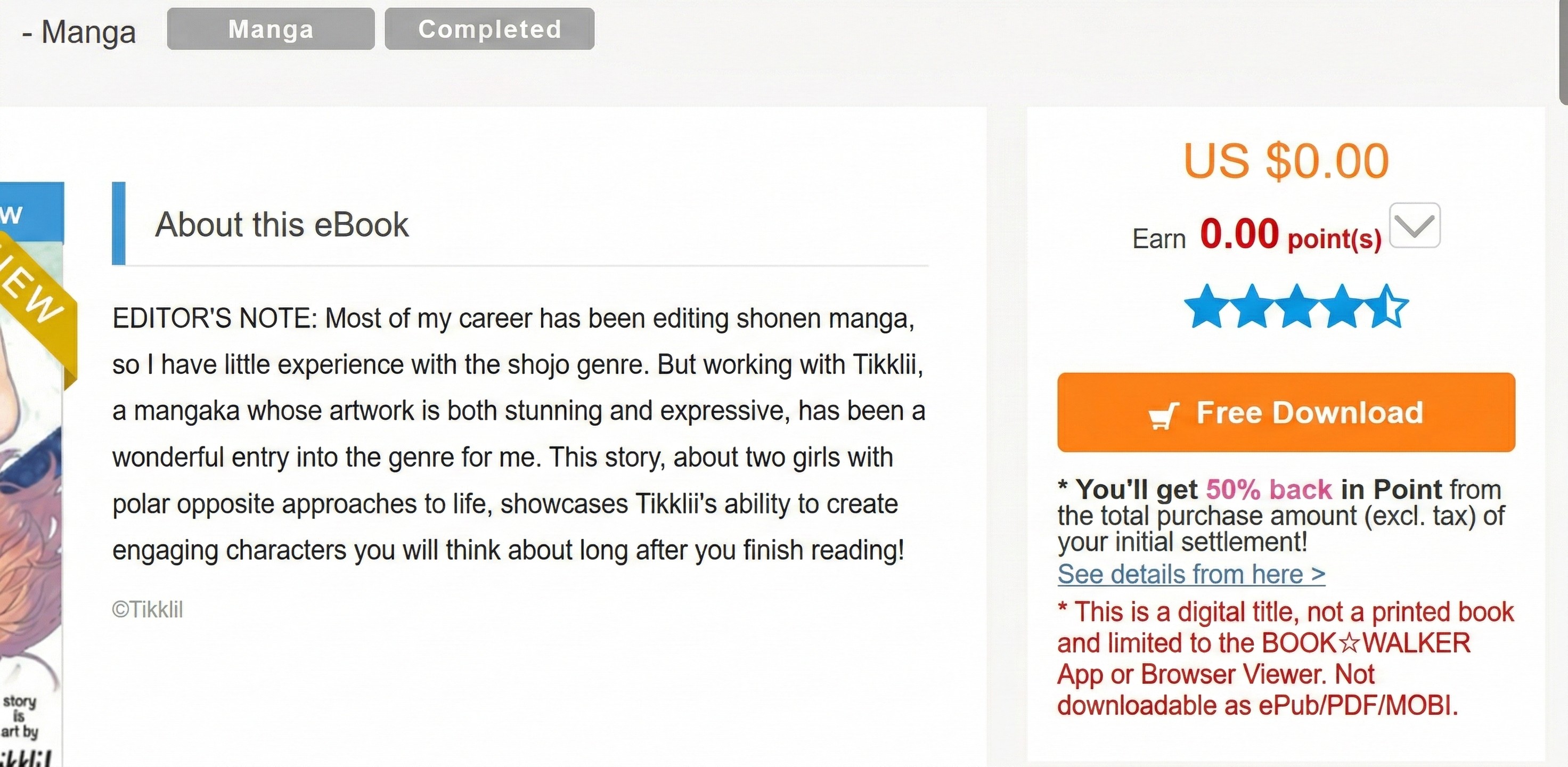
Open your cart and go to Checkout. If you have a coupon, apply it on the checkout page, then choose a payment method and finish the order. For free books, you may still need to complete checkout, but the total will be $0 and the title will be added to your bookshelf.
How to Download BookWalker Books and Manga to PC
On a computer, BookWalker offers two official ways to access your purchased titles:
- Browser Viewer (online reading in Chrome/Safari/Edge)
- PC Viewer App (Windows/Mac)
However, if you want to download BookWalker books for offline access on a PC, the only official option is the PC Viewer App. Below are the steps to download BookWalker books and manga to a PC:
Step 1: Download the PC Viewer App Installer
Open BookWalker's FAQ for the PC Viewer App and use the provided install link to download BookWalker for Windows/Mac.
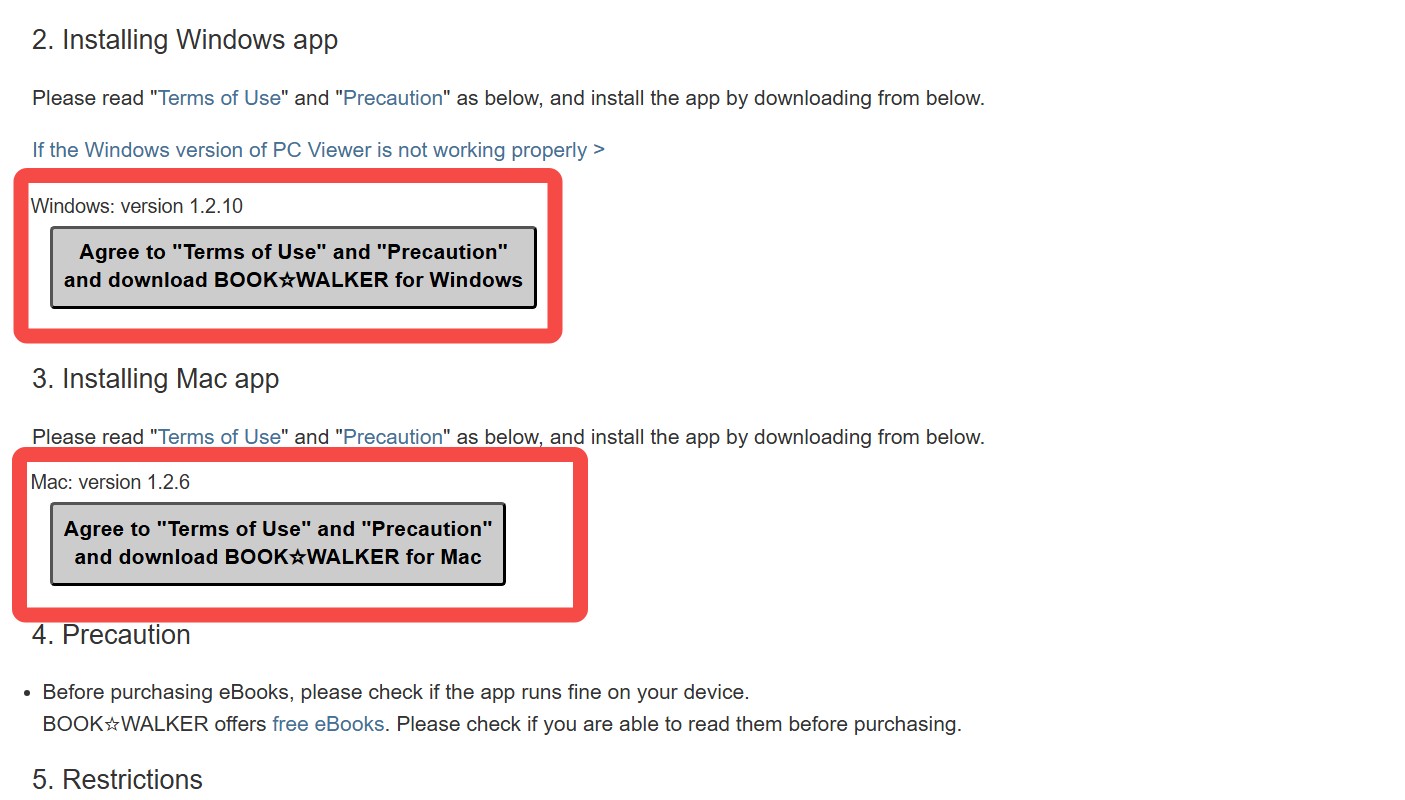
Step2: Install the App and Sign In to Your Account
Install and launch the PC Viewer App, then sign in with your BookWalker account. Note that the PC Viewer App does not support external account sign-in (e.g., Google sign-in). If you normally log in with Google, you'll need to link an email-address account to use the PC Viewer App.
Step 3: Download BookWalker Books in App
After signing in, open your Bookshelf inside the PC Viewer App. Click on "Sync" and all your purchased BookWalker titles should appear there.
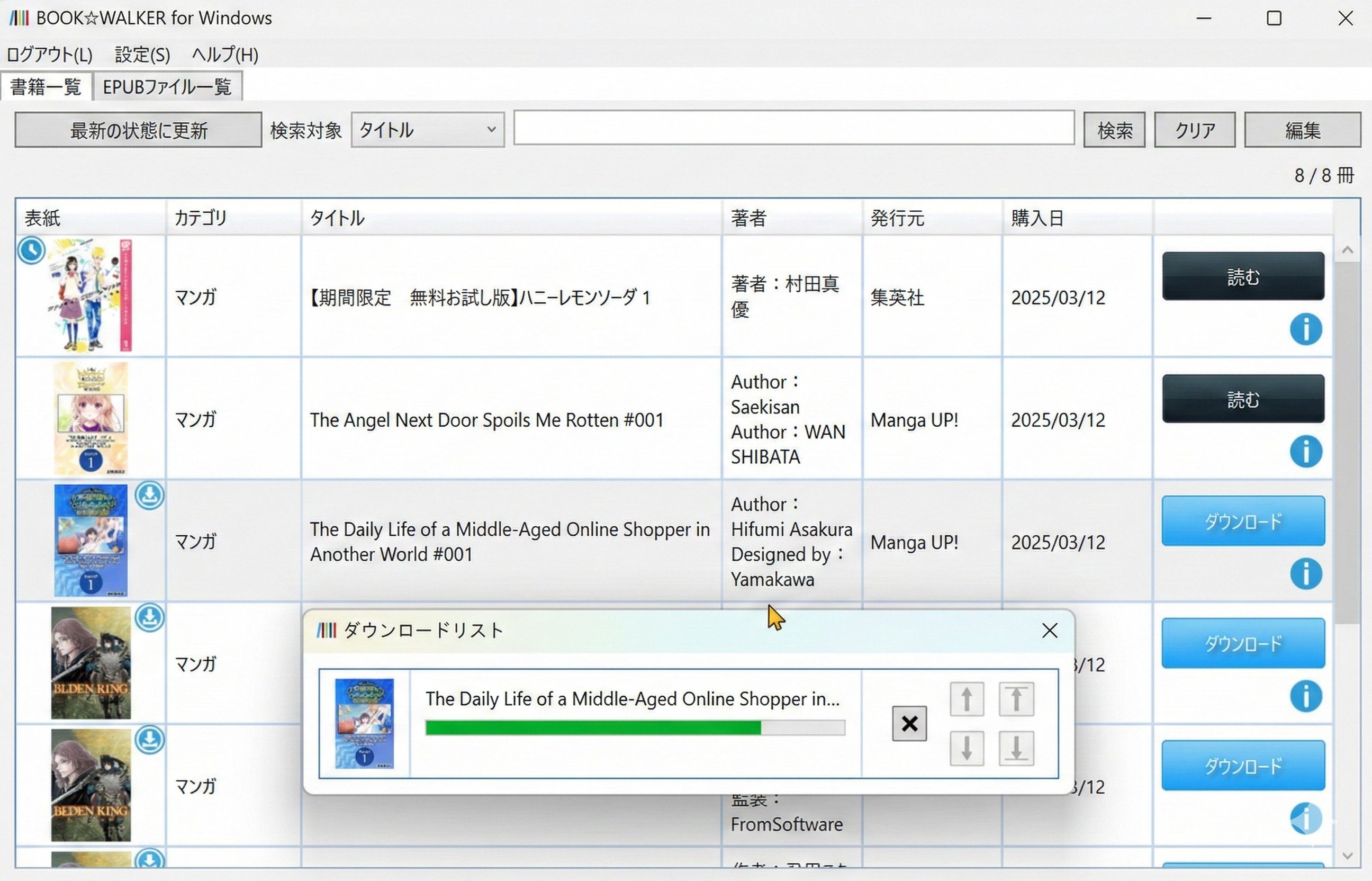
Select the BookWalker book you want and then click on the "Download" button.
Downloaded BookWalker books are stored under C:\Users\[YourUserName]\AppData\Roaming\BOOK☆WALKER for Windows\contents. If you want to change the storage location, open the app and go to Settings > Change location.

2. Some "Free" titles are time-limited and may expire. Once the free period ends, you may lose access unless you purchase the title.
3. Downloaded books are licensed for personal use and can't be freely shared, transferred, or redistributed.
4. BookWalker Japan subscription titles may not sync to the Windows PC app. If you need to download and read subscription titles, using the Android/iOS app is often required (this is widely reported by third parties; official documentation is limited).
5. Although the official website still lists a Mac version of the BookWalker app, BookWalker stopped updating its desktop apps in 2019. If your macOS is Catalina (10.15) or later, the Mac app will not run either.
6. This method still only lets you open the downloaded files in the BookWalker PC Viewer App, because they aren't standard PDF or EPUB files.
How to Download BookWalker Books and Manga to Phones
If the goal is offline reading on a phone, the official method is to download your purchased titles inside the BookWalker mobile app. After the files are downloaded, you can read them without an internet connection in the app.
Step 1: Install the BookWalker app (iOS / Android)
- iPhone/iPad: install from the App Store
- Android: install from Google Play
After installation, open the app and sign in with the same BookWalker account you used to purchase/claim the books.
Step 2: Download BookWalker books
Once you're signed in, go to My Library. Your purchased and claimed BookWalker eBooks should appear there. Tap the cloud icon to start downloading. After the download is complete, the cloud icon will disappear.
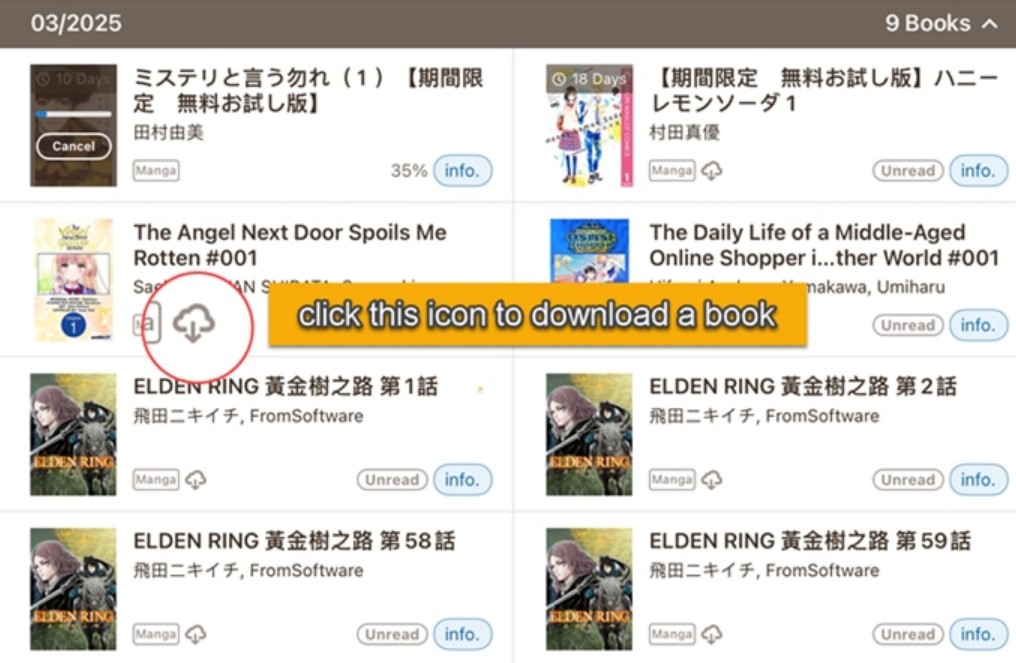
BookWalker also supports batch downloads on both platforms, but the buttons look slightly different:
On iOS (iPhone/iPad)
1. Tap Select.
2. Tap Select all or choose specific books.
3. Tap Download from the bottom menu.
On Android
1. Tap the ✓ (checkmark) icon.
2. Tap Select all or choose specific books.
3. Tap Download from the menu.
Step 3: Read offline in the app
After downloading, open the title from your bookshelf and read it normally. The downloaded BookWalker eBooks are saved by default at: /data/data/jp.bookwalker.kreader.android/files/. Note that even if you download a book, it may still expire, because titles downloaded this way are still controlled by BookWalker.
How to Download BookWalker Books and Manga to PDF and EPUB Formats
The two download methods above for BookWalker books and manga still allow you to read the files only in the official app. If you want to read without any restrictions, the only way is to use a BookWalker ripper to download BookWalker books as EPUB or PDF files.
BookFab BookWalker Converter is the only tool that can download BookWalker manga as PDF and EPUB. This BookWalker ripper supports downloading manga and illustrated books from manga.bookwalker.jp, removing BookWalker DRM, and converting to EPUB, PDF, and JPEG formats. The converted manga can be read on any reader and device, and the image quality and layout are the same as reading in the original app. Below is the process of using BookFab BookWalker Converter to convert BookWalker manga to PDF and EPUB formats.
- Free or purchased image-based ebooks (manga/illustrated light novels)
- Both Global Store titles and Japan Store titles
- Pure text DRM ebooks (standard novels)
Step 1: Launch BookFab and Sign In
Open the BookFab app on your computer after installing it.
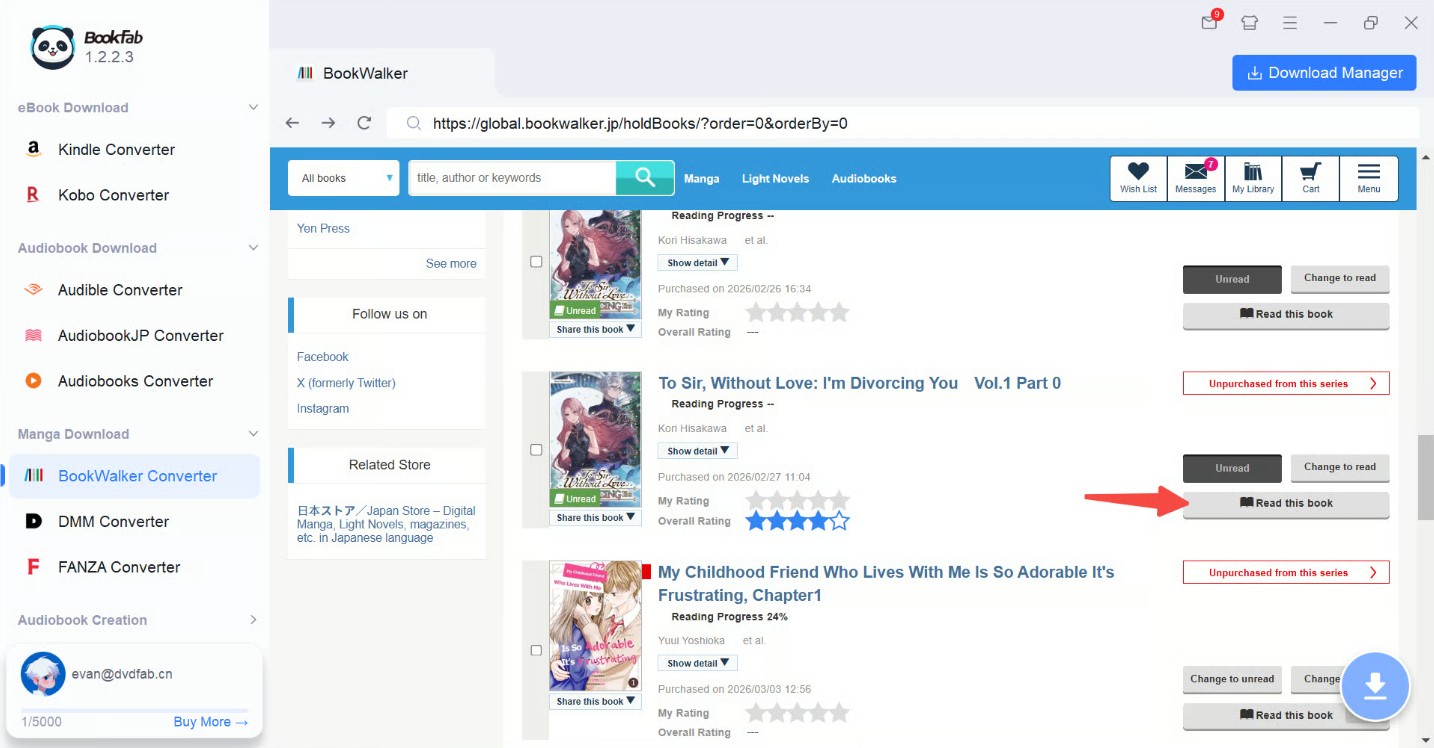
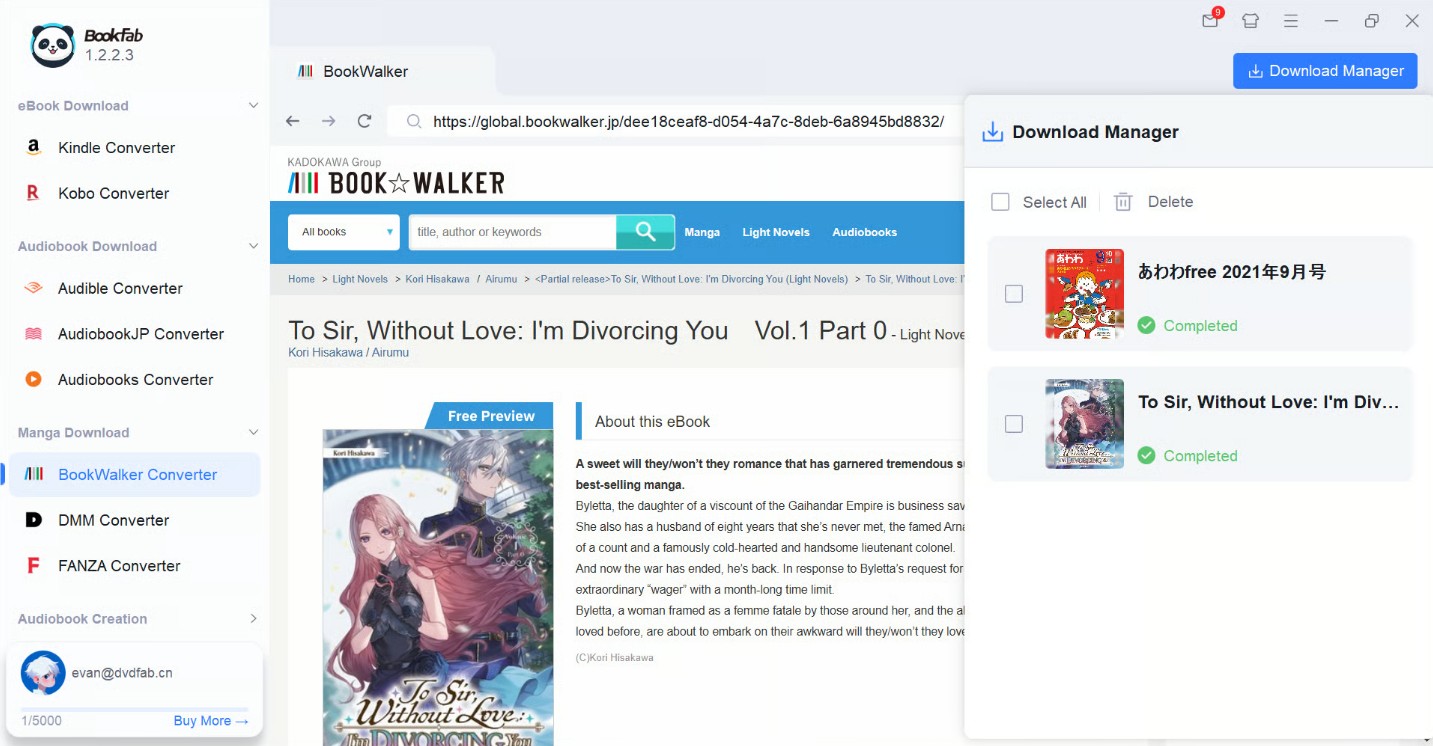
In the left-hand sidebar, find and select the "BookWalker Converter" module. This opens a built-in browser window inside the software. Use that built-in browser to go to bookwalker.jp and log in with your BookWalker account credentials.
Step 2: Select Manga and Set Output Format
Once signed in, browse your BookWalker library within the built-in browser to find the BookWalker book you want to save.
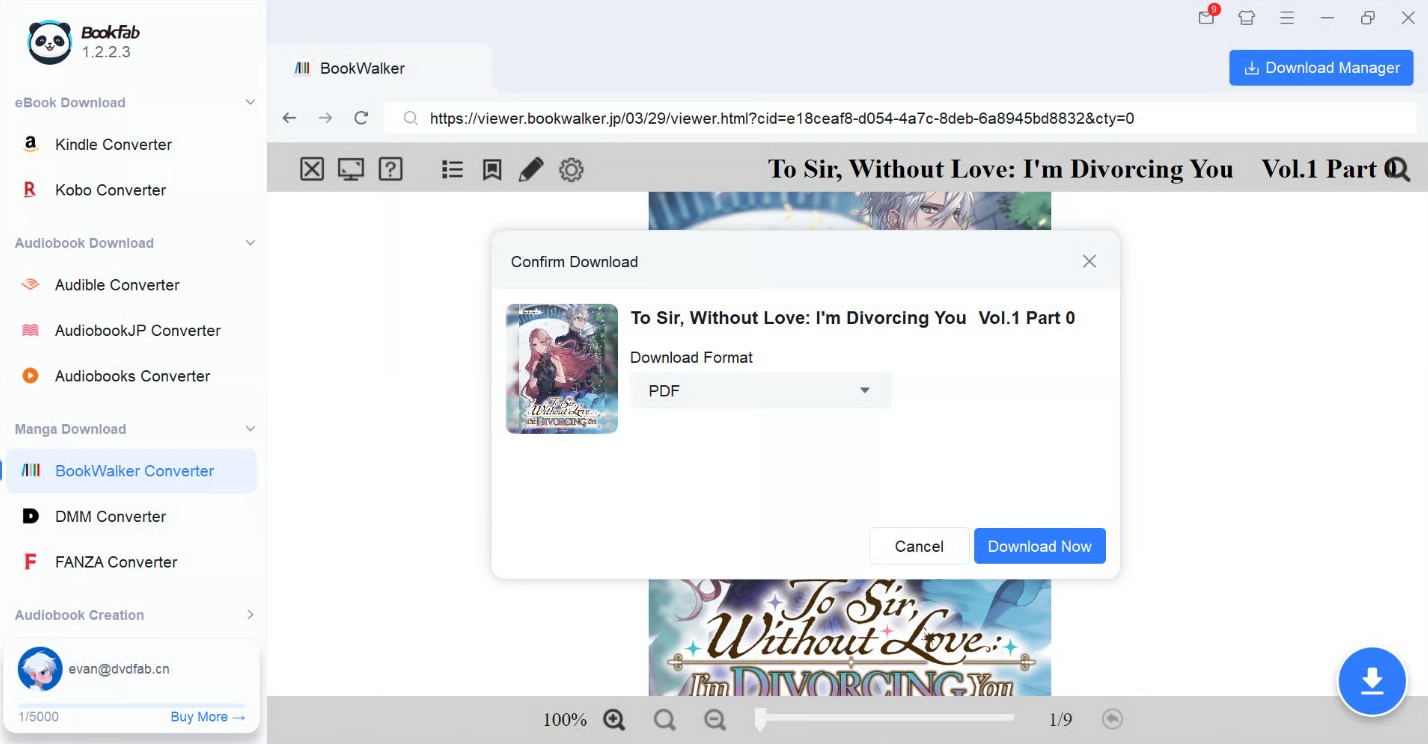
When you open a book's detail page, BookFab will detect the content and activate a "Download" button for that title. Click the Download button. A settings window will appear where you can select the output format you want: PDF, EPUB, or JPEG. Choose the format that works best for your needs.
Tip: If you are planning to read on different devices, EPUB is often more universally compatible, while PDF preserves page layout.
Step 3: Download BookWalker Manga
After selecting the format, click "Download Now" to add the download task to the queue.
While downloads are underway, you can continue browsing your BookWalker library in the built-in browser and click additional titles to add more tasks to the queue. This BookWalker Ripper will process the tasks one by one, and you can open the Download Manager inside BookFab to see all active and queued conversion tasks.
After a task completes, open the output folder directly from the Download Manager to find your PDF or EPUB files.
FAQ
How do I download Japanese eBooks from the BOOK☆WALKER Global Store?
Strictly speaking, the Global Store isn't the main place to buy Japanese-language ebooks. Its catalog is primarily English-language titles. If your goal is to read the original Japanese editions, you usually need to purchase them from the the Japan Store (bookwalker.jp).
The good news is that the same BookWalker account can be used for both the Global Store and the Japan Store. You can sign in to both storefronts with one account, then purchase and download Japanese ebooks directly from the Japan Store.
Conclusion
Downloading BookWalker books for offline reading is simple with the official PC and mobile apps, but the files can only be opened within official readers. If you want more flexibility to read across different devices and apps, converting BookWalker manga and ebooks to standard PDF or EPUB formats using a tool like BookFab BookWalker Converter makes it easier to enjoy your BookWalker books anywhere.
